CaoLiao QR Code Mini Program: The Mobile Dynamic QR Code Editor Is Officially Live
To make it easy to create and edit dynamic QR codes when you are out, working on site, or adjusting a QR code at short notice, we launched a mobile dynamic QR code editor in the CaoLiao QR Code Mini Program. After a period of testing and experience optimization, it is now officially released and available to all users.
Without going back to your computer, you can create a dynamic QR code, edit content, copy a code to generate a new one, and complete common QR code settings from your phone.
1. What You Can Do on Your Phone
| What You Want to Do | How to Do It on Your Phone | Typical Scenario |
|---|---|---|
| Make a dynamic QR code from scratch | Create from blank, or upload a file / image / audio or video and keep adding content | You suddenly need to send out a notice, product instructions, or an event introduction |
| Make a code quickly from a template | After choosing a template, edit the content in it directly to generate your own QR code | You don't want to lay out from scratch and want a ready-made style |
| Edit an existing code | Replace images, update files, change text, add content | You find on site, in a store, in a workshop, or at an event that content needs adjusting |
| Copy an existing code to generate a new one | Copy one of your own existing codes, edit the content, and quickly generate a new QR code | You already have a finished code and need to make a similar one for another device or another store |
| Make the same as an official example code | When browsing CaoLiao's official example codes, tap "Make the Same", copy the example's content, and change it to your own information | You see a suitable example and want to use its content structure and style directly |
2. Where to Use It
1. Create
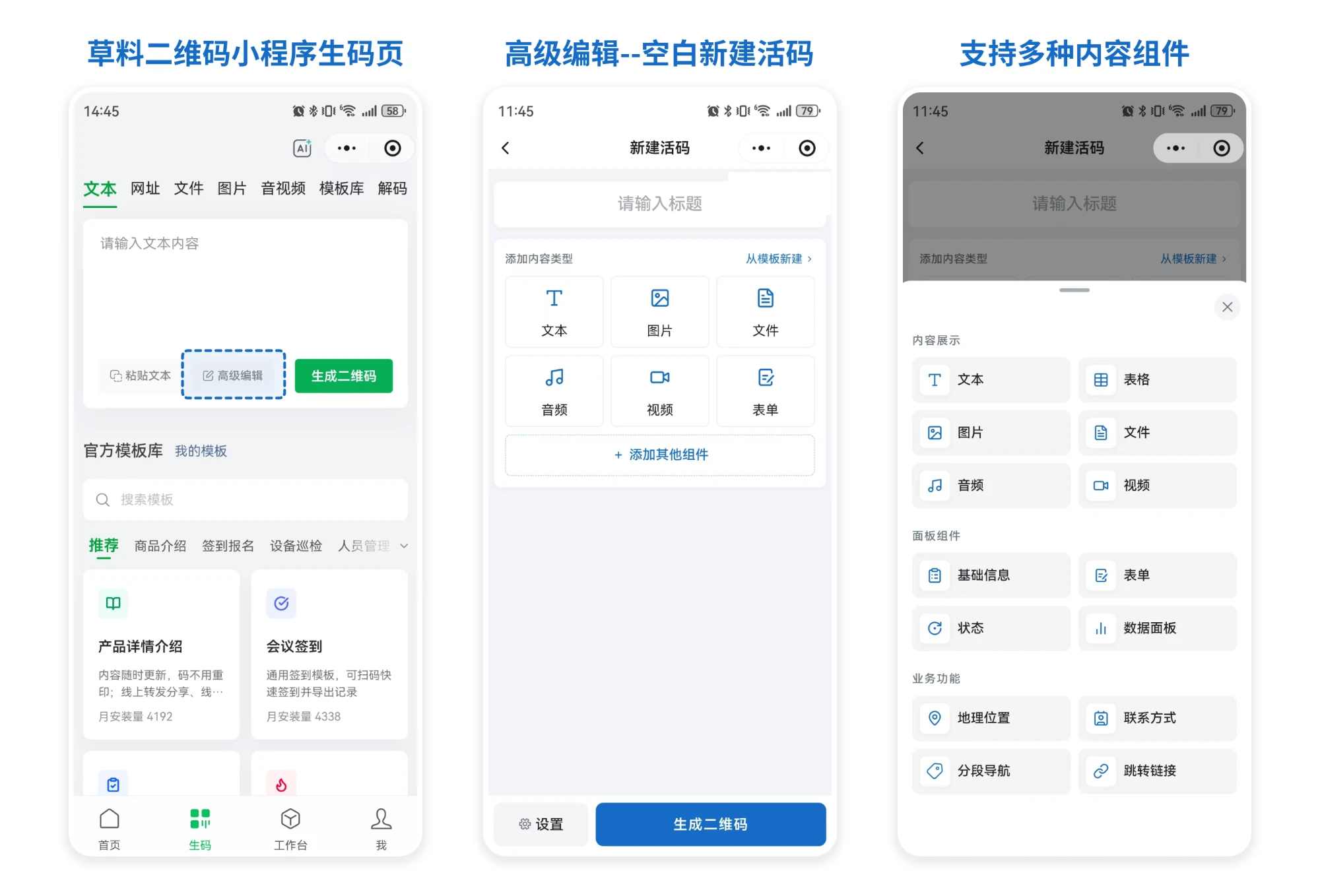
- Code generation page → "Text / File / Image / Audio and Video" → Advanced Editing: start from a blank page and freely add and combine text, images, files, audio and video, and other content.
- File / image / audio and video code generation: after uploading content, tap "Add More Content" below to keep adding text notes or other content, putting complete information in one code.
- Template code generation: after choosing a template, go into the dynamic QR code editor and edit the text, images, and other content in the template directly to generate your own QR code.
2. Edit
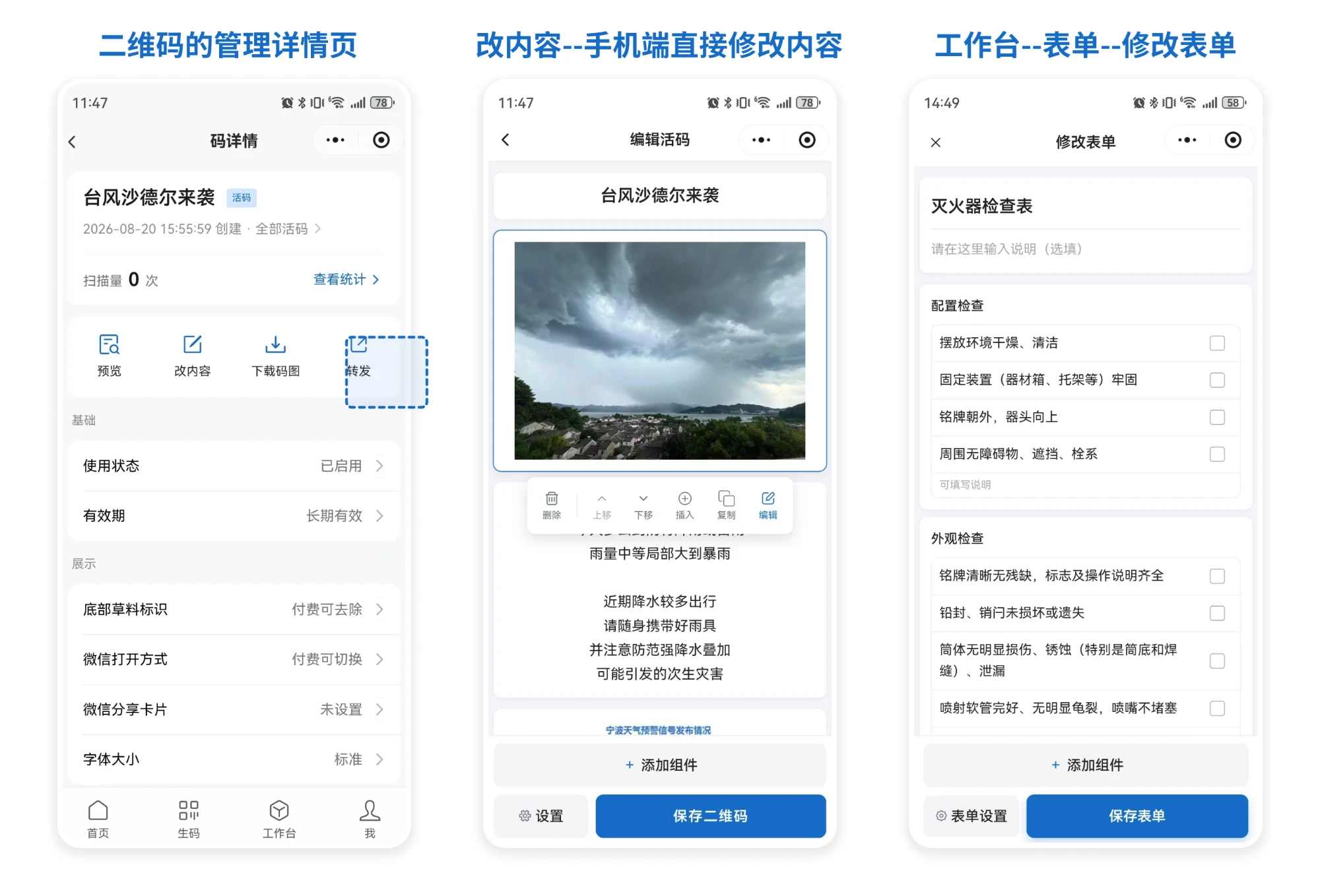
- Code Management → Code Detail Page → "Edit Content": for a code already in use, when you need to replace images, update files, or change text, open the code detail and edit directly.
- Code generation complete page → "Edit Code Content": if you find something to change in a code you just generated, you needn't exit and look for it; you can change it right there.
- Workbench → Form Data → Form Detail Page → "Edit Form": when the form's title, description, and fill-in items need adjusting, you can add, delete, and edit them on your phone, and they take effect right after saving.
3. Copy
- Official example code → "Make the Same" at the lower right: when browsing CaoLiao's official example codes and you see a suitable one, tap "Make the Same" to copy the whole content, change it to your own information, and generate a new code.
- Code detail page → "Copy This Code to Edit Content": if you already have a code that is done well and want to make a similar one (such as for another device or store), copy it and change a few items to generate a new code, with the original code unaffected.
3. Editing Experience
After entering the editing page, tap any content card and an action bar pops up, letting you delete, move up, move down, insert, copy, and edit. On your phone too, you can adjust the page structure block by block as on the computer.
When editing is done, tap "Save QR Code" and the changes take effect right away. The code pattern doesn't change, so QR codes already printed and stuck up don't need to be remade.
4. QR Code Settings Can Be Done on Your Phone Too
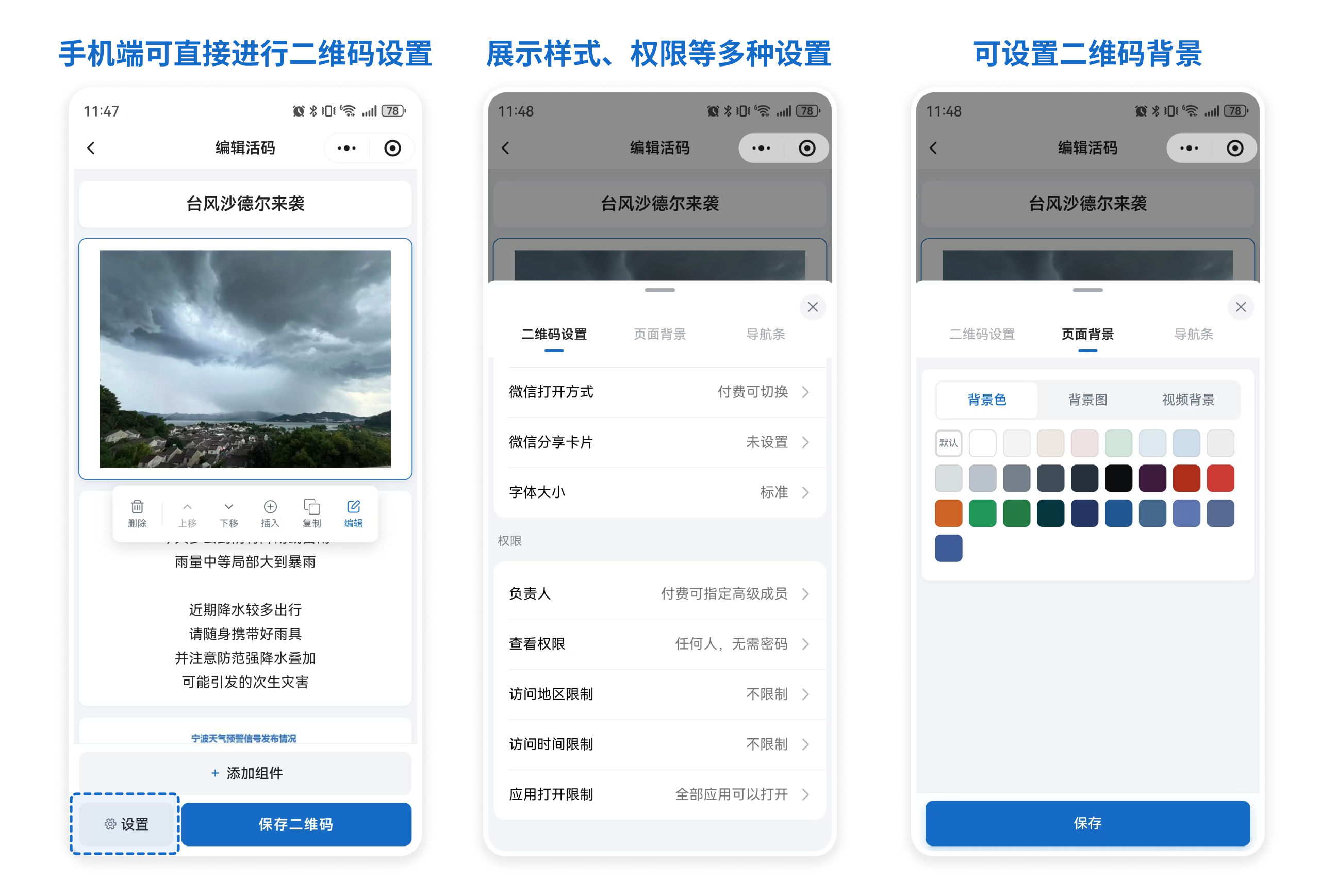
Tap "Settings" at the lower left of the editing page and configure them together when creating or editing, with no need to switch to the computer:
- QR code settings: usage status, validity period, how it opens in WeChat, WeChat share card, font size, person in charge, viewing permissions, and restrictions such as access region, access time, and app opening.
- Page background: background color, background image, and video background.
- Navigation bar: turn the content page navigation bar on or off.
Some settings are paid-version capabilities (such as how it opens in WeChat and designating an advanced member as the person in charge), and the settings page marks the version requirement directly. The free version can also view all setting items and upgrade as needed.
5. What We Still Suggest Doing on the Computer
Operations like bulk QR code generation that handle large amounts of data and complex configuration are still best done on the computer (cli.im). The phone is better for quickly creating a single code, editing it any time, and copying it for reuse.
6. Summary
The mobile dynamic QR code editor isn't simply the computer version moved to the phone, but is built around mobile scenarios so that everything from creating a QR code to daily maintenance can be done on the go:
- To make a code: create from blank or apply a template on your phone, or copy an existing code and edit its content, or use an official example code to make the same;
- To change content: edit directly in the code detail, the code generation complete page, or form data, with the code pattern unchanged;
- To configure: common settings are completed together on the editing page.
Open the CaoLiao QR Code Mini Program and you can start using it.