September 23 Update: The Dynamic QR Code Editor Fully Switches to the New Version
What's in this update
Dynamic QR Code Creation
- The dynamic QR code editor fully switches to the new version
- New read-then-register for QR codes
- Basic field components offer multiple styles, and several components can be added
- Official sample codes support "Make the Same"
Form Records and Abnormality Handling
- Form notifications, status changes, and abnormal to-dos support more trigger conditions
- Follow-up actions can have a visibility range
QR Code Management
- Phone-side dynamic QR code management page improved
- Partition management adds grouping and sorting
Business Workbench
- Business workbench experience update
- Preprinted dynamic QR code labels can link to a business workbench
Other Improvements
1. Dynamic QR Code Creation
1. The Dynamic QR Code Editor Fully Switches to the New Version
Starting with this update, dynamic QR code editing fully switches to the new editor, and later new features and experience improvements will be updated on the new version.
The new dynamic QR code editor has been opening up gradually for about 3 months. During that time we kept collecting user feedback, compared it against the old version across features and use scenarios, and ran several rounds of filling gaps and optimizing for missing features and operation experience.
- You can still switch back to the old version: considering different users' scenarios and habits, the editor keeps a "Switch Back to Old Version" entry, and existing dynamic QR codes can keep being edited in the old version.
- Send problems straight to the product manager: if the new version lacks a feature, feels awkward to use, or can't meet a real business scenario, you can give feedback to the product manager directly through WeChat customer service when switching back. We will focus on these problems and keep improving the new version.
The new editor will keep iterating, and we welcome your feedback and suggestions from real use.

2. New Read-Then-Register for QR Codes
Read-then-register was previously used mainly for reading files. As use scenarios grew, we received user feedback wanting read confirmation for the whole QR code content page, for more scenarios such as notices, training and learning, and operating procedures.
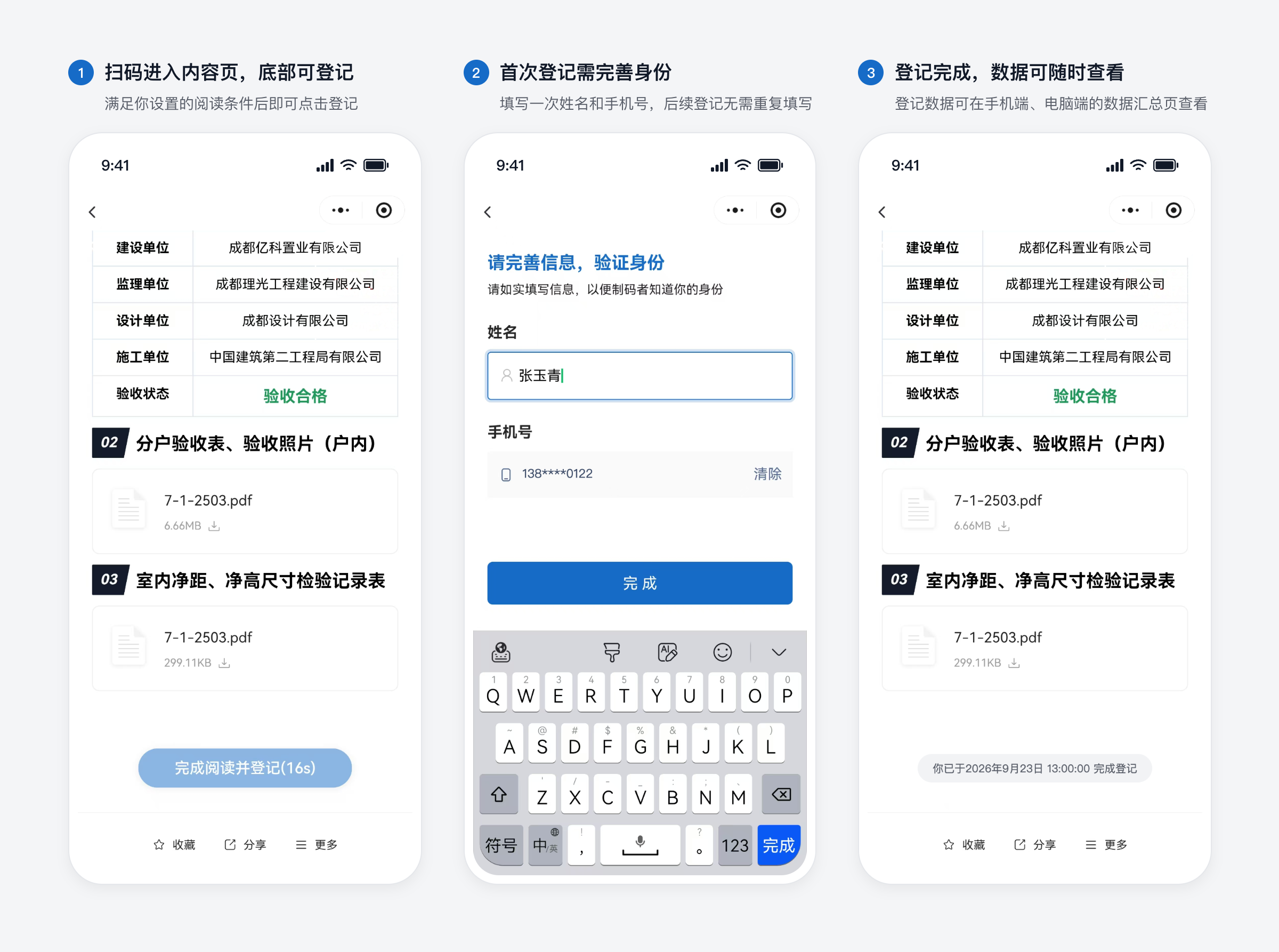
This update adds the "Read-Then-Register" feature for QR codes in the new editor: once the person who scans meets the set reading conditions, they can complete registration and leave a read record. Based on feedback on file read-then-register, the registration rules are also refined:
- Set the conditions for finishing reading: you can require a set dwell time on the scan page, scrolling to the bottom of the page, or both.
- Set the registration frequency: besides registering only once or on every open, you can set registration once a day, a week, or a month, suited to content that needs periodic read confirmation.
- Registration info recorded automatically: name, phone number, and registration time are recorded by default. After name and phone number are filled in the first time, later registrations under the same company can fetch them automatically, cutting repeated entry.
- Collect more registration info: link a custom form to collect department, position, confirmation result, and more as needed.
- Custom registration button: you can change the button name and color, such as "Confirm Read", "I Understand", or "Learning Complete", to fit the real business scenario.
About Video Content
Reading conditions are judged on the whole QR code content page, and judging whether a video was actually played or watched for a set time is not supported yet. If the business requires the video to be watched in full or for a certain time before registering, we don't suggest using read-then-register as strict proof of video viewing for now.
3. Basic Field Components Offer Multiple Styles, and Several Components Can Be Added
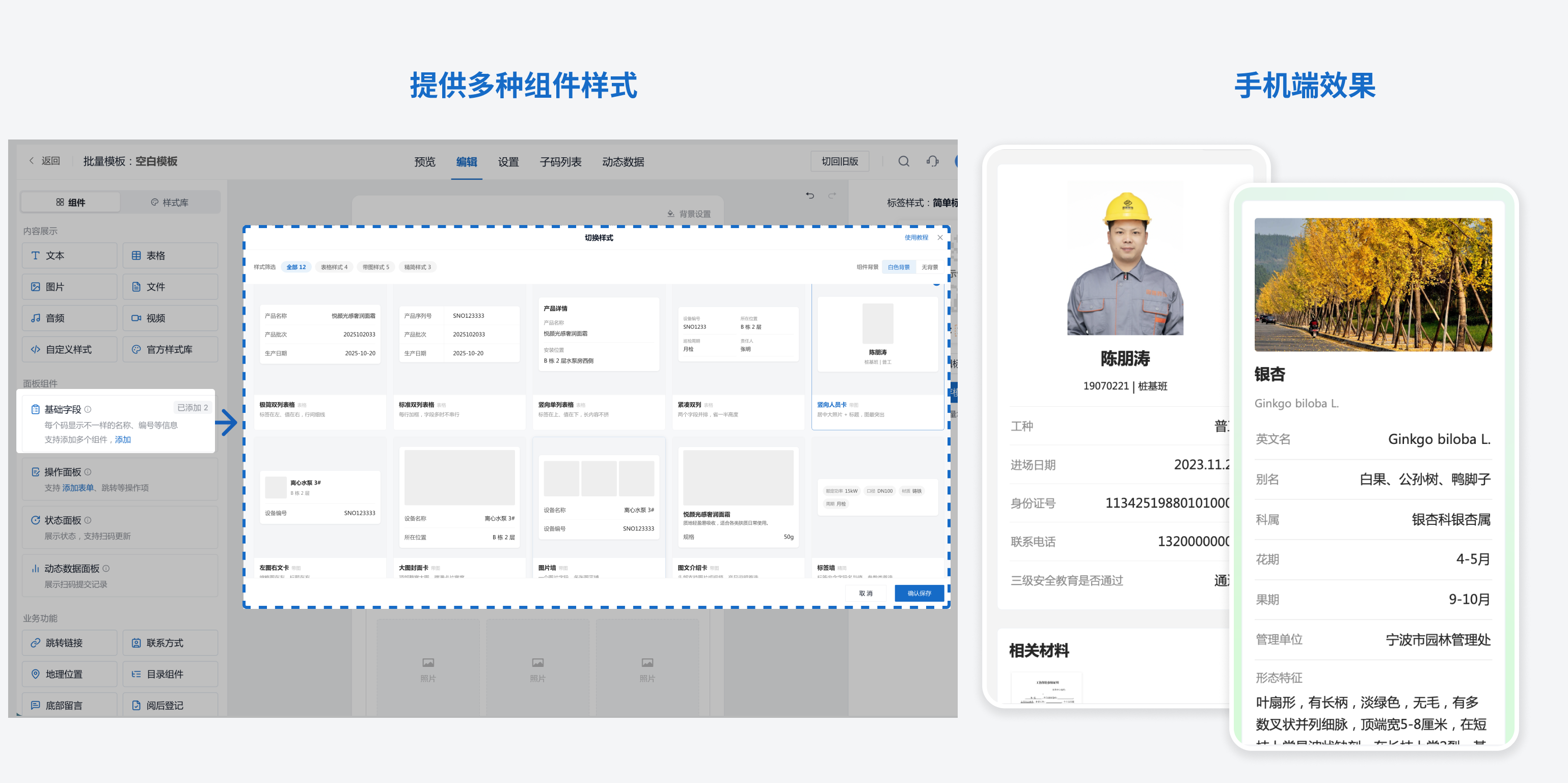
To meet layout needs in scenarios such as personnel information display, product introduction, and equipment inspection, basic field components add several display styles and support adding several components on the same code page, making information sections clearer.
- Multiple display styles: tables, image-text cards, compact styles, and more, so you can choose a fitting display for the scenario, such as a table for an equipment file, image-text cards for personnel information, and a tag wall for technical parameters.
- White background and no background: a white background highlights the information area, while no background lets the component blend naturally into the page background.
- Several components on the same page: different kinds of information can be shown separately, with a style set for each component. For example, split equipment information, technical parameters, and person-in-charge information into three areas so the person who scans finds what they need more easily.
4. Official Sample Codes Support "Make the Same"
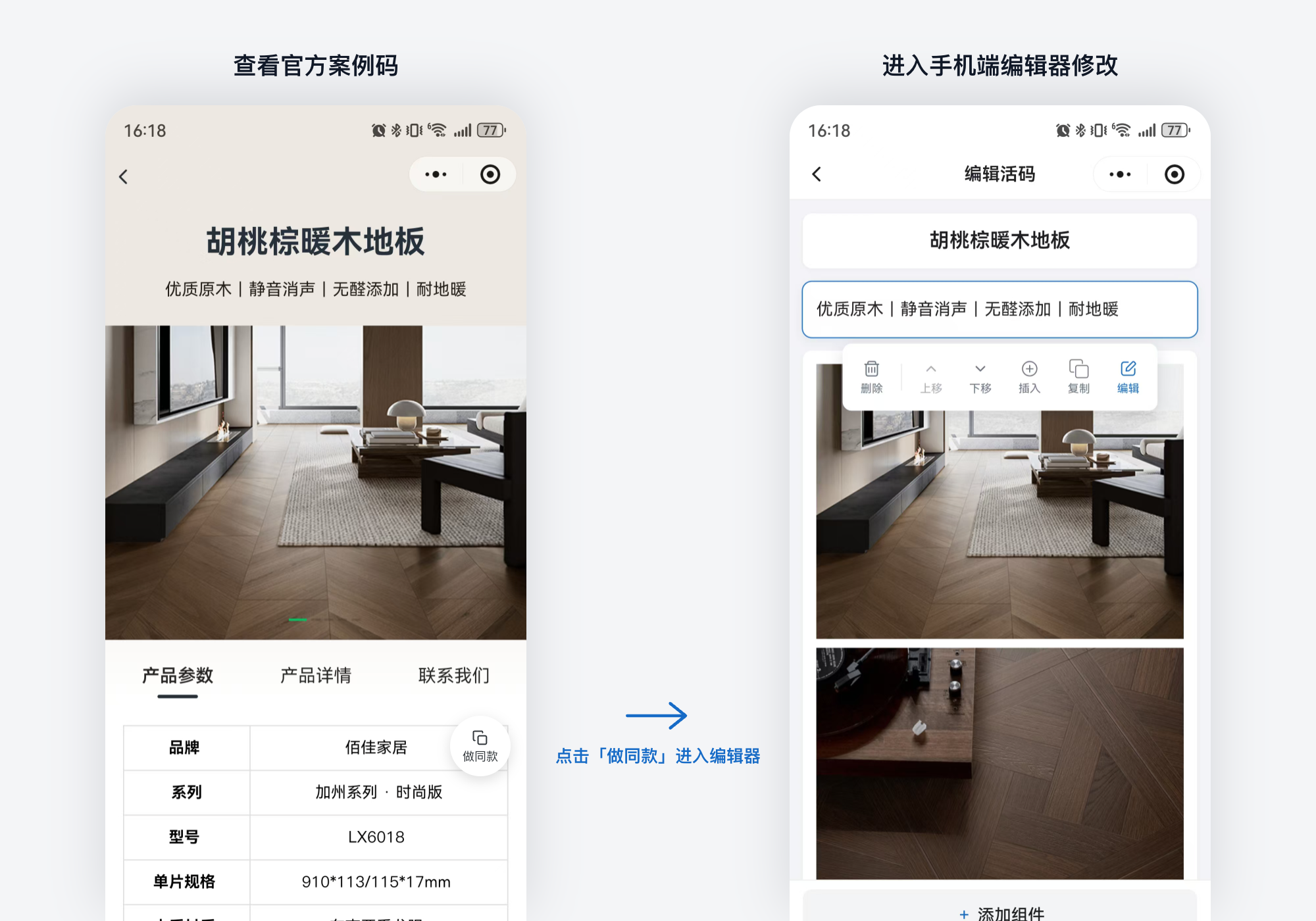
Official sample codes are no longer only for trying out. When viewing a CaoLiao official sample code on the phone, if the sample fits your scenario, you can copy it directly through "Make the Same" and edit it, with no need to build from a blank page.
- Copy the sample content: click "Make the Same" to copy the content of the sample.
- Edit on your phone: after copying, go to the phone-side dynamic QR code editor and edit text, images, files, and other content as needed. The phone editor now supports creating dynamic QR codes, editing content, and common QR code settings.
- Generate into your own account: after editing, generate a new dynamic QR code, saved under your own CaoLiao account for later editing and management.
From trying a sample, to making the same, to editing content and generating your own QR code, the whole process can be done on your phone.
2. Form Records and Abnormality Handling
1. Form Notifications, Status Changes, and Abnormal To-Dos Support More Trigger Conditions
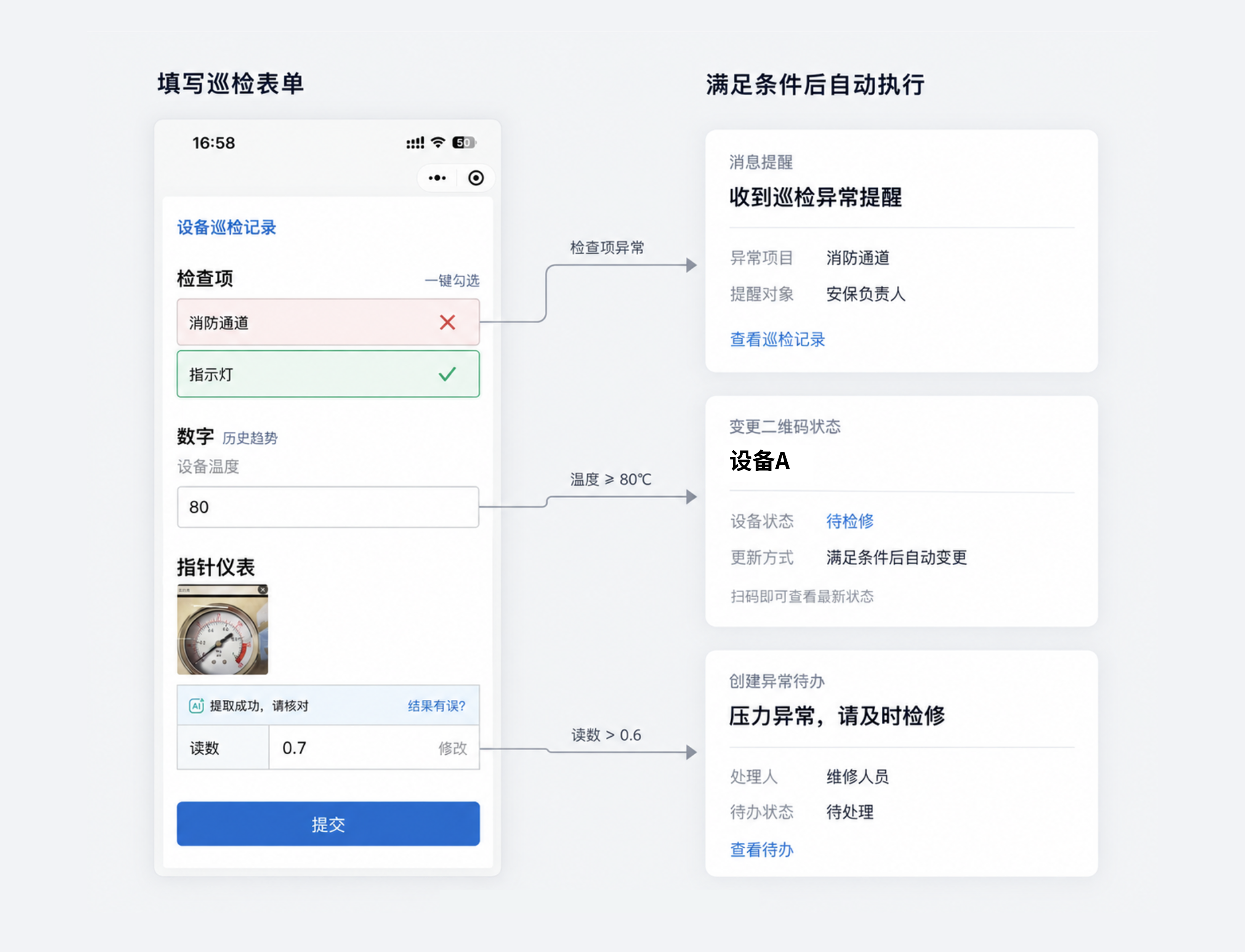
So problems found in inspections and spot checks get handled right away, a form's "Notification", "Change QR Code Status", and "Create Abnormal To-Do" can now all set trigger conditions based on the results filled in for check items, numbers, and meter readings. Once data is submitted and the condition is met, the matching reminder or handling runs automatically.
- Trigger by check item: specify one or more check items and trigger when the result is abnormal. For example, when a fire escape is marked abnormal during a patrol, remind the security person in charge immediately.
- Trigger by number: number fields can set conditions by value. For example, when equipment temperature goes above 80°C, automatically change that equipment's QR code status to pending repair, so others see it at a glance when they scan.
- Trigger by meter reading: readings from electronic-display meters and pointer meters can also be conditions. For example, when a pressure gauge reading goes outside the normal range, automatically create an abnormal to-do and hand it to maintenance staff to follow up.
2. Follow-Up Actions Can Have a Visibility Range
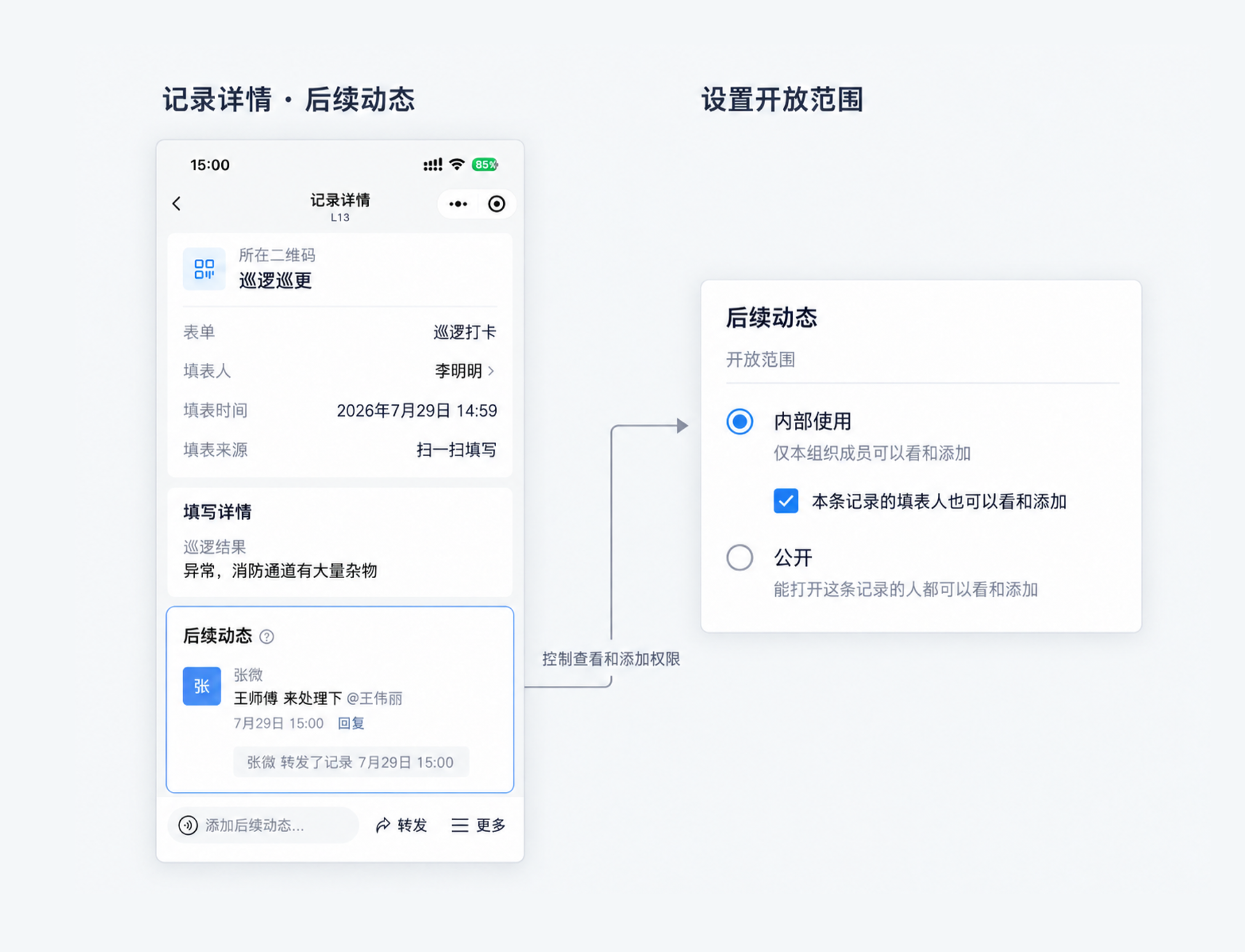
Follow-up actions are often used to follow up under a record, such as @mention a colleague to handle it or replying with handling progress. But some records can be opened by people outside the organization, and internal communication about who handles it and how isn't meant for everyone to see. Follow-up actions now have a "Visibility Range" setting, which controls who can see them by who is being communicated with:
- Internal communication visible to members only: after choosing "Internal Use", only organization members can see and add actions, and non-members opening the record can't see the actions.
- Open to the form filler separately: under "Internal Use", tick "The filler of this record can also view and add", and the filler can see handling progress and add notes, suited to scenarios such as repair requests and complaints and suggestions that need to talk with the submitter.
- Public is also an option: when several parties need to collaborate, choose "Public", and anyone who can open the record can see and add actions.
3. QR Code Management
1. Phone-Side Dynamic QR Code Management Page Improved
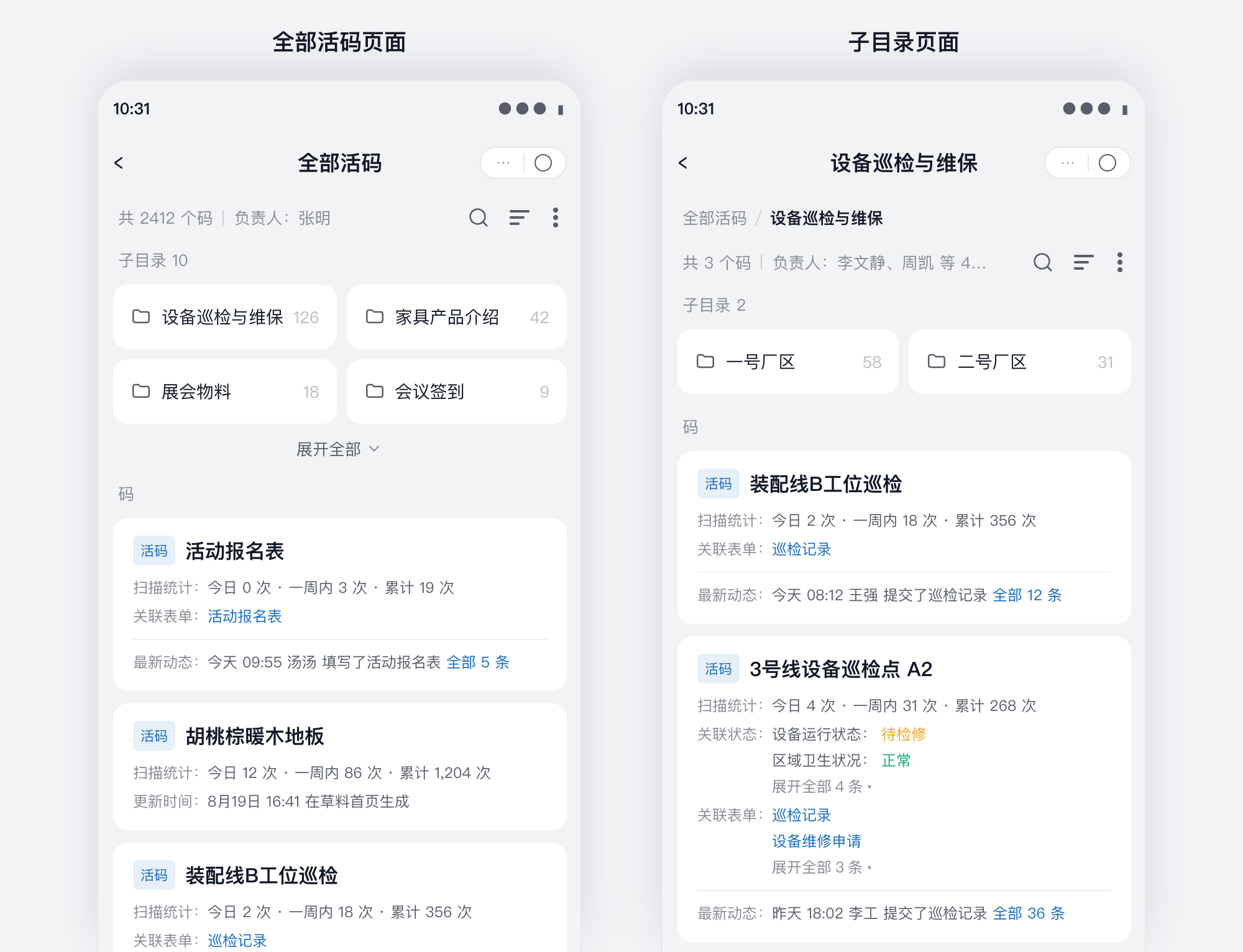
The phone's "All Dynamic QR Codes" page and subdirectory pages reorganize how directories, dynamic QR codes, and business data are shown, with important information such as scan counts and latest submissions shown right in the list, so when managing many QR codes you no longer open each detail page one by one.
- Clearer directory view: frequently used subdirectories are shown at the top of the page for quick entry to different business directories; when there are many, they can be expanded to see them all.
- Clearer dynamic QR code information: each dynamic QR code is shown as an independent card, making the code name, linked form, update time, and more easier to identify.
- Scan data right in the list: today's, this week's, and total scan counts appear in the list, so you can see a QR code's recent use without opening the statistics page.
- Business updates at a glance: for dynamic QR codes linked to forms and other business, you can see the latest submissions and record counts directly, making new data easier to spot and handle.
- Search and filtering kept: common abilities such as search and filtering are unchanged, so you can still quickly find what to manage when there are many QR codes.
2. Partition Management Adds Grouping and Sorting
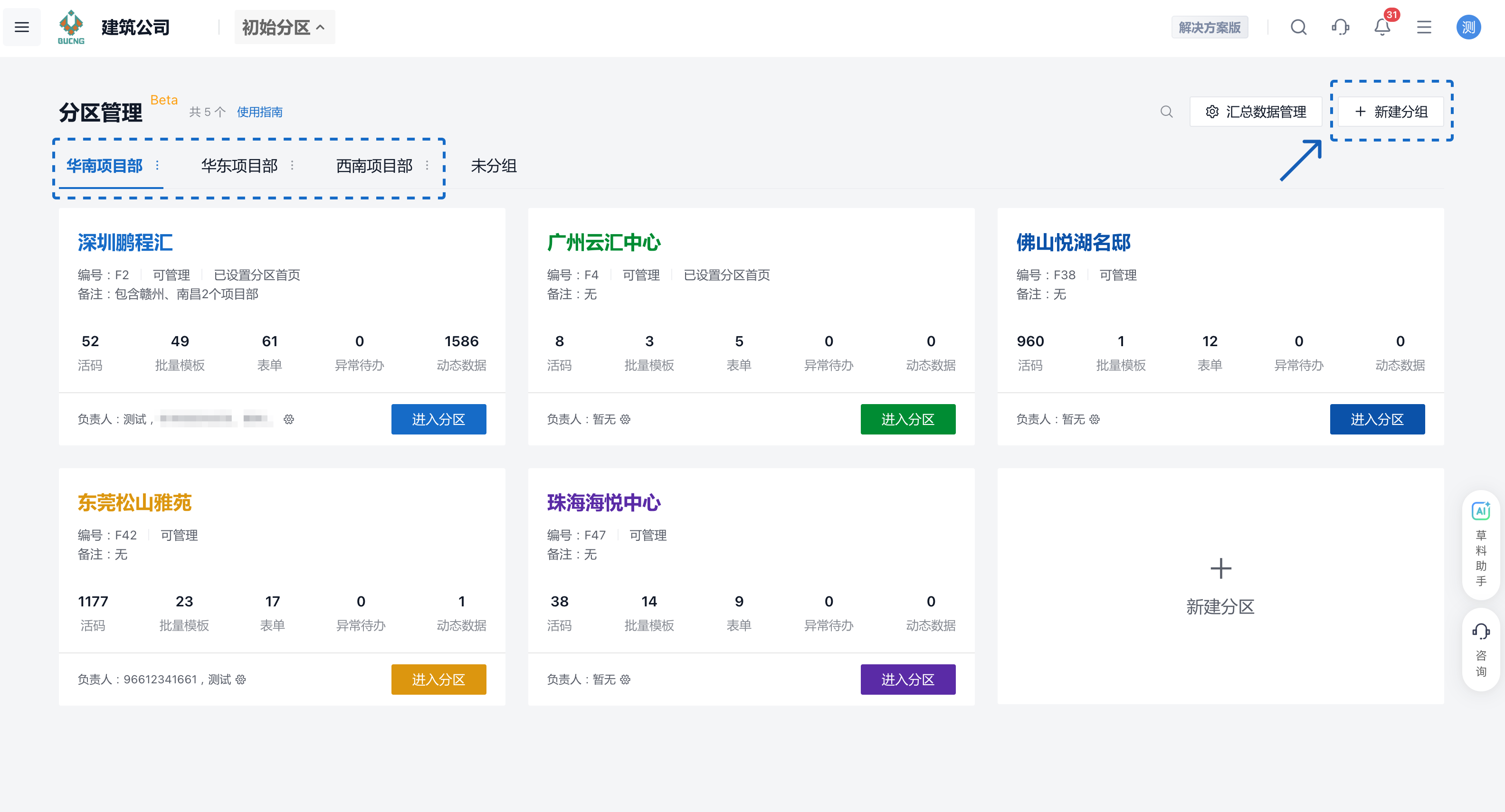
When there are many partitions, you can now gather similar partitions into groups, and put commonly used groups and partitions first, making them easier to find and enter.
- Create groups as needed: create groups by region, department, business type, and so on, to manage related partitions together. For example, group projects by South China and East China regions, or group management areas by Plant 1, Plant 2, and HQ Warehouse.
- Adjust the order of groups and of partitions within a group: you can change the display order of groups and the order of partitions within each group. For example, put commonly used business groups first, then put frequently visited project partitions first within the group, cutting hunting around.
Suited to multi-project, multi-department, and multi-region collaboration, where there are many partitions and you need categorized management and quick access.
4. Business Workbench (In Beta)
1. Business Workbench Experience Update
The business workbench can quickly set up fire inspection operations, with common fire facility types and inspection forms preset, so you needn't configure from scratch. On-site staff scan to register when sticking labels, which creates equipment files automatically, and admins can view the equipment ledger, sticking progress, and inspection records in the workbench. This update optimizes three stages: setup, on-site label sticking, and daily management:
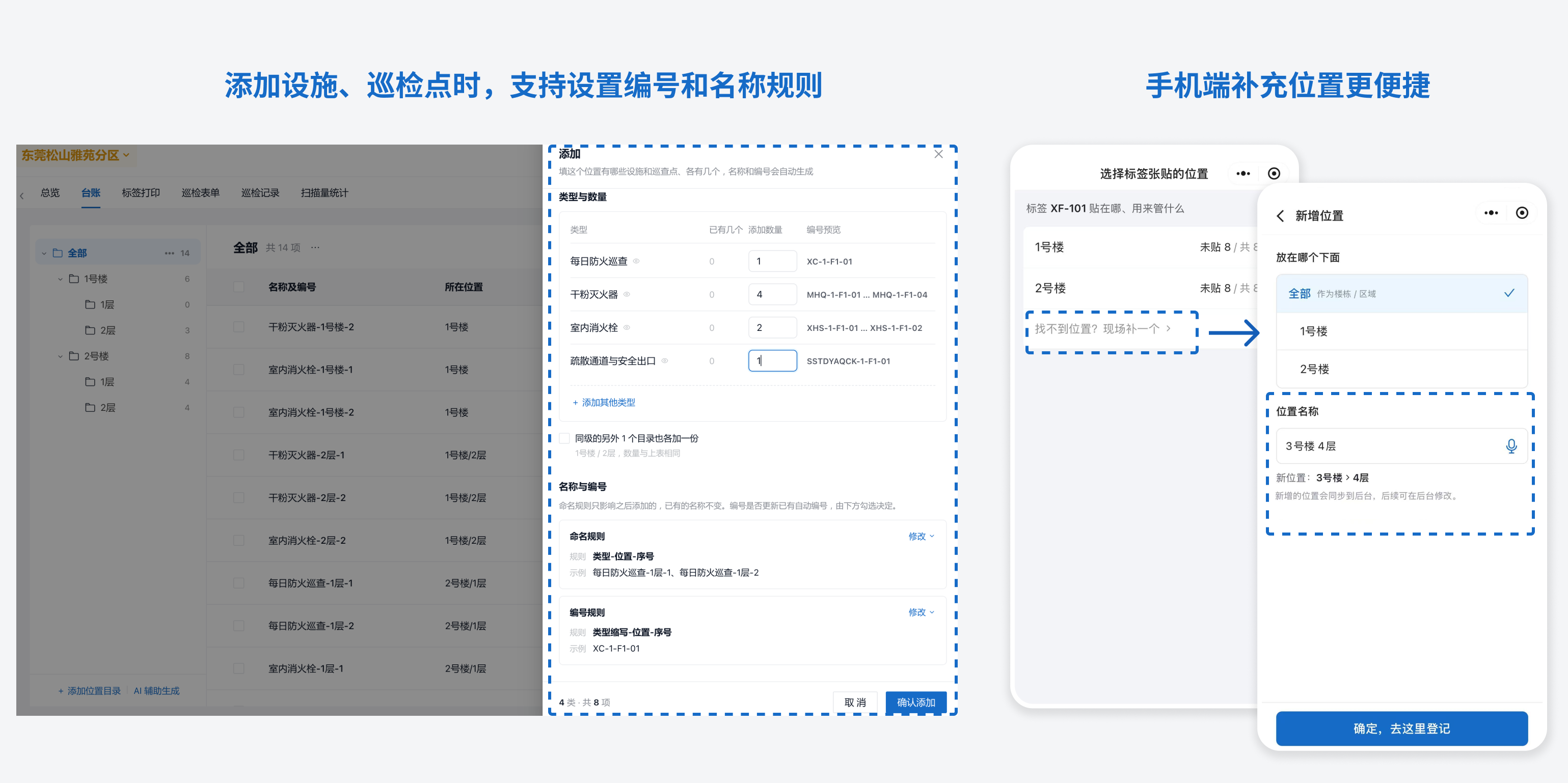
- When setting up, numbering, naming, and sorting are easier: when adding facilities and inspection points, you can set numbering and name rules for uniform naming; sorting operations were also improved so the display order matches real management habits.
- When sticking codes, add details right on the phone: the scan-and-bind flow was improved to let you add points and fill in the person in charge and other information when binding; you can also set it so all organization members or designated members can operate, making on-site label sticking easier to arrange.
- When managing, inspection data is easier to find and export: filter inspection data by time, export data, and download PDFs, making daily review and organizing inspection materials easier.
- Existing QR codes can be added by directory as a whole: choose an existing directory to add to the business workbench, and the QR codes and directory structure under it are added together, with no need to pick codes one by one or rebuild the directory.
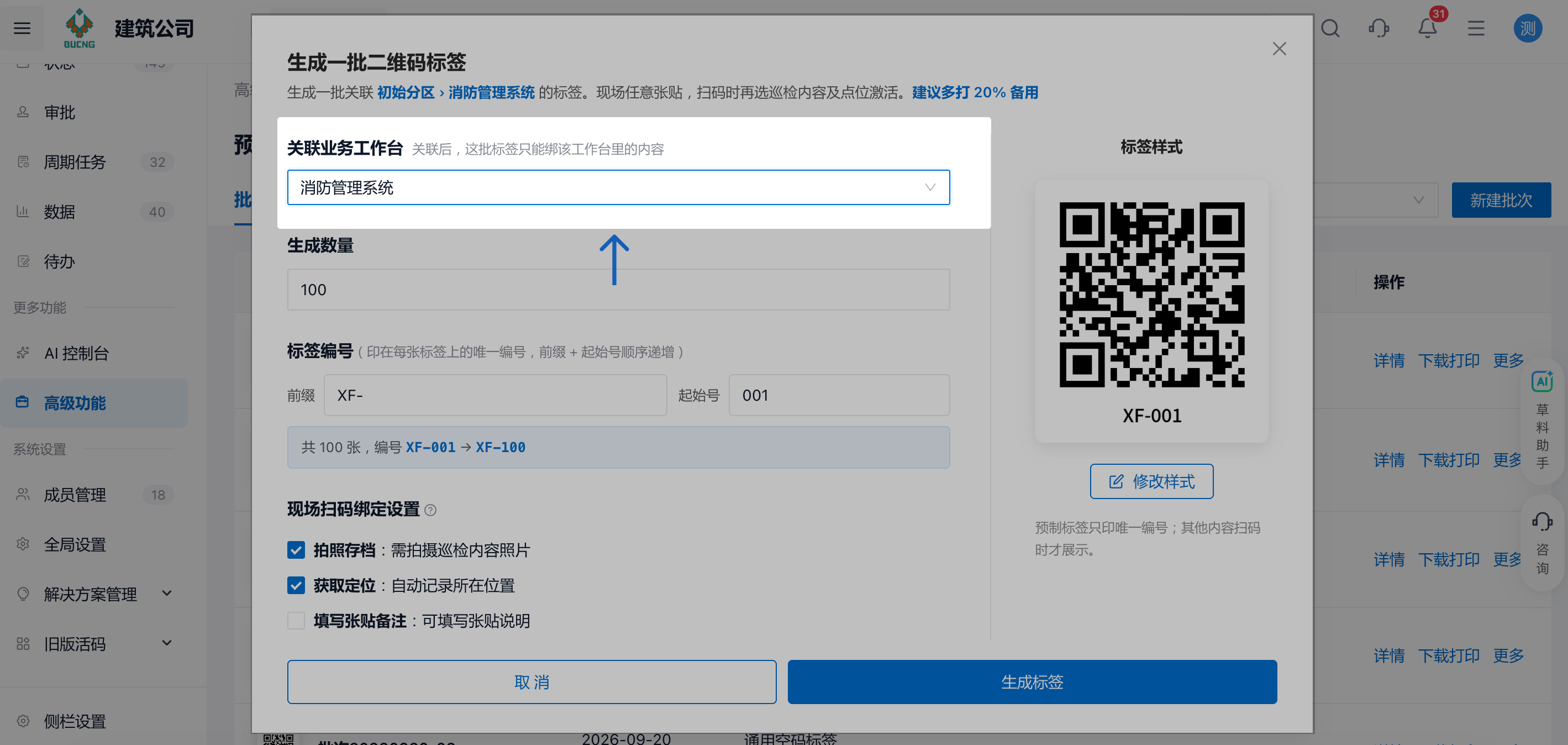
2. Preprinted Dynamic QR Code Labels Can Link to a Business Workbench
To make label activation easier for on-site staff, preprinted dynamic QR code labels add a business workbench link setting:
- Scan to show the workbench structure directly: when generating preprinted dynamic QR code labels, you can link a specific business workbench. After the phone scans, it shows that workbench's management structure directly, and on-site staff find the matching location or equipment by level and activate the label.
- Entries to other dynamic QR codes can be kept: you can also tick to keep the entries to other dynamic QR codes under the linked account, to meet linking needs beyond the workbench.
Suited to scenarios where business is organized by area, location, and so on, and bulk label sticking and scan activation are needed on site.
How to Join the Beta
The business workbench is still in trial and is open to some users on an allowlist. Fire-scenario users who are interested can contact online customer service to apply to turn it on. If you hit problems or have suggestions during the trial, send them to us through online customer service.
Learn about the fire inspection management system setup solution
5. Other Improvements
- Components in the new editor can be dragged up and down to reorder by holding the "drag" icon in the component toolbar.
- The audio component in the new editor adds a display style choice, with 3 styles supported so far: large card, medium card, and small card.
- The phone's version information page was improved, so paid users can request invoices more conveniently on the phone.
- Fixed the incorrect display style of vertical videos when there is a background image.
- To protect the phone scanning and browsing experience, variable file content supports up to 100 files.
- Fixed the abnormal stacking order of the top bar when scrolling in the template library.
- Improved the prompt text and new-user guide pop-ups in the bulk operation flow.