Follow-up Actions
I. Feature Introduction
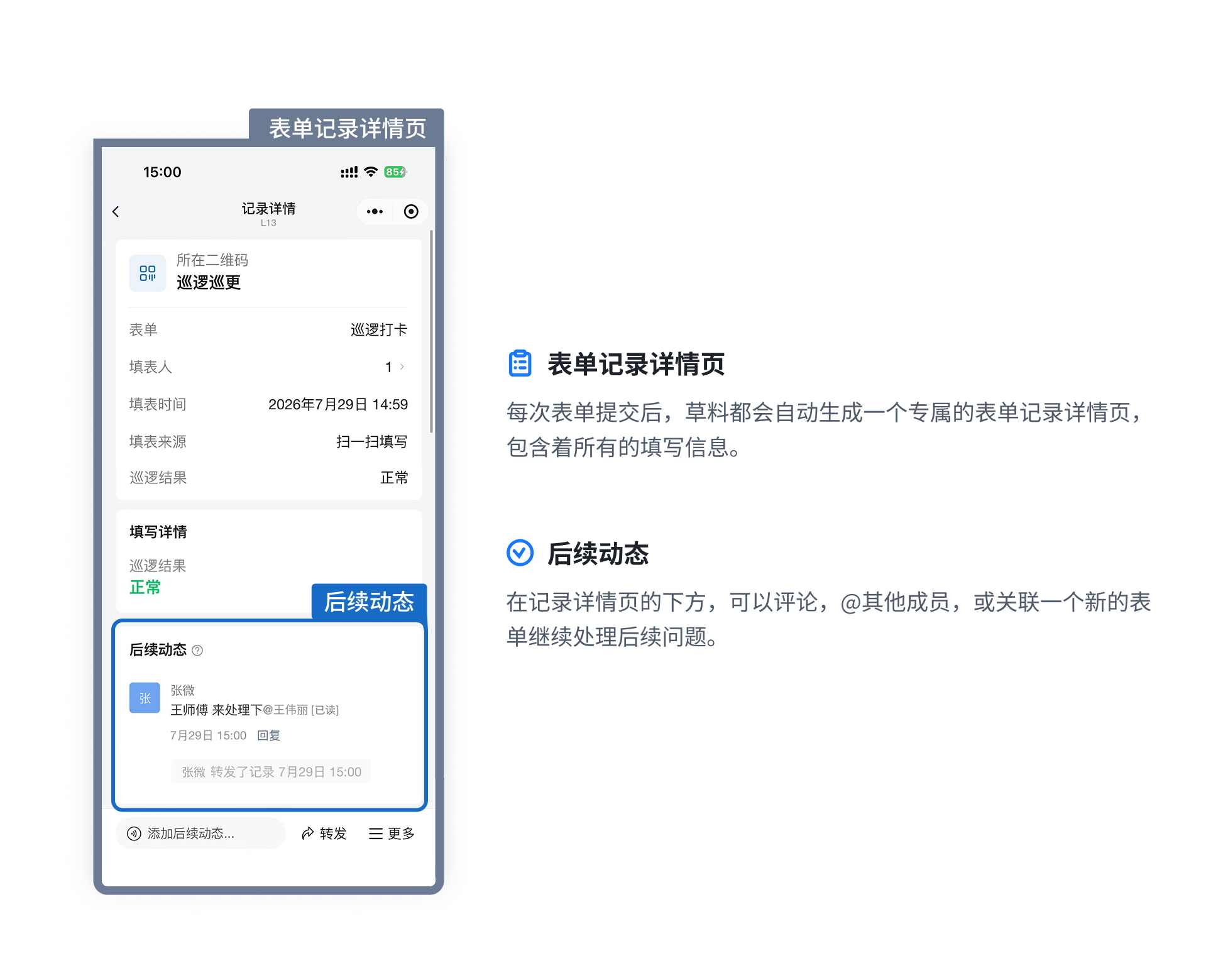
Turn on the Follow-up Actions feature in the form settings, and after frontline staff submit a form record, people can collaborate and communicate on the form data detail page, adding voice notes, text and images, @mention notifications, form entries, handwritten signatures, and more.
Used with message reminders, you can reply to the submitter right after receiving a reminder, or @mention others to come and handle it. Learn more
II. Use Cases
It suits multi-person collaboration, for example in the flow of [equipment inspection → repair request → repair → acceptance], where several people work together on follow-up for a single inspection record.
It can also work with the follow-up processing progress feature to mark the current progress, such as pending or completed. It can also be used for feedback, fault handling, hazard rectification, exception resolution, order delivery, and similar cases. Learn about the feature.
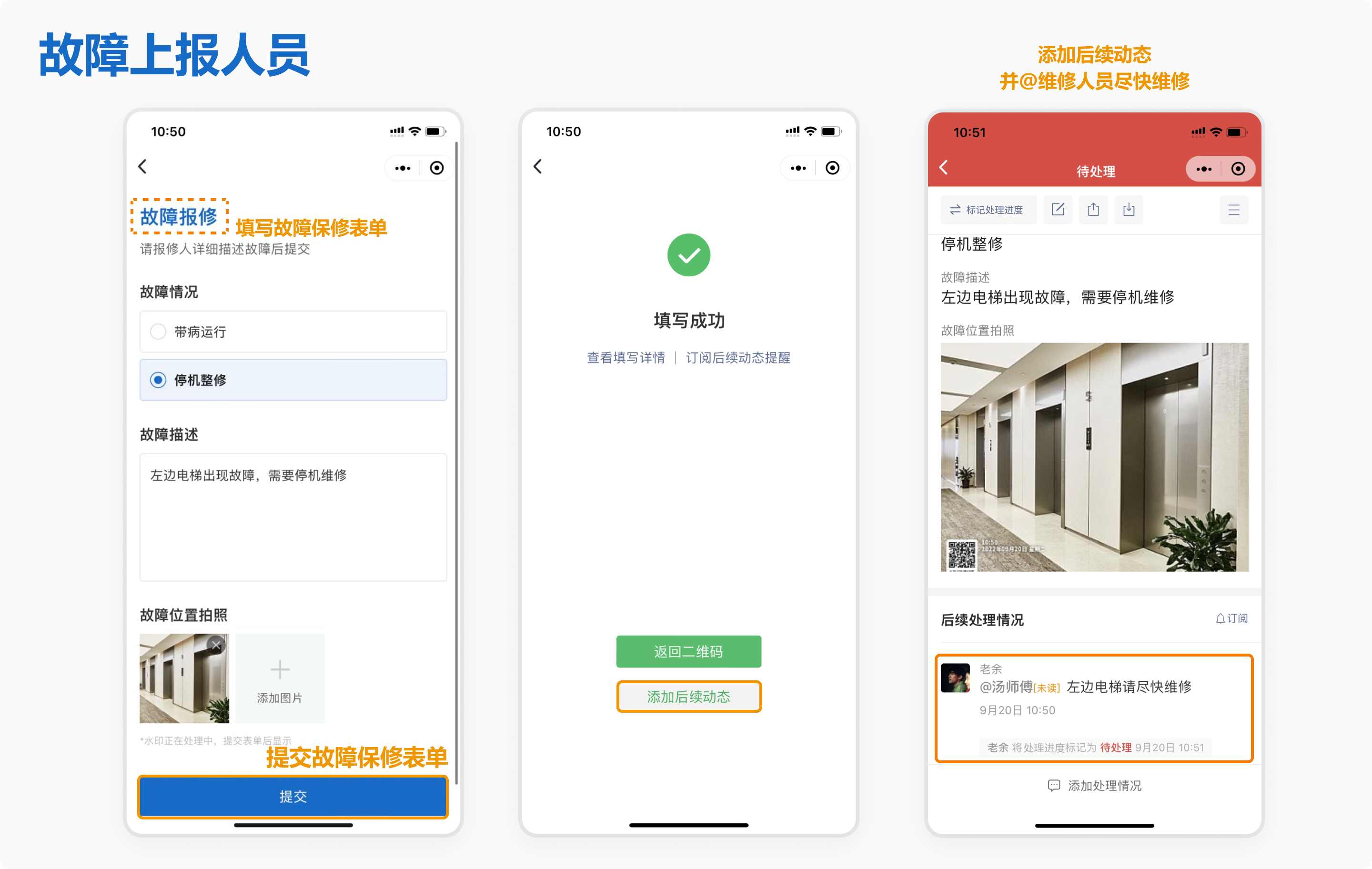
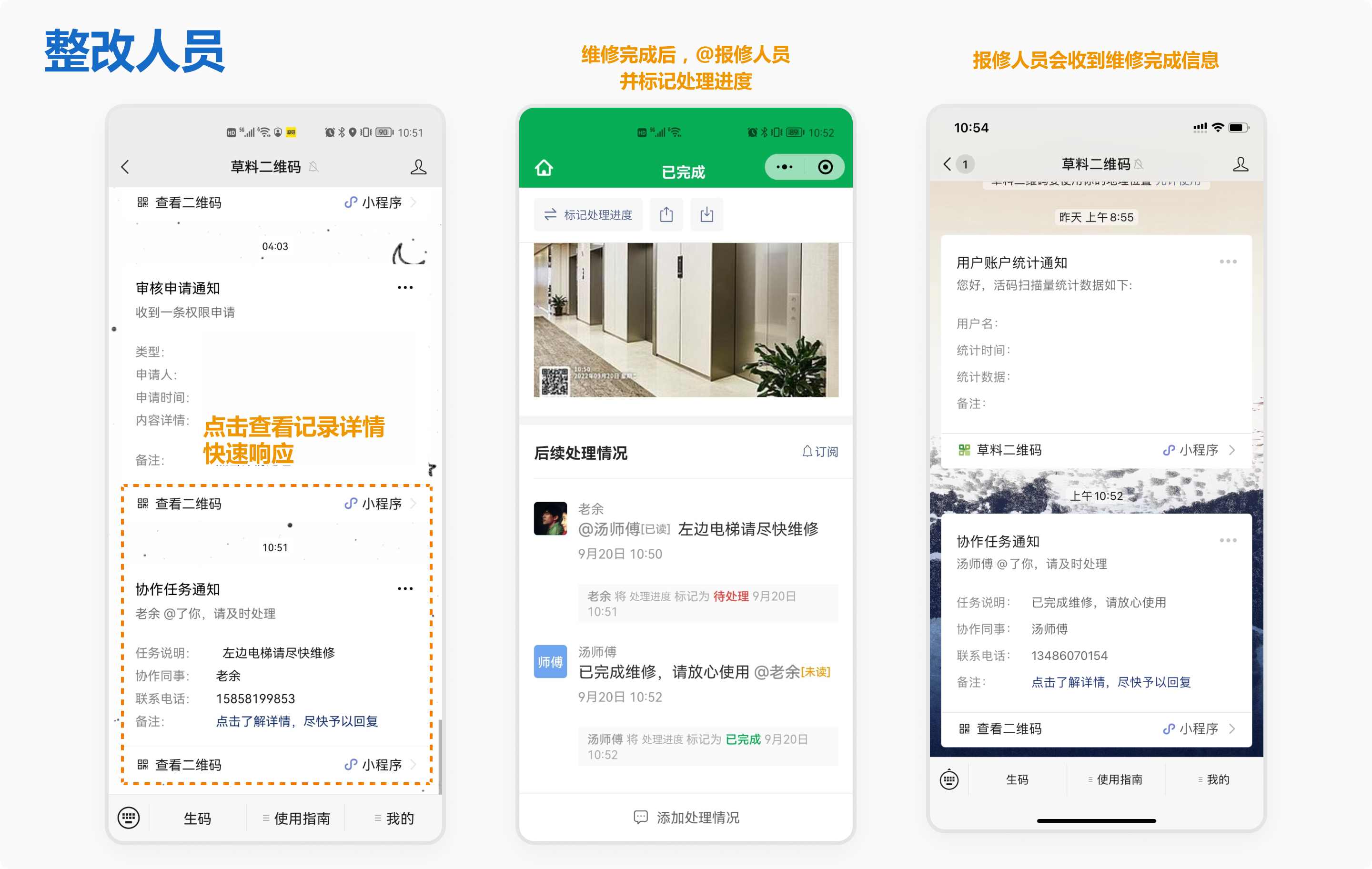
Take Elevator Inspection as an Example:
III. Setup Tutorial
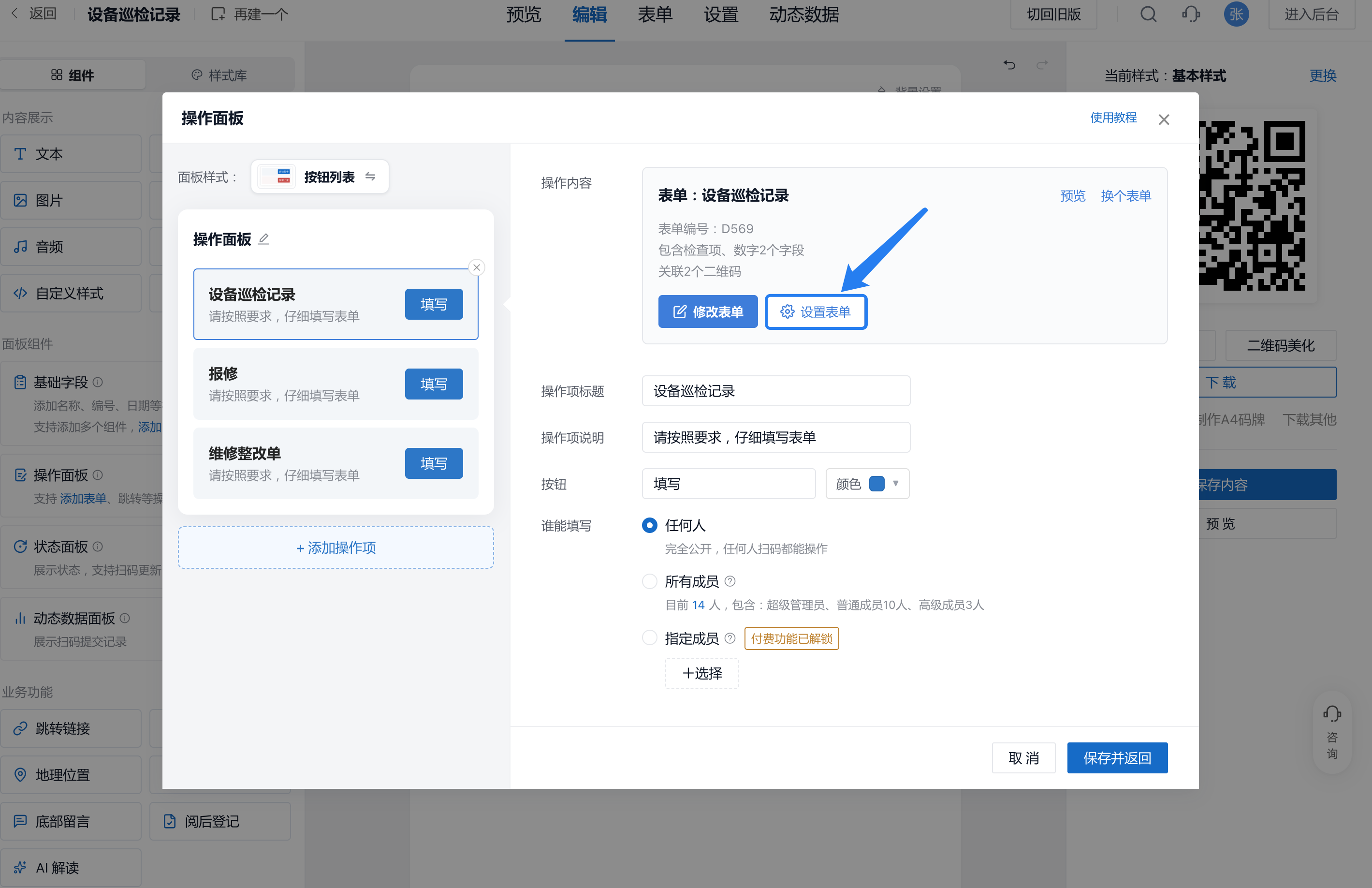
- In the QR code editor, select the Control Panel and click Settings.
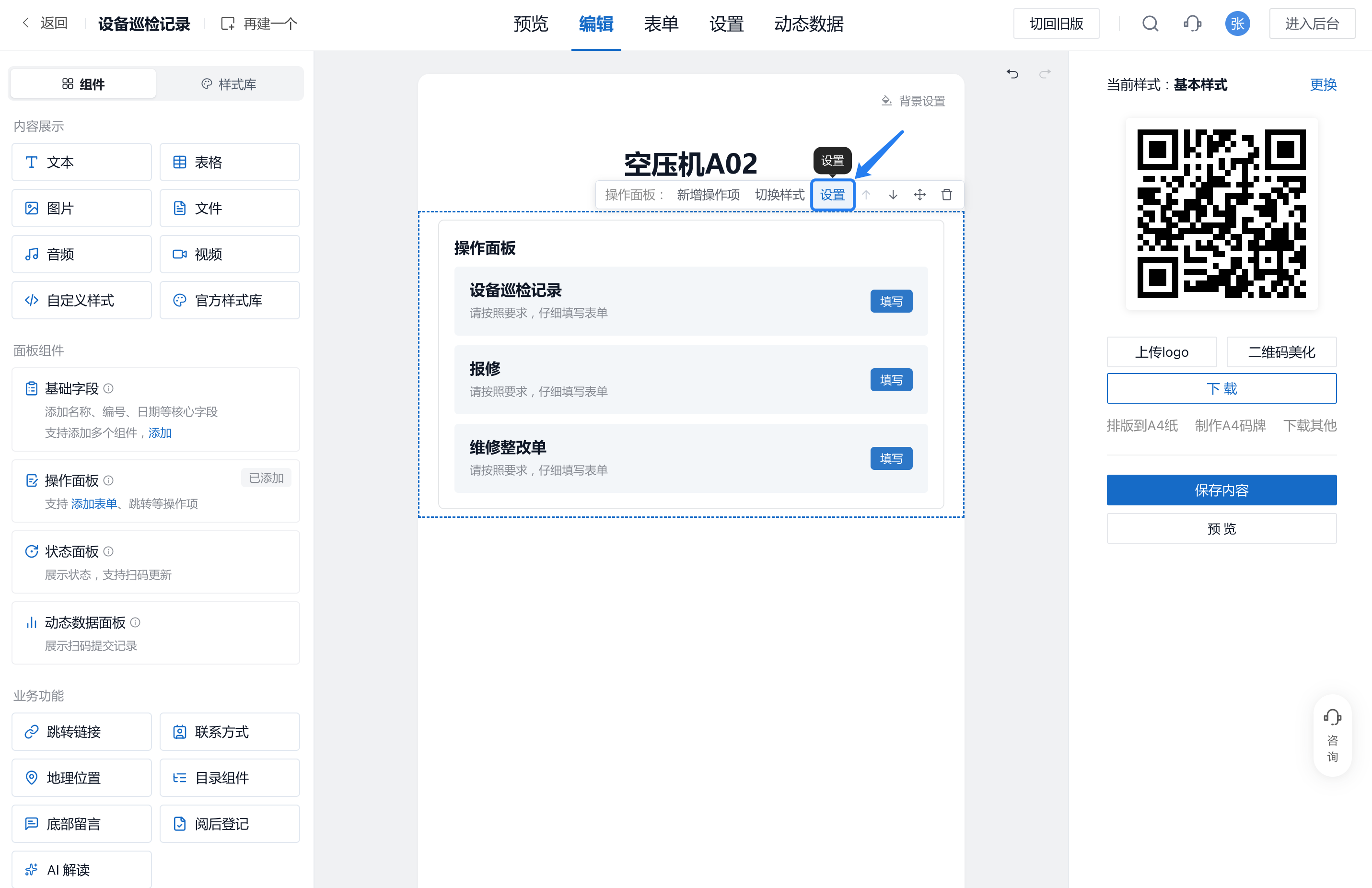
- In the control panel, choose the form you want to set up and click Set Up Form.
- On the form's Settings tab, choose Follow-up Processing → Follow-up Actions on the left. After turning it on, you can set the area title, the types of actions allowed, and who it is open to.
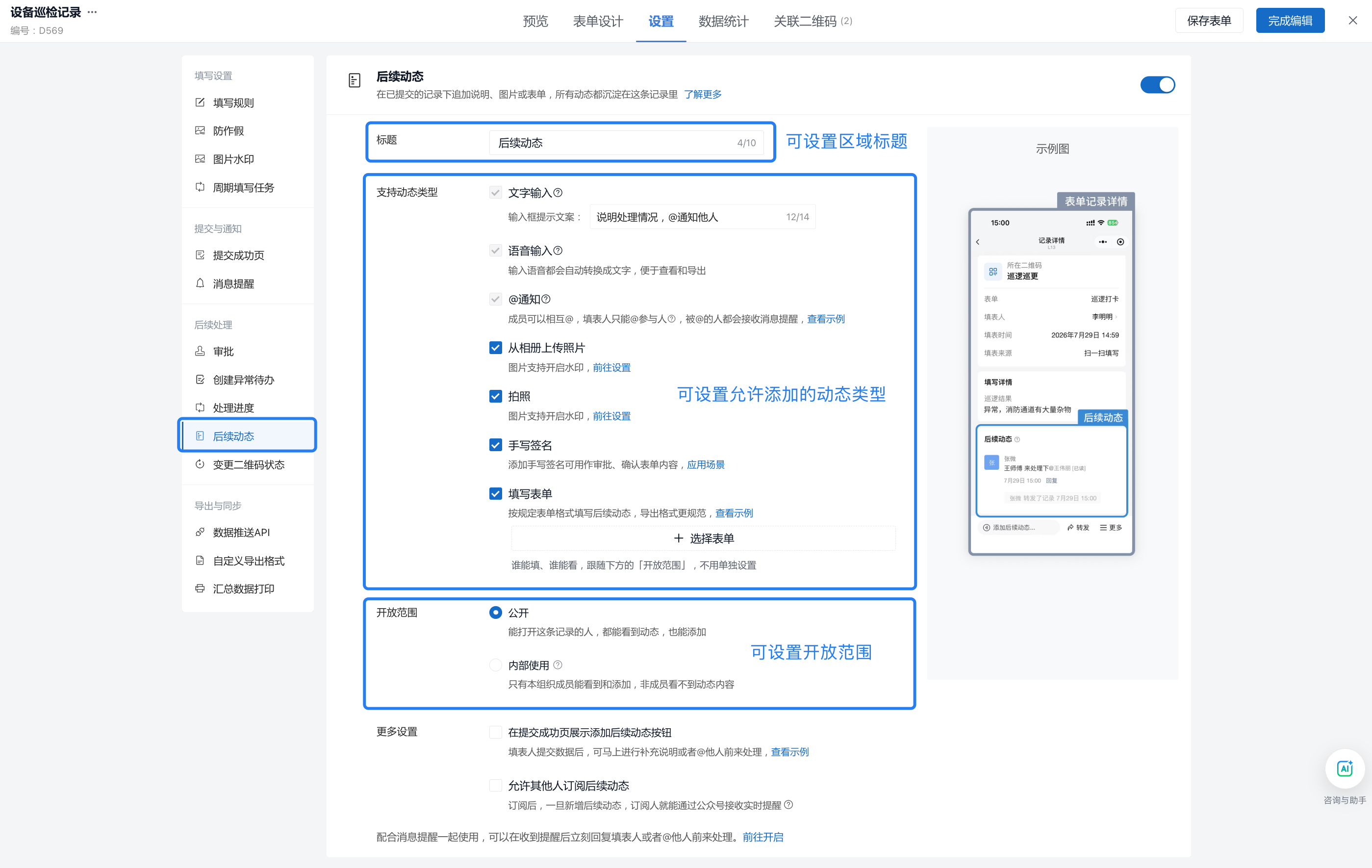
Follow-Up Actions Area Settings
- Voice input: all voice input is converted to text automatically, for easy viewing and export
- @mention notifications: members can @mention each other, and you can also set an identity group so its members aren't allowed to @mention other members. Learn how to set this If the submitter isn't an organization member, they can only @mention participants. Everyone who is @mentioned receives a message reminder by SMS or through the CaoLiao Official Account. Learn about the member feature
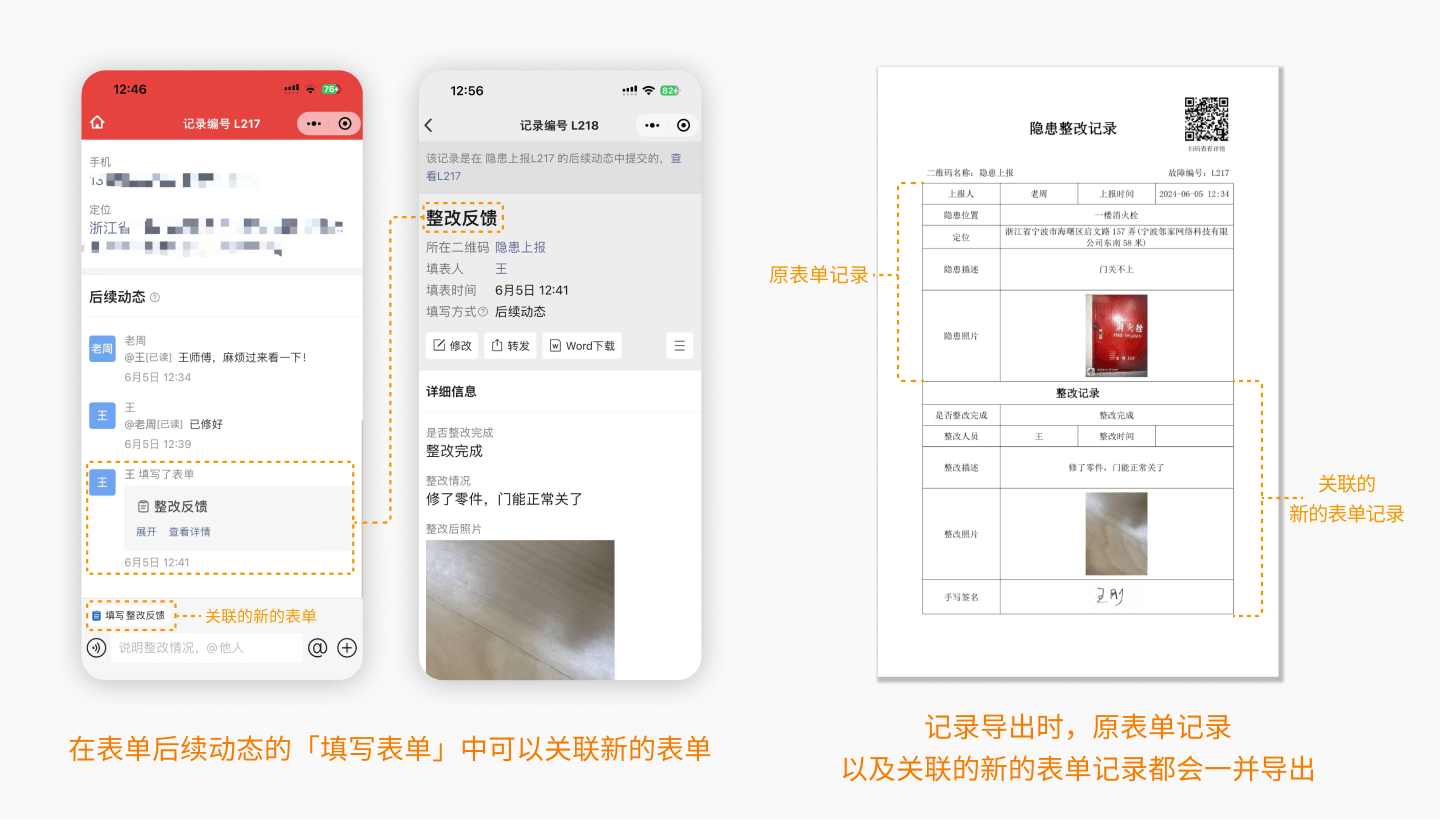
- Fill in a form: available with the Advanced Edition and above. Under a submitted form record, you can link another form and fill in follow-up actions in the set form format, and the record's follow-up actions are exported too, in a more standard format.
What adding a form to follow-up actions looks like:
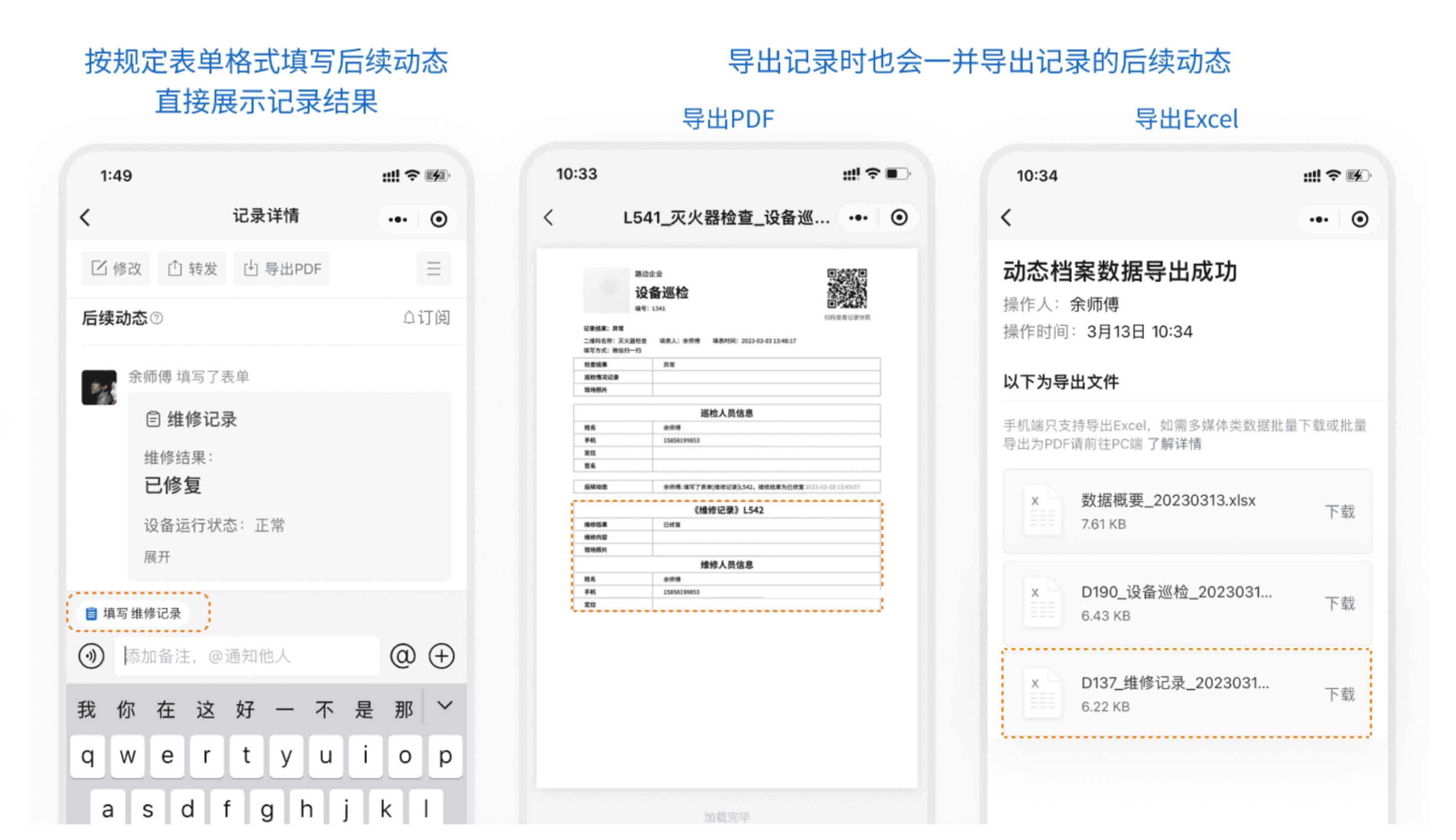
Example: an inspector submits an equipment fault report form and @mentions repair staff to handle the repair. After receiving the message, the repair staff do the repair, and when finished they can also add a repair note under that record, say whether it is fixed, and @mention the person in charge and the submitter who reported it.
Set Who Follow-Up Actions Are Open To
Follow-up actions are often used to @mention colleagues and reply with handling progress under a record. If the record is also open to people outside the organization, you can set the scope of follow-up actions separately, so internal task assignment and handling discussion are visible only to organization members.
Under Settings → Follow-up Processing → Follow-up Actions → Scope, choose as the collaboration requires:
- Internal use: only members of this organization can see and add actions. Non-members can't see the actions even if they can open the record, which suits internal communication.
- Internal use, also open to the submitter: after choosing "Internal use", tick The submitter of this record can also view and add. The submitter can then see the handling progress and add notes, which suits repair requests, complaints and suggestions, and other cases where you need to communicate with the person who submitted. Other non-members still can't see the actions.
- Public: anyone who can open the record can see and add actions, which suits cases where several parties need to collaborate.
After setting it, click Save Form. You can open the same record as an organization member and as a non-member to confirm who sees the actions; if you ticked open to the submitter, you can also check as that record's submitter whether they can view and add actions.
Notify Related People When a Follow-Up Action Is Added
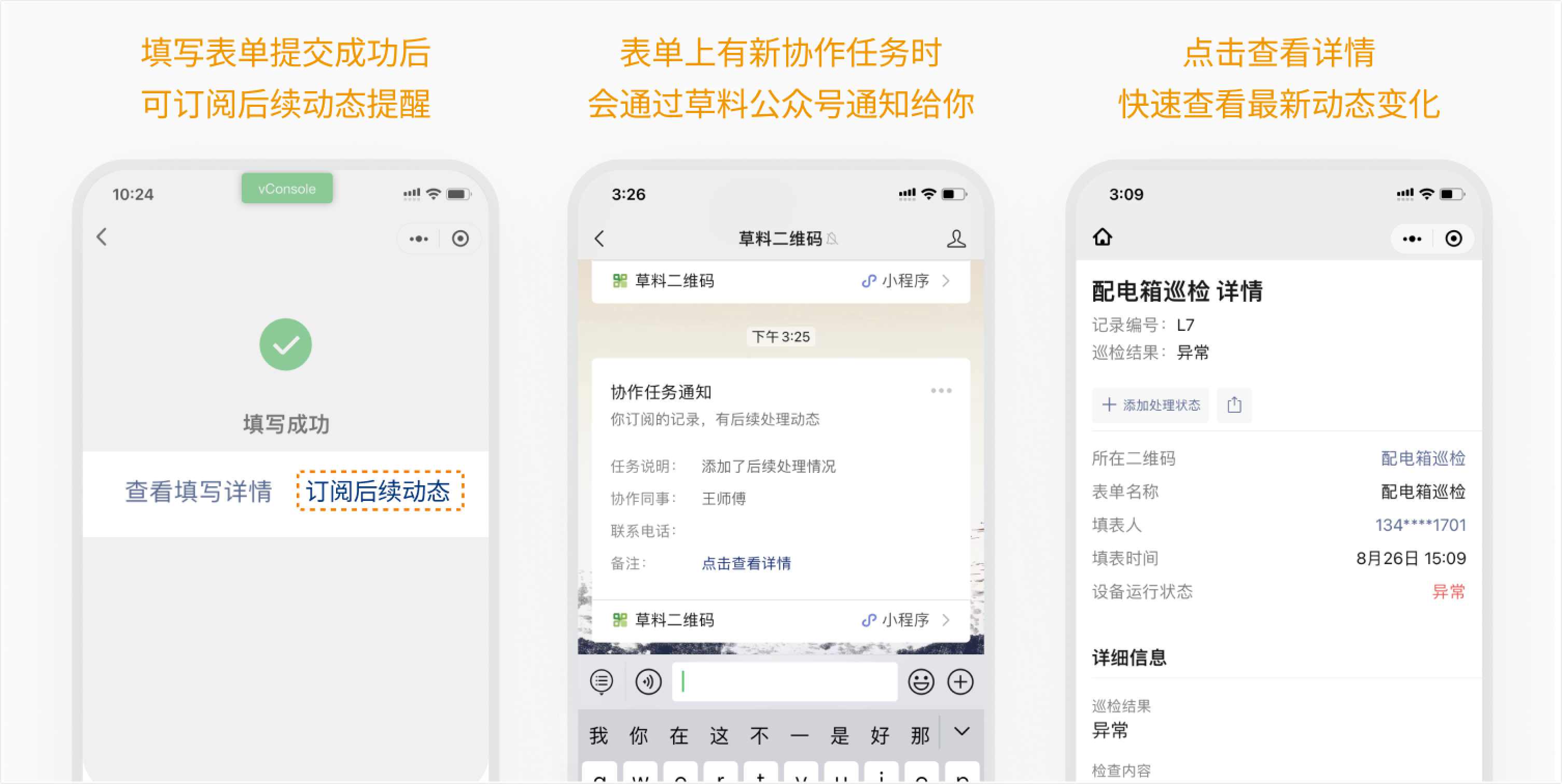
After "Subscribe to follow-up actions" is turned on, frontline staff can choose "Subscribe to this record" after submitting a form, and once a new follow-up action is added to the submitted form, subscribers receive a real-time reminder through the CaoLiao Official Account. Learn about the feature
In addition, if a member is @mentioned when a follow-up action is added, the @mentioned person automatically gets a reminder.
Note:
Subscribe: the submitter chooses to follow long-term and receives reminders for all follow-up actions.
@mention reminder: the person posting the action names who to notify, so a specific member is notified precisely, and that member gets the reminder even without subscribing to follow-up actions.
IV. View and Export Follow-Up Action Records
1. View Follow-Up Actions
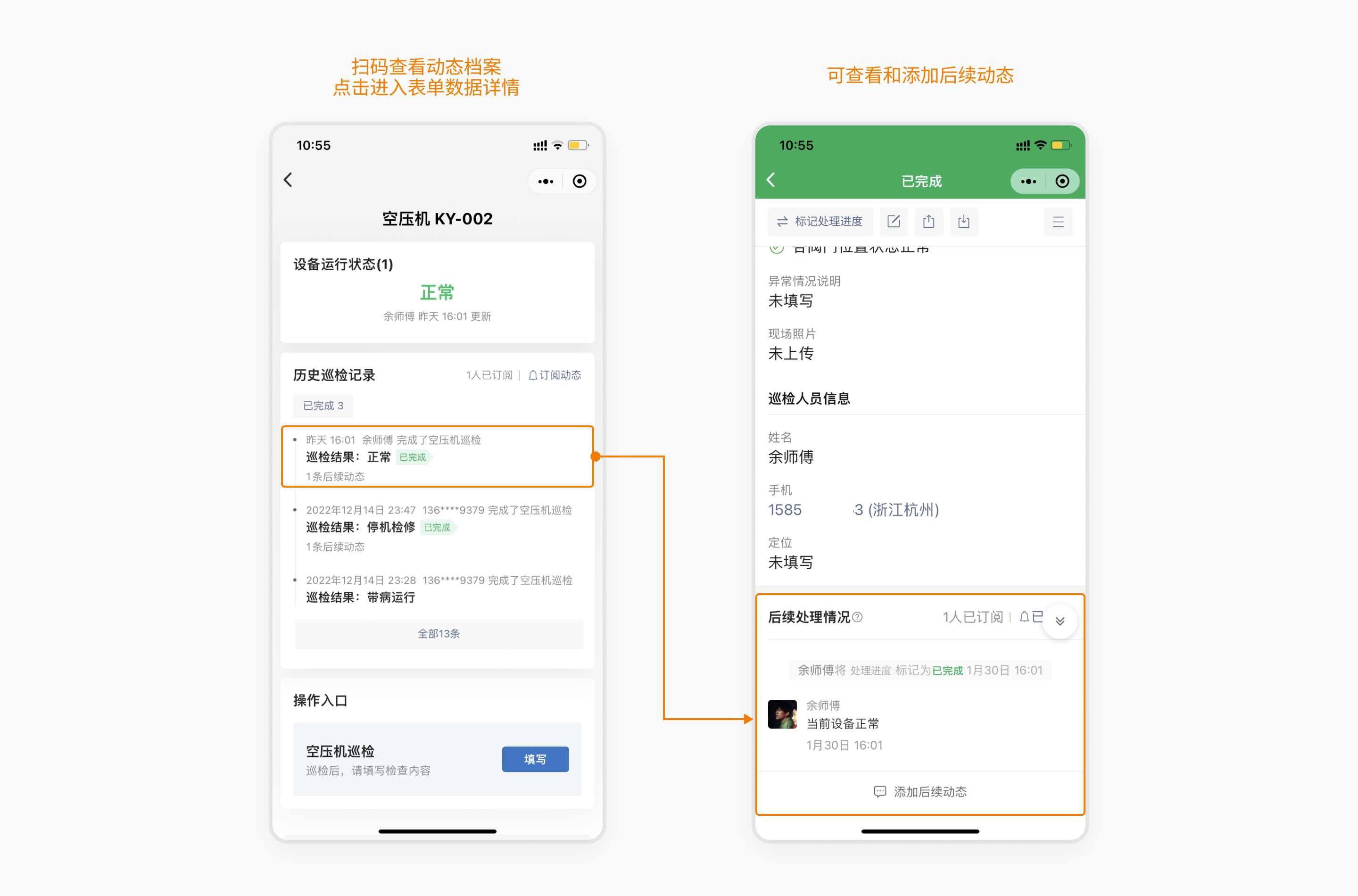
View on Mobile
Scan to see the dynamic archive on the code and tap into the form record detail page. Within the scope that follow-up actions are open to, you can view or add follow-up action records.
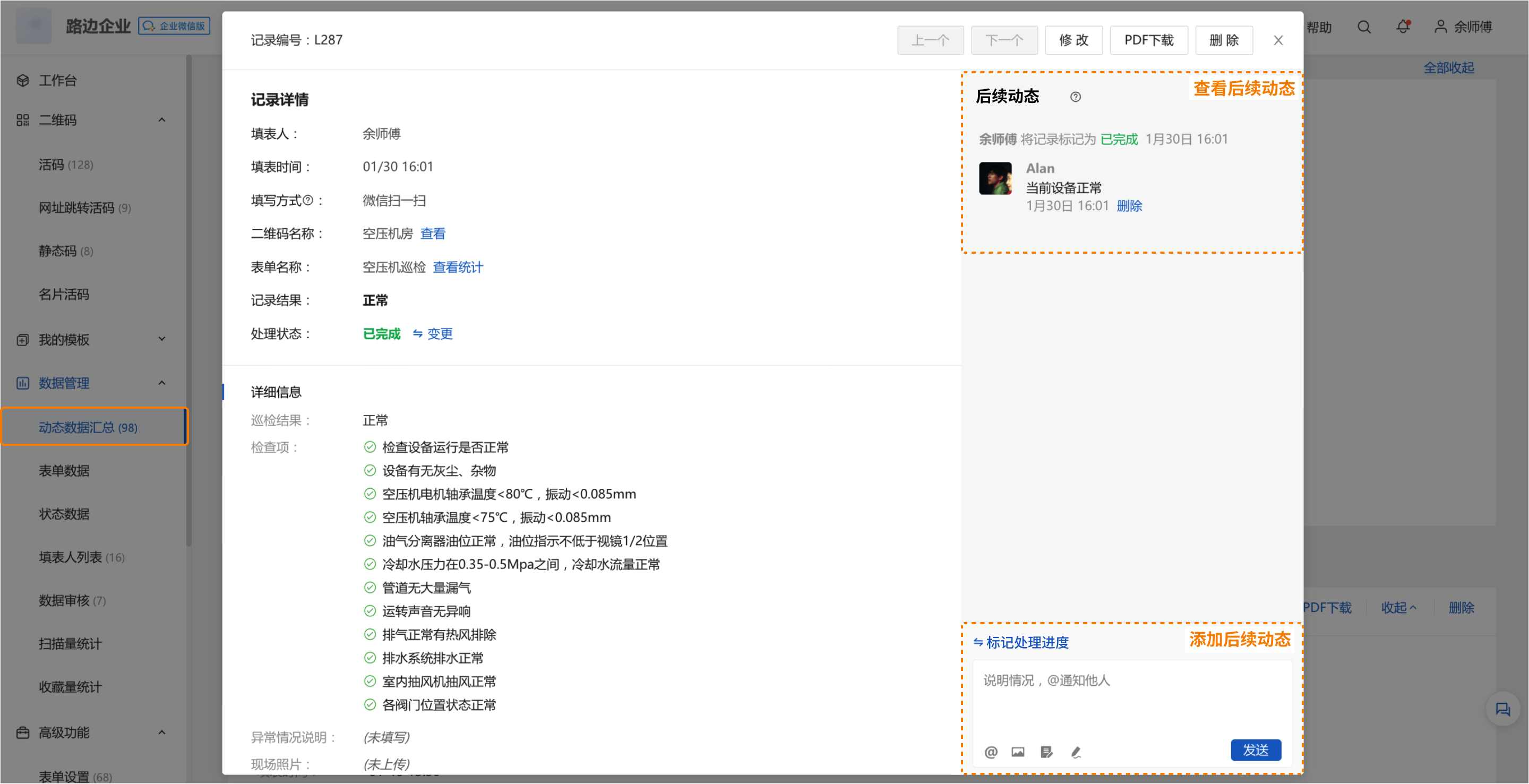
View on Desktop
Log in to the desktop workbench, choose [Dynamic Data Summary] under Data Management, and click a record's details to view and add follow-up action records.
2. Export Follow-Up Actions
When you export form data, if a form record's details include follow-up actions, they are exported together, in Excel or PDF format.
In "Fill in a form" for form follow-up actions, you can link a new form and, combined with the custom PDF feature, export the content of follow-up actions into one PDF file in a more standard format, which makes it easier to update and handle information after a form is submitted. Click to see the custom PDF feature
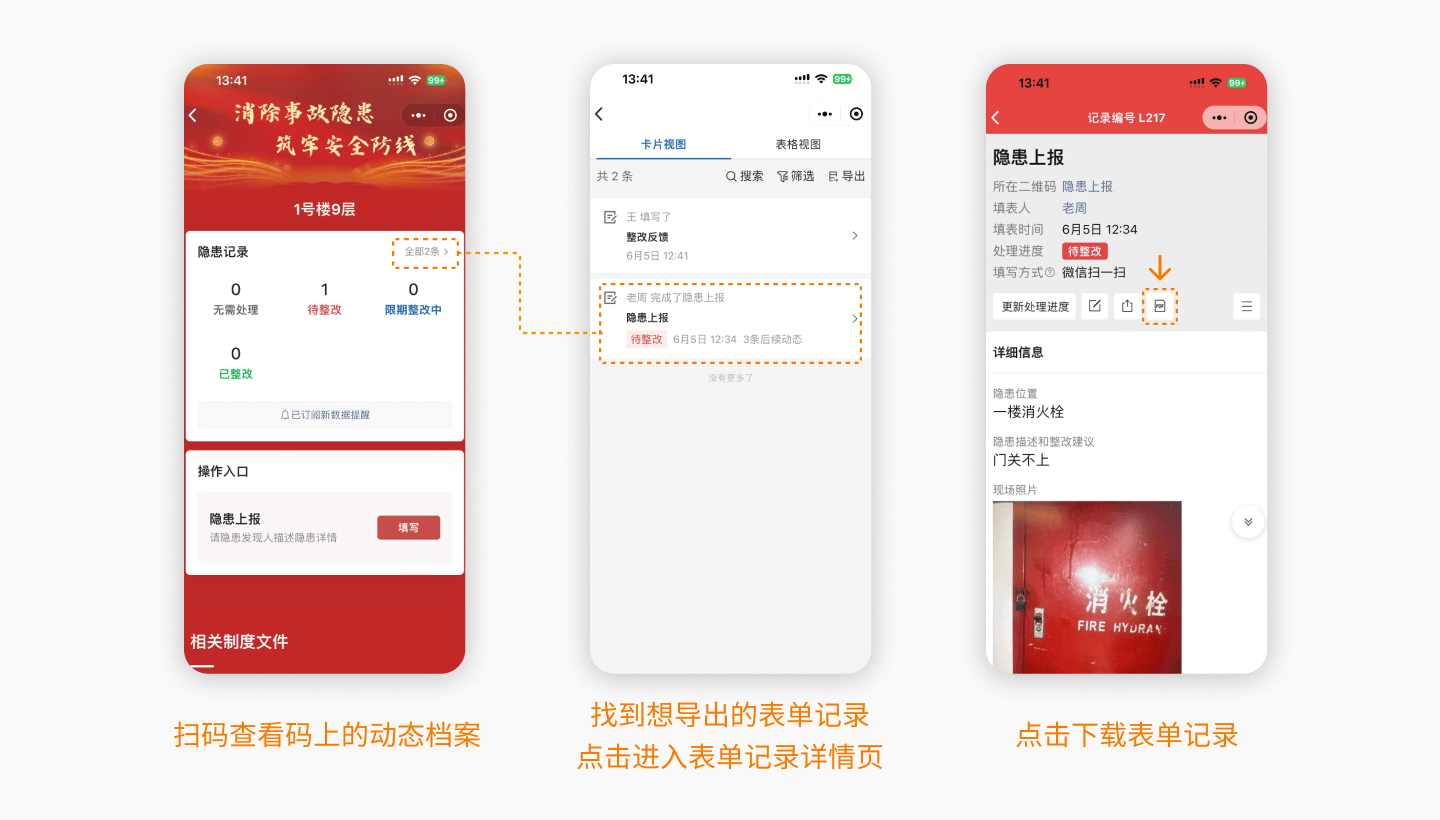
Export on Mobile
Scan to see the dynamic archive on the code, find the form record you want to export, and open the form record detail page to export.
Export on Desktop
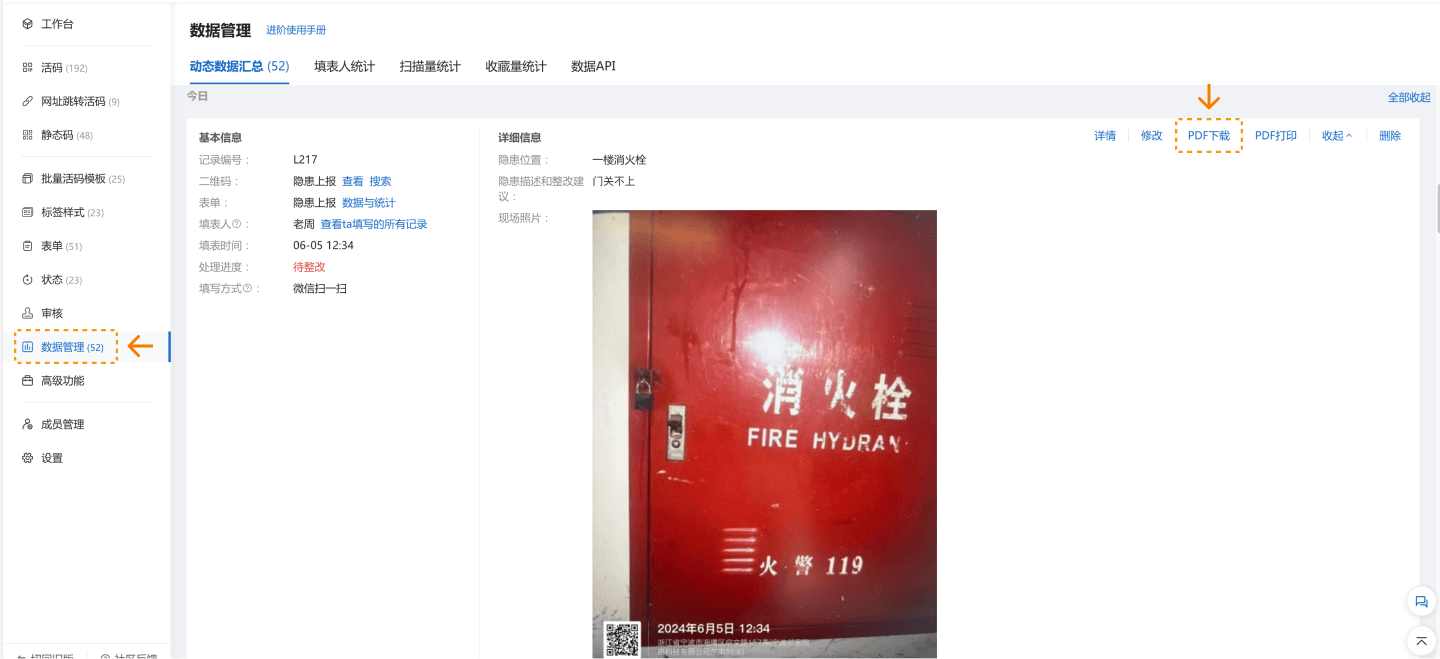
Log in to the desktop workbench, find the form record to export in Dynamic Data Summary under [Data Management], and click [Download PDF].
V. FAQ
Can Anyone Add Follow-Up Actions? How Do I Control This?
Whether someone can view and add follow-up actions depends on the scope set in the form: with "Public", anyone who can open the record can view and add; with "Internal use", only members of this organization can view and add, and you can also tick "The submitter of this record can also view and add" to open it to that record's submitter alone.
Being able to open the record detail page doesn't mean being able to view and add follow-up actions:
- Submitters can open their own submitted records in the Mini Program under Me → Records I Filled In; whether a non-member submitter can view and add actions depends on whether "Public" is chosen, or whether it is open to the submitter under "Internal use".
- When a dynamic data panel is added to the QR code and the scanner has the matching access, other people can scan to see the dynamic data panel on the code and find the related records, and tap a record to open the detail page. Learn about the dynamic data panel;
- When a submitter forwards the record detail page, the recipient, even if they can open the record, still has to fit the scope of follow-up actions to view and add actions.
Editing or deleting follow-up actions that have been added isn't supported at the moment, to keep a trace of the content.