Content Display: Feature Overview
Content display is the most basic and widely used feature of CaoLiao QR Code. You put text, images, audio/video, files, contact info, locations and more into a single QR code, and anyone can open it by scanning. When the content changes, the code stays the same — printed codes remain valid.
It fits most "show it to someone else" scenarios: product introductions, electronic manuals, business profiles, digital business cards, service guides, public notices, and so on.
1. What Content You Can Show
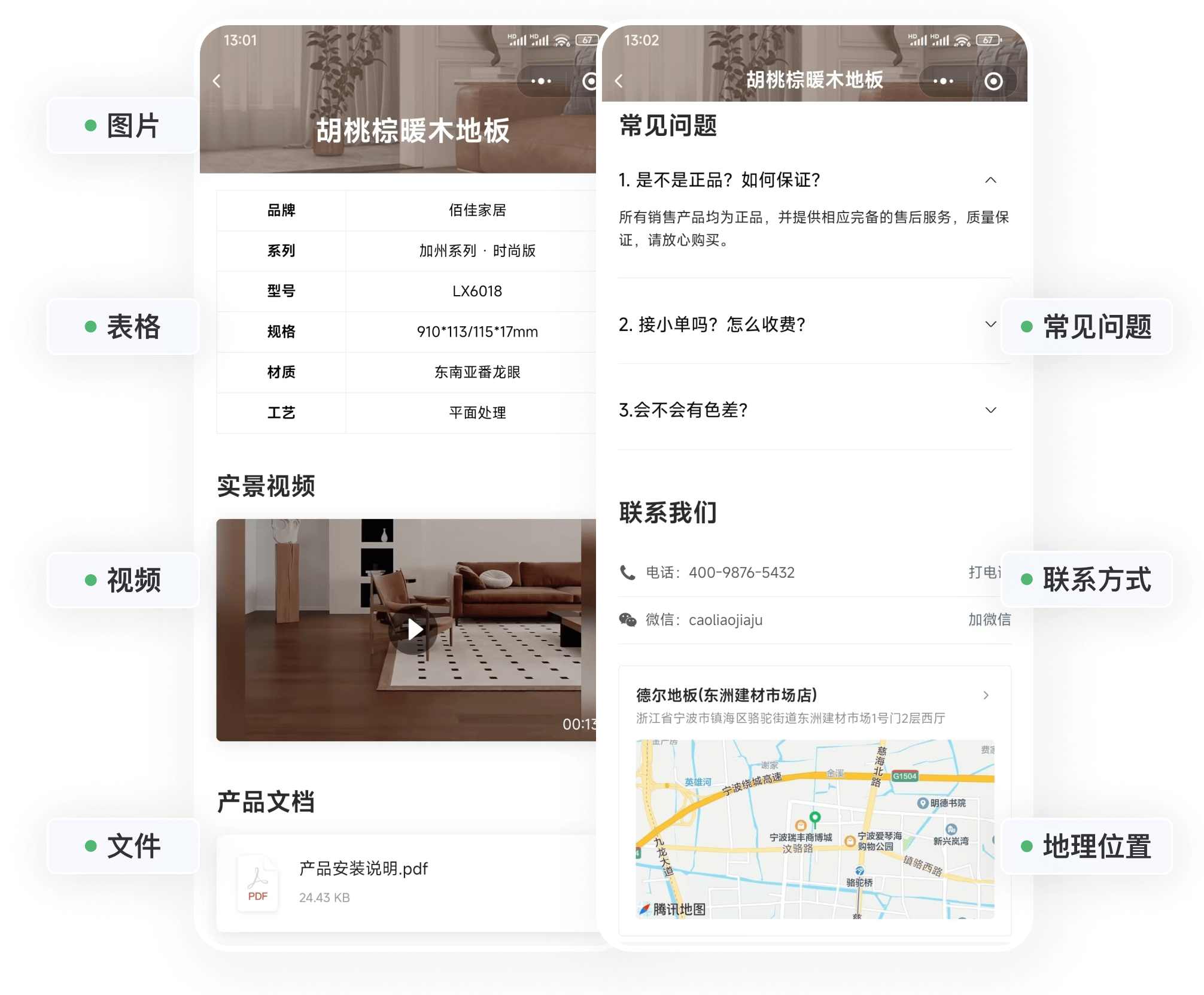
In the CaoLiao editor, a QR code page is assembled from multiple components. Different components carry different types of content:
- Rich text and images: paragraphs, headings, and images with rich-text formatting; images support carousels
- Audio/video: videos and audio files play directly after scanning
- Files: Word, PDF, Excel and other formats can be previewed online or downloaded
- Contact info: tap a phone number to call it or save it to contacts
- Map location: tap to view the location and launch navigation
- Directory: embed other QR codes into the current page as a clickable category navigation
Components can be freely combined and reordered. For detailed component usage and step-by-step setup, see Content Display dynamic QR code tutorial.
2. Make the Page Look Better
Beyond the content itself, you can also adjust the page's appearance so the scanning experience matches your brand.
Background image: add a background image so the page no longer has the default white background. For setup details, see How to set a background image.
Design templates: the editor ships with several built-in style templates. Apply one directly — even without design experience you can produce a clean, polished page.
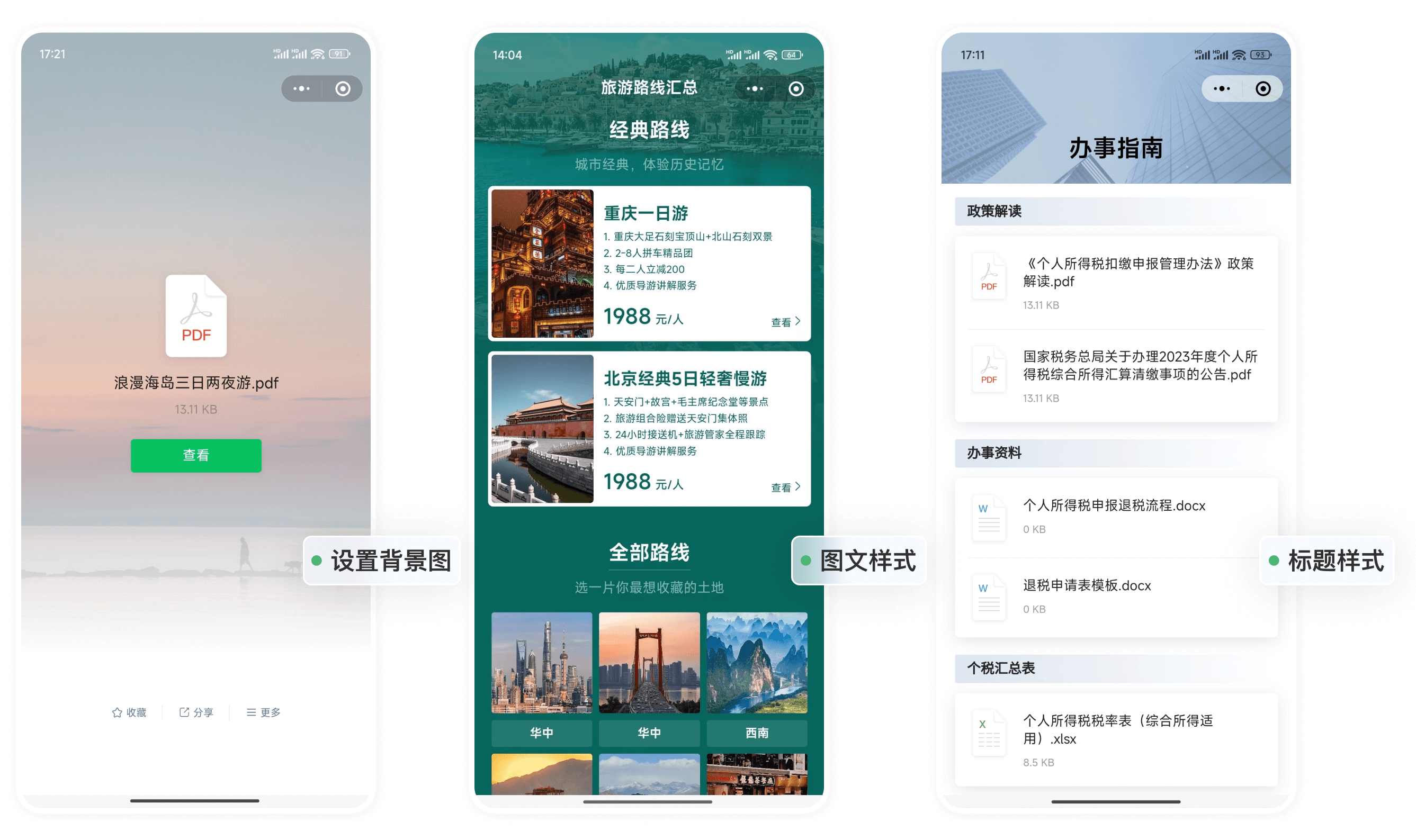
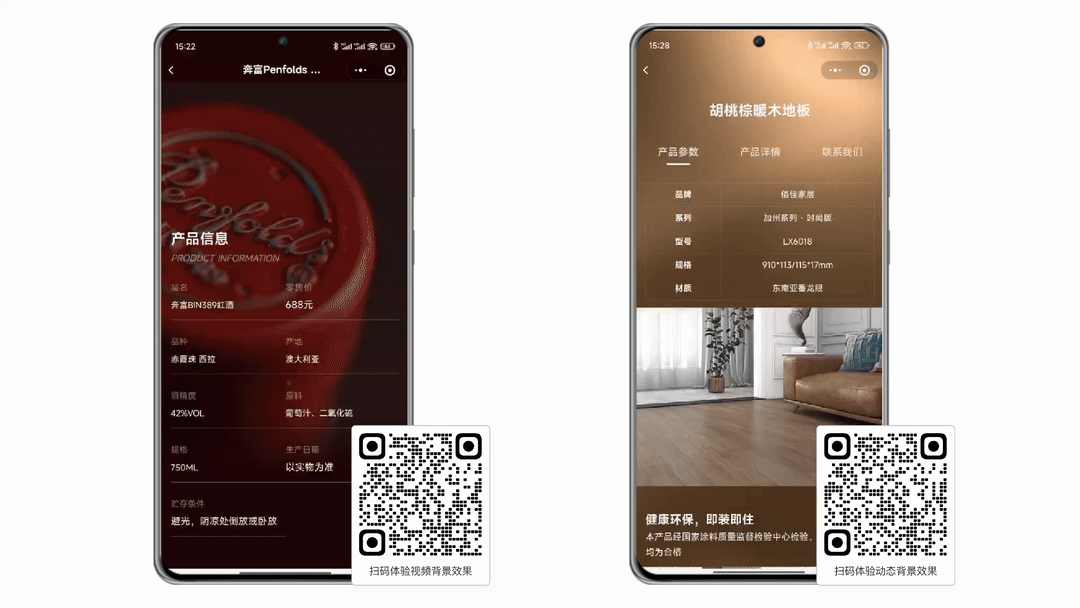
Video background: use a short video as the page background. It plays automatically on the first screen, and works well for product showcases, company introductions, and team profiles.
Animated background: customize the theme color and animation speed to create a simple, dynamic background.
Note: Video backgrounds and animated backgrounds require the paid version.
3. Collect Multiple Codes Under One Entry
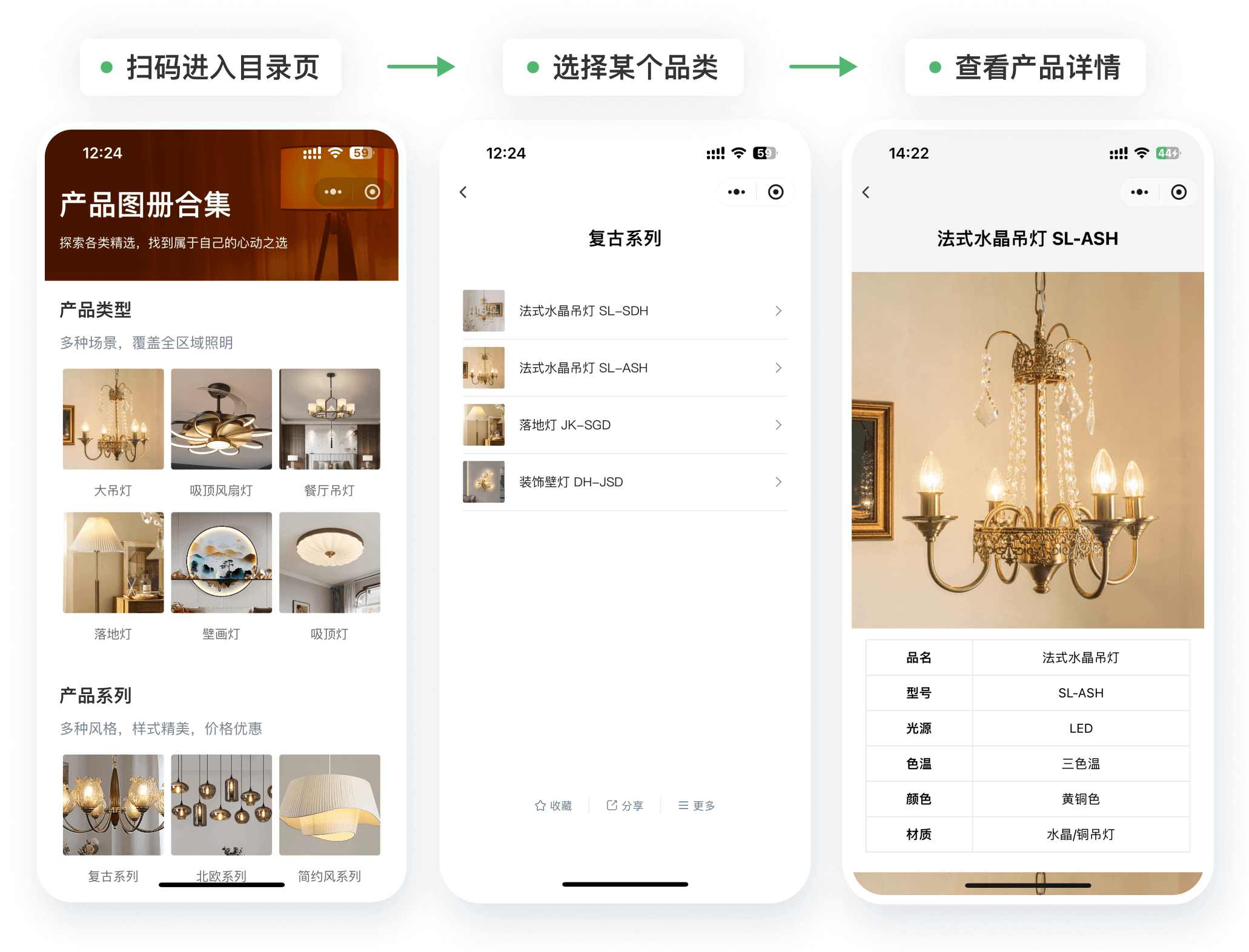
If you need to display a large catalog of items (dozens of products, several venues, multiple service routes), split them into separate sub-codes and use a directory to gather them under a single entry:
- Directory list: insert a directory inside a QR code's content to display multiple related sub-codes as a categorized list. Scanners tap a list item to open the corresponding sub-code. Directory list overview
- Directory summary QR code: automatically generate a "summary code" based on the directory structure set in the editor. When the sub-codes change, the summary code updates automatically — no manual maintenance required. Directory summary QR code overview
4. AI Interpretation for Long Documents
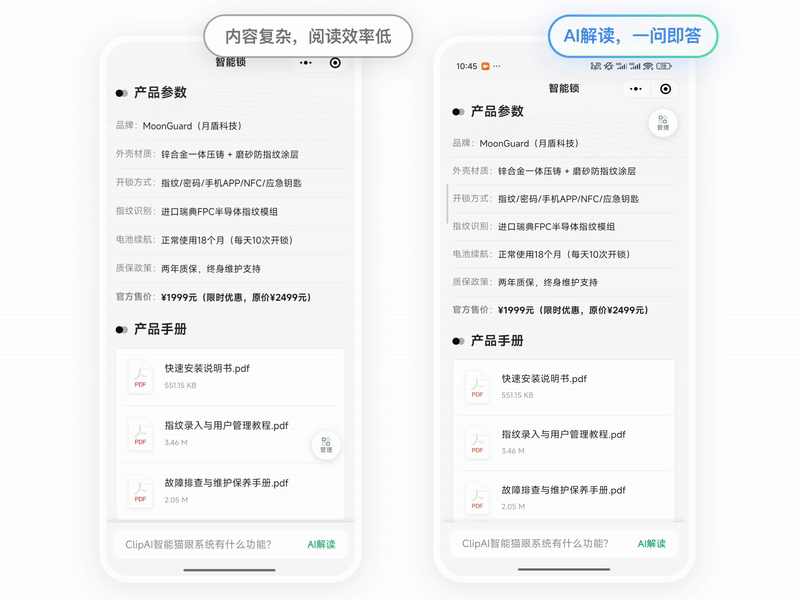
When a QR code holds long files such as product manuals, operating instructions, or service guides, flipping through them on a phone can be tedious.
With AI interpretation enabled, scanners can ask questions directly. The AI pulls the relevant information from the QR code's content and answers, so they don't have to hunt for it themselves.
Note: AI interpretation requires the Advanced Edition or above. See AI interpretation feature overview for details.
5. Generate QR Codes in Bulk
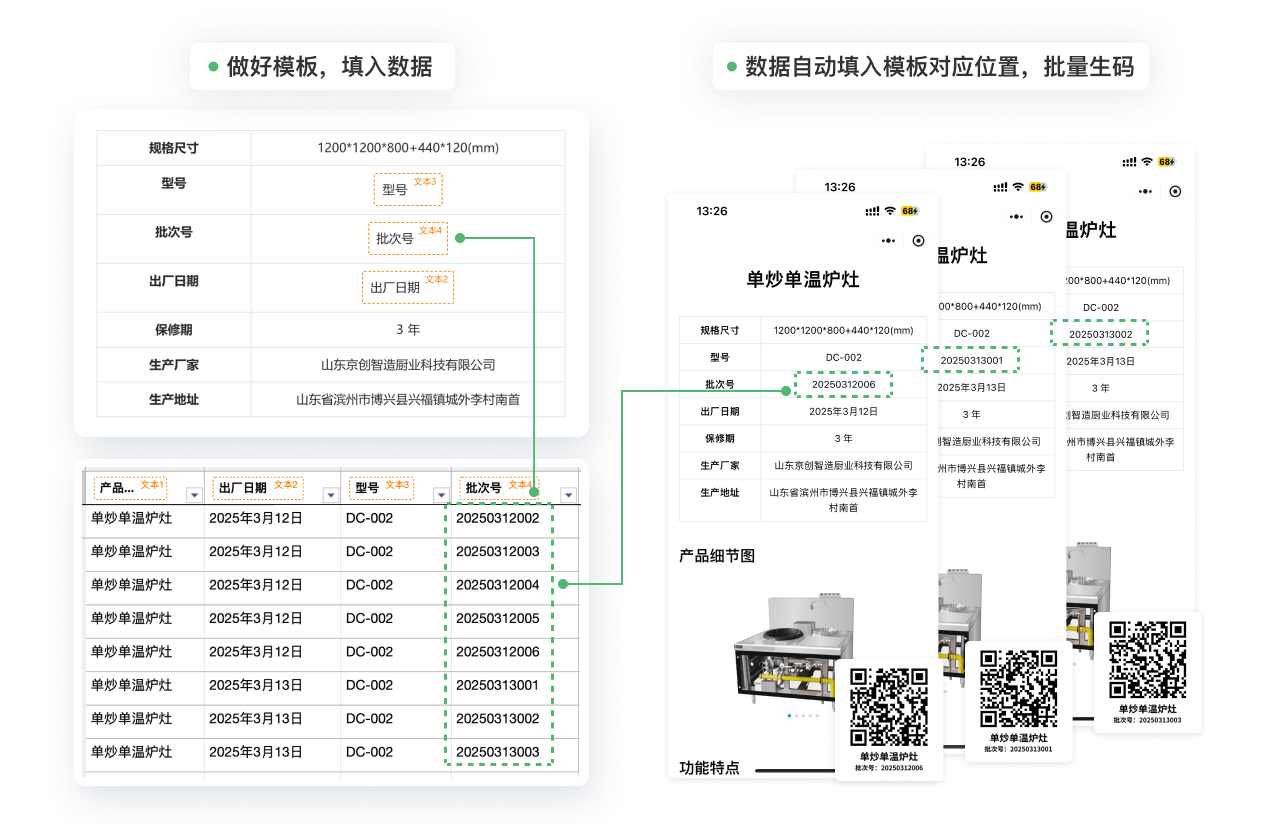
When you need to generate a QR code for each of a batch of products, people, or assets, you don't have to create them one by one.
Create a bulk template, import data from an Excel file or a form, and CaoLiao will generate sub-codes with the same structure but different content, all managed from a single workbench. Go to Bulk QR Code Generation
6. Scan Statistics
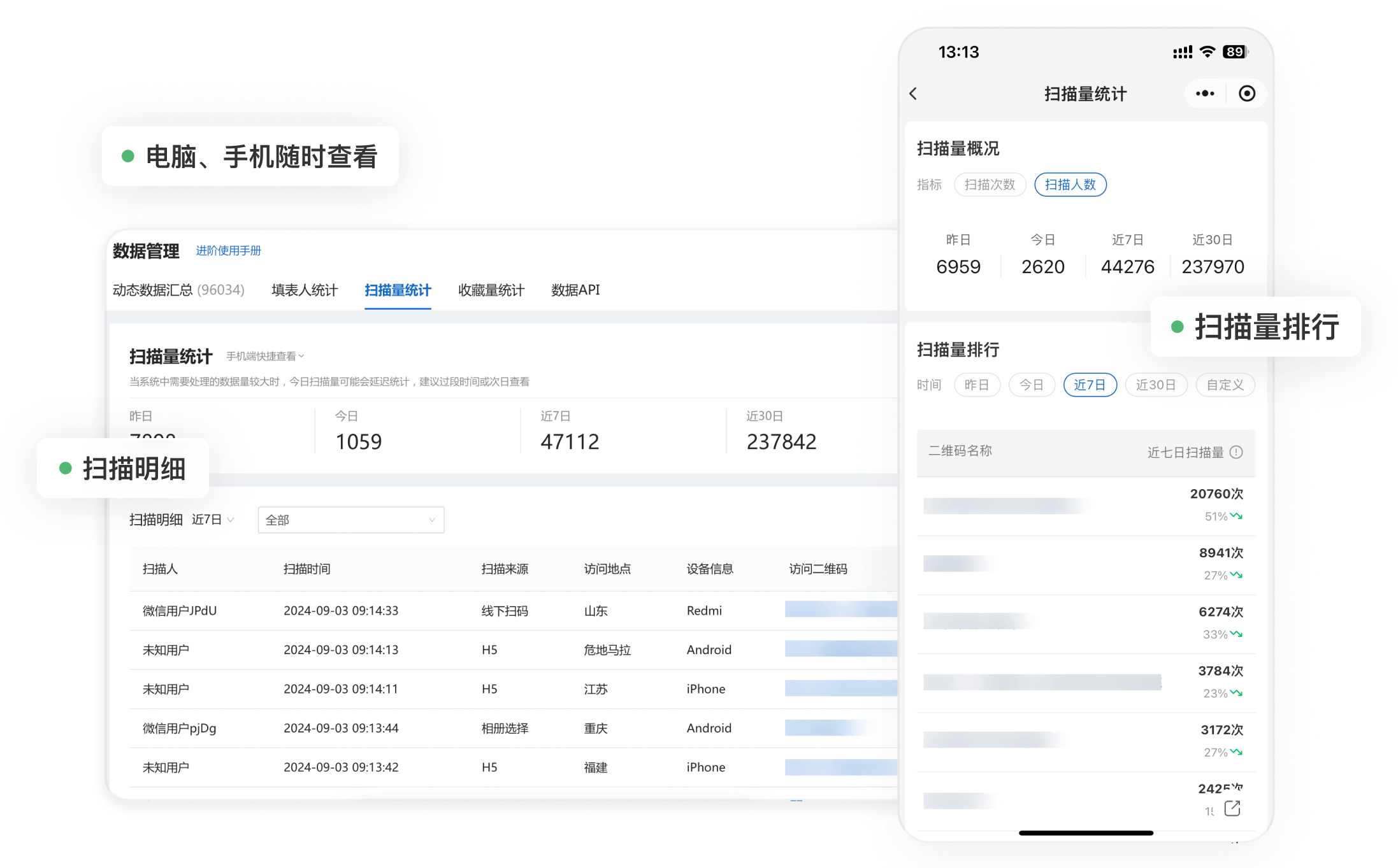
For every QR code, the workbench automatically records scan counts, time distribution, and geographic breakdown. You can review these at any time or export a report to understand how your codes are performing.
7. Common Use Cases
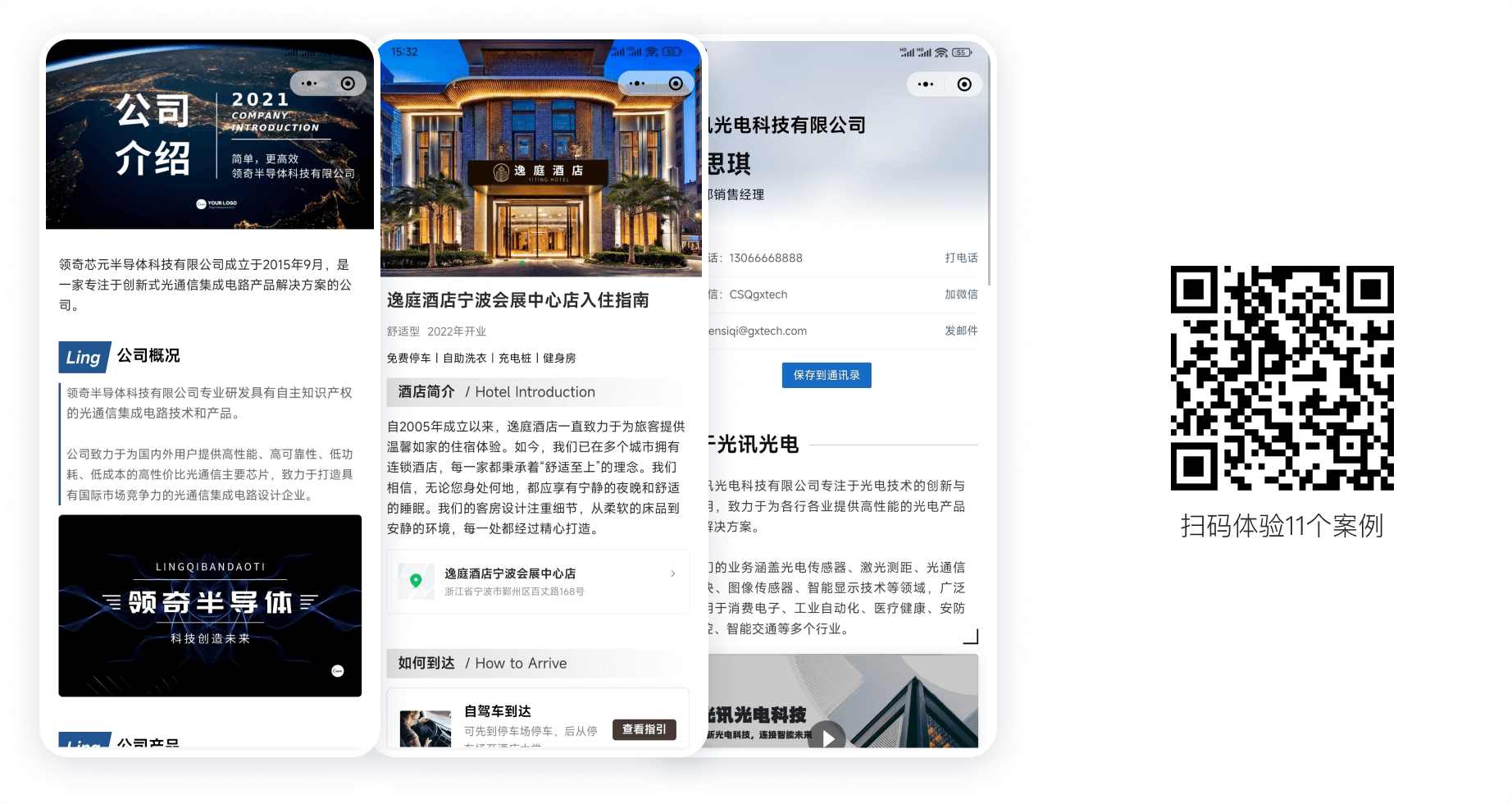
Product introductions, inspection reports, user manuals Generate a QR code for each product and gather selling points, specs, inspection reports, and user manuals in one place. Customers see everything by scanning, and any updates take effect immediately.
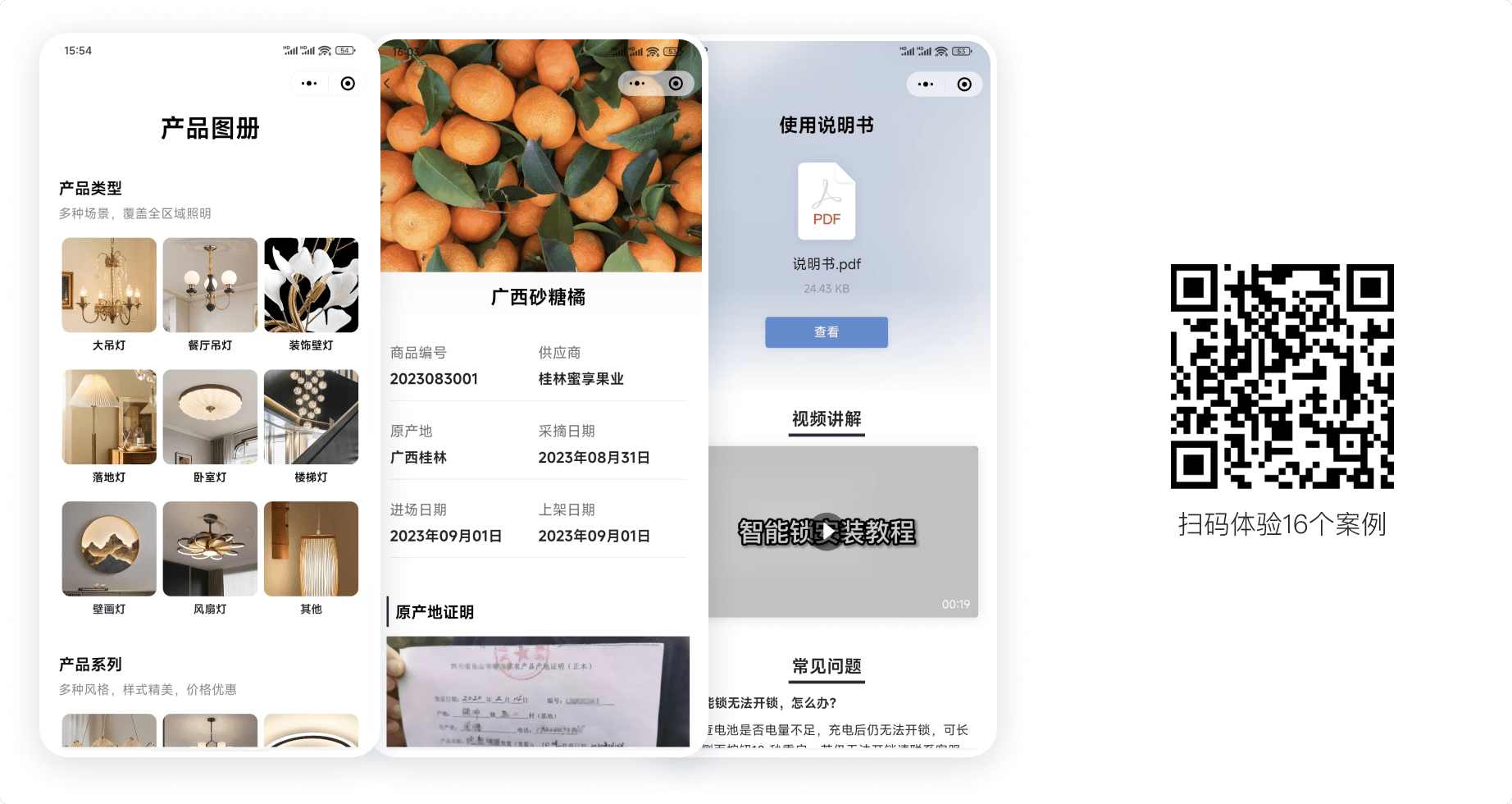
Company profiles, business cards, tourism promotion Use a QR code to present your services, offerings, and contact info — great for company profile pages, employee digital business cards, and scenic-area guides.
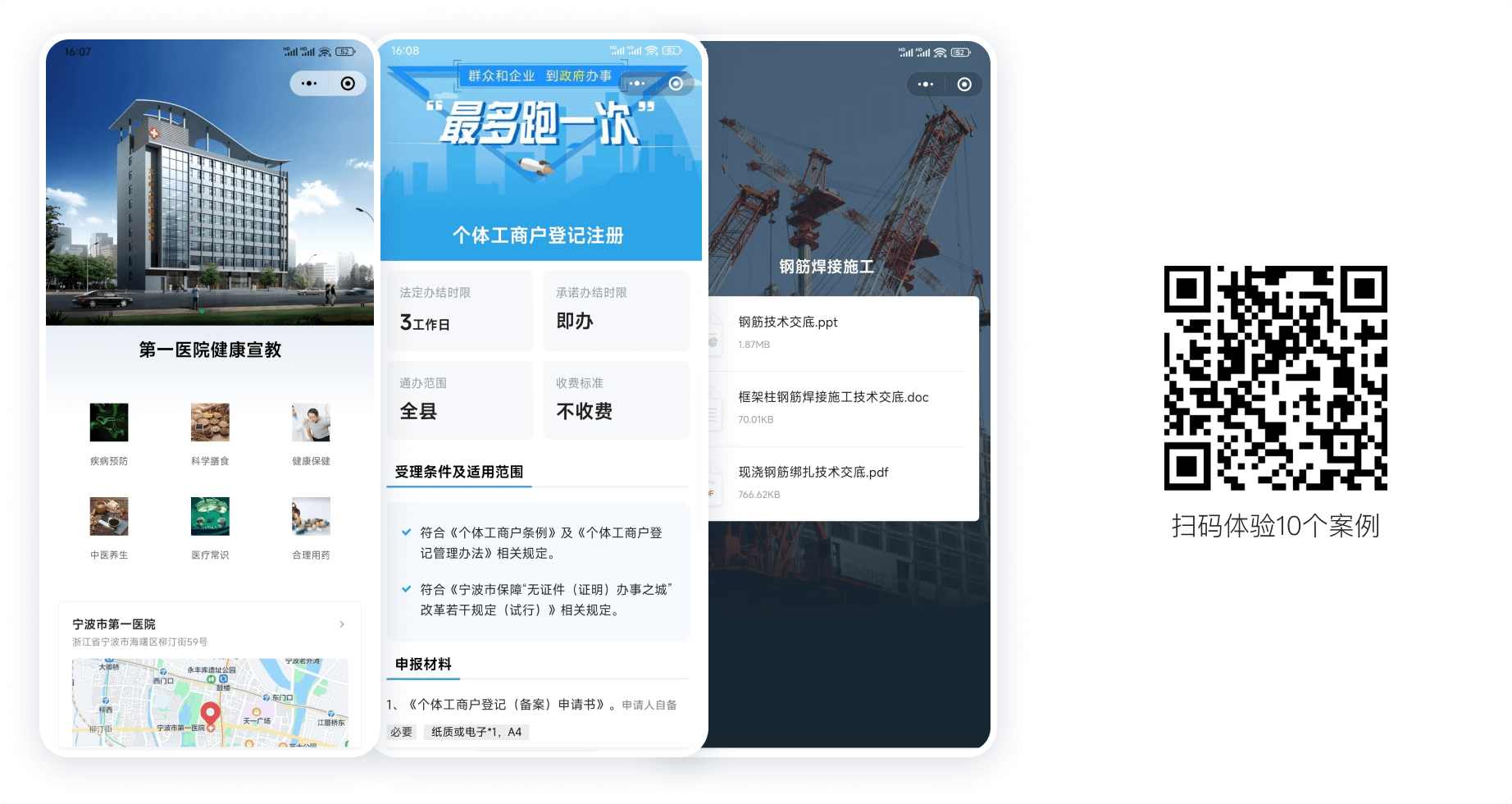
Public notices, health education, service guides Put images, videos, and documents that used to be printed on paper into a QR code. Scanning to view, bookmark, and share is easy, and updates no longer require a reprint.
8. Frequently Asked Questions
1. Can I Use the Free Version?
Yes. The free version covers most basic display needs:
- QR codes never expire
- No limits on the number of codes or scans
- No limit on image and file storage
- Audio/video: up to 1 minute per file, unlimited viewers and plays, and long-term standard-definition playback
2. What Does the Paid Version Add?
- Remove the default CaoLiao logo and watermark, and show your own brand instead
- Support for video backgrounds and animated backgrounds
- Audio/video: no duration limit; includes HD traffic and defaults to HD playback while traffic remains
- AI interpretation, starting from the Advanced Edition
- The option to purchase an exclusive WeChat Mini Program with custom name, logo, and home page, so every code in your account opens inside your own Mini Program
For a detailed comparison between the free version and the paid editions, see Version purchase guide.
3. Is There a File Size Limit?
- Free version: up to 50 MB per file
- Paid version: up to 500 MB per file
There is no limit on the cumulative upload volume of images and files under an account.
4. Do QR Codes Expire?
By default they never expire and have no scan limit. If you need them to expire, you can set an expiration time from the workbench.
5. Will the QR Code Image Change After I Edit the Content?
No. CaoLiao content display codes are dynamic QR codes — the content can be edited online at any time while the image stays the same. Printed codes keep working, and you don't need to download or reprint them.
9. Start Creating
CaoLiao has already packaged the most common display QR codes as templates. Pick one that fits, replace the content with your own, and you're ready to go.
If you run into any issues, click Consult in the lower-right corner of the page, or search the Help Center for the relevant tutorial.