Edit and Update QR Codes
After a dynamic QR code is generated, you can change its content at any time. The QR code pattern stays the same, and codes you have already printed keep working. Static QR codes cannot be modified after they are generated.
1. Edit a Single QR Code
Step 1: Go to the Workbench
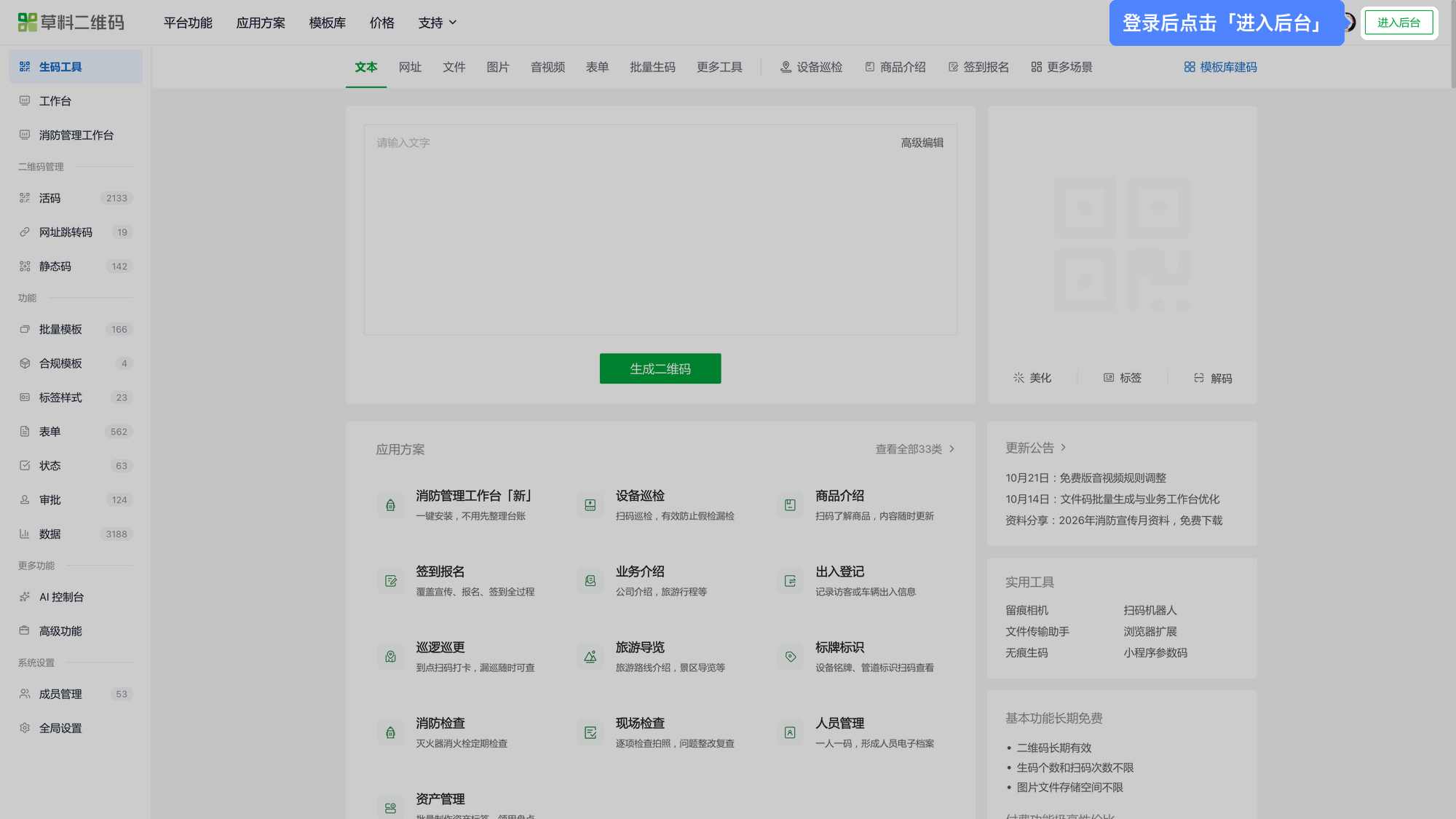
Log in to your CaoLiao account and click "Go to Workbench" in the upper-right corner of the website.
Step 2: Find the QR Code and Click Edit
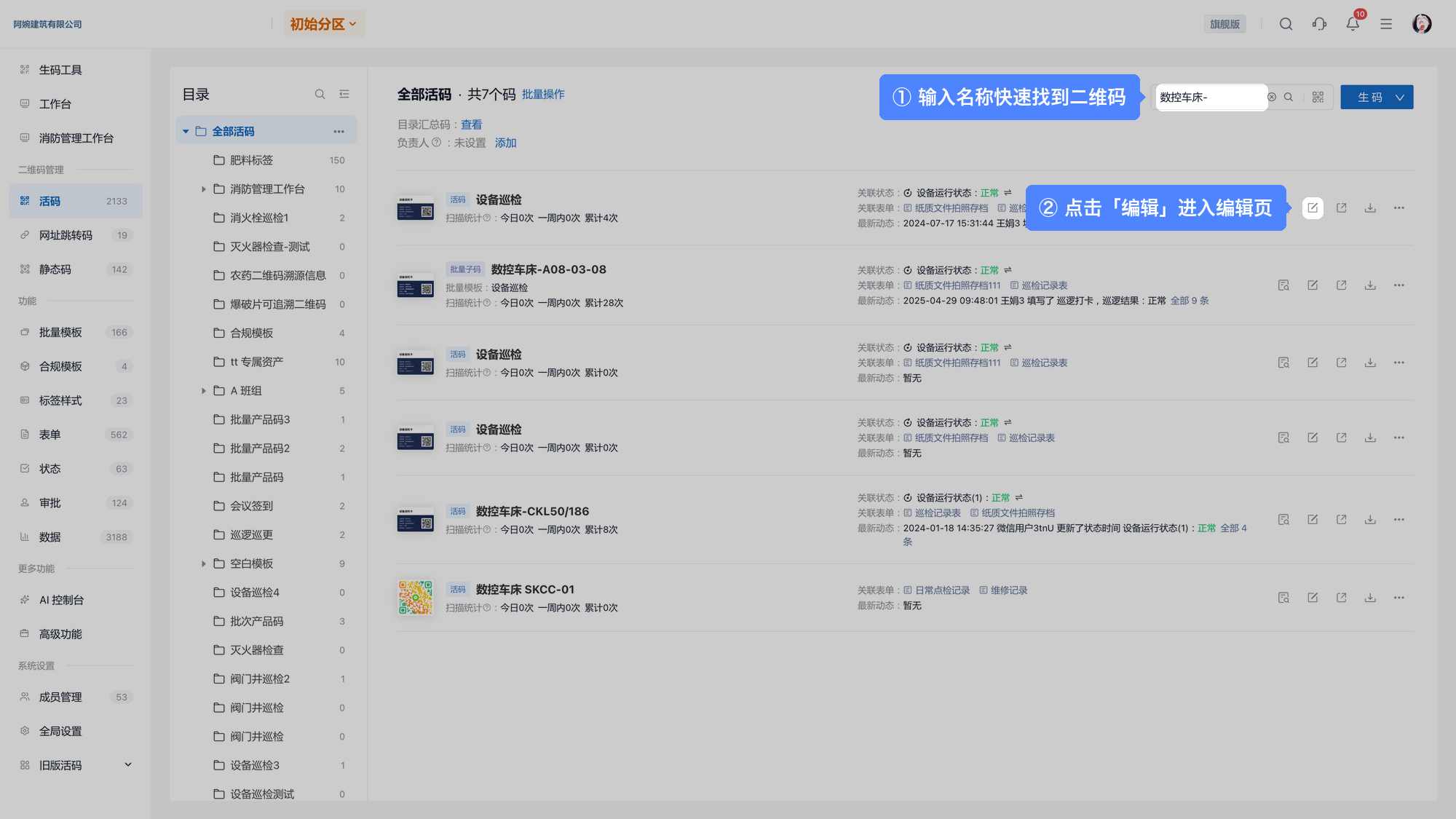
Click "Dynamic QR Codes" in the left menu, find the code you want to change, and click the edit icon on the right of its row. If you have many codes, type the name in the search box in the upper-right corner to find it quickly.
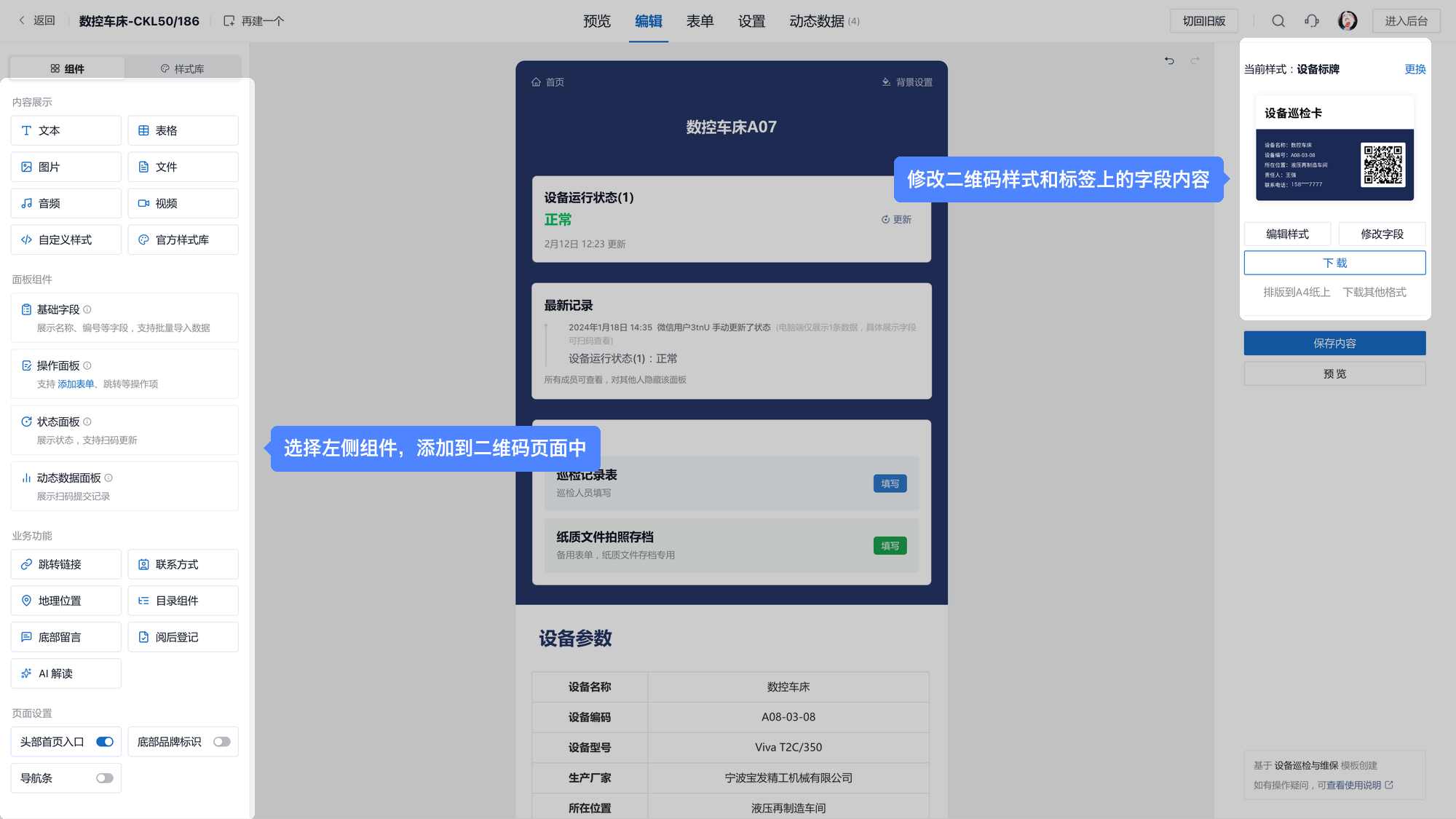
On the edit page, change the content you need to update:
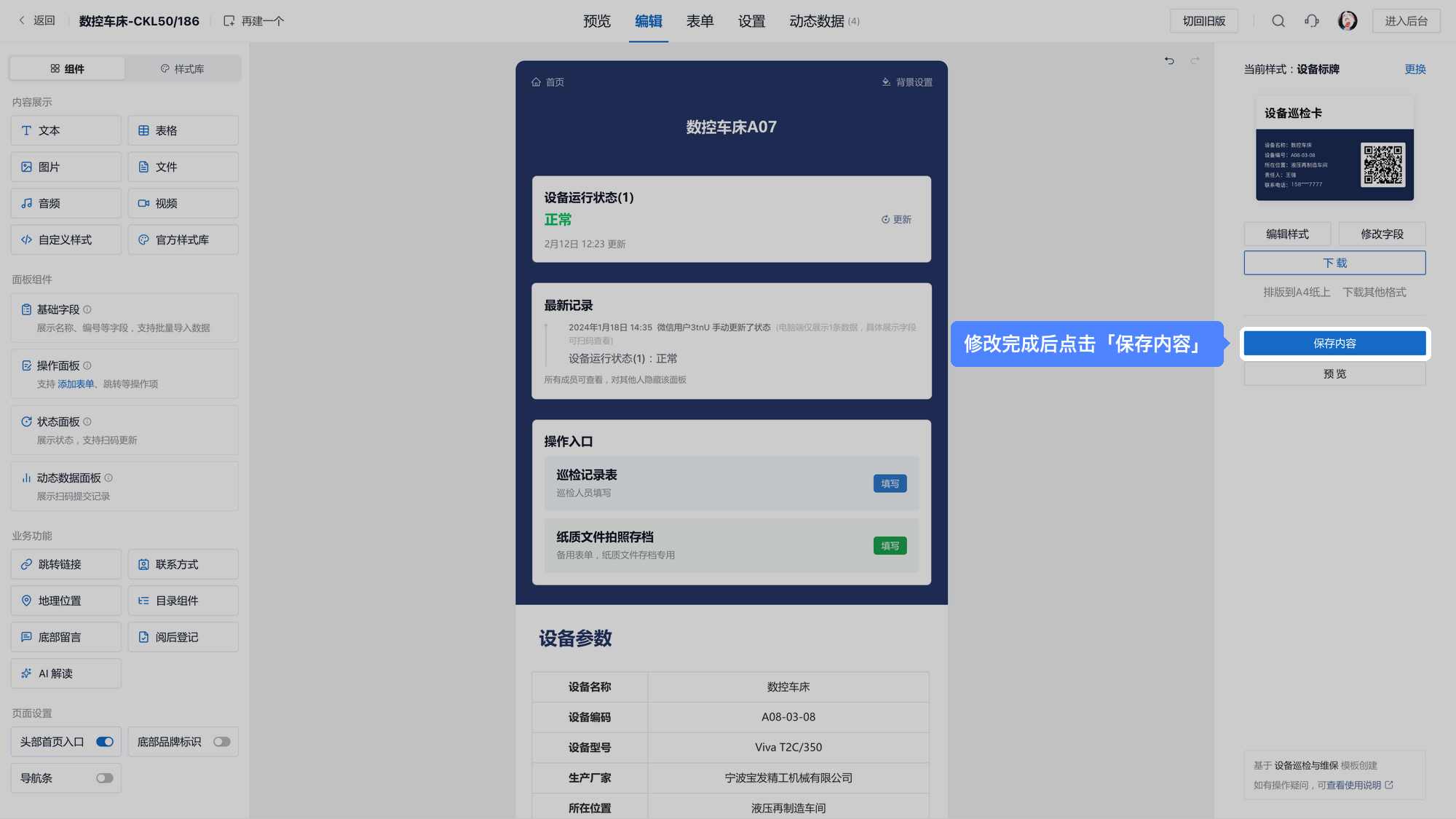
- Component area on the left: Choose a component (such as text, image, redirect link, or control panel) and click it to add it to the QR code page
- Page content in the middle: Click content on the page to edit it directly
- QR code style and content area on the right: Change the QR code label style, or click "Edit Style" or "Edit Fields" to change the style and field content on the label
For more on using the editor, see Dynamic QR Code Editor.
Step 3: Change QR Code Settings (Optional)
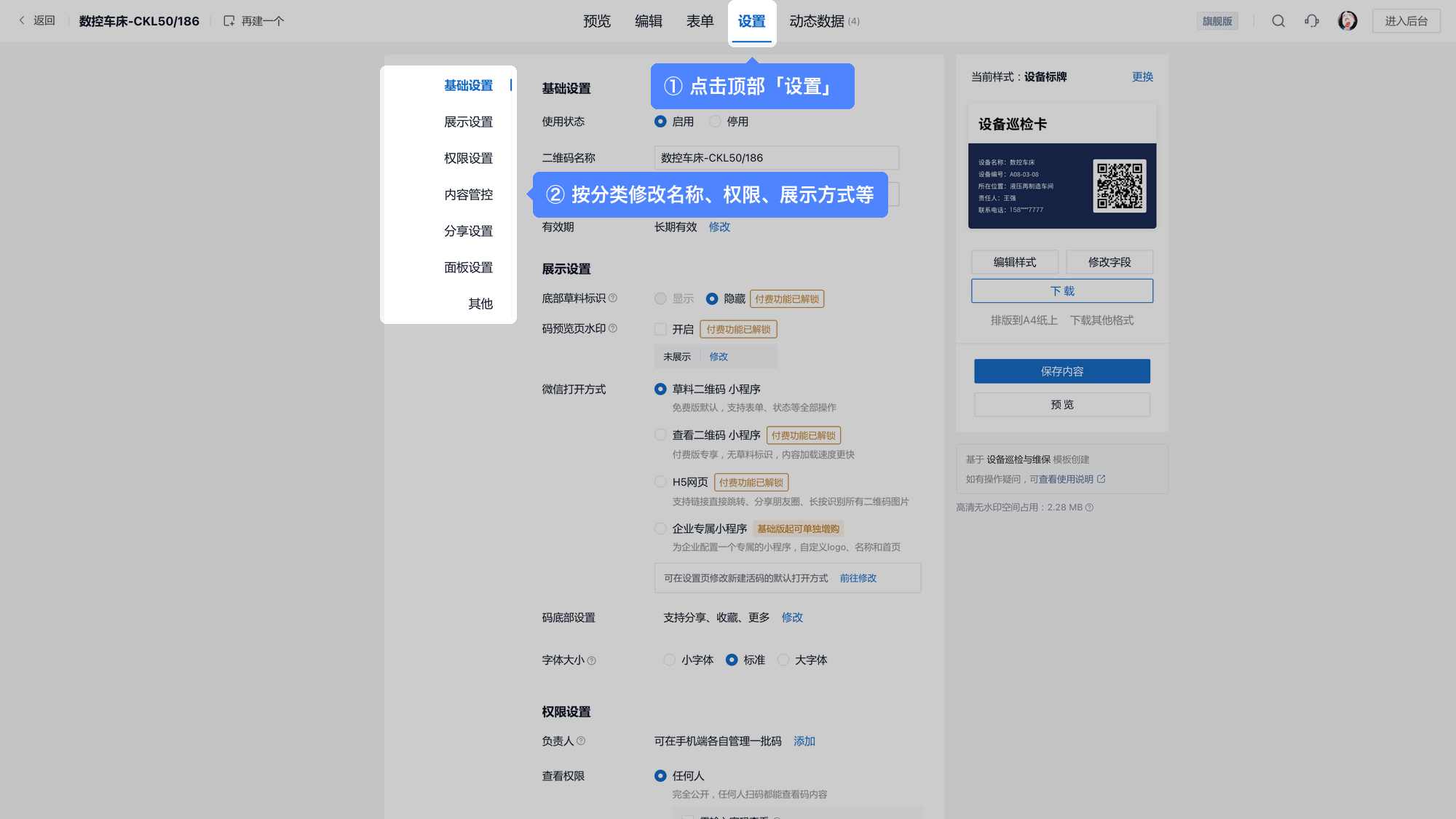
Besides the page content, you can also change the QR code's name, period of validity, view permissions, and other settings. Click "Settings" at the top of the edit page, then switch between categories on the left:
| Category | What you can change |
|---|---|
| Basic Settings | Status (enabled/disabled), QR code name, storage directory, period of validity |
| Display Settings | CaoLiao logo at bottom, preview page watermark, WeChat opening method, bottom bar settings, font size |
| Permission Settings | Responsible person, view permissions, allowed regions, access time, app restrictions, content viewing methods |
| Content Control | Content update method, version history |
| Share Settings | WeChat share title, description, and image |
| Panel Settings | Settings for the status panel, control panel, dynamic data panel, and bottom message panel |
| Other | QR code ID, directory image, notes |
Note: Options marked "Paid Feature" (such as the CaoLiao logo at bottom and the preview page watermark) require a paid version.
Step 4: Save Content
When you are done, click Save Content on the right. The QR code is updated right away.
To confirm the save: scan the code again and you should see the latest content. In the "Dynamic QR Codes" list, the code's "Update Time" changes to when you saved it.
2. Bulk Edit QR Codes
If your QR codes were generated from a bulk template, you can change the content of many sub-codes at once instead of editing them one by one.
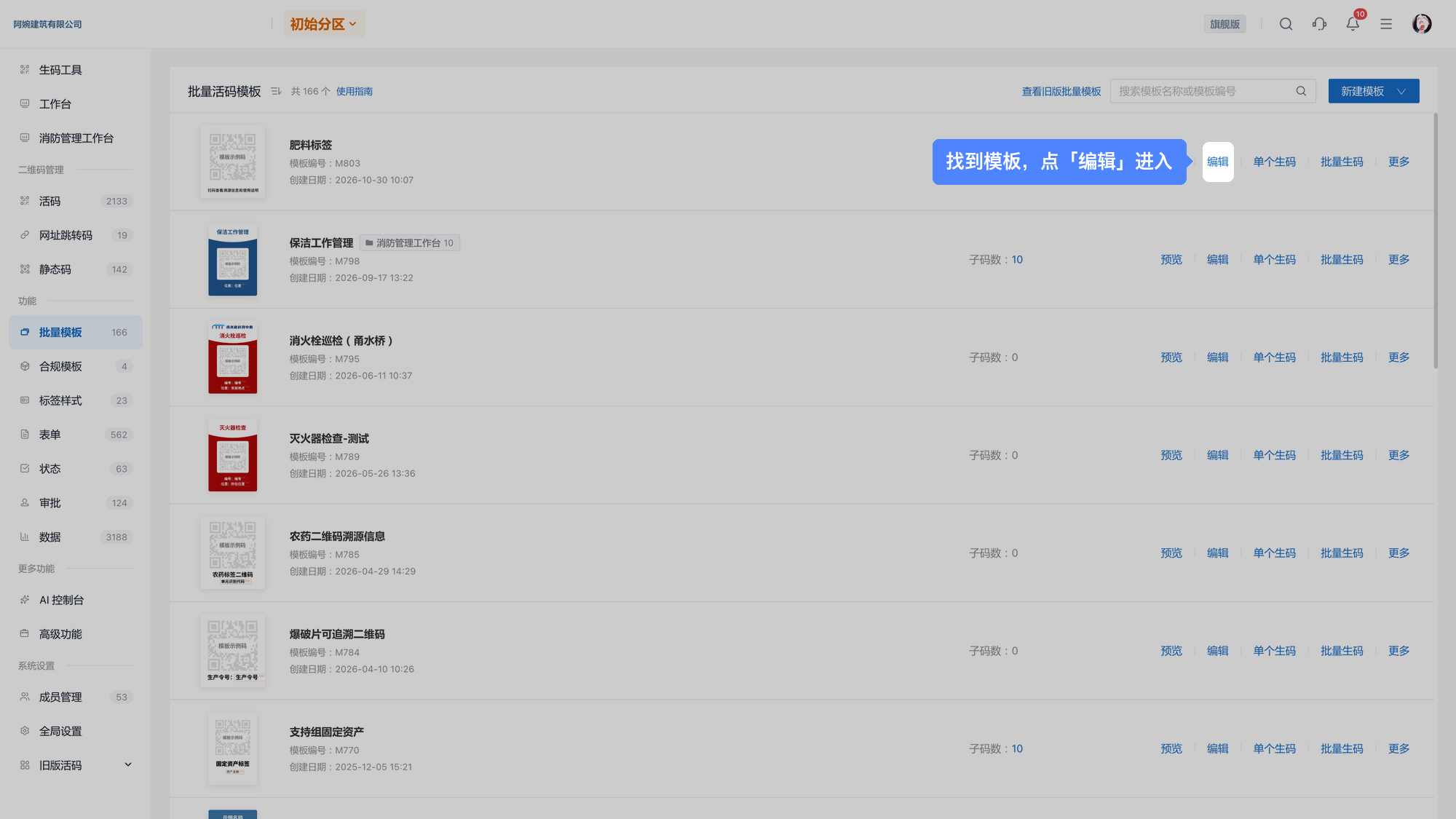
- Click "Bulk Templates" in the left menu, find the template, and click "Edit"
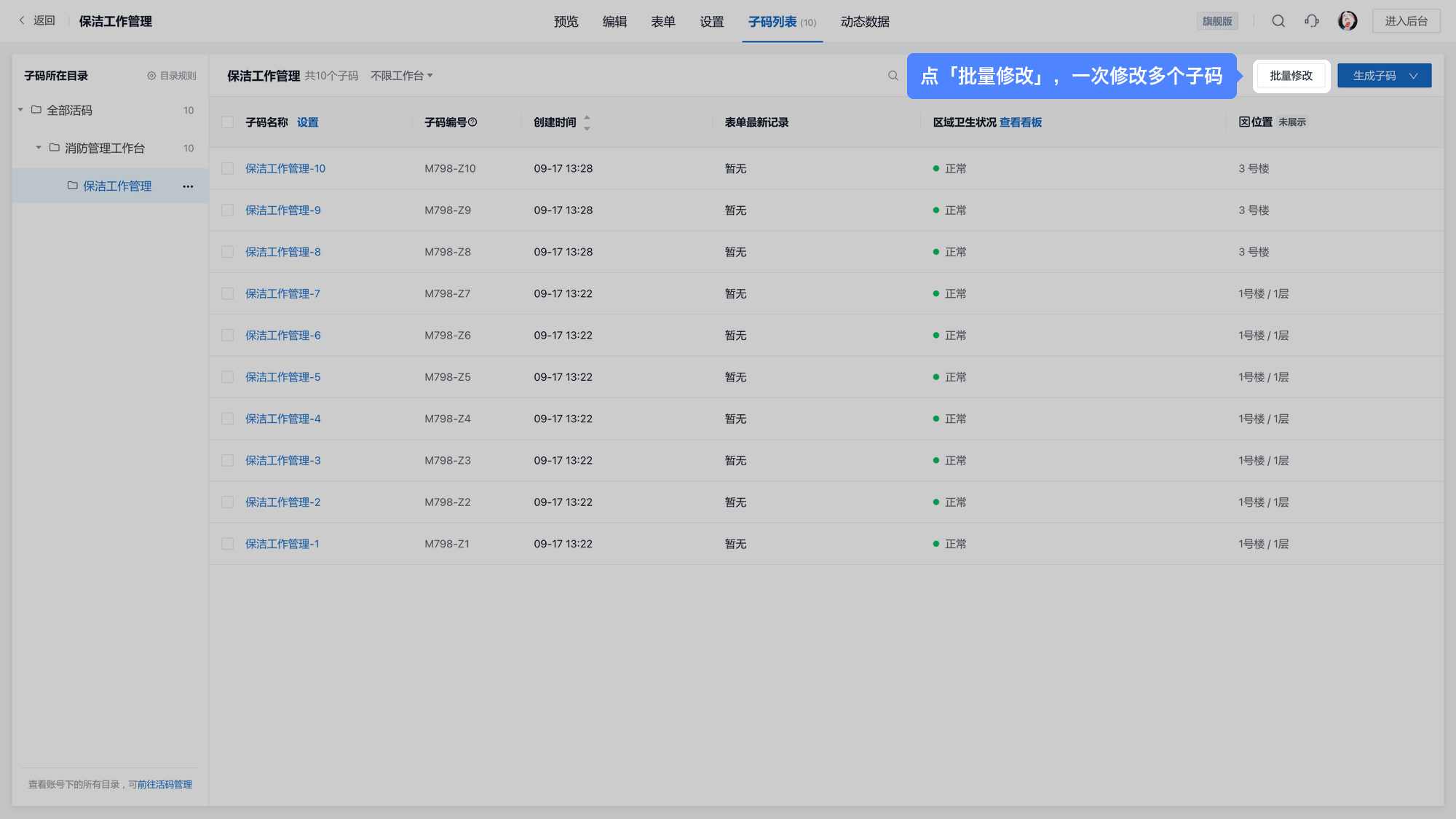
- Click "Sub-Code List" at the top, then click "Bulk Edit"
For detailed steps, see the bulk edit sub-codes tutorial.