Redirect Link
"Redirect Link" is a component in the dynamic QR code editor that inserts clickable links into a QR code page. When clicked, these links can open other dynamic QR codes under your account, web pages, official account articles, Mini Programs, phone numbers, and more. It is ideal for product catalogs, digital brochures, company introductions, and other multi-level navigation scenarios.
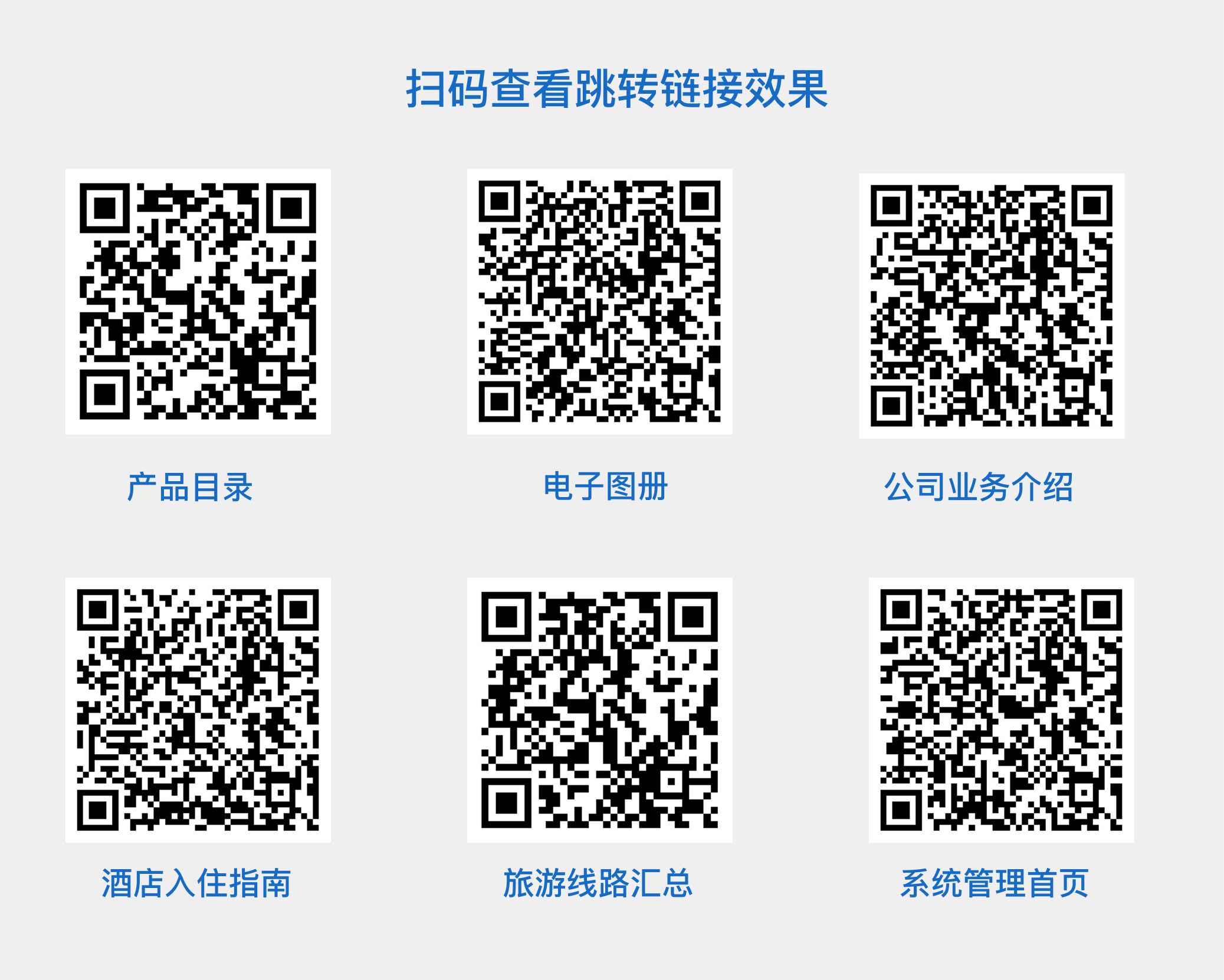
1. Configuration Steps
Note: Before using redirect links, you need to prepare the target content first. For example, when creating a product catalog, first create a detail page QR code for each product under your account, then link them together with redirect links.
Step 1: Add a Redirect Link
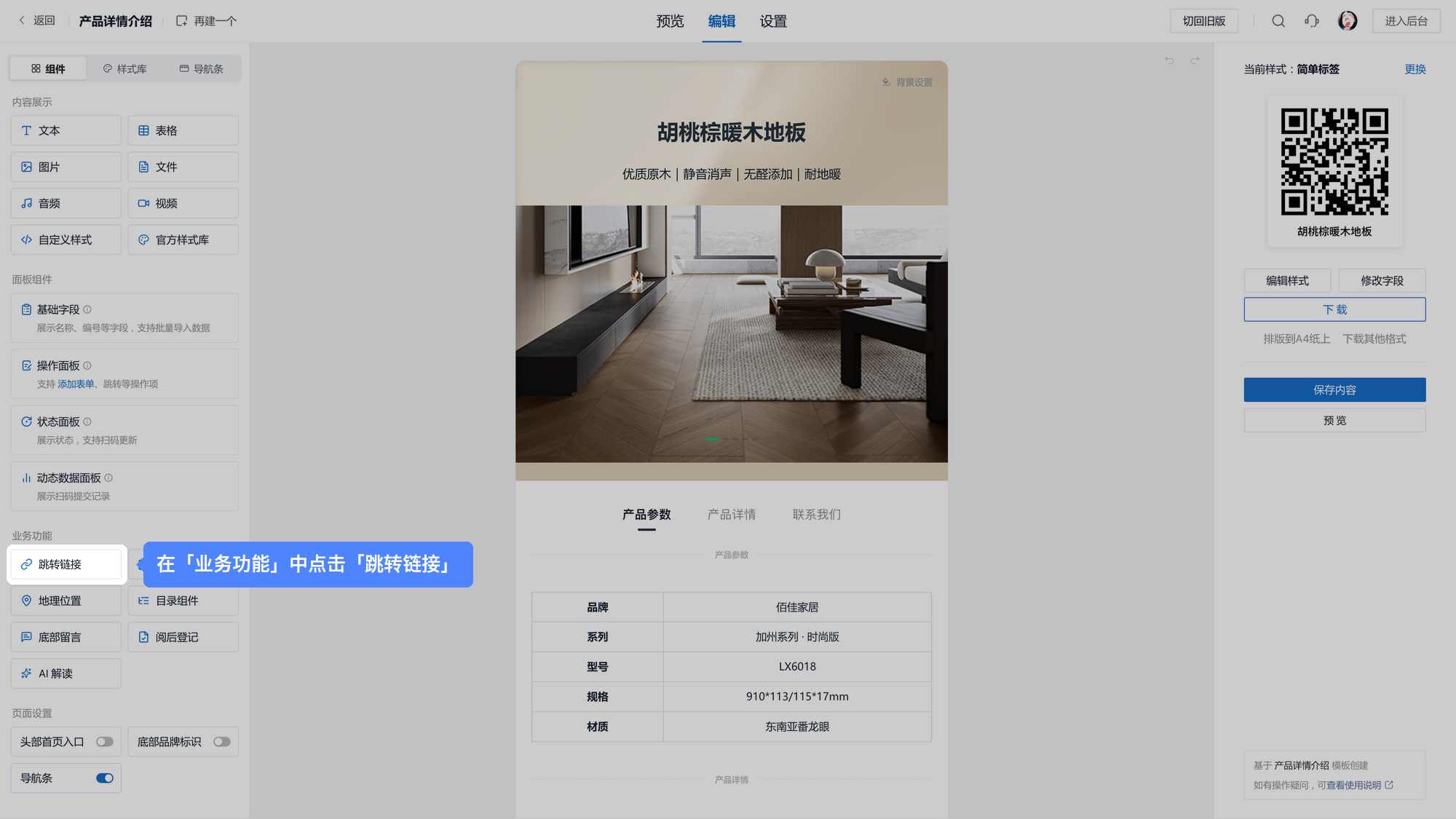
In the editor's left panel, under "Business Features", click "Redirect Link".
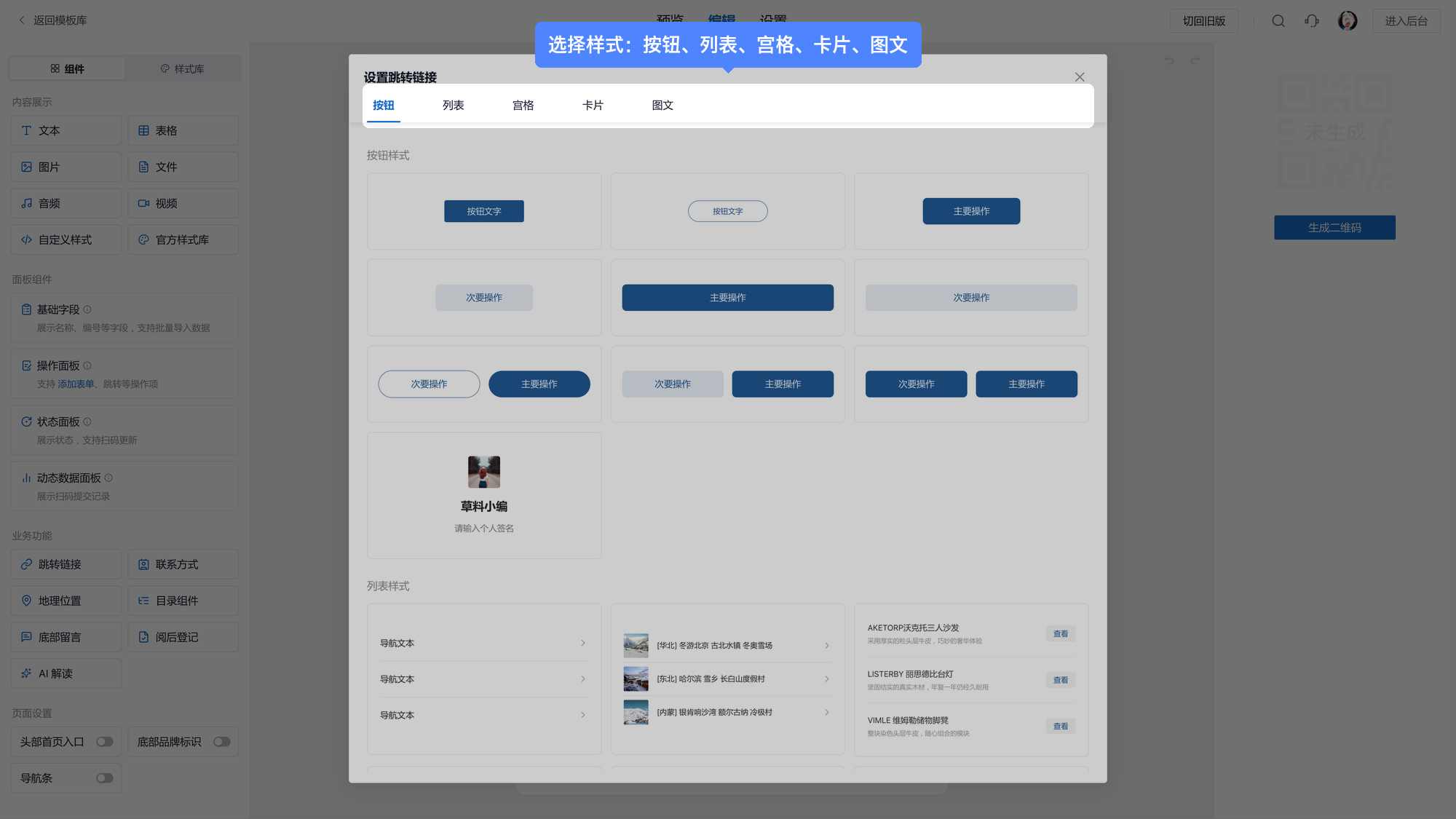
In the "Set Redirect Link" dialog, choose a style: Button, List, Grid, Card, or Image & Text. Click a style to insert the redirect link into the page.
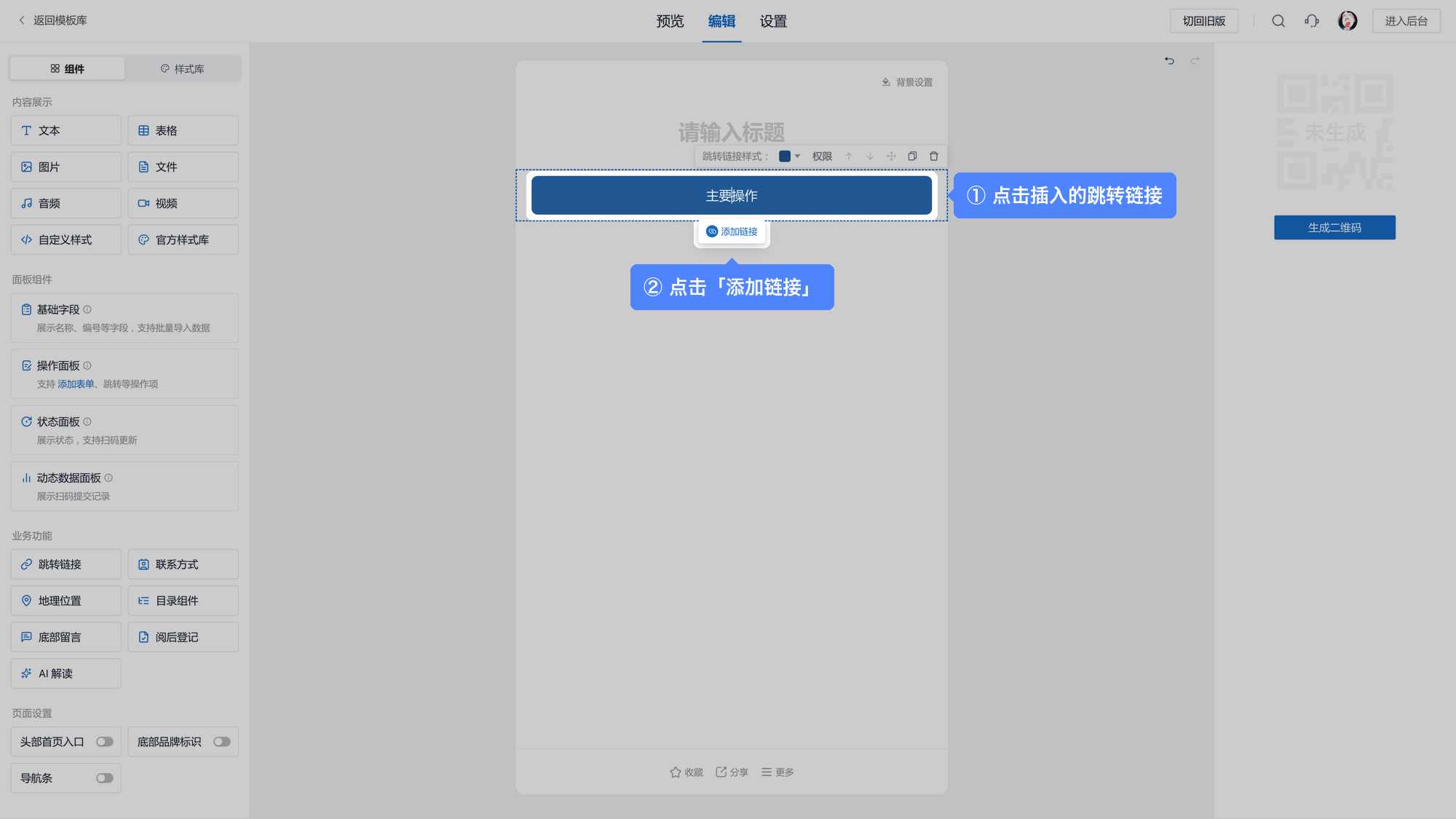
Step 2: Set the Redirect Target
Click the inserted redirect link on the page, then click "Add Link" below it to set the redirect target.
In the "Set Link" dialog, choose a target type on the left, select or enter the specific target, then click "Confirm". Available types:
| Group | Redirect Targets |
|---|---|
| Common | Dynamic QR Code, URL, Dynamic QR Code Directory |
| WeChat Links | Official Account Article, Other Mini Program, Video Account |
| Forms & Data | Form, Data Viewing Entry |
| Other | Phone, Scan, Resource Library, Mini Program Management Page, and more |
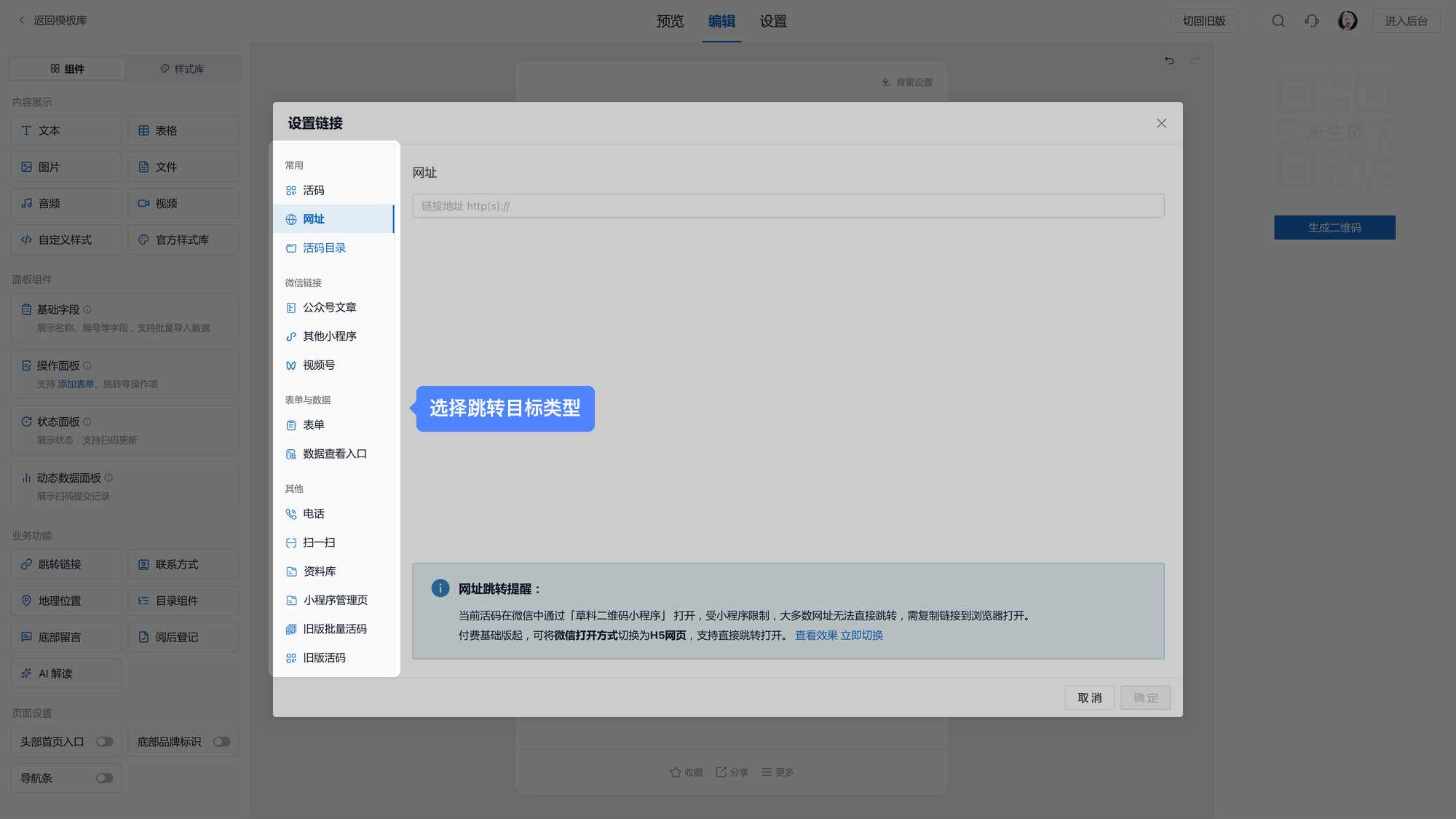
When you are done, click "Save Content" on the right side of the editor (click "Generate QR Code" for a new code). Scan the code and tap the redirect link to confirm it opens the target.
Tips:
- To redirect to another Mini Program page, paste the target Mini Program's short link. View setup tutorial
- You can link to forms associated with the QR code. Clicking the link opens the form for filling out. Linking to a data viewing entry is also supported.
- After selecting a QR code directory, if you need to modify the directory code's display style, go to the workbench to find and configure the corresponding directory. View directory summary QR code guide
- When generating QR codes with bulk templates, you can use the "Variable Link Content" feature to make each sub-code redirect to a different target. View variable link content feature
2. Common Questions
1. How Do I Redirect to a Dynamic QR Code in Another Partition?
First, obtain the target dynamic QR code's "Code URL": download the target QR code image and use CaoLiao's Decode Tool to extract the link. Then, in the redirect link settings, select "URL" as the type and paste the extracted URL.
2. I Configured a URL, but Why Doesn't It Open Directly When Clicked?
Dynamic QR codes open via the WeChat Mini Program by default. WeChat restricts Mini Programs from directly opening web links. You can upgrade to the paid version and switch the QR code's "WeChat Open Method" to "H5 Web Page". Learn how to switch the open method
3. Cannot Configure Redirect Links in Apple Safari?
Some browsers have compatibility issues. It is recommended to use Chrome for creating and managing QR codes.
4. How Do I Configure Different Redirect Links for QR Codes Generated in Bulk?
Use the "Variable Link Content" feature to make each sub-code under a bulk template redirect to a different external link, form, or dynamic QR code. View variable link content feature
5. I Set the Dynamic QR Code to Open via H5 Web Page, but Clicking a Redirect Link Still Opens via Mini Program?
The method used to open a link depends on the source QR code's open method, not the target QR code's open method.
Example: QR code A opens via Mini Program, QR code B opens via H5 Web Page. If you add a redirect link in QR code A pointing to QR code B, scanning QR code A and clicking the link will still open QR code B via Mini Program. Only scanning QR code B directly will open it via H5 Web Page.
6. Why Can't I Redirect to a URL-Type Dynamic QR Code?
There is currently no direct entry for redirecting to URL-type dynamic QR codes. You can use the Decode Tool to obtain the URL-type dynamic QR code's link, then select "URL" as the type in the redirect link settings.