QR Code Open Methods
1. Overview
WeChat scan: opens QR code content via Mini Program by default, loads fast, and supports all CaoLiao features including form fill-in and status updates.
Other app scan: opens via H5 webpage by default so you can view the content. After scanning with your phone's camera or another entry point, you can fill in forms and submit data directly in the mobile browser without opening the WeChat Mini Program. This also works for users who do not have WeChat installed. Status updates still require opening the WeChat Mini Program.
2. WeChat Scan Open Methods

1. CaoLiao QR Code Mini Program
All dynamic QR codes generated under the free version open via the CaoLiao QR Code Mini Program in WeChat by default. The CaoLiao Mini Program branding is shown when loading and forwarding.
2. View QR Code Mini Program
After purchasing any paid version, new dynamic QR codes automatically switch to the "View QR Code" Mini Program as the default open method — no CaoLiao logo, and faster loading.
Note:
QR codes generated before purchasing still open via the CaoLiao QR Code Mini Program. You can switch them manually, but the QR code pattern will change and must be re-downloaded. Previously downloaded QR codes continue to open with their original method.

3. H5 Webpage
With any paid version, you can set individual dynamic QR codes or new dynamic QR codes to open via H5 webpage in WeChat, which supports:
- Sharing to Moments
- Tapping URL links within the content to open them directly
- Long-pressing to recognize all QR code images (Mini Program method only supports WeChat QR code images)
Note:
Mobile browsers support filling in forms and submitting data directly, without switching to a WeChat Mini Program. Status updates and editing sub-code content still require opening a Mini Program.
4. Exclusive WeChat Mini Program
From the Basic Edition, an exclusive WeChat Mini Program is available as a separate add-on purchase at 2,800 CNY (one-time, lifetime). Learn more
Industry Edition (16,800 CNY/year) users get it included for free, with dedicated consultant support to configure the enterprise's exclusive WeChat Mini Program.
- Custom Mini Program logo and name
- Custom Mini Program home page — usable as an internal management hub or external marketing landing page
- All dynamic QR codes can be switched with one click, including codes created before purchasing — the QR code pattern does not change
- Accessible from WeChat's various Mini Program entry points, searchable, and access can be restricted to verified users
3. Open Method Settings Tutorial
1. Default Open Method Setting
Free version: WeChat scan opens via CaoLiao QR Code Mini Program by default. Switching to other methods is not supported.
Paid version: Go to Settings > QR Code Open Method to switch the default WeChat scan open method for new dynamic QR codes.
Note:
Changing the default open method only applies to QR codes created after the change — it does not affect existing QR codes.
To change the open method for existing QR codes, go to the settings page for each QR code individually. See the "Individual Settings" tutorial below.

2. Individual Settings
Note:
After changing the open method, a new QR code pattern corresponding to the new method will be generated and must be re-downloaded (the exclusive WeChat Mini Program is the only exception — its QR code pattern does not change).
Previously downloaded QR codes continue to open with their original method.
1. Single QR Code
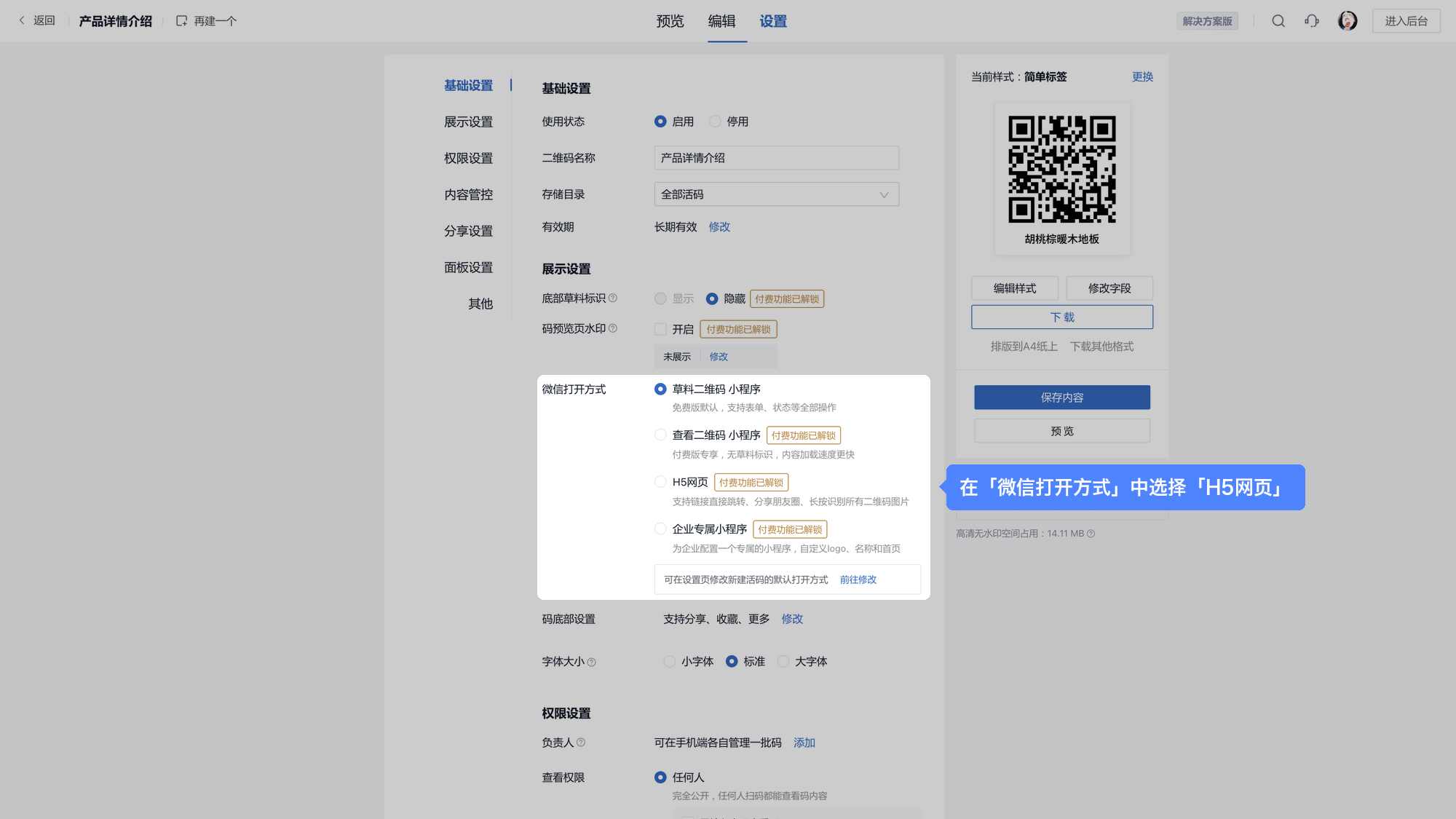
In the dynamic QR code editor or workbench, click [Settings] and find the WeChat open method.


2. Bulk Dynamic QR Code Templates
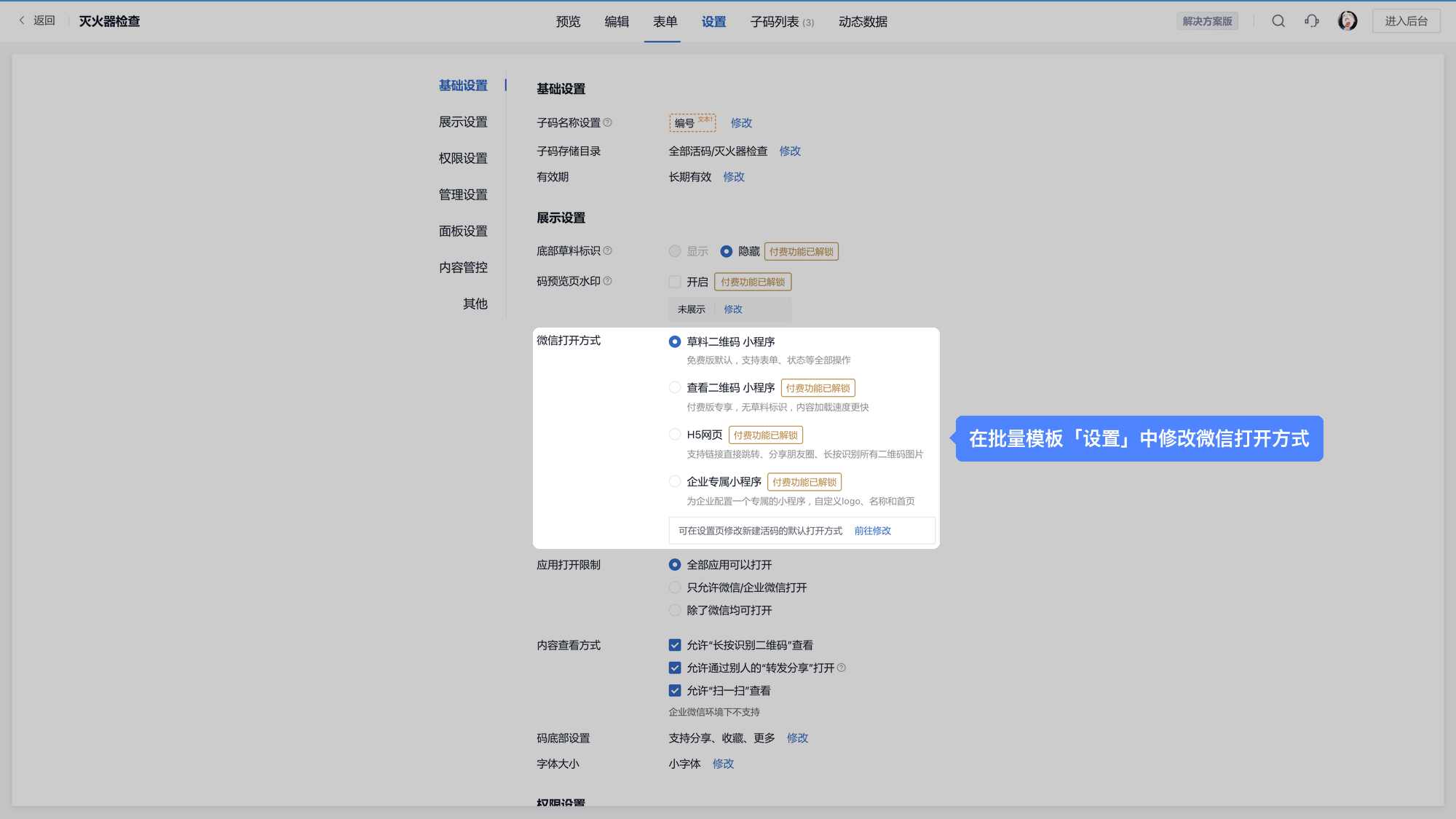
Edit the bulk template, click [Settings] at the top, and find the WeChat open method.
4. Frequently Asked Questions
1. How Do I Tell What Method a Page Is Opened With?
You can refer to the image below to determine whether the current page is H5 or Mini Program. The menu icon in the top-right corner looks different; tapping it shows the Mini Program name for a Mini Program, or the URL for an H5 page.
