Designated Member Permission Feature Overview
1. Feature Overview
Designated Member is a precise permission management feature available in CaoLiao QR Code for Advanced Edition (1,280 CNY/year) and above.
By selecting identity groups or departments, you can flexibly control who can view QR code content, fill in forms, update statuses, and receive notifications — preventing data leaks and unwanted disruptions.
2. Why Do You Need "Designated Member"?
- Ensure data security: restrict sensitive information (e.g., procurement amounts, customer data) to designated departments or roles only.
- Improve management efficiency: no need to add or remove member permissions one by one — manage centrally through identity groups.
- Enable flexible collaboration: different roles have different operation permissions, reducing conflicts in multi-department collaboration.
- Reduce error risk: minimizes the risk of unauthorized access or accidental operations by unrelated personnel.
3. How to Use "Designated Member"
This feature requires upgrading to Advanced Edition (1,280 CNY/year) or above.
1. Create an "Identity Group"
An identity group is essentially a "category" for your team members. For example, "Finance Department", "Inspector", "HR Manager", etc. can each be an identity group. Define identity groups first, then select them in "Designated Member" to quickly complete permission assignment. Learn more
2. Select "Designated Member" in the Relevant Permission Setting
You can precisely control operation permissions in applications such as "Form Filling", "Status Updates", "QR Code Viewing Permission", "Notifications", and "Bottom Messages" by selecting specific identity groups or departments.
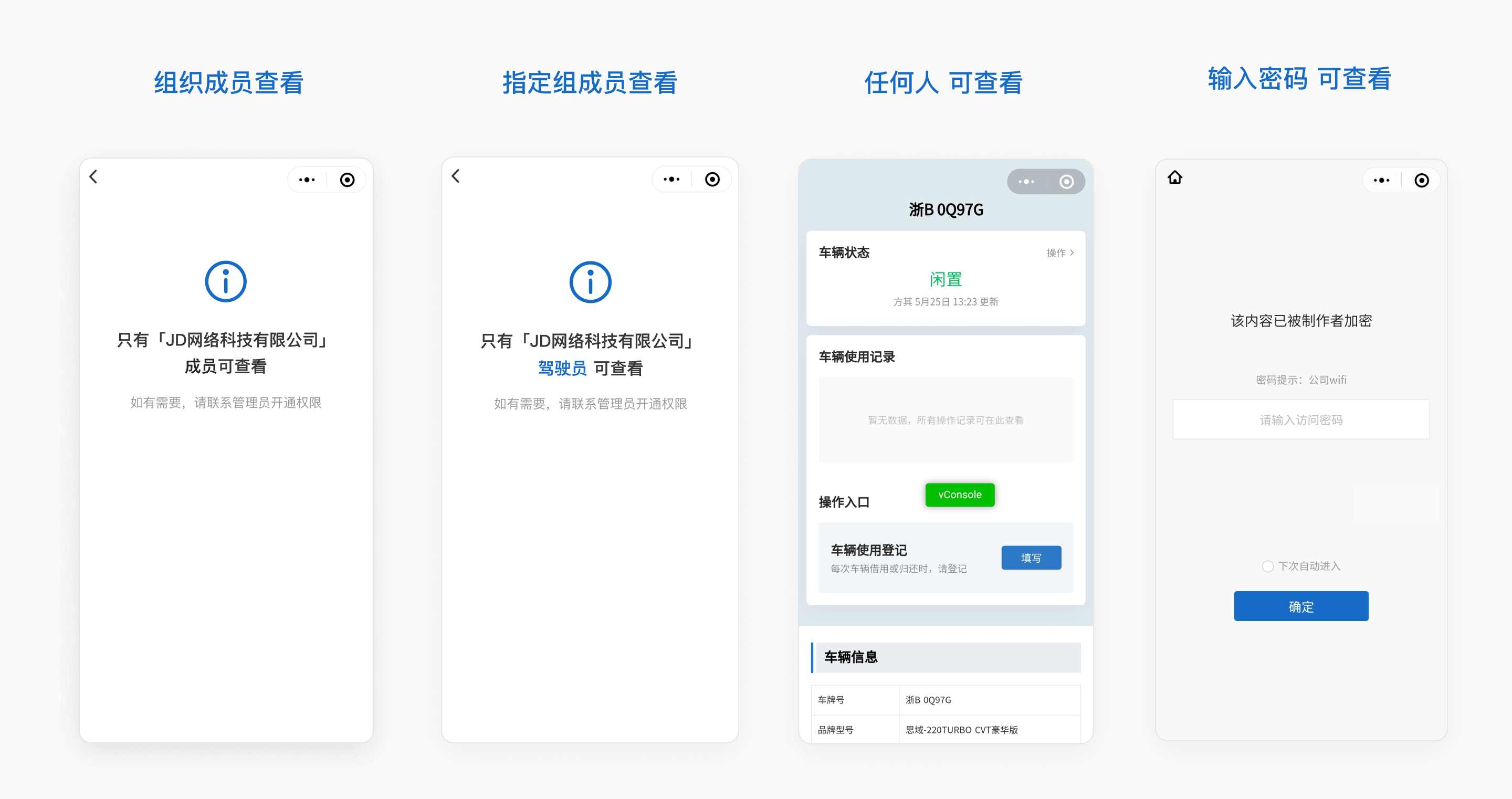
2.1 Designate QR Code View Permissions
Scenario: only members of specific identity groups or departments can view the QR code. Learn more
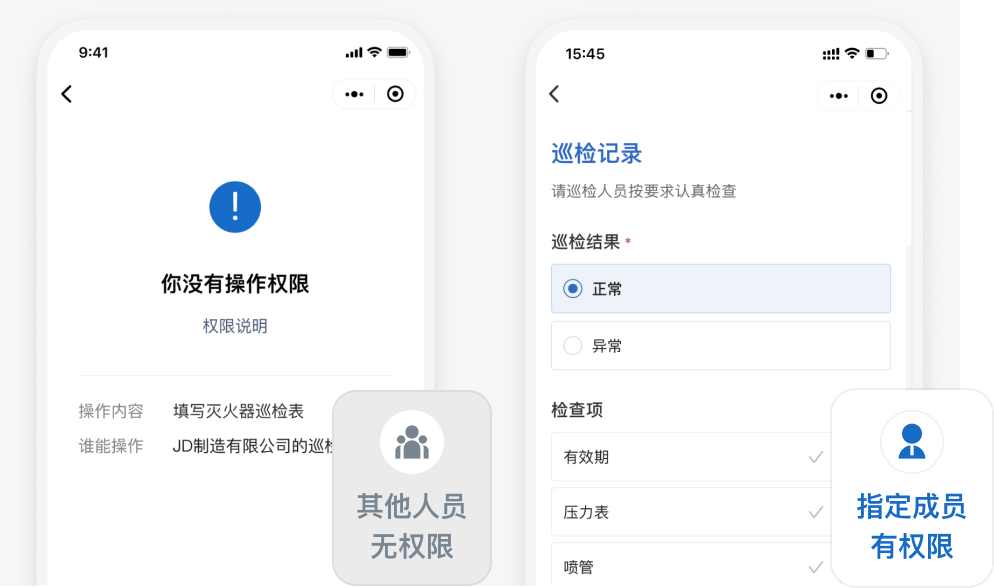
2.2 Designate Form Fill-In and Status Update Permissions
Scenario: for example, an inspection record form can only be filled in and updated by the "Inspector" group; other personnel can only view it or cannot access it at all. Learn more
2.3 Designate Notification Recipients
Scenario: when a new record is submitted to a form, or a record meeting specific conditions is submitted, automatically notify designated people in charge or departments. Learn more

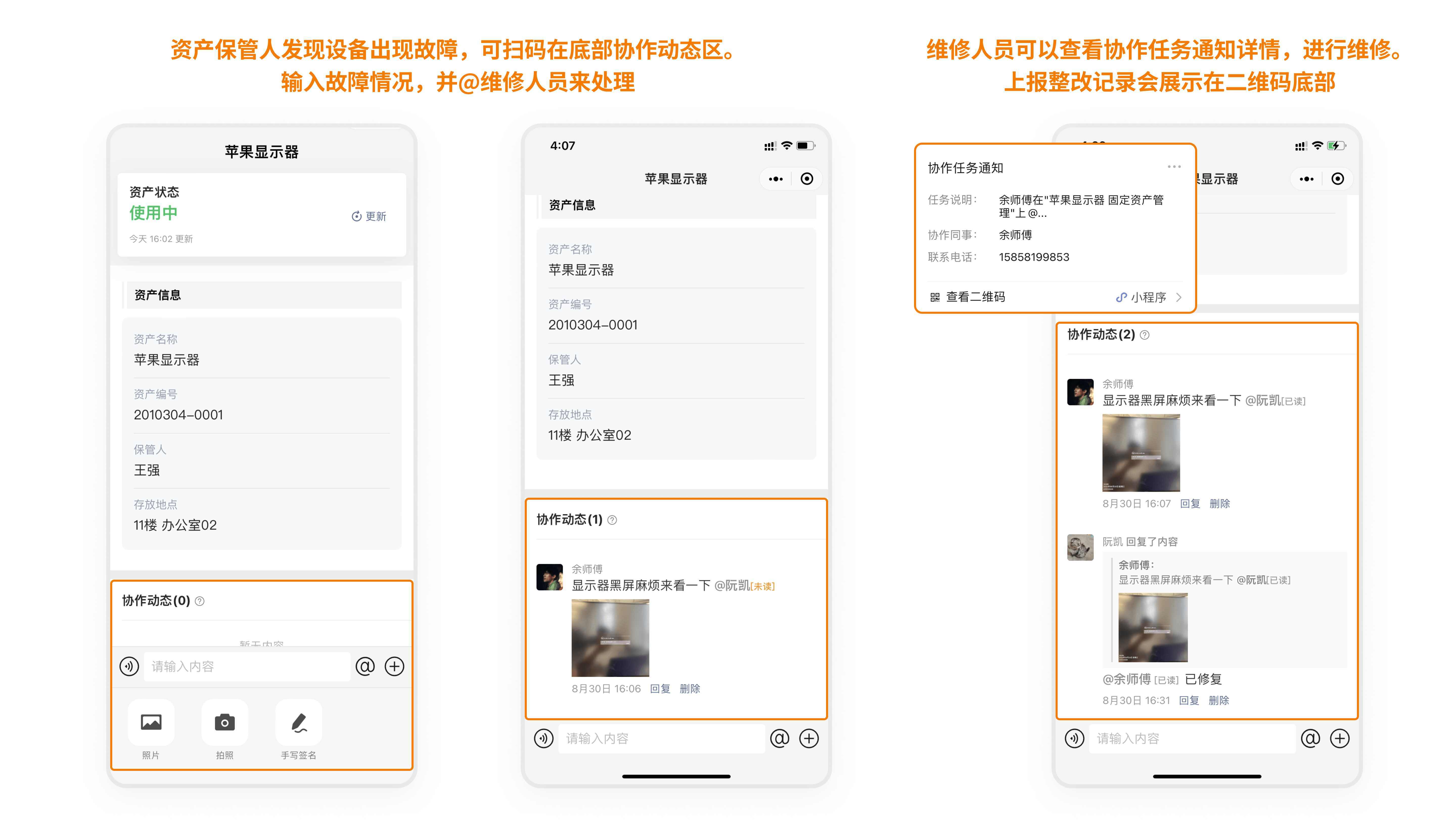
2.4 Designate Bottom Panel Collaboration Permissions
Scenario: only allow specific members to add notes, annotate, or upload attachments at the bottom of a QR code. Learn more
4. Frequently Asked Questions
1. Can Multiple People or Groups Operate Simultaneously?
Yes. You can select multiple identity groups or departments at the same time.
2. Do Permissions Need to Be Manually Updated When an Identity Group Changes?
No. As long as a member has been added to or removed from an identity group, the corresponding QR code permissions sync automatically.
3. Does "Designated Member" Limit the Number of Members?
No. From the Advanced Edition, you can "designate" any number of members or identity groups as needed.
4. Can the Free Version Use This Feature?
Only the Advanced Edition and above support the "Designated Member" feature. Free version and Basic Edition users cannot set these fine-grained permissions.