Control Panel Features
1. Feature Overview
Add a control panel to a QR code so that after scanning, users can not only read static information such as equipment details and product documentation, but also perform operations like inspections and maintenance to complete work tasks.
The control panel currently supports 4 operation item types: fill out form, update status, redirect to another page, and update sub-code content. Action records are saved on the code.
1. Fill Out Form
Add a Fill Out Form operation item. Frontline staff can scan and fill out the form to collect detailed data. Learn more about use cases
Suitable for high-risk equipment, critical equipment inspections, maintenance, and similar scenarios, and can be used with a variety of other features:
- Frontline staff: Fill out forms in a standardized format as required.
- Managers: Collect detailed information including inspection items, audio/video, handwritten signatures, and use features like anti-fraud, auto-fill, data review, and submission certificates.
Video: Using Form Submission to Complete Inspections
2. Update Status
Add an Update Status operation item. After scanning, users simply change the status to quickly reflect a change in the item's condition. Learn more about use cases
Suitable for simple scenarios like fire extinguisher patrols, borrowing and returning common items, and streamlining business workflows:
- Frontline staff: Simply update the status to indicate equipment running state, item borrowing, etc.
- Managers: Use the status dashboard to monitor in real time whether equipment and items are functioning normally or available.
Video: Changing Status to Complete Inspections
3. Update Sub-Code Content
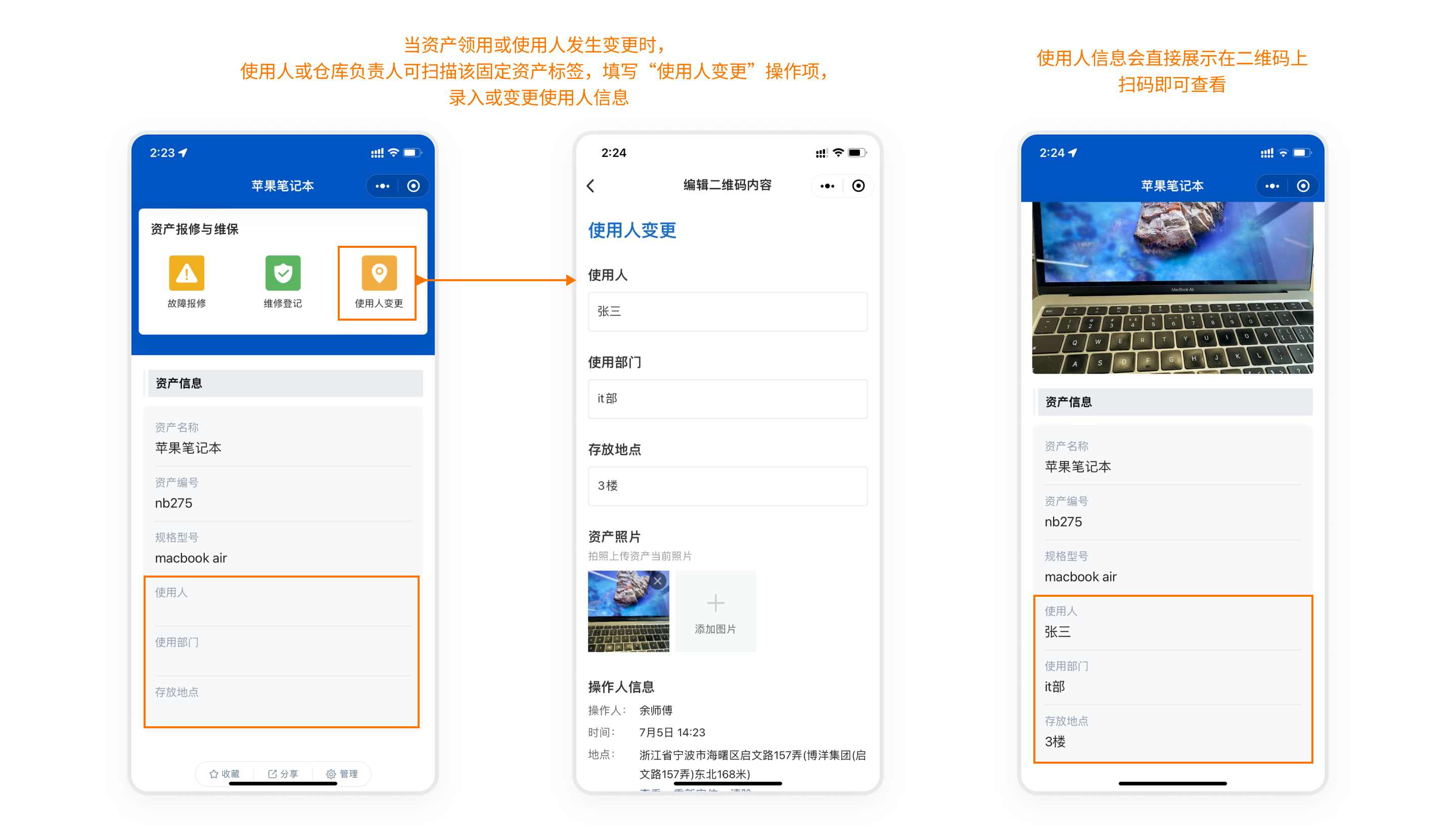
When generating bulk templates, if variable content on the scan page needs to be filled in by frontline staff, you can set that variable content as the "Edit Variable Content" operation item. Frontline staff can scan and fill in the information on their mobile device; after submission, the content is updated on the scan page. The submission record is also added to the dynamic archives for later traceability.
Use Cases:
During QR code creation, much of the content needs to be displayed on the scan page — for example: real-time records of order process completion, fixed asset custodian information, various certificate photos for construction site personnel, actual measurement data for construction projects, and product traceability information. You can designate frontline staff to scan and enter the content themselves.
In daily operations, QR codes built on CaoLiao often need to be updated based on actual conditions — for example: current asset user information in an asset inventory, actual stock levels after stock-in/out registration, or annual equipment inspection records. You can designate frontline staff to scan and update the content themselves.
4. Redirect to Another Page
Add a Redirect Link operation item to navigate to a variety of link types, including: QR codes or directories in your account, Mini Program management pages, external URLs, phone numbers, and other links — enabling cross-linking between the QR code and other data inside and outside the platform. Learn more
2. Operation Entry Styles
1. Style Types
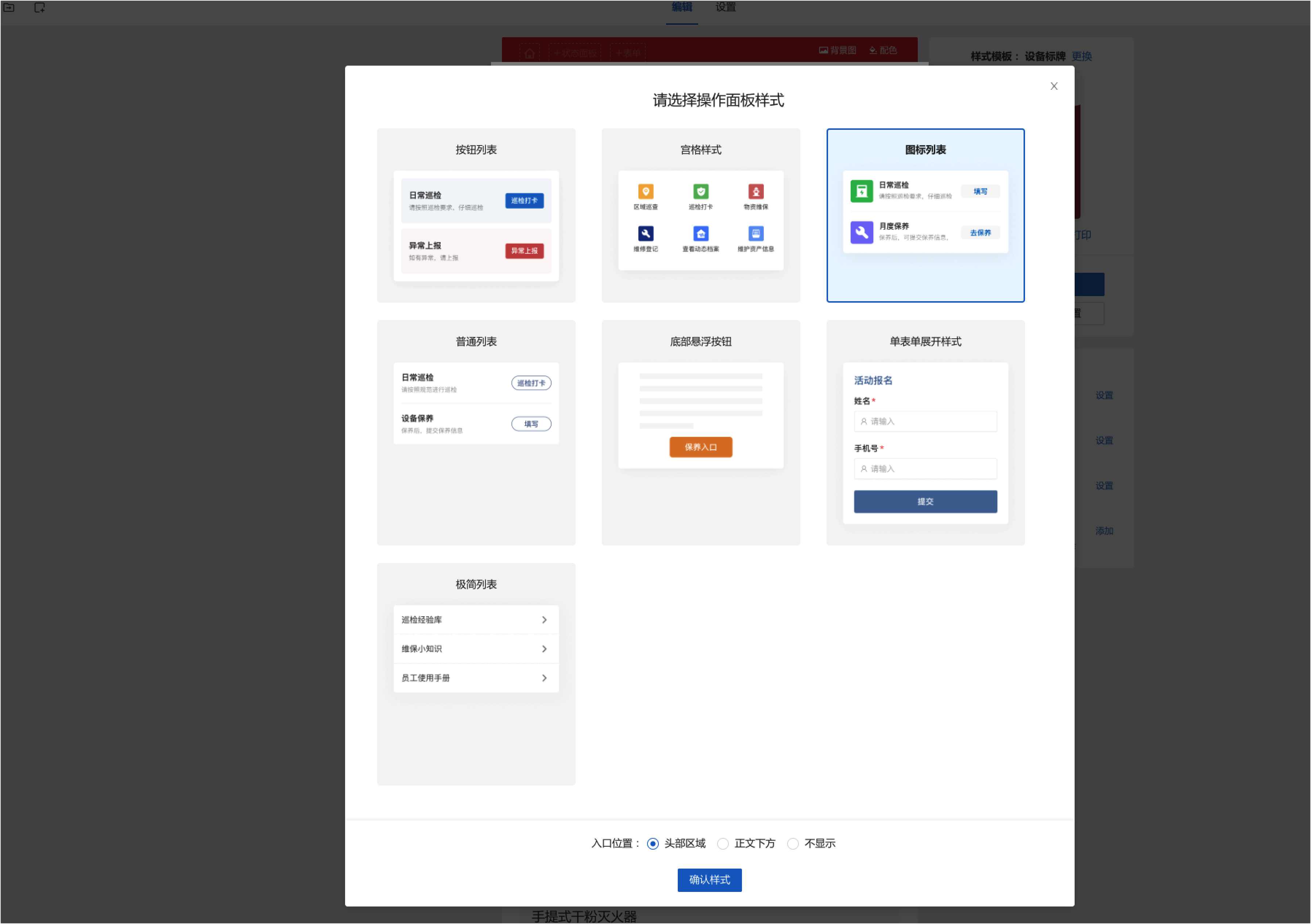
Multiple operation items are consolidated in the control panel, so frontline staff can quickly find and perform the right action without training. Operation entries support 5 display styles:
- Button list: Configure colors for each operation item to visually distinguish different actions.
- Grid style: Suitable for scenarios with multiple operation items, helping frontline staff quickly locate actions and reducing training costs.
- Icon list: Combines icons and text for a better visual presentation.
- Plain list: Supports configuring operation subtitles.
- Bottom button: Operation entry floats at the bottom of the page.
- Single form expanded style: Displays form content directly within the QR code for immediate filling.
- Minimal style: A minimal list style for multi-URL redirect scenarios, resulting in a cleaner scan page.
2. Show Control Panel Entry Below the Main Content
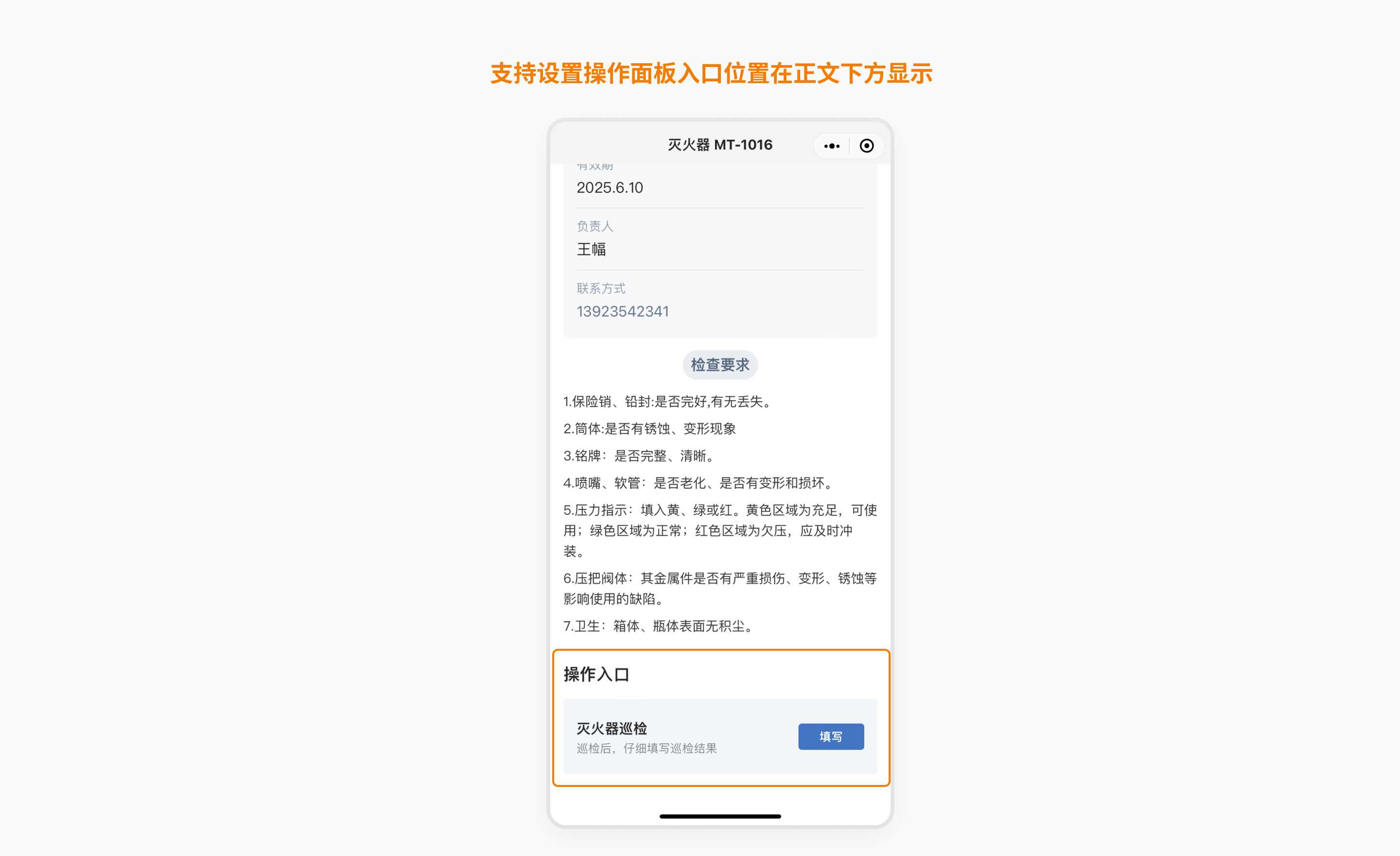
All control panel styles support placing the control panel entry below the main content. This is useful for equipment inspection scenarios where inspectors can review equipment information and requirements before starting the inspection, reducing errors.
3. Viewing Action Records
Records of form submissions, status updates, and variable content edits are all saved in the dynamic data panel.
Frontline staff can scan and tap the dynamic data panel to view all data for that code. Learn more
Admins and advanced members with system management or data management permissions can log in to the organization account and view action records for all QR codes under the account in the CaoLiao workbench under Dynamic Data Summary.
3. How to Set Up Operation Items
1. Adding an Operation Item
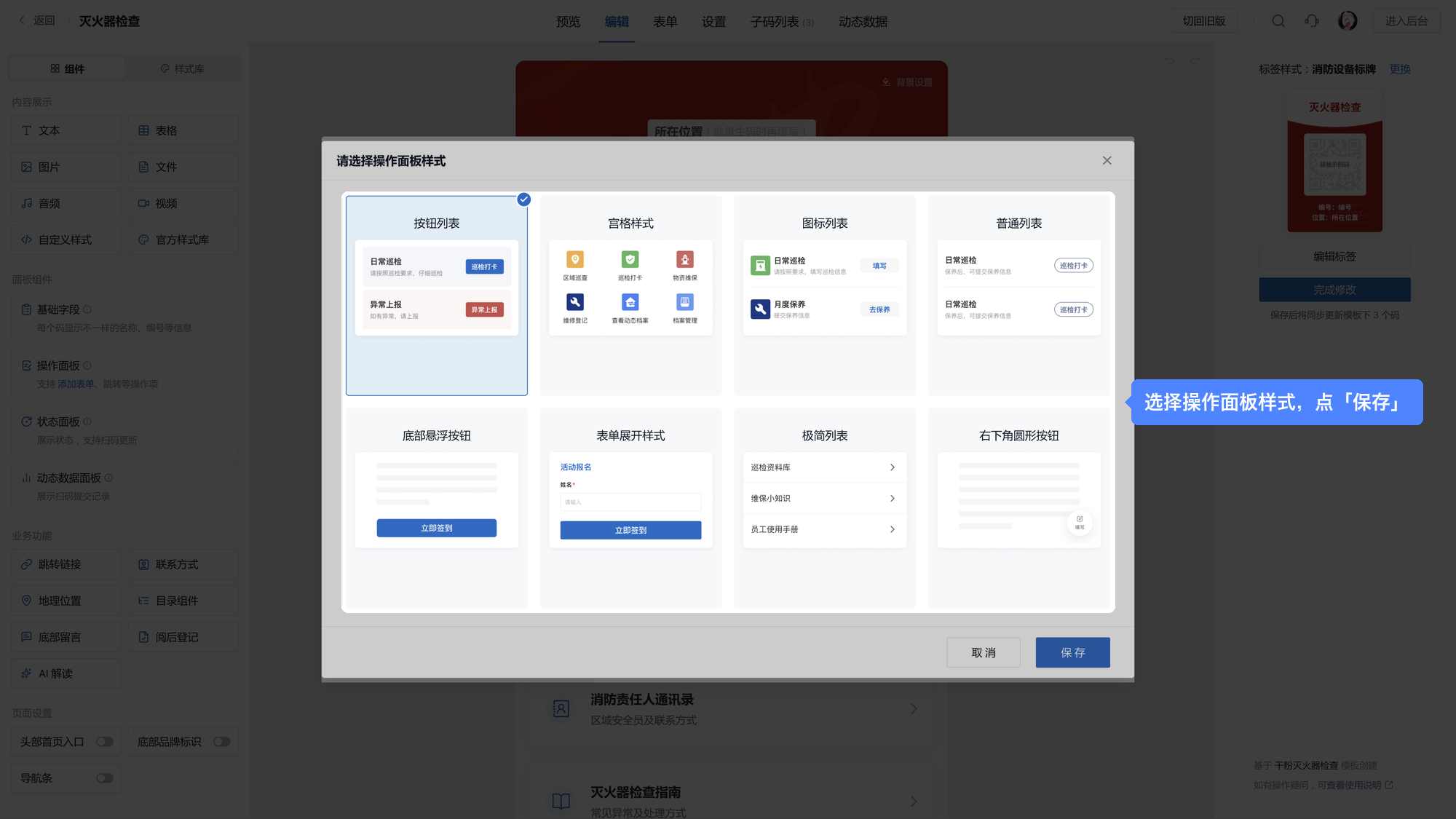
In Panel Components on the left side of the editor, click Control Panel. In the dialog that opens, click the switch icon next to Panel Style and select the control panel style you need.
2. Setting Operation Permissions
Choose who can perform the operation — 3 options are available:
- Anyone
- All Members
- Designated Members
You need to complete your organization profile and enable the member feature before you can set [All Members] or [Designated Members] as having view permission.
For important internal operations, restrict access to all members within the organization or specific designated members to protect information security.
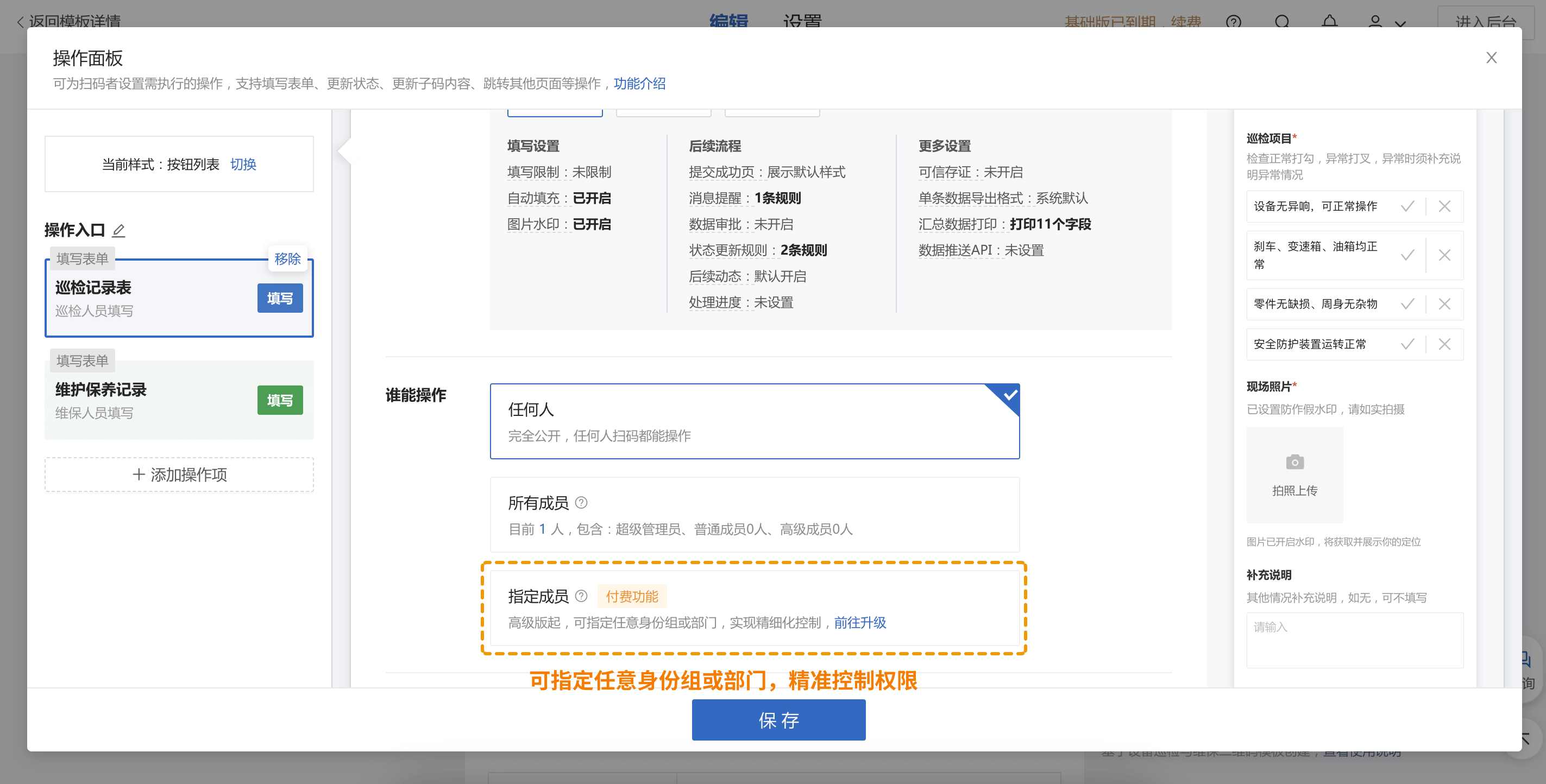
Your account represents an organization. You can add members under [Settings] > [Member Management] in the workbench. Once added, the corresponding member can scan to perform the operation.
You can also let relevant staff scan to join the organization or be assigned to an identity group before performing the operation — this is more efficient than having the admin add them manually. Learn how to set this up
Hiding Operation Items
You can set the visibility of each operation item individually. Users who do not have permission for a given operation item will not see it when they scan.
To configure this, go to the "Control Panel", select the operation item you want to configure, and in the "Who Can Operate" settings, check "Hide This Operation Item from Users Without Permission".