Update Sub-Code Content
When generating QR codes from bulk templates, if basic fields on the scan page need to be filled in by frontline staff, you can set those basic fields as the "Update Sub-Code Content" operation item. Frontline staff can scan and fill in the content on their mobile device; after submission, the content is updated on the scan page. The submission record is also added to the dynamic data log for later traceability. Learn more
During QR code creation, much of the content needs to be displayed on the scan page — for example: real-time records of order process completion, fixed asset custodian information, various certificate photos for construction site personnel, actual measurement data for construction projects, and product traceability information. You can designate frontline staff to scan and enter the content themselves. Learn more
In daily operations, QR codes built on CaoLiao often need to be updated based on actual conditions — for example: current asset user information in an asset inventory, actual stock levels after stock-in/out registration, or annual equipment inspection records. You can designate frontline staff to scan and update the content themselves. Learn more
1. Use Cases
1. Recording Fixed Asset User Information
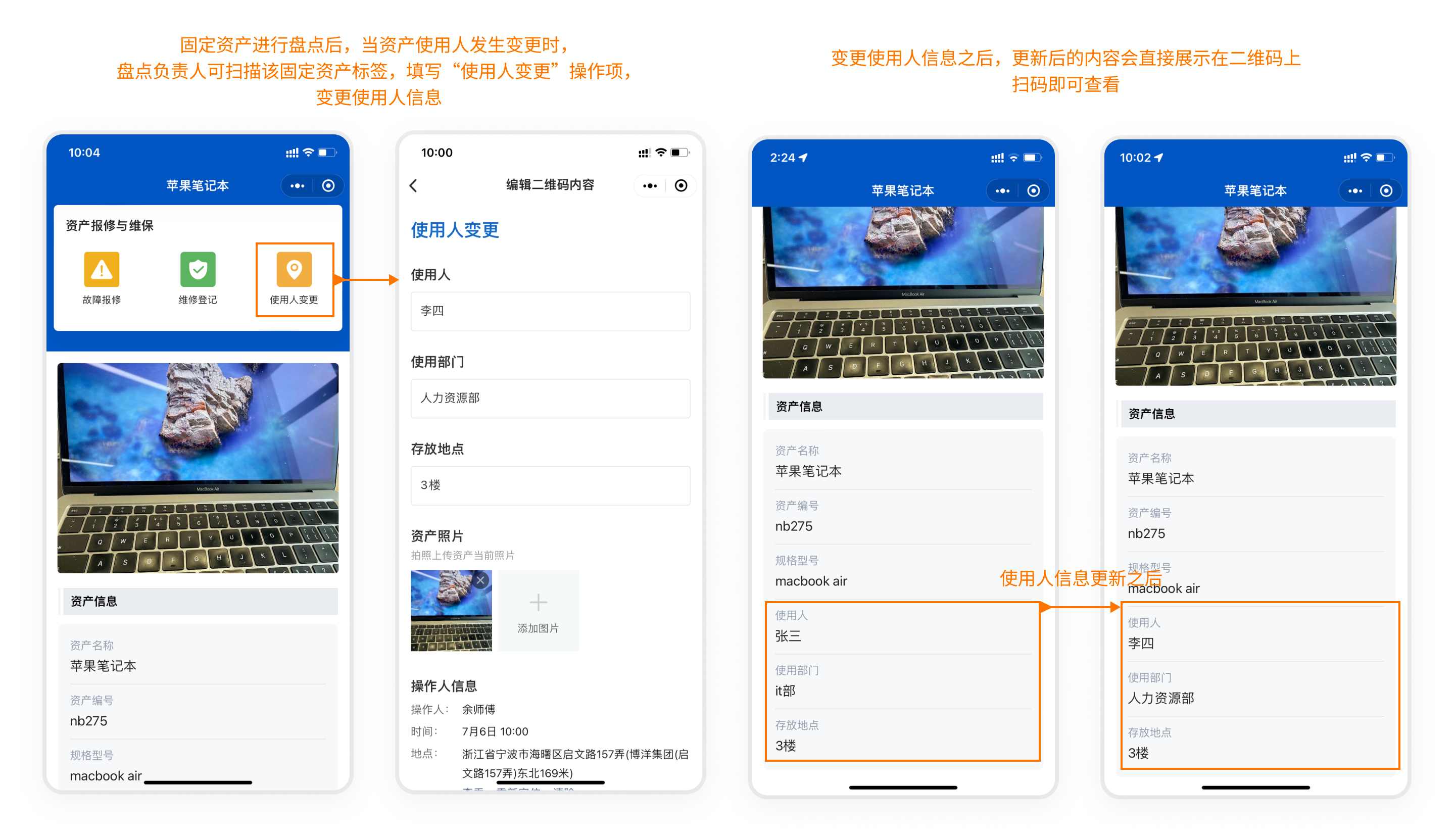
Create QR code labels for fixed assets. When the user of an asset changes, the super admin does not need to log in to the desktop workbench to edit the QR code content — the change can be made directly on mobile and will display on the QR code immediately, viewable by scan.
Workflow:
- After the company procures and registers fixed assets, the super admin uses the purchase information to bulk generate a batch of fixed asset label QR codes, then prints and attaches them to the corresponding assets.
- The basic fields for asset user information — asset user name, department, and storage location — are wrapped into a "Change Asset User" operation item in the control panel.
- When an asset is checked out or the asset user changes, the new asset user or the warehouse manager scans the asset QR code and fills out the "Change Asset User" operation item.
- The entered or updated asset user information is immediately displayed on the QR code, viewable by scan.

2. Real-Time Recording of Order Process Completion
Use QR codes to track order completion — one QR code per order. After each process in an order is completed, record the process details on mobile in real time, and the information is displayed on the QR code immediately for anyone to scan and view. For example: parts manufacturing, home renovation progress, etc.
Using parts manufacturing as an example:
- The super admin uploads order information using bulk templates to generate order QR codes — one per order.
- The basic fields for each process verification are wrapped into individual "Process Verification Record" operation items in the control panel.
- The operator scans and submits the "Process Received" form, selecting the process to begin, e.g., Drilling. The QR code status changes to: Drilling in Progress.
- After drilling is complete, the operator scans and submits the "Process Completed Record" form. The QR code status changes to: Drilling Pending Inspection, and a quality inspector is notified.
- After receiving the notification, the quality inspector fills in the "Drilling Verification Record" operation item. The verification details are immediately displayed in the QR code content.
- Following the workflow of Process Received → Process Completed → Process Verified for all processes:
- The quality inspector fills out the "Order Completion Verification" form. If the quality check passes, the QR code status changes to: Completed and Verified. This indicates that the order is finished; all process records are displayed on the QR code, viewable by scan, ready for delivery or archiving.


3. Completing Personnel Information Cards
In the construction industry, the super admin needs to create a personnel information card QR code for each worker — one per person.
The QR code displays the worker's photo, basic identity information, and various certificate images. However, this information is often difficult to collect before creating the QR code. By grouping this content into an "Update Sub-Code Content" operation item, workers can scan their own QR code to take and upload photos directly, which are then displayed on the QR code.
Workflow:
- The super admin uses basic identity information collected at onboarding (name, age, etc.) to bulk generate a batch of personnel information card QR codes.
- Photos, certificate images, and other hard-to-collect basic fields are wrapped into a "Supplement Personal Information" operation item in the control panel.
- After the super admin distributes each card QR code to the corresponding worker by name:
- The worker scans their own QR code and fills out the "Supplement Personal Information" operation item.
- The supplemented personal information is immediately displayed on the QR code, viewable by scan.

4. Recording Actual Measurement Results
In sub-item and sub-section construction projects, actual measurements must be taken for each section. Use QR codes to replace paper forms, enter real measurement data on-site, and display it directly on the QR code.
Workflow:
- The super admin uses measurement point numbers and project information to bulk generate QR codes.
- The basic fields for each measurement are wrapped into an "Enter Measurement Data" operation item in the control panel.
- After the surveyor takes measurements on-site, they scan and fill out the "Enter Measurement Data" operation item.
- The measurement results are immediately displayed on the QR code, viewable by scan.

5. Updating Asset Inventory Information
When the company conducts a fixed asset inventory and an asset user changes, the super admin does not need to log in to the desktop workbench to edit the QR code — the change can be made directly on mobile and will display on the QR code immediately, viewable by scan.
Workflow:
- After the company procures and registers fixed assets, the super admin bulk generates fixed asset label QR codes, then prints and attaches them to the corresponding assets.
- The basic fields for asset user information — asset user name, department, and storage location — are wrapped into a "Change Asset User" operation item in the control panel.
- After the asset inventory, when an asset user changes, the inventory manager scans the asset QR code and fills out the "Change Asset User" operation item.
- The updated asset user information is immediately displayed on the QR code, viewable by scan.
6. Updating Actual Stock After Stock-in/Out
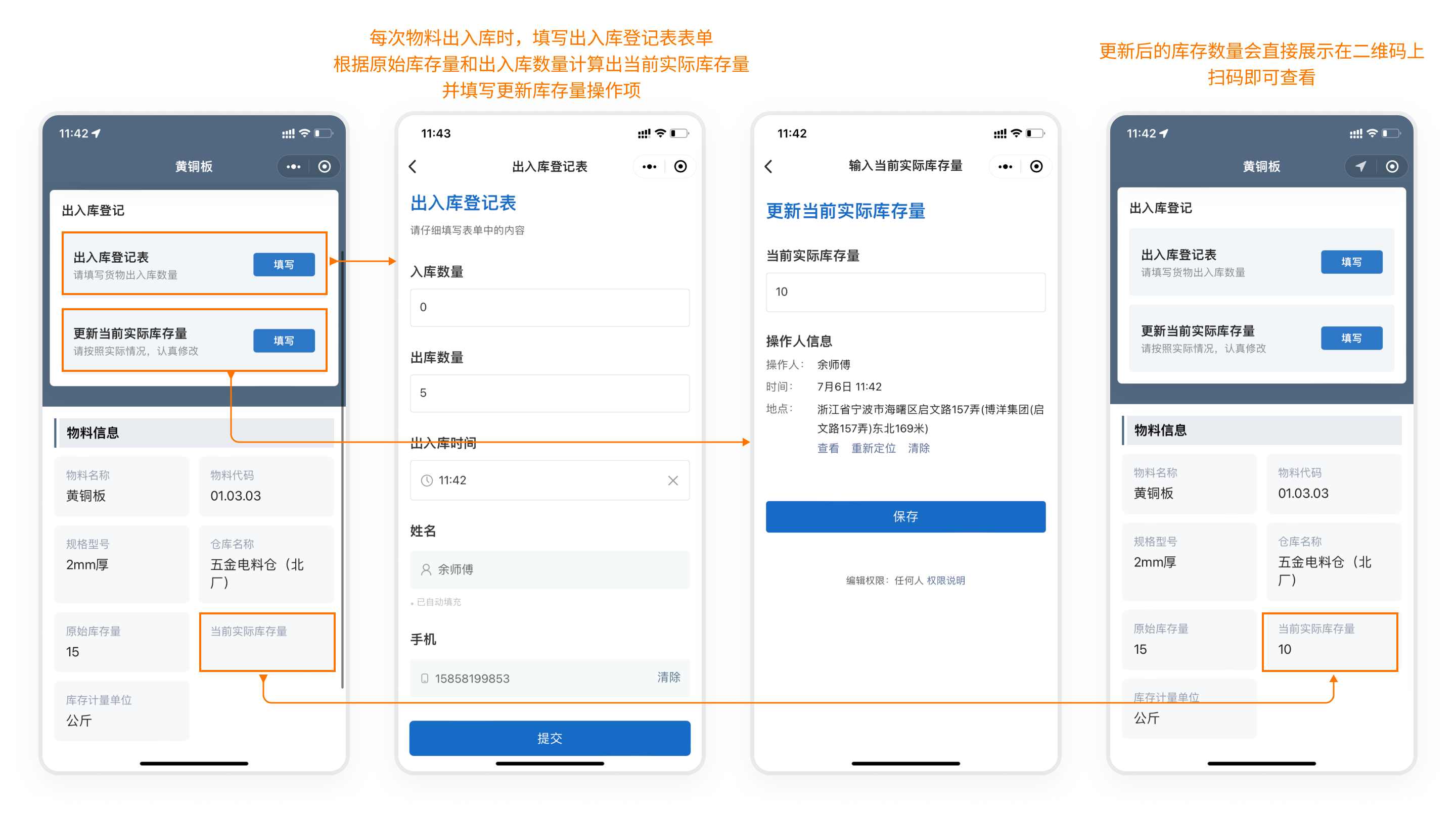
In manufacturing, stock-in and stock-out movements need to be recorded while also displaying the latest actual stock level directly on the QR code for anyone to scan and view. If a low-stock warning threshold is reached, restocking can be initiated promptly. Applicable to stock-in/out registration, stock counting, and similar scenarios.
Workflow:
- The super admin uploads material information using bulk templates to generate material QR codes — one per category.
- The basic fields for actual stock level are wrapped into an "Update Actual Stock" operation item in the control panel.
- After each stock-in/out registration, calculate the actual stock level based on the original stock and the movement quantity.
- The warehouse manager scans and fills out the "Update Actual Stock" operation item. The updated stock level is immediately displayed on the QR code, viewable by scan.
The CaoLiao platform does not support automatic calculation. You can use an external data analysis tool — Baidu Sugar — to connect to the CaoLiao official database and freely implement various calculations, including displaying real-time inventory on a data dashboard. Learn more
7. Updating Annual Equipment Inspection Records
Many special-purpose pieces of equipment must undergo annual safety inspections in accordance with industry safety requirements. The inspection date and result need to be displayed prominently to demonstrate that the equipment has passed its annual inspection and is safe — for example: elevators, tower cranes, and other special equipment.
Workflow:
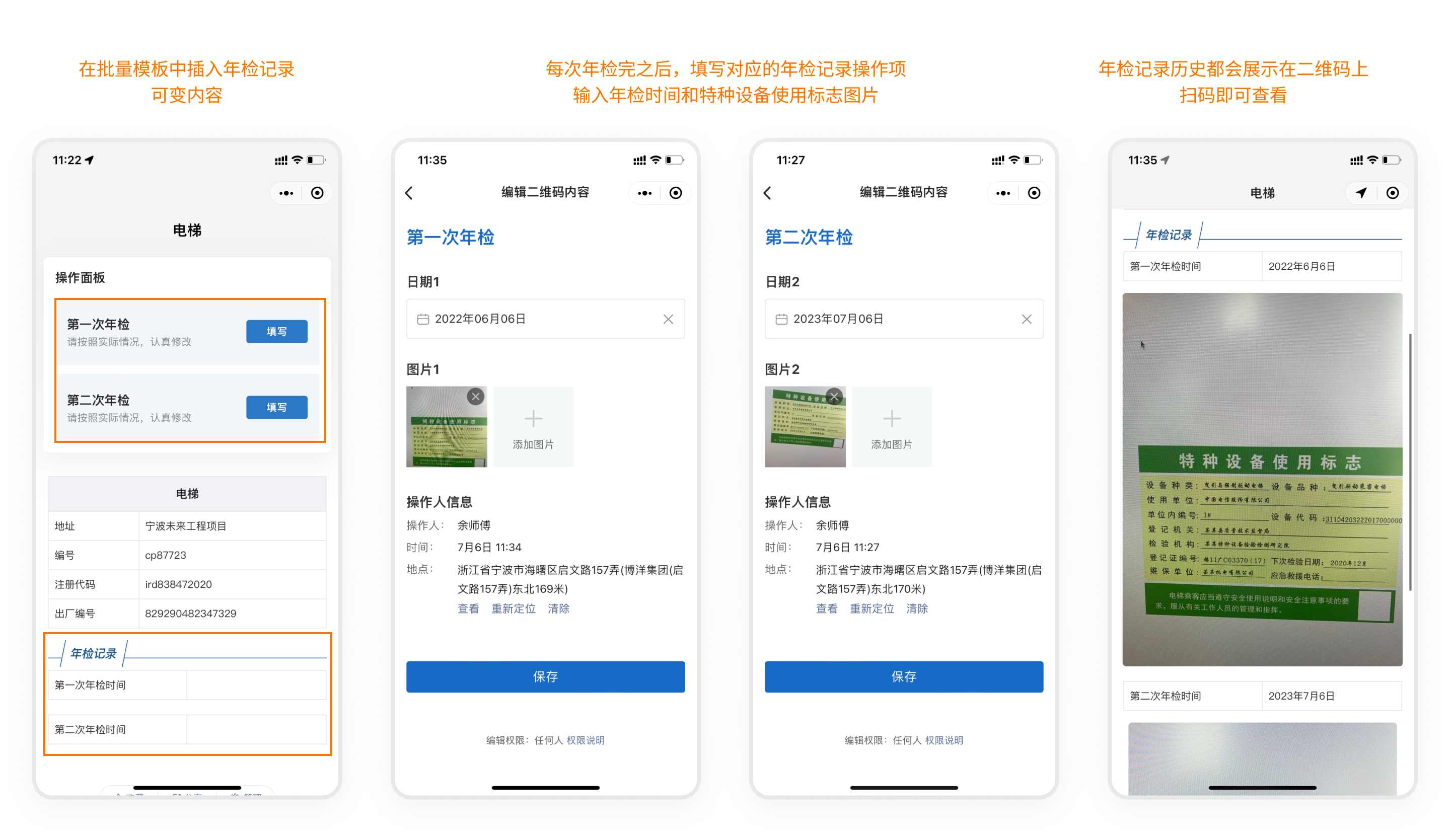
- The super admin uploads equipment information using bulk templates to generate equipment QR codes — one per item. The QR code displays the annual inspection record as a certificate of compliance.
- Basic fields for annual inspection date and special equipment usage certificate images can be added by year. These are wrapped into multiple "Update Annual Inspection Record" operation items in the control panel.
- After each year's inspection, the super admin scans and fills out the "Update Annual Inspection Record" operation item.
- All annual inspection records are immediately displayed on the QR code, viewable by scan.
2. How to Set This Up
Entering QR code content on mobile is mainly done by setting the basic fields of a bulk template as an "Update Sub-Code Content" operation item in the control panel. Once you set who can fill it in, the content they enter is displayed on the QR code and can be viewed by scanning. If it is filled in again later, the new content overwrites the previous entry.
1. Add Basic Fields
A bulk template is like a mold for QR codes, consisting of fixed content and basic fields. "Basic Fields" allow each sub-code to display different content, so you only need to fill in data to generate many sub-codes. Sub-code data, forms, statuses, and more in the template can all be freely modified.
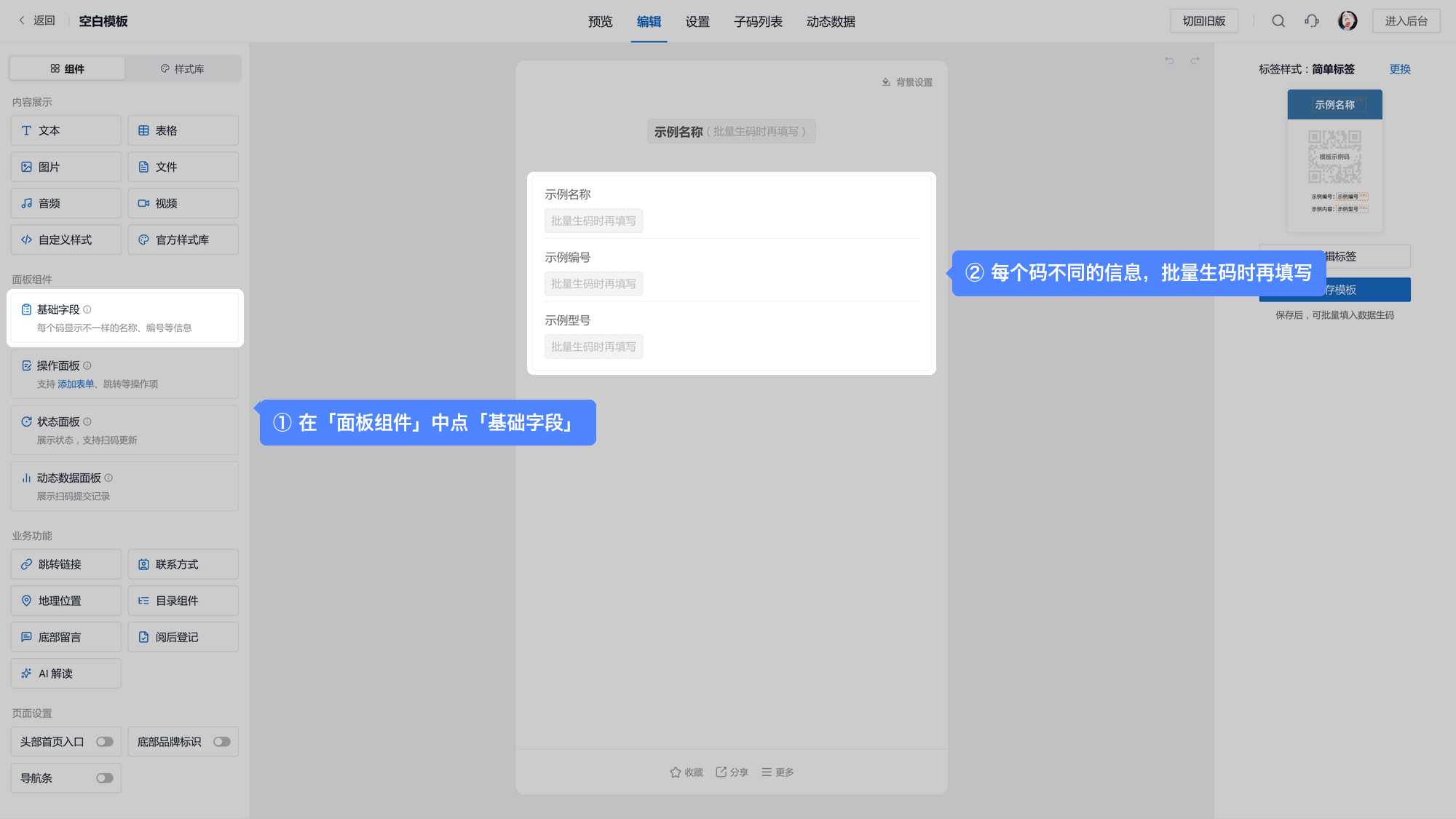
Set the information that should be entered on mobile and shown on the QR code as basic fields: in the editor's left panel, under "Panel Components", click "Basic Fields". A group of basic fields is added to the page.
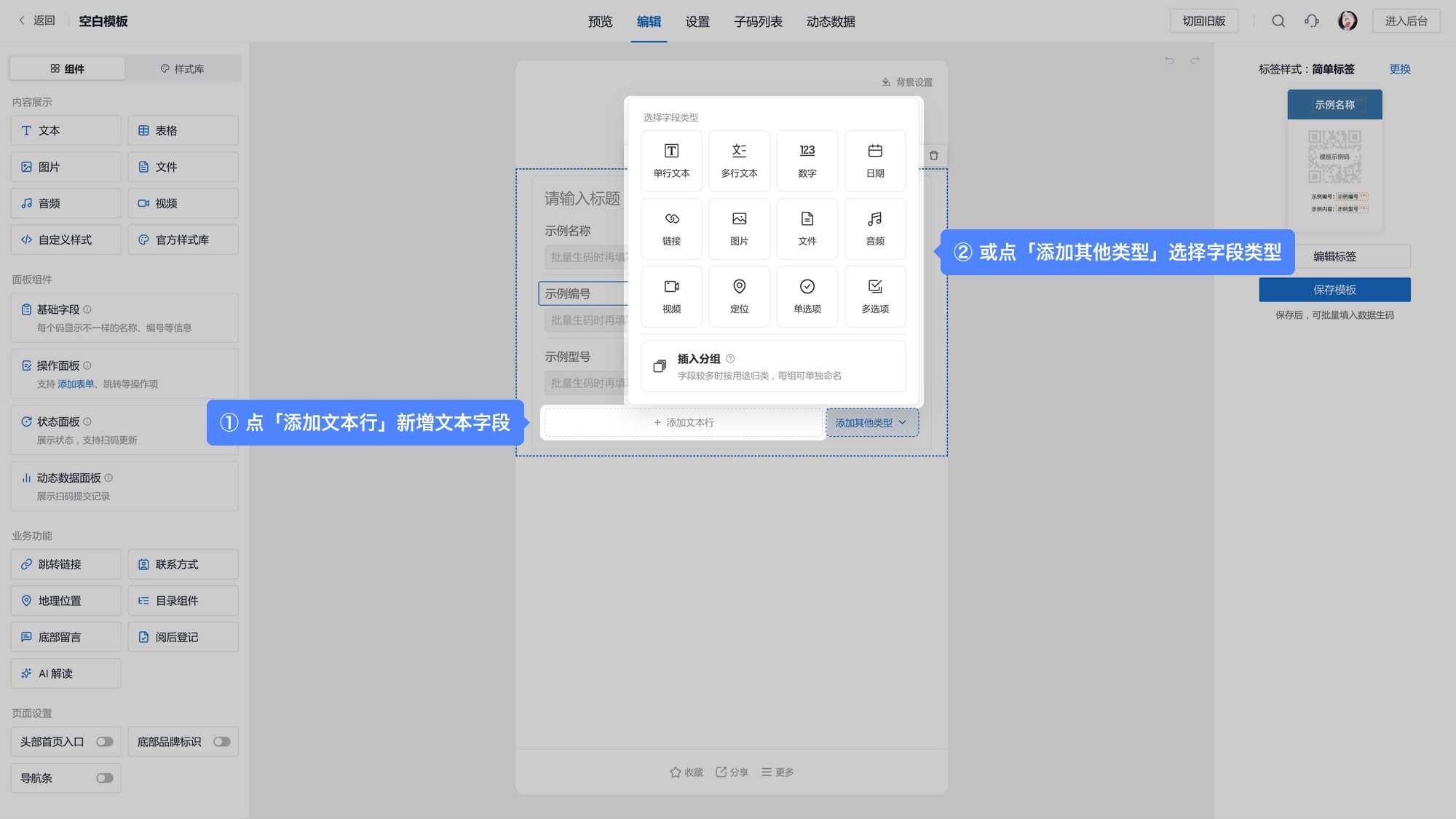
After selecting the basic fields, click "Add Text Row" to add a text field, or click "Add Other Type" to choose number, date, image, file, audio, video, and other field types.
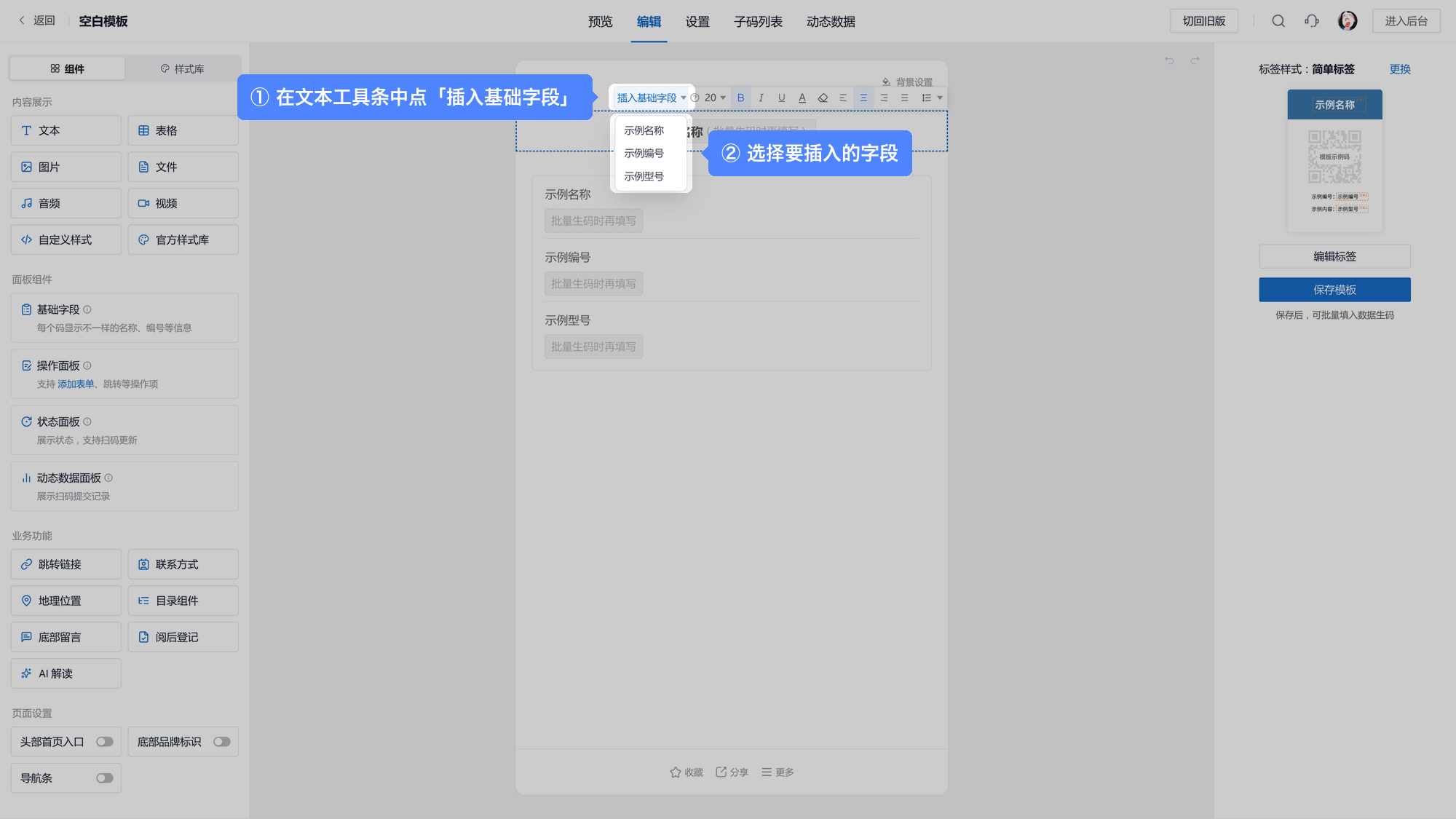
2. Insert Basic Fields into Text
Basic fields are shown directly on the scan page. To also reference a field in headings, body text, or other text, select the text, click "Insert Basic Field" in the text toolbar, and choose the field to insert.
3. Add an "Update Sub-Code Content" Operation Item
- In the editor's left "Components" tab, click "Control Panel", then click "+ Add Operation Item".
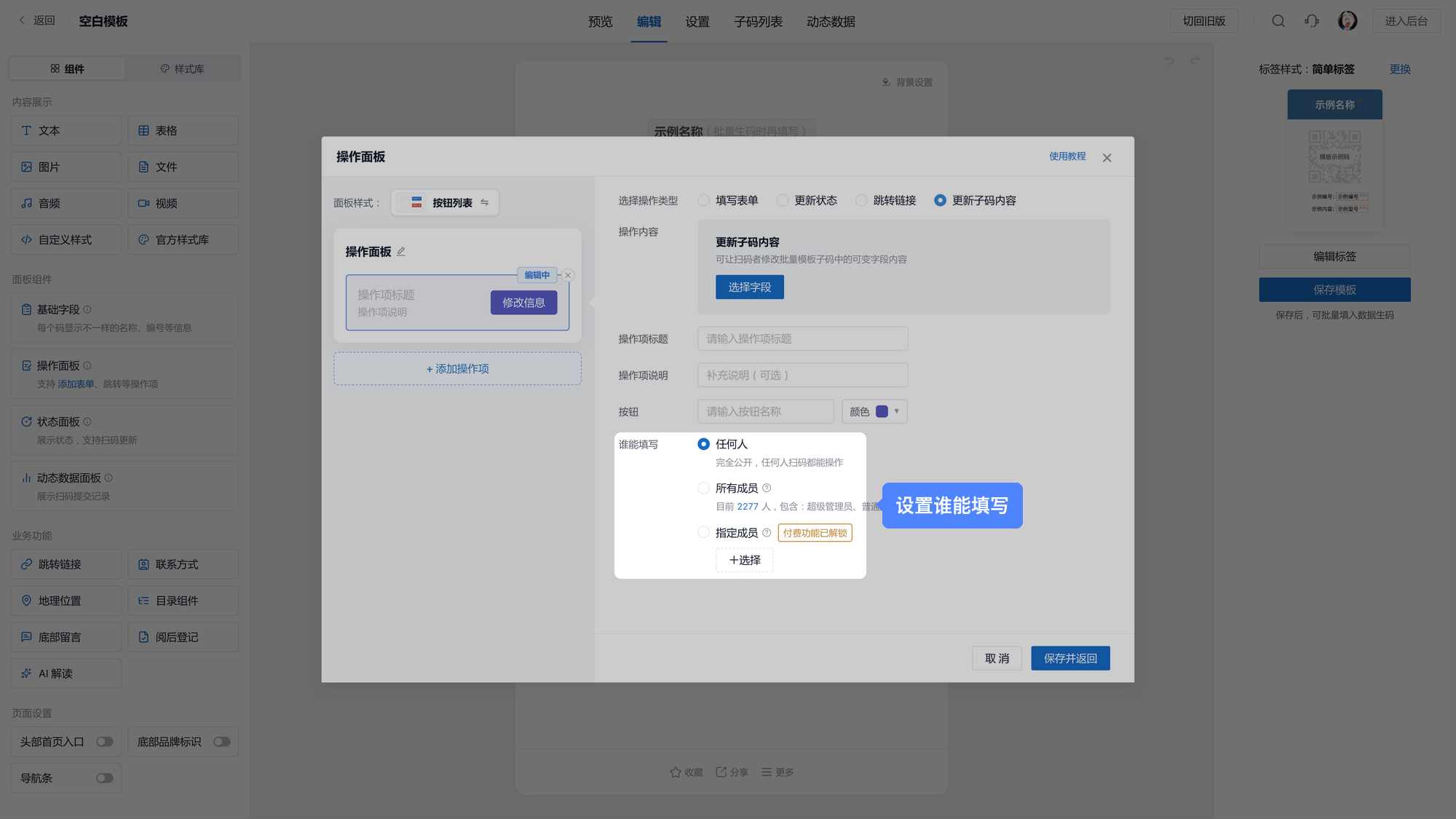
- Choose "Update Sub-Code Content" as the operation type, then click "Select Fields".
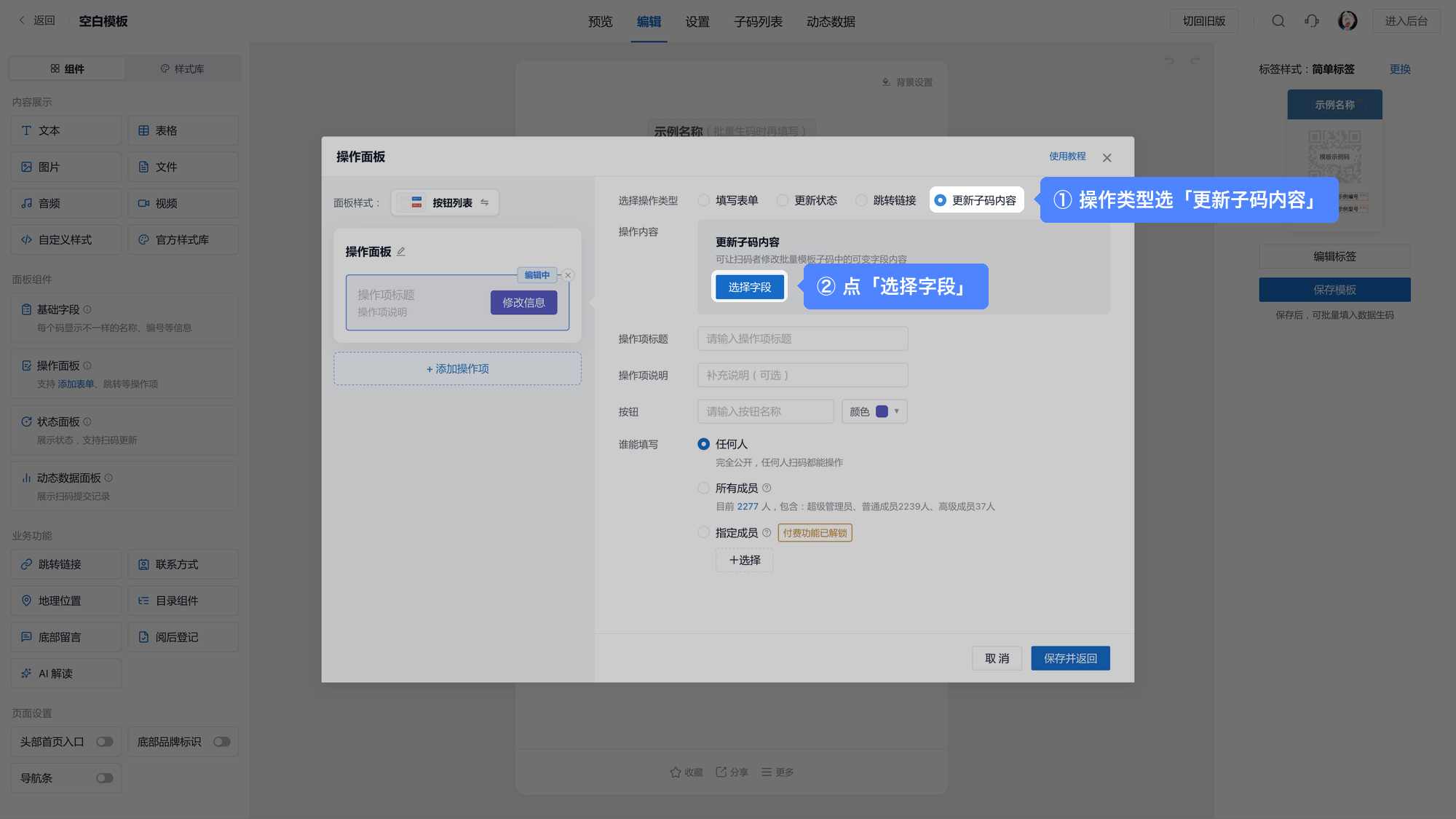
- In "Edit Sub-Code Field Settings", enter the operation name and choose which sub-code fields can be edited: all fields, or only specific fields. A live preview of the mobile fill-in page is shown on the left.
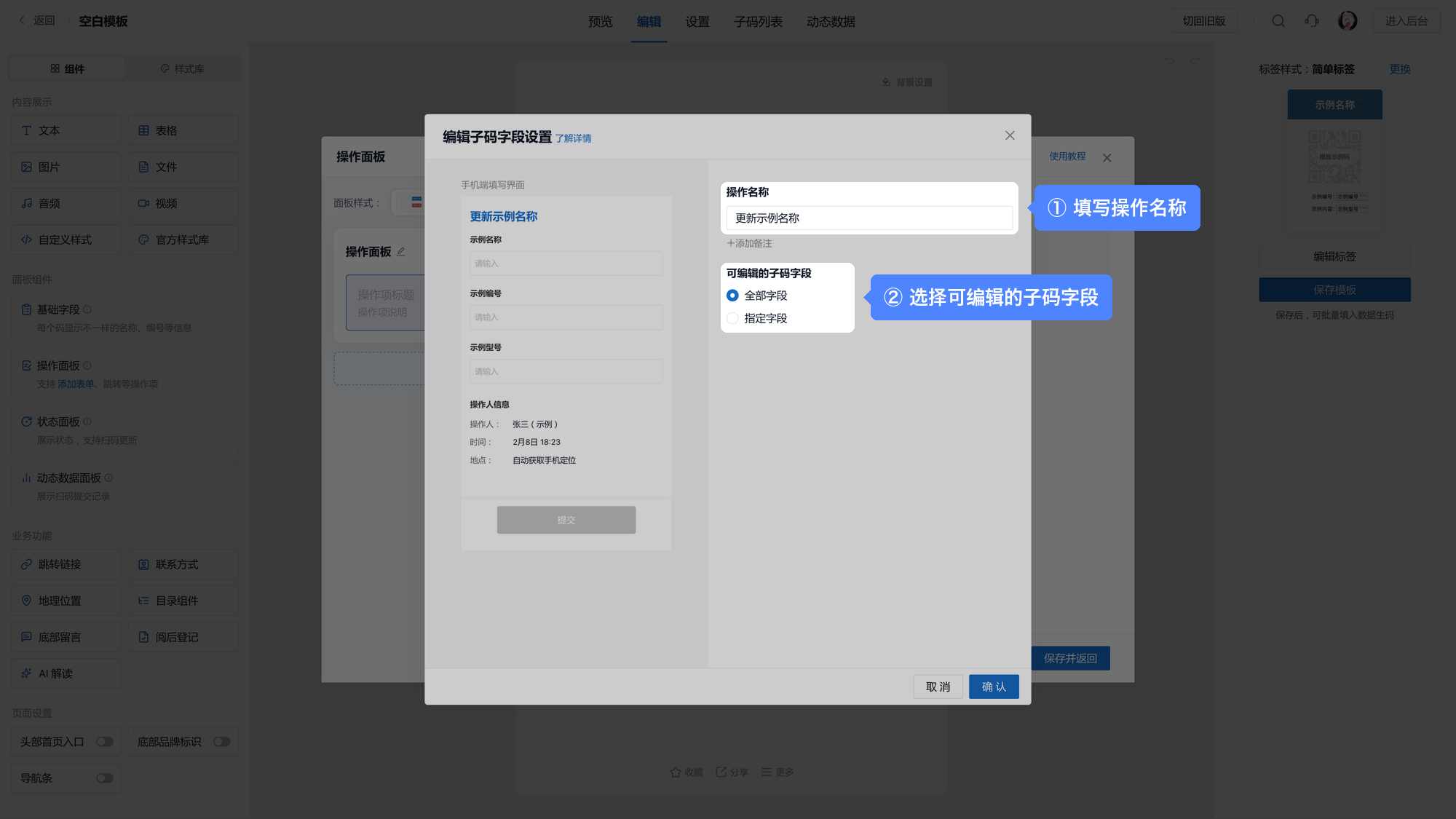
- Under "Who Can Fill Out", choose who can perform the action: anyone, all members, or specified members (paid feature). Click "Save and Return" when done, then click "Finish Editing" on the right side of the editor (shown as "Save Template" for a new template) to save the template.