Fill Out Form
A form is a tool embedded in a QR code for collecting information and data. After adding a [Fill Out Form] operation item, frontline staff can scan and fill it out. Collected data records are saved to the dynamic data panel and can later be viewed in "Form Data" or "Dynamic Data Summary". Learn about form features
Basic Applications
Meets the basic information collection and inspection needs of organizations. Suitable for event check-ins, fire extinguisher checks, area patrols, epidemic prevention, and similar scenarios.
- Managers can design forms based on what information needs to be collected, using form components to gather inspection items, images/video, voice recordings, handwritten signatures, and other detailed information.
- Frontline staff simply scan and fill out the form according to its fields; data is automatically recorded after submission.
Advanced Applications
1. Bulk Add Records
Using the bulk add records feature, advanced members can add the same form record to a batch of QR codes at once — no need to scan each code individually. This efficiently builds one-item-one-code dynamic archives, completing daily work for scenarios such as asset inventory and process handoffs. Learn more
Pain Point This Solves:
Previously, adding records to a batch of QR codes required scanning each code one by one, making the process inefficient.
Now, with the bulk add records feature, you only need to scan and fill out the form once and apply it to an entire batch of QR codes, making record entry fast and efficient.
Applicable to warehouse outbound, asset inventory, process handoffs, staff training, and similar scenarios.
Video Demo:
Using warehouse outbound as an example:
2. Notifications
Once enabled, you can set notification rules so that the relevant people in charge automatically receive a message notification when new records are submitted or records meeting specified conditions are submitted. Learn more
For example, when an inspector discovers an equipment anomaly, they simply submit an anomaly record and the system will automatically push a WeChat notification to the equipment manager, maintenance staff, and others simultaneously.

3. Add Follow-Up Actions for Collaboration and Communication
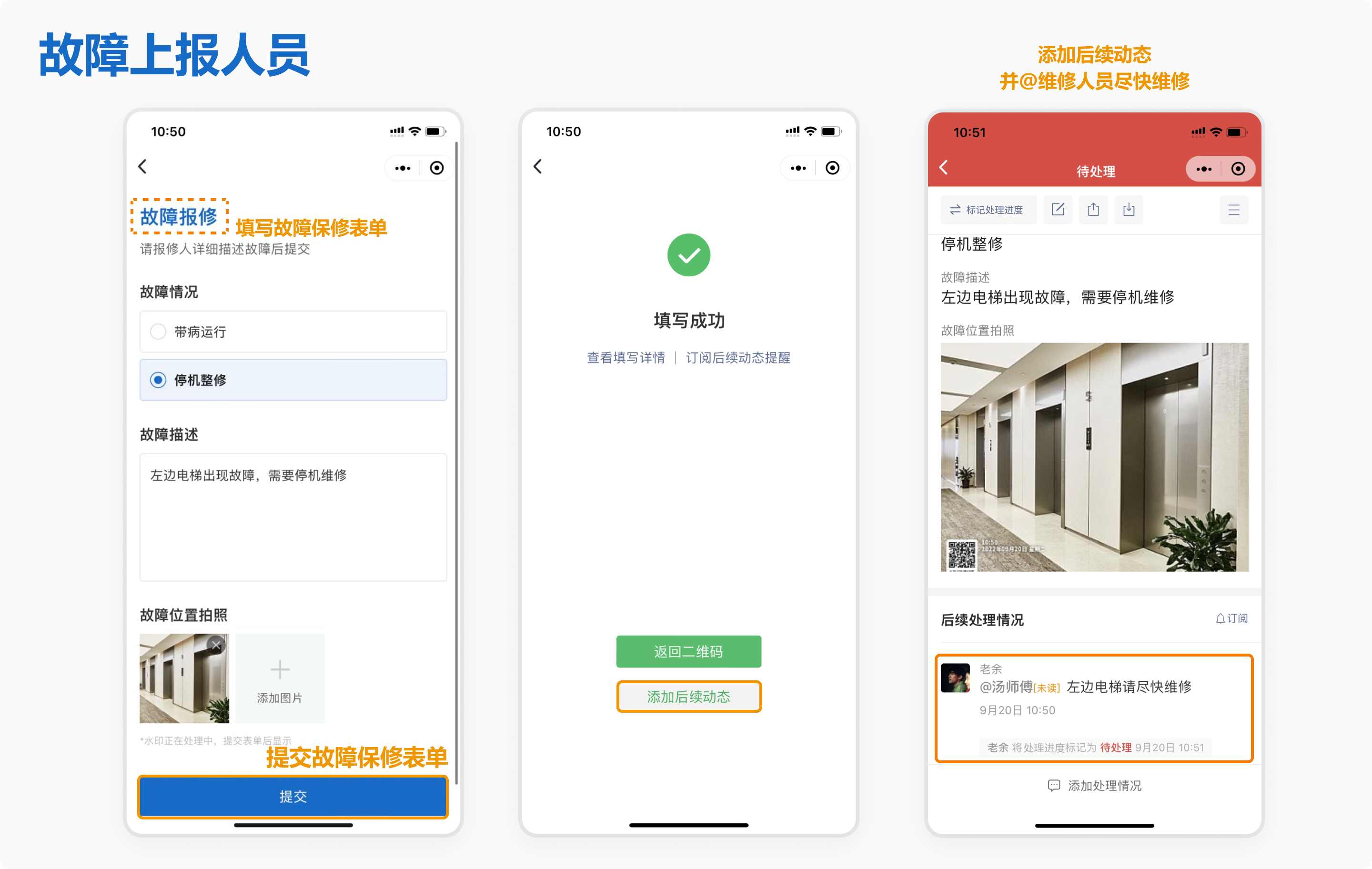
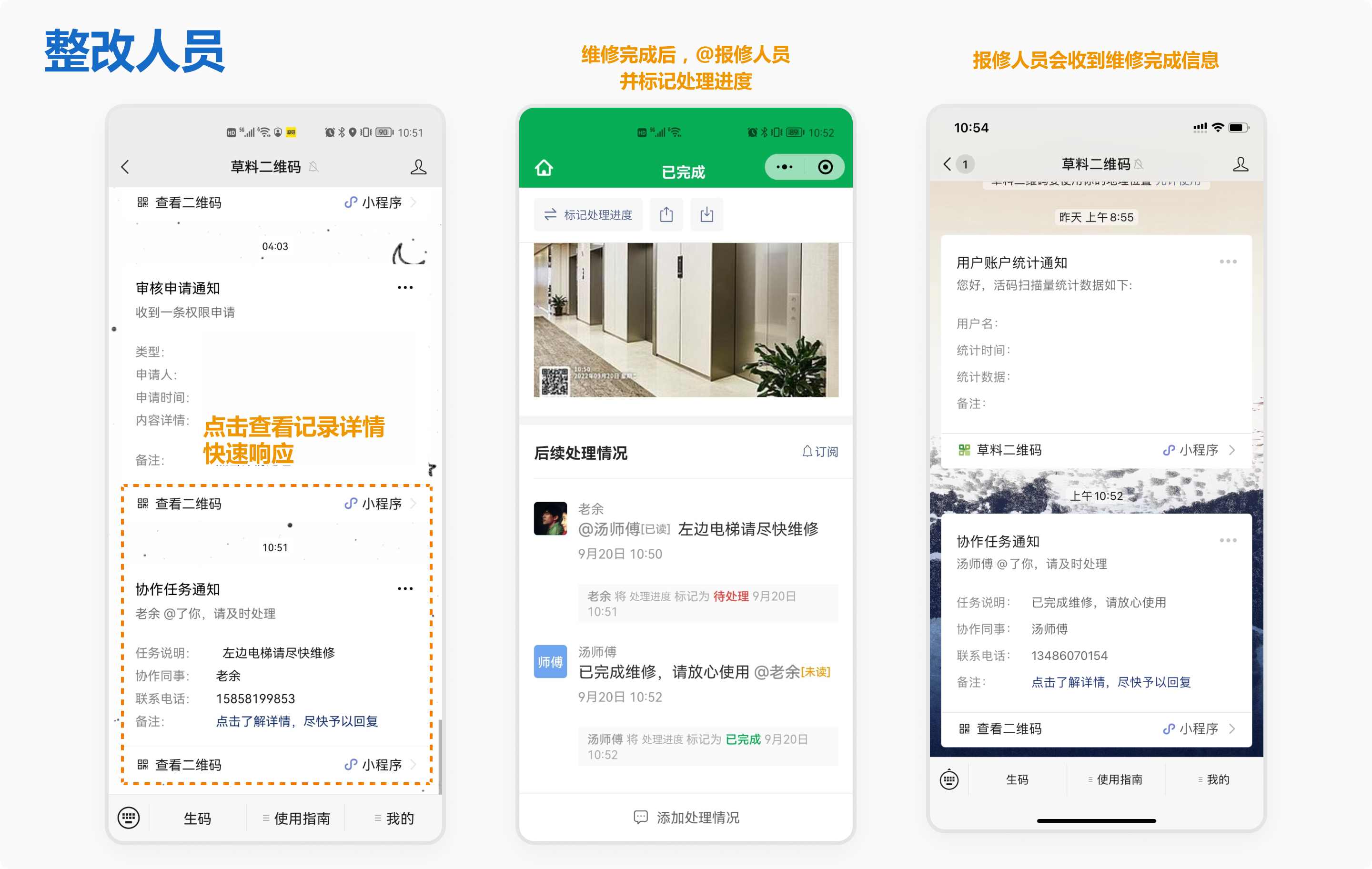
Enable the Follow-up Actions feature in forms settings. After frontline staff submit a form record, they can collaborate and communicate on the form data detail page, supporting voice, images/text, @mentions, form submissions, handwritten signatures, and more.
Suitable for multi-person collaboration scenarios, such as: equipment inspection → report fault → repair → acceptance — where multiple people need to collaborate on a single inspection record to carry out follow-up work. Learn about this feature
Using Elevator Inspection as an Example:
4. Mark Processing Progress for Tracking and Statistics
Enable the Mark Processing Progress feature in forms settings. After frontline staff submit a form record, each data entry can have its processing progress marked in real time for tracking and statistics. Useful for feedback, fault handling, hazard rectification, anomaly resolution, order fulfillment, and similar scenarios. Learn about this feature
4.1. View Statistics on Mobile
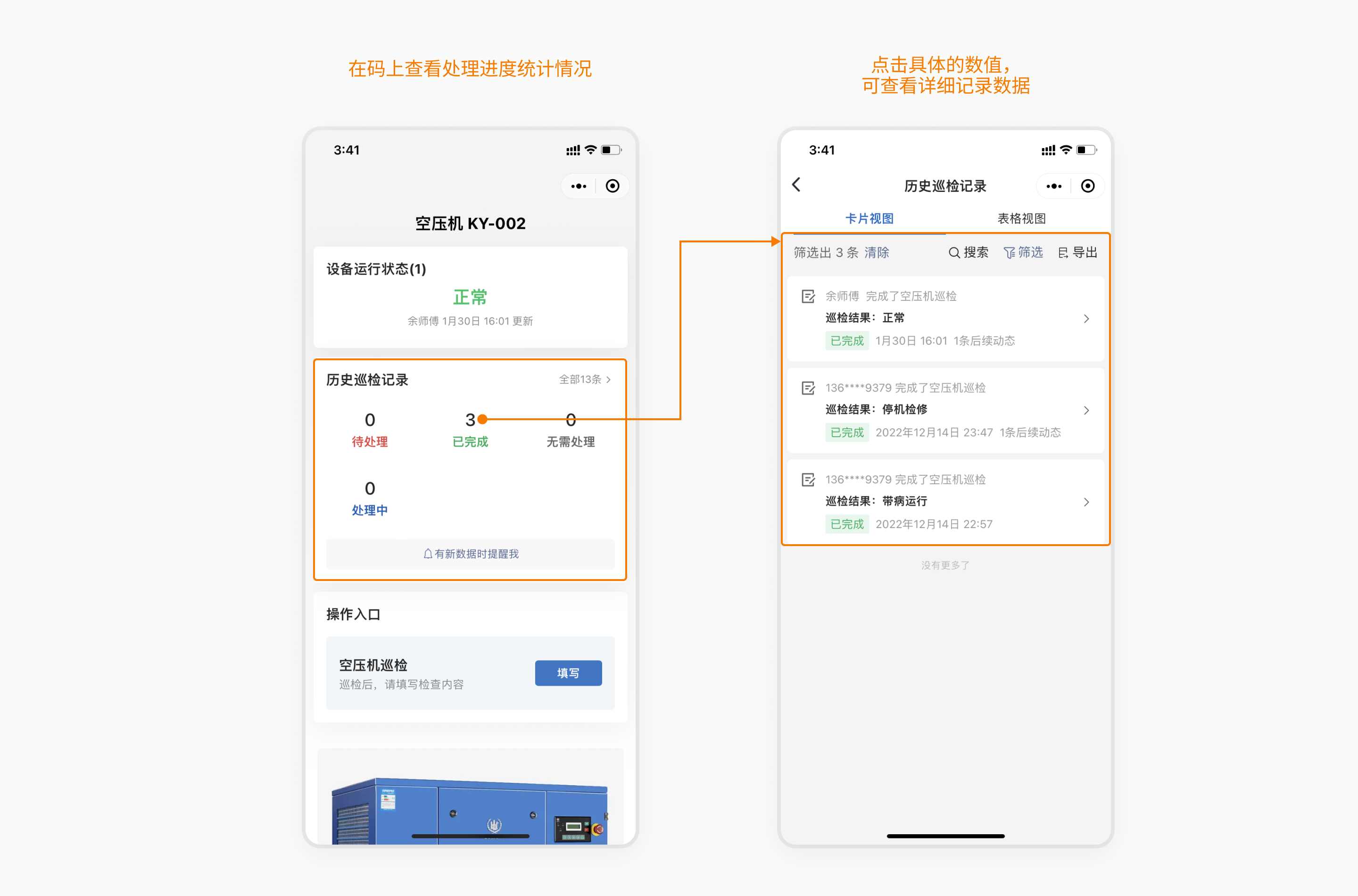
In the QR code editor, set the dynamic data panel style to "Processing Progress Statistics Style". All processing progress entries on that code will be tallied. Learn more
Scan to view. Tap a specific value to jump to the detailed record data.
4.2. View Statistics on Desktop
Log in to the desktop workbench. Under Workbench → Recent Updates, you can view processing progress statistics aggregated by form.
Click a specific progress figure to jump to the form data detail page for the underlying data.


5. Data Approval
Once enabled, after a submitter submits a record, admins can approve or reject the submitted content and add reply content. Multi-level approval is supported.
After approval, the submitter will receive a WeChat service notification containing the review result and reply content. Learn more

6. Image Watermark for Anti-Fraud
After enabling the image watermark feature, image components in forms will have a watermark applied and will automatically capture the submitter's location and phone number when photos are uploaded, preventing falsification and facilitating later traceability of inspection records. Suitable for equipment inspections, area patrols, safety checks, and other scenarios where record authenticity must be ensured. Learn more
