Data Approval
I. Feature Introduction
You can set up one-level or multi-level review and approval flows. Each level can have one or more approvers, to fit different review and approval needs.
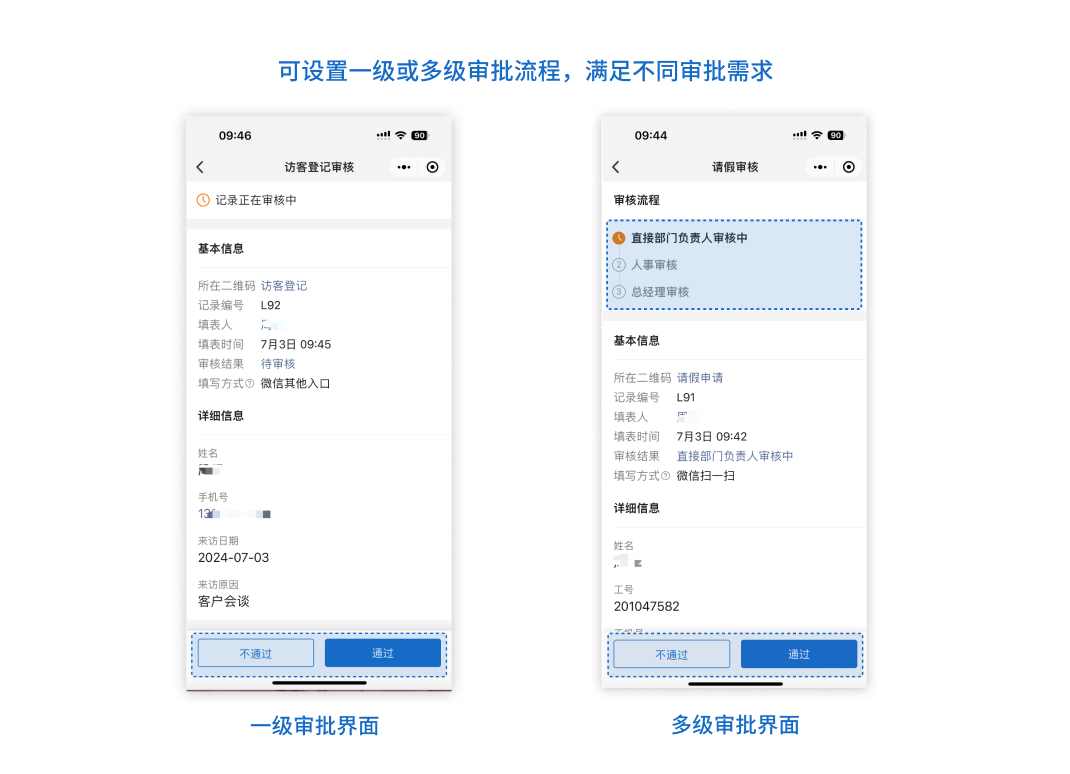
1. One-Level Approval
Take a service booking as an example

2. Multi-Level Approval
Multi-level approval supports up to ten levels. Take a fixed asset requisition application as an example

After a record is rejected at some level, the submitter can edit the record and submit it for approval again. To allow this, tick "Allow the submitter to edit the record and resubmit for approval" on the form's approval settings page.
Note: once a record is approved, it can no longer be edited. If needed, contact the admin to edit it on your behalf.

You can export a PDF archive file that records the whole approval flow

3. Approval Methods
When setting how approval messages are pushed, there are two choices:
(1) Push to all reviewers:
With this method, the system pushes the review message to all approvers you set under [Who Can Approve].
Every reviewer receives the notification and can approve, and the approval flow counts as complete as soon as any one of them approves.
(2) The submitter chooses the approver:
With this method, the submitter chooses a specific approver when submitting the form. The record appears in the "Needs My Approval" category of that approver's approval list.
This method has two options:
a. Choose from the approver list
The submitter chooses one reviewer from the [Who Can Approve] list.
b. Enter the approver's name to match
The submitter must enter the approver's name correctly to submit the form. If the name entered isn't in the [Who Can Approve] identity group, the form can't be submitted.

II. Operation Tutorial
1. Turn on Approval
1.1 Where to Find It
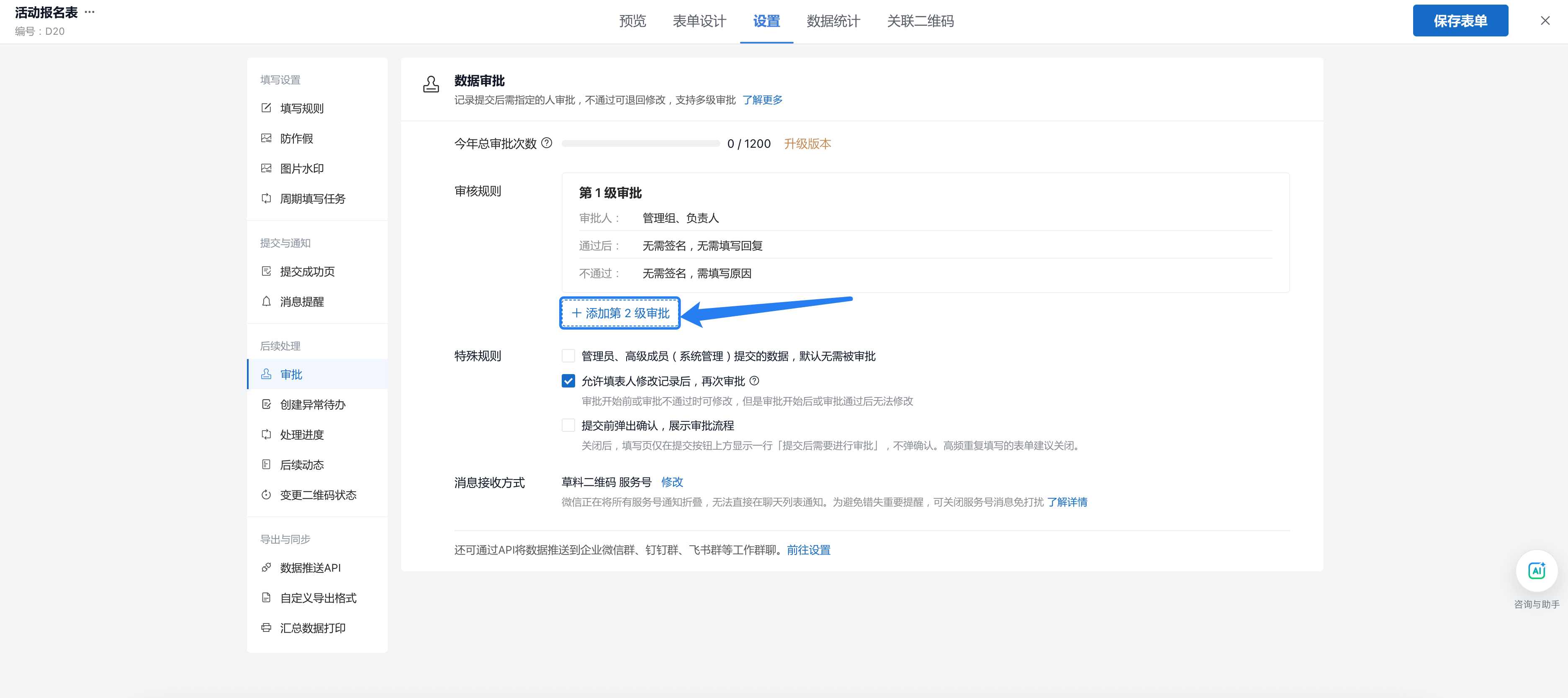
In the QR code editor, select the Control Panel and click Settings. Choose the form you want to configure, click Set Up Form, and go to Settings → Follow-up Processing → Approval.
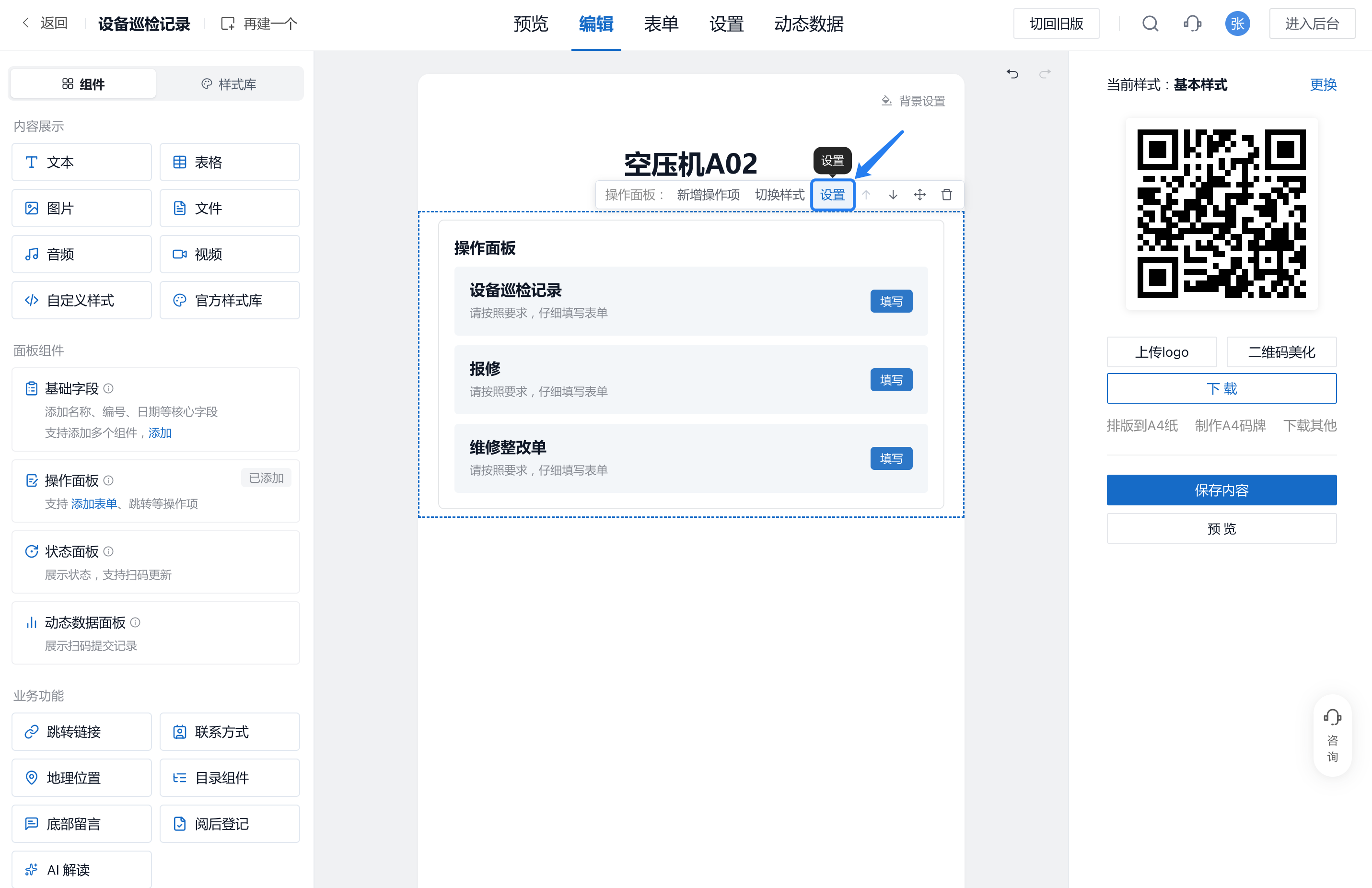
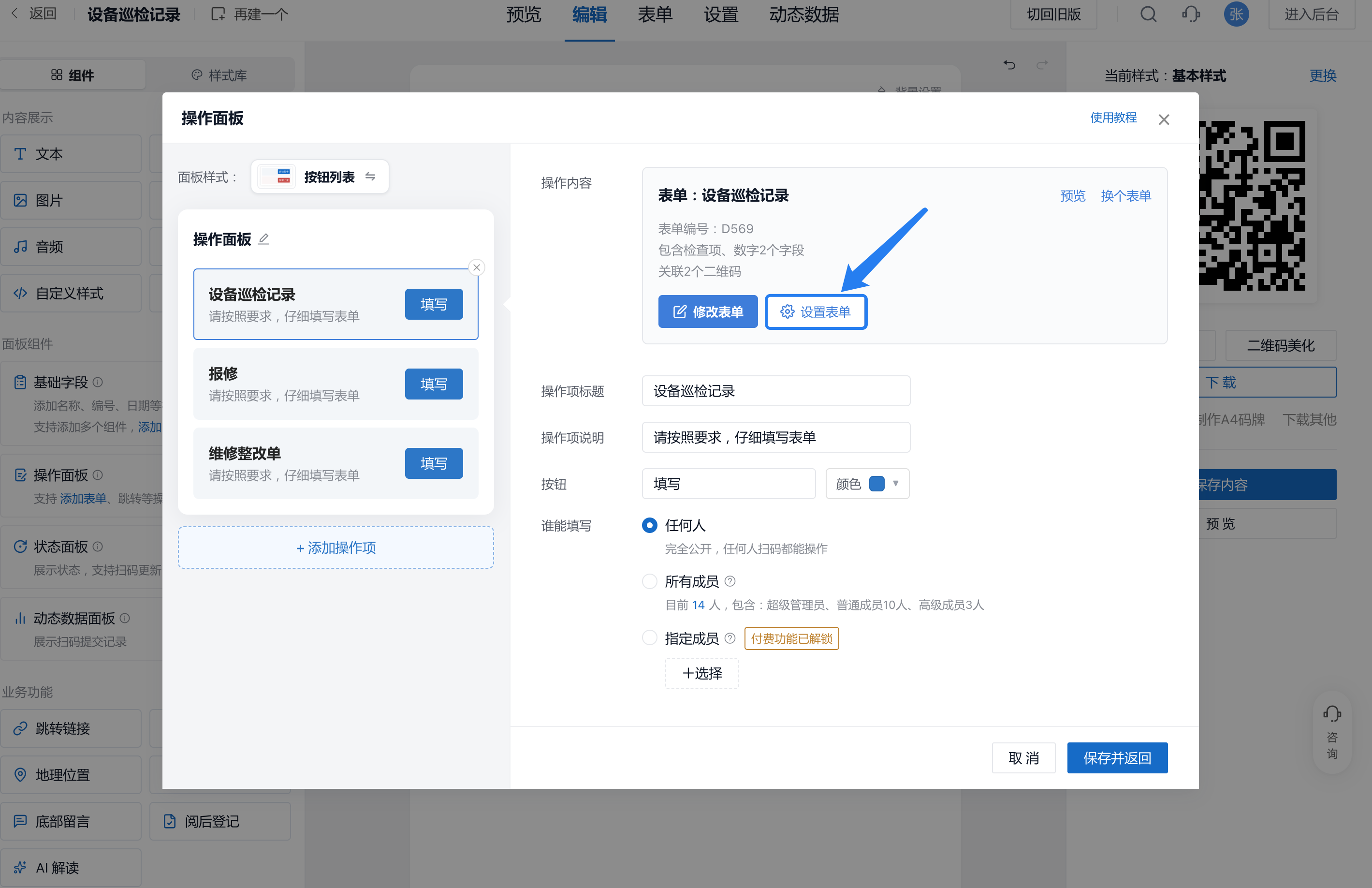
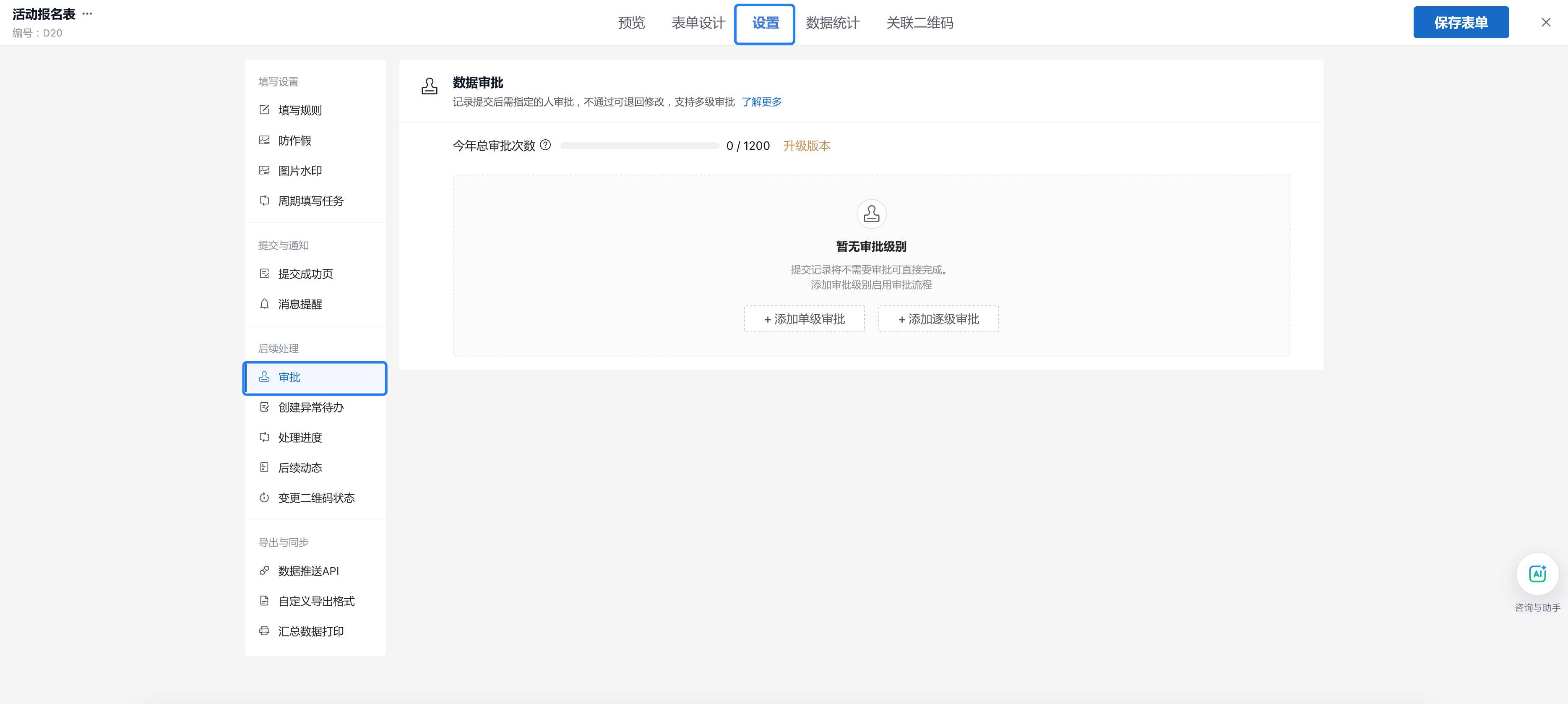
1.2 Set the Approval Rules
- Set the number of approval levels: use "Add Next Level Approval" to set up multi-level approval, up to ten levels
- Who can approve: designate advanced members to review the information at each level. (System admins and advanced members - system admins have the highest permission and can approve all records)
- Set quick reply content: preset several quick replies so approvers can pick one and reply fast.
- Special rule: allow the submitter to edit the record and be approved again (optional)
- Push rule for data awaiting approval: you can push to all approvers, or let the submitter choose the approver
2. Approve Form Records
2.1 Approve on Mobile
Go to the mobile workbench to approve form data. (In WeChat, go to [Discover] - [Mini Programs] - search for CaoLiao QR Code to open the CaoLiao QR Code Mini Program)

2.2 Approve on Desktop
Log in to the desktop workbench and view the information awaiting approval under the Review feature on the left. After filtering, you can approve in bulk.

3. View and Export Approval Information
Under Data Management on the left of the workbench, you can view each record's approval data, and it can be exported.

III. Department Heads Approving Different Data Separately

If you need department heads to review only the applications submitted by their own department's employees, so that approval permissions and responsibilities are clear, click here to see the tutorial.
IV. Notification Methods
1. Approvers Receive Approval Reminders
Members set as approvers need to follow and bind the "CaoLiao QR Code" service account to receive approval reminders in WeChat.
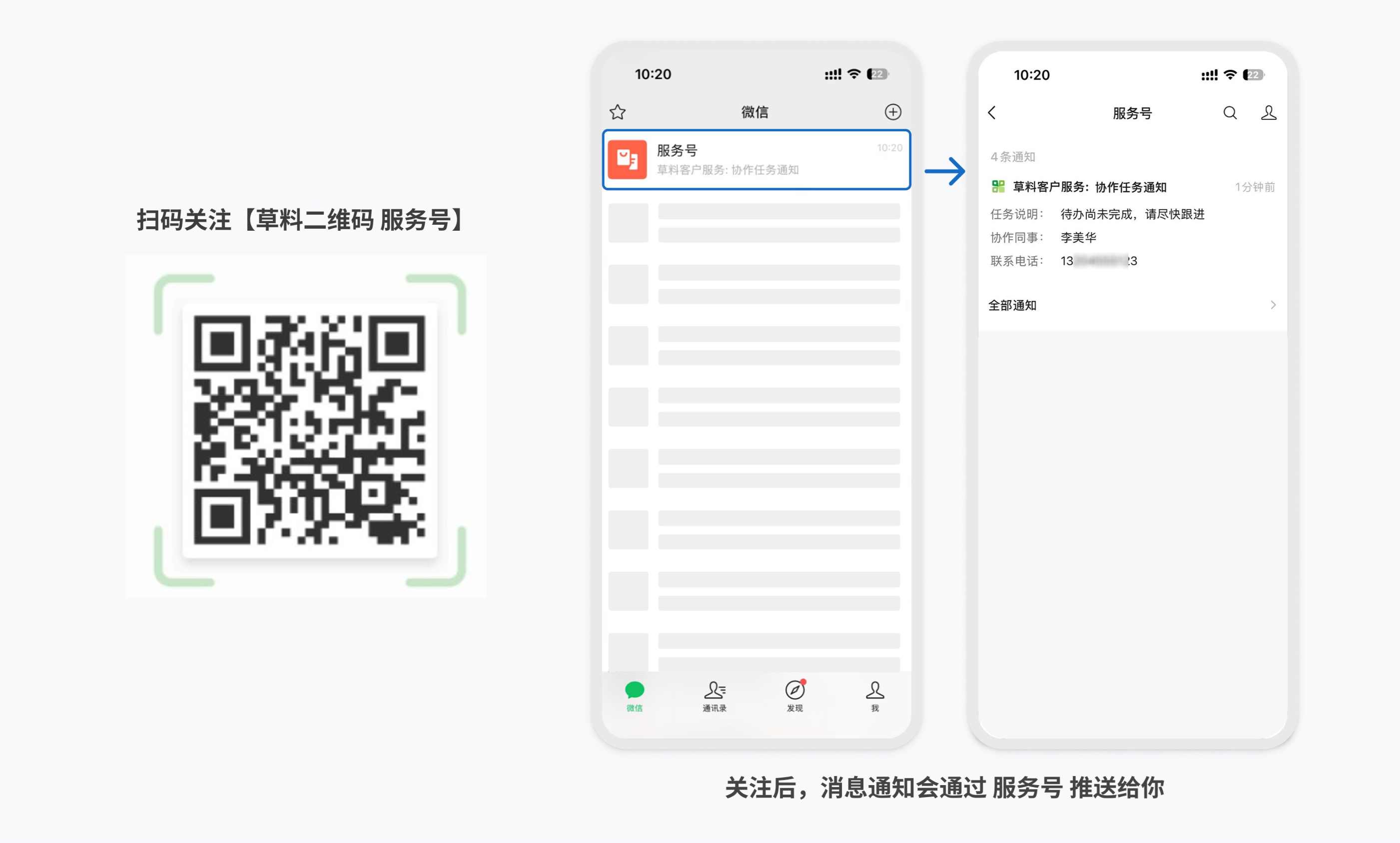
If you want reminders to be more noticeable, the Advanced Edition and above can also turn on WeChat work notifications. For the specific steps for following the service account, binding the account, and work notifications, see how to turn on message notifications.
2. Submitters Receive Approval Results
Approval results remind the submitter through a service notification, which the submitter has to turn on by hand. How to turn it on:
Turn on Approval Notifications
When submitting the form, tap to turn it on. Once on, whenever there is a new approval result, the submitter receives a reminder through a WeChat service notification.

Turn Approval Notifications Back On
If the submitter turned approval notifications off earlier, or wants to turn the feature on again, follow these steps:

V. Approval Count Limits
As our user base keeps growing, our costs in computing resources and more keep rising. To keep the service stable and sustainable, from July 2, 2025 we set a limit on the number of approvals for the form approval feature in every edition. The details are:
What changes:
| Edition | Annual Approval Operations Limit (counted per calendar year) | Add-on Pack |
|---|---|---|
| Free version / Basic Edition | 1,200 per year | Not supported |
| Advanced Edition | 6,000 per year | Not supported |
| Flagship Edition | 24,000 per year | Add-on pack available, ¥500 per 10,000 |
| Industry Edition | Unlimited | Not needed |
Special cases:
- Users who bought any paid version before the July 2, 2025 change have no limit on approvals during the validity period of their current edition and can keep using it without limit.
An approval operation is each review action. For example, if a form has two levels of approval and a record completes both stages, it counts as 2 operations. After the limit is reached: the form can still be filled in and submitted, the system still receives the data normally, and admins can view submitted records, but "Approve" and "Reject" operations can't be done, and you need to upgrade your edition to keep using the approval feature.