Processing Progress
I. Feature Introduction
Processing progress adds a custom status label to each form record. It suits repair, approval, work orders, inspection, and other cases where records need continuous follow-up.
Once it is on, you can set progress items such as "Pending", "In Progress", and "Completed", and control who updates them manually, when they update automatically, and whether a person switching the progress by hand must fill in a note, upload images, or sign by hand. With processing progress statistics, you can see clearly how many records are pending and how many are done.
It mainly solves three things:
- Seeing progress: you can tell at a glance which step each record has reached, and count records by progress.
- Automatic marking: records that meet a condition can enter a specified progress automatically when submitted, with no need to set them one by one.
- Leaving a trace at key points: when switching to a specified progress, the handler can be required to fill in a text description, upload images, or sign by hand.
Combined with the record detail QR code voucher, it can also be used for checking, verification, and second confirmation.
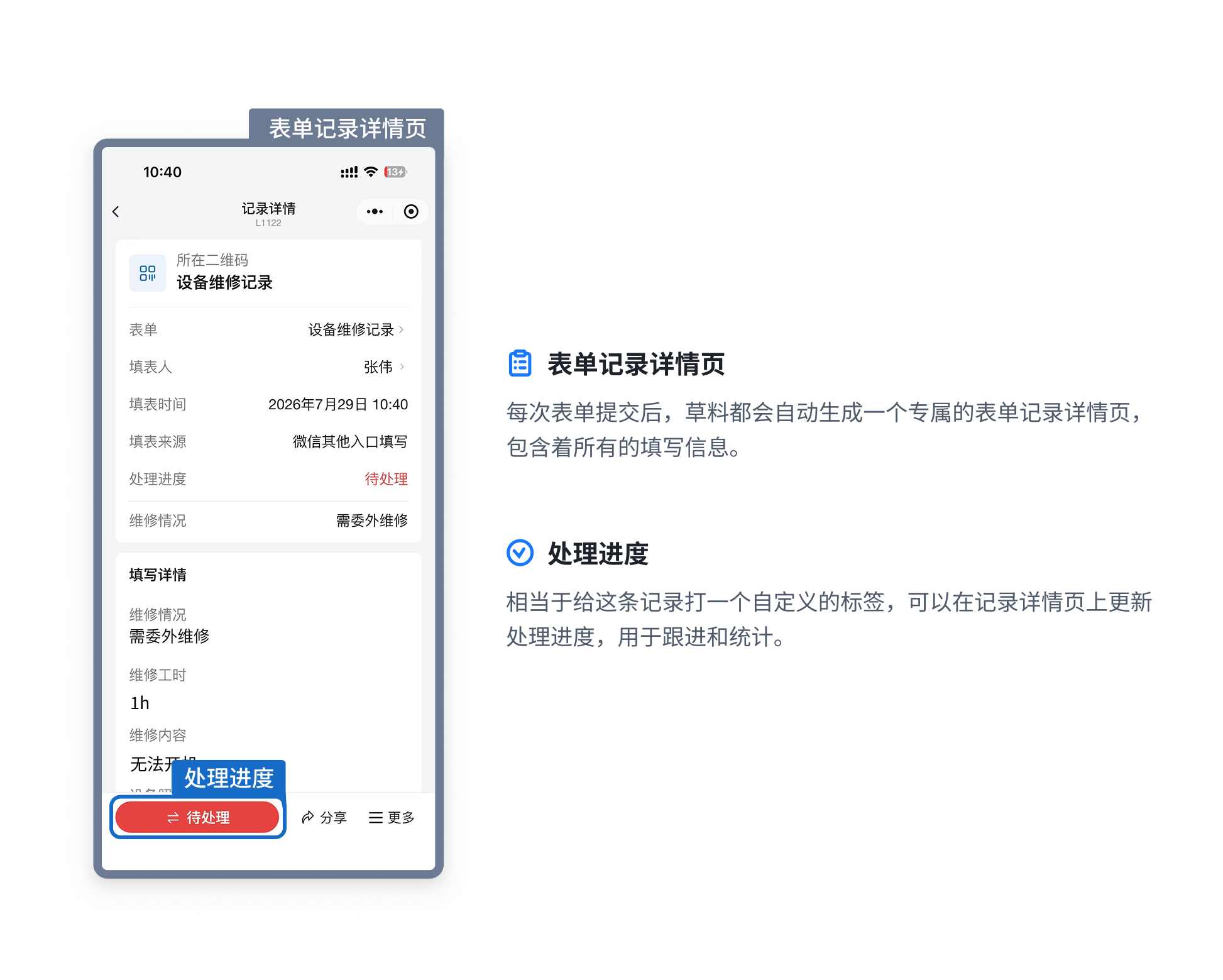
II. Examples
The two examples below show how to combine progress items, automatic update rules, manual update permissions, and manual update requirements.
Example 1: From Equipment Inspection to Repair Completed
Requirement: when an inspection finds equipment abnormal, the record enters "Awaiting Repair" automatically; when repair staff finish handling it, they must upload on-site photos and fill in a note. Normal records need no follow-up.
Set it up like this:
- Add 3 processing progress items: Awaiting Repair, Repaired, No Repair Needed.
- Add an automatic progress update rule:
- Choose Mark only when the condition is met.
- Set the condition to Inspection Result = Abnormal.
- Update the progress to Awaiting Repair.
- Set the manual update permission to Designated Advanced Members, and add the members responsible for repair.
- Set the manual update requirements for each item:
- Awaiting Repair: set to Cannot be manually updated to this progress, so the system marks it automatically when it finds an abnormality.
- Repaired: set to Can be manually updated to this progress, and tick Text description and Images.
- No Repair Needed: set to Can be manually updated to this progress. If a reason needs to be explained, tick Text description; if not ticked, nothing needs to be added when switching.
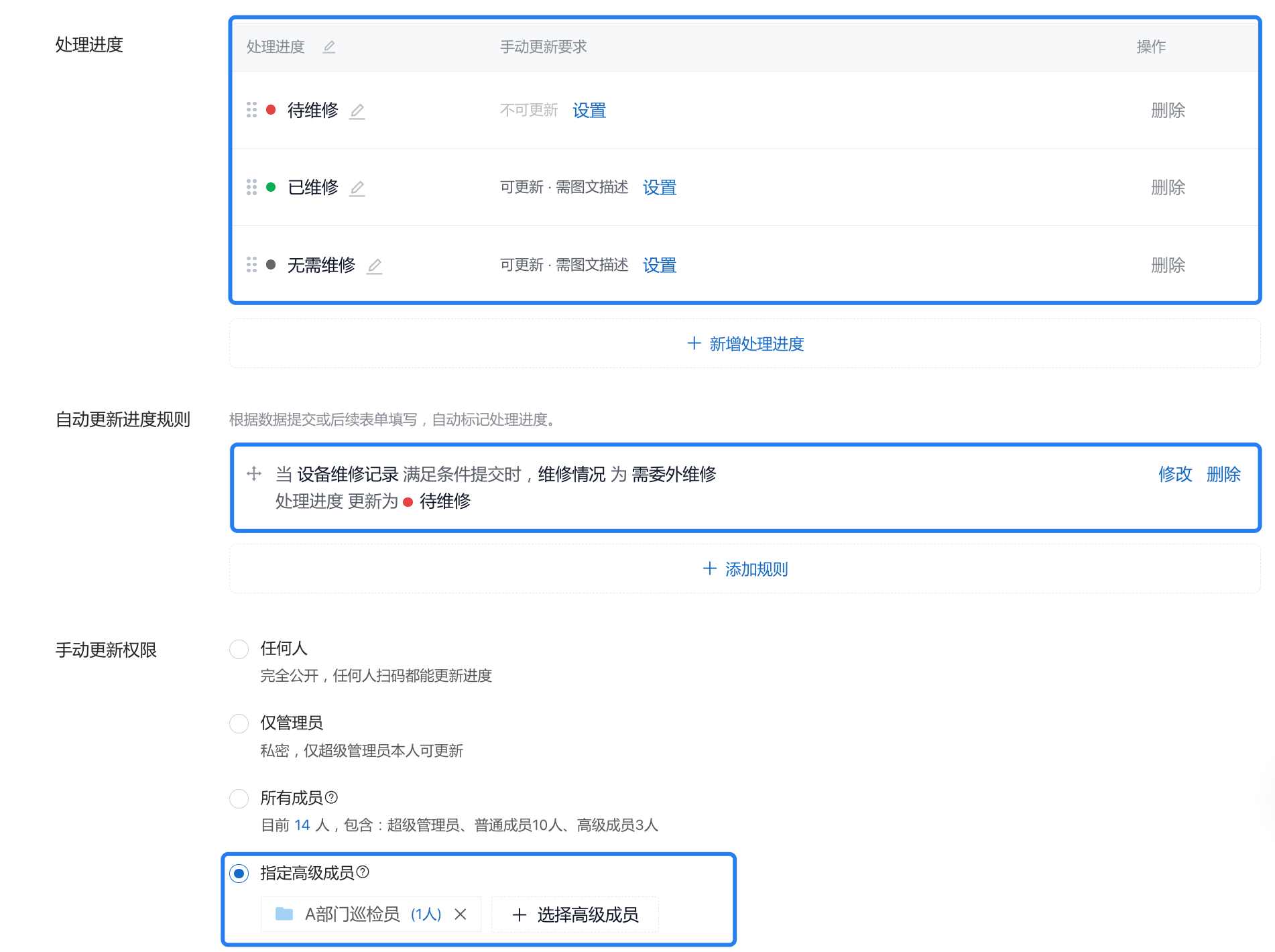
After this setup, when an inspector submits an "Abnormal" record, the system marks it "Awaiting Repair" automatically. When repair staff finish, they switch the progress to "Repaired", and at that point they must fill in a note and upload images, and what was done is saved in the record. "Normal" records are not marked and stay at "No processing progress yet".
Tip: Processing progress can work with message reminders, but it sets no deadline and doesn't chase anyone. If you need to assign specific people, require completion within 24 hours, or track overdue items, we suggest pairing it with an exception todo.
Example 2: From Supplies Lent Out to Return Confirmed
Requirement: employees scan to register borrowing shared supplies. After lending, you need to see which items haven't been returned; on return, they must take a photo to confirm the item is intact.
Set it up like this:
- Add 2 processing progress items: To Be Returned, Returned.
- Add an automatic progress update rule:
- Choose Mark all submissions.
- Update the progress to To Be Returned.
- Set the manual update permission to All Members.
- Set the manual update requirements for each item:
- To Be Returned: set to Cannot be manually updated to this progress, so it is marked automatically after an employee submits the borrow registration.
- Returned: set to Can be manually updated to this progress, and tick Images. If you want a note on the condition of the return, also tick Text description.
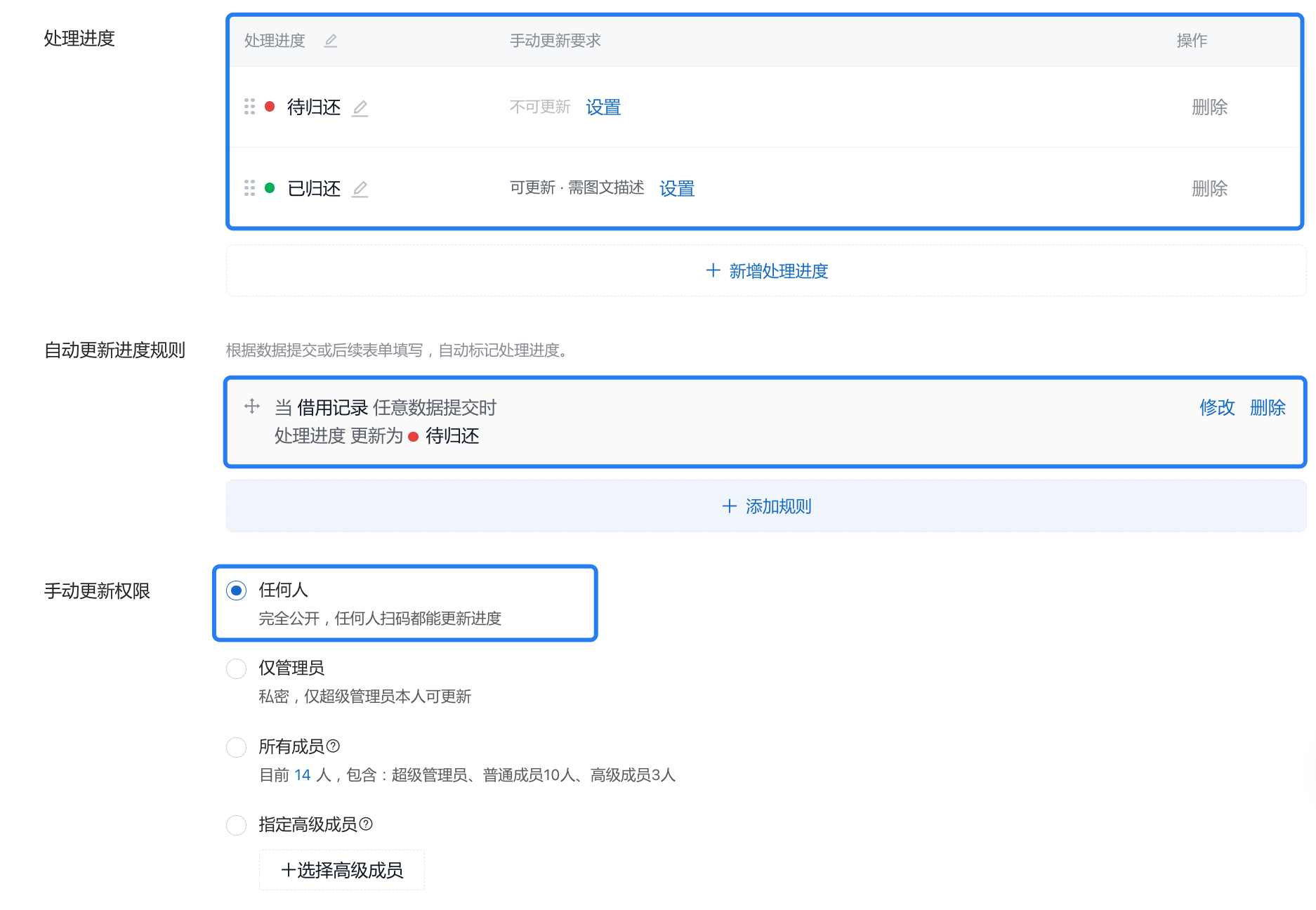
After this setup, when an employee submits a borrow registration, the record enters "To Be Returned" automatically. On return, the employee scans to open the record and switches it to "Returned", and the update can only be completed after uploading a photo of the item. Managers can check the numbers of "To Be Returned / Returned" through the statistics.
III. Settings
Where to Find the Settings
Turn it on under Settings → Follow-up Processing → Processing Progress in the form.
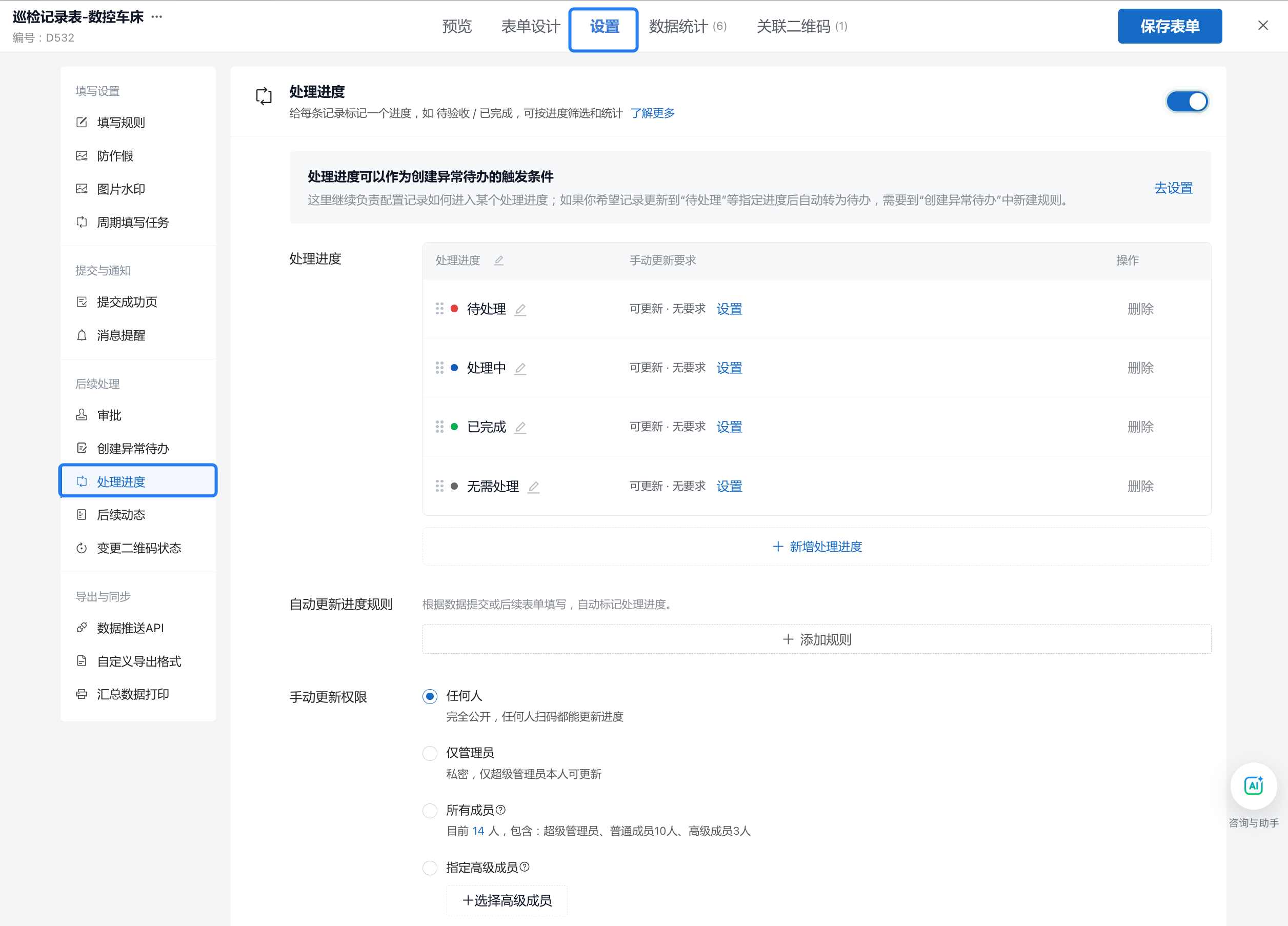
Processing Progress
Each row is a progress node, and you can do the following:
- Rename: the system offers common names such as "Pending", "In Progress", "Completed", and "No Processing Needed", and you can change them to fit your business. For example, an order business can use "Awaiting Shipment", "Shipped", "In Transit", and "Arrived".
- Add processing progress: for a longer process, click Add Processing Progress to add nodes.
- Reorder: drag the handle at the left of each row to move progress items up or down.
- Delete: click Delete at the end of a row to remove a progress item you no longer use.
Records that match no automatic rule and haven't been marked by hand show as "No processing progress yet".
Automatic Progress Update Rules
Automatic progress update rules set a record's initial progress automatically based on the form submission. A form can have several rules.
Mark Automatically After Record Submission
When a user submits a form record, the system marks the progress by the rules:
- Mark all submissions: every new record is marked with the specified progress. It suits repair, approval, applications, borrow and return registration, and other cases where everything submitted needs follow-up.
- Mark only when the condition is met: only records that meet the condition are marked, and the rest stay at "No processing progress yet". It suits cases where only abnormal data is followed up.
For example, if an inspection form has a "Inspection Result" single choice, you can set it to mark "Pending" automatically when "Inspection Result = Abnormal", and not mark records that choose "Normal".
Manual Update Requirements
Manual update requirements can be set for each progress item separately. Click Settings to the right of a progress item to control whether this progress can be switched to by hand and whether a trace must be left when switching.
1. Set Whether It Can Be Updated Manually
- Can be manually updated to this progress: people with permission can scan to open the record and switch it to this progress by hand.
- Cannot be manually updated to this progress: this progress doesn't appear among the options for manual updates and can only be given by automatic progress update rules. It suits starting points of a process, such as "Pending" and "Awaiting Repair", to avoid accidental changes.
2. Set What Must Be Filled In
After choosing Can be manually updated to this progress, you can tick one or more items under Required:
- Text description: a text note must be filled in when switching the progress.
- Images: images must be uploaded when switching the progress.
- Handwritten signature: a handwritten signature must be completed when switching the progress.
If none of the three is ticked, the handler can switch to the progress directly; ticked items become required. Different progress items can have different requirements, for example "In Progress" needs nothing extra, while switching to "Completed" requires uploading images and a note.
Note: Manual update requirements apply only when a person switches the progress by hand. When the progress changes through an automatic progress update rule, none of this needs to be filled in.
Manual Update Permission
The manual update permission controls who is allowed to change the processing progress:
| Option | Who can update | Suitable for |
|---|---|---|
| Anyone | Any scanner | Public cases that need no identity limit and favor convenience |
| Admins Only | Super admin | Progress managed only by the person in charge |
| All Members | All members of the team | Internal team collaboration where every member can follow up |
| Designated Advanced Members | Designated advanced members, departments, or individuals | Only specified roles such as repair staff or front desk can handle it |
After choosing Designated Advanced Members, click Select Advanced Members to add departments or members. After adding, the selected scope and headcount are shown, and you can remove them at any time.
The manual update permission governs "who can change it"; the manual update requirements govern "whether a progress item can be changed by hand, and whether evidence must be left when changing it". Used together, the two settings control both who operates and what is required of them.
IV. Processing Progress Statistics
Viewing on Mobile
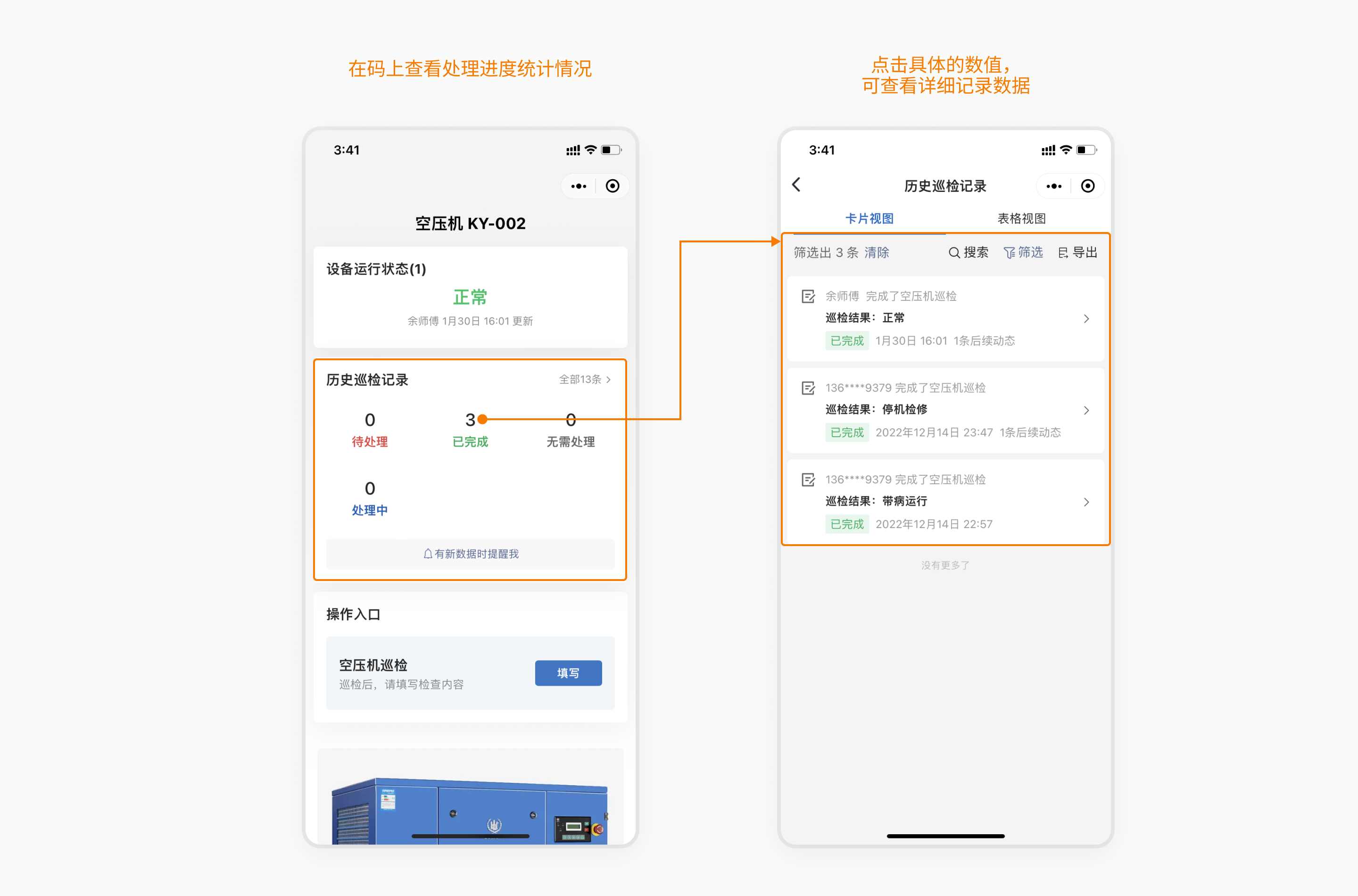
In the QR code editor, set the dynamic data panel style to Processing Progress Statistics. After scanning, you can see the number of records at each progress under that QR code, and tap a number to see the matching records. Learn about the dynamic data panel
Viewing on Desktop
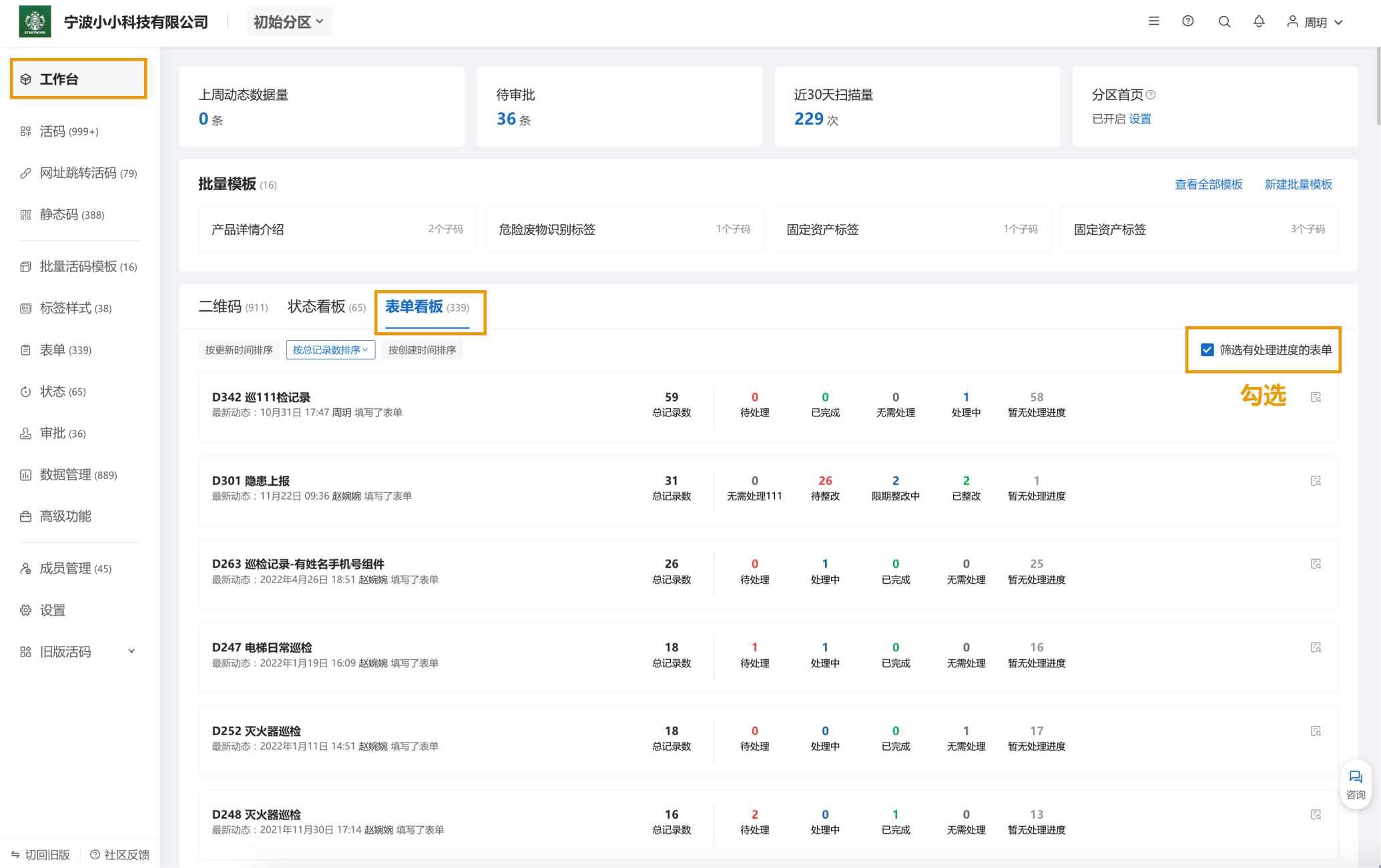
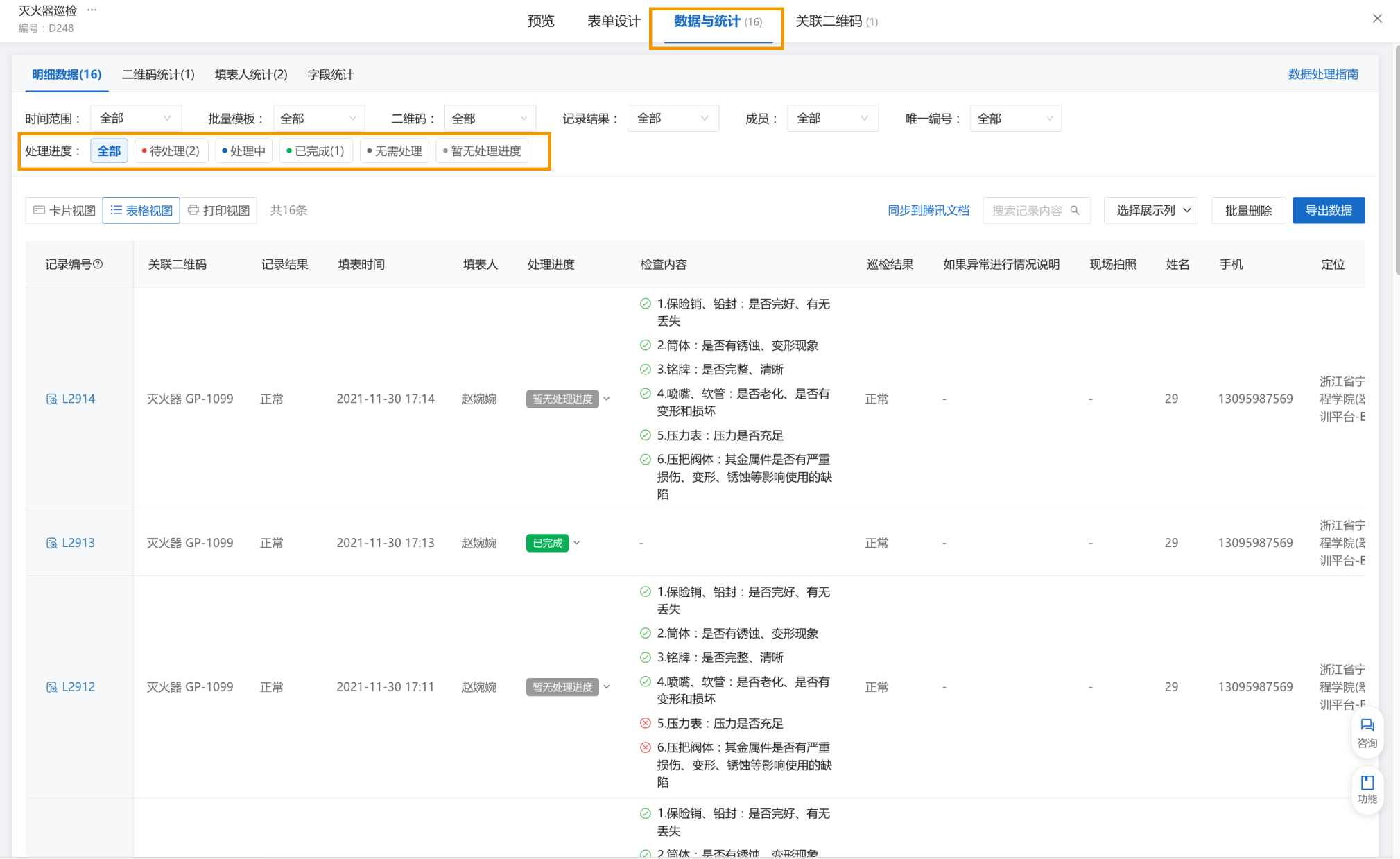
Log in to the desktop workbench and go to Workbench → Recent Updates to see processing progress statistics by form. Click the data for a specific progress to open the form data details page and see the matching records.
Data Export
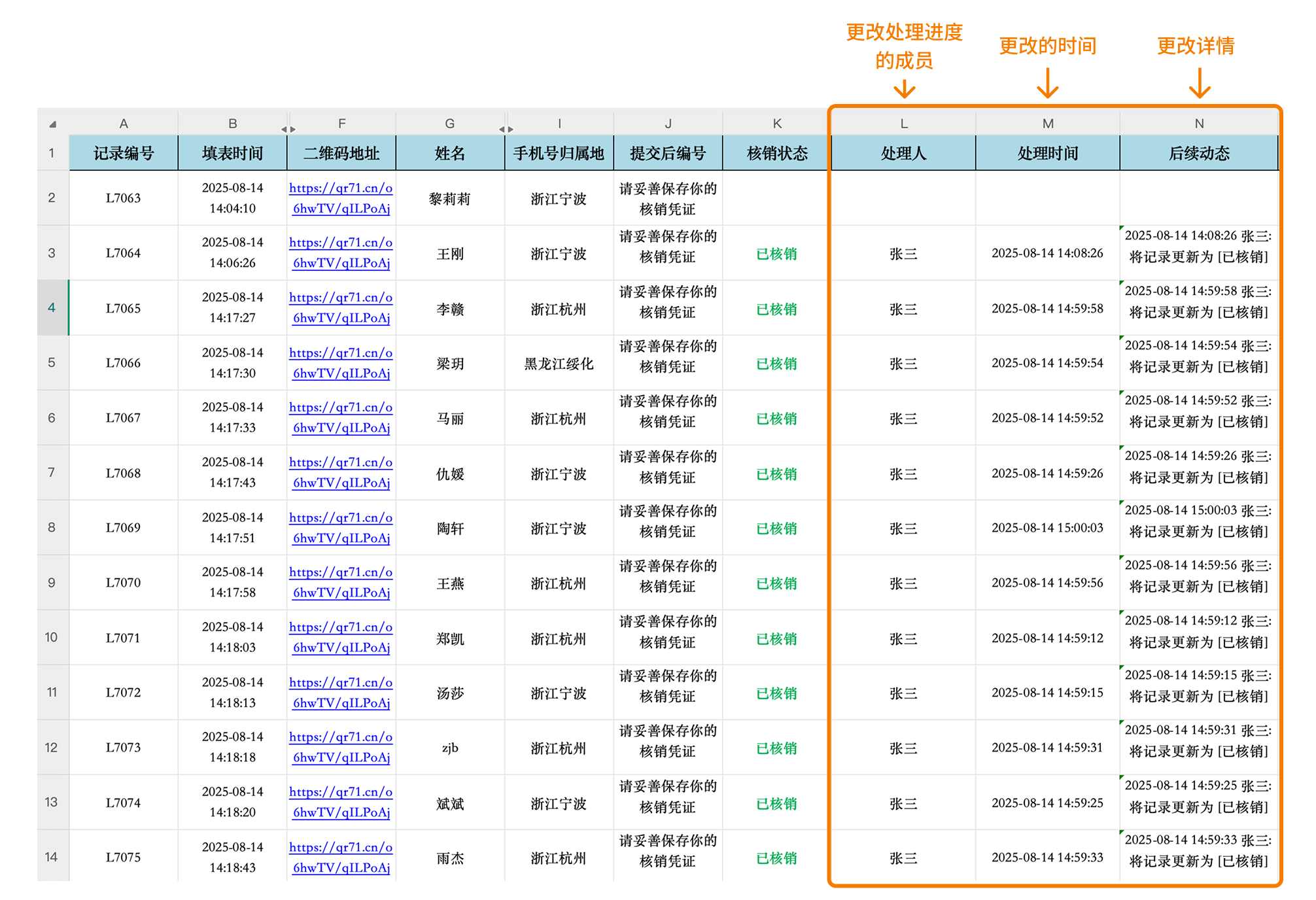
Once processing progress is on, the exported Excel file adds fields related to processing progress, including the handler who updated the progress, the handling time, and the handling details, for easy archiving and statistics.
Syncing Processing Progress Traces to the Official Database
Once official database sync is configured and turned on, the note and attachments filled in when switching the processing progress sync automatically with that update, with no need to turn on note or attachment sync separately. The related records still need to be within the existing sync scope.
For example, if repair staff change the processing progress to "Completed", fill in "Replaced the damaged part", and upload an on-site photo, you can find that progress change, the note, and the photo address in the database. This is an illustrative example.
The data is written into the existing record_review_data follow-up action table: review_id identifies the action and record_id links to the source record; 关键内容 (Key Content) stores the processing progress name after the change, 文本内容 (Text Content) stores the progress change description and this note, and 附件 (Attachments) stores the attachment address and type. The 状态 (Status) column is the data status of the action, not a processing progress such as "Pending" or "Completed".
This improvement doesn't automatically backfill all historical traces. Content is generated by the new rules only for new actions, or for old actions that are actually re-synced. For detailed fields and attachment examples, see the Official Database Guide.
V. FAQ
1. I Want a Record to Count as Handled Only After a Specified Rectification Form Is Filled in. How Do I Set That Up?
If, after a record enters "Pending", the handler needs to fill in a specified rectification form before it counts as done, we suggest using an exception todo.
Set the exception todo's creation condition to When processing progress is updated, with the progress "Pending"; then set the completion method to Complete after filling in a form and choose the matching rectification form. This assigns the todo to the person in charge automatically and also requires them to submit the rectification form before it can be completed.
2. How Do I Make Sure the Right People Get Reminded Promptly?
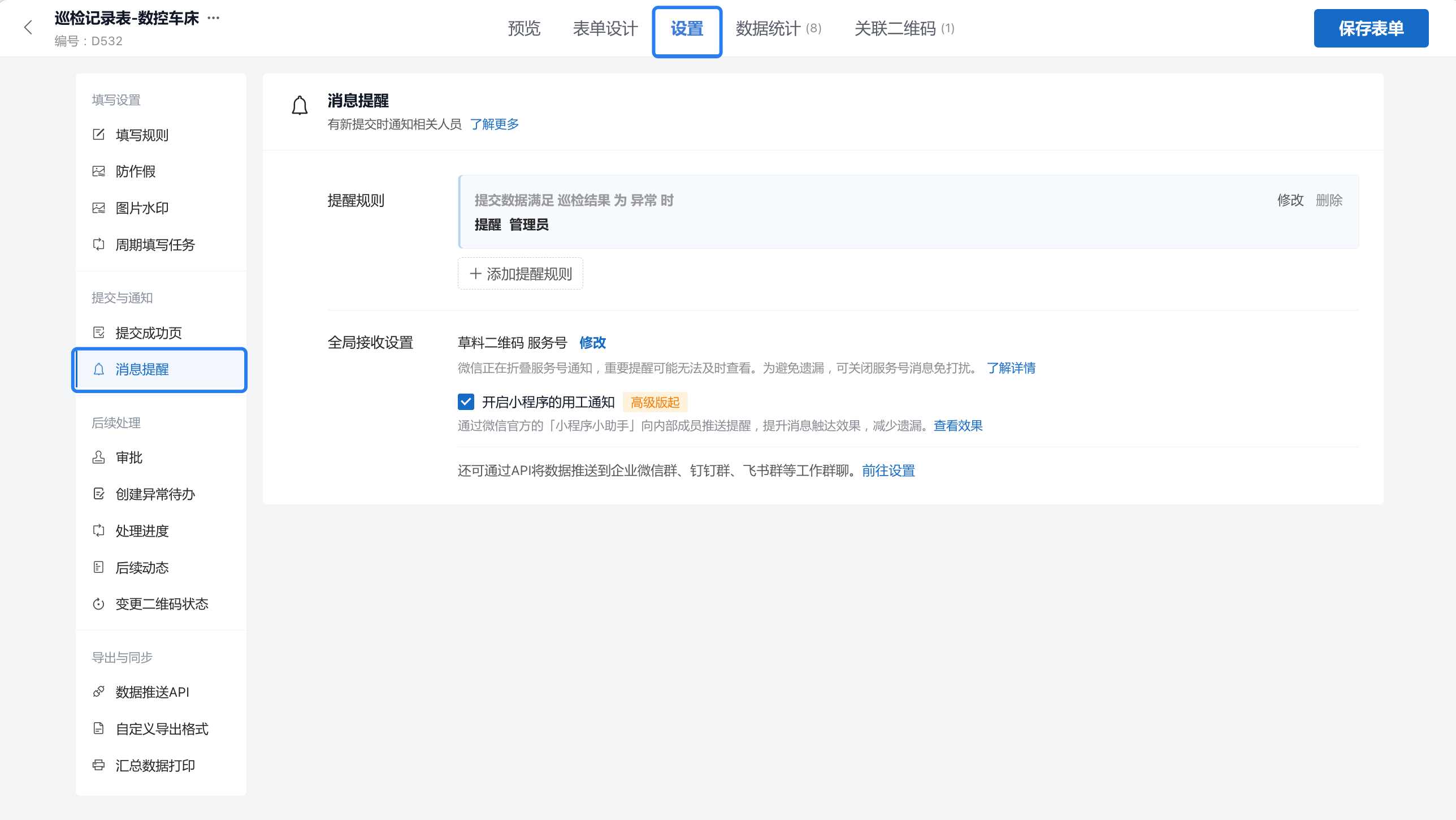
Processing progress can be used with message reminders. Under Settings → Submission and Notifications → Message Reminder on the same form, add a reminder rule and set the trigger condition and recipients.
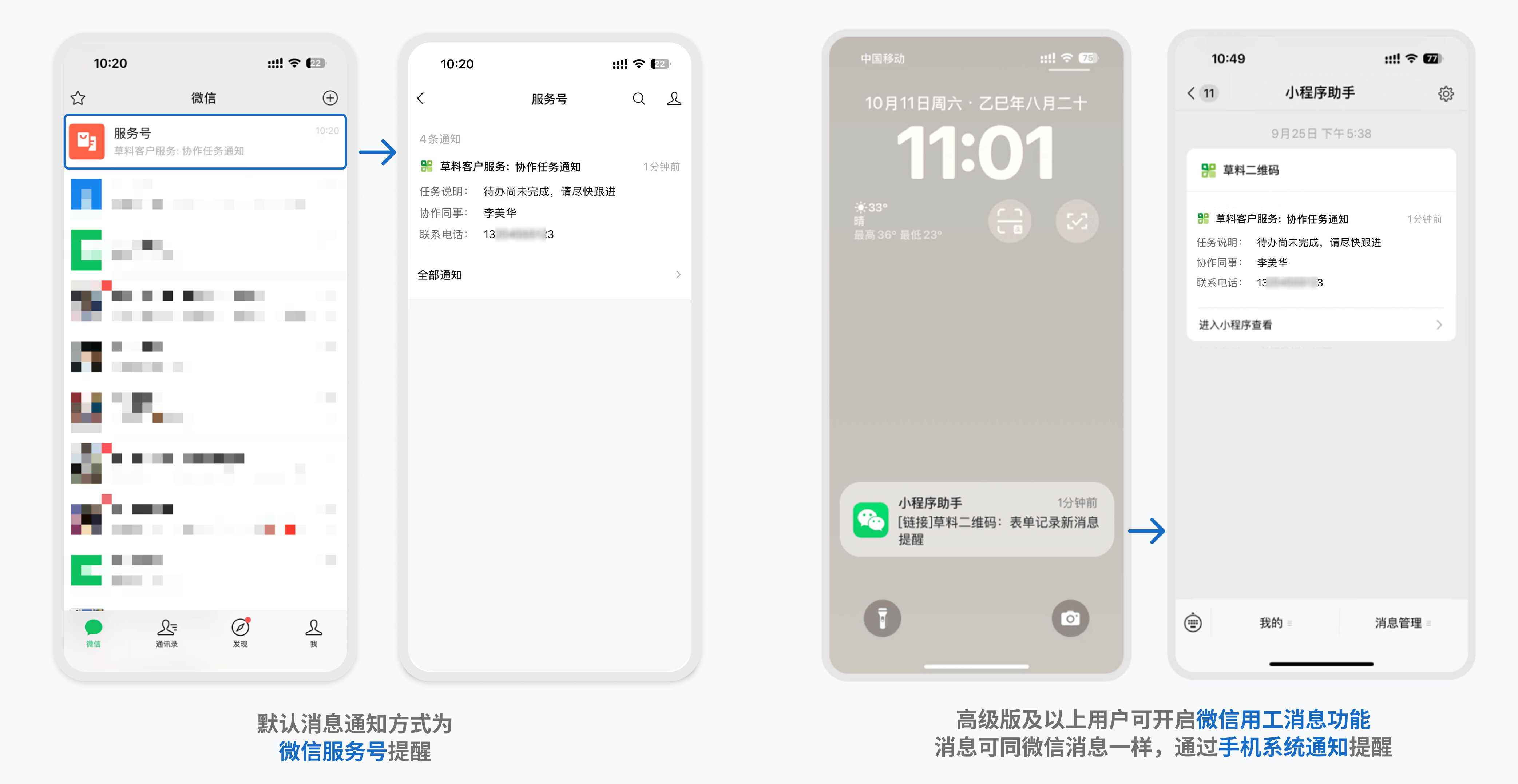
When a record meets the condition, employees can receive a reminder from the WeChat service account on their phones. With the Advanced Edition and above, you can also turn on WeChat work notifications to receive reminders through the phone's system notifications.
To pin the service account, turn off Do Not Disturb, or turn on WeChat work notifications, see How to Set Up CaoLiao WeChat Message Reminders So You Don't Miss Notifications.
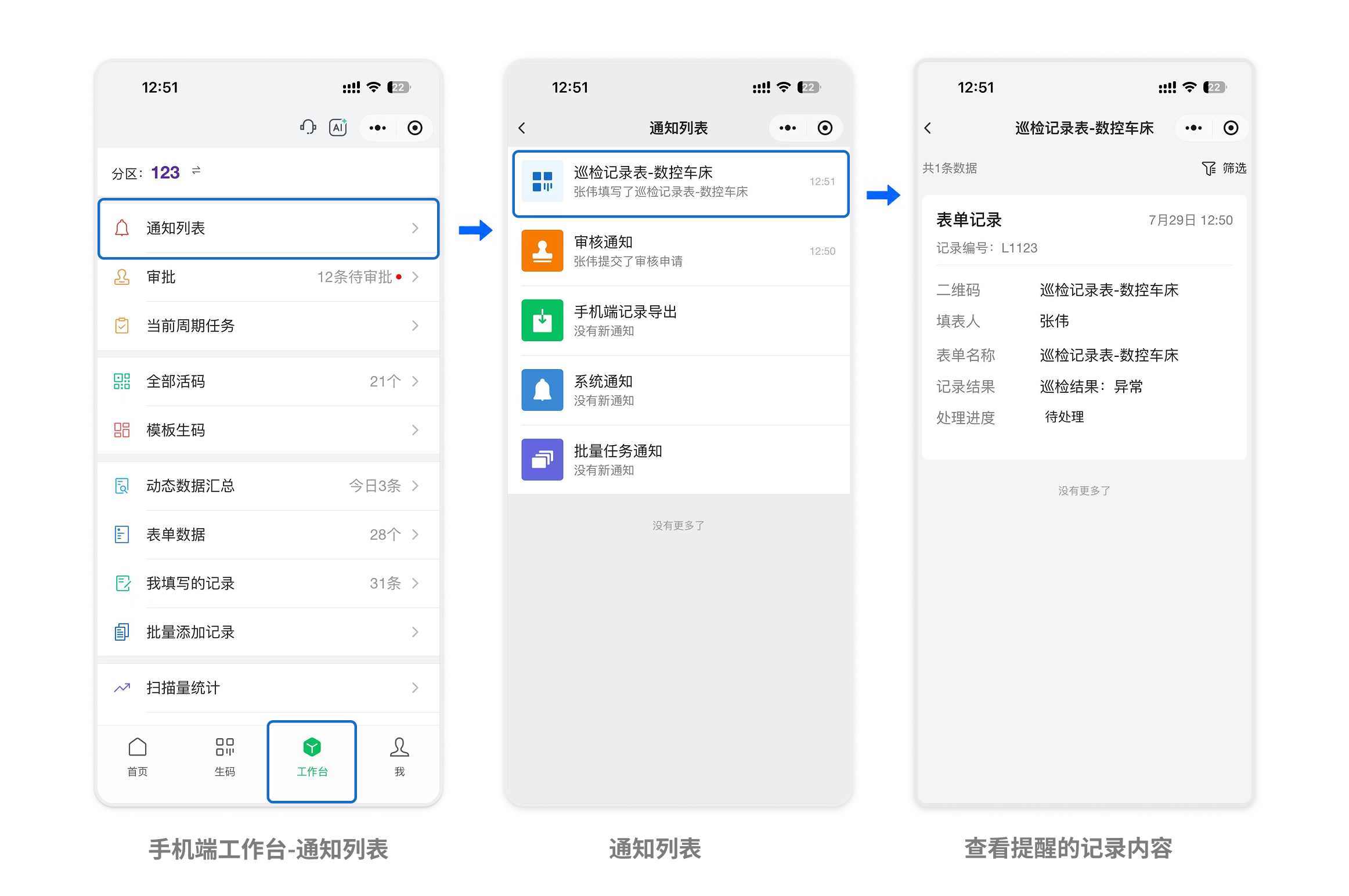
Open the CaoLiao QR Code Mini Program and go to Workbench → Notification List to see past notifications and the record content they refer to.
3. Can Processing Progress Be Changed in Bulk?
At the moment, changing processing progress in bulk on the desktop isn't supported.
If you need to handle many records in a row, you can use the record detail QR code voucher: generate a QR code voucher after a record is submitted, and then update the processing progress by scanning codes continuously for verification.
4. How Do I Choose Between Processing Progress and Exception Todo?
Processing progress suits labeling records with a status and viewing statistics; an exception todo suits assigning abnormal records to specific people to be handled within a set time.
| What you want | Processing Progress | Exception Todo |
|---|---|---|
| Assign an abnormal record to a specific person | No, it can only restrict who may update the progress | Yes, with automatic assignment, reassignment, or claiming by members |
| Require handling within a set time | No | Yes, you can set a deadline |
| See which tasks are overdue | No | Yes, overdue items are marked red |
| Require text, images, or a signature when handling | Yes, settable for each progress item | Yes, you can require a note, photos, or a form when completing the todo |
| Require the person to scan on site before completing | No | Yes, you can turn on scan verification before completion |
5. How Do I Use Processing Progress and Exception Todo Together?
The two can work together. For example, in a hazard reporting scenario, an admin can first judge which hazards need handling and then assign a todo to the person in charge automatically:
- Under Settings → Follow-up Processing → Processing Progress, add 3 progress items: To Be Assigned, Pending, Completed.
- Set the manual update requirements of all progress items to Cannot be updated, so scanners and handlers can't change the progress directly.
- Add an automatic progress update rule: choose When any data is submitted and update the processing progress to To Be Assigned.
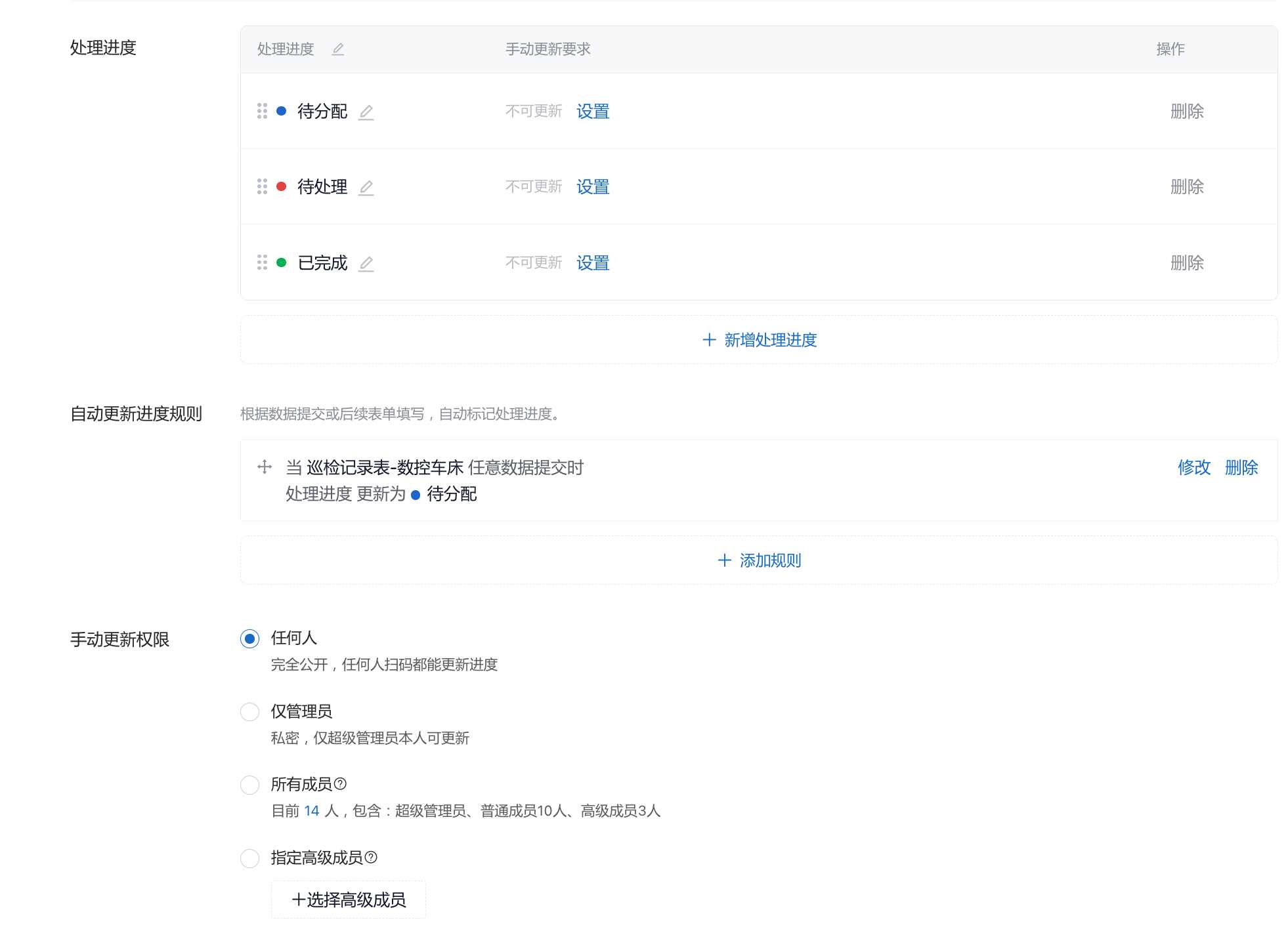
- The admin looks at the new record, and after confirming the hazard needs handling, changes the progress to Pending.
- Under Settings → Follow-up Processing → Create Exception Todo, add a rule, choose When processing progress is updated as the creation condition, set the progress to Pending, and then set the assignee and completion method. If you want the loop to close automatically once the todo is done, set Update progress after completion to Completed.
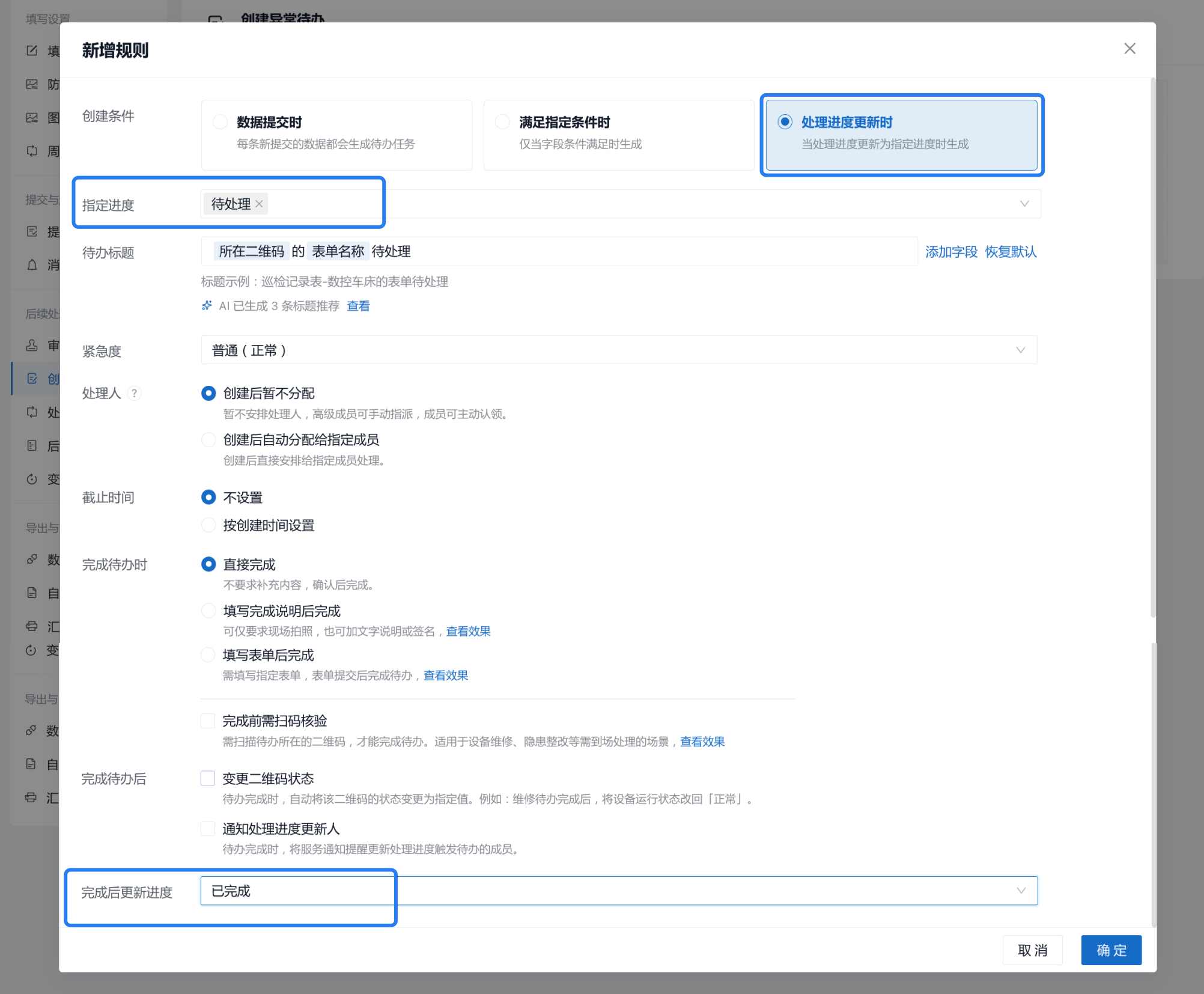
After saving the form, new records first enter To Be Assigned; when the admin confirms and changes it to Pending, the system creates a todo and assigns it to the person in charge automatically. Once the todo is completed, the original record's processing progress updates to Completed automatically.
6. Do Notes and Attachments Need to Be Turned on for Sync Separately?
No. As long as official database sync is configured and turned on and the record is within the sync scope, the note and attachments of this progress change are synced together automatically. Attachments are stored as an address and a type, not as file binaries.
7. Why Do Historical Processing Progress Entries in the Database Have No Notes or Images?
This improvement doesn't backfill history automatically. Only newly generated actions, or old actions that are actually re-synced, carry the trace content under the new rules; you can't assume all historical actions will be filled in automatically.