Record Detail QR Code Voucher
1. Feature Overview
Converts a submitted record detail into a QR code. Scanning the code lets the viewer see the filled content and approval results. They can also view or add follow-up actions and update processing progress.
Suitable for appointment vouchers, temporary passes, check-in verification, and other scenarios that require follow-up or second confirmation.
When used with a barcode reader for check-in, this feature is ideal for conference sign-in, event entry, training courses, benefits distribution, and more — making event management more efficient and simplifying the sign-in and verification process. View the barcode reader check-in tutorial
2. Scenario Applications
1. Appointment Voucher Scenario
- Event organizers generate an activity reservation QR code for applicants to self-register.
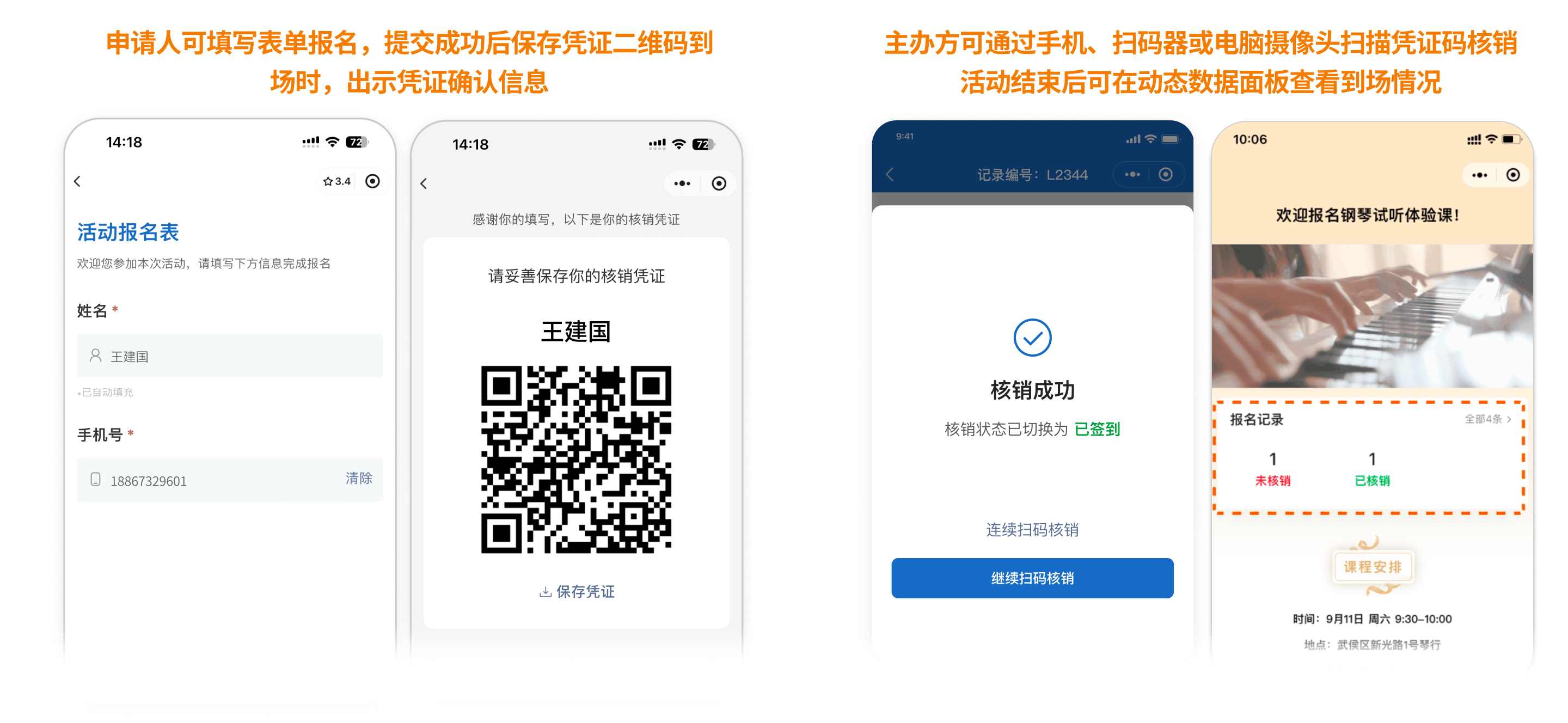
- Applicants fill in the activity reservation form and save the reservation voucher QR code from the submission success page.
- Upon arrival, applicants present the reservation voucher QR code to enter.
- Organizers scan the voucher QR code to view and compare the submitted information, then update the processing progress to "Checked In" for confirmation. You can restrict processing progress updates to designated personnel. Check-in can be done by scanning with a phone, desktop webcam, or barcode reader. View the tutorial.
- After the event, view the dynamic data panel of the reservation QR code to check "Checked In" and "Not Checked In" statistics based on processing progress.
2. Temporary Pass Scenario
- Super admins generate a visitor registration QR code for visitors to self-register. Approval can be enabled to review visit requests.
- Visitors fill in the registration form. After approval, the record detail is automatically converted into a visitor pass QR code.
- Visitors can present the pass QR code to access the premises.
- Security staff scan the pass QR code upon entry to verify information, check the current progress, and confirm whether the pass is valid and whether the visitor has already entered. Progress updates can be restricted to designated personnel.
- After the visit ends, update the processing progress to "Pass Expired" — a new request must be submitted for the next visit.

3. Item Requisition Check-In Scenario
- Super admins generate an item requisition QR code for applicants to self-apply.
- Applicants fill in the item requisition form and save the requisition voucher QR code from the submission success page.
- They present the voucher QR code to collect the items.
- Warehouse staff scan the voucher QR code to verify the requisition details and issue the corresponding items.
- They update the processing progress to "Collected" — a new request must be submitted for the next requisition. Progress updates can be restricted to designated personnel.

4. Other Scenarios
By combining the record detail QR code with the processing progress update feature, this can also be used for registration confirmation, product reservations, service bookings, gift collection, coupon redemption, and more.
3. How to Set Up
1. Create a Reservation QR Code and Link a Form
You can generate a QR code directly from a template in the template library, or configure an existing QR code.
2. Enable Approval for Reservation Applications
In the form settings, enable the approval feature for the reservation form to promptly receive and review reservation applications. Applicants are notified of approval results.
Learn about the approval feature

3. Obtain the Record Detail Voucher QR Code
In the submission success page settings, under "Get QR Code Voucher," select "Fill-in Details" to automatically convert submitted form records into QR codes.
You can customize the voucher QR code's title and body content, or have form component values automatically populate the body.
If the approval feature is enabled, the voucher QR code becomes available only after approval is granted.

4. Update Processing Progress
Super admins can customize processing progress names based on their scenario — for example: "Not Arrived" and "Arrived."
You can restrict processing progress updates to the admin group for confirmation and check-in purposes.
Learn about the processing progress feature

5. Configure the Dynamic Data Panel for At-a-Glance Display
Configure the dynamic data panel style to show processing progress statistics. Customize the metrics so that progress status is displayed directly on the QR code.
Learn about the dynamic data panel

6. Add Follow-Up Actions
If there are questions about a record or supplementary notes are needed, enable the follow-up actions feature — it supports adding text, images, handwritten signatures, and more.
