Static QR Code Voucher
After a submitter fills out a form, a QR code voucher is generated. This voucher is a static QR code that can be scanned with a barcode reader or mobile app to quickly import the encoded data into another system.
Getting the QR Code Voucher
Using a student information collection scenario as an example: after submitting the form, a QR code voucher is generated containing the "Current Class," "Student Name," and "Student ID Number."

Importing QR Code Voucher Data into Your System
Method 1: Use a Barcode Reader
A barcode reader is essentially an input device. When scanning with a barcode reader, it reads the character string encoded in the QR code.
Note: If the data includes Chinese characters, make sure you have a barcode reader that supports Chinese input.
Device and software used in testing: Barcode readers: Deli 14952W, Weirong X11S Operating system: Windows 10 (Chinese input only works on Windows) Input method: Sogou Chinese IME (the barcode reader works as a keyboard substitute, so Chinese input mode must be active when scanning) Recognition software: Excel was used for testing; in practice, test within your own system
Method 2: Scan with a Mobile App
For users who have developed their own mobile application (App, WeChat Mini Program, H5, etc.), they can use a phone to scan the QR code and read and upload the data.
We plan to support custom prefixes in static QR codes (e.g., http://XXXX) so that scanning with a phone opens your system and completes data entry directly. Users interested in this capability are welcome to contact us to discuss implementation.
Scan Results with Different Separators
CaoLiao provides 7 separator options. Choose the one that matches your system's configuration.

Examples using a barcode reader with an Excel spreadsheet:
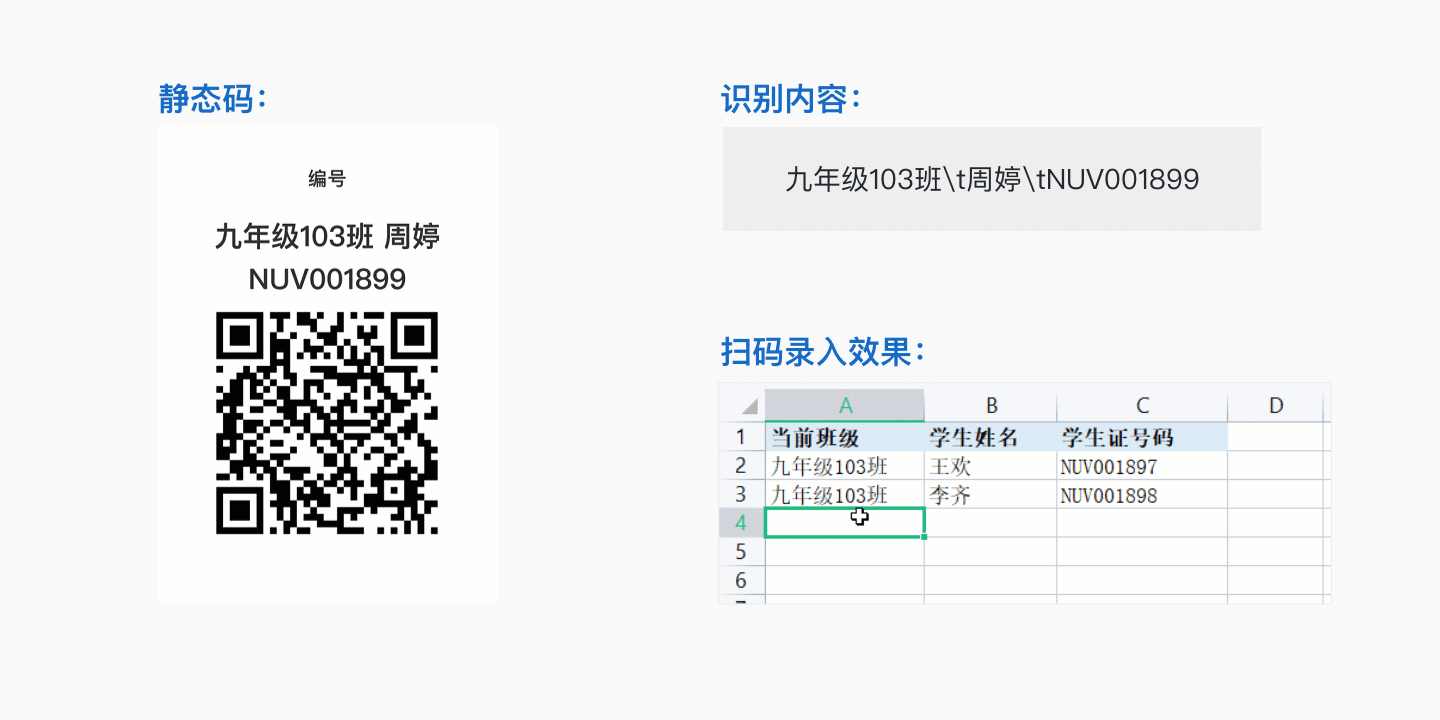
Tab t
Different fields are separated by a Tab key press. After each field is entered, the system automatically moves to the next input box, filling in 3 fields automatically:
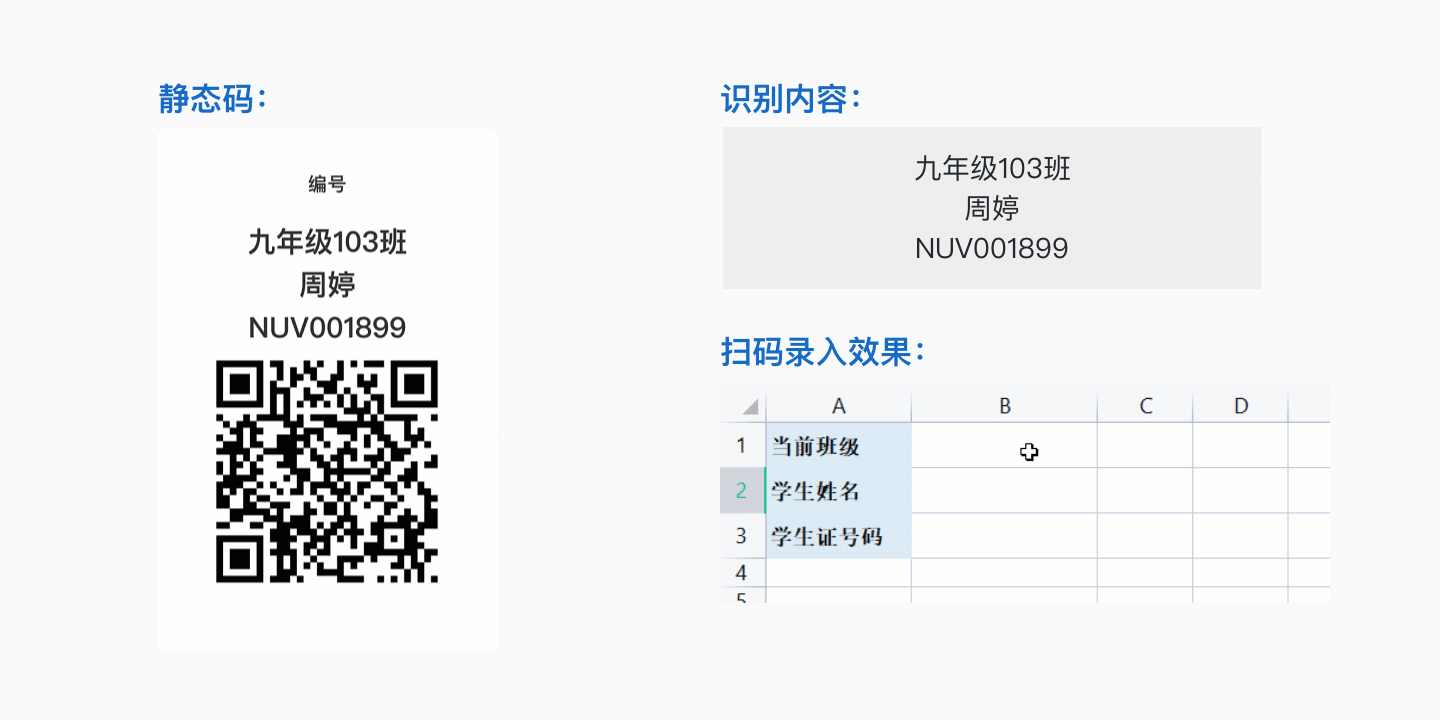
Line Feed n
Different fields are separated by an Enter (Return) key press. After each field is entered, the system automatically moves to the next line, filling in 3 rows automatically:
String Separators - , ; / space
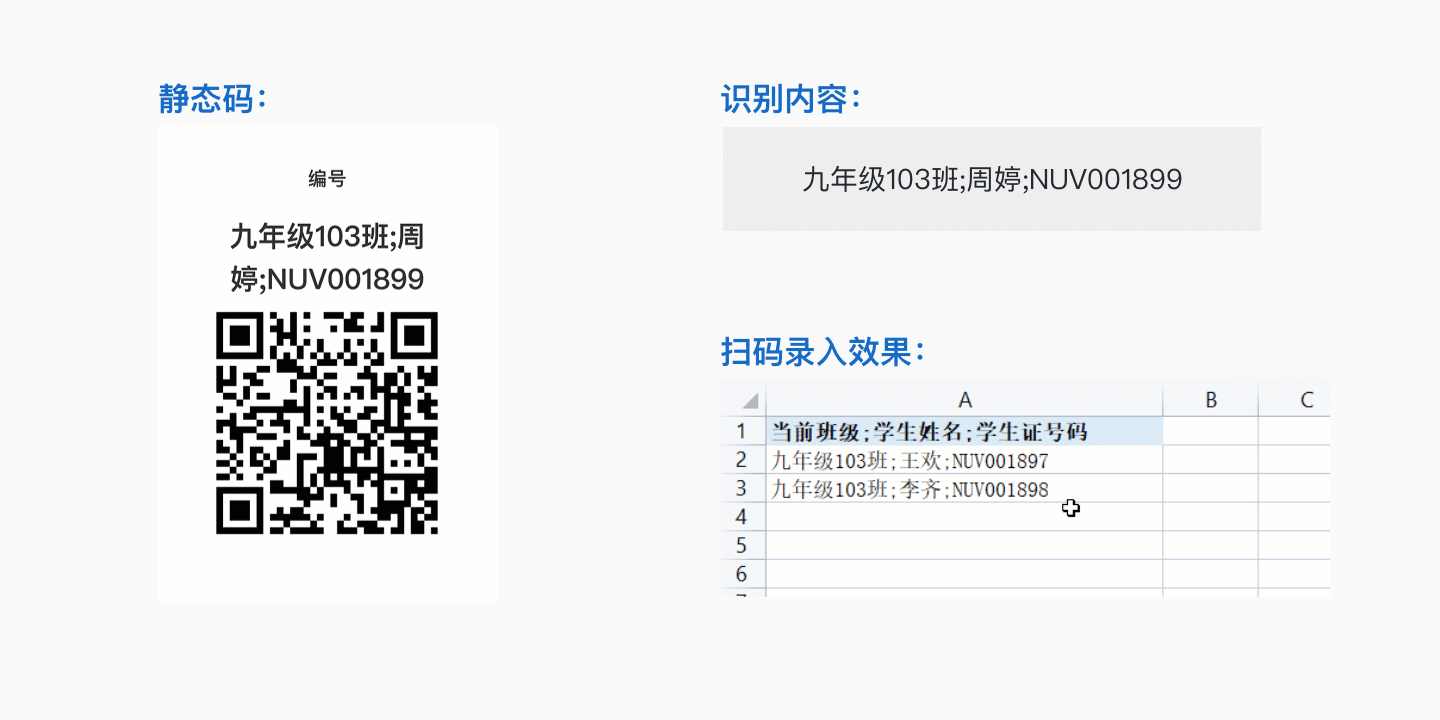
All fields are entered into a single input box with the chosen separator between each field. When processing the data later, use the separator to split or extract the values.
Example using ;: