Submission Success Page
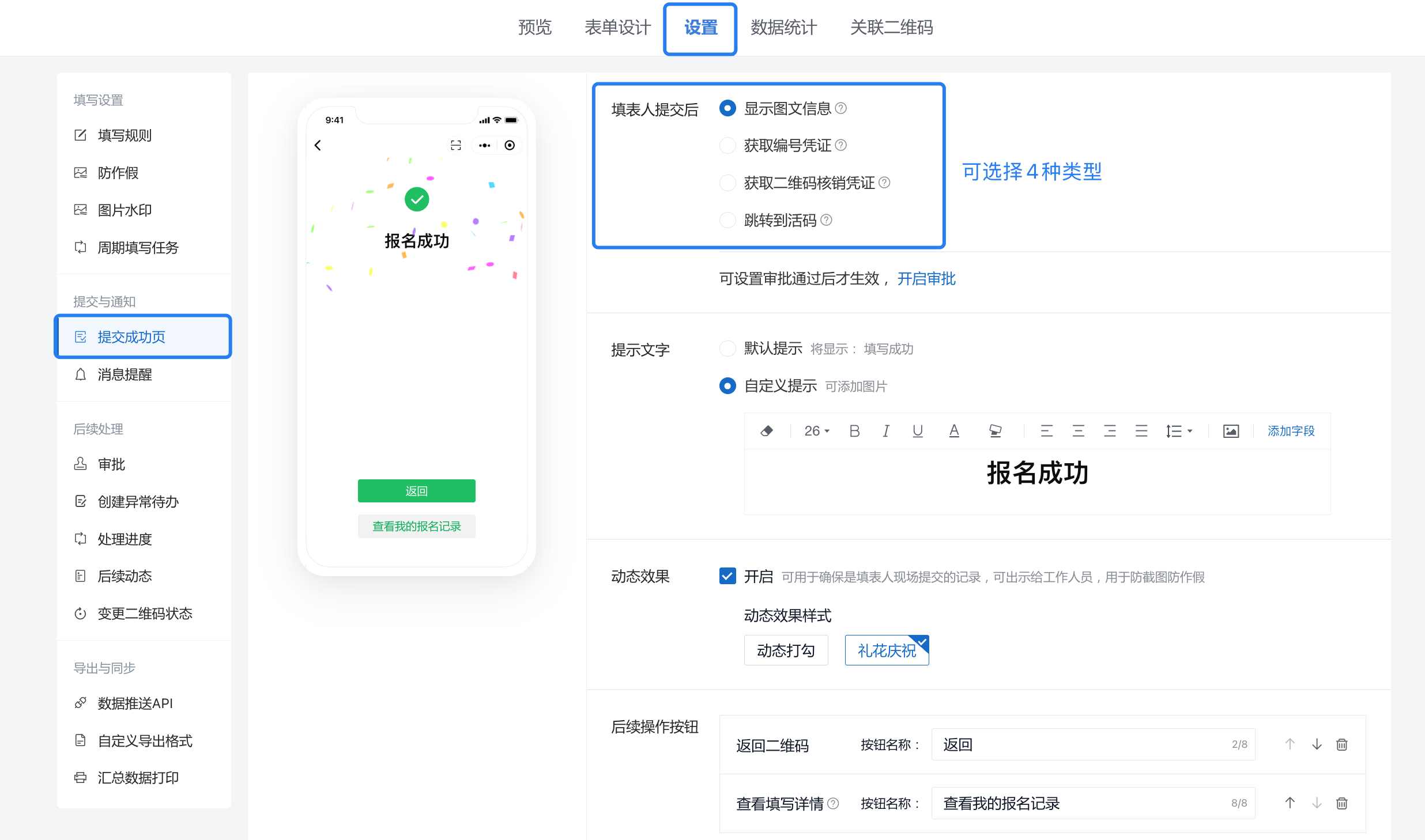
Under Form Settings - Submission Success Page, you can set the page details shown after a form is submitted successfully and the follow-up actions. It supports showing text and images to the submitter after submission, getting a number voucher, getting a QR code verification voucher, and jumping to a dynamic QR code. 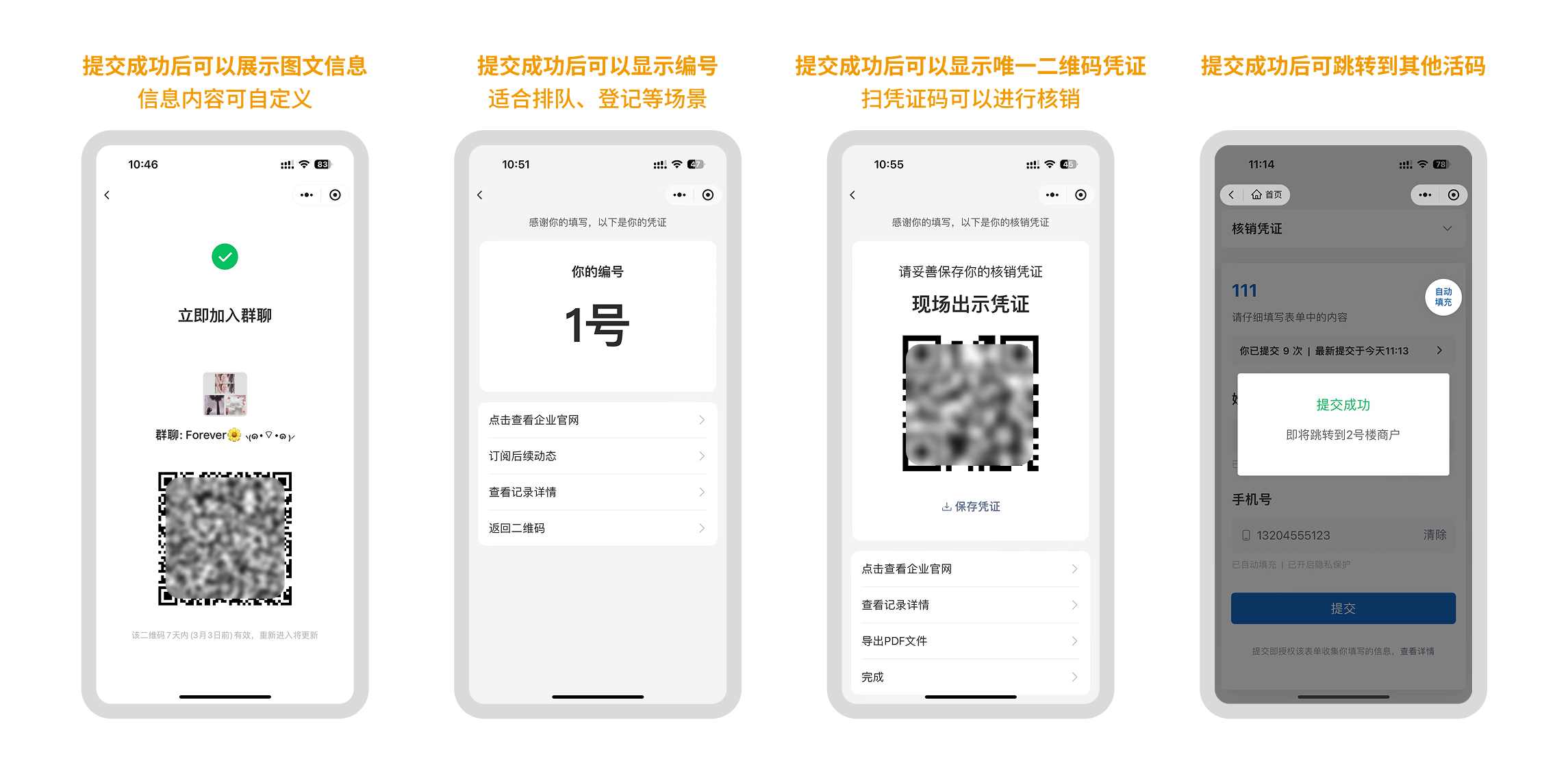
I. Show Text and Images
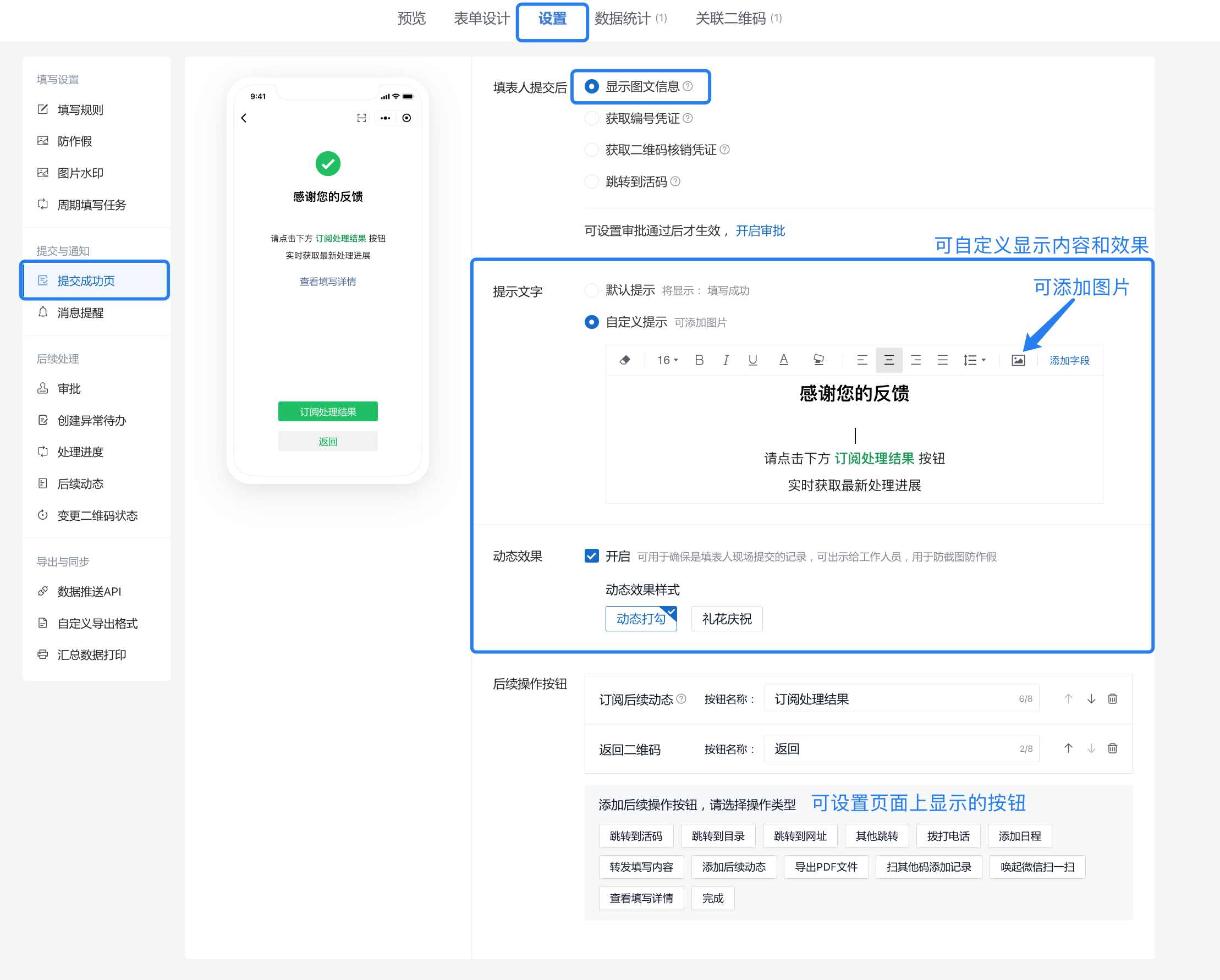
After a form is submitted successfully, a message with text and images can be shown. You can also configure many kinds of follow-up action buttons, 11 operations in all, such as scanning more codes to add records continuously, adding a schedule, exporting the record as a PDF, and forwarding. Learn more

II. Get a Number Voucher
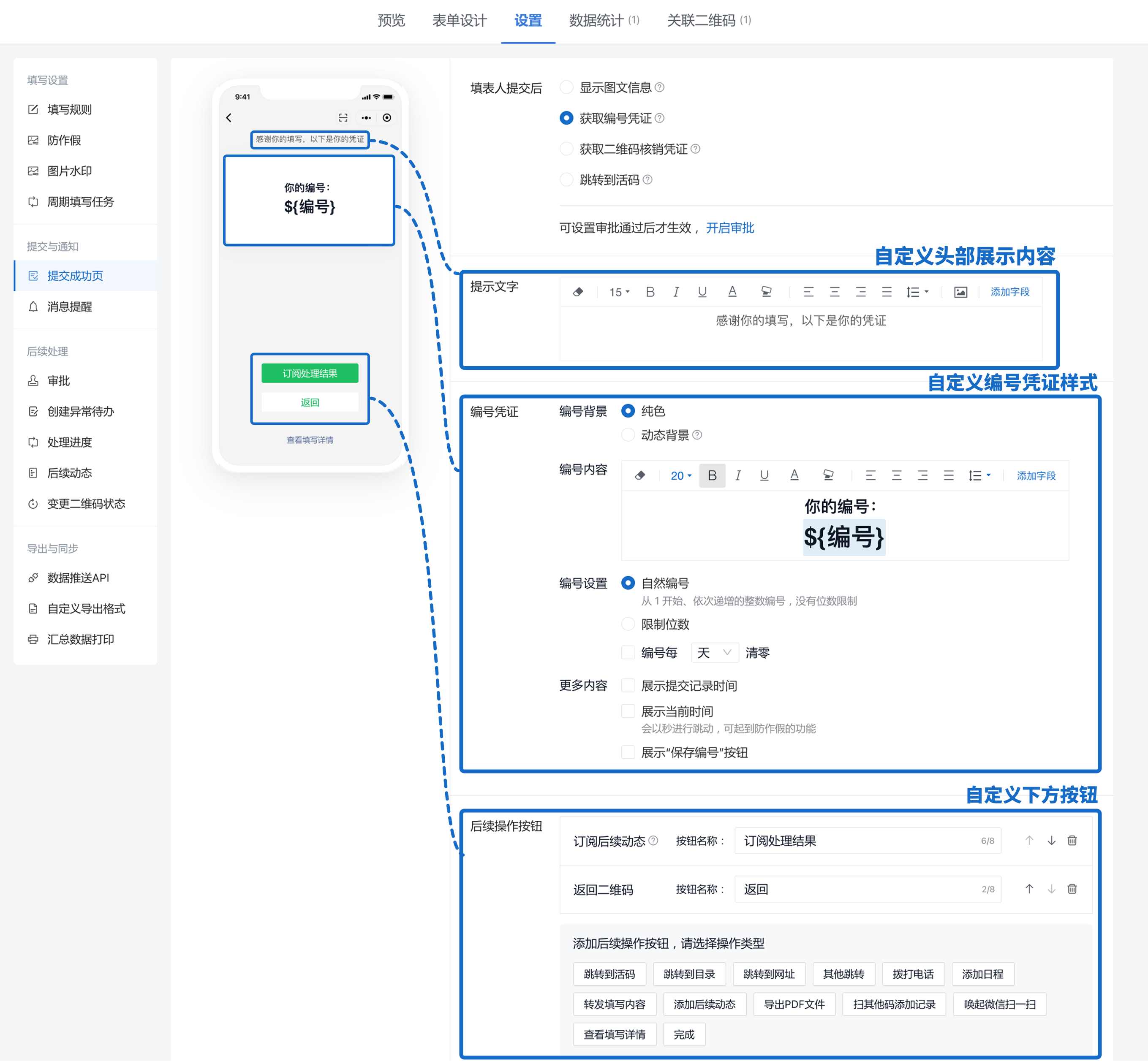
The custom number feature flexibly joins several form fields and an auto-increment number by configured rules to generate an identifier, and can be used in these scenarios:
- Verification management scenarios Queue number system: generate a queue number with a timestamp (such as "09:30-001"), and a number card that can be displayed is generated automatically after submission Registration scenario: generate a serial number for which person filled in the form (such as "019"), so admins can control headcount
- Process management scenarios Hazard reporting scenario: automatically generate a number with the date and issue type (such as "20231120-Circuit Fault") Goods-in registration: combine the receiving date, shelf number, and category name into a serial number (such as "20231120-B02-Electronic Components") for stock tracing
III. Get a QR Code Verification Voucher
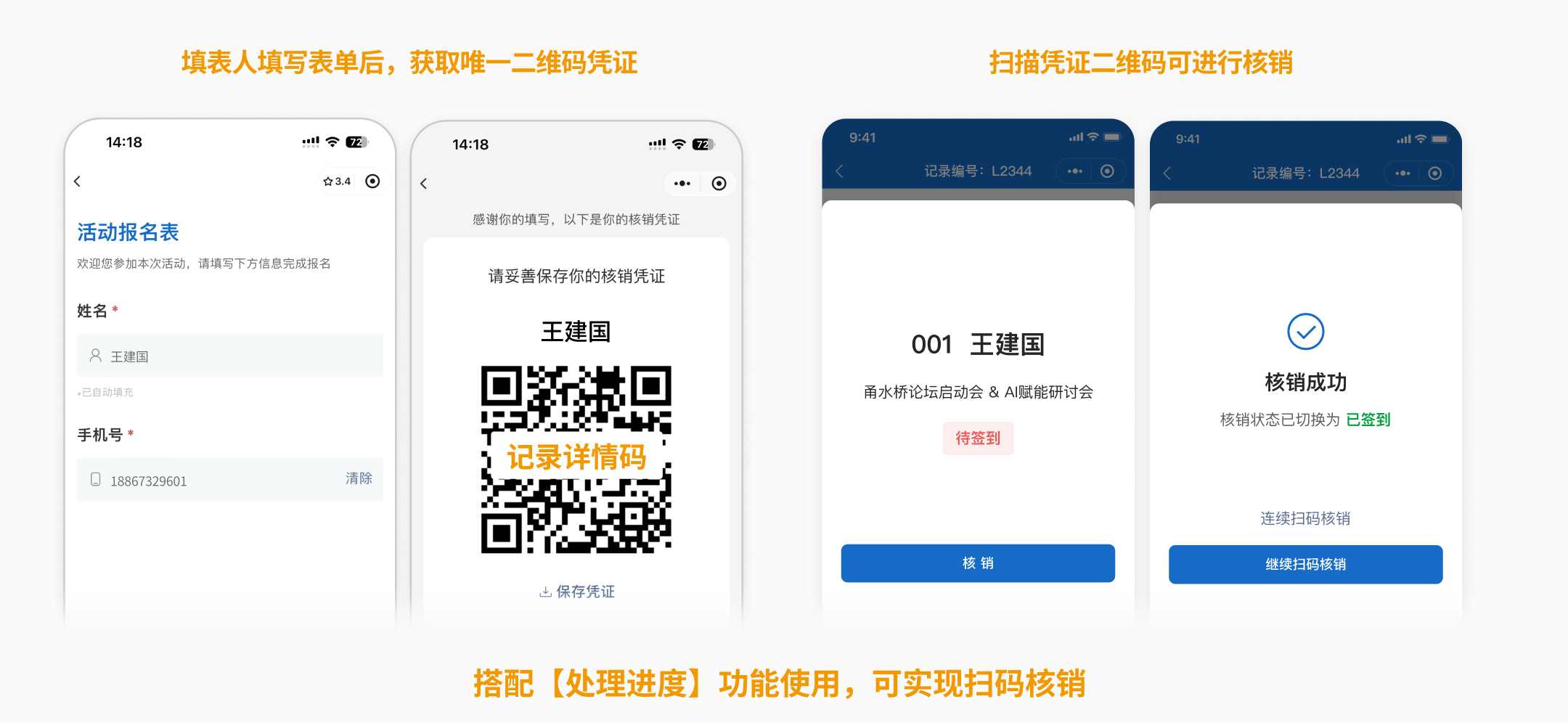
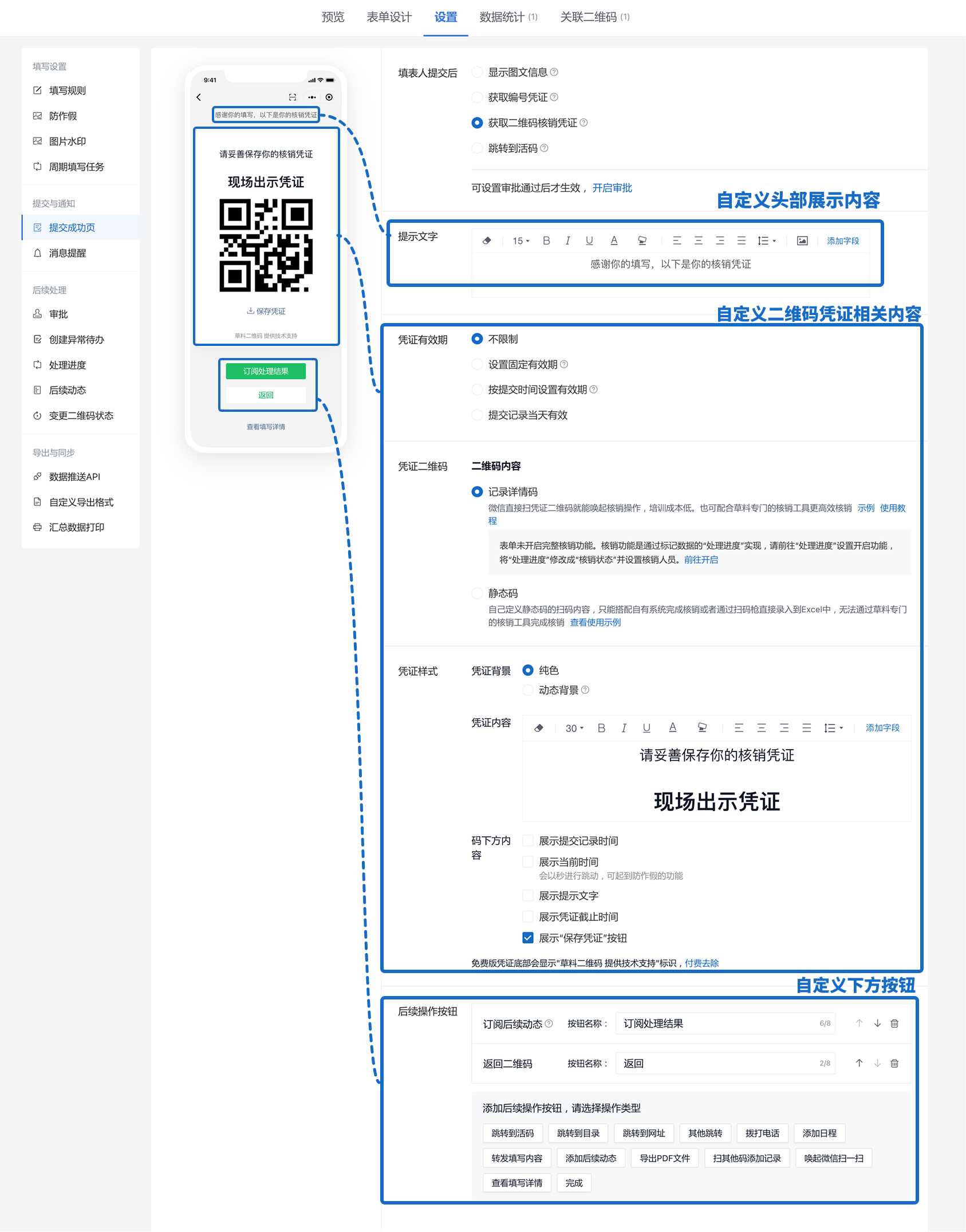
1. Get a Record Detail Code Voucher
The submitted record details are turned into a QR code. Scanning it shows the filled-in content and review result, and you can also view or add follow-up actions and update the processing progress.

Combined with the "Processing Progress" feature, this enables verification and makes event management more efficient. Learn about the scenario
2. Get a Static QR Code Voucher
Part of what was filled in is turned into a static QR code, which can be scanned with a scanner gun or phone app to enter the data quickly into other systems. It suits cases that connect to other systems, where scanning enters the code content into another system accurately and quickly. See how to enter QR code content into a system

3. Settings Screen
IV. Jump to a Dynamic QR Code
After a form is submitted, it can jump straight to another dynamic QR code under the account to show richer content. You can set jumps to different dynamic QR codes by different single-choice options. For example:
- After submitting course sign-up information, jump straight to a dynamic QR code to get the course materials.
- Different courses can be set to jump to different dynamic QR codes to get the matching course materials.

V. Configure Follow-Up Action Buttons
CaoLiao provides 11 follow-up action buttons, which the super admin can configure freely. They are:
- Redirect link: tap to jump to another dynamic QR code and so on
- Back to QR code: return to the QR code scan page
- Add schedule: tap to add to the phone calendar with a reminder at a set time
- Forward filled-in content: forward the form record to others through WeChat to view.
- Add follow-up actions: after the submitter submits data, they can add notes right away or @mention others to come and handle it Learn about follow-up actions
- Subscribe to follow-up actions: tap to subscribe to later replies, for feedback, work order repair, and similar scenarios Learn about subscribing to follow-up actions
- Export PDF file: the submitter can download the PDF in the format you customized, for getting signs, record vouchers, commitment letters, certificates, and similar scenarios. Learn more
- Scan another code to add a record: the submitter can add the form data they filled in to scanned QR codes by scanning codes continuously, without filling in again. Learn more
- Open WeChat Scan: after submitting the form, go back into the WeChat Scan page
- View filled-in details: tap to see the record content just filled in
- Done: tap to close the Mini Program directly

VI. Setup Tutorial
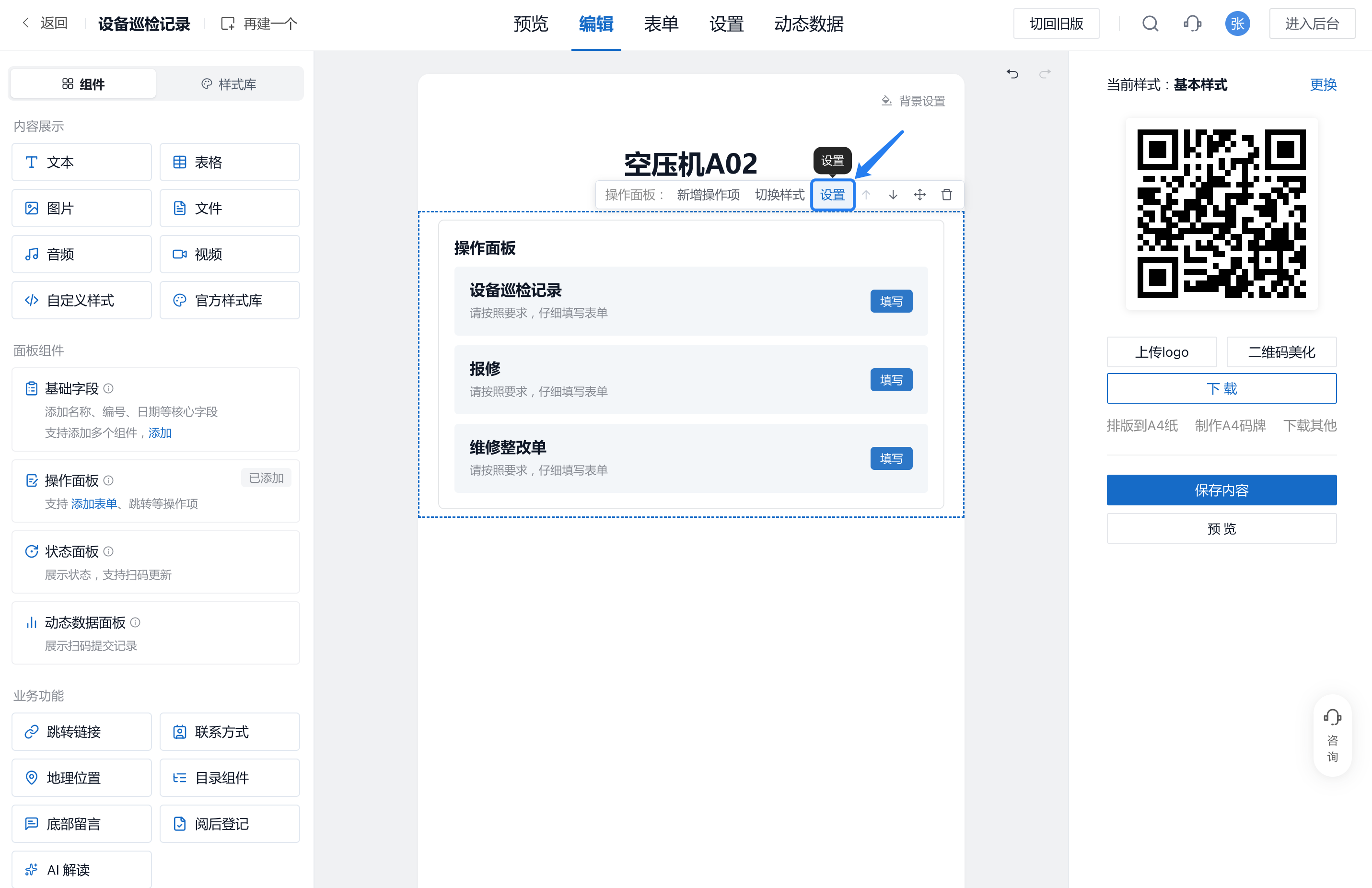
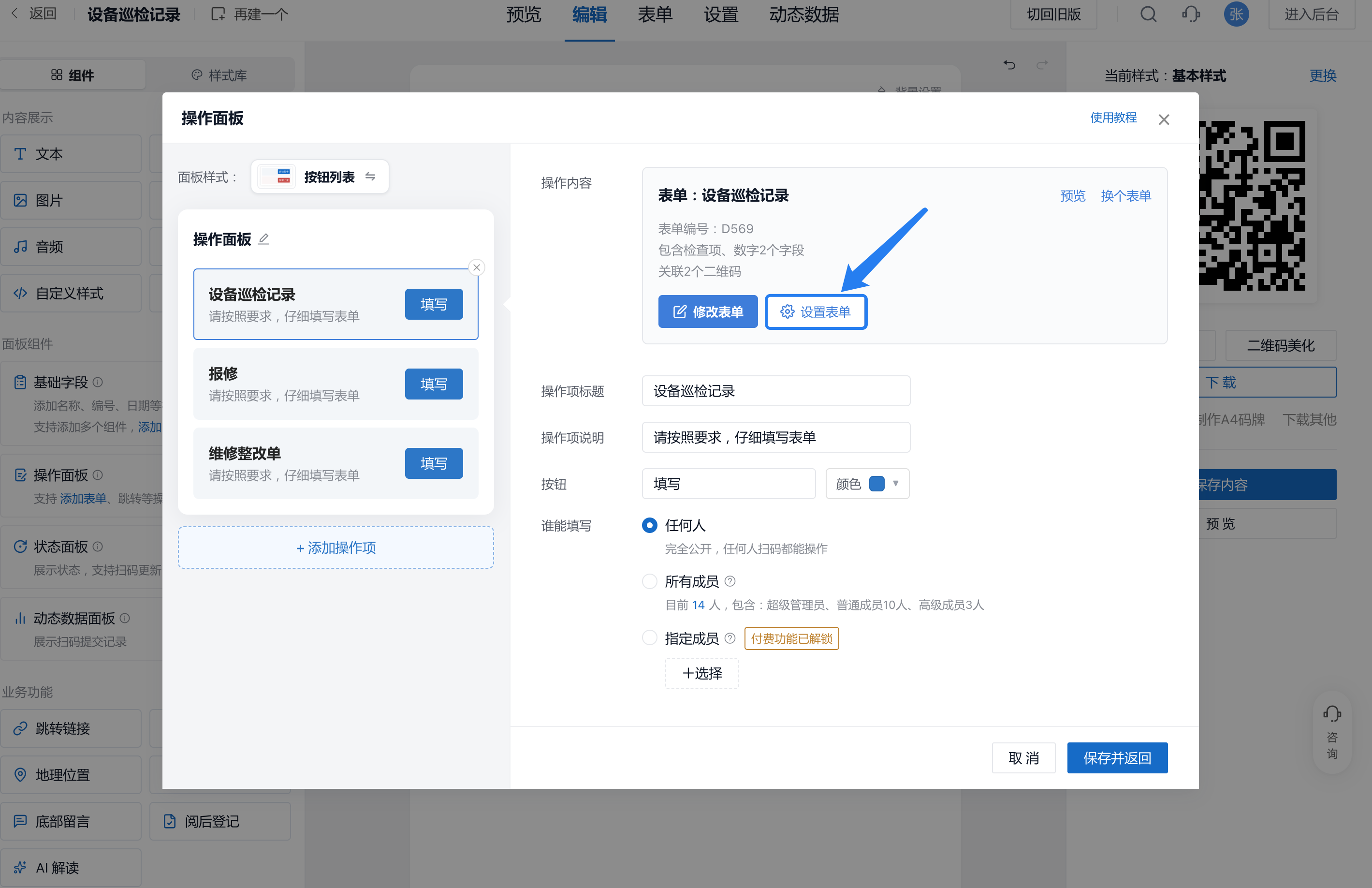
In the QR code editor, select the Control Panel and click Settings. Choose the form you want to configure, click Set Up Form, switch to the Settings tab, and on the left choose Submission and Notifications → Submission Success Page.
VII. FAQ
Can the Verification Voucher QR Code Only Be Scanned with WeChat on a Phone?
A verification QR code can be scanned not only with WeChat on a phone but also with a computer camera or a barcode scanner. Click to see the detailed tutorial