Dynamic Subscription
Feature Overview
Anyone can subscribe to all dynamic data for a QR code on their mobile device. When new dynamic data is generated for that code, a message notification is sent via the CaoLiao QR Code service account, enabling collaboration within the organization.
Supported subscription data types: dynamic data, follow-up actions data for form data, and bottom quick collaboration data.
Who Can Subscribe
The super admin sets the viewing permissions for the dynamic data panel. Whoever can view dynamic data can also subscribe to dynamic data for that QR code on their mobile device.
Subscribing to Dynamic Data
Once subscribed, status update records, form submission records, sub-code modification records, and follow-up actions data from the dynamic data panel will all be sent to you via the CaoLiao QR Code service account. You can quickly view and stay on top of all changes for that code from your phone. Learn about dynamic data panel features
Use Cases
After subscribing to dynamic data, you receive notifications for all changes on the code, allowing you to quickly review the situation and guide follow-up work. For example, when managing equipment and assets, different personnel can receive notifications:
- Inspectors: Can be informed of equipment failure occurrences and frequencies for targeted follow-up checks.
- Maintenance staff: Can quickly pinpoint failures and resolve issues efficiently.
- Managers: Can review frontline staff's handling of issues on their phone and assess whether equipment needs replacement or upgrades.
Subscribing to Follow-Up Actions Data for Form Data
After enabling "Follow-up Actions" and "Support Subscription" in forms settings, any follow-up handling data added to submitted form records — such as notes, @mentions, and processing progress markers — will all be sent to you via the CaoLiao QR Code service account. You can stay on top of equipment follow-up status quickly. Learn about the follow-up process features
Use Cases
After subscribing to follow-up actions data for form data, you can be alerted about added situation notes for a wide range of report-and-feedback scenarios — such as hazard rectification, equipment inspection and repair, feedback handling, and follow-up processing — so that relevant people in charge are notified promptly and follow-up work is driven forward.
Usage Guide
How to Enable the Feature
The subscription feature must be enabled on desktop for the QR code before users can subscribe after scanning.
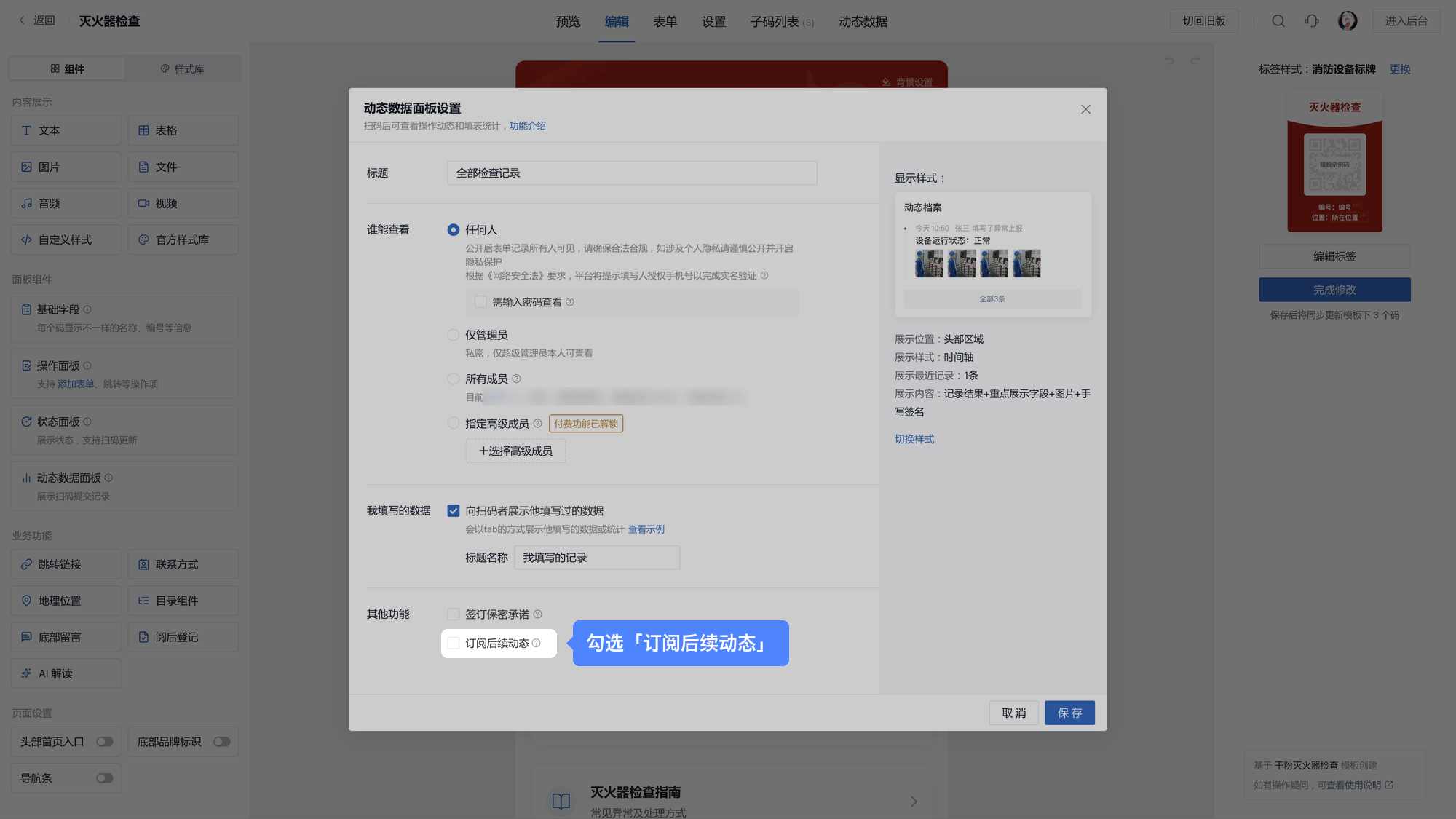
Enabling Dynamic Data Subscription
Find the QR code you want to enable the subscription feature for. In the QR code editor, select the dynamic data panel and click Settings on its toolbar. Under Other Features in the dialog, check Subscribe to Follow-up Actions.
If you have not yet added a dynamic data panel, click Dynamic Data Panel in Panel Components on the left side of the editor to add one, then follow the steps above.
Enabling Follow-Up Actions Data Subscription
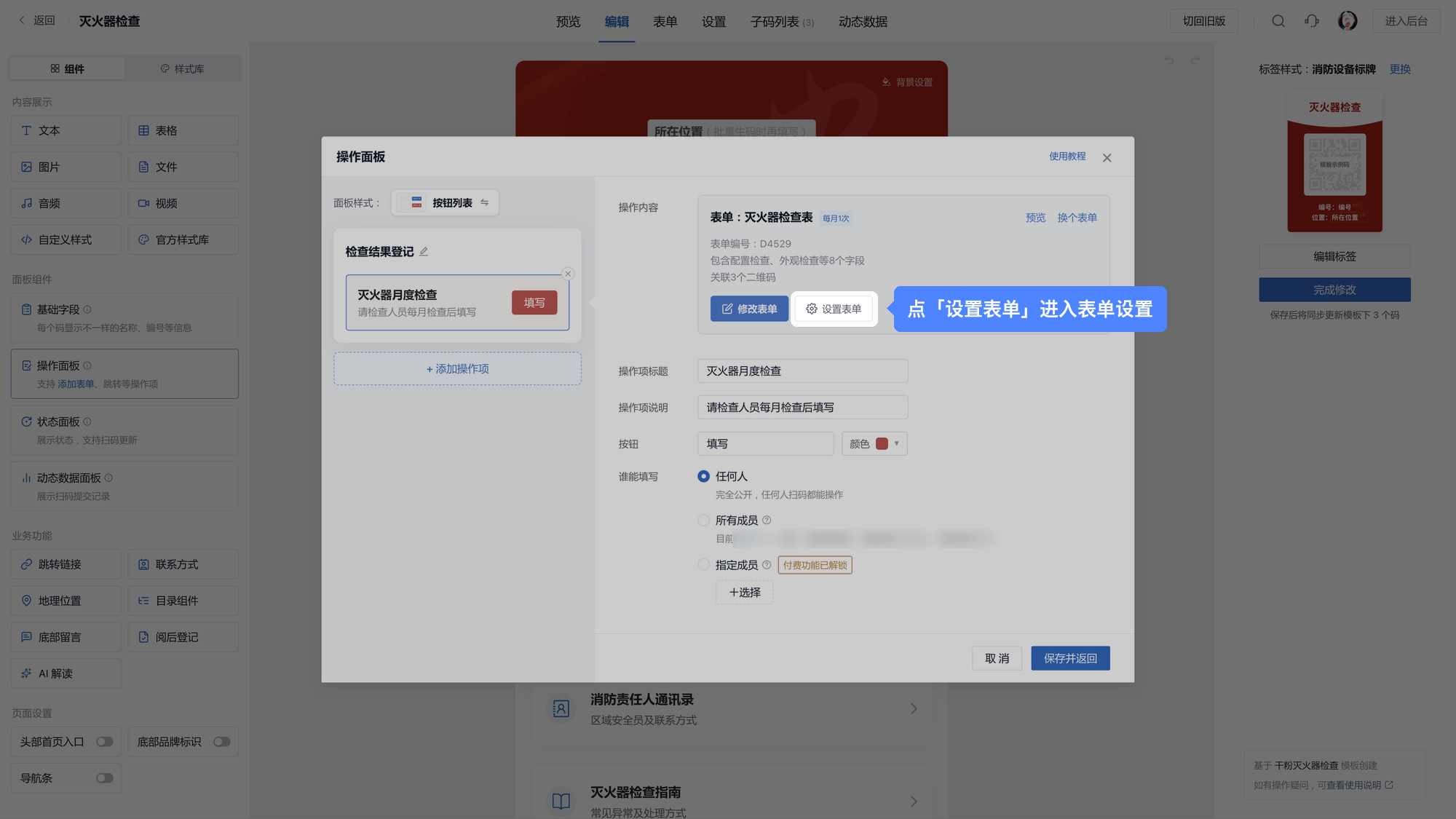
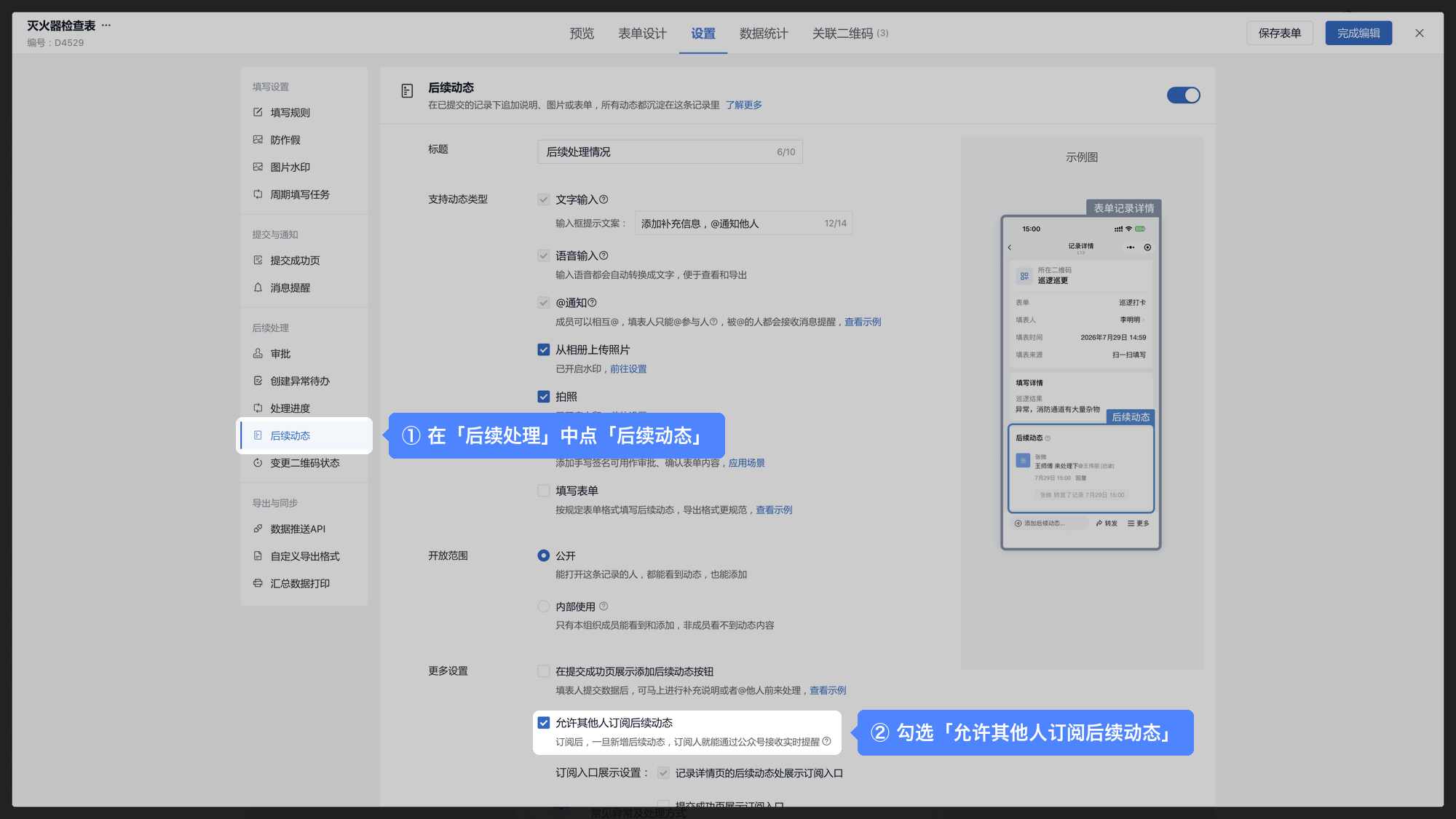
In the QR code editor, click Control Panel on the left, select the form operation item you want to enable subscription for (e.g., the fire extinguisher inspection form), and click Form Settings. In the form settings, go to Follow-up Processing → Follow-up Actions and check Allow Others to Subscribe to Follow-up Actions.
Before checking it, make sure the toggle in the upper-right corner of Follow-up Actions is on.
Subscription Entry Points
Subscribe to Dynamic Data
After scanning, on the dynamic data panel viewing entry, tap [Subscribe to Dynamic Updates]. Follow the CaoLiao QR Code service account to complete the subscription.

Subscribe to Follow-Up Actions Data for Form Data
Option 1: After scanning and successfully submitting a form, you can subscribe to follow-up actions on the submission success screen.
Option 2: After adding a follow-up action, you can choose to subscribe. Follow the CaoLiao QR Code service account to complete the subscription.

Receiving Notifications
Subscribed content is delivered to you via the CaoLiao QR Code service account, so you can quickly stay on top of all changes for a QR code from your phone. To receive notifications, first follow the service account and link your CaoLiao account as prompted.
Scan the QR code below with WeChat to follow the CaoLiao QR Code service account quickly:
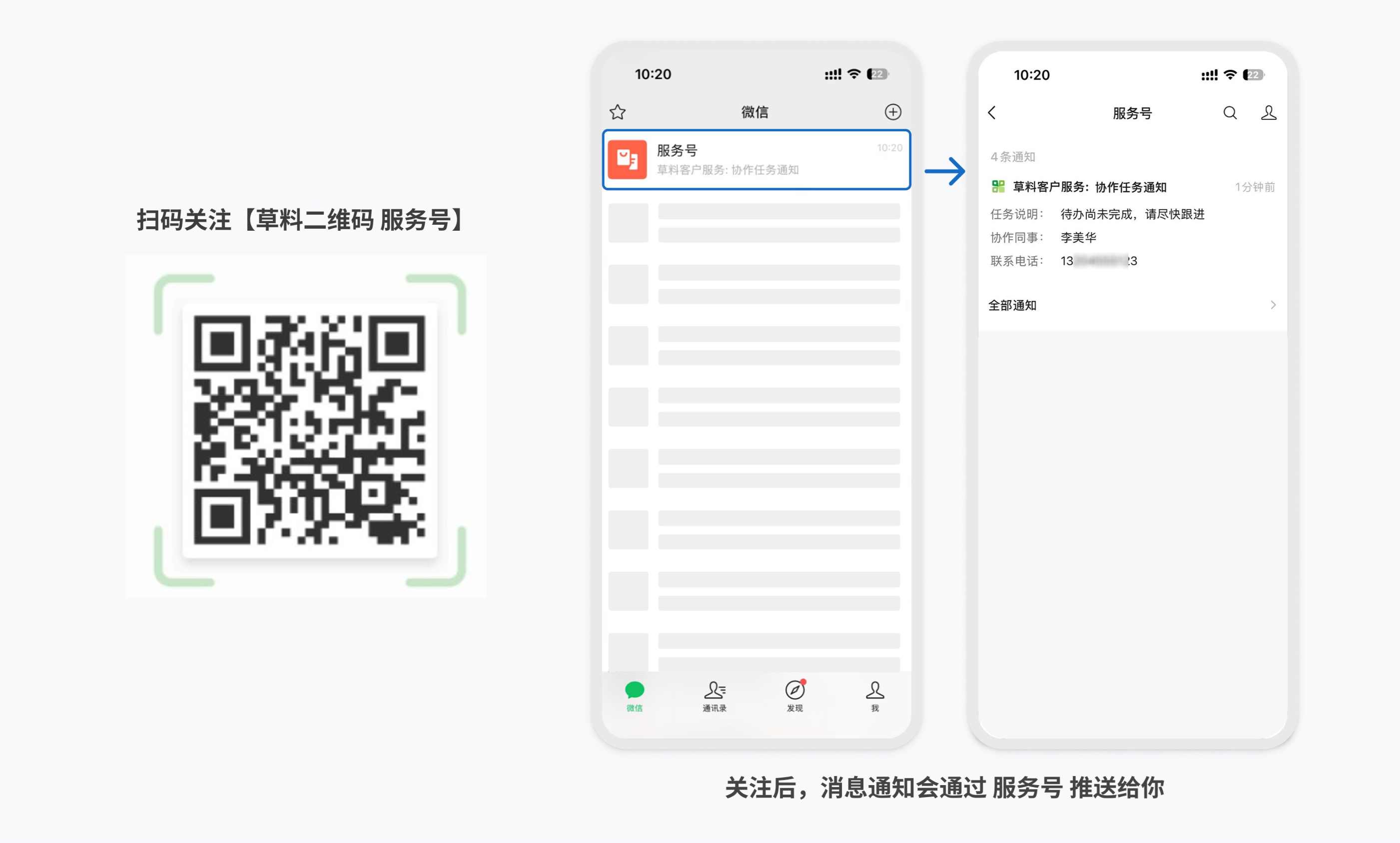
If messages are easily hidden in a collapsed list, or your phone does not play a sound or show a pop-up notification, you can pin the CaoLiao QR Code service account and turn off "Do Not Disturb". For setup instructions, see How to Set Up CaoLiao WeChat Notifications to Avoid Missing Messages.