Bottom Message Panel
1. Feature Overview
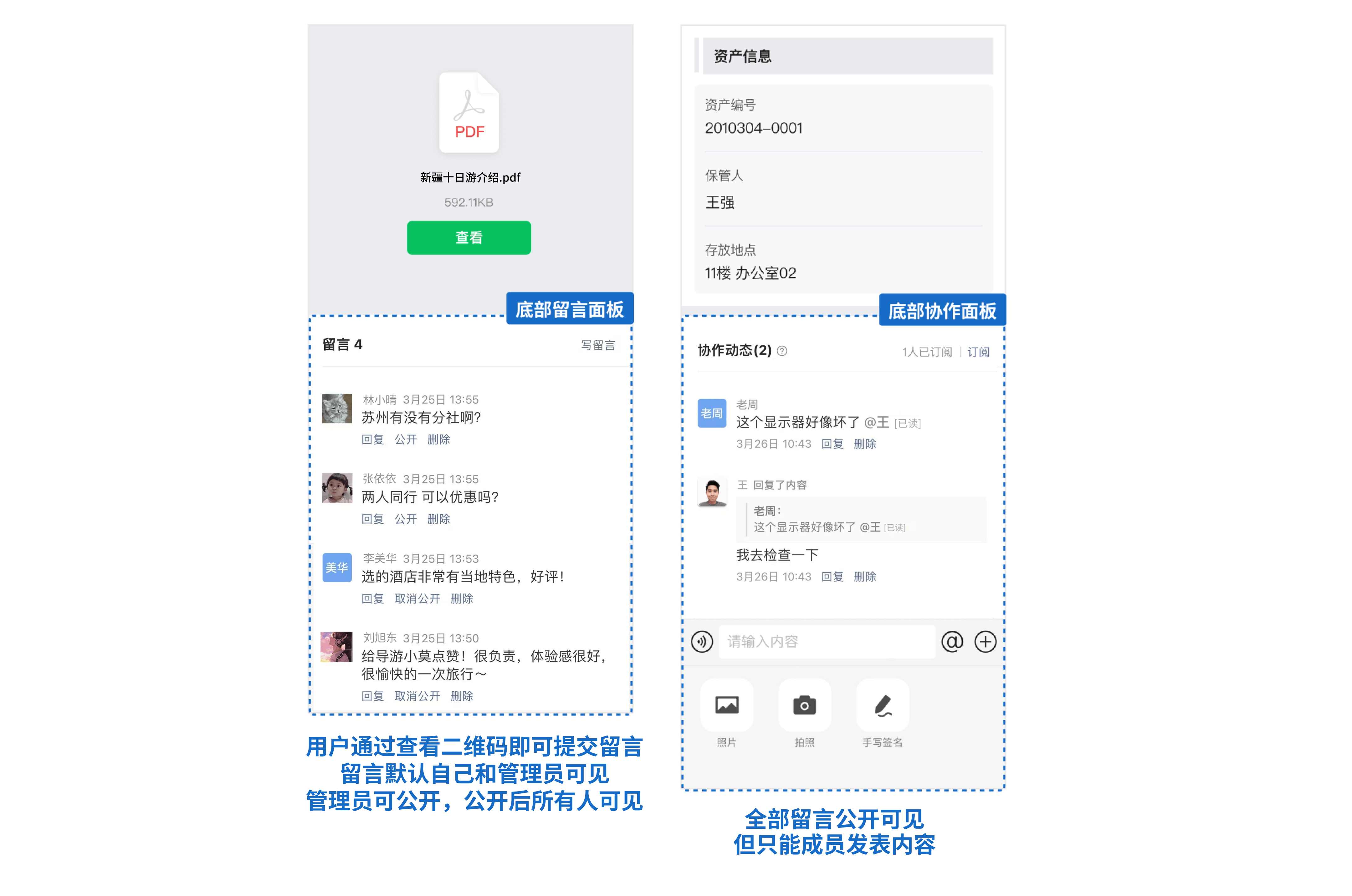
After adding a "bottom message panel" to a QR code, users can leave messages at the bottom of the QR code page, supporting text, images, voice recordings, handwritten signatures, and other content formats.
Two modes are available:
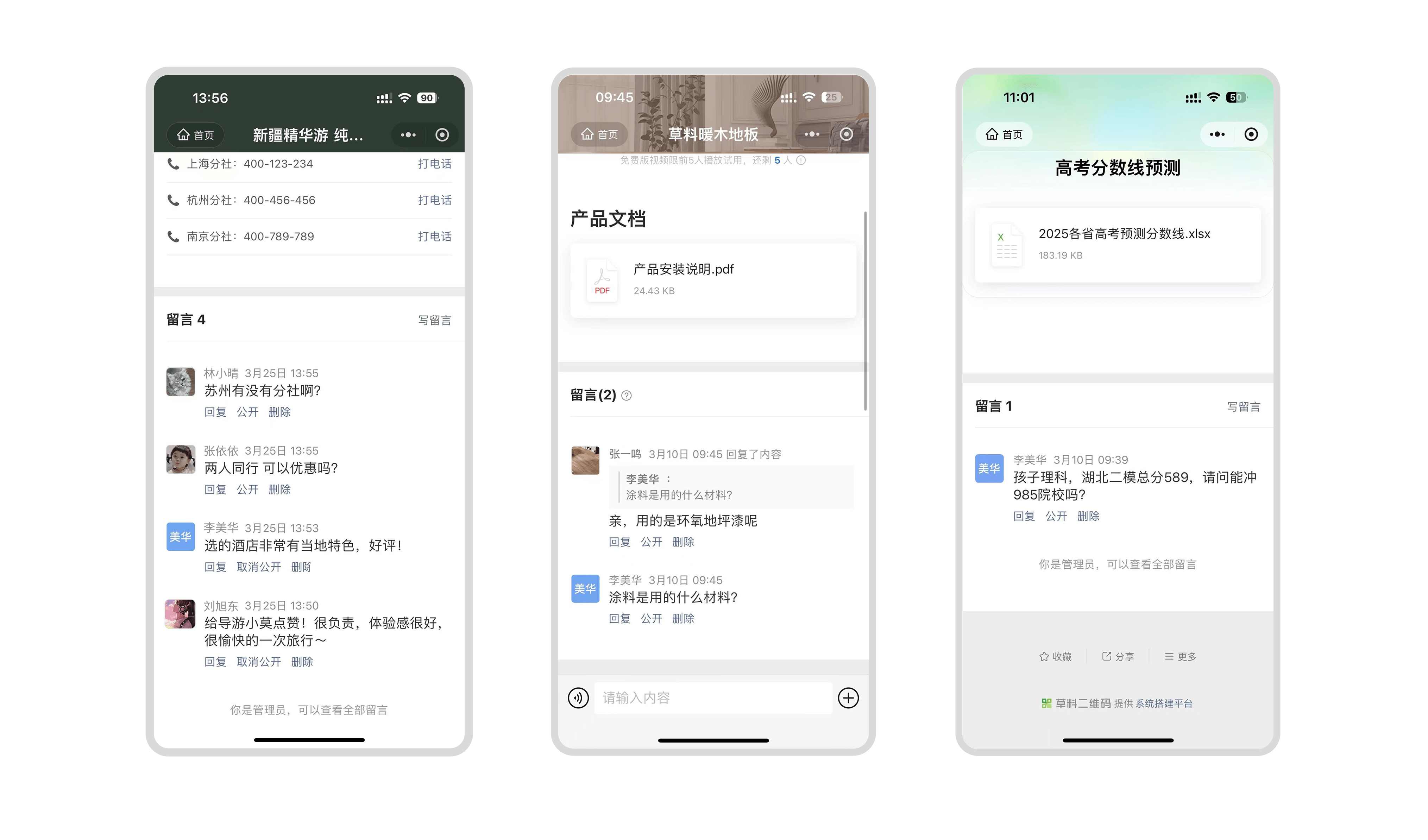
- Message Mode: Open messaging permissions. Users can submit a message simply by viewing the QR code. Message authors can only see their own messages and admin replies — not other users' messages. Admins can view all messages and may choose to make individual messages public (visible to everyone) or unpublish them.
- Internal Collaboration Mode: Only members can participate; members can @mention each other. All messages are publicly visible.
2. Use Cases
Message Mode
- Customer feedback collection (e.g., product improvement suggestions, service reviews, general inquiries).
- Event participation (e.g., online surveys, information submission).
Internal Collaboration Mode
1. Quick Fault Reporting
- The super admin uses CaoLiao's bulk QR code generation feature to create a unique QR code for each asset or piece of equipment, then prints and attaches the label to the corresponding item.
- When an equipment custodian encounters a fault, they scan the asset label, enter the fault details in the fault handling record area, and @mention a maintenance person to handle it.
- After the maintenance person resolves the issue, they can reply to that message.

2. Document Sign-Off After Reading
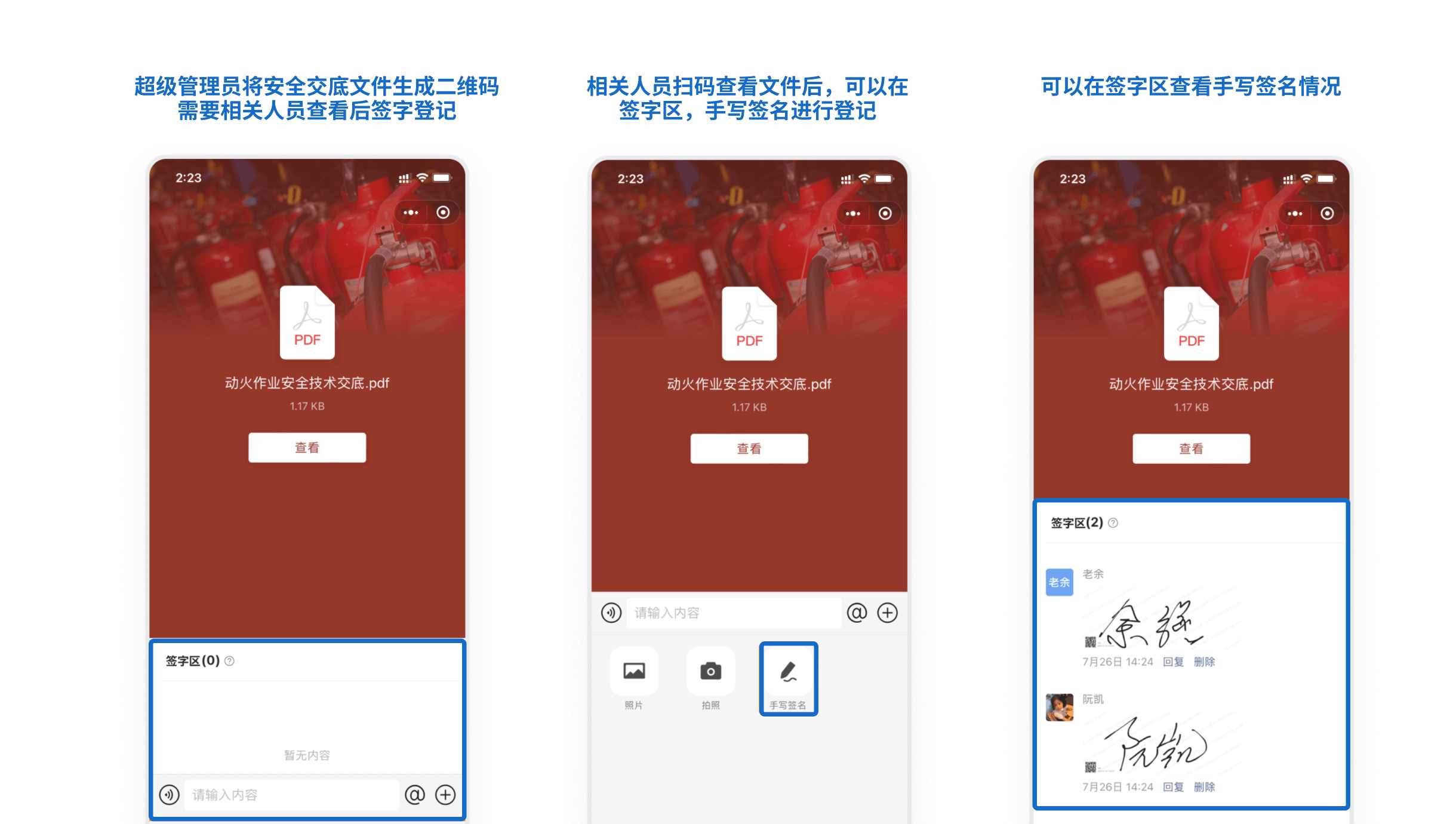
- The super admin converts a safety briefing document into a QR code, requiring relevant personnel to review it and sign to confirm.
- After scanning and reading the document, personnel can handwrite their signature in the sign-off area to confirm they have viewed the information.
- The super admin can review handwritten signatures in the message area.
3. Setup Guide
1. How to Add the Bottom Message Panel
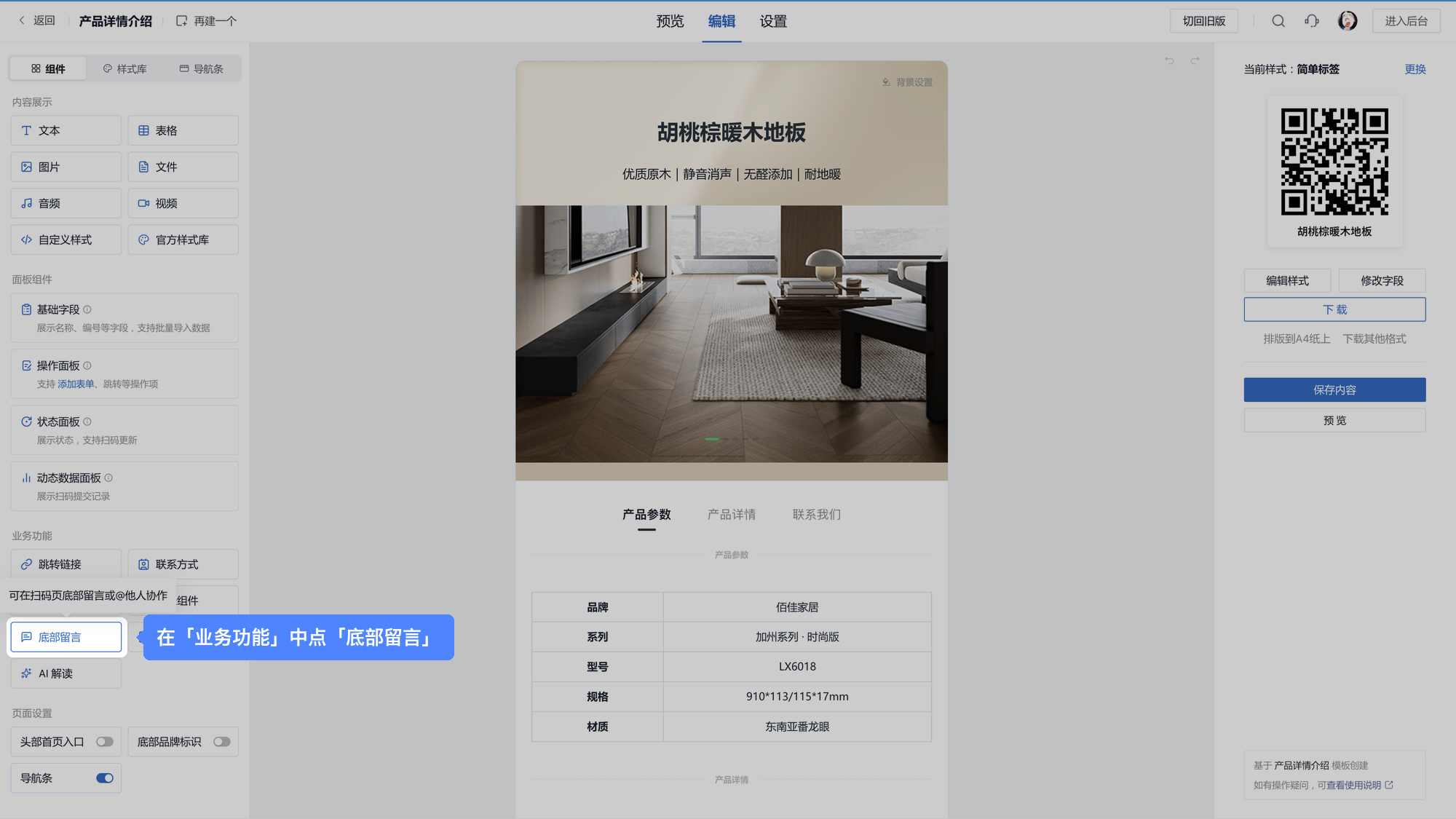
In the QR code editor, go to Business Features on the left and click Bottom Messages to add the bottom message panel to the QR code.
2. Feature Settings
Choose between two message types based on your needs.
Customize the message area title.
Customize which input types are allowed.
Set notification preferences.
For internal collaboration: by default, all members can add content and reply. Starting from the paid Advanced Edition, you can specify which members can participate in collaboration; users without permission can only view the collaboration content.

4. Frequently Asked Questions
-
Can a message be edited after submission?
Messages cannot be edited after submission, but the message author can delete their own message. -
How are new message notifications sent?
If the admin has followed and linked the CaoLiao QR Code service account, notifications will be sent via the service account. If the admin has not followed it, notifications will be sent via SMS.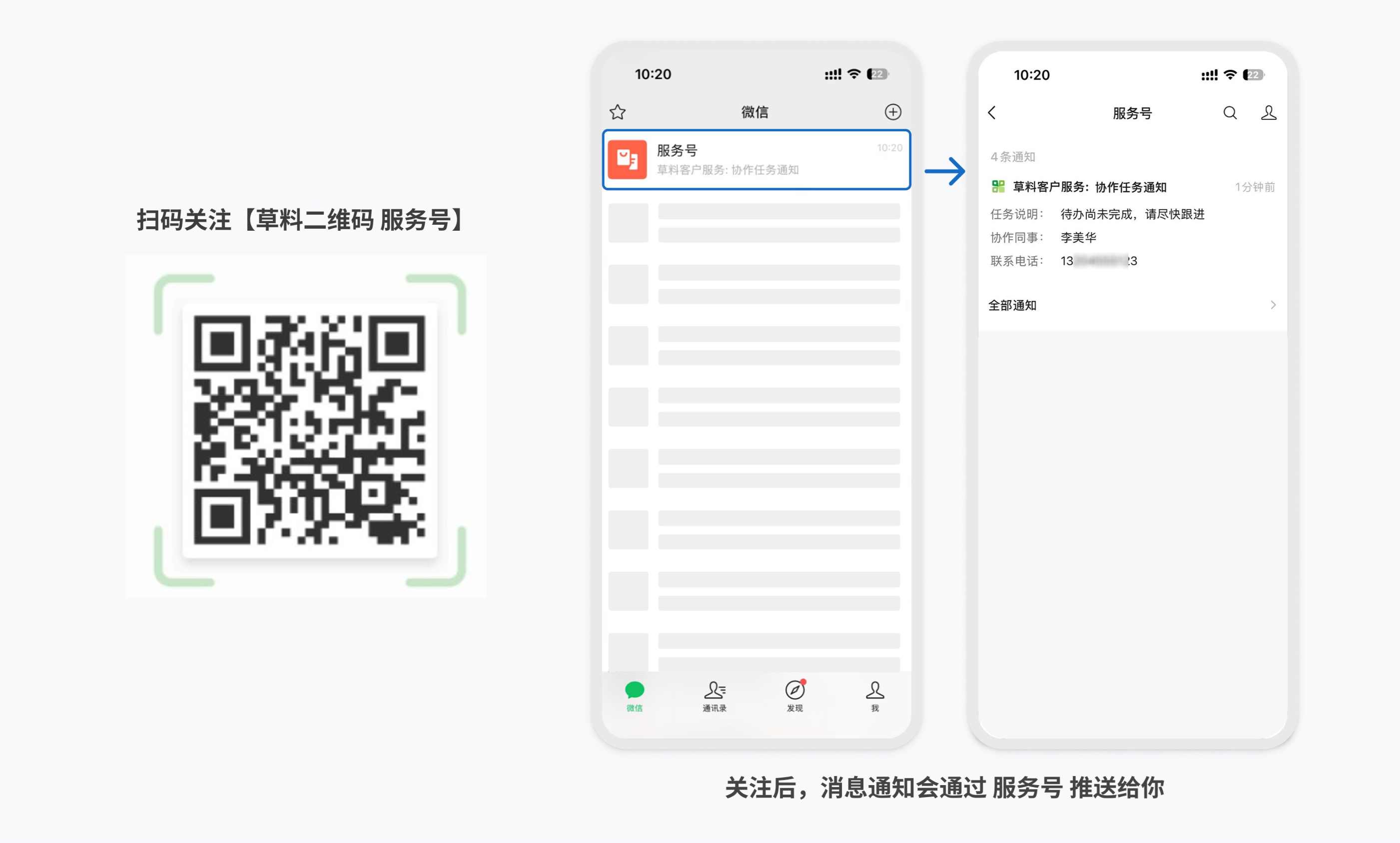
If messages are easily hidden in a collapsed list, or your phone does not play a sound or show a pop-up notification, you can pin the CaoLiao QR Code service account and turn off "Do Not Disturb". For setup instructions, see How to Set Up CaoLiao WeChat Notifications to Avoid Missing Messages.
-
How do I make a message public?
In message mode, tap the "Publish" button below the message on the mobile device. There is currently no option to make messages public on the desktop. -
Can message authors receive notifications when an admin replies?
Yes. If the message author has followed and linked the CaoLiao QR Code service account, notifications will be sent via the service account. If the message author has not followed it, notifications will be sent via SMS. -
How do I view messages on desktop?
You can view all message records in the workbench list on the desktop.
