Member Features
1. Overview
The member feature is primarily used for managing personnel within a company or organization — grouping employees by department, role, and other dimensions for collaborative management, viewing, and operating QR codes.
Non-members can also scan to view QR code content and perform actions such as filling out forms, but adding members enables management of internal staff and allows assigning different permissions to different members for better collaboration on QR code-related tasks. The distinction between members and non-members safeguards the security of internal information.

2. Member Types
Basic members can perform fundamental operations on mobile: scan to view content, fill out forms, forward, and more — but have no management permissions.
Advanced members can be authorized for advanced mobile collaboration in certain permission-enabled areas, handling specialized tasks. They can also be assigned management permissions based on their responsibilities to co-manage QR codes and data with the super admin, supporting shared data access across multiple people or isolated access per individual.
View detailed permission comparison

Using a property management company as an example:
- You can set the QR code view permission and form fill permission to members only. Residents who are basic members can scan to read announcements, submit repair requests, and @property staff when they spot an issue — while non-members cannot view QR codes or fill in forms.
- You can set each property manager as an advanced member responsible for managing QR codes across different estates — generating new codes, managing data, and keeping each estate running smoothly.
Basic members are free and unlimited in number, available even on the free version. Advanced members are only available on the Advanced edition or above, and different editions include different numbers of advanced members. Additional seats can be purchased separately at ¥96/person/year. Visit pricing page
| Edition | Basic Members | Advanced Members |
|---|---|---|
| Free version |
Free to use
Unlimited |
0 |
| Basic Edition | 0 | |
| Advanced Edition | 2 | |
| Flagship Edition | 20 | |
| Industry Edition | 170 |
3. How to Add Members
After members join the organization, please remind them to follow the CaoLiao QR Code WeChat Official Account promptly to avoid missing important notifications.
1. Super Admin Adds Members in the Workbench
The super admin collects member information and adds them in the workbench under Member Management, then assigns roles and permissions as needed. This is suitable for organizations with a relatively stable roster.
1.1 Tutorial
The super admin can add members using 4 methods:
- WeChat Invitation: Download a WeChat invitation QR code, share it in a personal WeChat group or company group chat, and colleagues can scan the code to join quickly — no password or approval required.
- Add Individually: Fill in the member's name, phone number, permissions, and other basic information, select the appropriate department and identity group, and they're added.
- Bulk Add: Download an Excel template, fill in member information following the template format, then upload to add all members at once.
- Import from WeCom Contacts: WeCom edition users can sync contacts directly from WeCom, eliminating the need to maintain a separate member roster. Learn more

2. Members Apply to Join
When employees scan to view content or fill out forms, they can apply to join the organization by filling in their name, phone number, and other information to obtain the necessary permissions.
4 joining methods are supported:
- Fill out a form to apply (requires admin approval; takes effect after approval)
- Enter name and phone number to join (no approval required, becomes a member immediately)
- Enter a password to join (correct password takes effect immediately)
- Admin-only addition (non-members cannot apply; admin must add them manually)
Conditions that trigger the join request: If the QR code permission is set to "Anyone", anyone can perform the action, so the join process is not triggered. The join request is only triggered when QR code permissions are restricted to a specific identity group and a non-member does not have permission to perform the action after scanning. Once they become a member, they immediately gain the required permissions.
Member self-join is suitable for loose collaboration models within or outside an organization. For example: a company's fire extinguisher inspection form is only fillable by members of the [Inspection Team] identity group. To simplify onboarding permission management, the identity group's joining method is set to [Enter name and phone number to join]. New employees can automatically join the [Inspection Team] by filling in their information when they scan the form — no need for the admin to add them manually, improving efficiency.
2.1 Tutorial
Log in to the CaoLiao workbench, go to Member Management → Identity Group Management to change the member joining method.
You can also enable "Notify me when a member joins" — when this is on, the system sends a notification to admin group members via the CaoLiao QR Code Official Account each time someone joins.


3. Automatically Add Form Submitters as Organization Members
You can enable the option to automatically make form submitters organization members. Once enabled, anyone who fills out the form automatically becomes a basic member of your organization. Members can then be used in permission settings and @-mentioned in collaborative actions.
3.1 Tutorial
To enable this feature: go to the form settings interface, select Fill Restrictions, and check "Automatically set form submitters as organization members".

At the same time, the "All Members" identity group settings must have the joining method set to [Enter name and phone number when scanning to join].

4. Member Feature Applications
For different use cases, you can control permissions for scanning, data viewing, and other actions — distinguishing between internal and external personnel, or designating specific advanced members for relevant collaboration tasks to achieve precise control.
| Permission | Anyone | Admins Only | All Members | Designated Group *Advanced+ | Designated Advanced Members *Advanced+ |
|---|---|---|---|---|---|
| Dynamic data viewing permission | ✔️ | ✔️ | ✔️ | ✘ | ✔️ |
| Control panel operation permission | ✔️ | ✘ | ✔️ | ✔️ | ✔️ |
| Form fill permission | ✔️ | ✘ | ✔️ | ✔️ | ✔️ |
| Form notification recipient | ✘ | ✔️ | ✘ | ✔️ | ✔️ |
| Form processing progress update permission | ✔️ | ✔️ | ✔️ | ✘ | ✔️ |
| Form data approval permission | ✘ | ✔️ | ✘ | ✘ | ✔️ |
| Status update permission | ✔️ | ✔️ | ✔️ | ✔️ | ✔️ |
| Plan report viewing permission | ✘ | ✔️ | ✘ | ✘ | ✔️ |
| Mobile sub-code edit permission | ✔️ | ✔️ | ✔️ | ✘ | ✔️ |
| Mobile QR code generation permission | ✘ | ✔️ | ✘ | ✘ | ✔️ |
| QR code content view permission | ✔️ | ✘ | ✔️ | ✔️ | ✔️ |
| Bottom collaboration permission | ✘ | ✘ | ✔️ | ✔️ | ✔️ |
1. Example: Restricting Form Fill Permissions
Set permissions so that only designated advanced members can fill out specific forms. Unauthorized users who scan the code will not be able to fill in the form, preventing messy data and standardizing internal workflows.

2. How to Set This Up
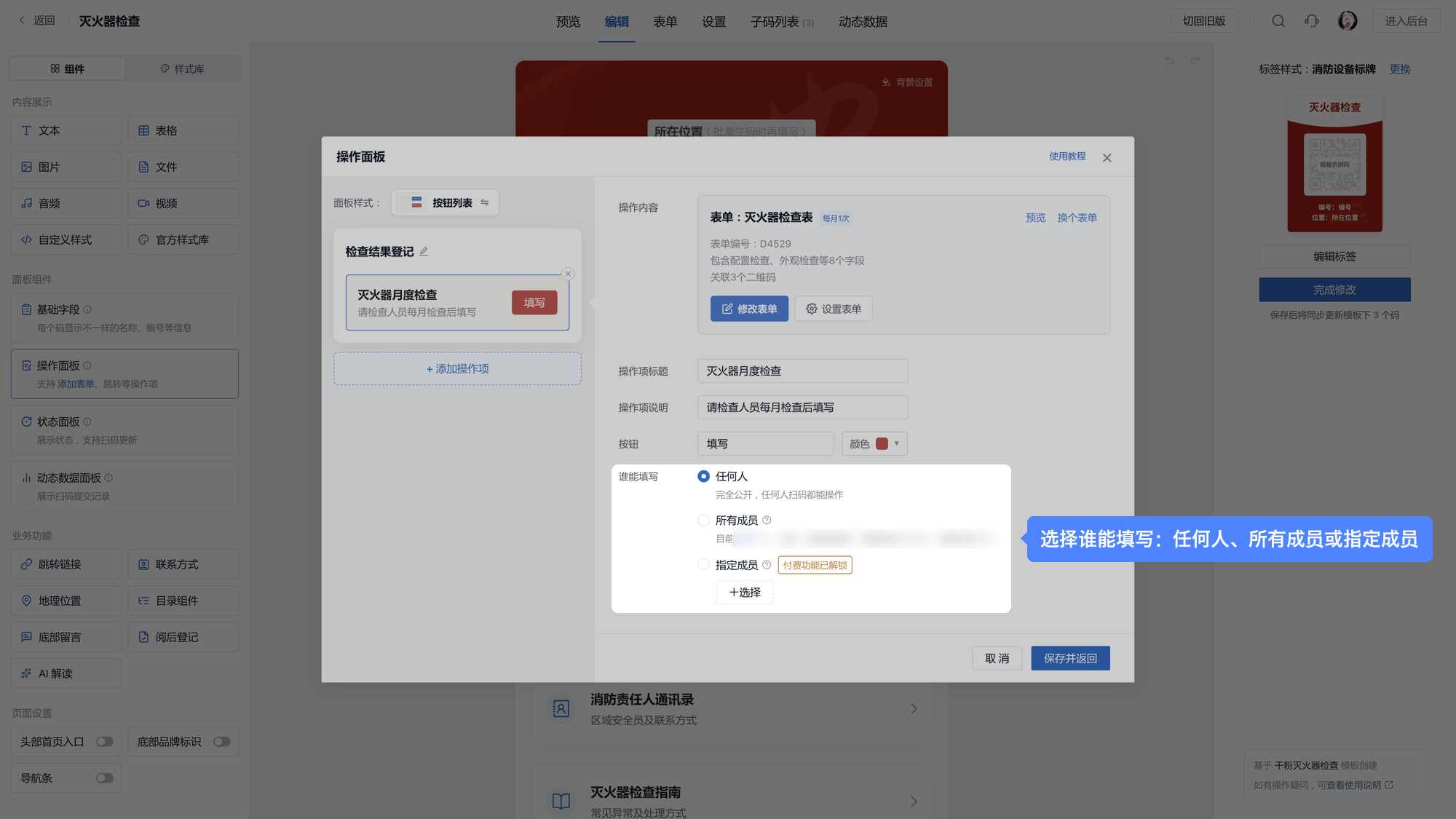
In the control panel dialog, configure who can fill in the form under Who Can Fill Out. You can allow all members or only specified members.