WeCom Edition Member Management
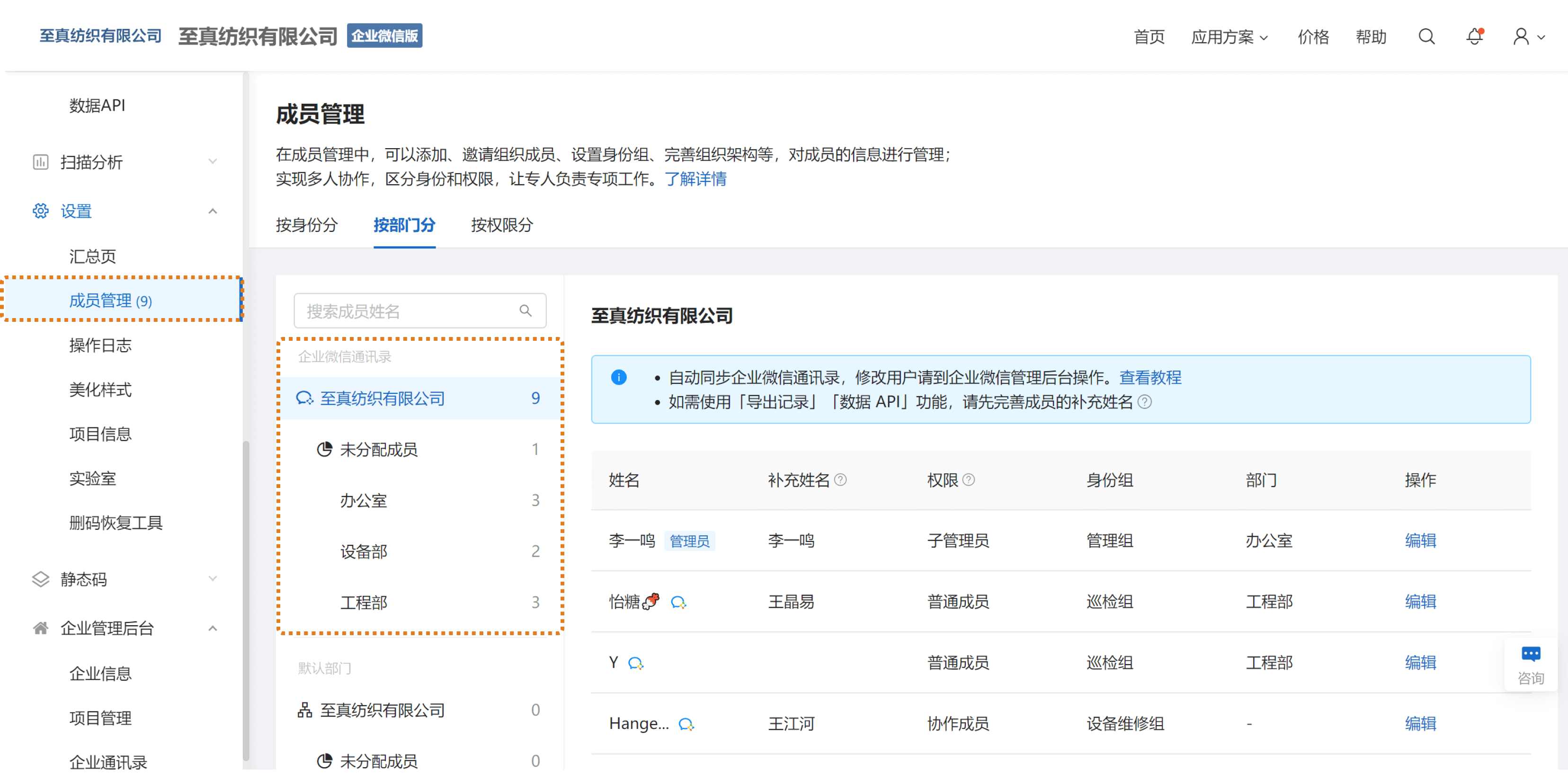
The WeCom edition's member list doesn't need manual upkeep. It maps one-to-one to the app's visible range — whoever is in the scope is a CaoLiao member.
The Basic Sync Logic
After the CaoLiao WeCom app is installed, you don't add members one by one in CaoLiao — they auto-sync from the WeCom contacts directory:
- The visible range you set for the "CaoLiao QR Code" app in the WeCom backend = the CaoLiao member list
- Add an employee to the visible range → they appear in CaoLiao member management within minutes
- Remove an employee from the visible range → they disappear from CaoLiao member management within minutes
So managing members = managing the CaoLiao app's visible range.
1. Auto-Sync on First Install
After you complete the WeCom edition installation, the employees inside the app's visible range in the WeCom directory are automatically synced to CaoLiao. Log back in, go to Settings → Member Management, and you'll see all synced WeCom colleagues.
2. Adding or Removing Members Later: Adjust the Visible Range
Whenever the WeCom directory changes (hires, departures, transfers), go back into WeCom and adjust the "CaoLiao QR Code" app's visible range. The entry point depends on who installed the app.
Case 1: App Added by a Regular Member
If you (a non-admin) added the app yourself, you can manage the scope on your phone:
- Open WeCom bottom nav → Workbench → open the CaoLiao QR Code app
- Top-right three-dot menu → Add Colleagues to Use App
- Tick the directory members to sync
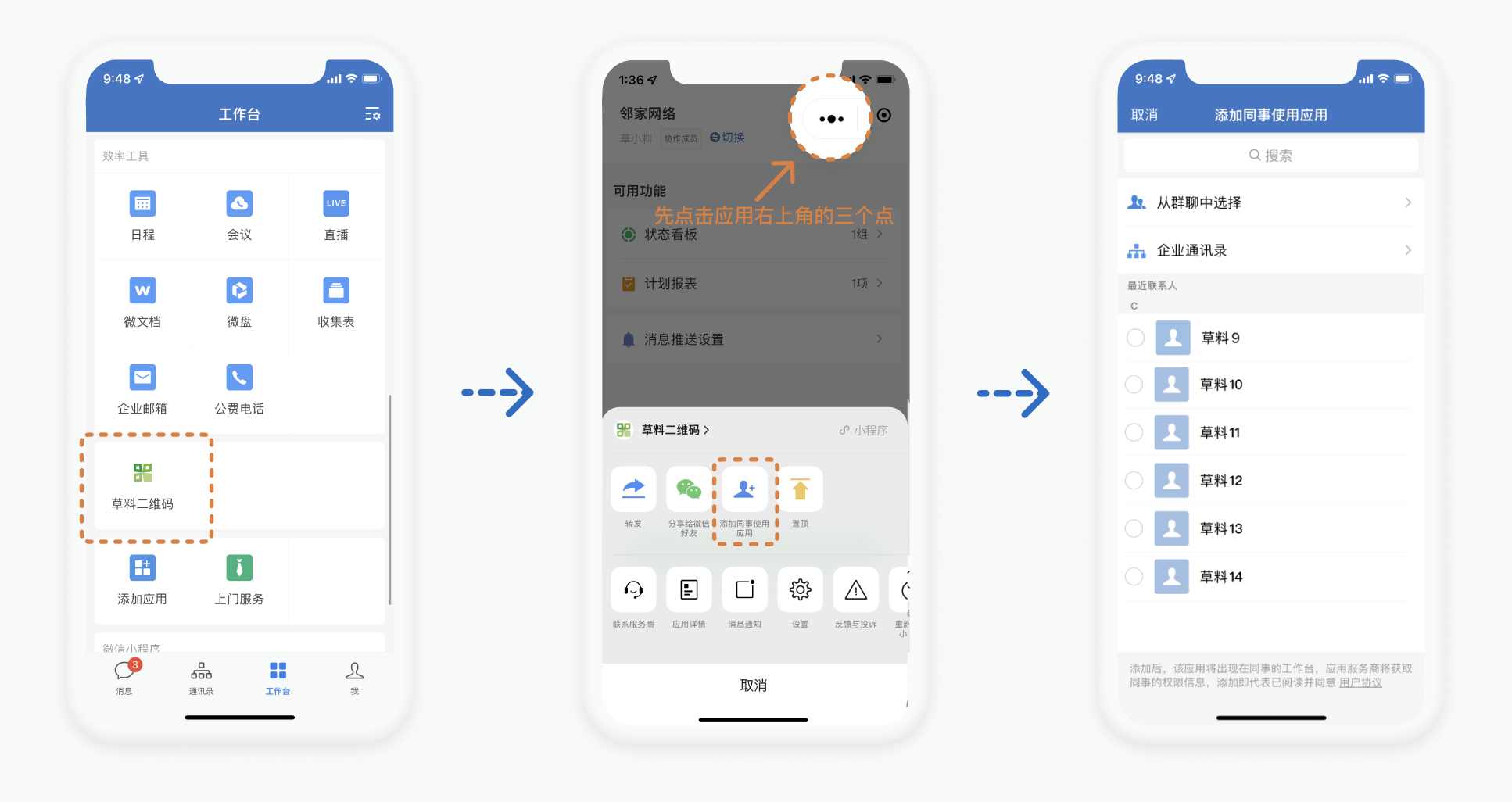
Note: If you can't find the Add Colleagues to Use App option, it means the app was added by the admin. Ask the admin to follow Case 2.
Case 2: App Added by an Administrator
Only the admin can change it. Two entries:
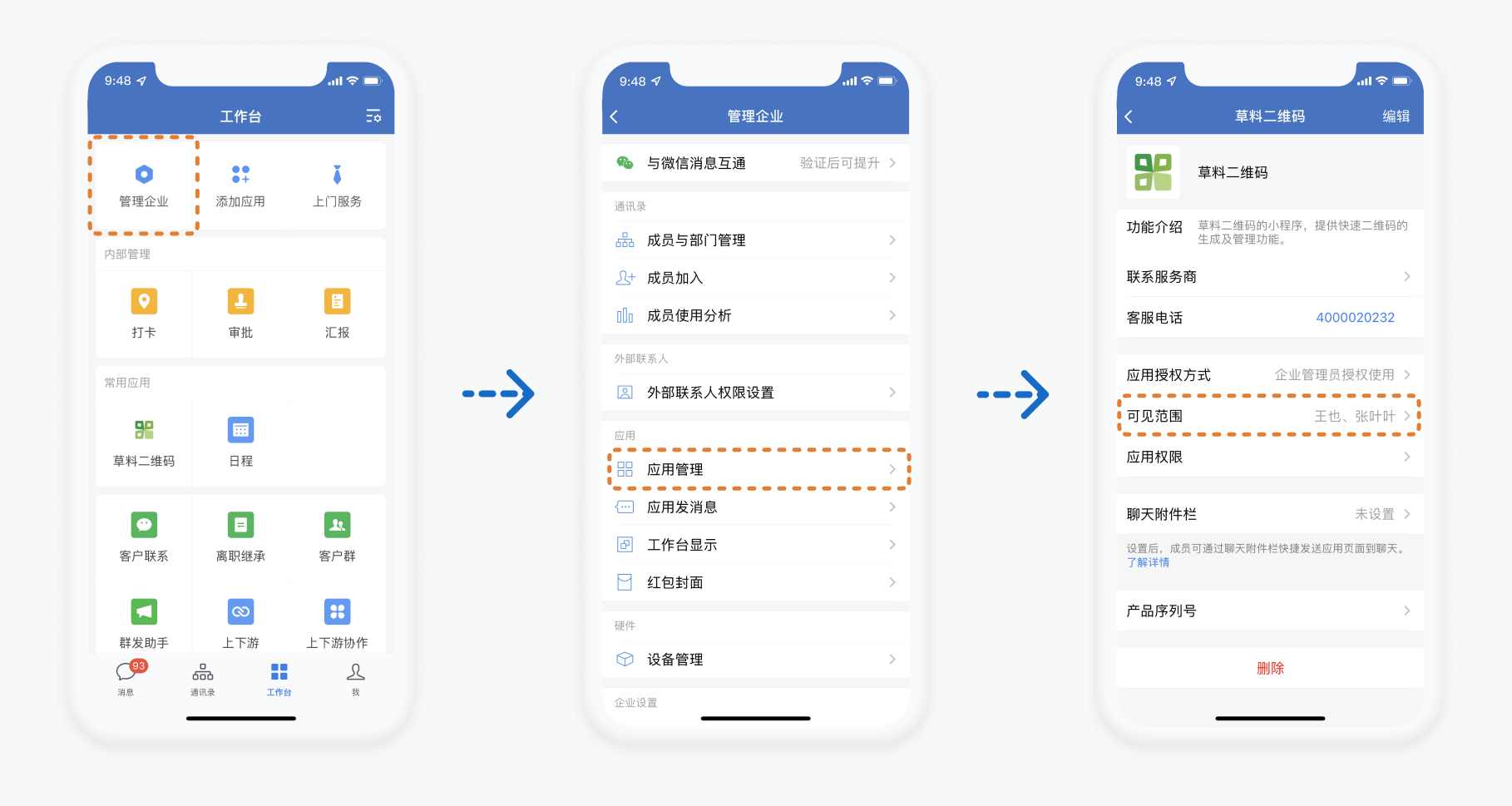
On phone
- WeCom Workbench → Manage Organization → App & Mini Program Management
- Find "CaoLiao QR Code" → modify Visible Range
On desktop
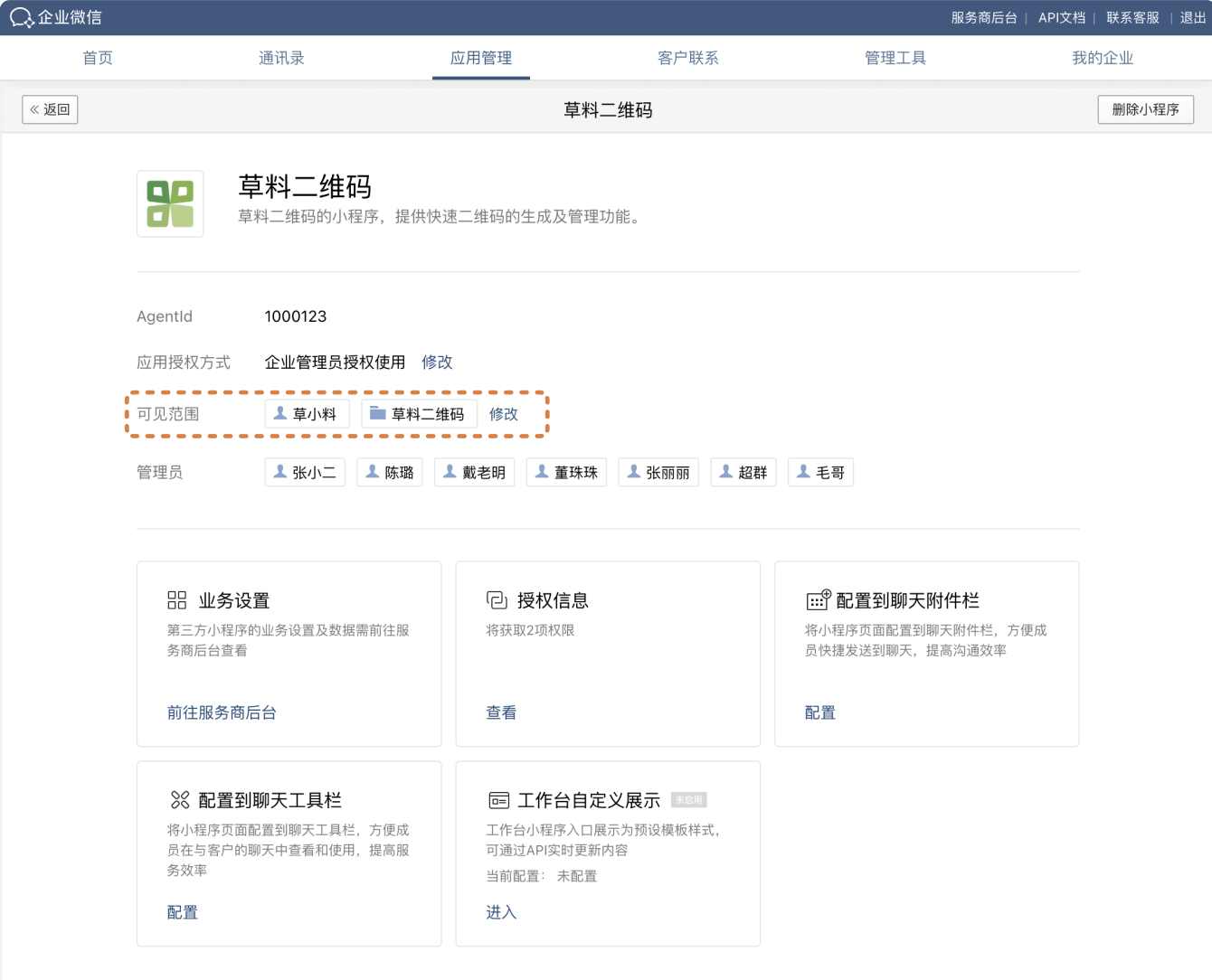
- Log in to the WeCom Admin Console
- App Management → find "CaoLiao QR Code" → modify visible range
3. Supplementing Names: Why You Must Do It
Synced members have no real name by default — only an encrypted string provided by WeCom (something like wodkFjCwAAkjJTzgDHDcbf). This is a WeCom restriction on third-party apps: CaoLiao cannot read employee names, so an admin or the employee must fill them in.
3.1 Admins: Bulk Supplement
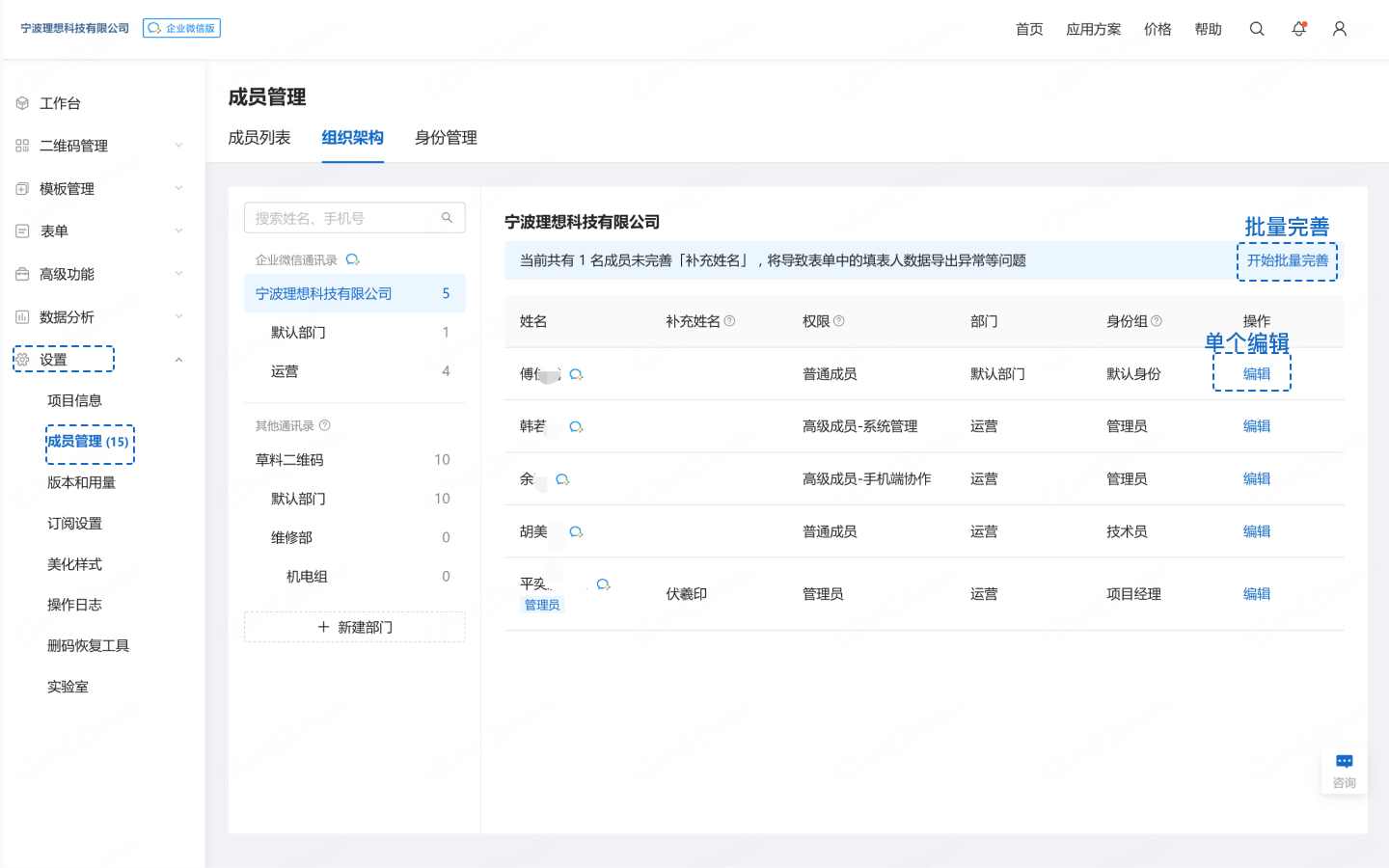
- CaoLiao workbench: Settings → Member Management → Org Structure
- Find a member, click Edit, and fill in the real name
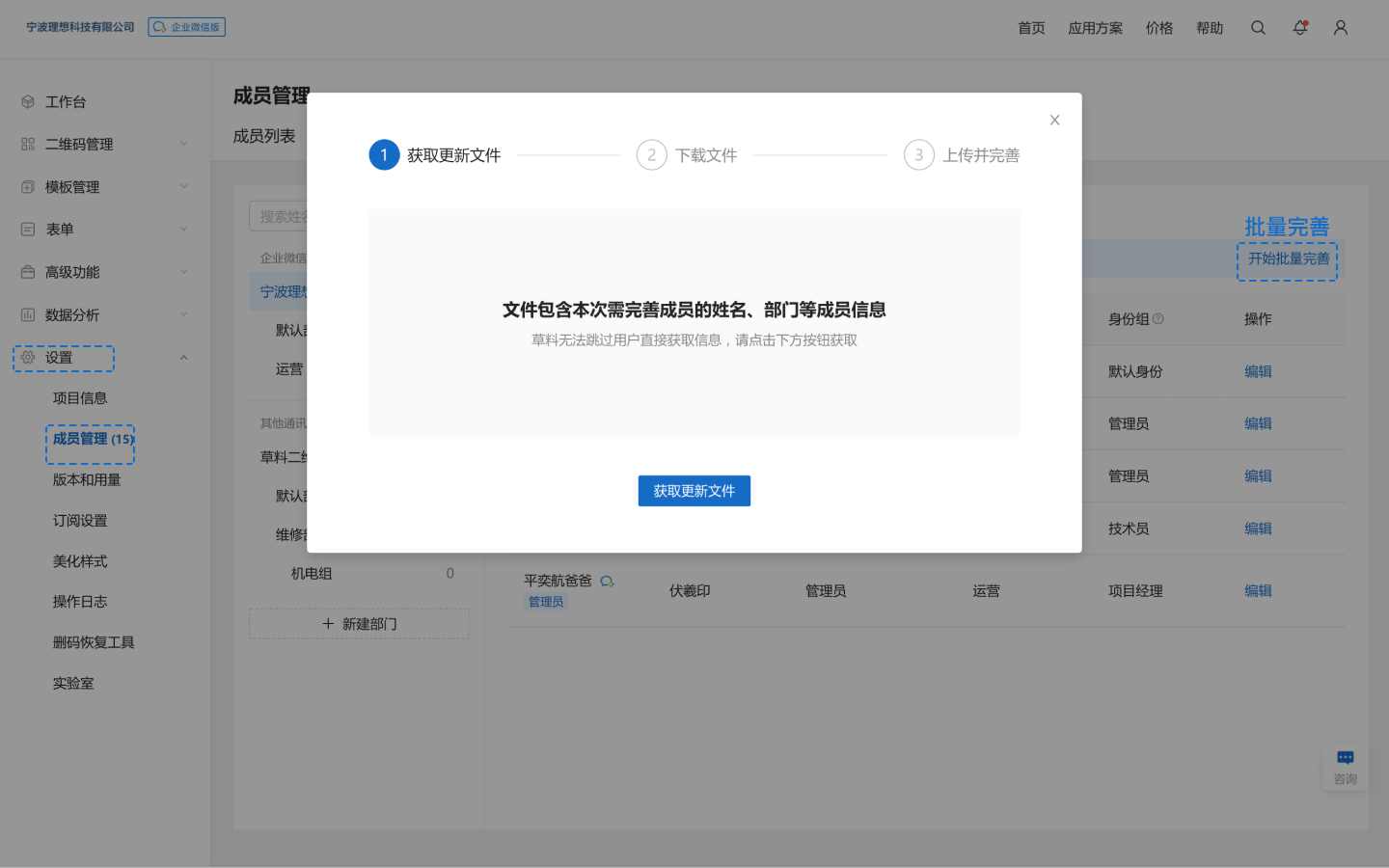
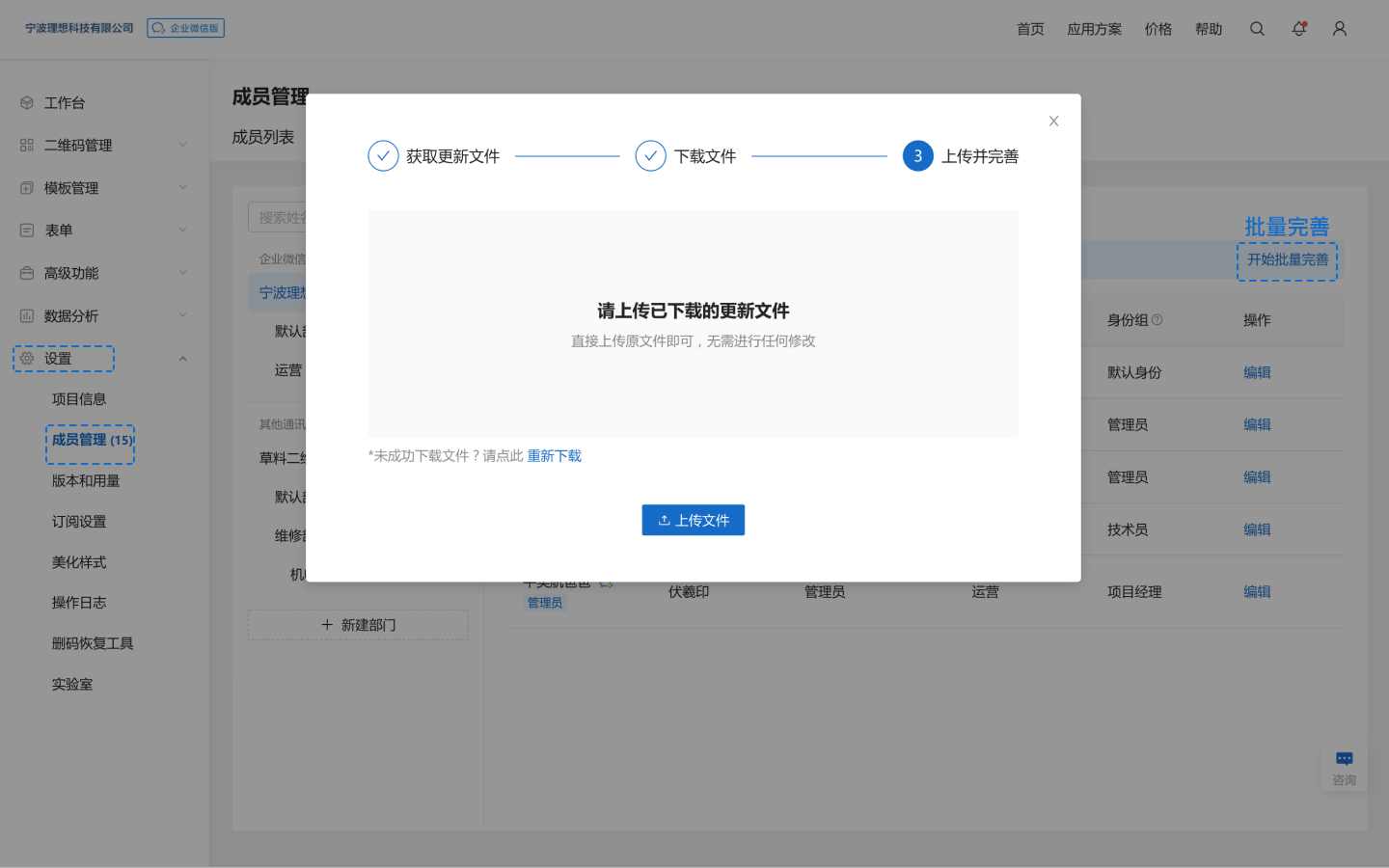
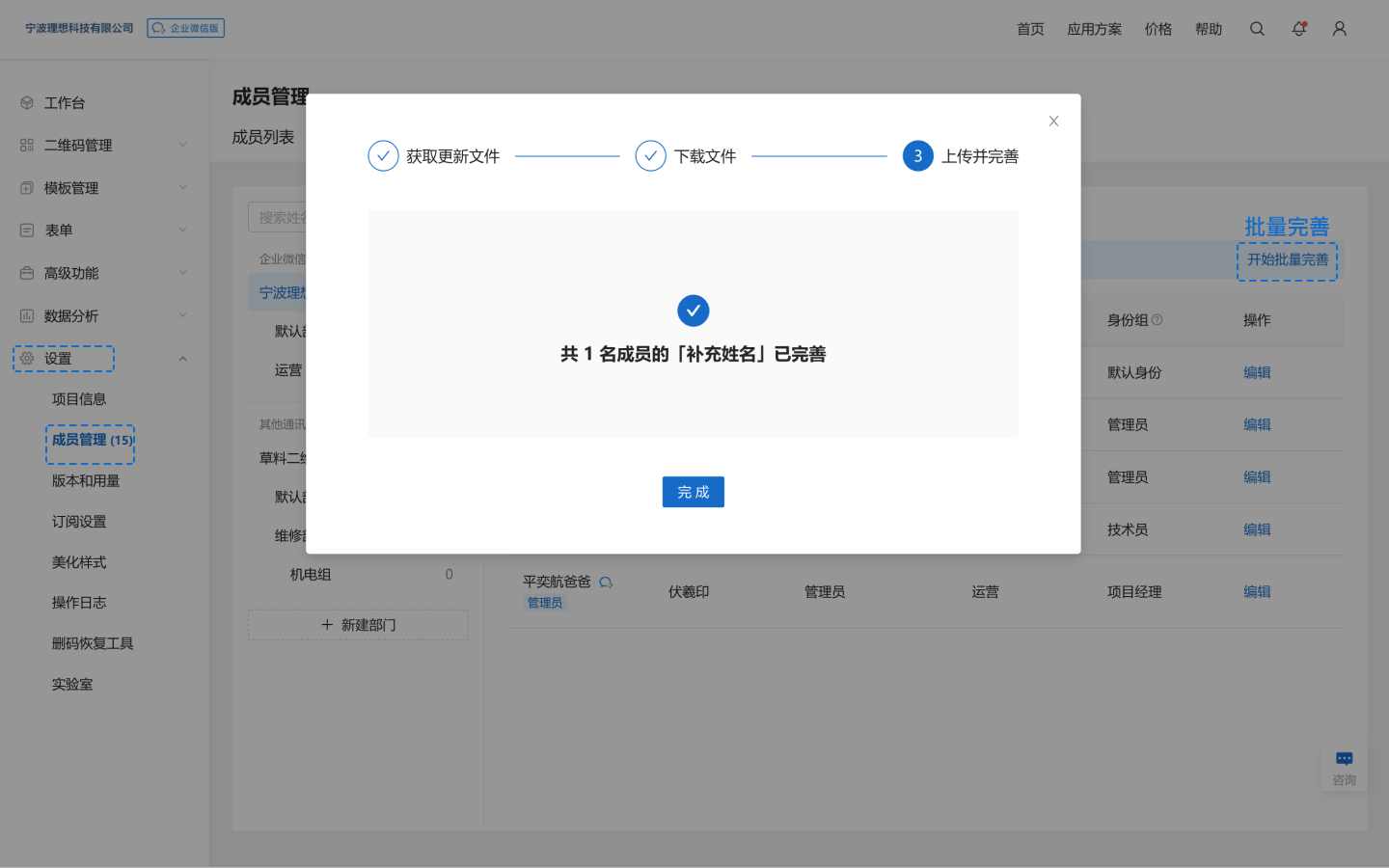
- For bulk: click Bulk Complete → download the template → fill names in the spreadsheet → upload
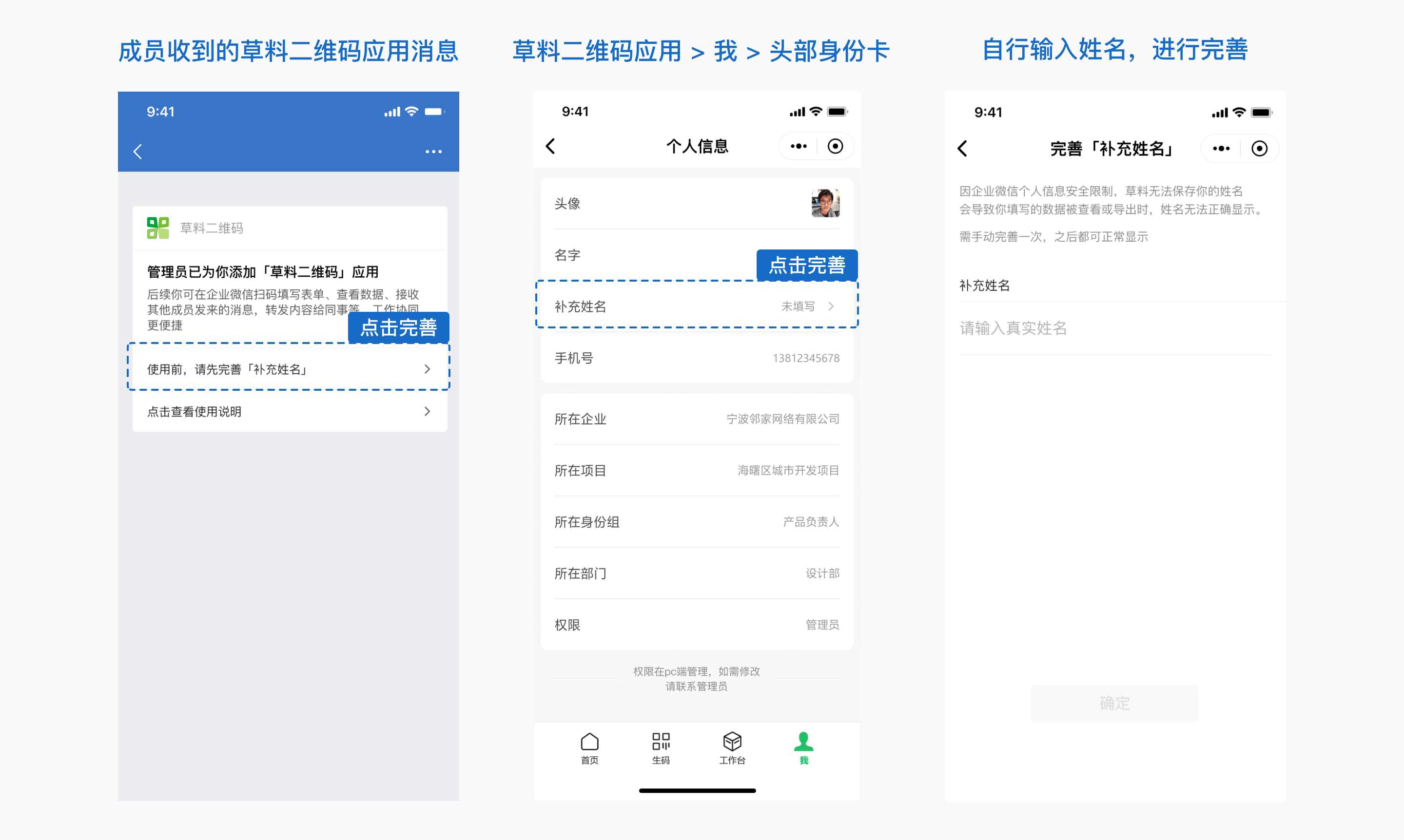
3.2 Members: Self-Supplement on Mobile
Employees can also fill in their own name inside the CaoLiao app on the WeCom mobile client — which lightens the admin's load.
3.3 What Goes Wrong Without Supplemented Names
Without a real name, every place where "submitter name" is displayed will show the encrypted string instead:
-
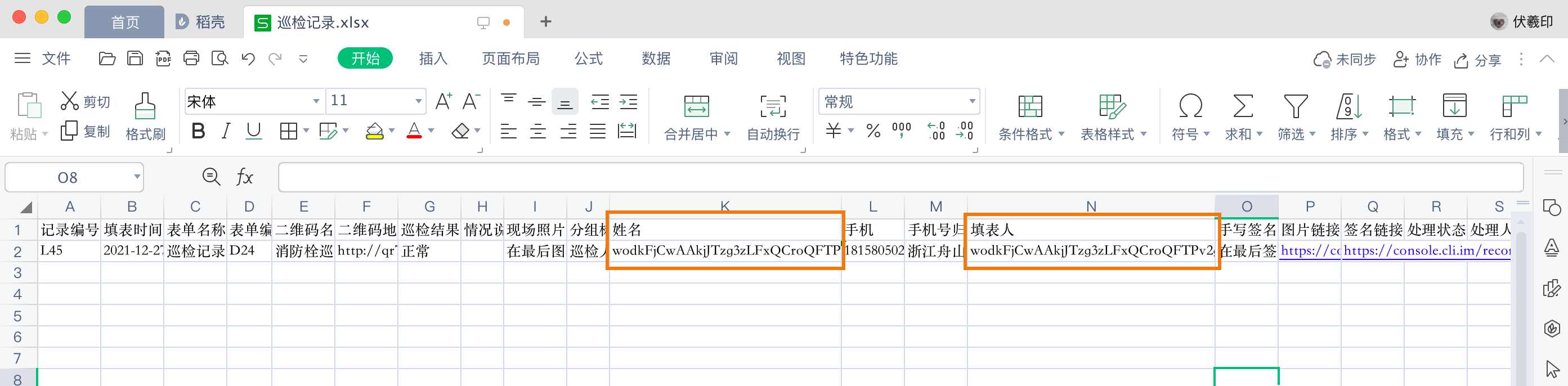
Exported form Excel: name column is gibberish
-
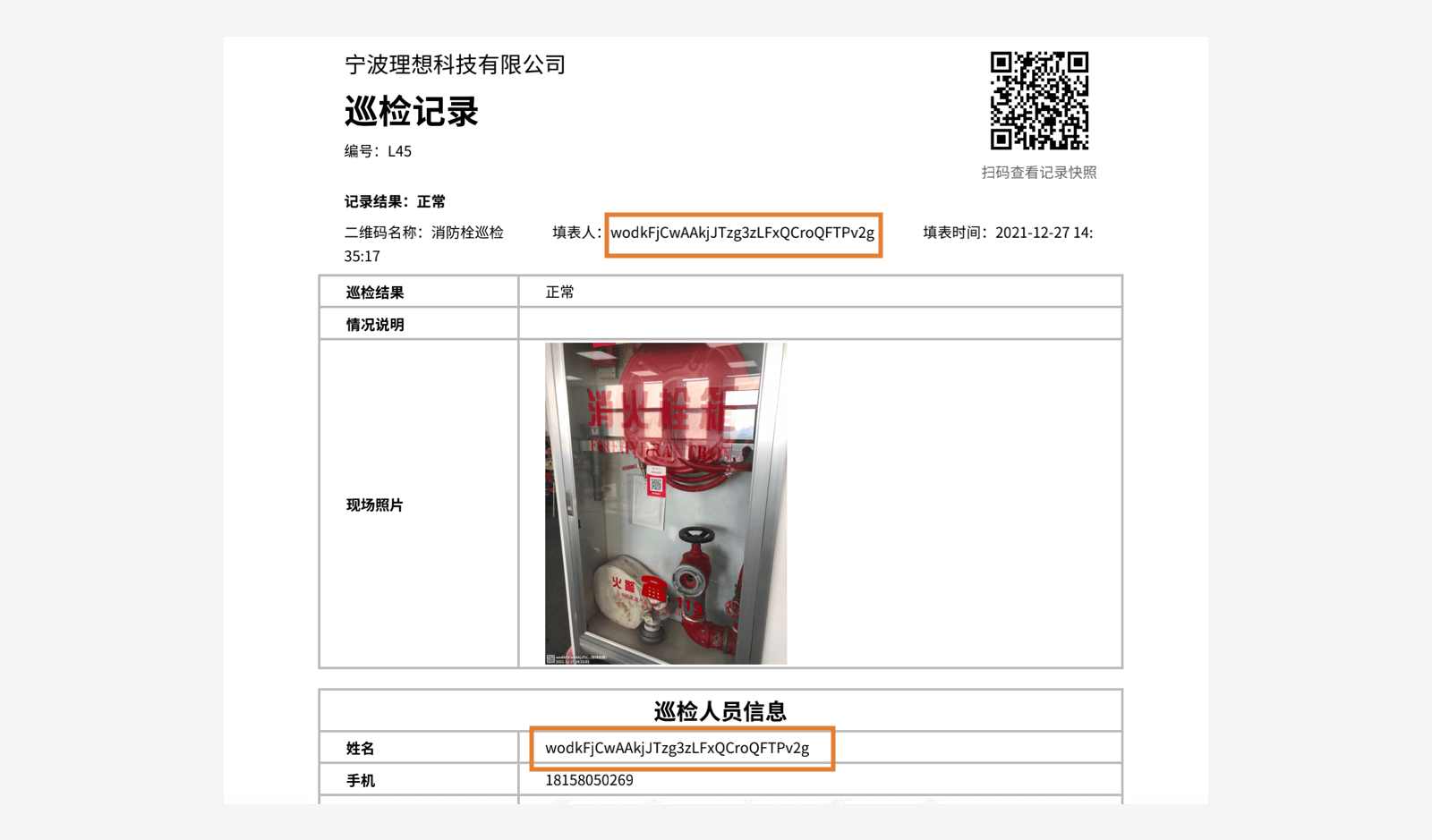
Exported PDF: submitter name is gibberish
-
Image watermarks: watermark name is gibberish

-
API: the name field returned by the API is gibberish

This becomes awkward in audits, reports, and reconciliations — so it's a good idea to prompt members to supplement their name right after installation.
FAQ
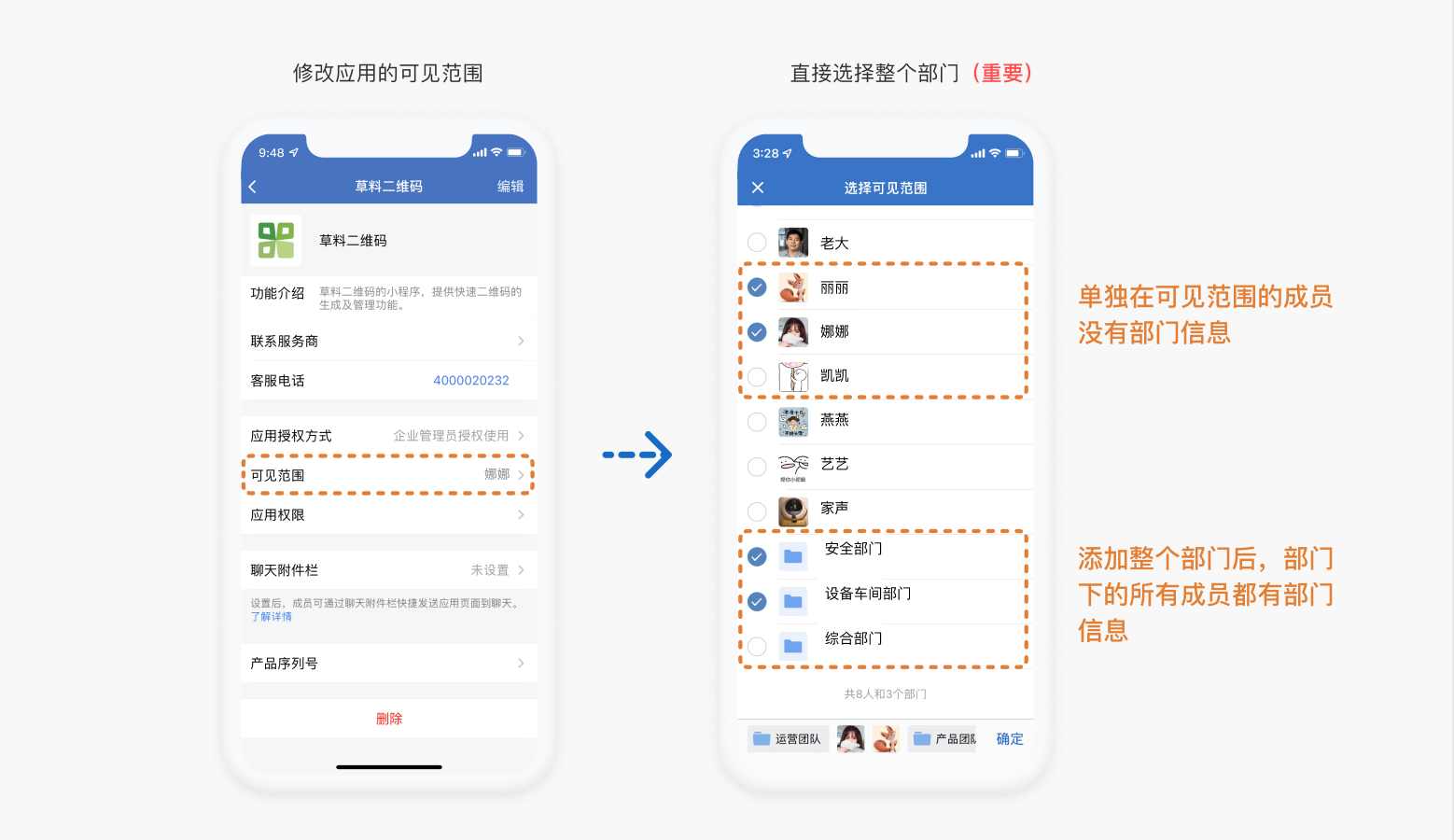
1. Synced Members Have No Department — Why?
WeCom rule: when the visible range is set to "individual members," department information is not synced. To include department info, set the scope to whole departments.
2. How Do I Change the WeCom Edition's Project Administrator?
Self-service isn't supported yet. Please contact support for a manual change by our engineers.