CaoLiao QR Code MCP
CaoLiao QR Code MCP is an AI connection service provided by CaoLiao QR Code. It lets AI tools such as WorkBuddy, Qwen Work, Doubao Work, and Claude use CaoLiao QR Code features. By chatting with AI, you can create QR codes, build business systems, manage QR codes and data, query data, and generate reports in CaoLiao QR Code.
CaoLiao QR Code currently provides two types of MCP:
- Management MCP: Requires you to sign in to your CaoLiao QR Code account and authorize an organization. Use it to create QR codes, build business systems, and query data.
- Scan MCP: Requires no sign-in. Use it to read public content in a single QR code.
All the features described below are provided by Management MCP. Section 2 explains the differences.
:::info[What Is MCP?] MCP (Model Context Protocol) is a common protocol for connecting AI to external services. When a service provides features through this protocol, AI tools that support MCP can call those features during a conversation. You do not need to understand the protocol details to use CaoLiao QR Code MCP. Follow the connection steps below. :::
1. What CaoLiao QR Code MCP Can Do
CaoLiao QR Code MCP lets AI handle work you previously had to do yourself in the workbench. Tell the AI what you need, and it uses CaoLiao QR Code features to complete the work. The results are saved directly in the CaoLiao QR Code workbench. There are three main types of work you can ask AI to do.
1. Build QR Code Applications
Previously, building an application meant first working out how to combine the features, then creating QR codes and configuring forms and schedules one by one.
Now you can give AI existing materials such as equipment registers, product lists, and photos, and explain your business requirements. The AI will create QR codes in bulk, create forms, configure recurring form submission tasks, and export QR code labels. Once the labels are printed and attached, people on site can scan them to get started.
Using the equipment list and photos in the "Equipment Files" folder, create a QR code record for each piece of equipment. Set up a daily inspection form to be filled out once a day, requiring an on-site photo each time, then export the QR code labels.
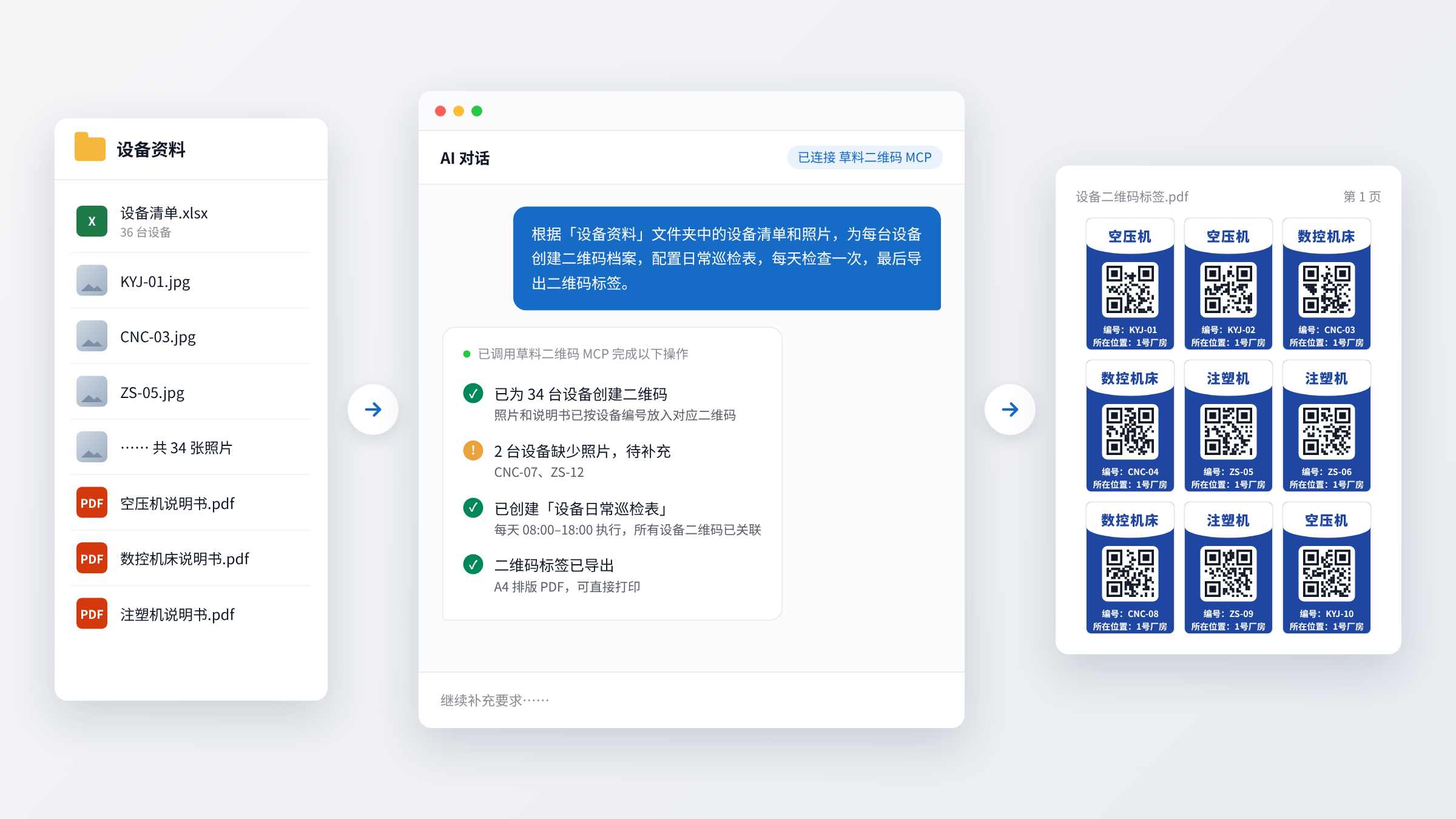
If you only need one QR code, such as for a product introduction or URL redirect, you can also ask AI to create it directly.
2. Manage QR Codes and Applications
When you need to add inspection items, change equipment information, or standardize names, you can tell AI what to change instead of finding each setting in the workbench and editing it individually.
AI finds the relevant QR code, form, or template and makes the changes. If a change affects a group of QR codes, it explains the scope first and saves only after confirmation.
Add a "Lubrication Condition" item to the equipment inspection form, with single-choice options: Normal, Needs Topping Up, and Abnormal.
Currently, you can adjust QR codes and forms built through AI.
3. Query Data and Generate Reports
Previously, analyzing data meant filtering records, exporting Excel files, and summarizing the data yourself.
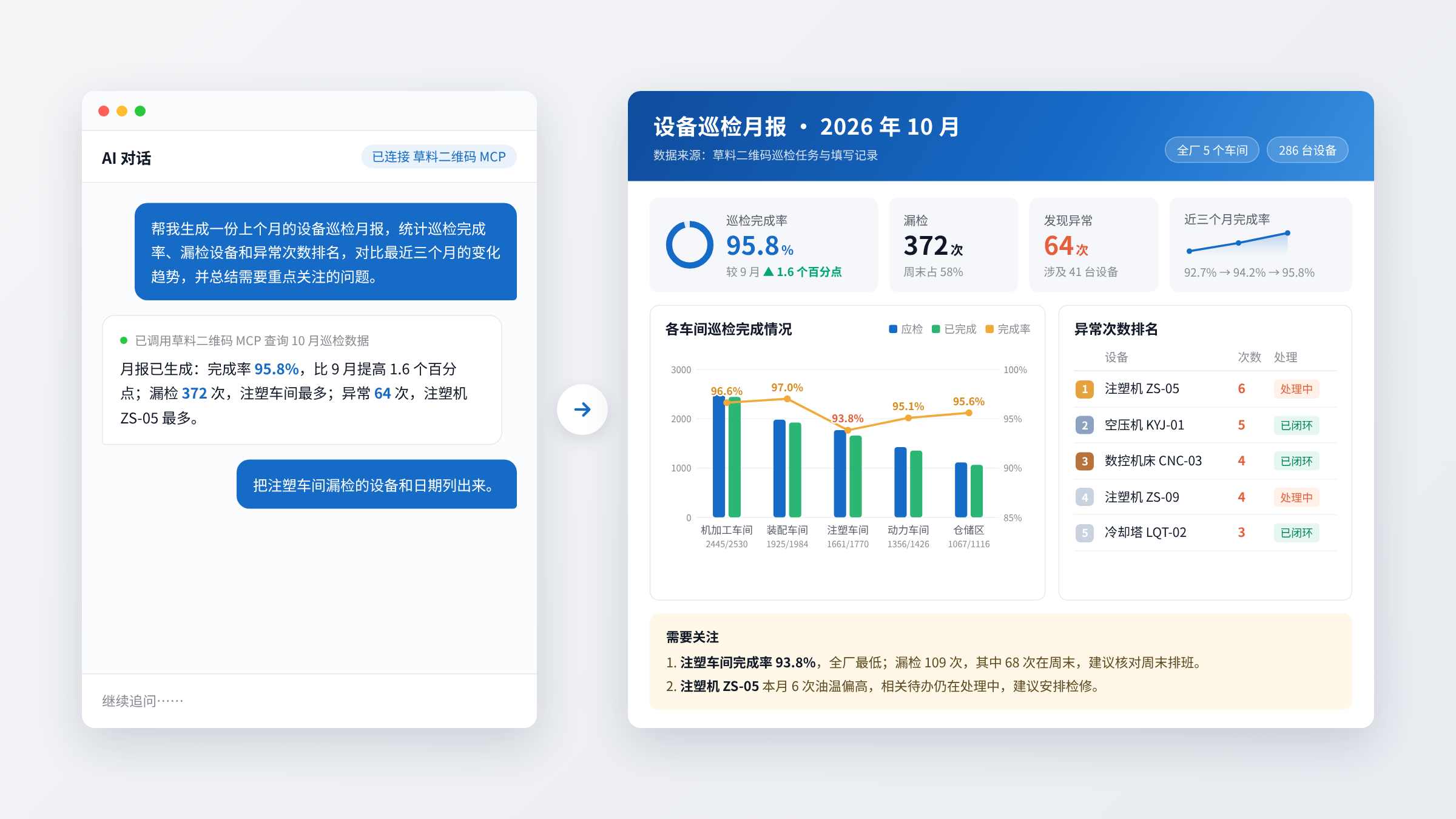
Now you can ask AI for the results you want. It queries form records, recurring task completion, and scan data, draws statistical conclusions, and organizes them into reports. You can keep asking questions about specific equipment and records.
Calculate last month's equipment inspection completion rate, list equipment with missed inspections, and rank equipment by the number of exceptions. Compare changes over the last three months and summarize issues that need attention.
2. Management MCP vs. Scan MCP
CaoLiao QR Code MCP has two services: Management MCP and Scan MCP. All the features described above are provided by Management MCP:
| Management MCP | Scan MCP | |
|---|---|---|
| Purpose | Create QR codes, build forms and recurring tasks, export labels, and query data | Read public content in a single QR code |
| Sign-in required | Sign in to your CaoLiao QR Code account and authorize an organization | No |
| Read/write access | Can create and modify content | Read-only; does not modify QR codes or submit records |
Scan MCP is useful when you send an equipment QR code to AI and ask what the equipment is, what its current status is, and what public maintenance records are available.
Connection instructions for both services are available on the CaoLiao QR Code Open Platform: Management MCP and Scan MCP.
3. How to Connect CaoLiao QR Code MCP
CaoLiao QR Code MCP currently works with WorkBuddy, Qwen Work, Doubao Work, Claude, and other AI tools that support remote MCP and OAuth authorization. The connection method is the same: send the following text to AI, and it will help you configure the connection using the documentation.
Please follow this documentation to help me connect CaoLiao QR Code MCP: https://cli.im/open-api/agent/open-platform-mcp.html
During setup, the CaoLiao QR Code authorization page opens. Sign in to your CaoLiao QR Code account and select the organization to authorize. You do not need to enter any keys.
After setup, send the following message to AI to verify the connection before using it. For your first attempt, we recommend trying a small amount of data.
Please confirm that CaoLiao QR Code MCP is connected and check the currently authorized organization and available features. Verify only; do not create or modify data.
If AI cannot complete setup automatically, see the step-by-step instructions with screenshots for each platform: WorkBuddy, Qwen Work, and Doubao Work.
4. FAQ
Can AI Use All CaoLiao QR Code Features After Connecting?
CaoLiao QR Code MCP covers common operations such as creating QR codes individually or in bulk, creating forms and recurring tasks, exporting labels, and querying records and scan data. It does not cover every feature in the CaoLiao QR Code workbench. Other settings still need to be configured in the workbench. The available features are those the AI finds after connecting.
Do I Need to Apply for Access? Are There Usage Limits?
No application is required. You can use it after connecting and authorizing access. The following limits apply:
- Quotas: Creating QR codes and uploading files through MCP are subject to your organization's current edition quotas, just like workbench operations. MCP calls also have a daily quota. You can ask AI to check the remaining quota for the day.
- Bulk QR code creation: Up to 100 entries per batch. Split larger datasets into batches.
- QR code labels: Export a package of PNG images or an A4-layout PDF using the organization's current label style.
What Data Can AI See?
AI can access only the organization you authorize. Its access matches your account's permissions in that organization and remains subject to partition, resource, and field visibility limits. Authorization does not expand your permissions.
To stop using the service or switch organizations, revoke the corresponding authorization under "Global Settings → Security and Traceability → Authorization Management" in the CaoLiao QR Code workbench.
Can AI Modify Existing QR Codes?
AI can modify QR codes, sub-codes, and forms created through AI, as well as bulk templates in the organization. QR codes and forms created manually in the workbench must be modified in the workbench.
- Creating new QR codes or forms does not overwrite existing content.
- When modifying forms, AI can add fields and edit content, but cannot delete fields or change field types.
- Before modifying a bulk template, AI previews the changes and lists the number of affected sub-codes. It saves only after confirmation.
Are QR Codes Created Through AI Different from Those Created in the Workbench?
Once saved, they are the same as QR codes created manually in the workbench. You can continue editing them, managing them in bulk, and viewing their data in the workbench. Scanning to view content or fill out forms works the same way.
Can AI Read Files Directly from My Computer?
That depends on the AI tool you use. AI reads the materials and uploads them to CaoLiao QR Code. With an AI tool that supports local files, you can specify the folder containing the materials directly. Support for generating charts and visual reports also varies by platform.
For other connection methods, such as data synchronization, OpenAPI, and office software integrations, see the Integration and Connection Overview.