Bulk Label Generation
Feature Overview
CaoLiao supports bulk label generation, free for all users.
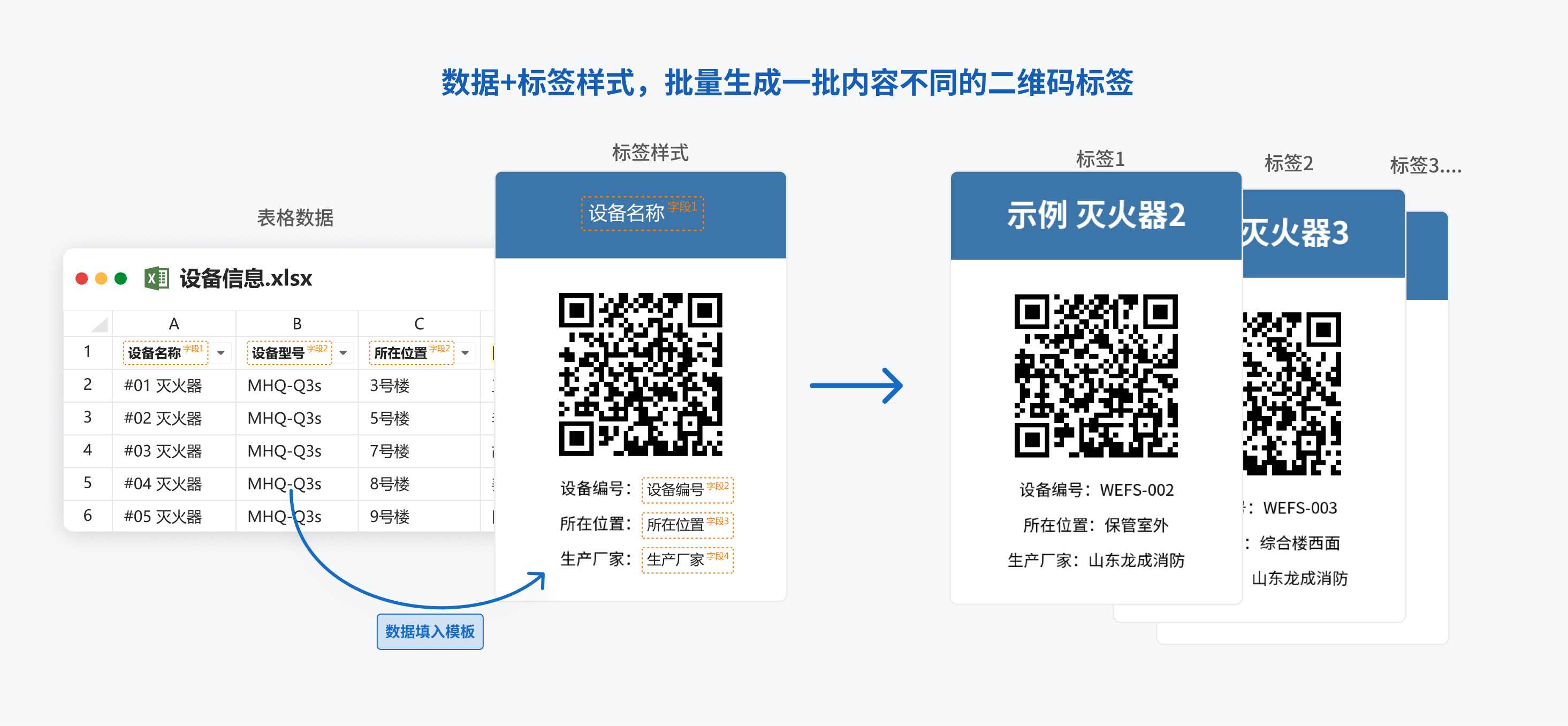
By combining a label style with large datasets, you can generate a large batch of labels at once. Three methods are available: filling in a form to create labels one by one, using the online spreadsheet for bulk creation, and uploading an Excel file for bulk creation. All methods produce a batch of QR code labels with the same structure but different content.
Styles can be reused — simply select a saved style and fill in the data to quickly generate large quantities of QR code labels with the same design. You can also manage them all at once afterward, modify label colors in bulk, lay out labels in bulk, and more.
Tutorial
Three methods are available for bulk label creation: single-item form entry, online spreadsheet bulk creation, and Excel upload.
1. Upload Excel for Bulk Generation
If you have already organized your generation data in a local Excel file, you can upload it to generate QR codes in bulk, saving time.
Excel requirements:
- The first row should contain column headers; the header row does not generate QR codes;
- QR code content starts from the second row — each row generates one QR code;
- The Excel file must not contain images, merged cells, formula calculations, or other special content;
- When the Excel file contains multiple worksheets, only the first worksheet is read by default;
- The maximum number of rows that can be imported per batch is 20,000. If you need to generate more than 20,000 codes, you can import in multiple batches — there is no limit on the total quantity.
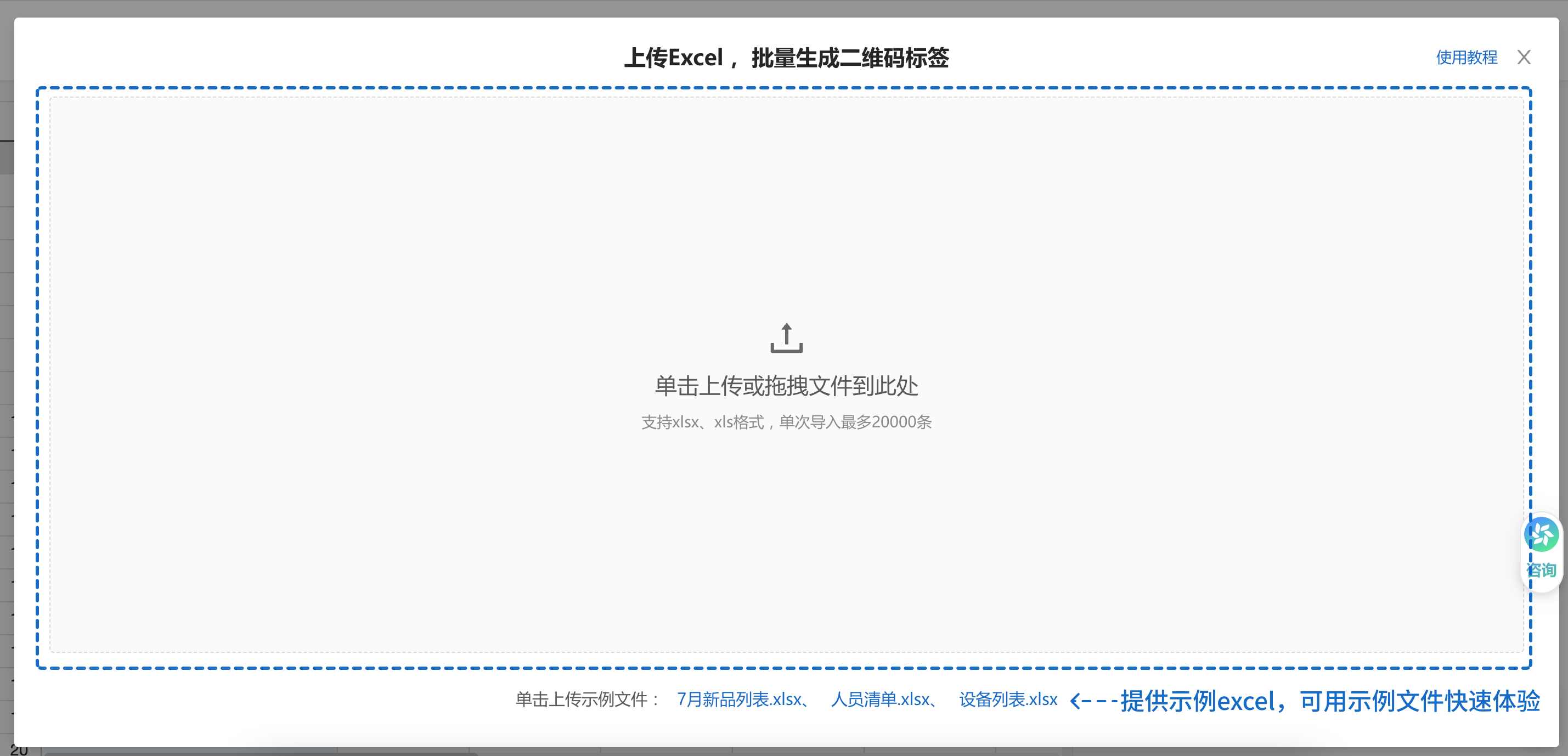
Step 1: Upload your locally saved Excel file, or use the sample Excel file to quickly experience the workflow.
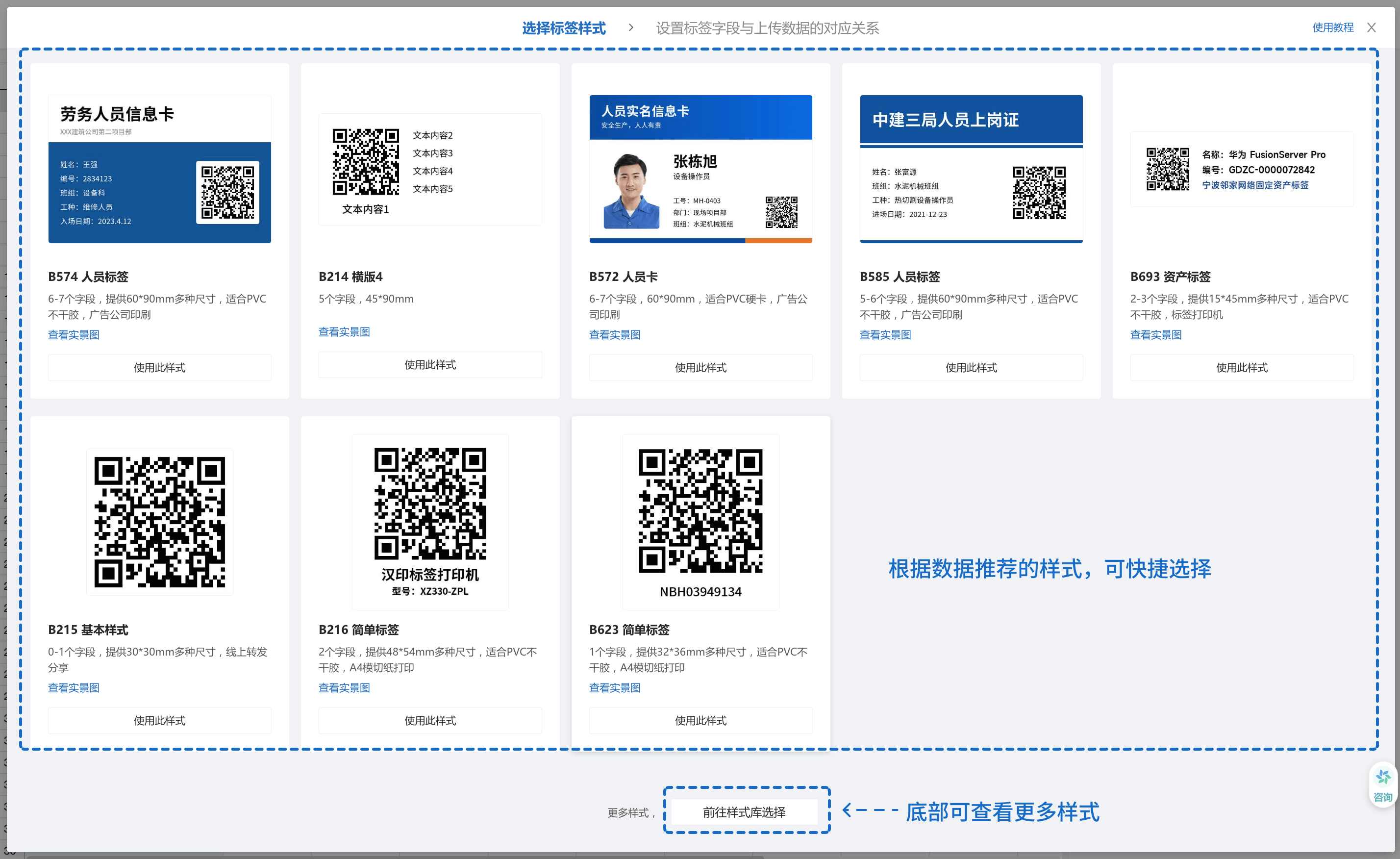
Step 2: The system will combine your saved personal styles and public styles, then semantically match data fields and scenarios with label categories to recommend the most suitable static label style. You can select one as needed.
Step 3: Map the label fields to the corresponding columns in your uploaded data. After selecting a label style, the system will automatically match fields — you can adjust the mapping manually if needed.
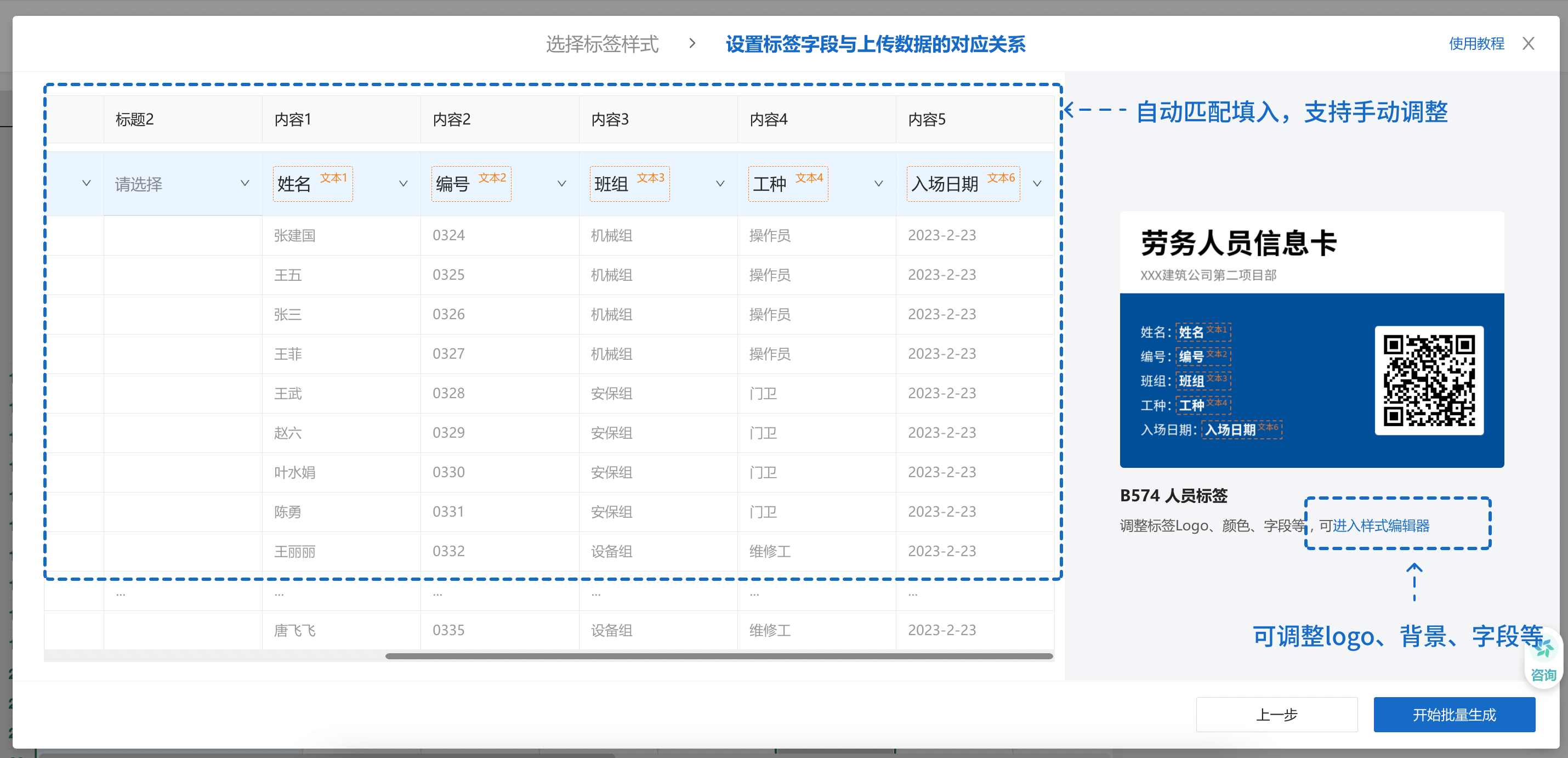
Step 4: Once the mapping is complete, click [Start Bulk Generation] in the lower right corner. The data will be automatically inserted into the label template, generating a batch of QR code labels with different content, ready for bulk download and printing.
2. Fill in the Online Spreadsheet for Bulk Generation
2.1 Enter Data in the Spreadsheet
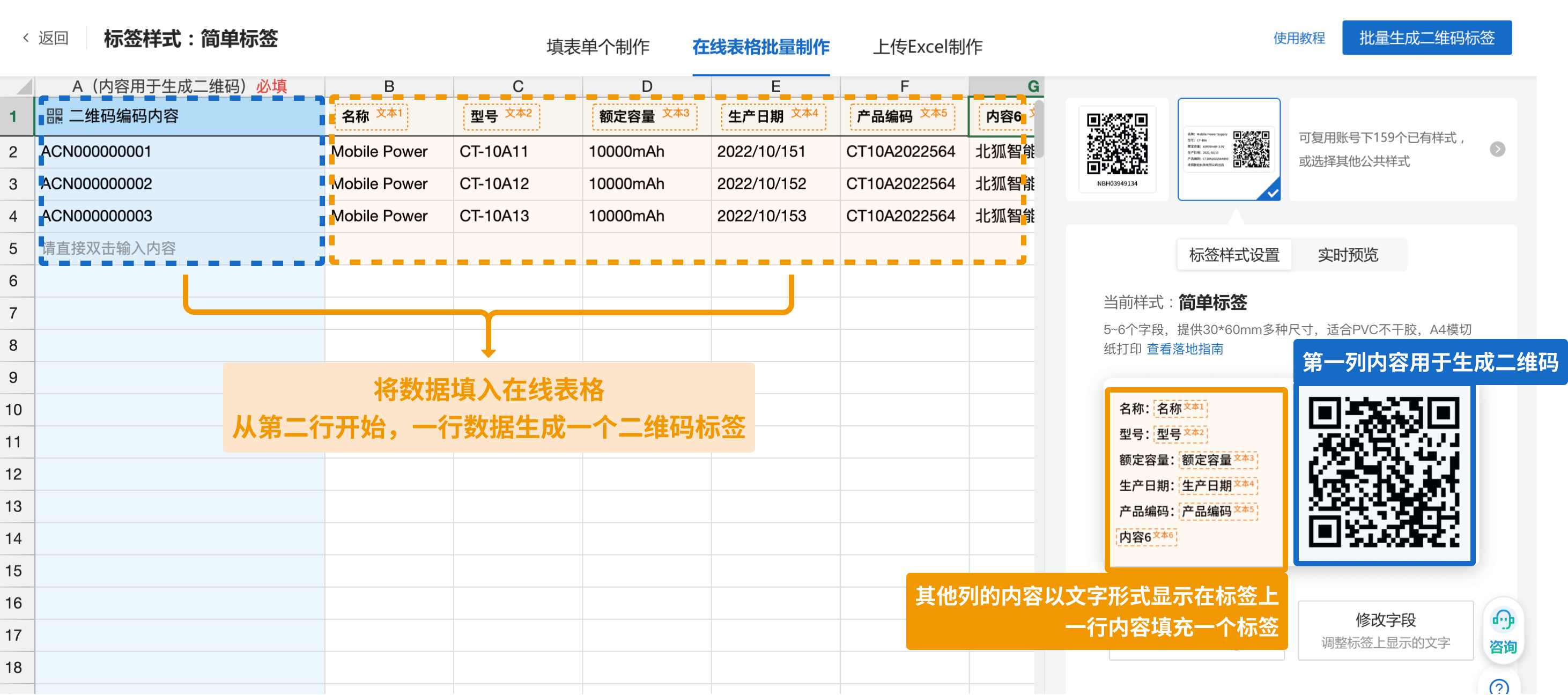
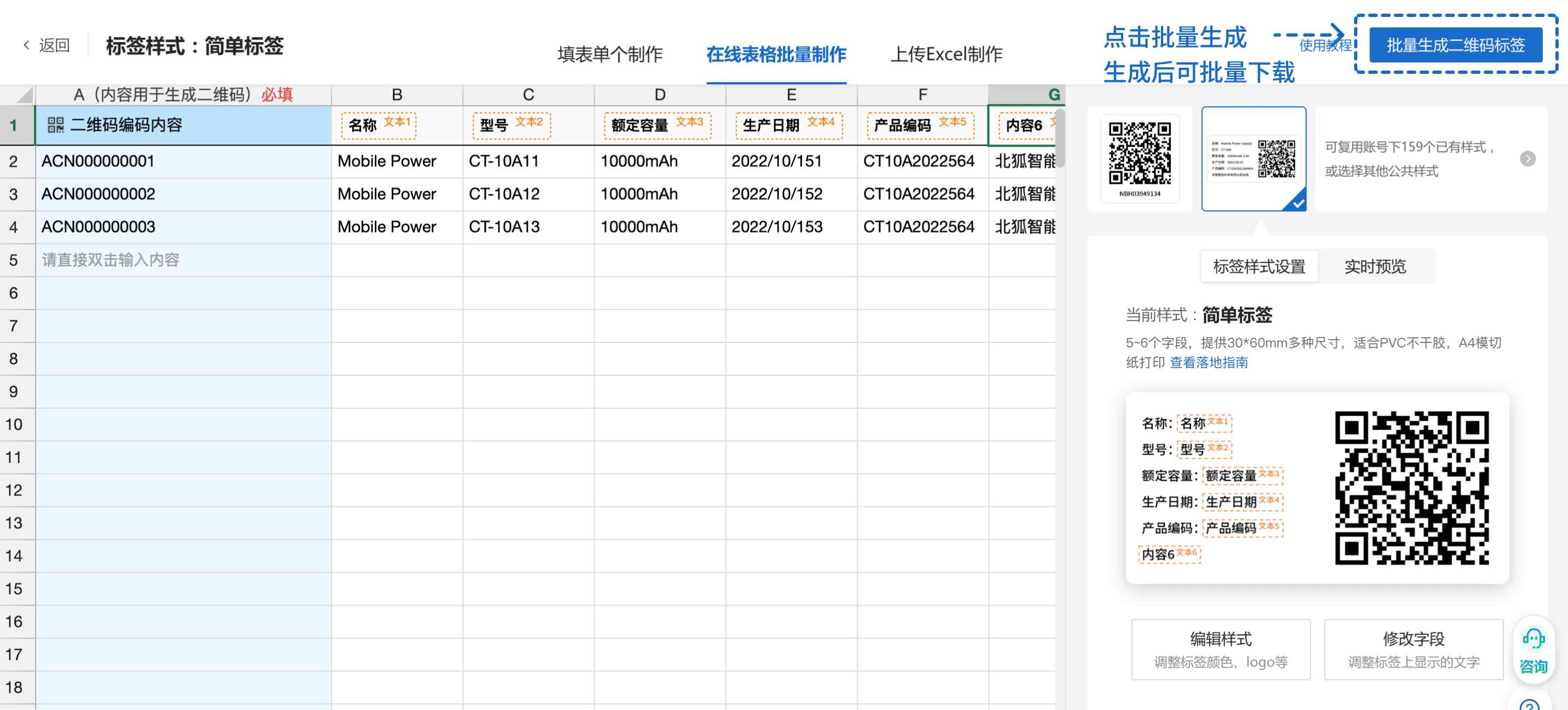
Enter content directly in the spreadsheet — each row generates one label.
The first column's content will be encoded into the QR code (i.e., what is shown when scanned). Other columns can be set as label display content. Starting from the second row, enter content directly or upload Excel data to generate QR code labels in bulk.
You can also create labels one by one using the form entry method — simply fill in the content on the left in order, and it will automatically populate the label on the right.
2.2 Set the Label Style
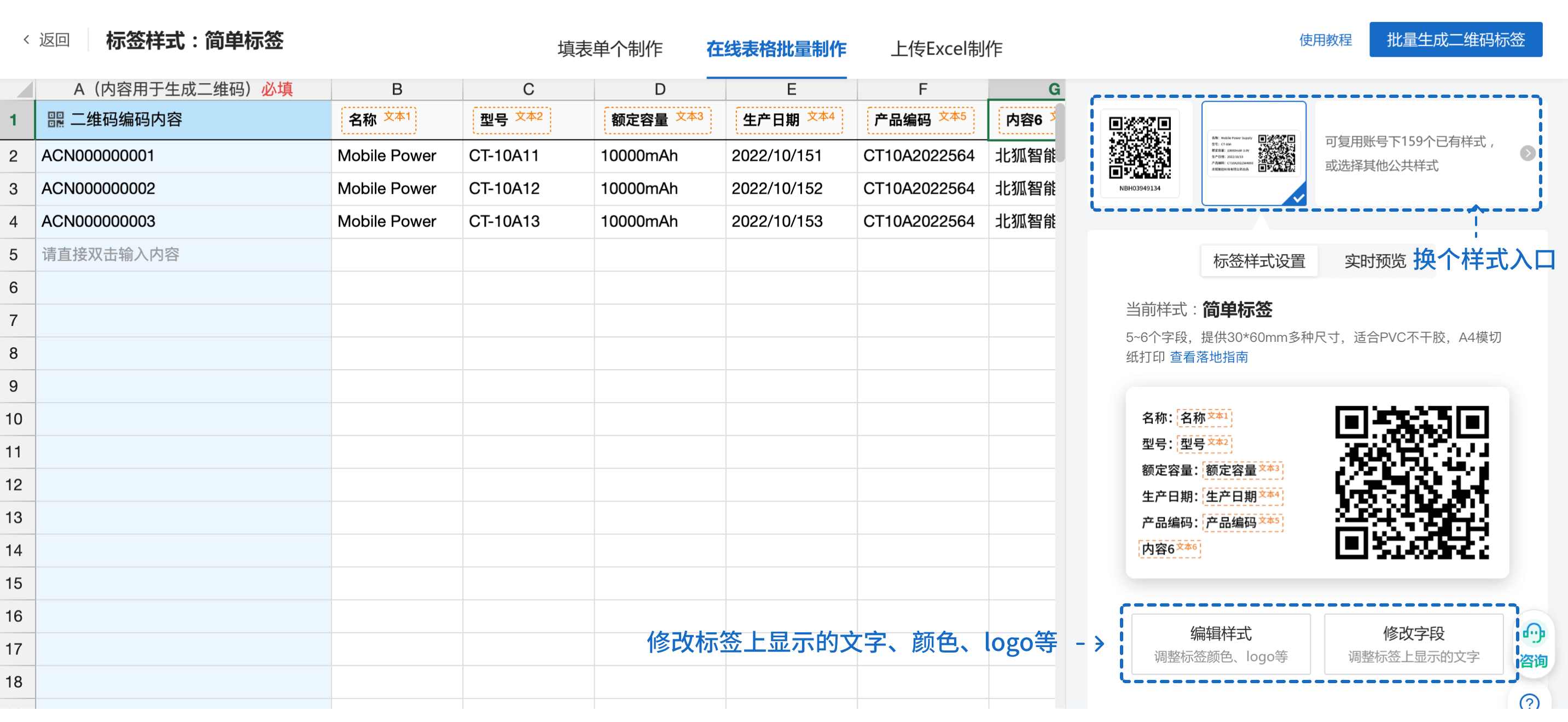
You can select an appropriate label style from the header as needed. To adjust the label style — including logo, fields, background, and other elements — click [Edit Fields] or [Edit Style] in the preview area on the right side of the online spreadsheet page to open the style editor.
Video Tutorial:
Setting Label Fields
Fill in the content that should appear the same on every label, and set the corresponding variable fields (content that differs per label, highlighted in yellow). The spreadsheet data will be automatically inserted, generating labels with different content in bulk.

Modifying Variable Fields on the Label
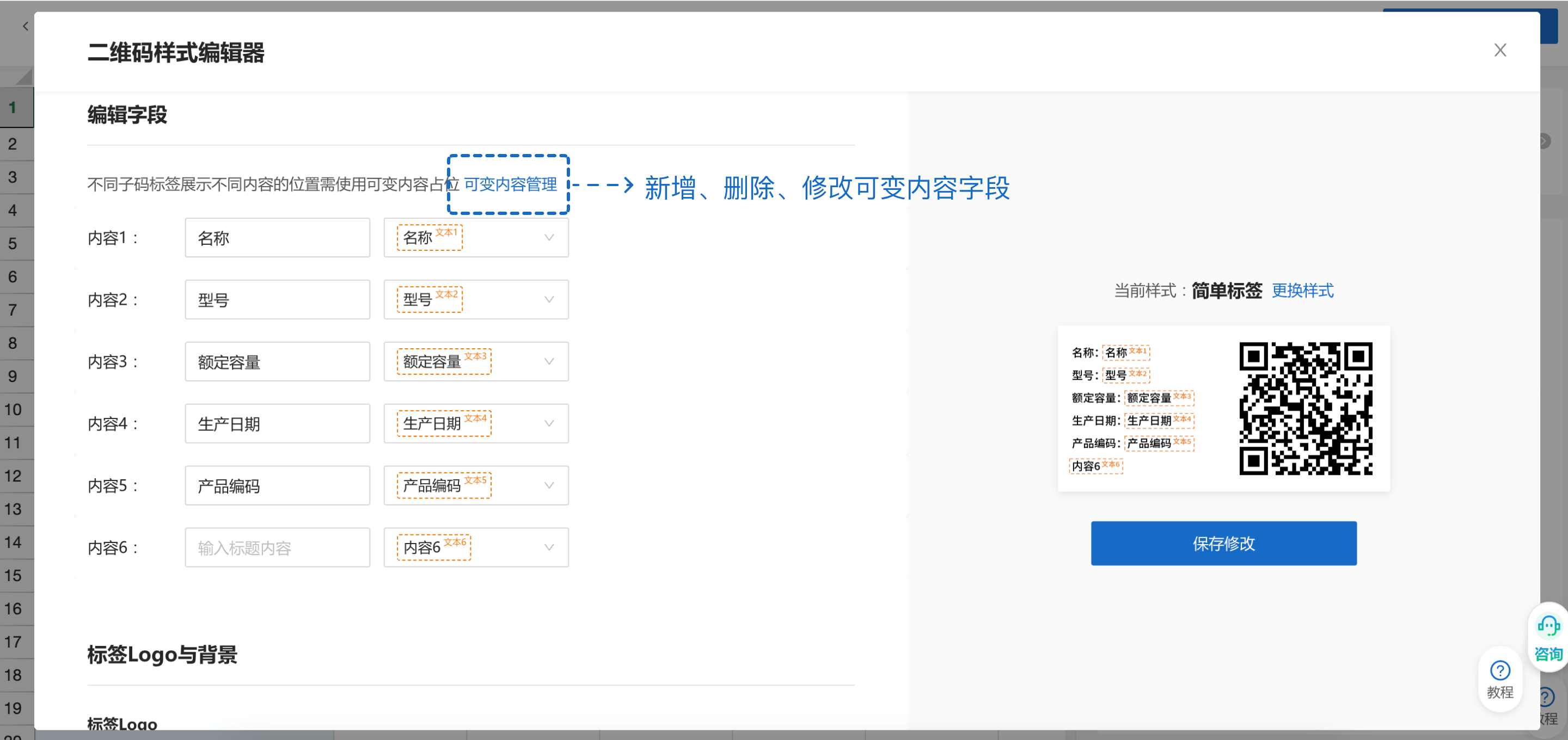
If you need to modify the variable fields displayed on the label, go to [Variable Content Management] to open a dialog where you can add or modify variable field content.
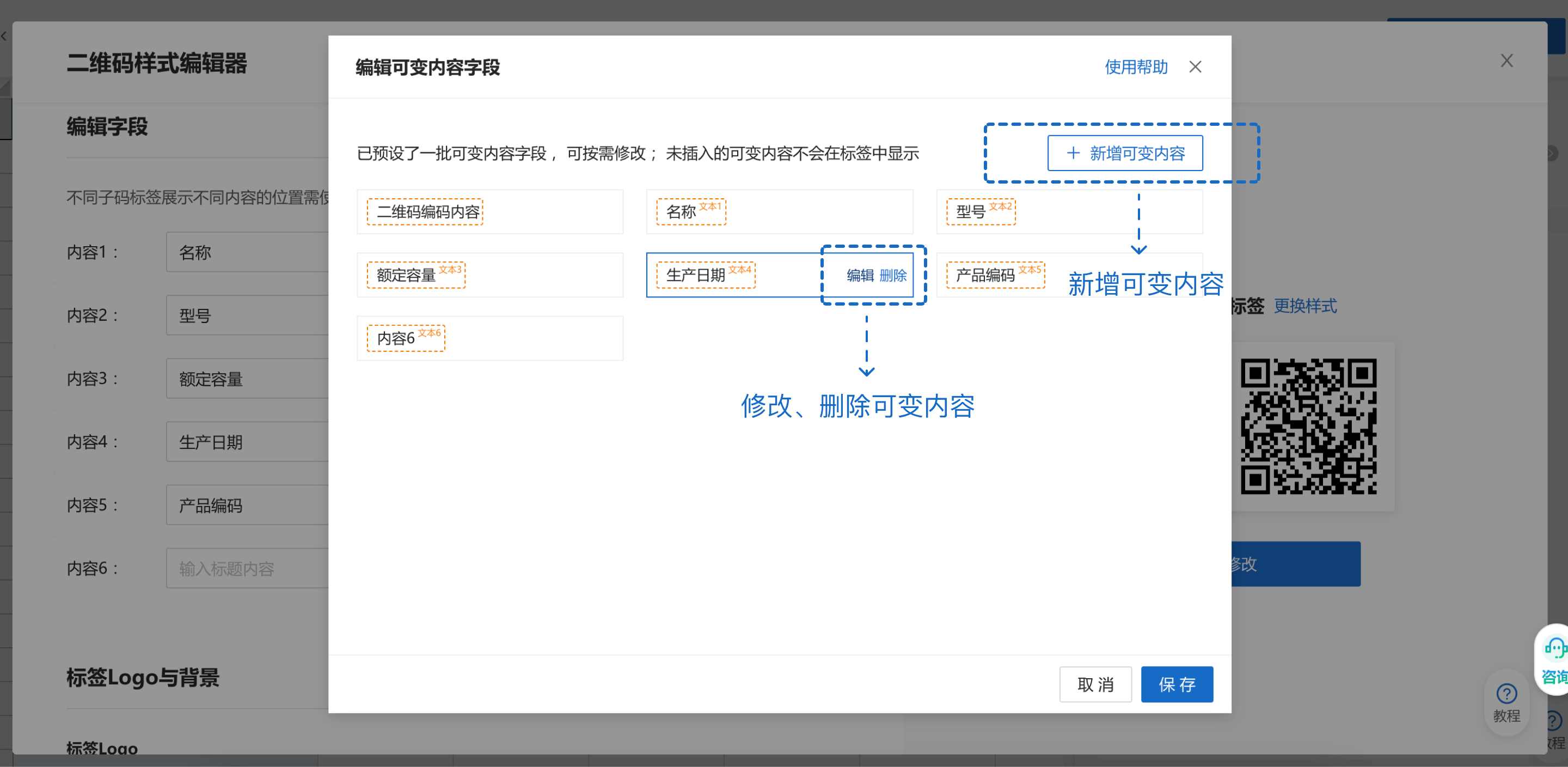
You can click to rename variable content, delete variable content, or add new variable content fields. After saving, the label fields under that template will update automatically.
Modifying Other Label Styles
Backgrounds, colors, QR code beautification, and other label style elements can all be modified.
- QR code design: Includes logo, color, module and eye styles, error correction level, and more — all adjustable as needed. View tutorial
- Label background: You can set a background color, upload a local background image, or design a background image online using Canva. View background tutorial
2.3 Generate Labels in Bulk
Once you have filled in the generation data and configured the label style, click the [Bulk Generate QR Code Labels] button in the upper right corner of the page to generate a batch of labels. Bulk download and bulk style modification are supported.
3. Post-Generation Management
After generating QR code labels in bulk, bulk download, template reuse for adding new labels, bulk style modification, and other batch operations are supported. You can also share the style with others.
Bulk Download QR Code Labels: After generation, you can download labels in bulk. Multiple file formats are available, including PNG images and A4 PDF files.
Reuse Label Style to Add More: You can reuse a saved label style to add a new batch of labels with the same design but different content.

Generation Entry Point
Go directly to the label creation page, select a label style, and create labels using the single-item or bulk creation method.
Frequently Asked Questions
1. Can I modify the scanned content after generation?
No. The scanned content cannot be changed after generation. If you need QR codes with editable content, go to bulk dynamic QR code generation >
2. Is there a limit on the number of labels that can be generated in bulk?
There is no limit on the total number of labels you can generate. Each individual batch is capped at 20,000.
3. Can I modify the label style after generation?
Yes. After generation, you can modify the label style, and all labels under that style will be batch-updated.