Label Background Setup Tutorial
QR code styles support custom background images or solid background colors. CaoLiao provides several preset colors and background images to choose from, along with logo-matched color recommendations. If CaoLiao's preset theme colors or backgrounds don't meet your needs, or if your company has specific background requirements, you can customize the background image to create labels that better suit your business.
Adjusting Background Color
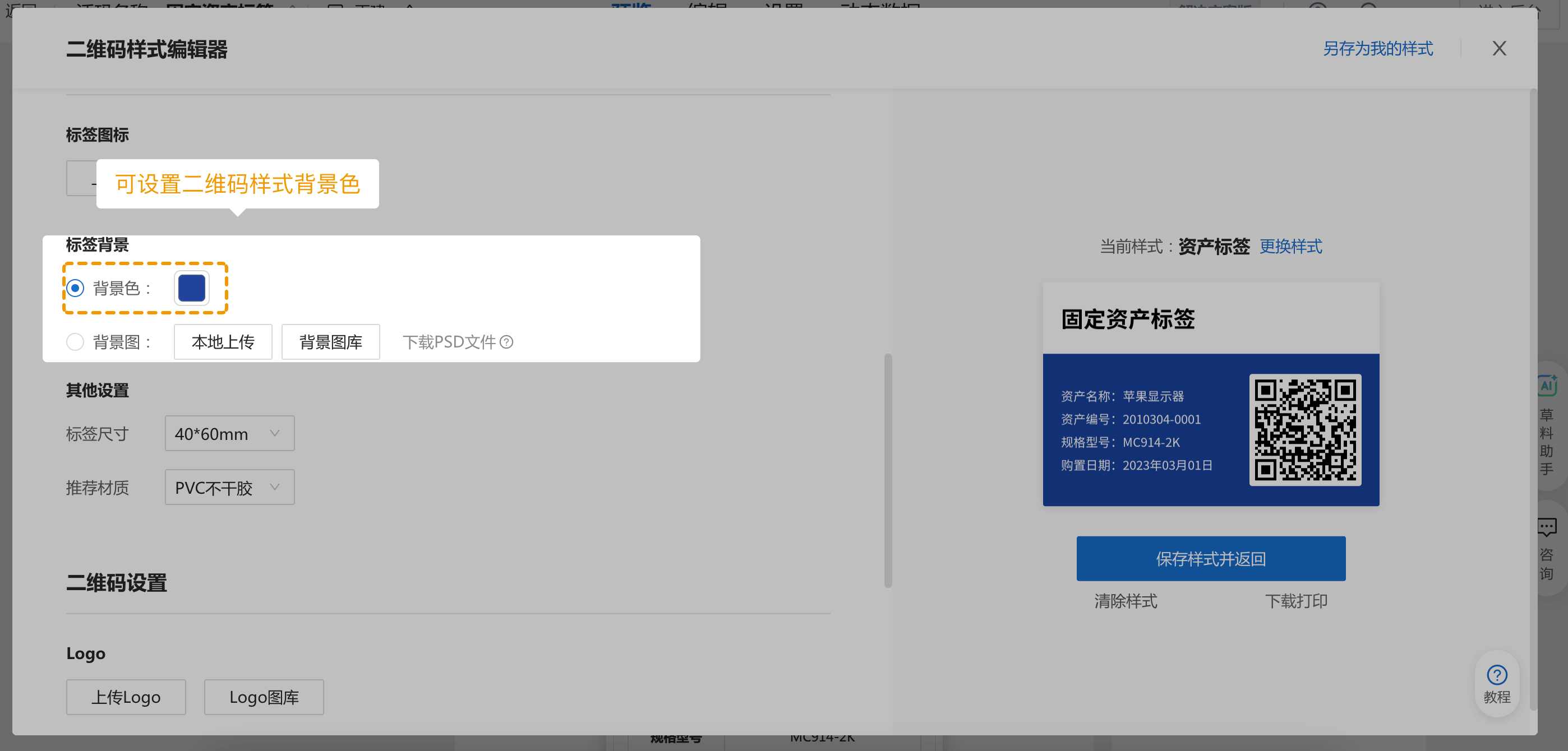
The system provides a curated set of print-friendly colors for quick selection. The system also calculates a set of recommended colors based on your uploaded logo, helping you create a more cohesive label style.
Setting a Background Image
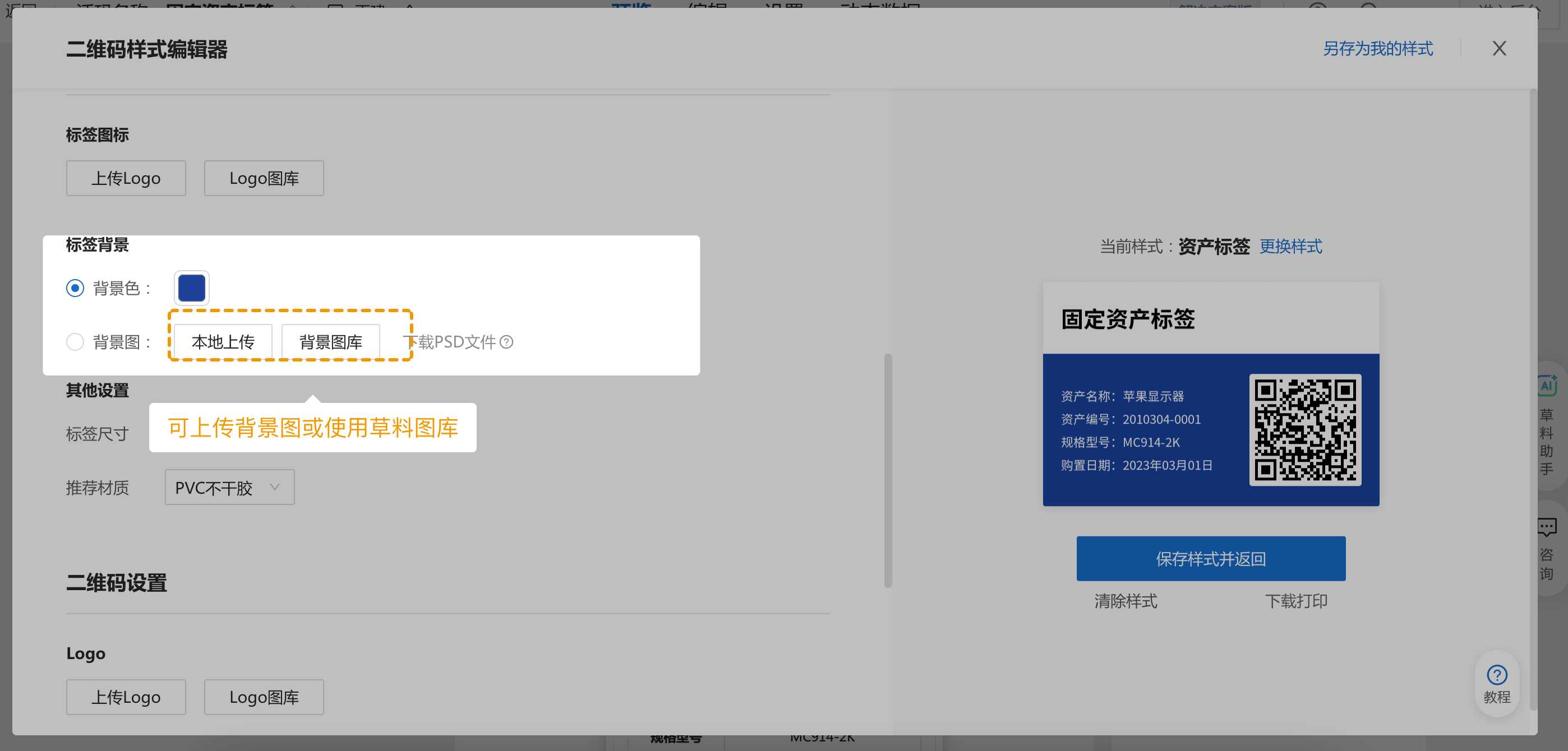
1. Upload a Local Image
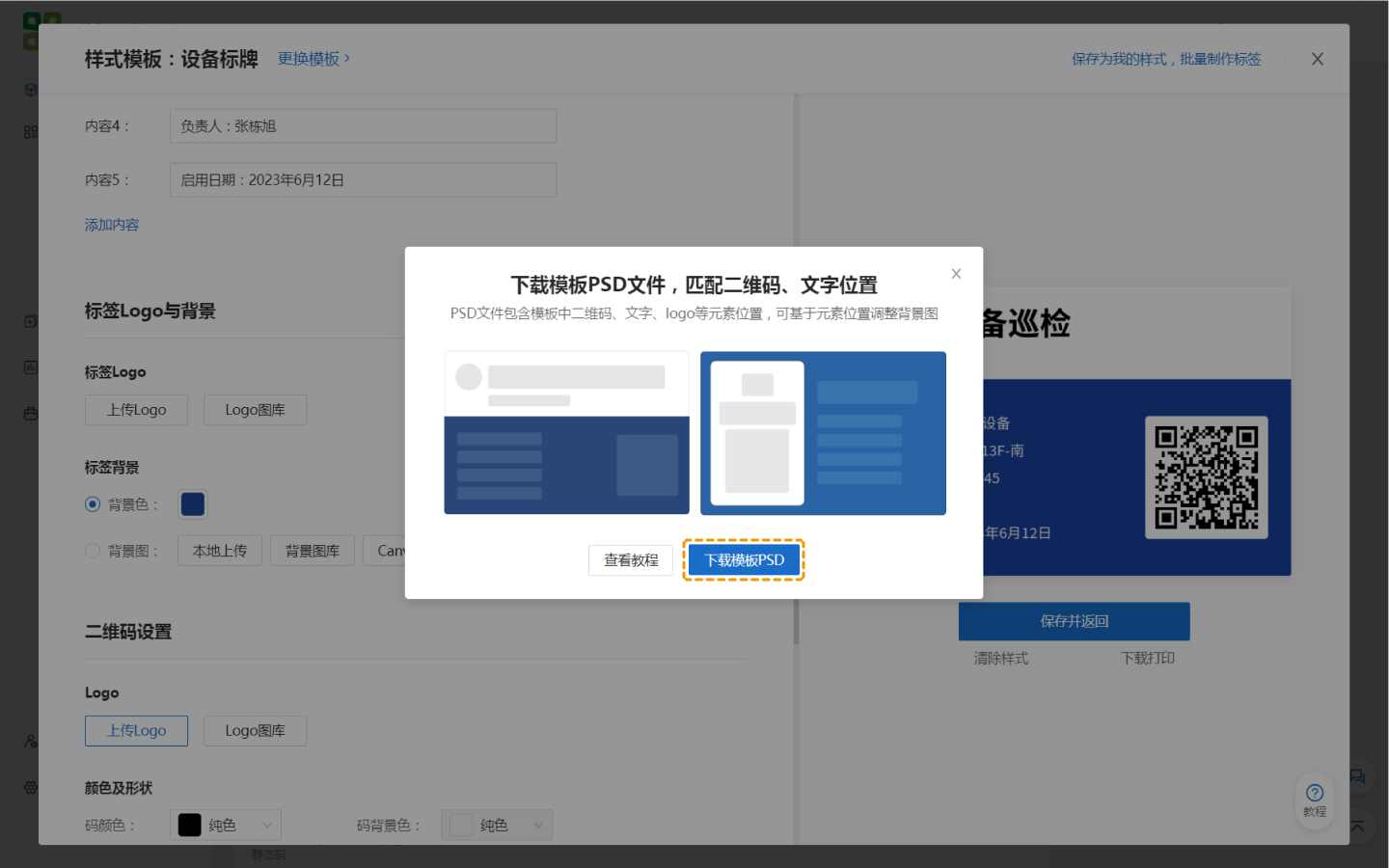
Upload a locally designed background image to create label styles that match your corporate identity or business scenario. CaoLiao also provides a PSD file for the style background, which you can use to confirm dimensions during the design process and plan the placement of the QR code, text, and other elements in advance — helping you create a background image that fits the style perfectly. Click the question mark icon next to the background image field to download the PSD template.
2. Select a Preset Background Image
The system provides a library of preset background images tailored for different styles, ready for quick selection and application across various scenarios.
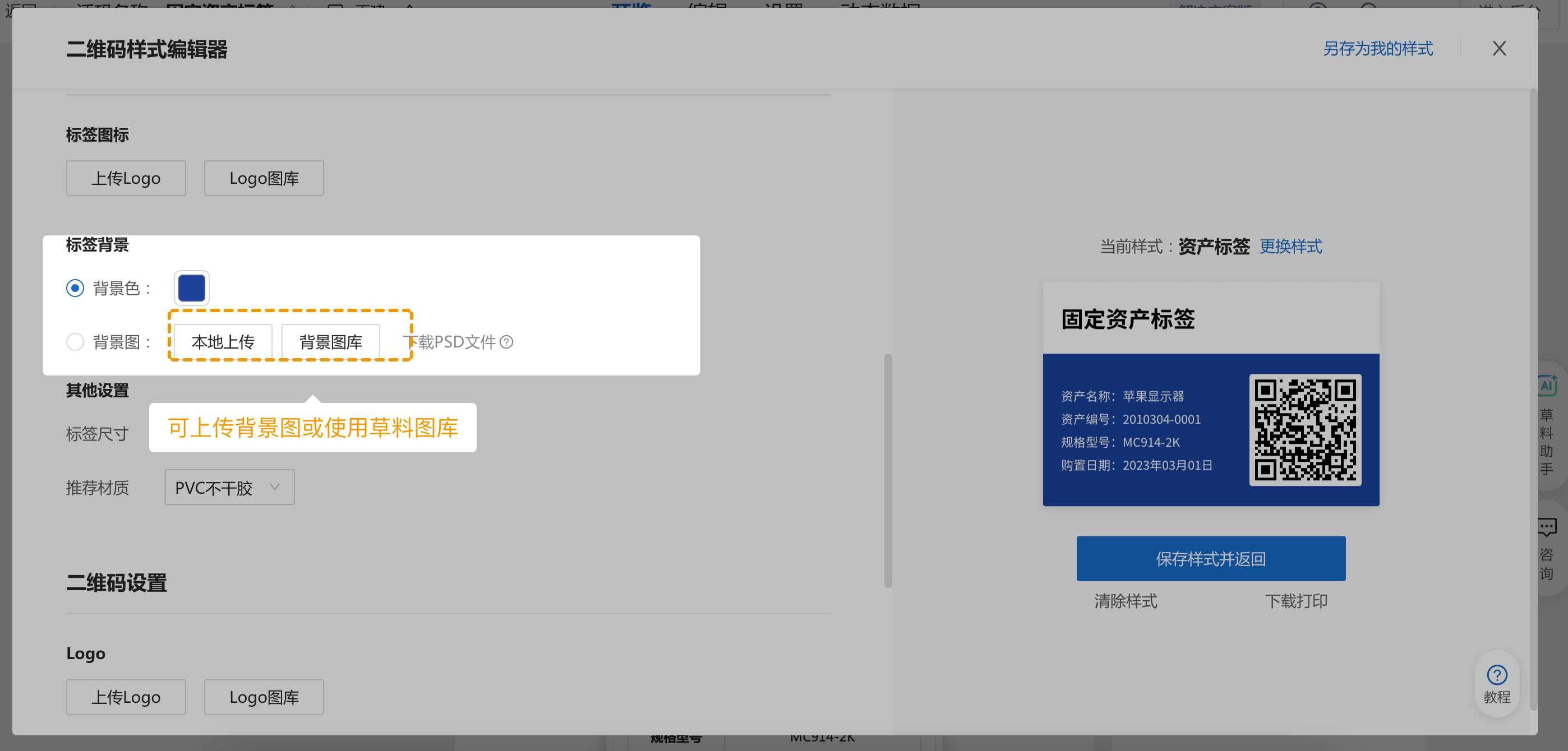
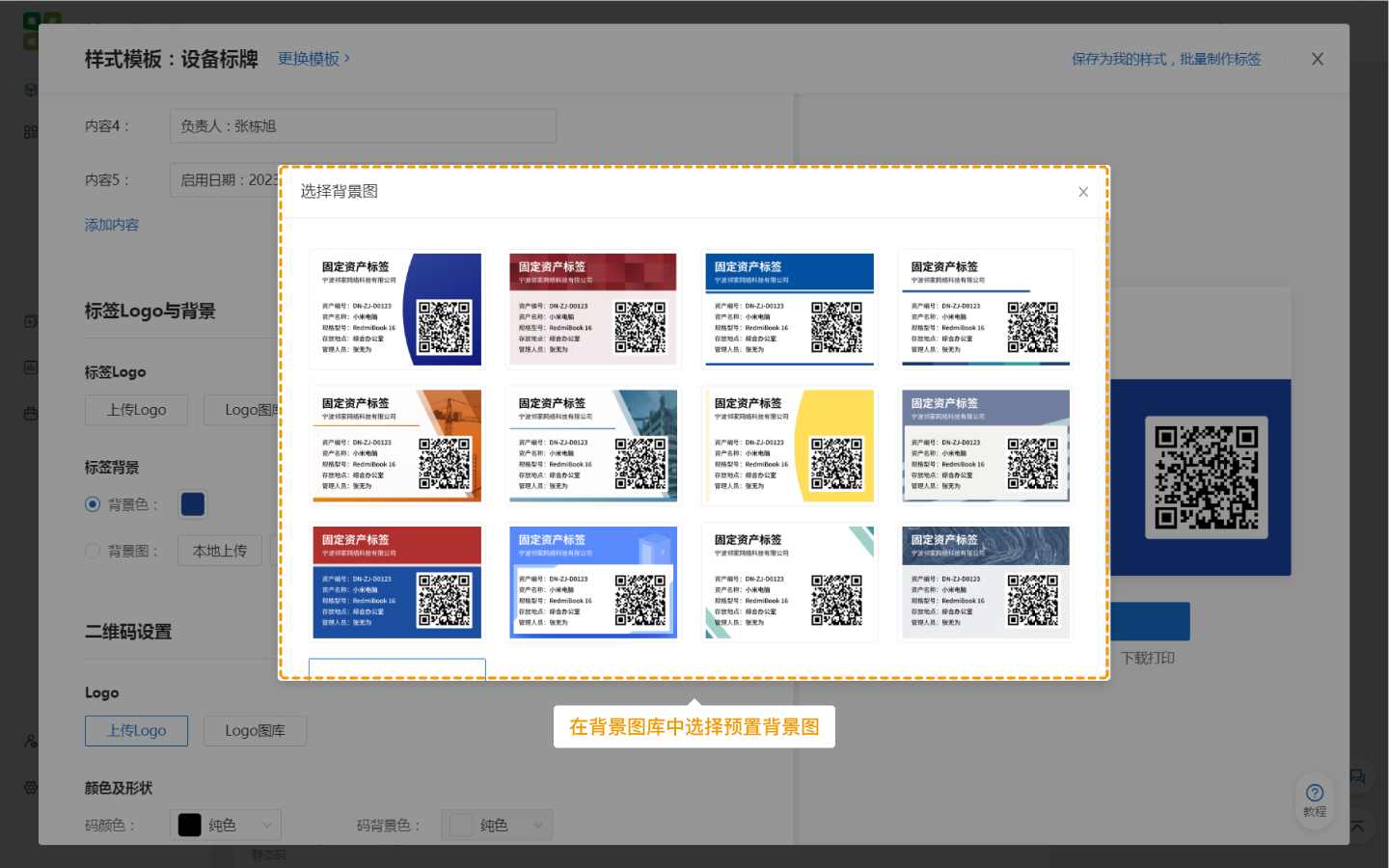
Advanced Background Options
Background Overlay
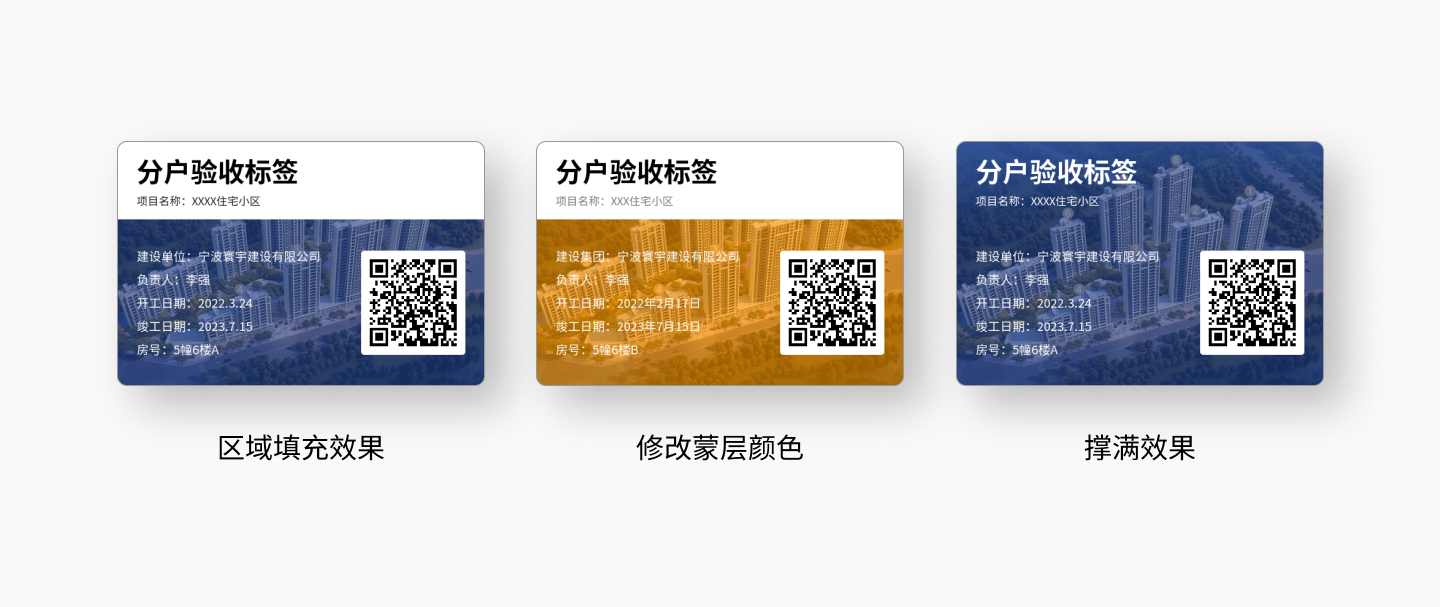
Label background images support an image overlay feature. The system generates a set of colors derived from the uploaded background image to use as an overlay, creating a more visually polished label overall. Uploading product images, project images, corporate images, or asset images is recommended for a result that better aligns with your business context.
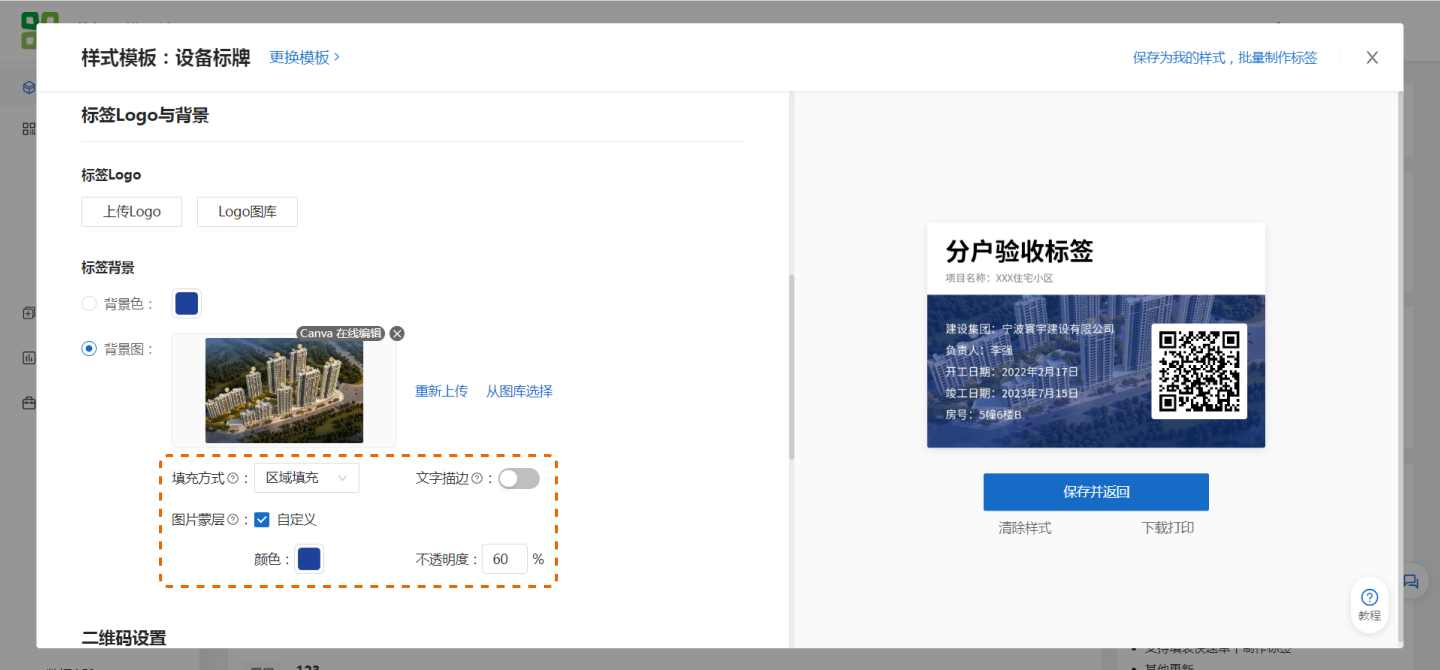
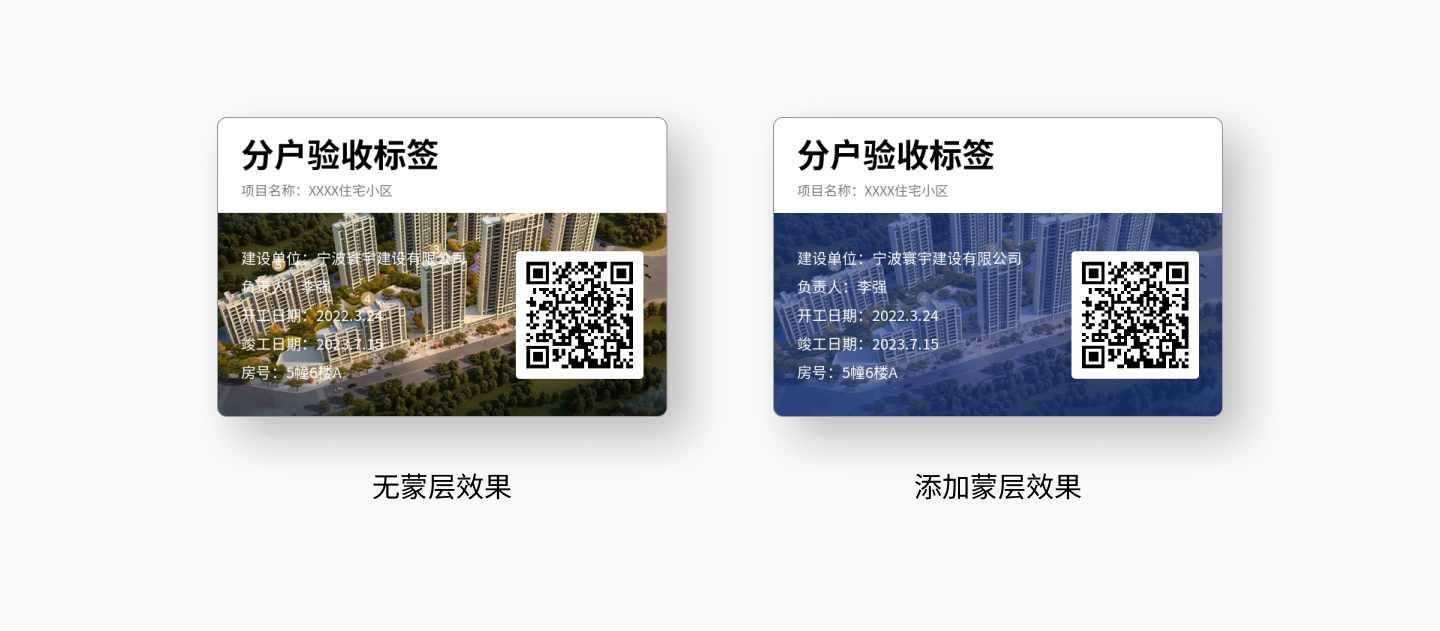
Some label background overlays support two effects — Region Fill and Fill to Fit — with customizable overlay color and opacity.