Custom Word Label Styles
Feature Overview
If CaoLiao's provided A4 label styles do not meet your enterprise's requirements, you can use an existing local Word file, adjust the fields to display, insert variable field codes, reformat the layout, and upload it — enabling batch generation of A4 files where each file has different content tailored to your needs.
Custom Word label styles enable flexible layout customization. After bulk QR code generation, simply configure the Word template and sub-code data will be automatically populated, generating individual files with different content. Files can be quickly printed using a standard A4 printer. This is well-suited for scenarios such as process routing, electrical panel daily inspection, and personnel information archives.
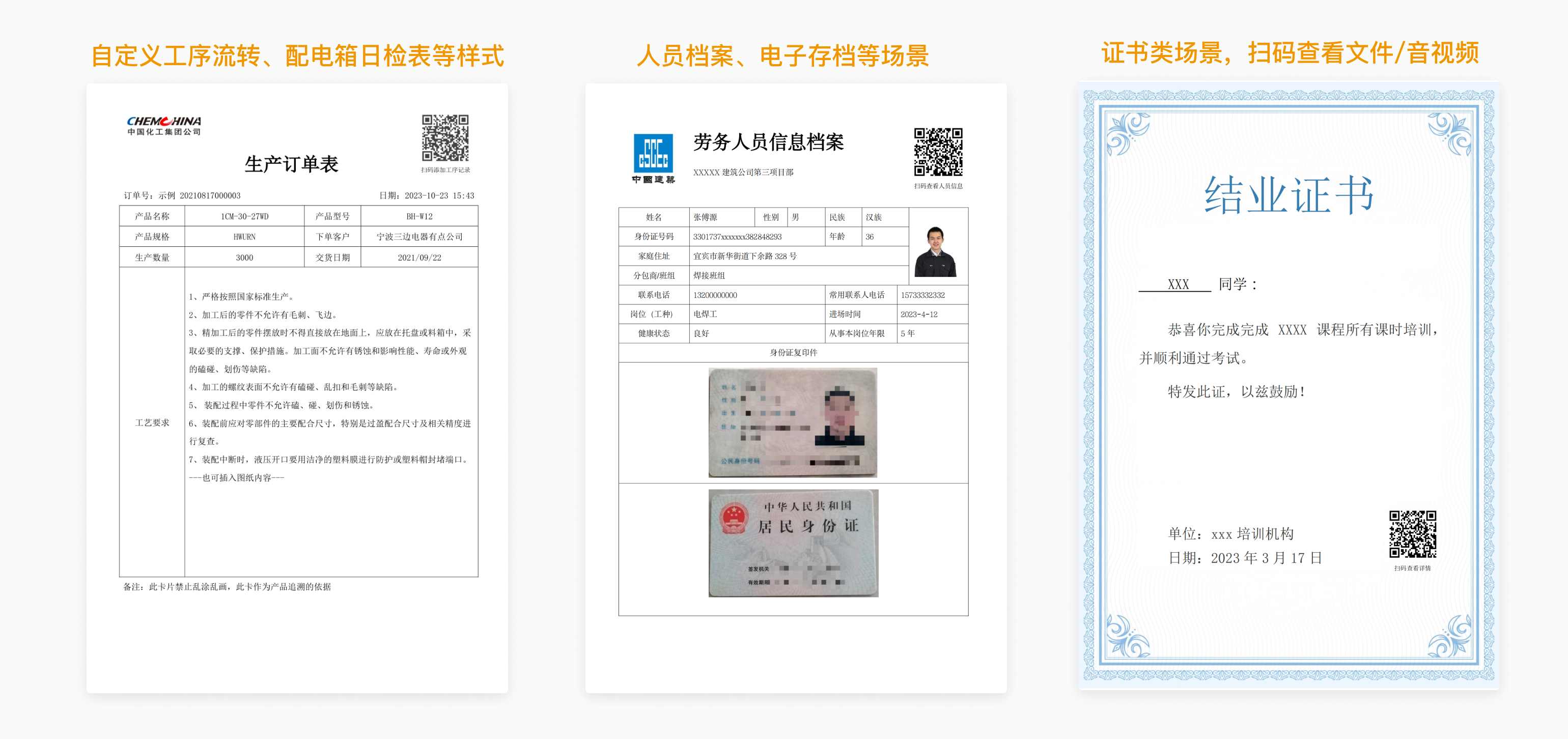
Customization Workflow
1. Use an Official Template or a Local Word File
CaoLiao provides sample A4 Word templates for scenarios such as electrical panel daily inspection and process routing. You can download them directly, adjust the Word layout details, and then use them.
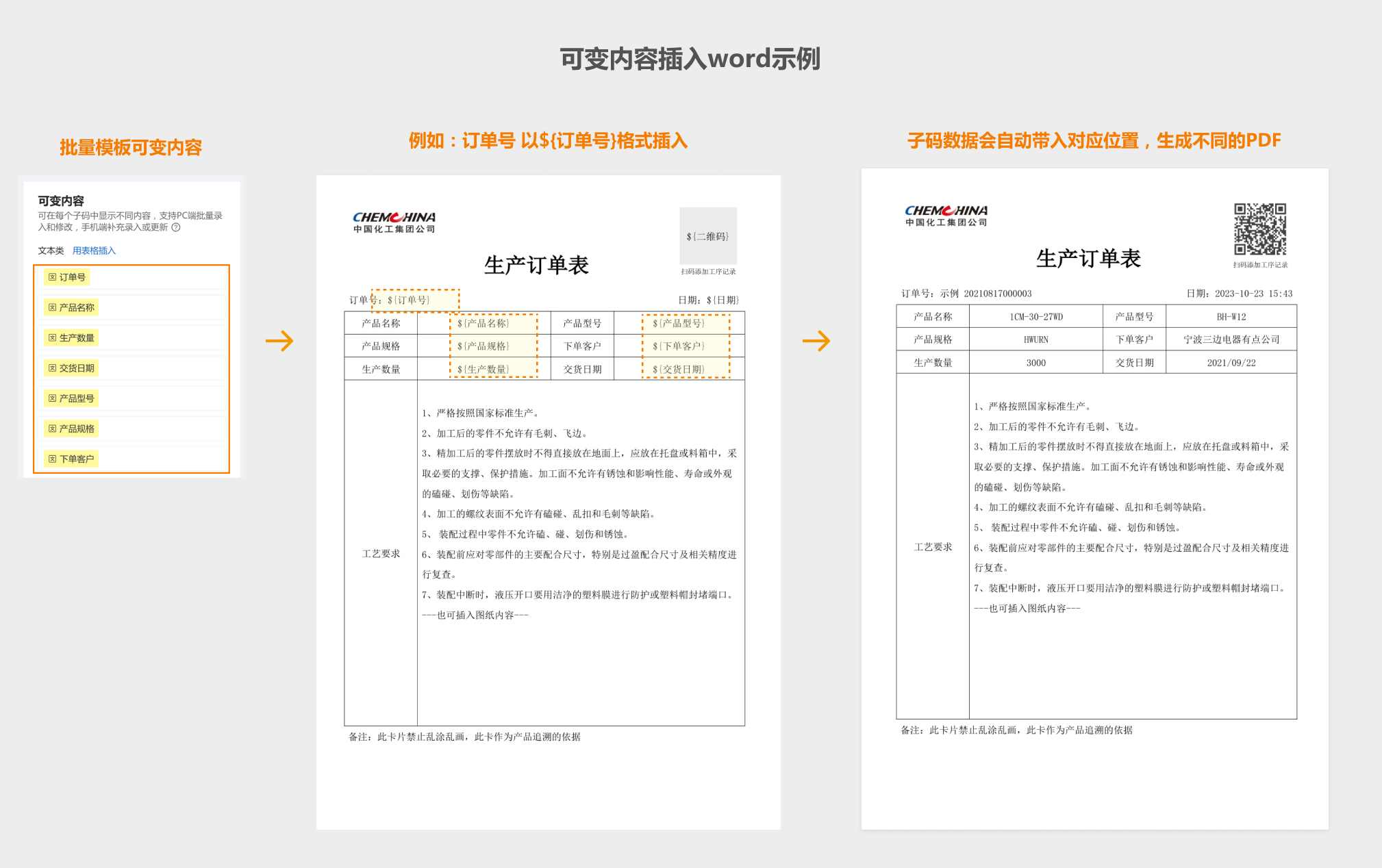
You can also use an existing enterprise Word file. Variable content from the bulk template must be inserted into the Word file as placeholders in the format ${variable content name}. Once uploaded and saved, sub-code data will be automatically inserted at the corresponding positions.
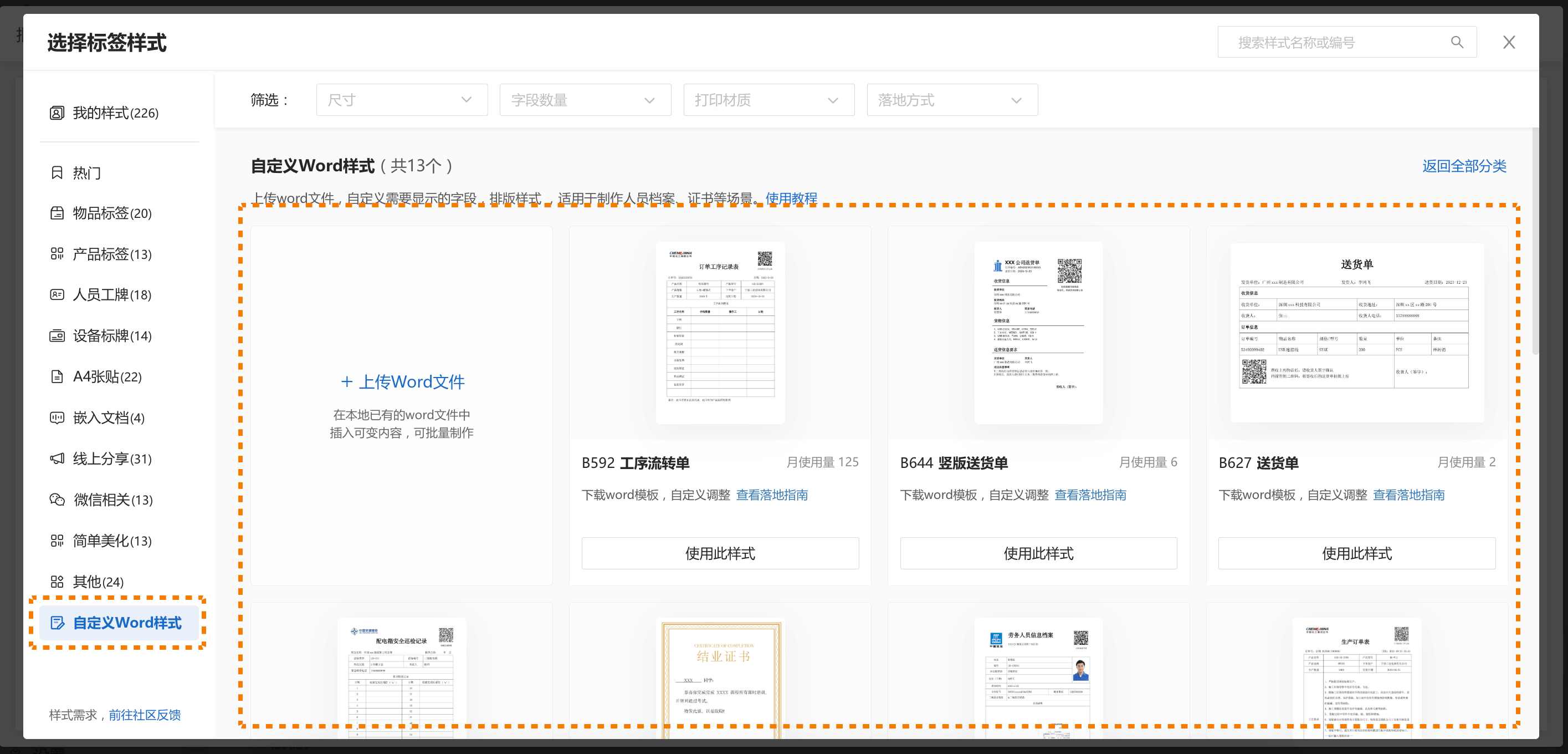
Note: Batch labels do not yet have a dedicated upload entry for Word files. You can select any Word style and then upload your local Word file.
2. Insert Variable Content Fields
Copy the "variable content field code" and paste it into the corresponding position in the Word file where the content should appear. Alternatively, directly insert the variable content from the bulk template into the Word file using the ${variable content name} format as a placeholder. Once uploaded and saved, sub-code data will be automatically inserted at the corresponding positions.
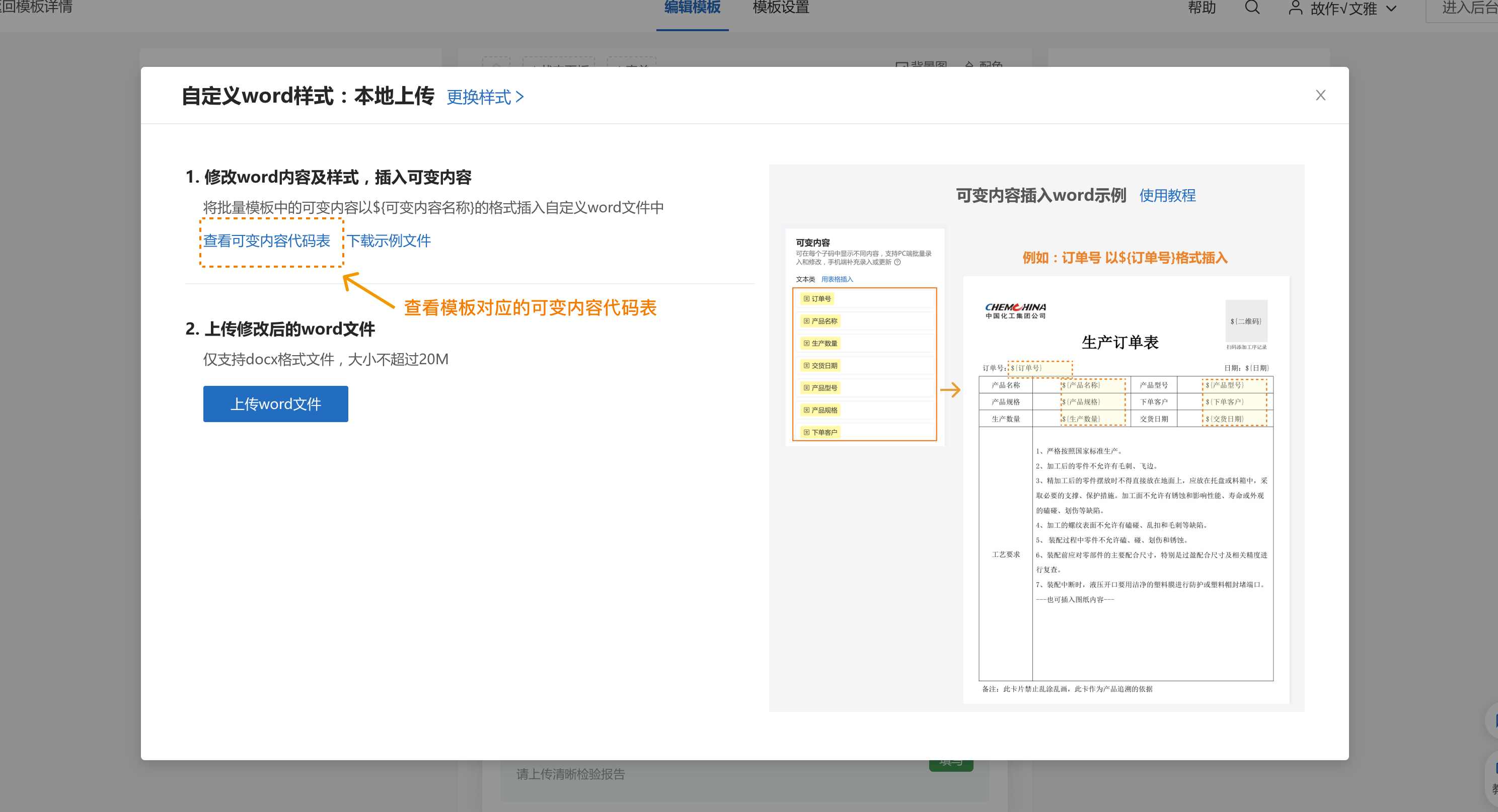
2.1 How to access the field code table: In the label style panel, select the custom A4 label style, click "Upload Custom Word File," and the "Field Code Table" for that template will be displayed.
2.2 Video tutorial for inserting field codes:
3. Word Layout Tutorial
We have compiled a Word layout tutorial with relevant notes for reference when adjusting your layout.
Common questions:
-
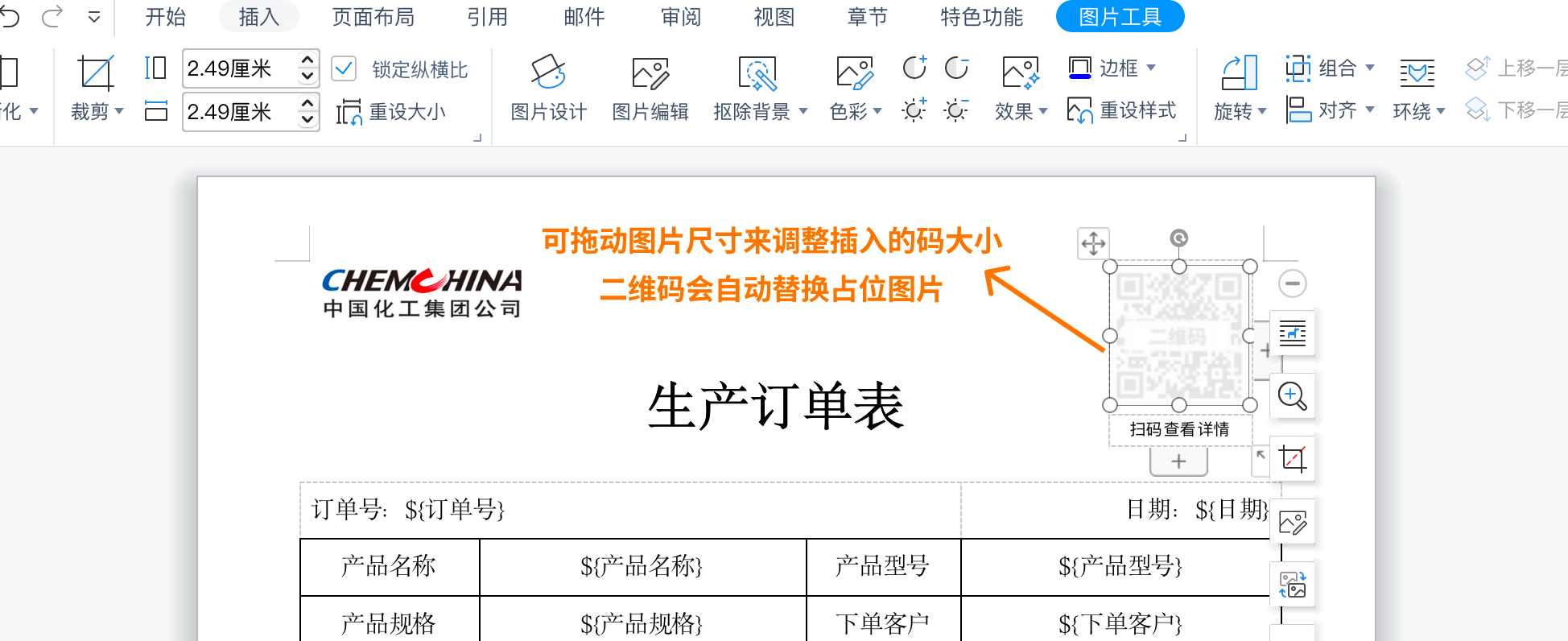
How do I adjust the size of an inserted QR code?
After pasting the QR code placeholder component from the field code table into your Word file, you can directly resize it by dragging the placeholder image's handles.
-
How do I adjust the width and height of an inserted image?
The default image height is 40mm, but you can customize the width and height. The image will be inserted at the specified dimensions. You only need to paste the placeholder once — if there are multiple images, they will be automatically laid out during export.
Example: To set an image to 26mm × 35mm, modify the code to
${Photo:26mmx35mm}.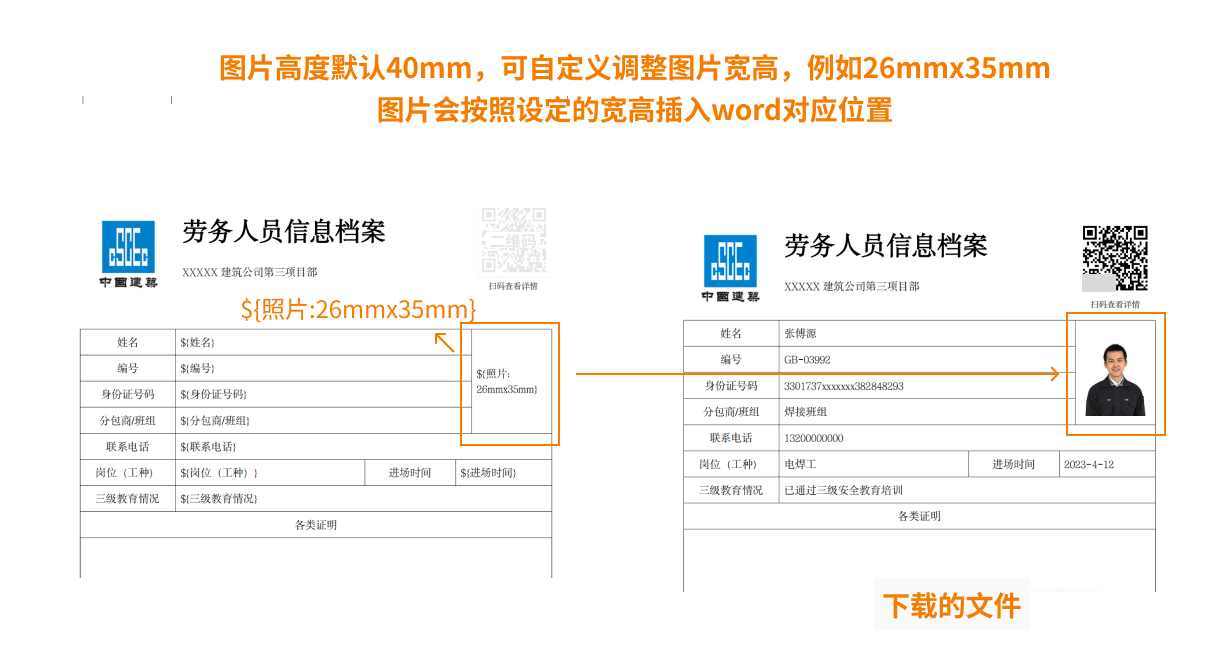
For more Word layout tutorials and explanations of common issues, click the button below for detailed information.
4. Upload Your Custom Word File
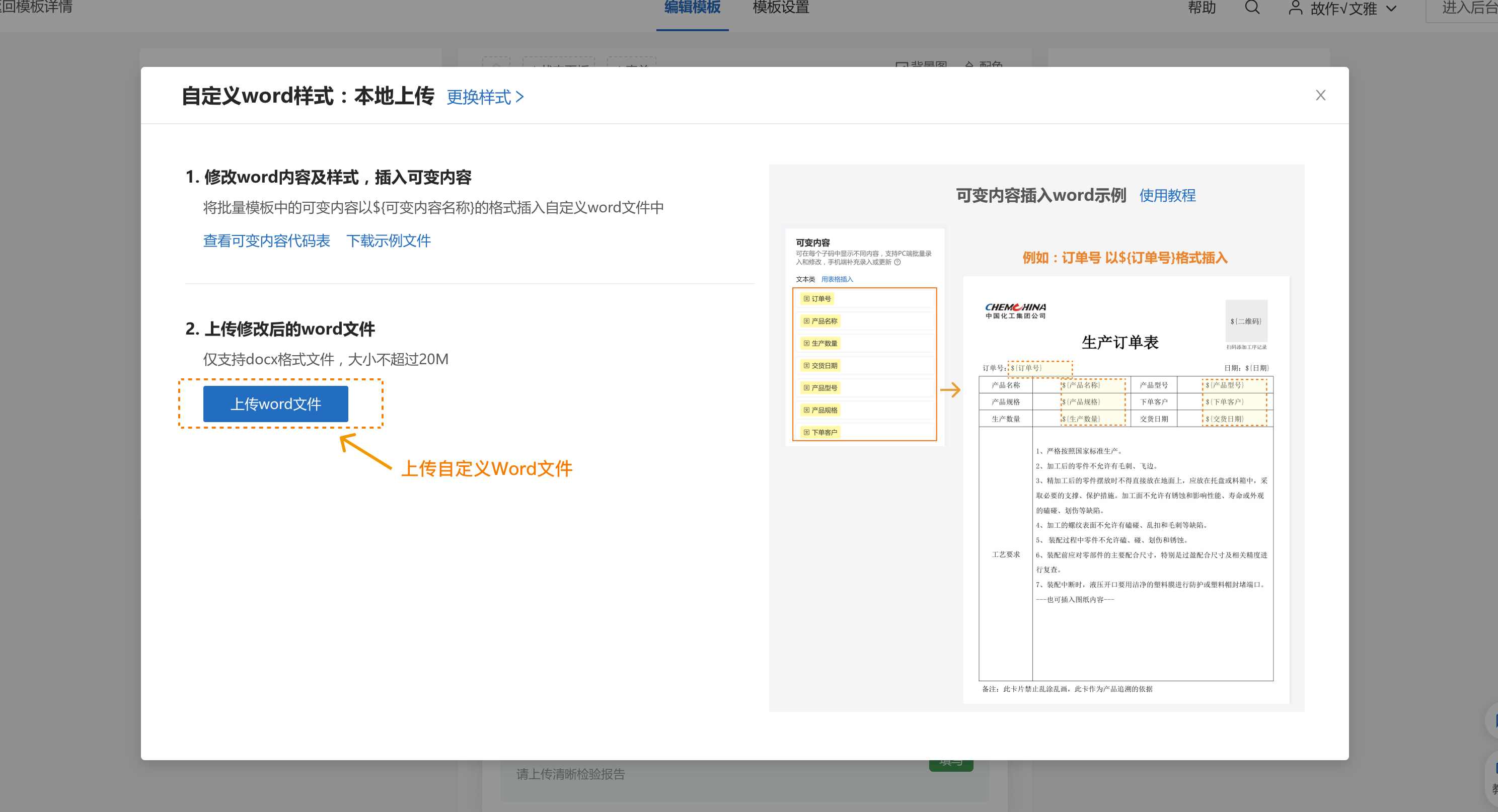
After finalizing the layout, adding beautification, and inserting field codes, save the Word file locally, then click "Upload Custom Word File."
Only .docx format is supported; file size must not exceed 20MB.
5. Download and Print
After uploading and saving, sub-code content will be automatically populated into the Word file, generating individual files for each code. On the template detail page, click Batch Download. Use a standard A4 printer to quickly print and deploy.
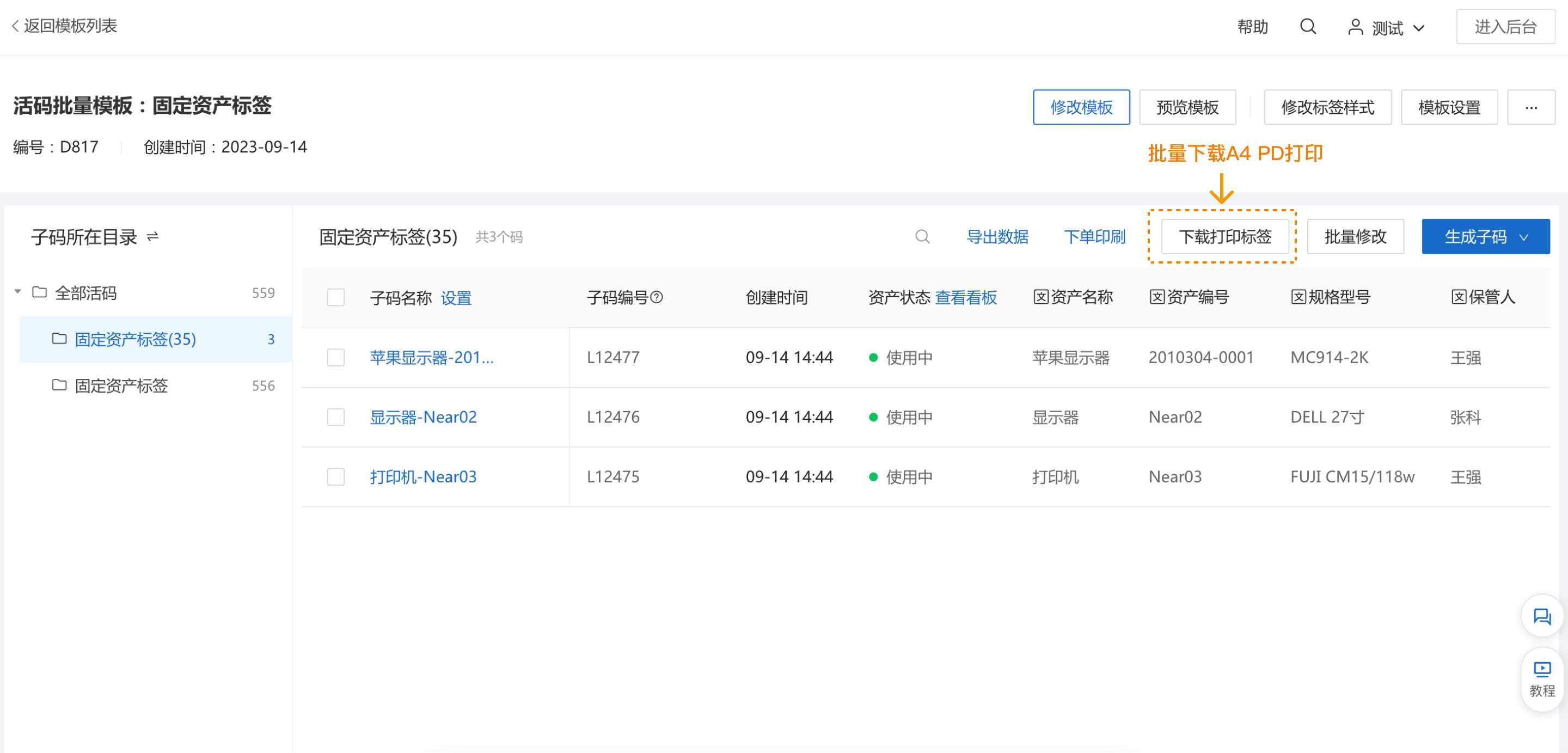
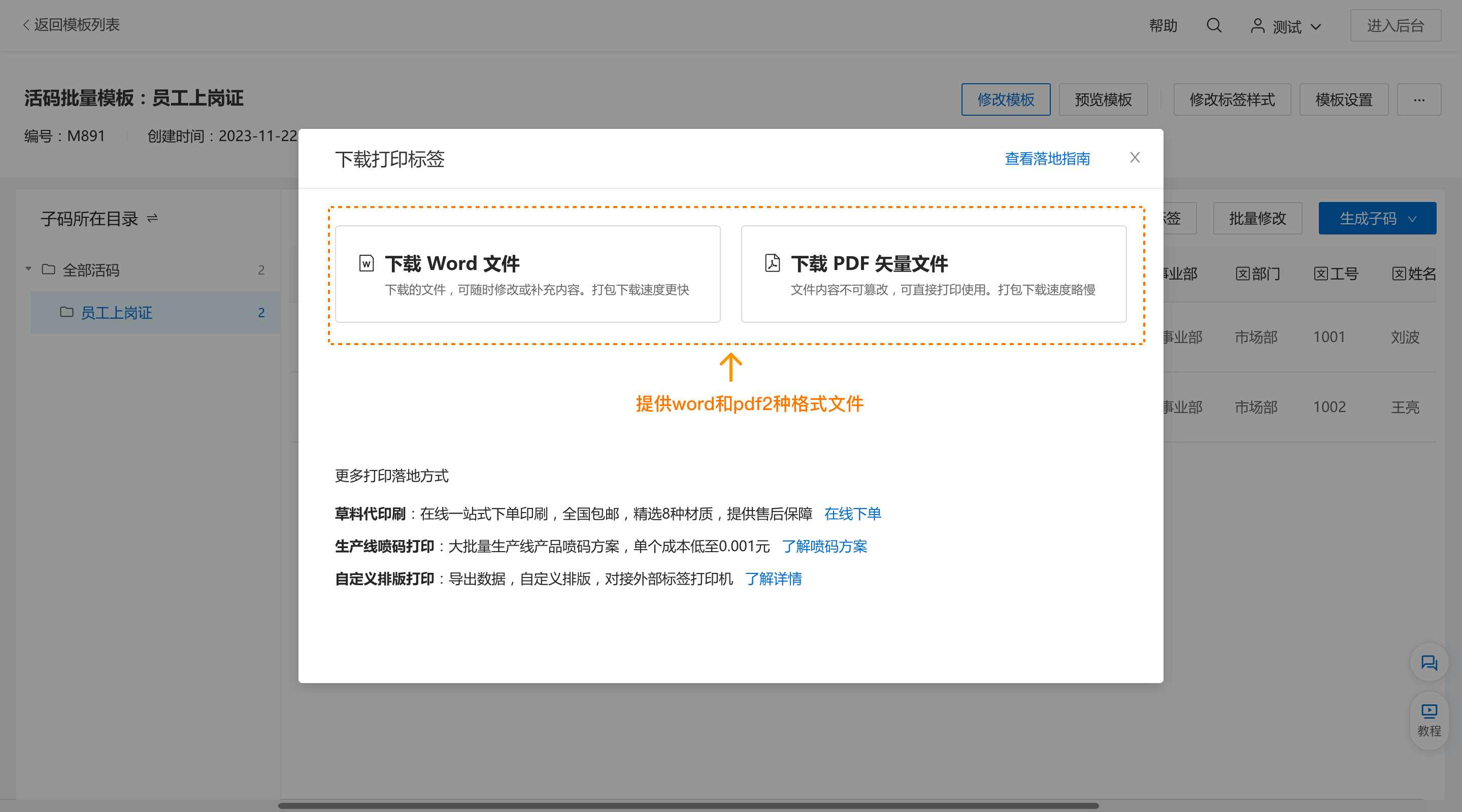
Each sub-code corresponds to one A4 file. Currently, Word and PDF formats are both available. Word files can be further edited after downloading for greater flexibility, and batch download is also faster.
Frequently Asked Questions
1. Which Versions of Word Are Supported for Upload?
Recommended: Microsoft Word 2007–2019 (.docx format).
2. Why Does My Word File Fail to Upload?
Only .docx format is supported. The .doc format is not supported.
3. Can Batch Labels Use a Custom A4 Template?
Yes. On the label production page, select the custom Word style category and upload your Word file.
4. Why Does the Exported PDF Have Different Cell Heights from My Template?
Since the actual content filled in during export may be longer or shorter than the field code placeholder, it can cause line wrapping and push the cell height. The final exported result should be used as the reference.
5. Why Does the QR Code Look Fine in the PDF Preview but Get Cut Off When Printed?
This can happen if the printer scales up the page content. If the QR code is near the edge of the page, it may be clipped. In your print settings, try adjusting the page scale to 98%.