Custom Label Layout
If the styles available in CaoLiao's design library do not meet your needs, refer to this tutorial to create a custom layout using third-party layout software. After laying out, you can download QR code images directly or print to a label printer.
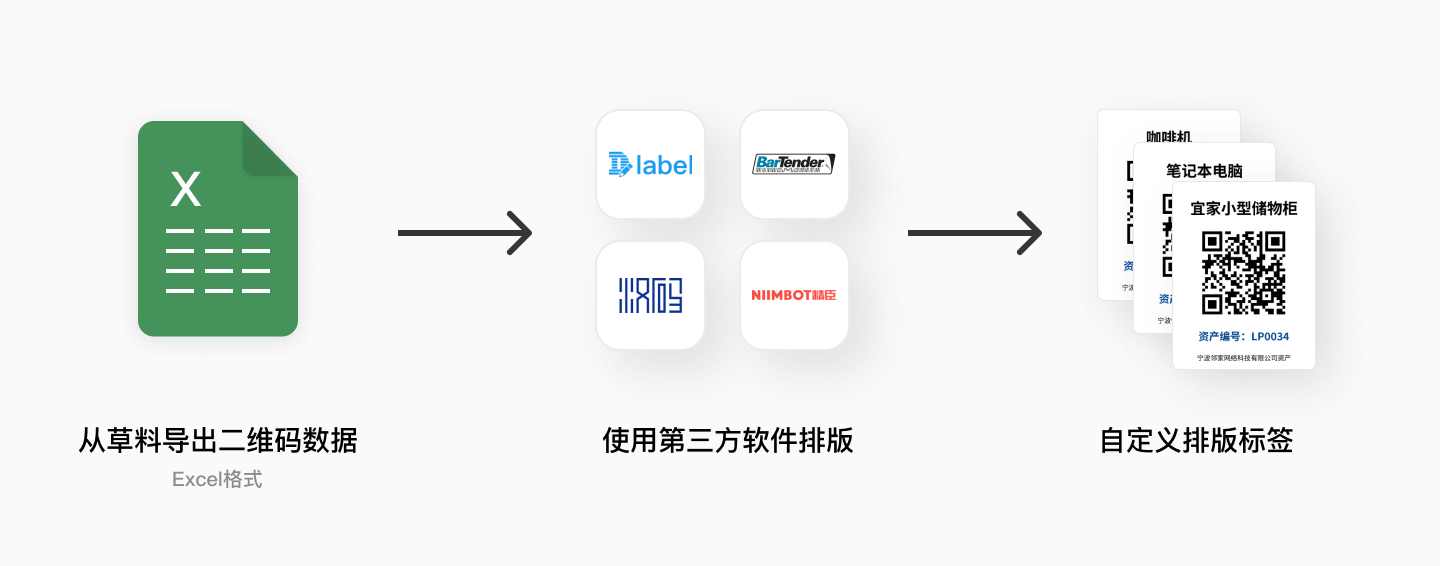
1. Export QR Code Data
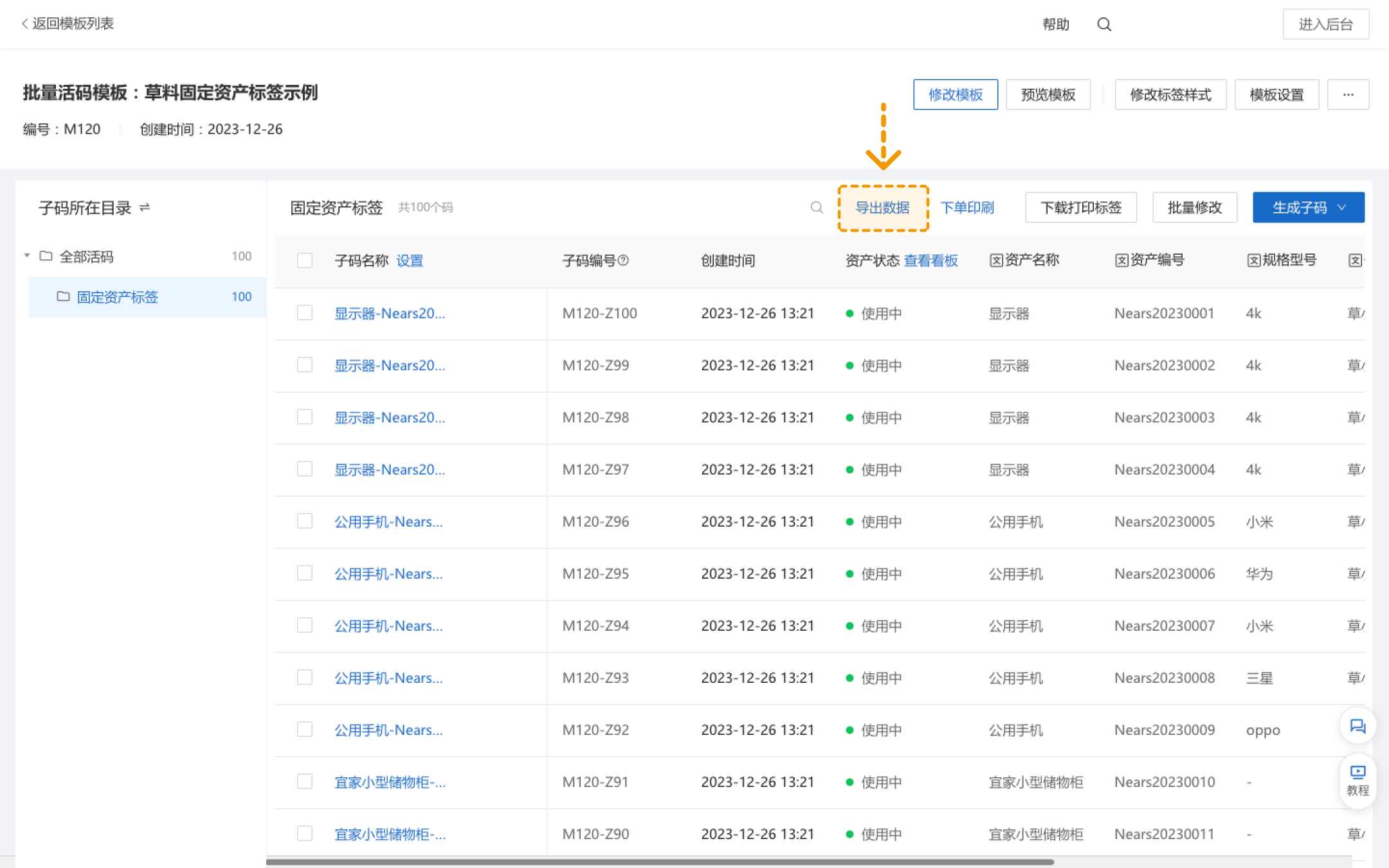
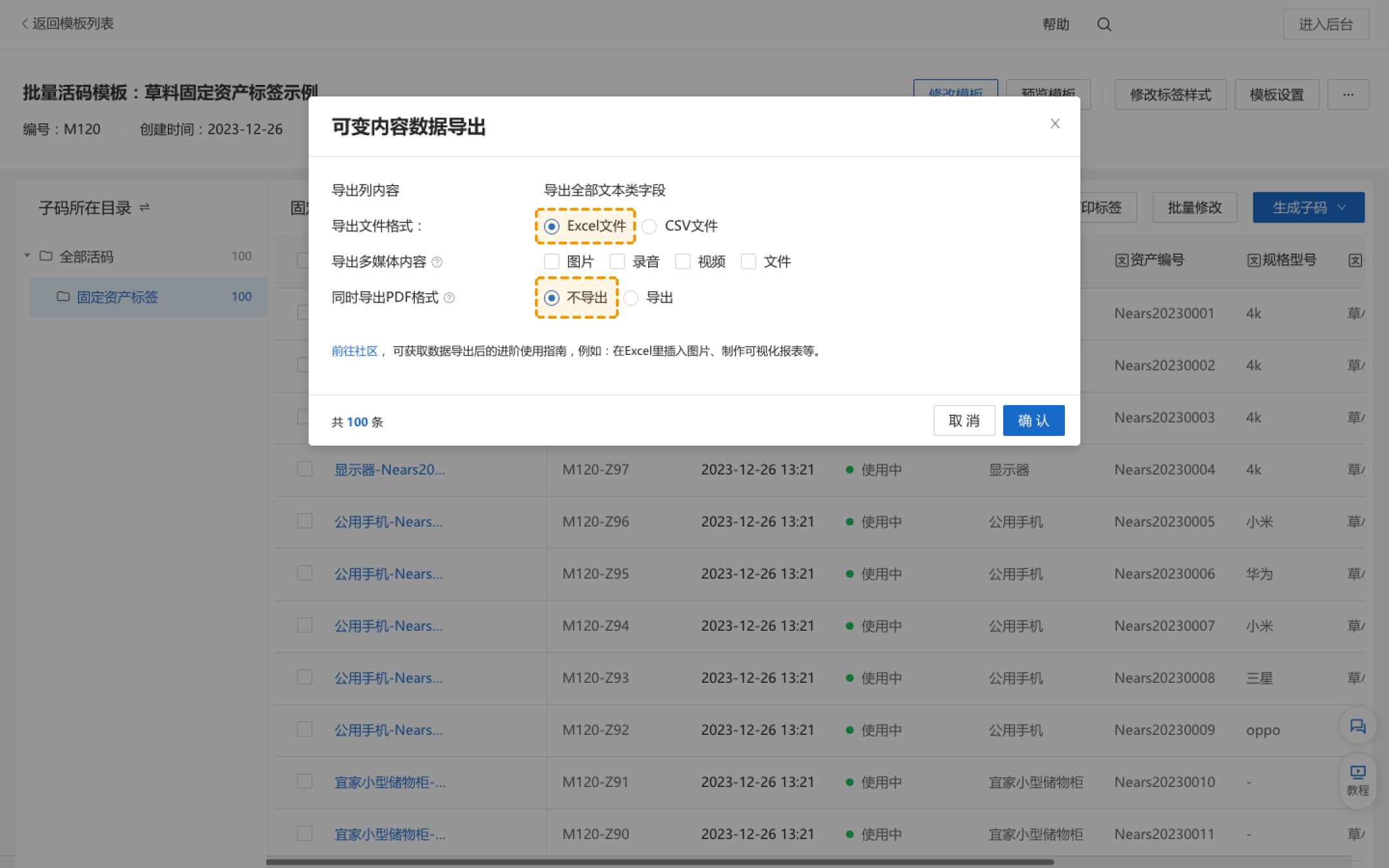
Go to the bulk template detail page, select Export Data, and choose Excel format.
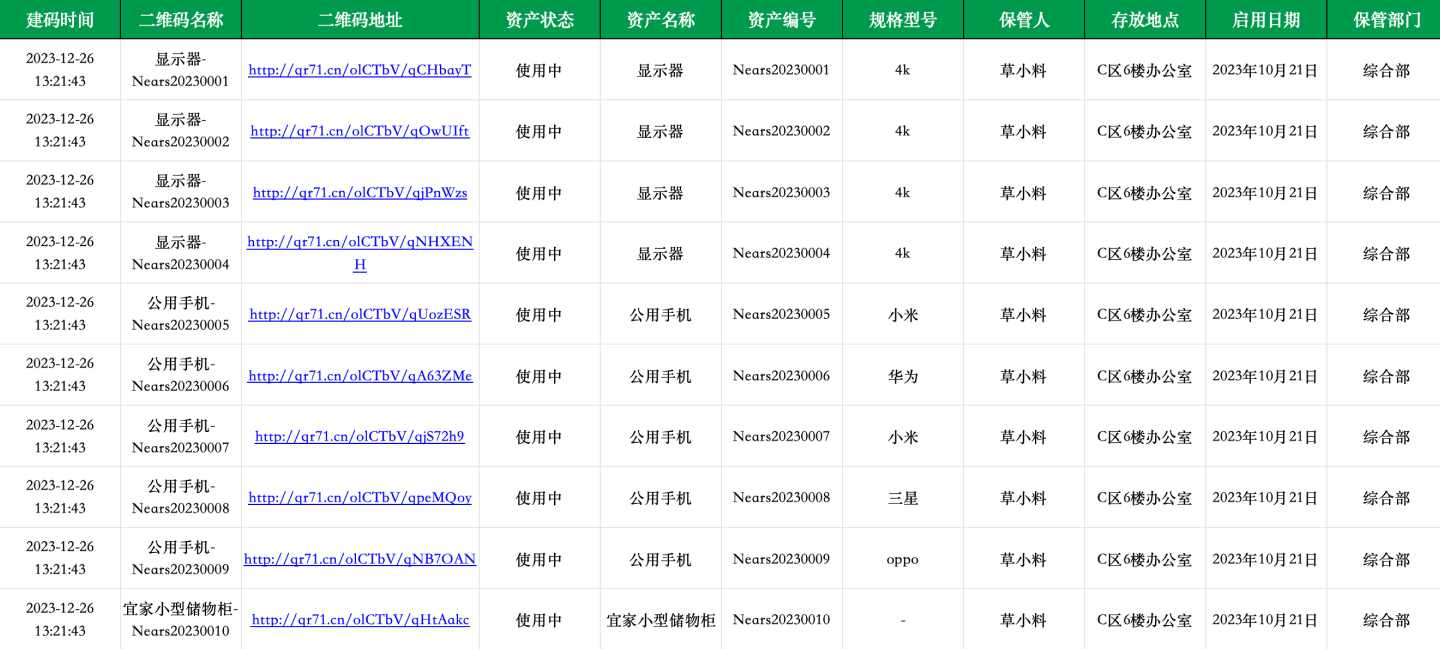
Example of the exported Excel file:
2. Custom Layout with Dlabel
There are many layout software options available, and some label printers come with their own built-in software. The steps may vary between applications, but the underlying process is the same. This tutorial uses Dlabel as an example.
1. Download and Install Dlabel
Visit the Dlabel official website, select the Windows version for download, and choose the 64-bit version.

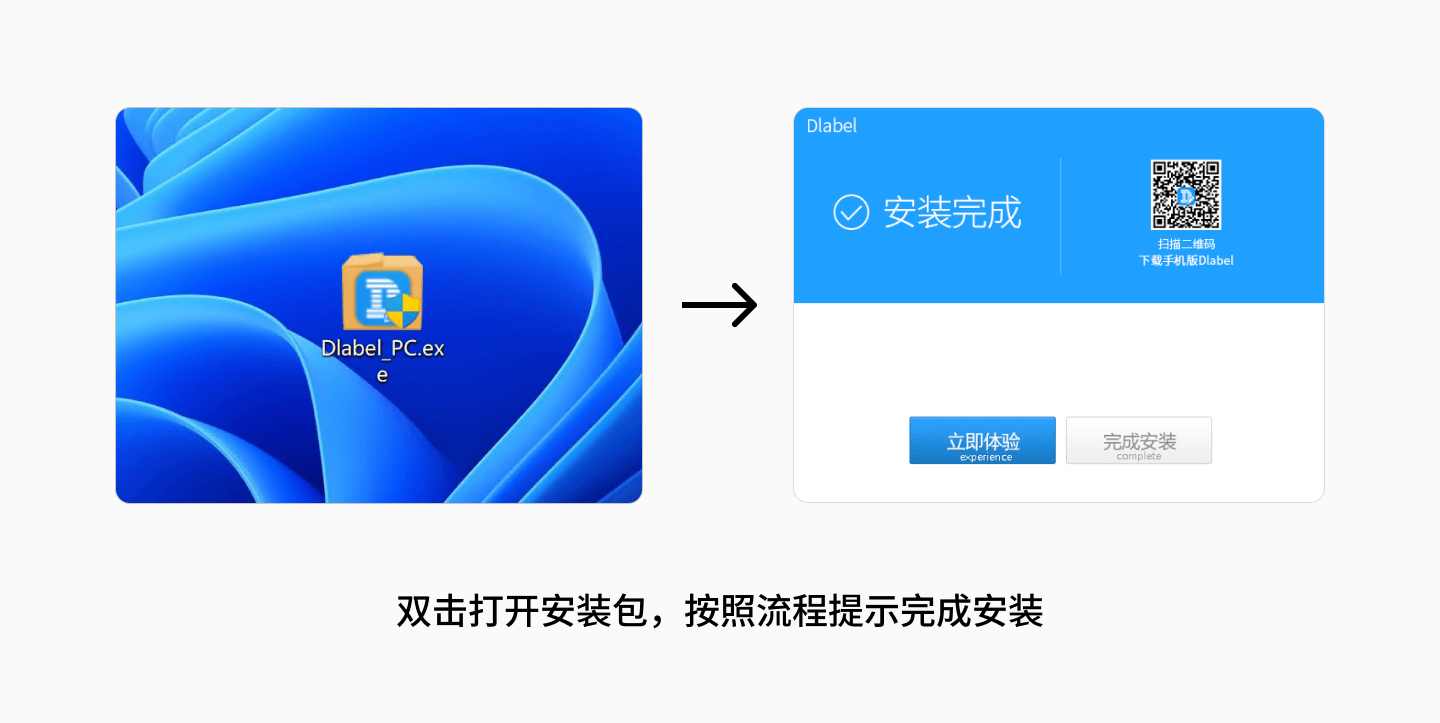
2. Create a Label Template
Open the software, click New Template in the upper right corner, and configure parameters such as label size and background color.
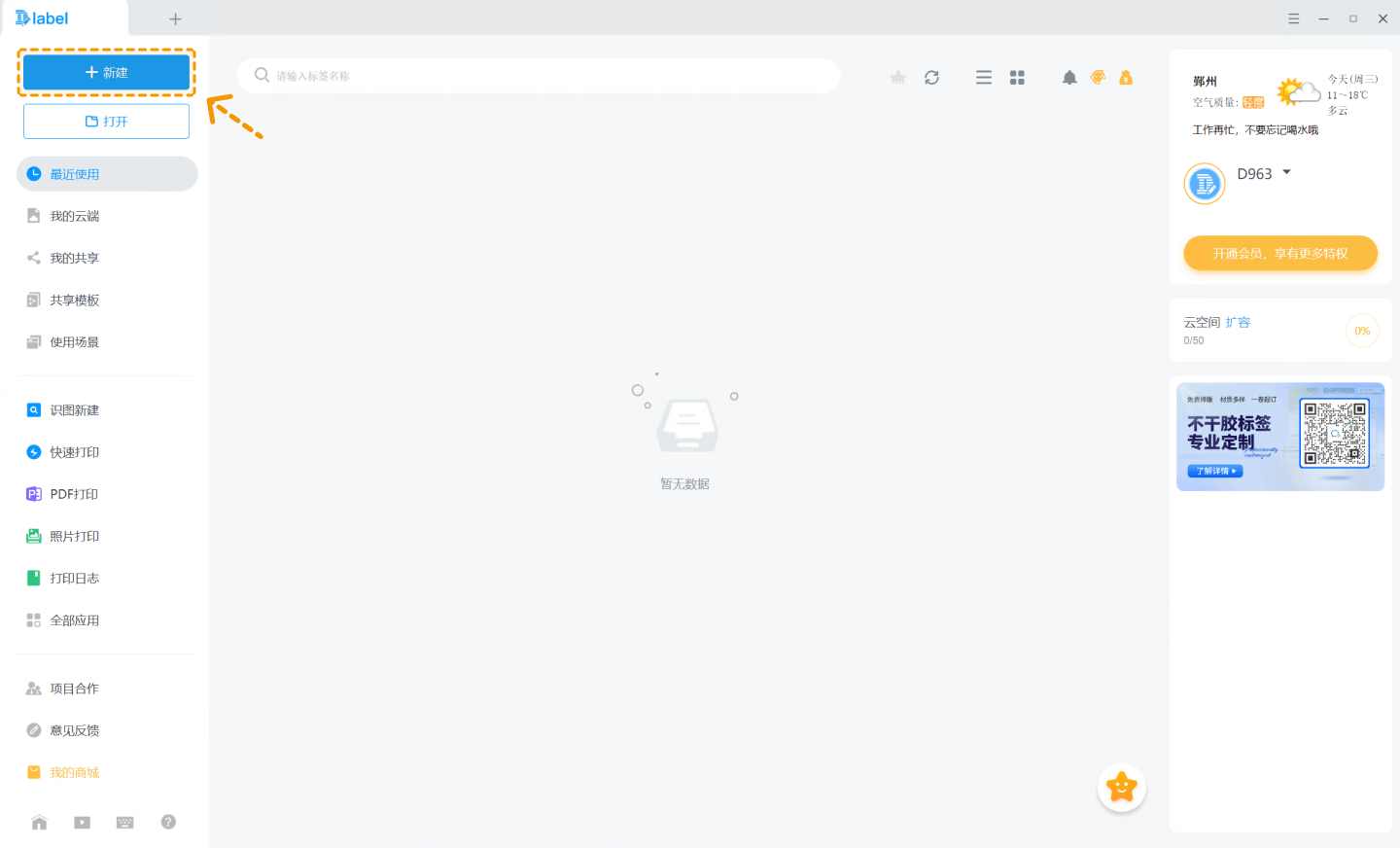
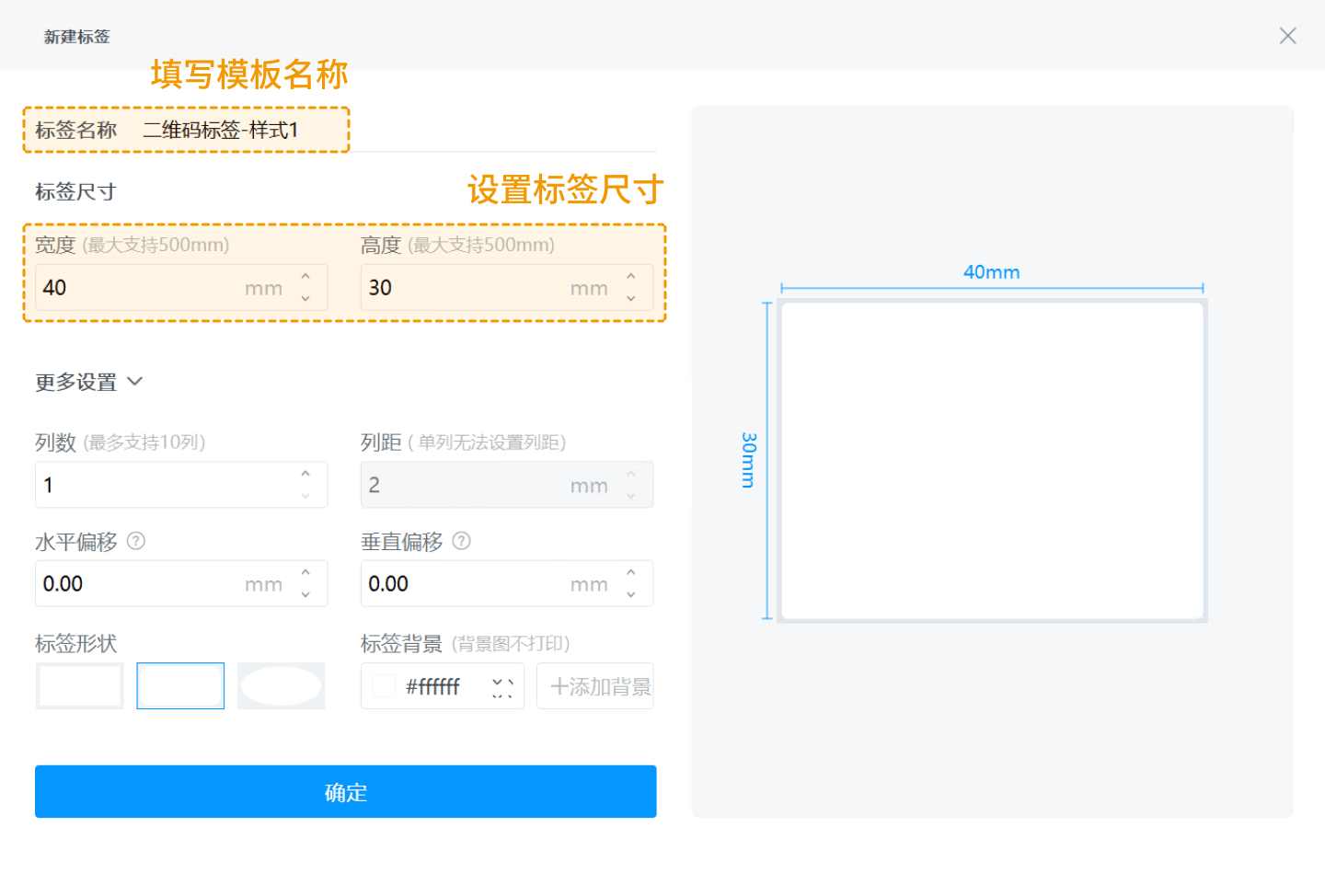
3. Import Excel Data
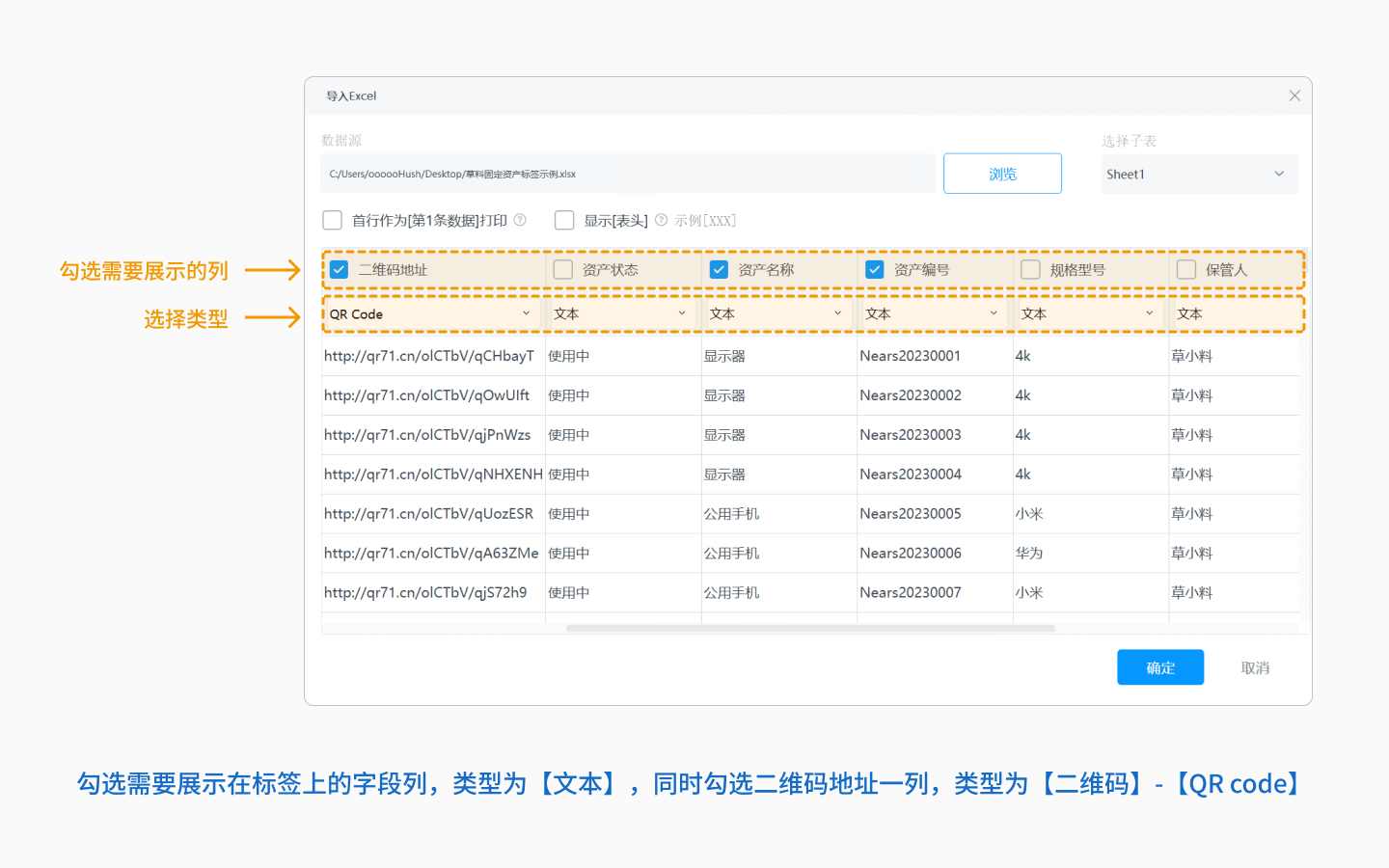
Click the Excel option in the left sidebar and import the Excel file downloaded from CaoLiao.
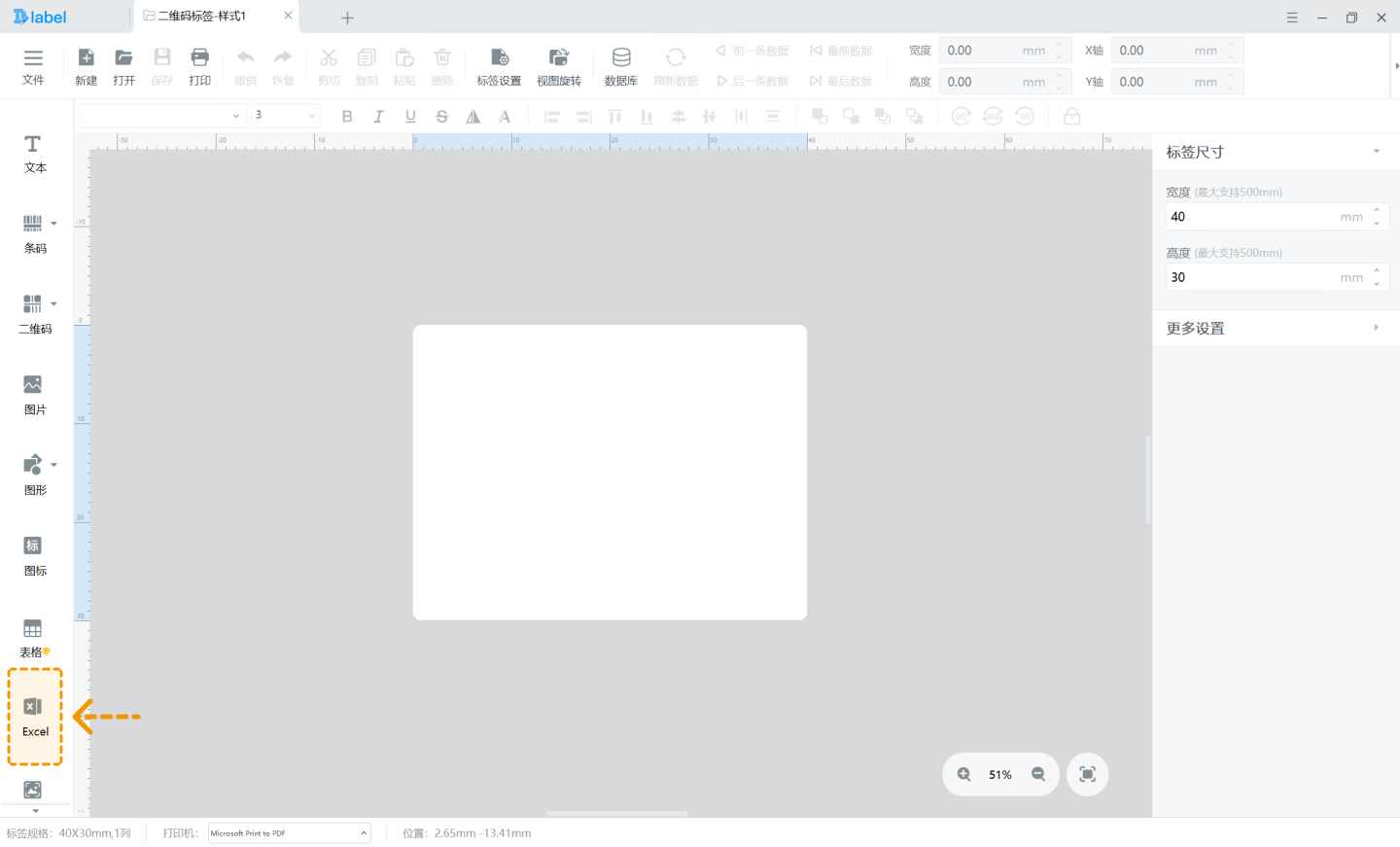
Select the field columns and QR code URL column to display on the label, then click Confirm.
4. Adjust the Label Style
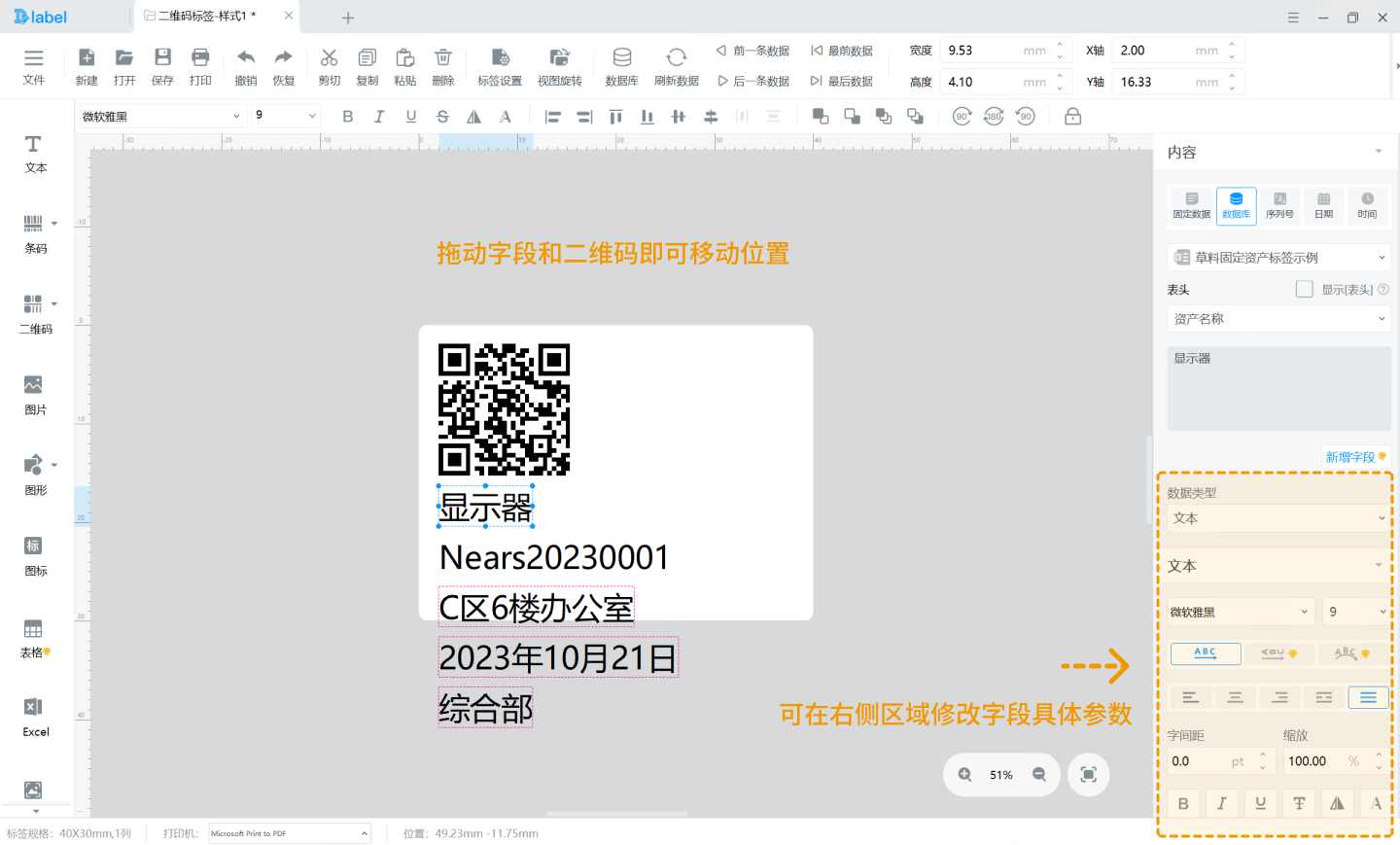
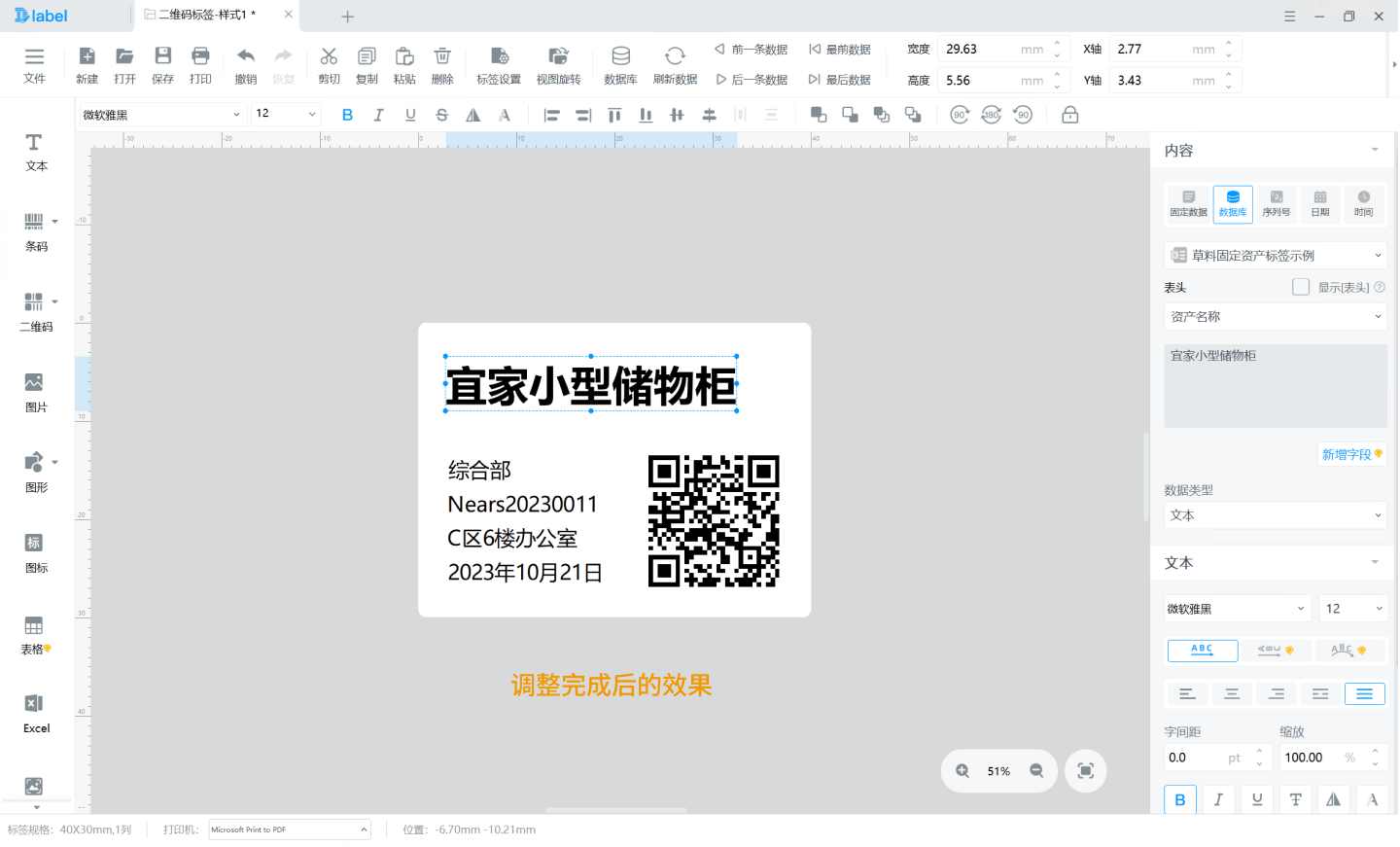
Adjust the position and size of fields and the QR code as needed. Basic text formatting options are available: font size, alignment, bold, italic, and more.
Note:
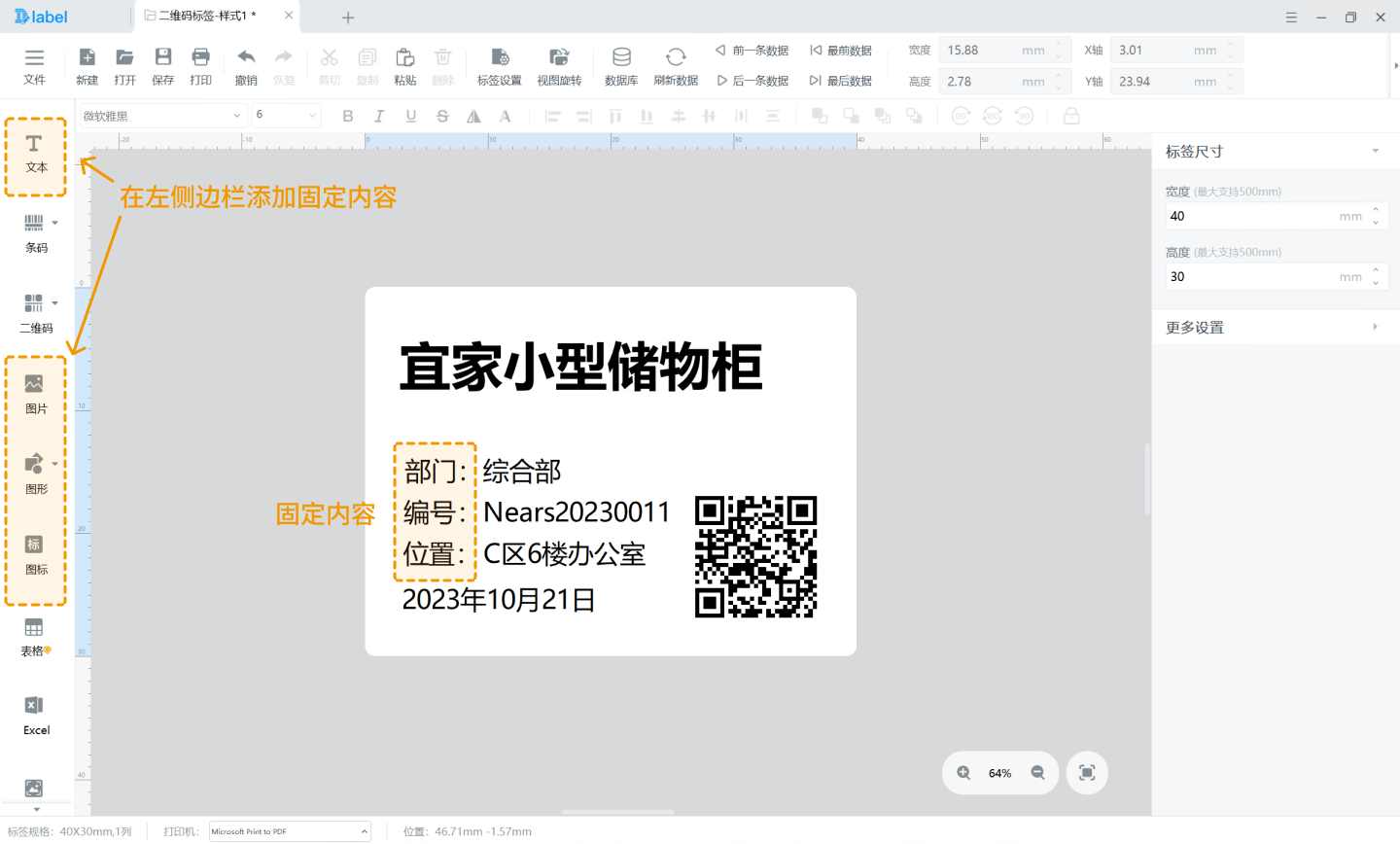
- For content that varies between labels, set the data source to Excel (e.g., department information)
- For content that is the same on every label, type it directly in the designer (e.g., the word "Department")
- See the diagram below for specific operations:
5. Export Labels
Before exporting, use the navigation controls in the top bar to preview each label, confirm everything looks correct, then export.
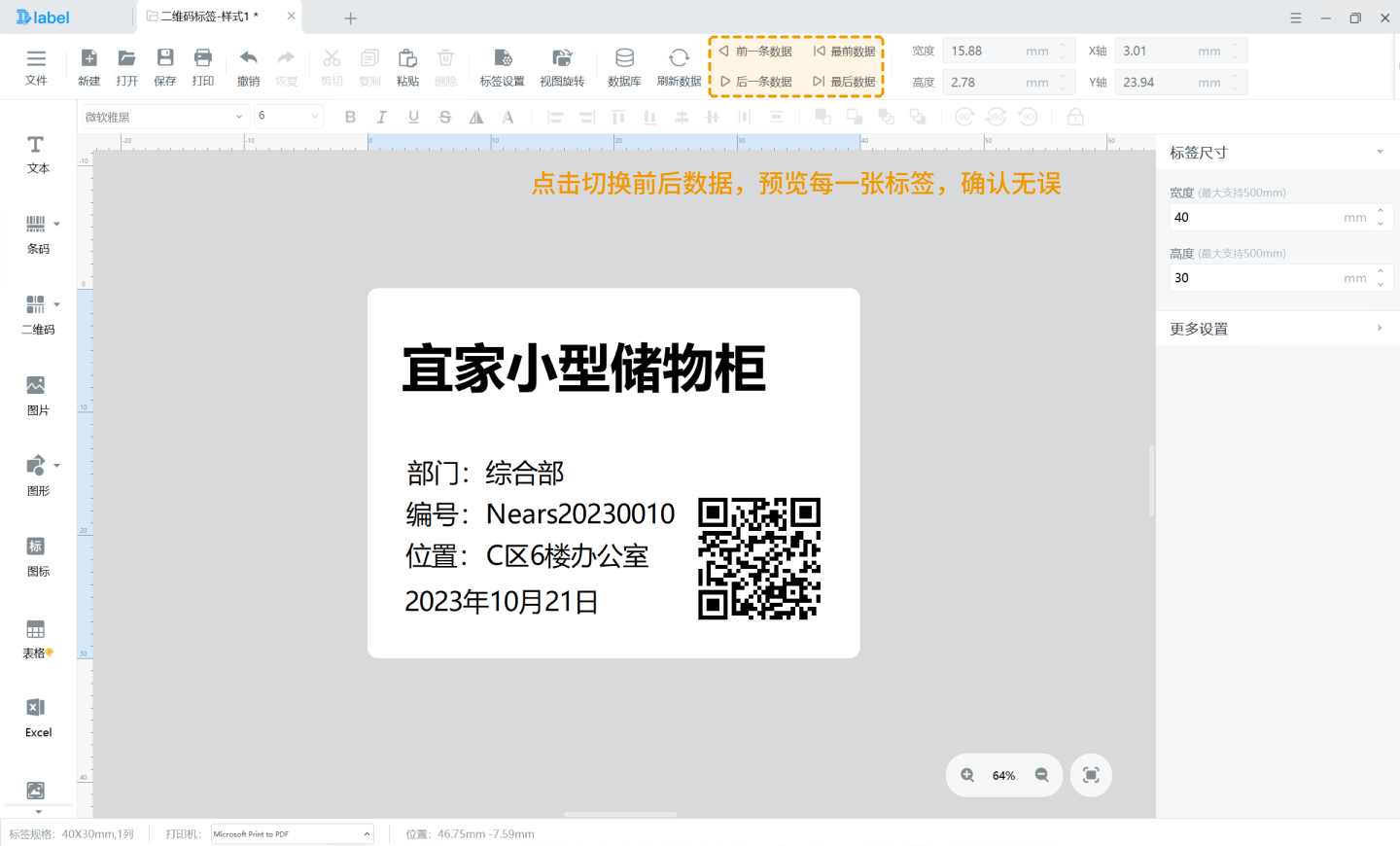
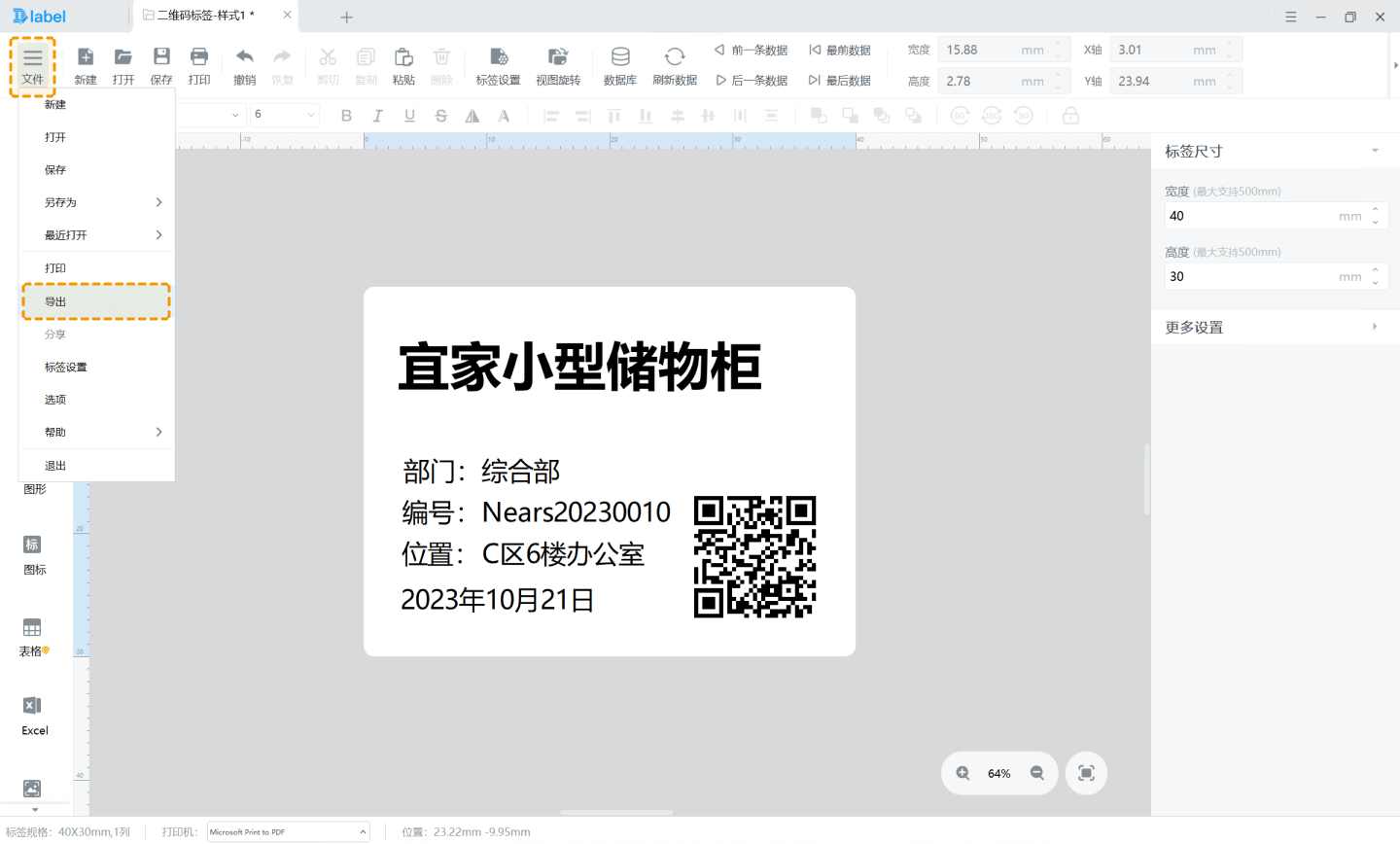
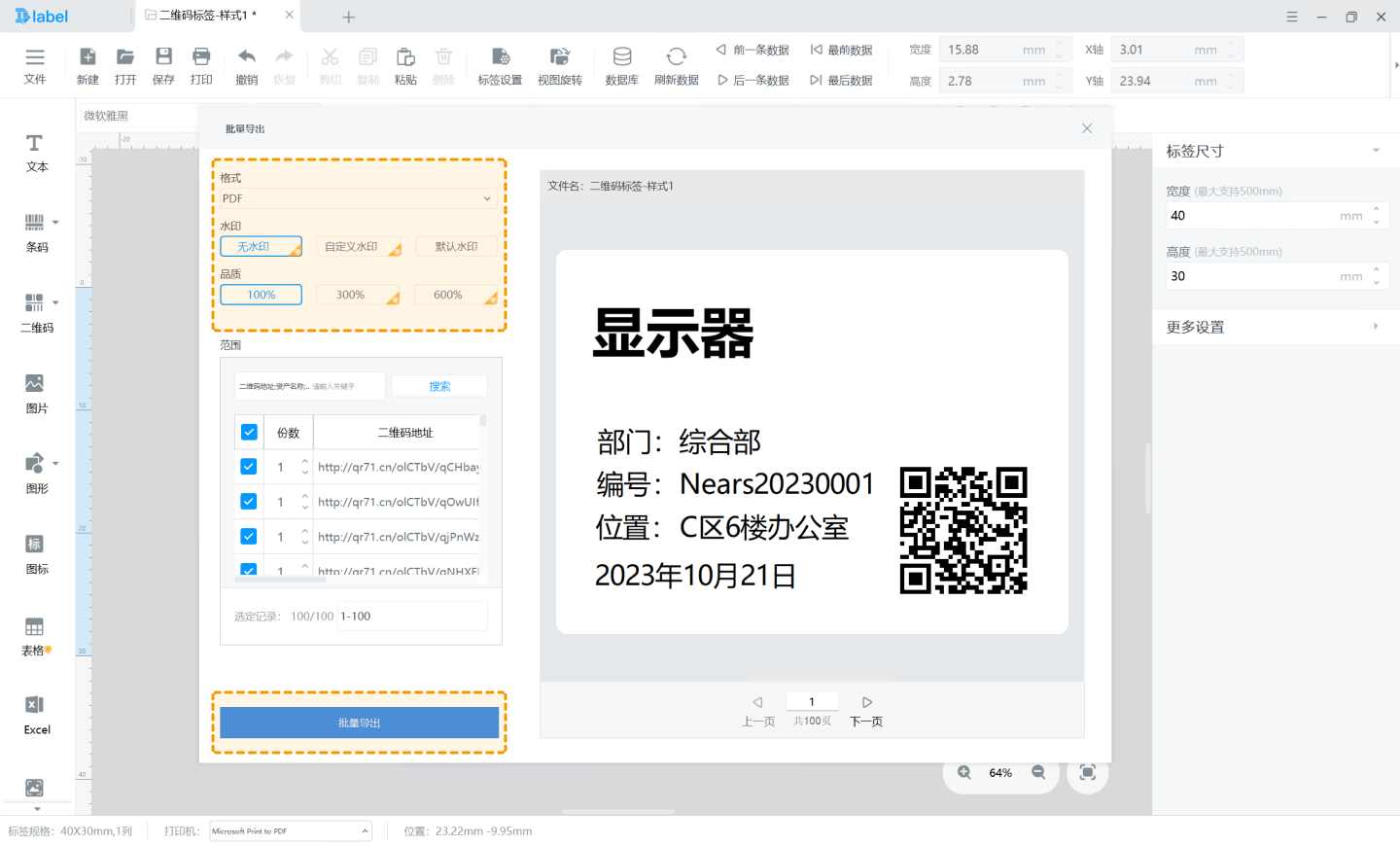
Once confirmed, click File > Export in the upper right corner. PDF and image file export formats are supported. Note that some layout software requires purchasing a license or membership to support watermark-free batch export — choose based on your actual needs.
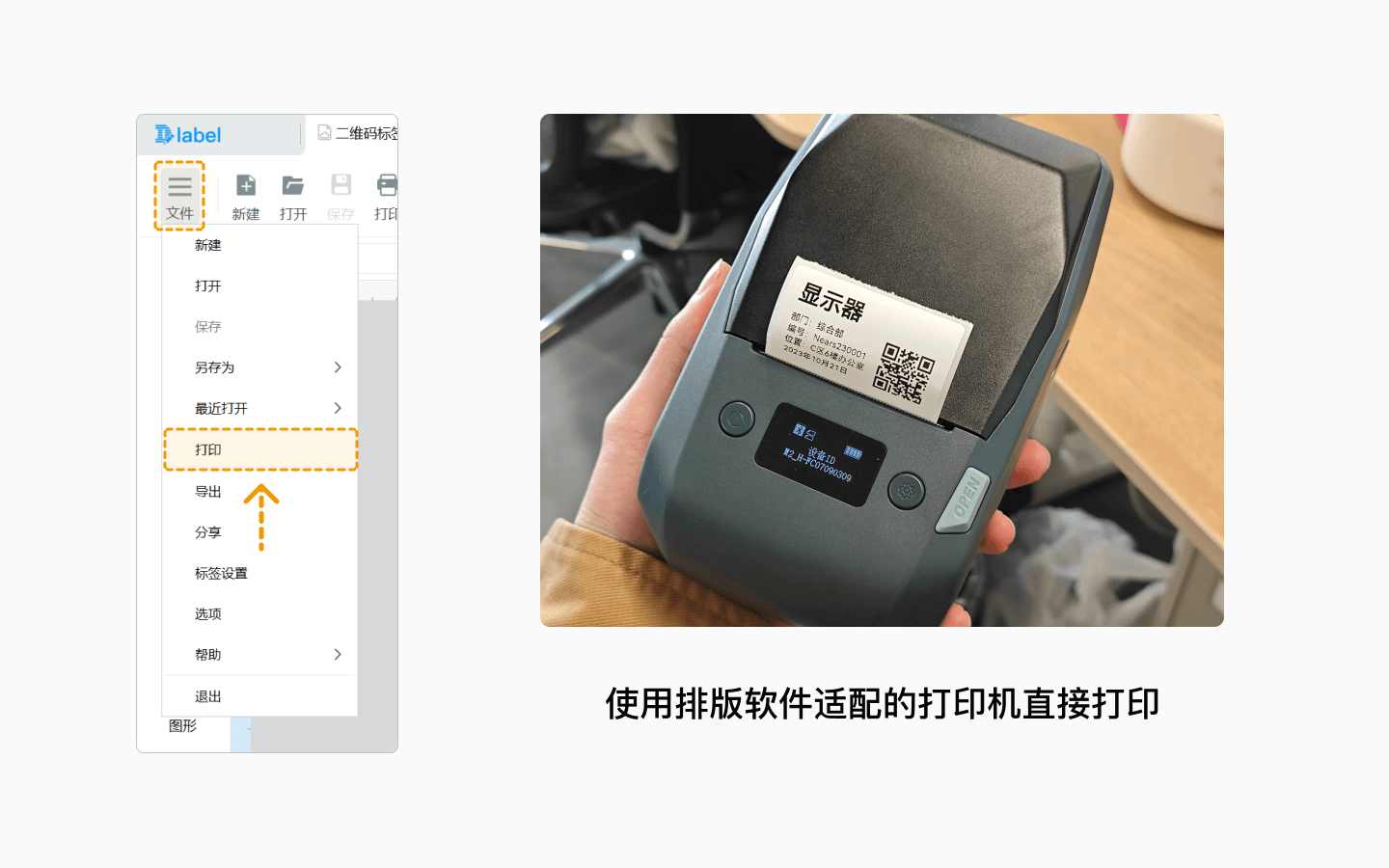
If you have a label printer compatible with the layout software, you can also connect the printer and go to File > Print to print labels directly. Check the software's official website for a list of supported printers.
3. Custom Layout with BarTender
The workflow for layout software is broadly similar. You can also refer to the BarTender video tutorial below.