Partition Homepage
The partition homepage is a navigation page that assembles QR codes, directories, and other content together. From any code under an organization or partition, users can return to the partition homepage at any time via the house icon in the top-left corner. Similar to an app home screen, it can link to multiple content modules, and each module can always navigate back to the homepage.
The partition homepage can be used for product catalogs, equipment management, project management, enterprise portals, and more.
1. Feature Overview
1. Freely Combine Content Modules with Multi-Level Pages
The partition homepage can present multiple content modules with separate navigation targets. You can freely assemble content modules — such as "Lighting" and "Beds" — and add a redirect link to each module to jump to a sub-level page.

You can enable the partition homepage entry so that all codes under a partition or organization can return to the partition homepage at any time. You can also individually disable the return-to-partition-homepage entry for specific codes in the dynamic QR code editor.

2. Link to Multiple Content Types
The navigation target for each module is configurable. Redirect links can be configured to navigate to: QR codes and directories, Mini Program management pages (such as status dashboards, plan reports, etc.), form entry points, external URLs, other Mini Programs, and more.
The dynamic QR code associated with the partition homepage supports editing its content at any time without changing the QR code image.

3. Create Multiple Partitions, Each with Its Own Homepage
You can create multiple partitions, and each partition supports an independent homepage. Scanning any QR code under a partition lets you return to that partition's homepage via the top-left navigation in the Mini Program.
For example, a furniture manufacturer could create partitions for product marketing and workshop management, set up multiple partition homepages, and allow codes in different partitions to return to their respective homepages. Combined with the partition homepage feature, multiple independent system applications can be freely built. Learn about partition management
If you want to consolidate codes from all partitions and their partition homepages into a single QR code to build an enterprise main portal, you can create a new code using the redirect link feature. View tutorial

2. Operation Guide
1. Creating a Partition Homepage
Where to create:
Go to [Advanced Features] → [Partition Homepage] and click "Create Partition Homepage".

If the organization has multiple partitions, each partition can independently configure its own homepage. Access the homepage settings from the partition list page by clicking the partition homepage settings on each partition card.

Creation types:
You can select an existing code in your account to use as the partition homepage. CaoLiao also provides partition homepage templates you can apply directly, edit as needed, and save. You can also create a blank new QR code to serve as the partition homepage.

Editing the partition homepage:
The partition homepage is edited the same way as a regular dynamic QR code — simply think of it as a special dynamic QR code.
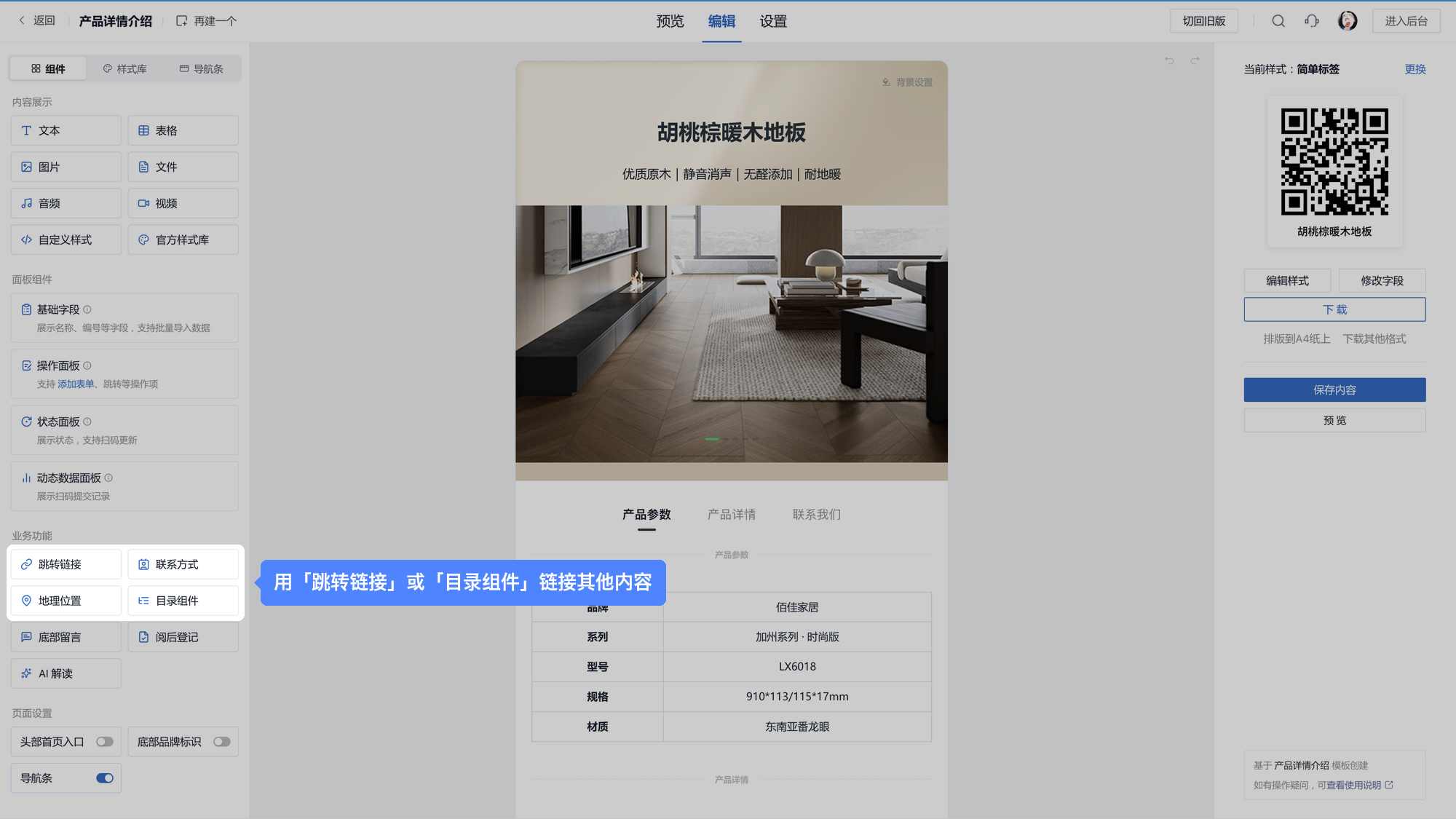
When the partition homepage needs to link to other dynamic QR code content, use [Redirect Links] to achieve this. Redirect link styles include grid, button, and list formats. View redirect link setup tutorial >
2. Partition Homepage Settings
Setting the partition homepage entry:
Enable the partition homepage entry so all QR codes under the organization or partition display the partition homepage entry, allowing users to return to it at any time.
The position of the partition homepage entry can be configured as needed — two styles are available: a card at the top of the code page and a floating card at the bottom.


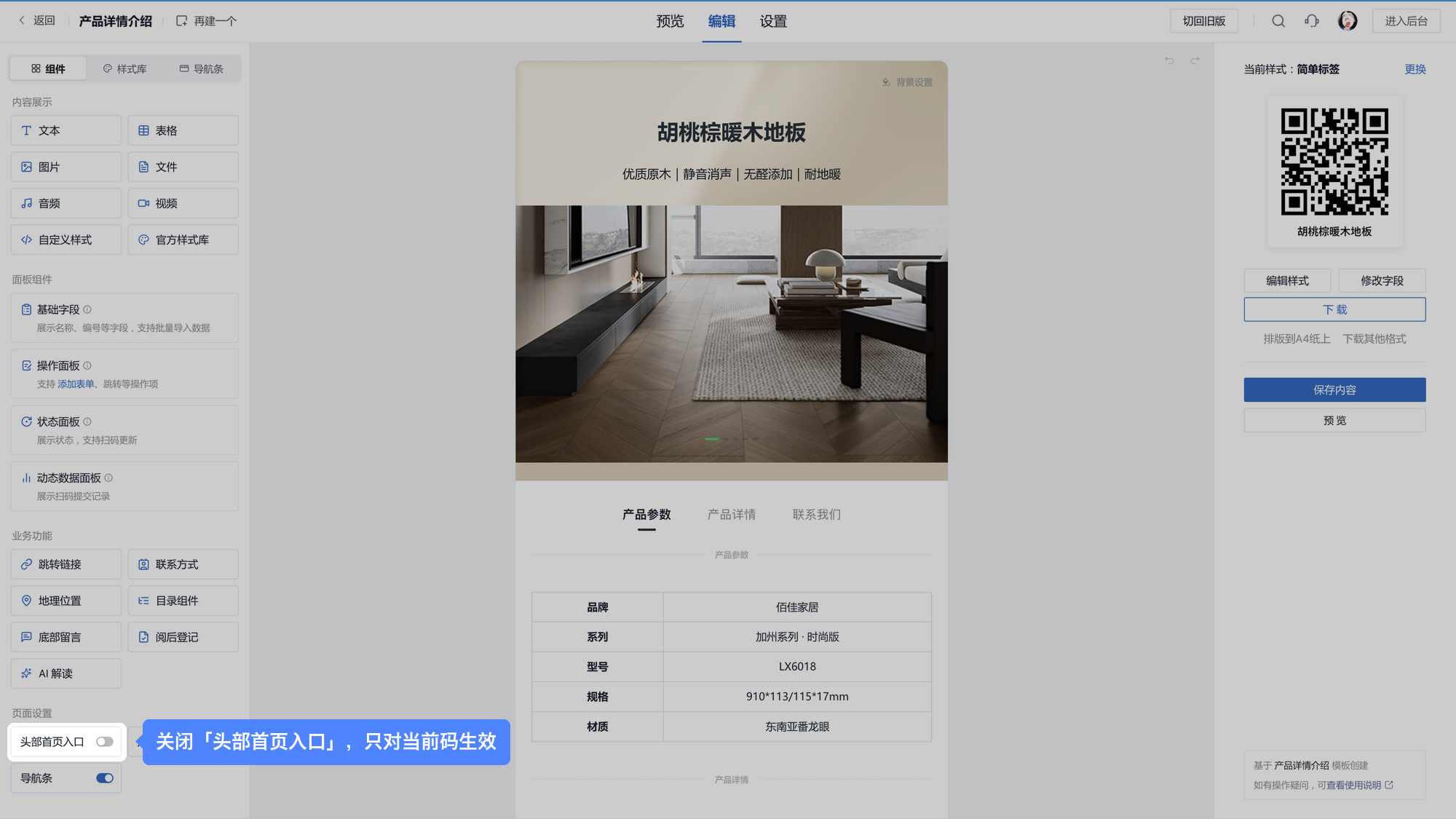
You can also turn off Header Home Entry under Page Settings on the left side of the dynamic QR code editor to disable the return-to-partition-homepage entry (the top-left icon) for a single QR code.
Editing and replacing the partition homepage:
After a partition homepage is set, the content of the associated code can be edited and modified at any time — the QR code image remains unchanged.
You can also replace the partition homepage by setting a different dynamic QR code as the new homepage, but the QR code image will need to be re-downloaded after replacement.

Other settings:
The dynamic QR code associated with the partition homepage supports configuring label styles, period of validity, viewing permissions, access restrictions, and more.

Removing the dynamic QR code used as the partition homepage:
After removing the associated code, the return-to-partition-homepage entry (top-left icon) on all QR codes under that organization or partition will become inactive.
The QR code used as the partition homepage will not be deleted — only the association is removed.

3. Frequently Asked Questions
1. How Do I Consolidate the Homepages of All Partitions into a Single Enterprise-Level Homepage?
It is recommended to set the homepage of the "Default Partition" as the enterprise-level homepage. The creation process for this homepage is essentially the same as for other homepages. However, when configuring [Redirect Links], you need to add links using the "Add link to another partition's homepage code" method. With this setup, clicking a redirect link will open the corresponding partition's homepage directly. View the detailed tutorial