Consolidate Partition Home Pages into a Company Home Page
This article applies to: situations where your account has multiple partitions, each with its own partition home page, and you want to consolidate all partition home pages into one QR code to create a company home page.
CaoLiao plans to introduce a company home page feature—one home page per organization that can aggregate all QR codes under the organization. Each partition's home page settings will include the option to redirect to either the company home page or the partition's own home page.
However, this feature is still in the planning stage. In the meantime, you can achieve the same effect using the method described below.
Part 1: Tutorial
Step 1: Get the "Code URL" for Each Partition Home Page
Go to the corresponding partition, navigate to [Advanced Features — Partition Home Page Settings], click [Settings] to enter the home page settings page, scroll to the bottom of the page to the "Other" section, and you will see the [Code URL]. Copy this address.

Step 2: Create a New Dynamic QR Code in the "Initial Partition" and Add a Redirect Link Component
In this new dynamic QR code, first add a "Redirect Link" component to consolidate all other partition home pages. View redirect link tutorial
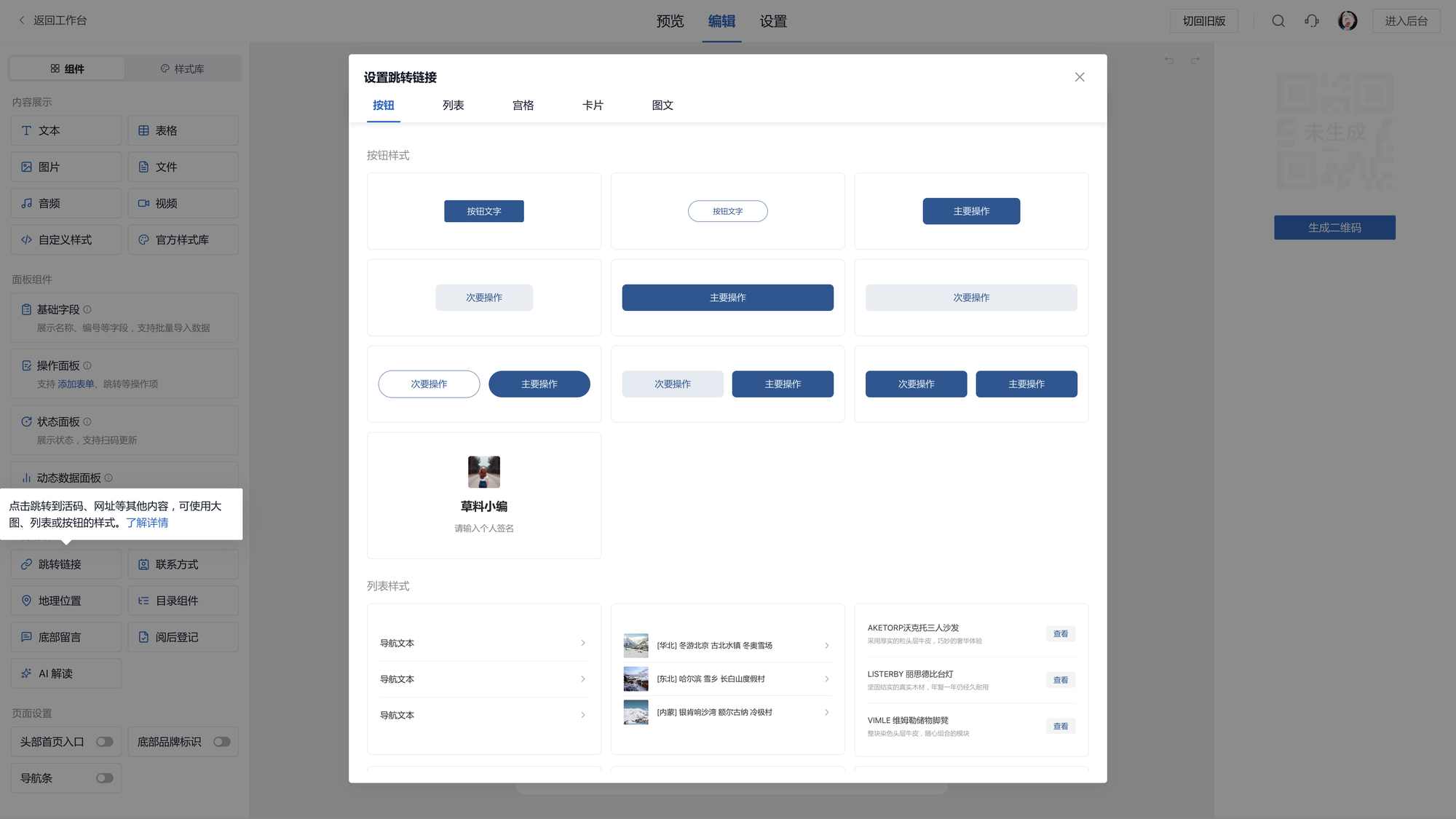
In addition to the redirect link, this QR code can include any other content you want to display—the editing method is the same as for any standard dynamic QR code.
Step 3: Add the "Code URLs" to the Redirect Links
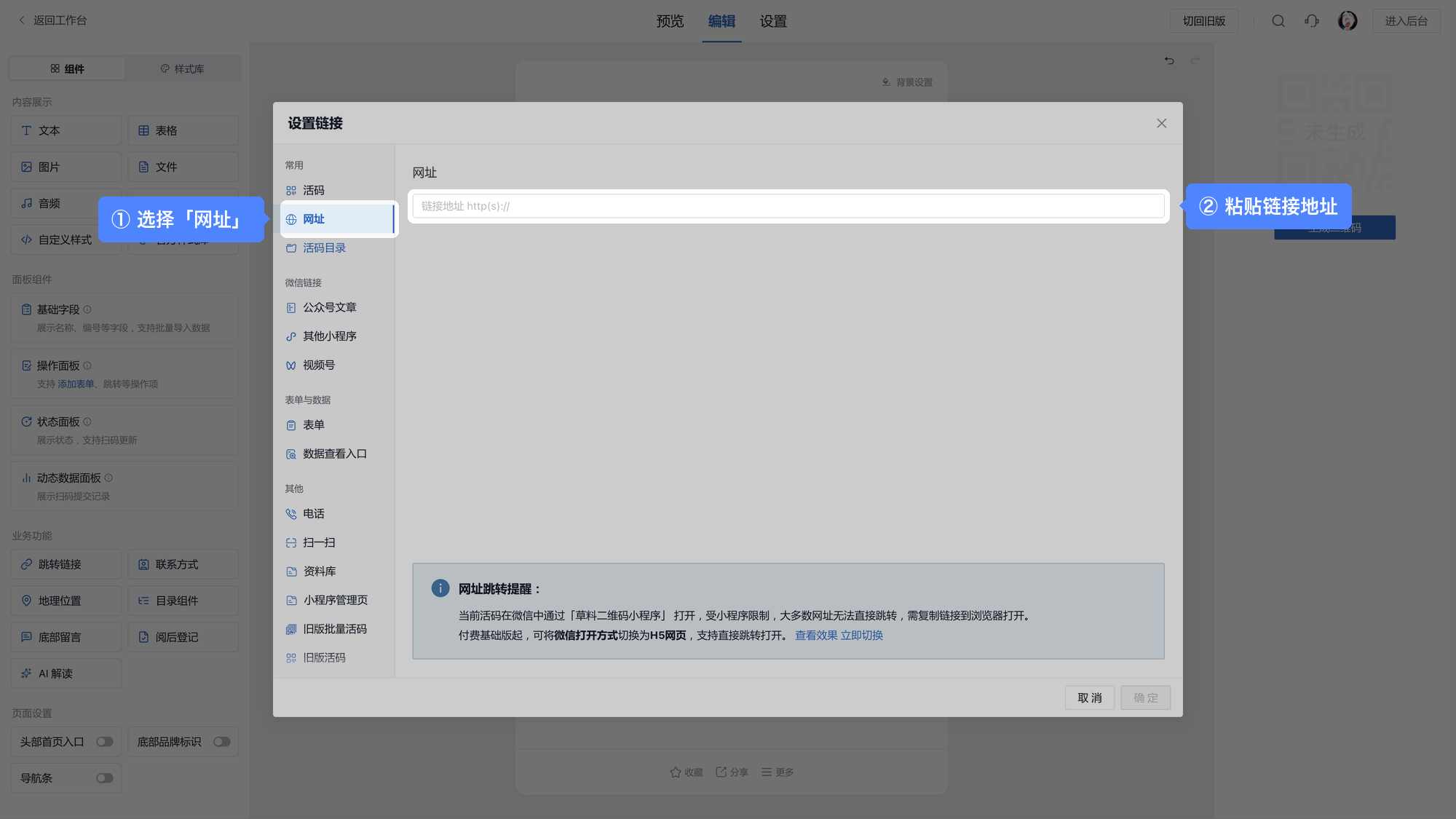
Add the partition home page "Code URLs" obtained in Step 1 to the redirect links you created in Step 2. Clicking a redirect link will automatically redirect to the corresponding partition home page.
Important: When adding the URLs, use the [URL] type!
Part 2: Additional Notes
1. Linking to a Specific Dynamic QR Code in Another Partition
This tutorial enables cross-partition QR code linking.
Step 1: First, get the code URL of that dynamic QR code. You can use CaoLiao's "Decode" tool to retrieve it. View the decoder tutorial
Step 2: Add the code URL to the redirect link.
Important: You must add it using the [URL] type.

2. Embed the Home Page in a WeChat Official Account Menu
In the dynamic QR code directory, find the partition home page QR code, click [... — Embed in Official Account] next to the code, and follow the tutorial to add it. View the tutorial
Important: The partition home page QR code is saved by default in the "All Dynamic QR Codes" section and is marked with a "Partition Home Page" tag.

Part 3: More Resources and Support
-
Partition management features | Create multiple partitions by business unit, manage QR codes and dynamic data separately, assign designated responsible persons, and achieve data isolation.
-
Home page features | The home page acts like an app's main screen—combine multiple content modules where each can redirect independently. Each partition supports a separate home page.
-
Community feedback | Share any questions or suggestions in the community.