Tutorial: Building a Product Usage Video Collection
This article uses the "Tutorial Video Collection" template (formerly "Product Usage Video Collection") as an example to show you how to create a single content display dynamic QR code from scratch. Once you master the techniques, you will be able to quickly create a well-designed QR code on your own.
The tutorial covers four parts:
- Where to start
- Edit content: replace the template content with your own materials
- Edit the QR code label: add text and a logo to the generated QR code, adjust colors, and more
- Workbench management: view scan statistics, edit code content, and more
Click a heading in the table of contents on the right to jump to that section.
Note: QR codes need to be made on a computer. Enter cli.im in your browser to open the CaoLiao website.
1. Where to Start
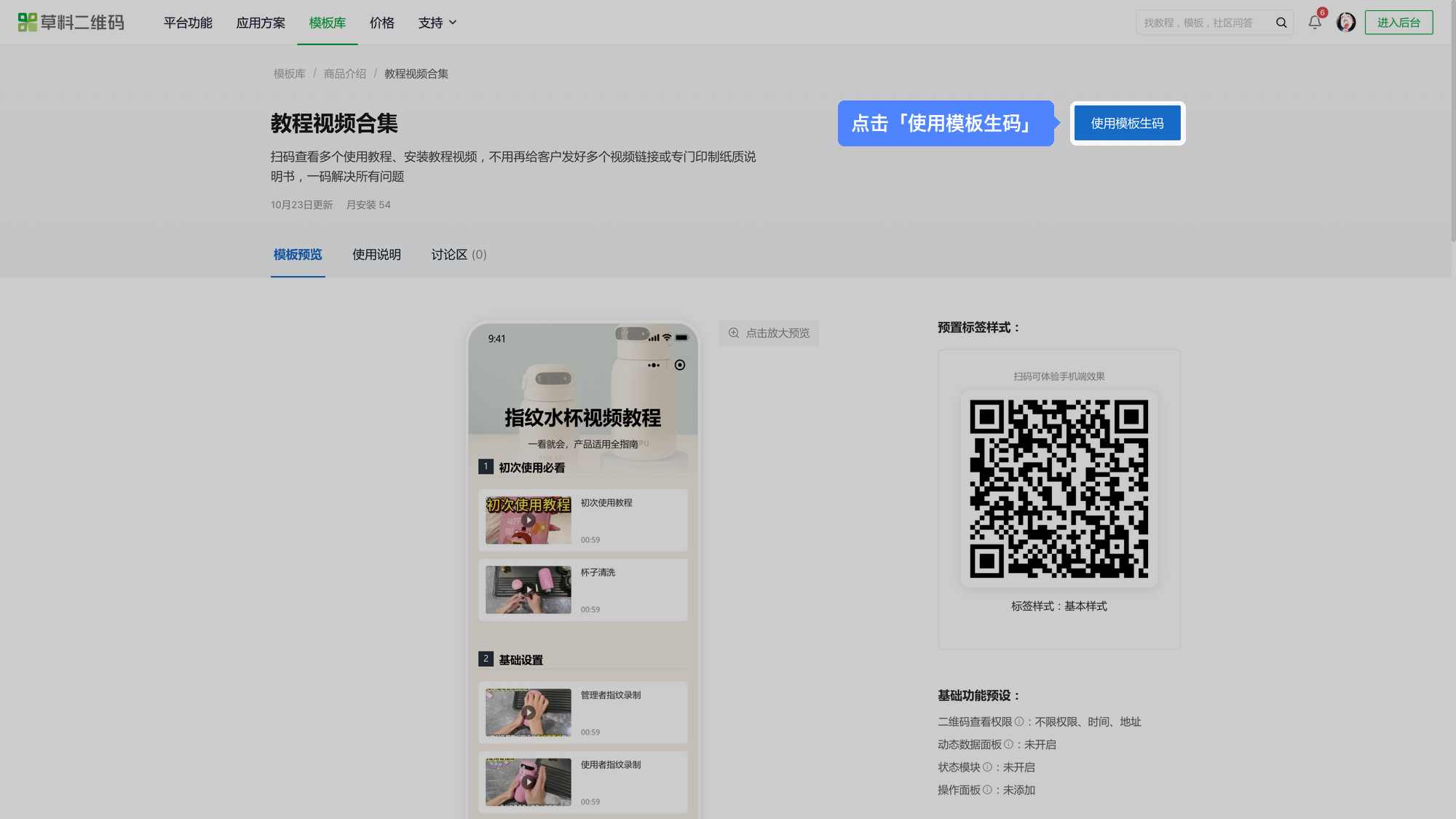
Open the Tutorial Video Collection template page. Open it here
Click "Generate Codes from Template" to open the editor.
2. Edit Content
1. Replace the Top Background Image
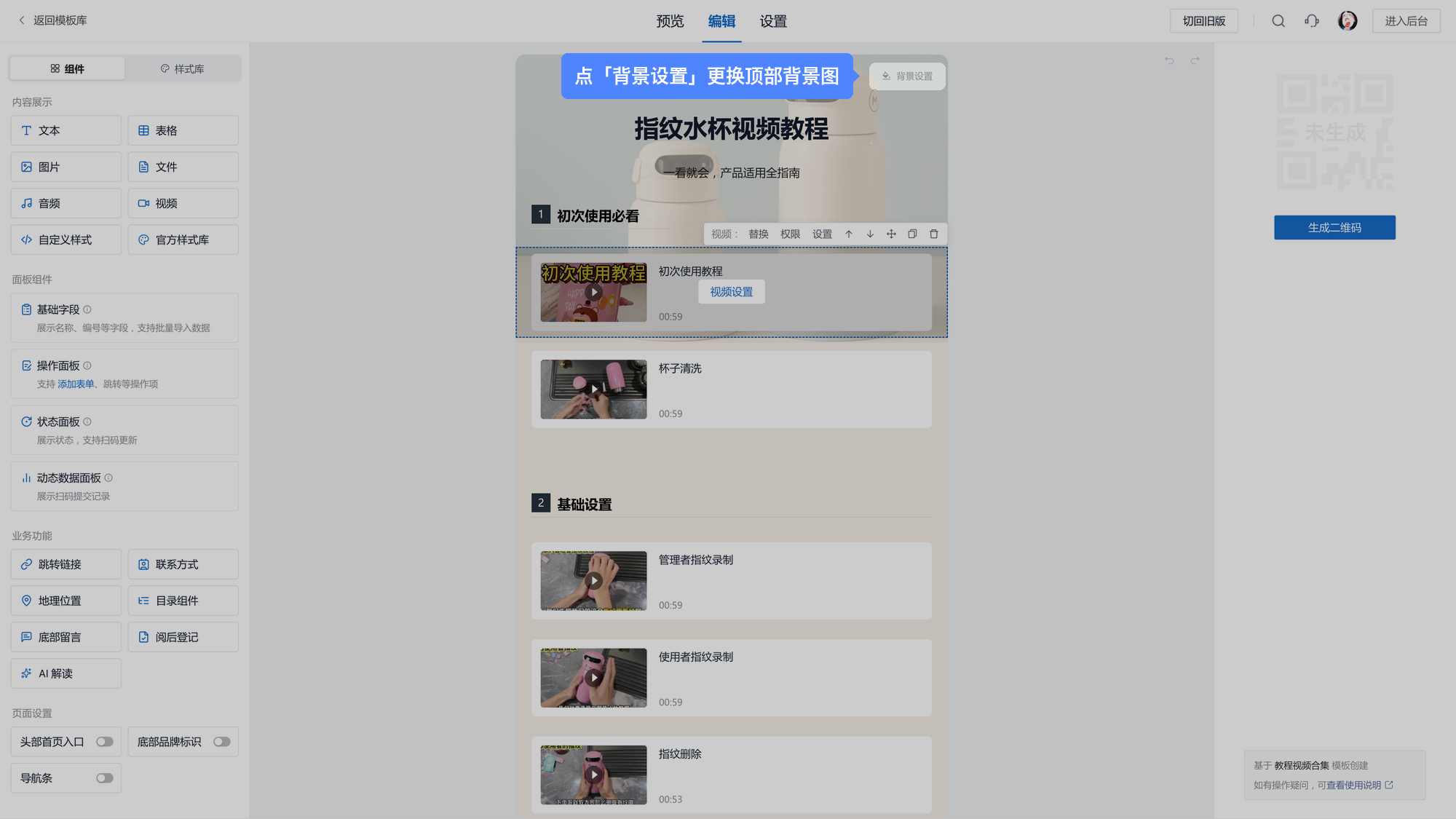
The product image at the top of the template is the page background image. Click "Background Settings" in the upper-right corner of the canvas, then under "Background Image" choose from the gallery or upload your own product image.
2. Replace Videos
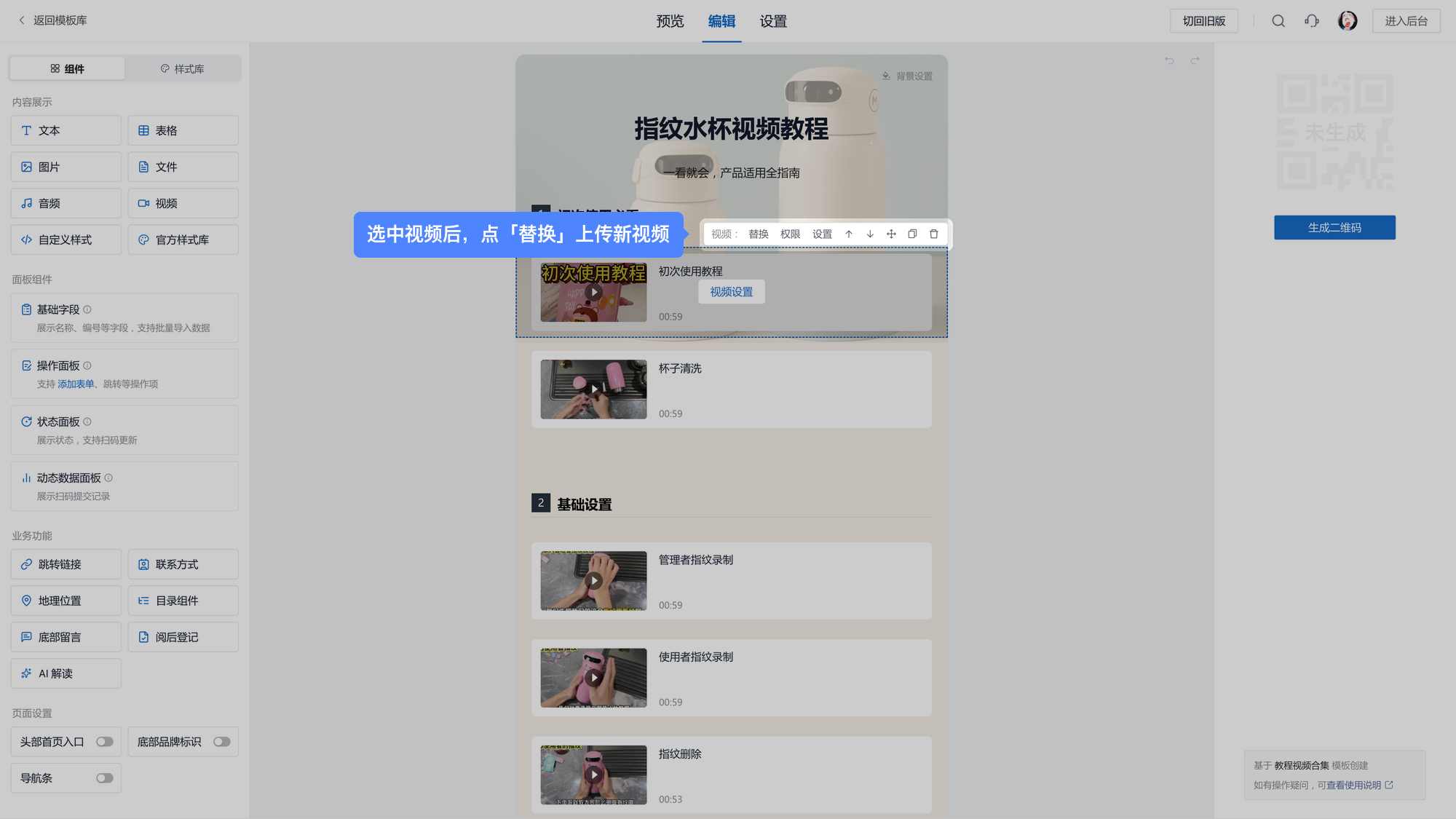
Click a video component to select it, then click "Replace" in the toolbar above and upload your own video. The toolbar also lets you set viewing permissions for the video.
3. Add Other Content
Click components in the editor's left panel to add text, tables, videos, files, contact info, and more. View the detailed tutorial
3. Edit the Style
Beautifying the QR code style takes two steps:
- Change the label style by choosing a label template from the label design library
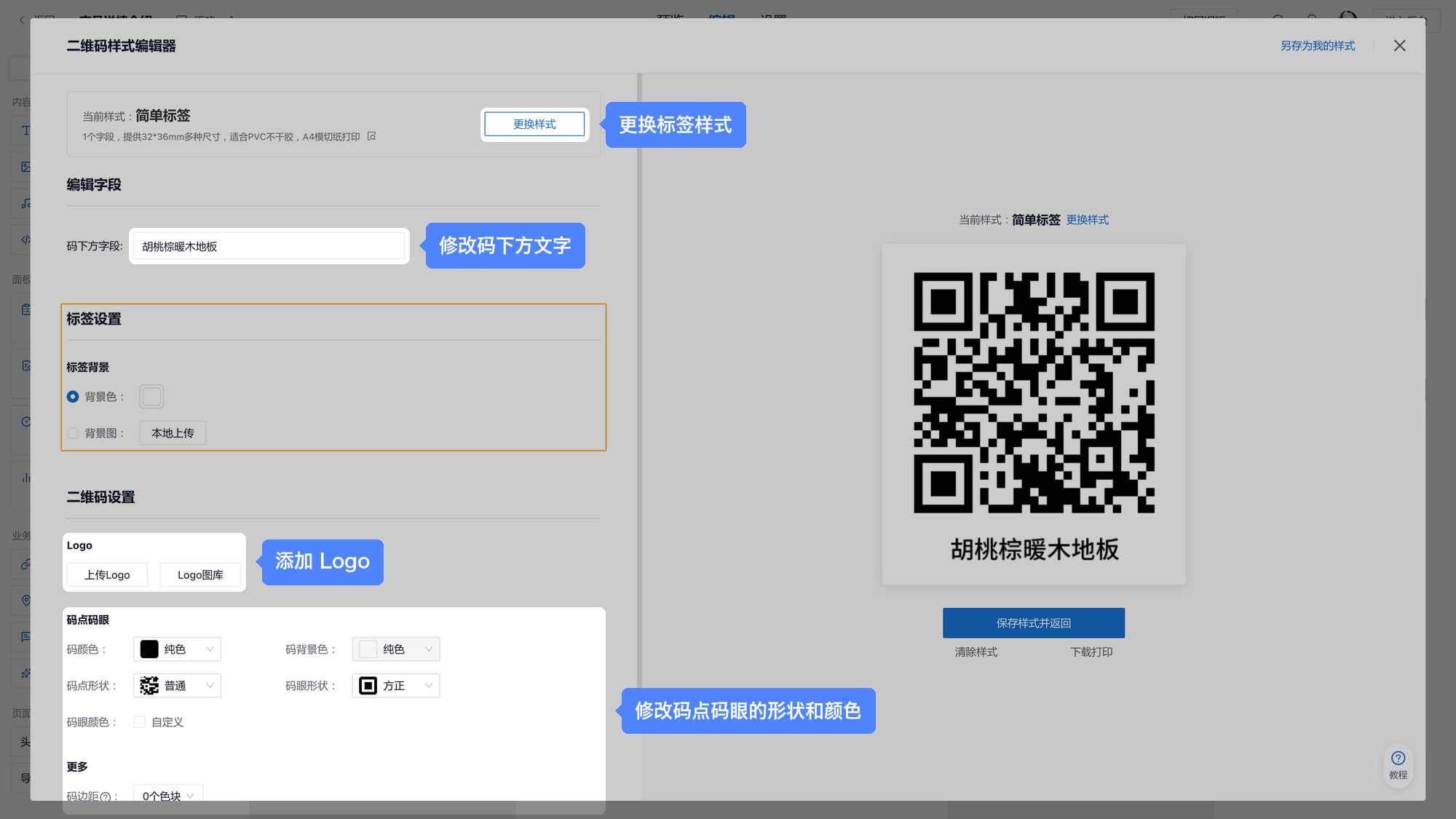
- Edit the QR code dots and eyes, field content, and more on the label
1. Change the Style and Edit Content
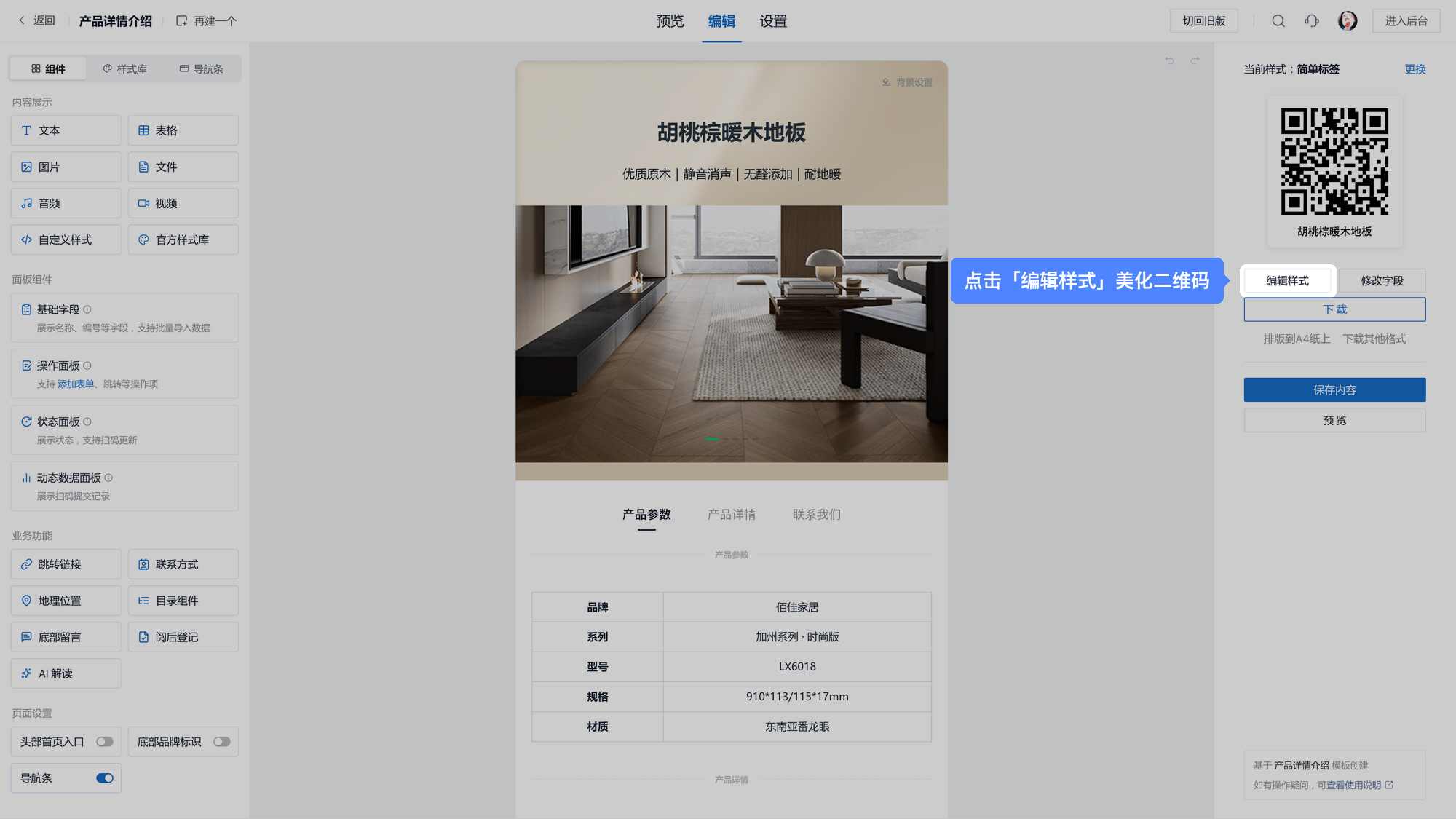
After the QR code is generated, click "Edit Style" on the right side of the editor to open the QR code style editor.
In the QR code style editor, you can change the label style template, edit label fields, change the logo and background, and more.
2. Download and Print
Click "Download" on the right side of the editor to download the QR code image.
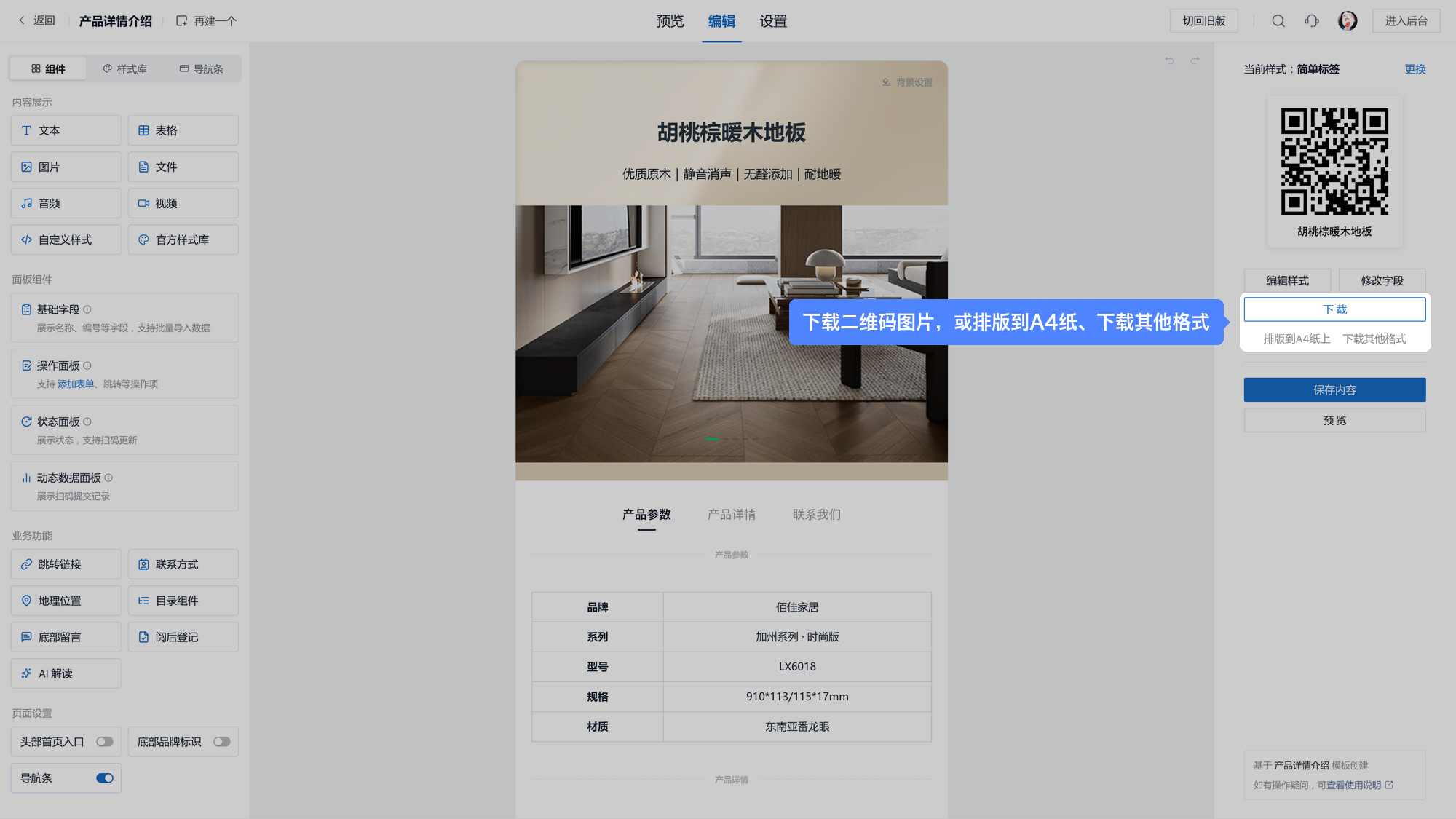
Click "Download Other Formats" to choose PDF vector and other formats. If you will send it to a print shop, we recommend the PDF vector format for sharper printing.
You can also click "Lay Out on A4 Paper" to download an automatically laid-out A4 file and print it yourself. View details
4. Workbench Management
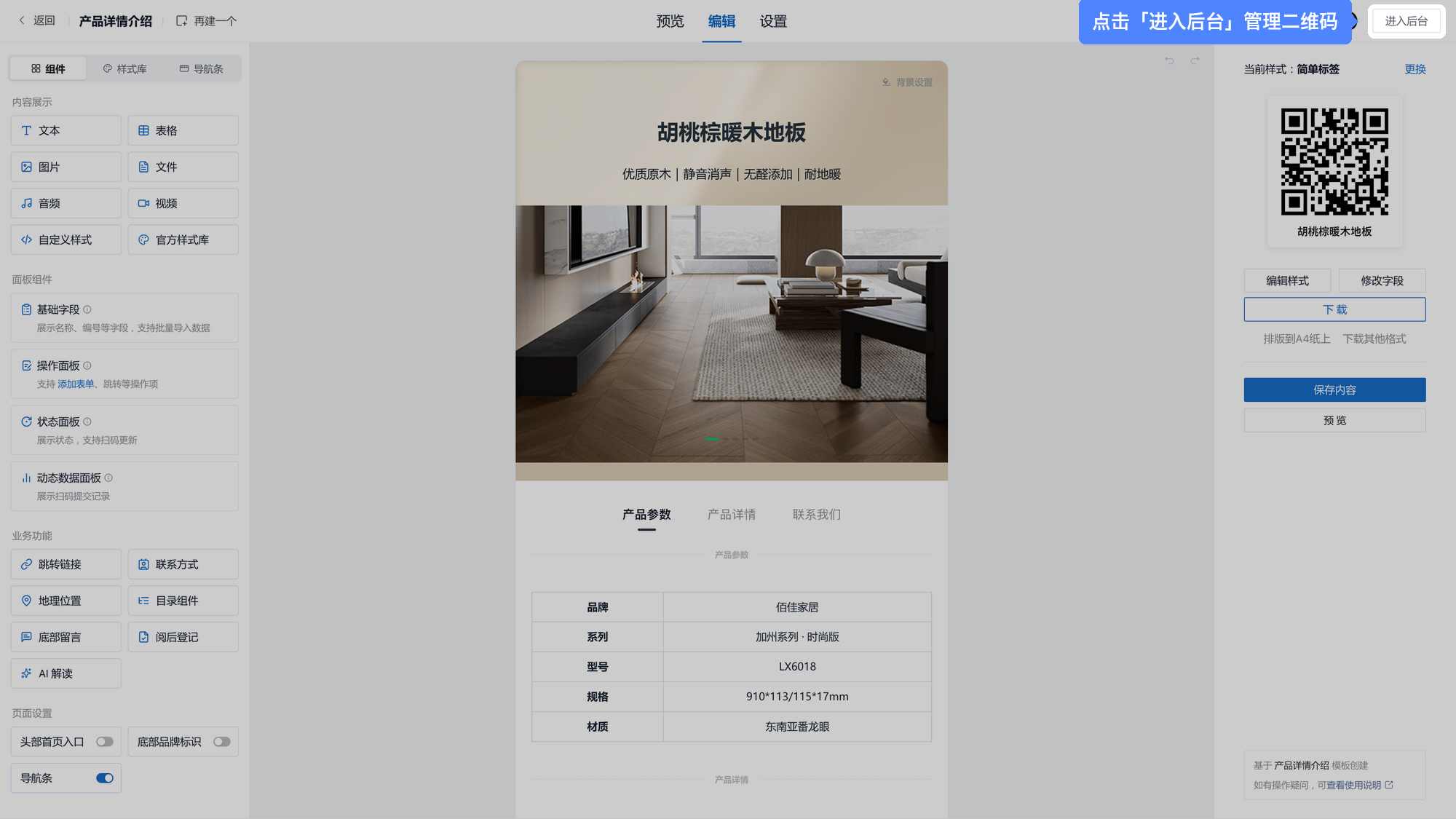
In the workbench, you can edit QR code content, view scan statistics, and more. Click "Go to Workbench" in the upper-right corner of the editor to open it.
1. Edit QR Code Content
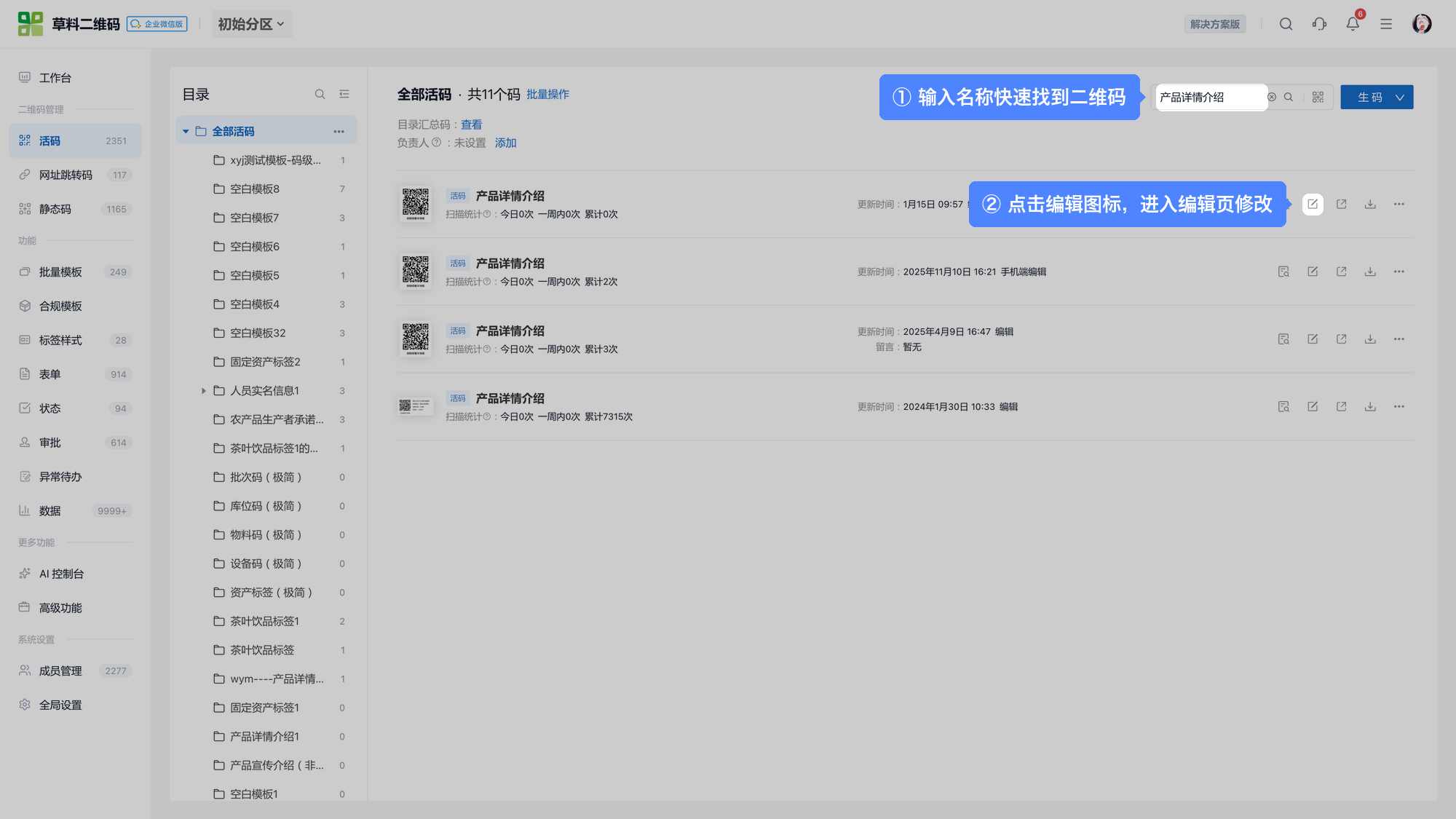
In the workbench, click "Dynamic QR Codes" on the left, find the code you want to change, and click the edit icon on the right of its row to open the editor and edit the content.
2. Scan Statistics
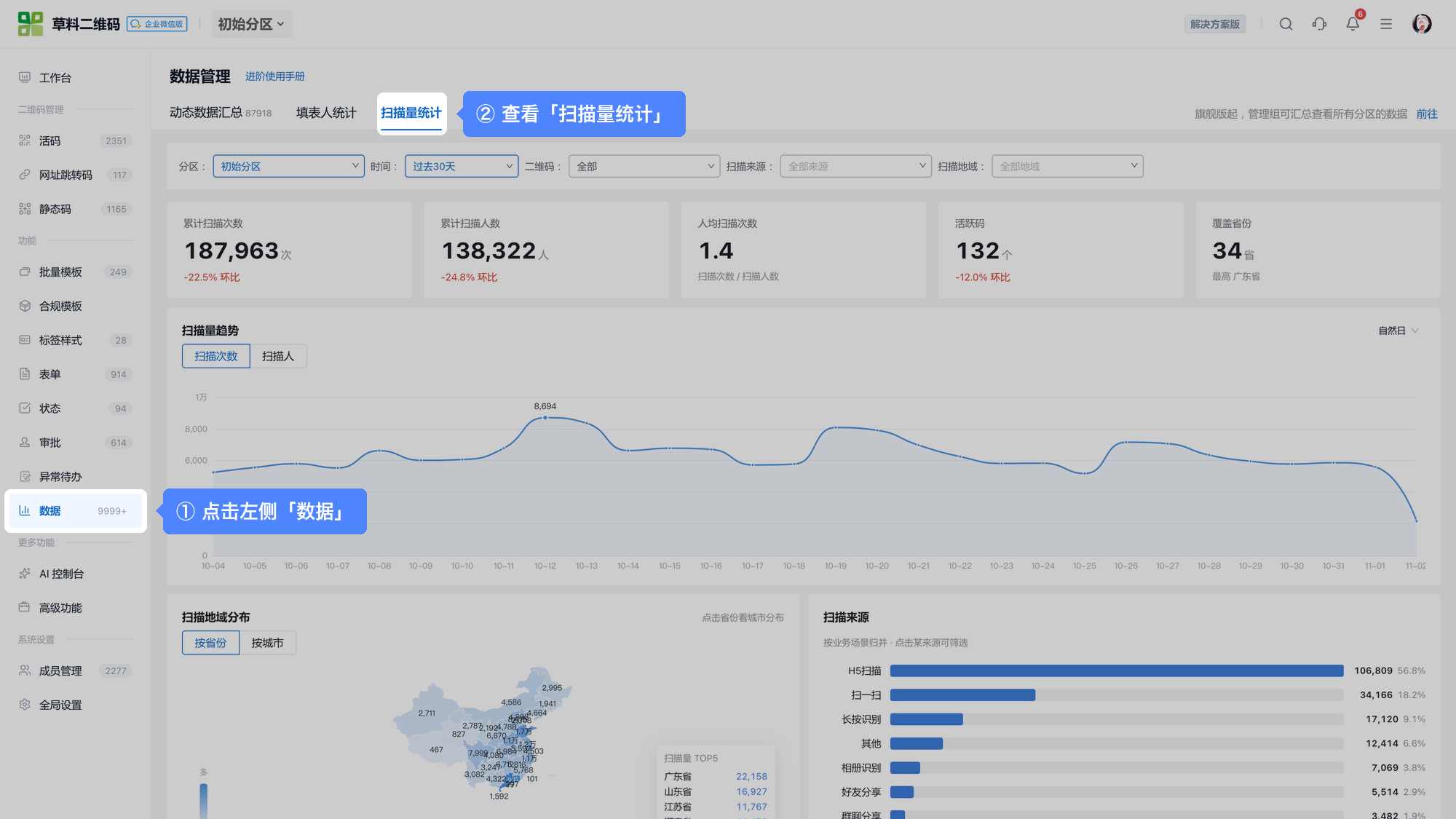
Click "Data" on the left, then "Scan Statistics", to view scan counts and unique scanners by QR code, time range, and scan source.