Automatically Calculate Real-Time Inventory
Inbound/outbound registration QR codes created on the CaoLiao platform can be synced to Tencent Docs. Using Tencent Docs' data processing capabilities, real-time inventory calculations and display can be achieved.
The following tutorial and examples are based on the template: Materials Inbound/Outbound Registration
Part 1: Example Result
Users scan to select an item, enter the inbound/outbound quantity, and the back end automatically calculates the current remaining inventory for instant viewing via the QR code. View example
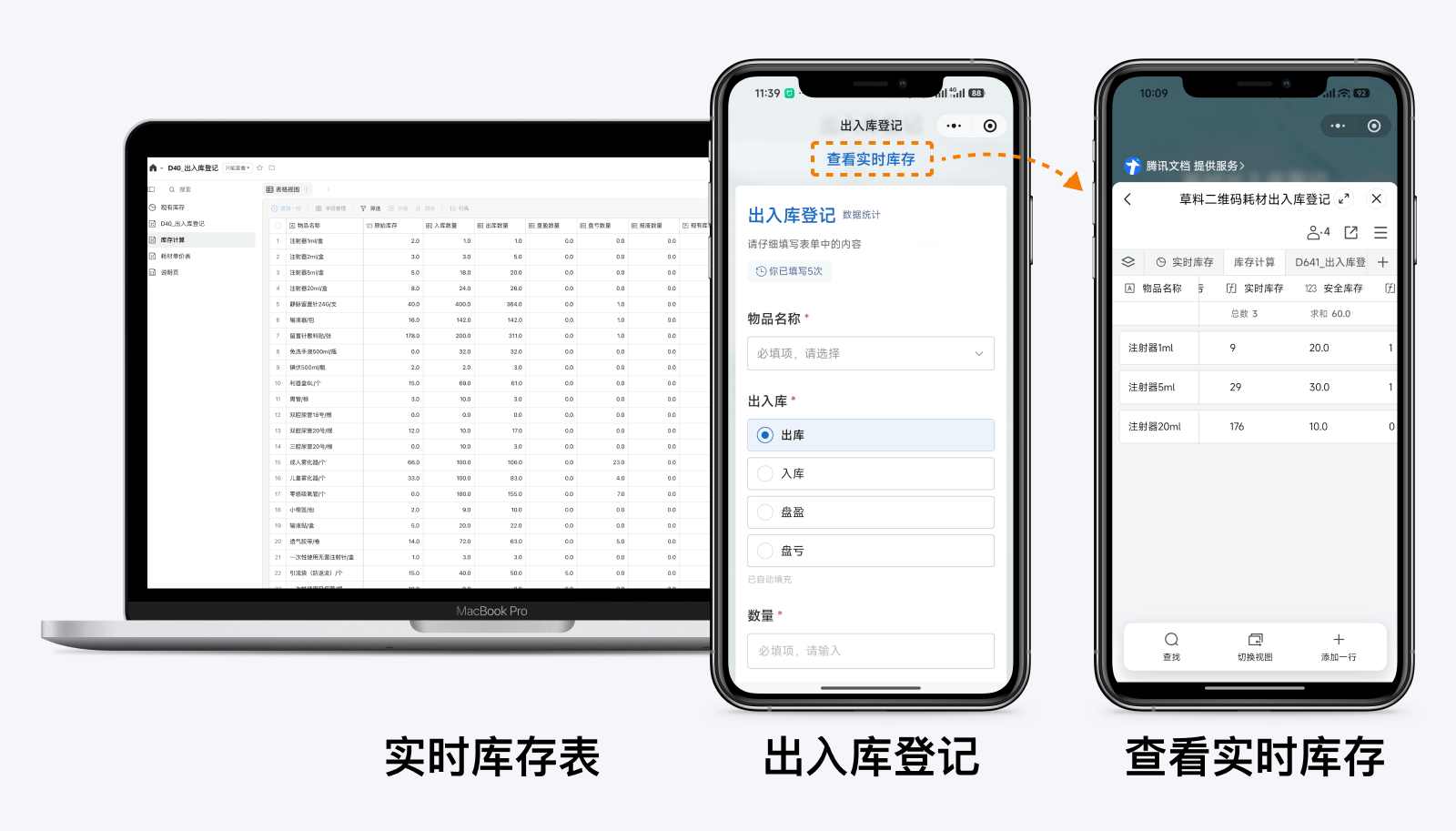
Part 2: Applicable Scope
This solution is suitable for small- and medium-sized warehouses with usually no more than 50 item types. For large warehouses with complex operations and high management requirements, a professional inventory management system is recommended for digital management.
Part 3: Steps
Using Tencent Docs to achieve real-time inventory calculations requires 4 steps in total.
1. Sync Data to Tencent Docs
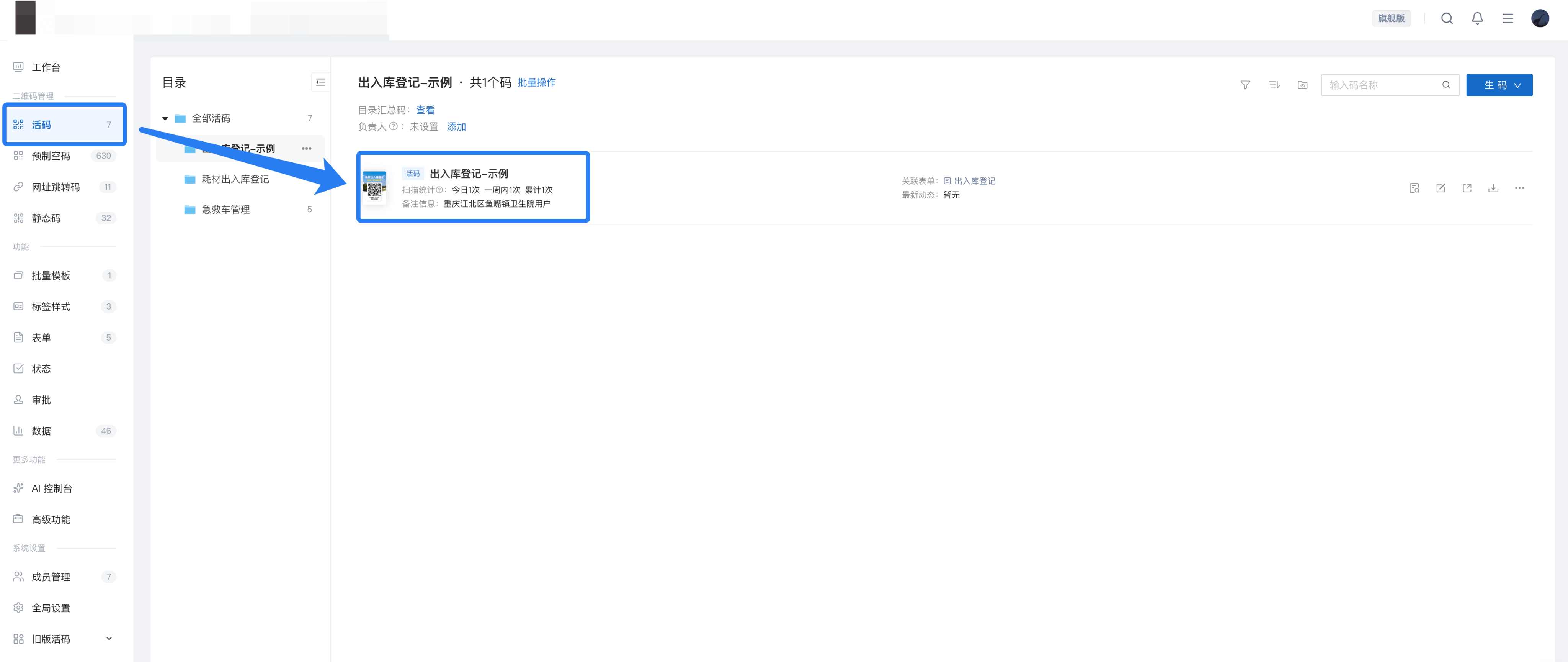
In the workbench under [Dynamic QR Codes], find the inbound/outbound registration QR code that has already been generated and click to enter the dynamic QR code settings page.
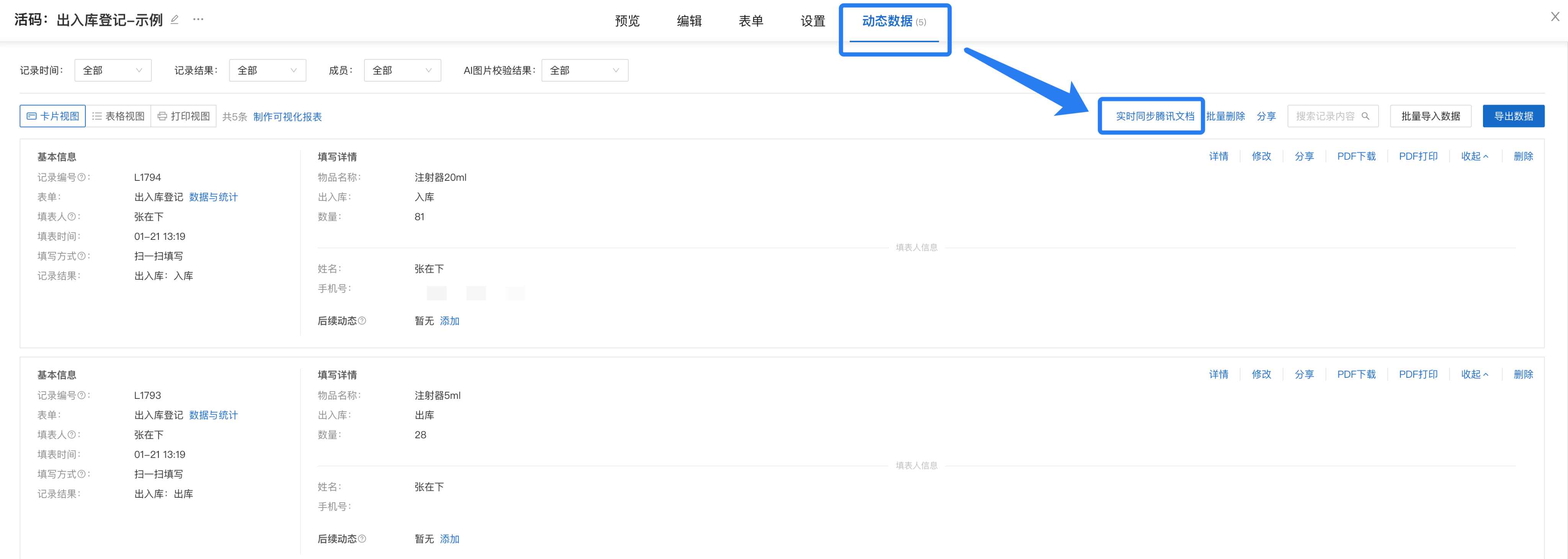
Go to the [Dynamic Data] tab and click [Real-Time Sync to Tencent Docs]. The system will automatically sync inbound/outbound data to your Tencent Docs in real time.
*Note: It is recommended to select [Sync All Historical Data] when syncing.
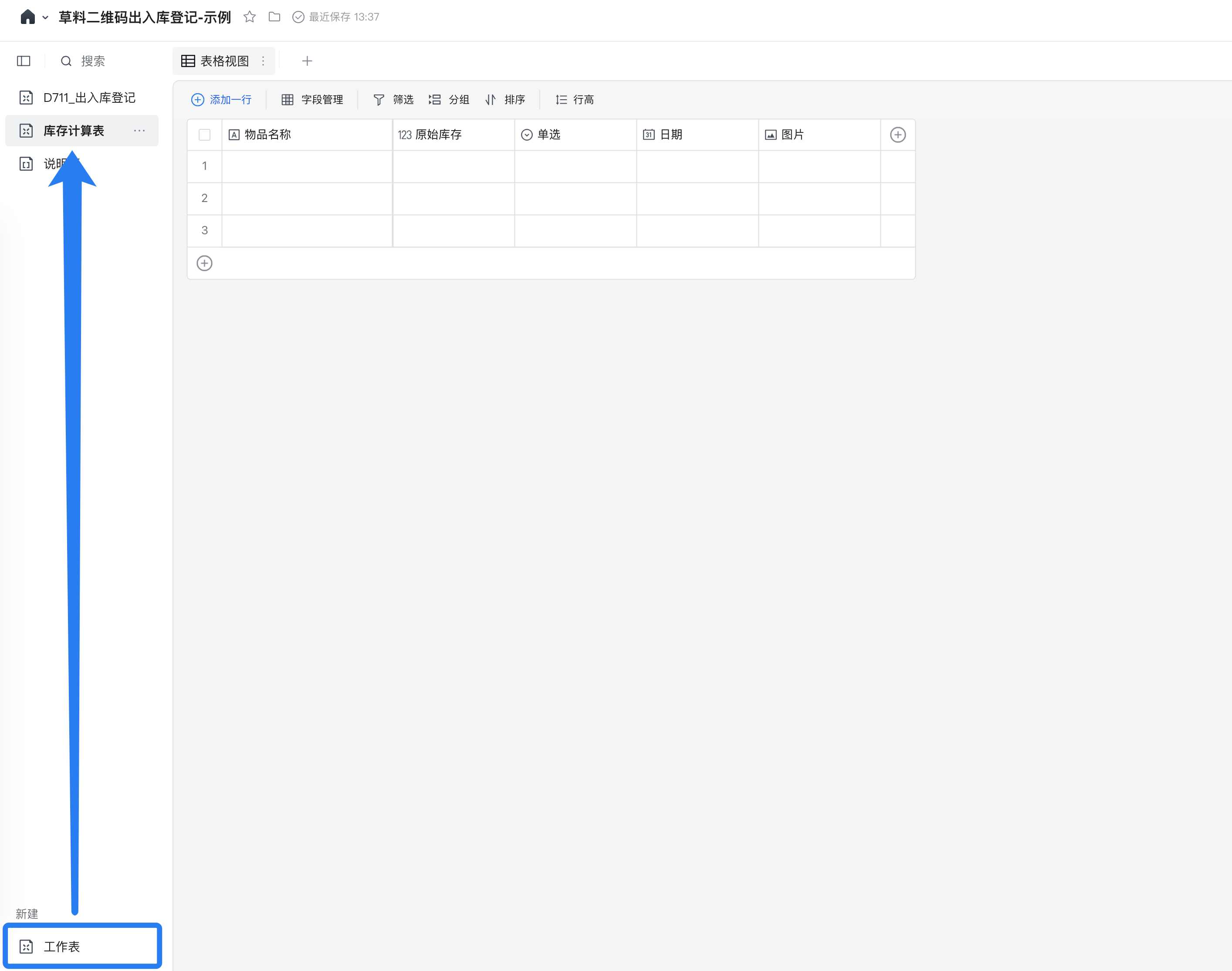
2. Select [New] in Tencent Docs to Create a Worksheet for Each Item's Real-Time Inventory
3. Configure the Rules for Each Column in the Inventory Calculation Table
To enable automatic inventory tracking, we need to break down "real-time inventory" into: opening stock + inbound − outbound + inventory surplus − inventory loss. Complete the setup for each column in the following order:
Item Name (Column 1): Enter all item names directly.
The names entered must exactly match those in the CaoLiao form (including spaces and punctuation). If they differ, the system will not recognize them and will be unable to link to the inbound/outbound records.
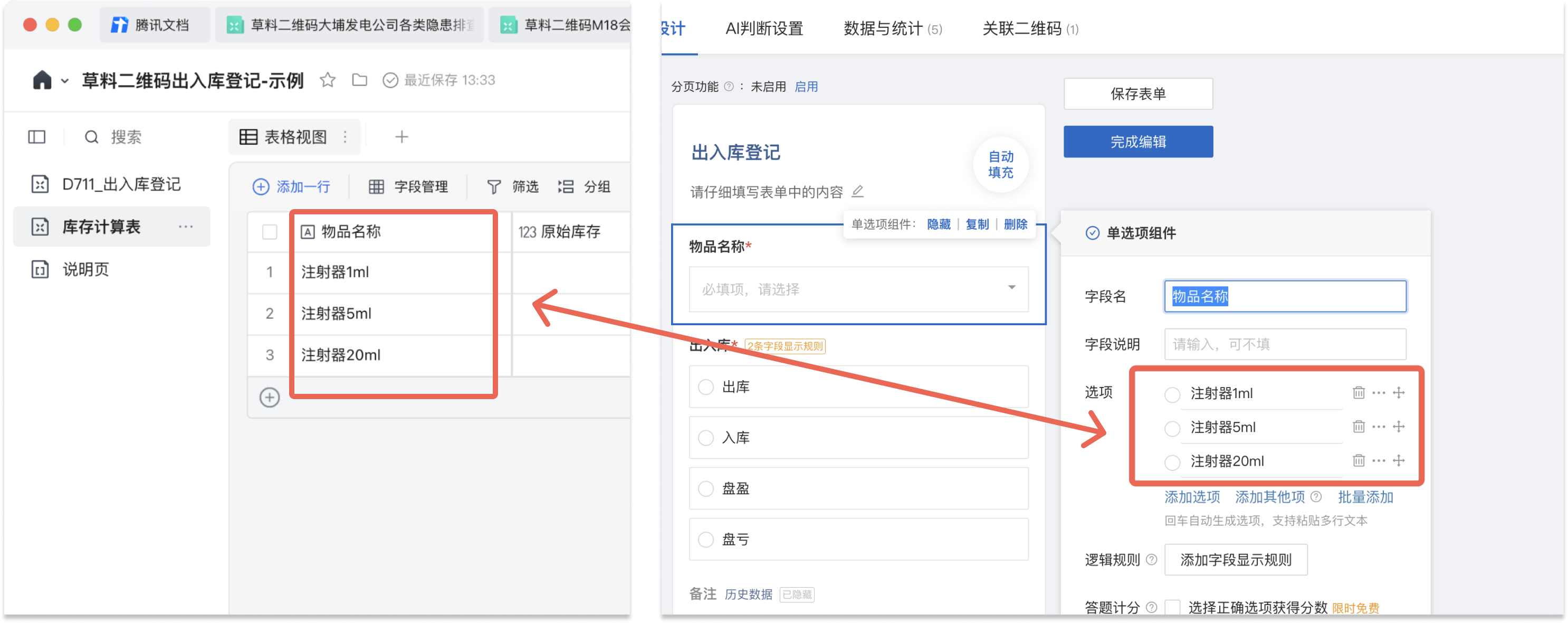
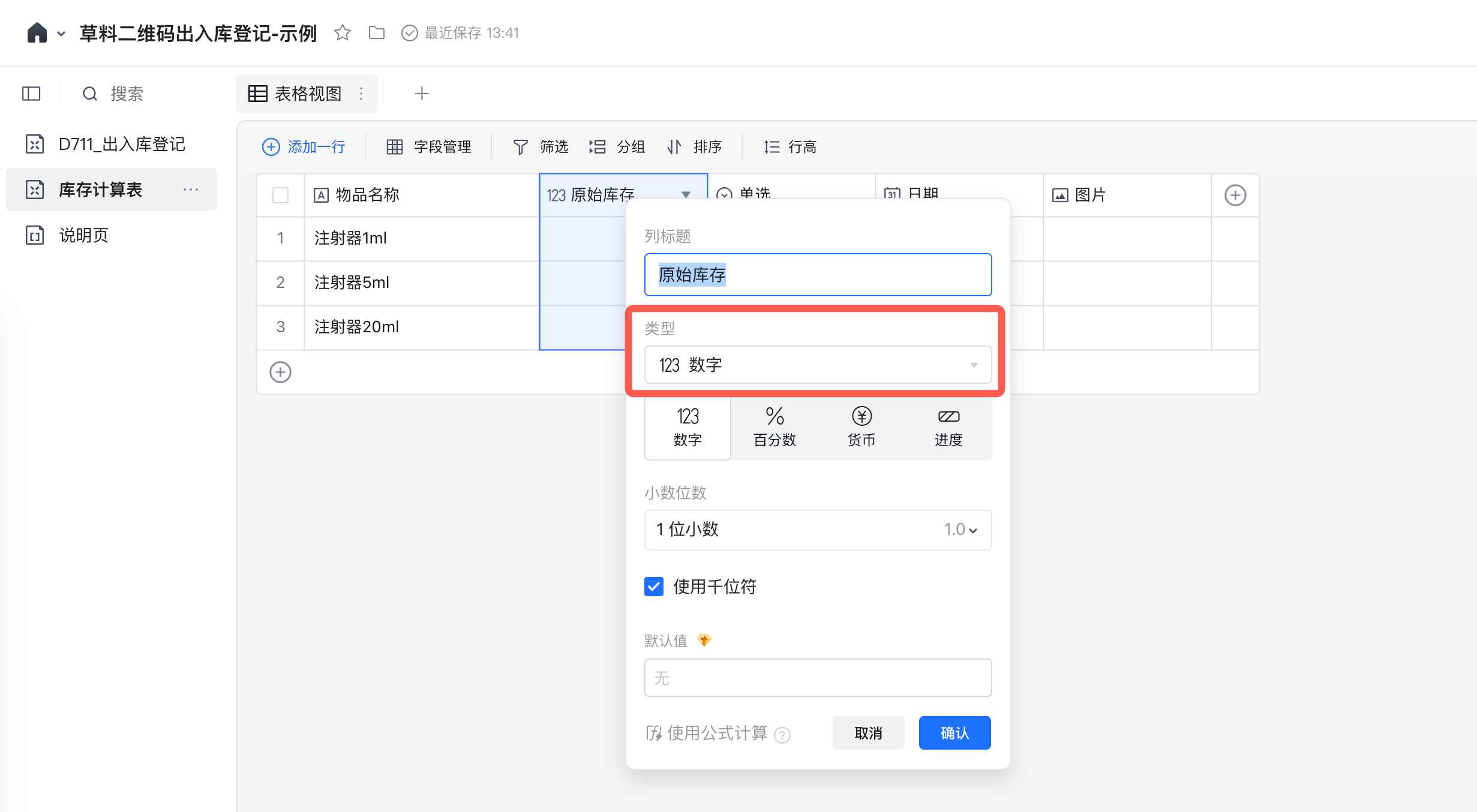
Opening Stock (Column 2): Enter the opening stock quantity for each item.
The field type must be set to "Number"; otherwise it cannot participate in subsequent formula calculations.
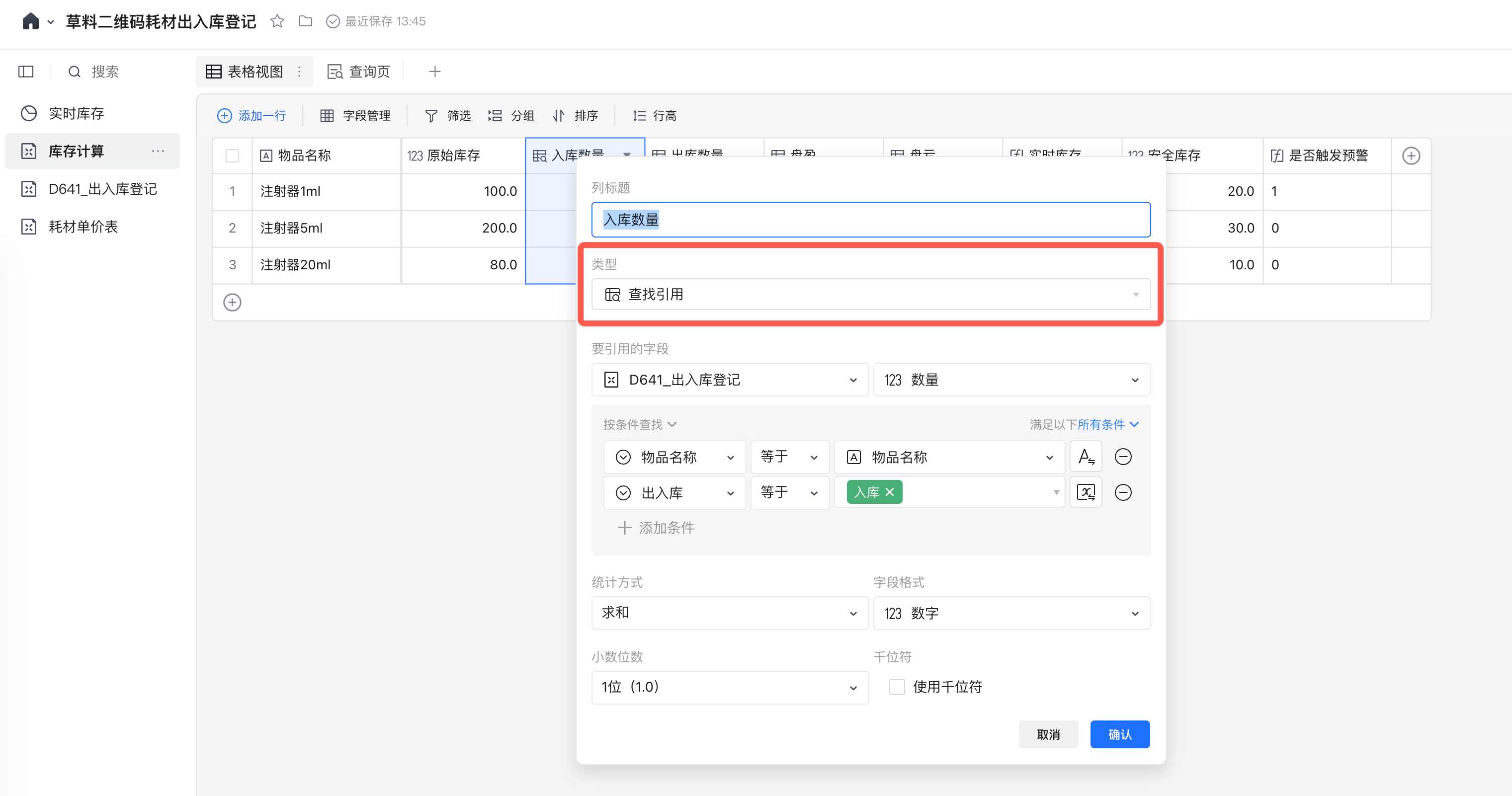
Inbound Quantity / Outbound Quantity / Surplus Quantity / Loss Quantity (Columns 3–6): These columns automatically pull data from the form.
Using "Inbound Quantity" as an example, the setup steps are:
- Set the field type to: "Lookup Reference."
- Data source: Select the corresponding "出入库登记" (Inbound/Outbound Registration) table and set the statistics field to "数量" (Quantity).
- Filter conditions:
- Condition 1: "物品名称" (Item Name) = Item Name in this table (to aggregate by item).
- Condition 2: "出入库类型" (Inbound/Outbound Type) = "入库" (Inbound) (to filter data by type).
- Aggregation method: Select "Sum."
After setting up "入库" (Inbound), repeat the same steps for "出库" (Outbound), "盘盈" (Surplus), and "盘亏" (Loss)—simply change the "type" filter condition to the corresponding option for each.
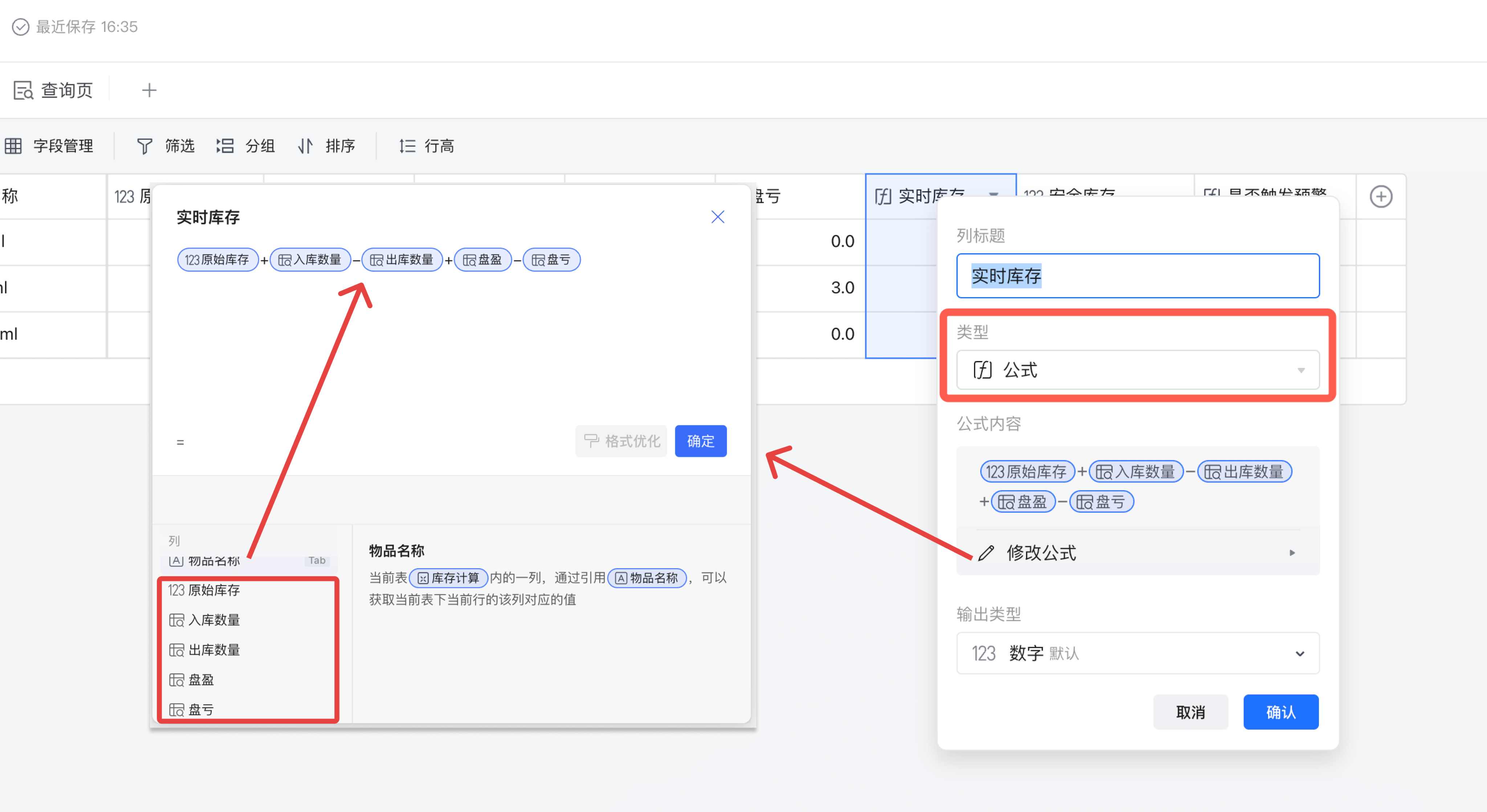
Real-Time Inventory Calculation (Column 7): Calculate real-time inventory using a formula.
Set the field type to: "Formula."
Enter the calculation formula: Real-Time Inventory = Opening Stock + Inbound Quantity - Outbound Quantity + Surplus Quantity - Loss Quantity.
4. Link the Completed Inventory Table to the QR Code for On-Demand Scanning
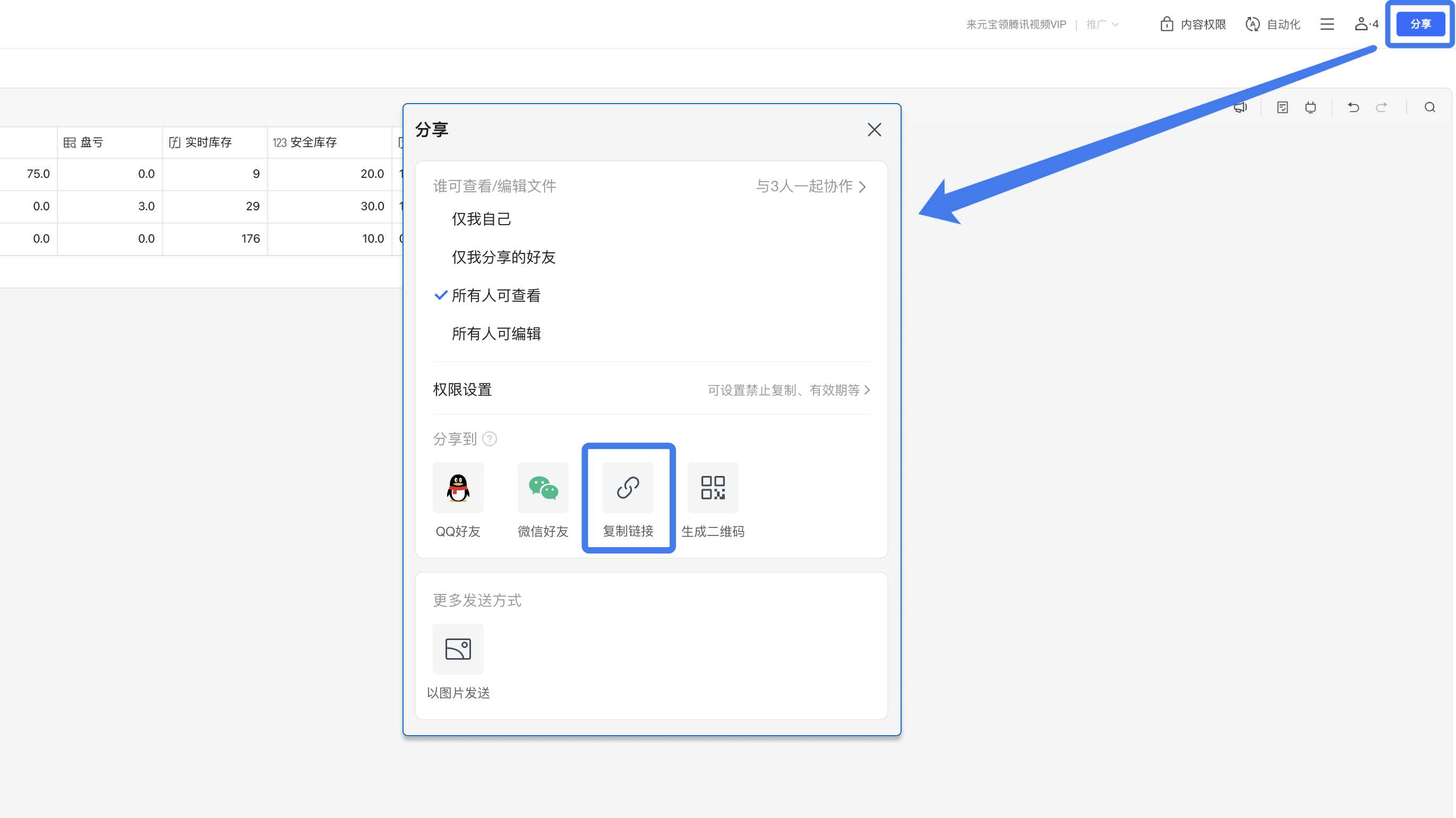
Click [Share] in the top-right corner of Tencent Docs and select [Copy Link].
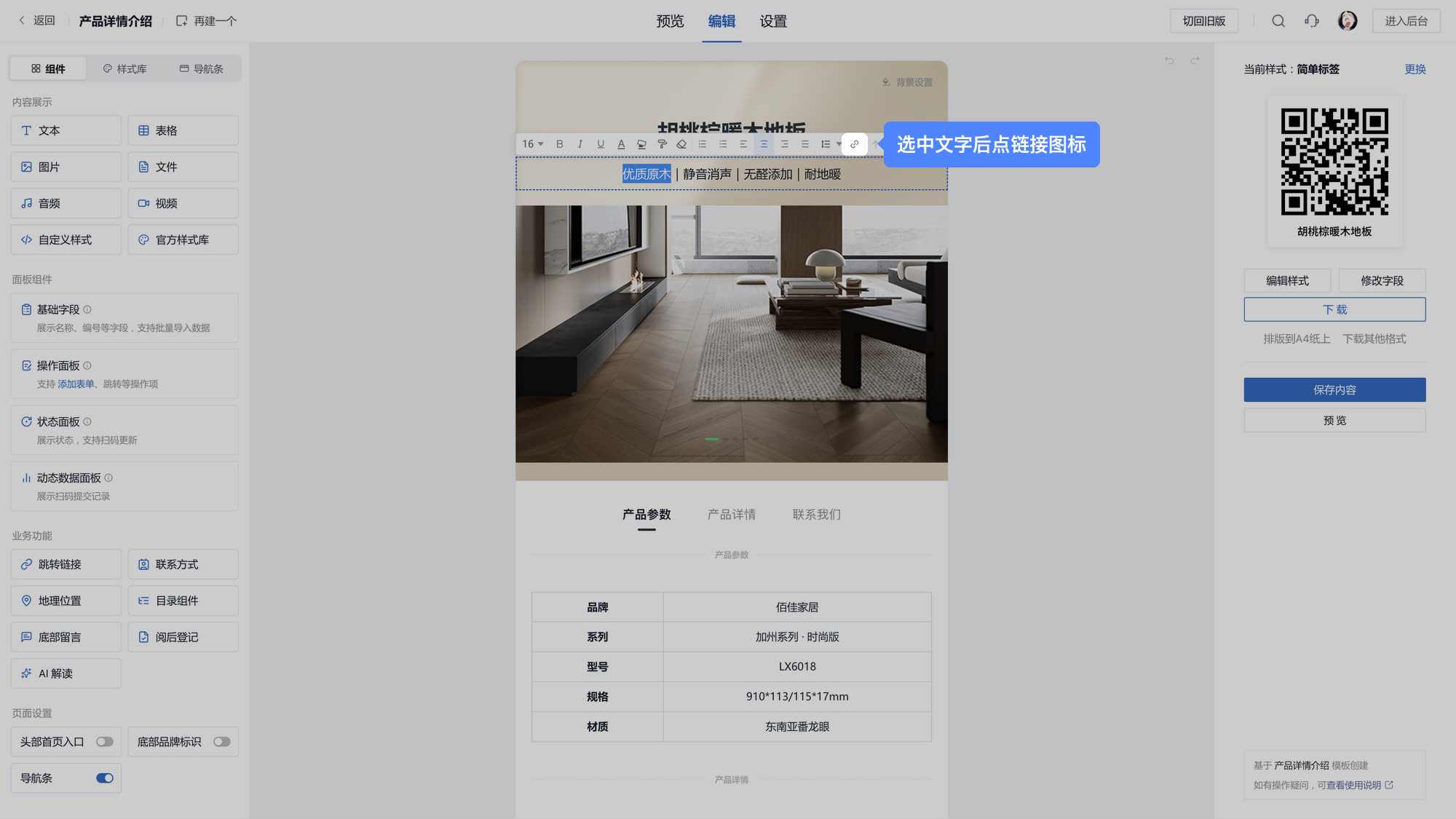
Go back to the inbound/outbound registration QR code editing page, add the text "View Real-Time Inventory" at the top, select the text, and click the link icon on the text toolbar.
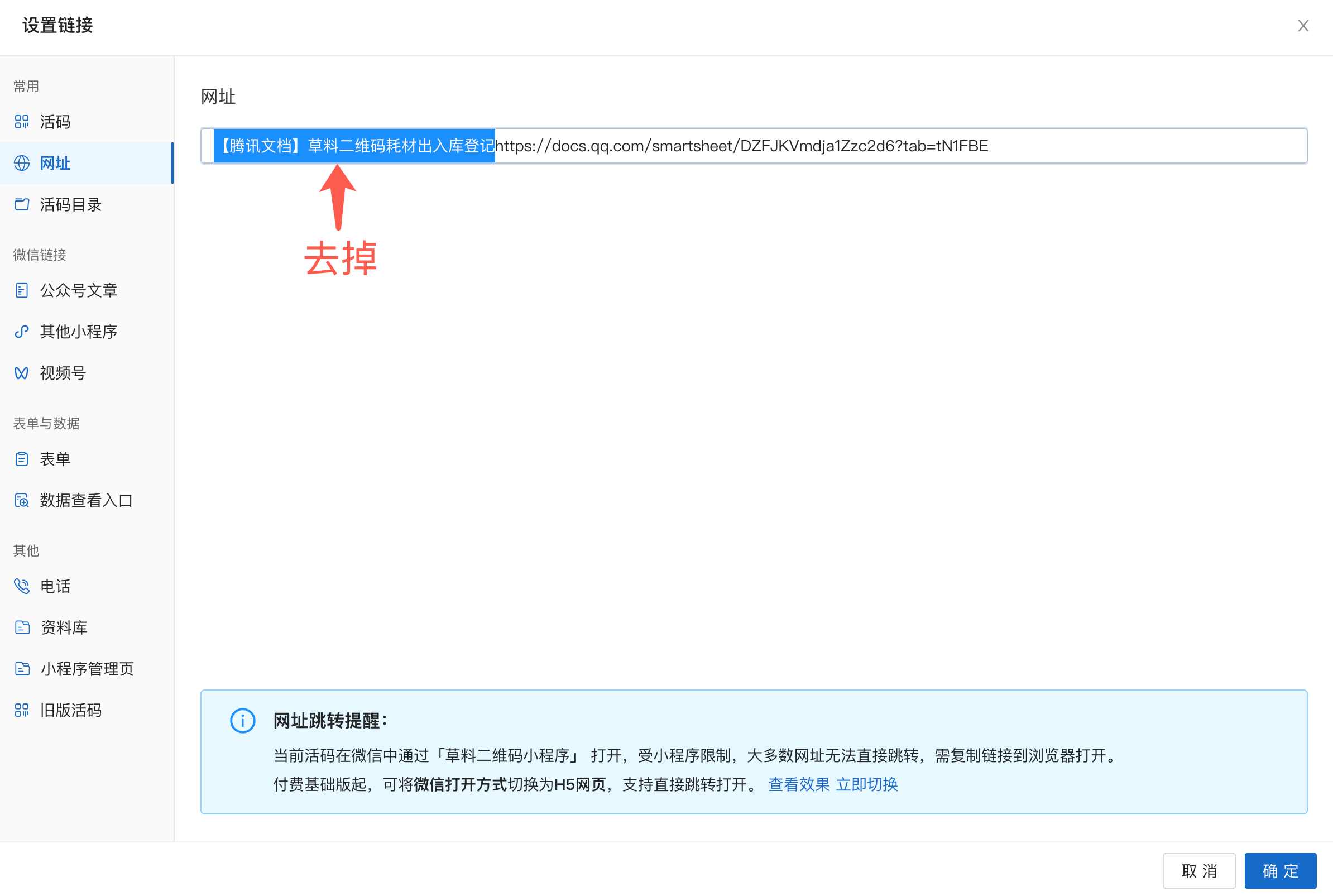
Paste the copied link, remove any text before the URL, keeping only the URL itself, then save.
Part 4: More Applications
Automatic Low-Inventory Alert
Result
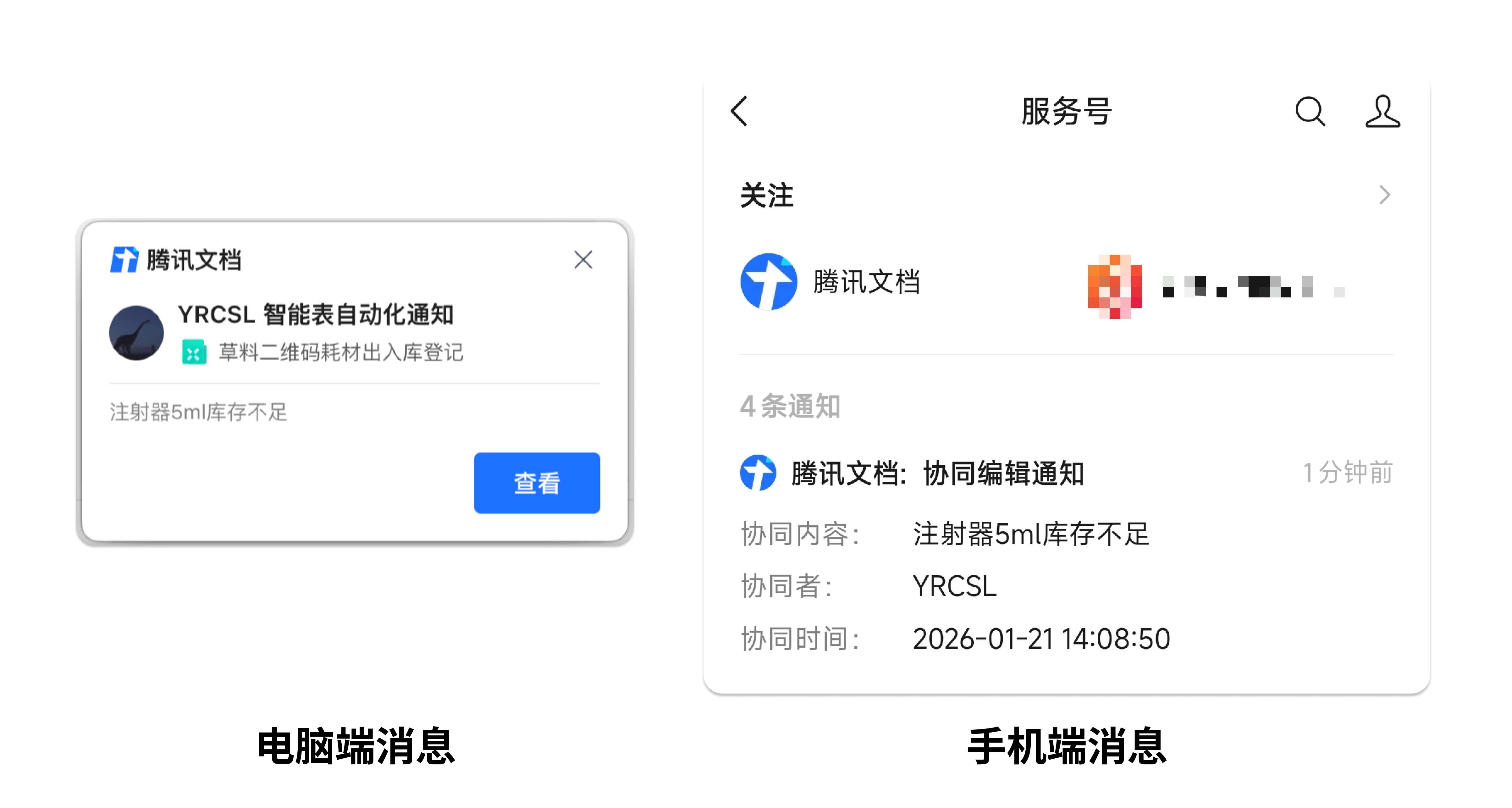
When an item's real-time inventory falls below the configured minimum safety stock level, the system automatically sends a WeChat message alert.
Steps
You must follow the Tencent Docs official account and bind your account login to receive message notifications.

- Add a new column in the inventory calculation table, set the type to "Number," and enter the minimum safety stock level for each item.
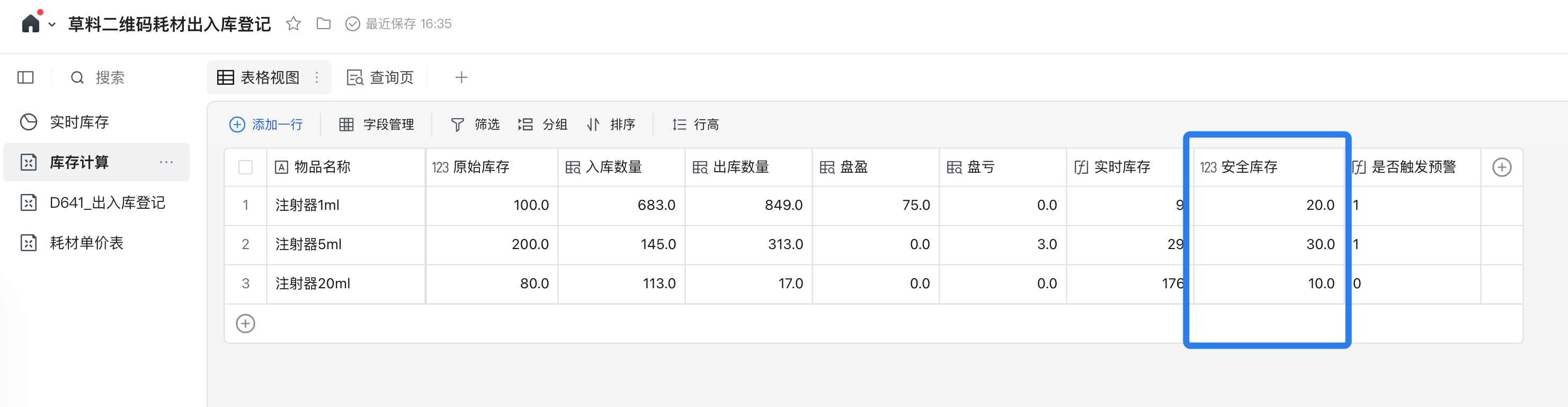
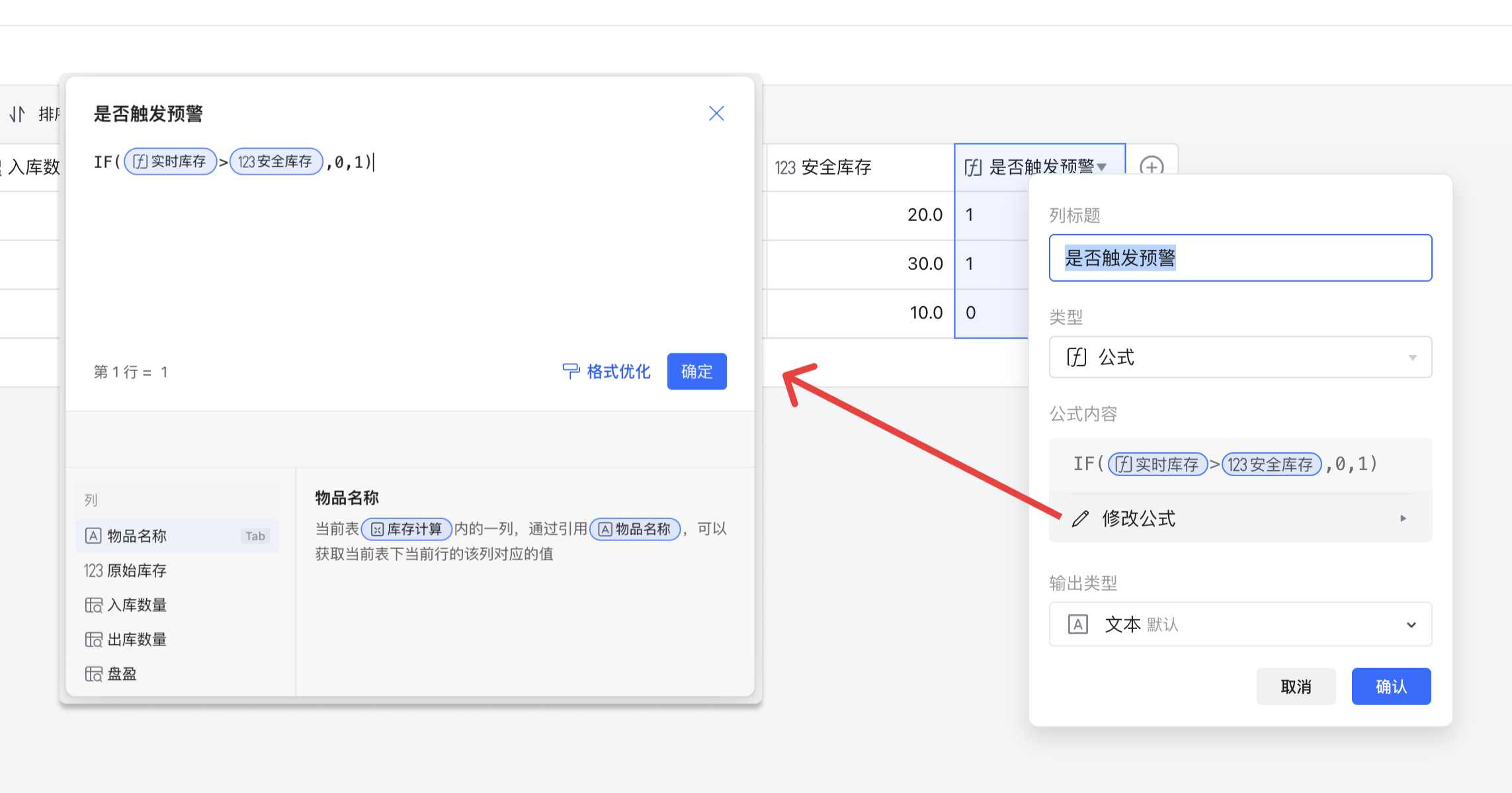
- Add another formula column with the formula shown in the image. The formula means: if the real-time inventory is greater than the safety stock, no alert is triggered (auto-fills 0); otherwise, an alert is triggered (auto-fills 1).
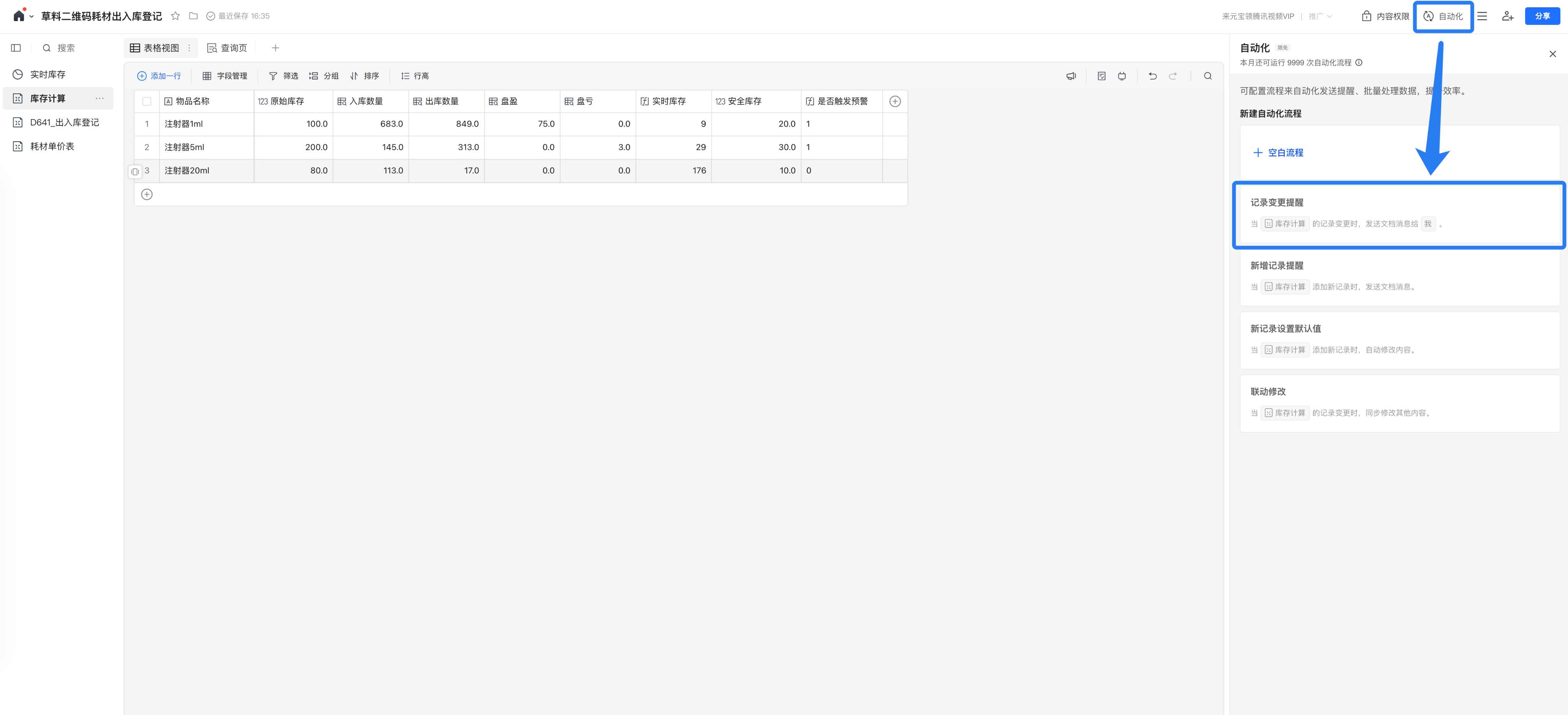
- Click [Automation] in the top-right corner of Tencent Docs and select [Record Change Reminder].
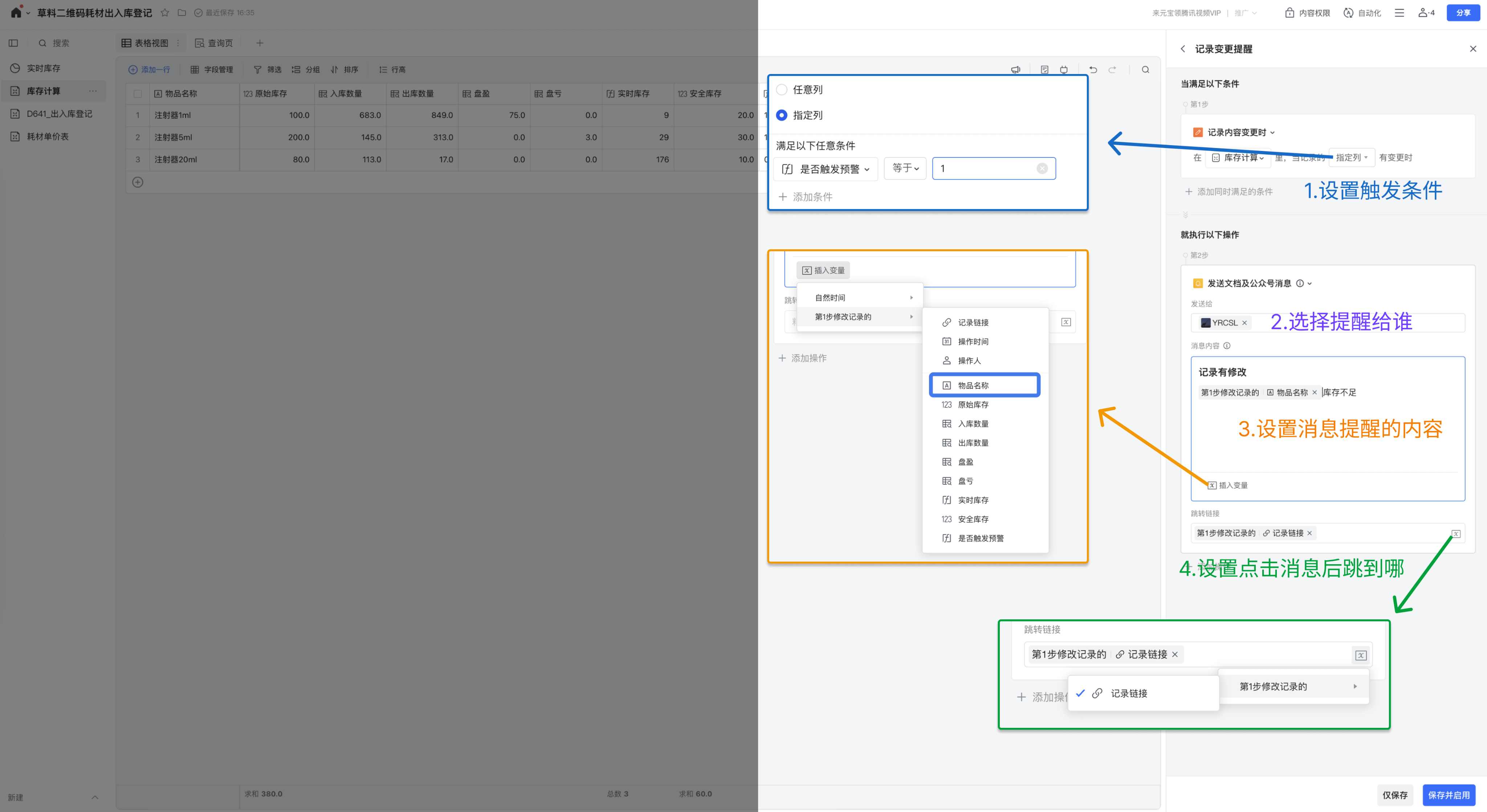
Configure the automation workflow as shown below, then click [Save and Enable]. This workflow means: when an item's stock falls below the minimum safety stock (trigger condition), send an "XXX stock is low" alert as the message content to "BBB" (message recipient). The recipient can click the message to jump directly to the detailed inventory information for that item.
Part 5: Community
If you have additional questions or suggestions during use, you can visit the CaoLiao community to share feedback.