Tutorial: Creating Production Work Order QR Codes
Feature Overview
- Create a separate production work order QR code for each product type; new orders can be generated quickly from the template.
- Scan to view basic information for a new order: model, work order number, production quantity, and notes.
- Workers scan to select a process step and fill in the work reporting information.
- For process steps requiring quality inspection, the work report can be forwarded to the quality inspector after submission.
- The quality inspector fills in the inspection results and updates the process inspection status.
Example

Tutorial
1. Create the [Production Work Order] Bulk Template
Detailed template creation tutorial: Dynamic QR code bulk template editing tutorial
1.1 Set Model, Work Order Number, Production Quantity, and Notes as variable content and insert them into the bulk template.

1.2 In the templates editor, click Control Panel on the left and add the forms for all process steps as operation items.
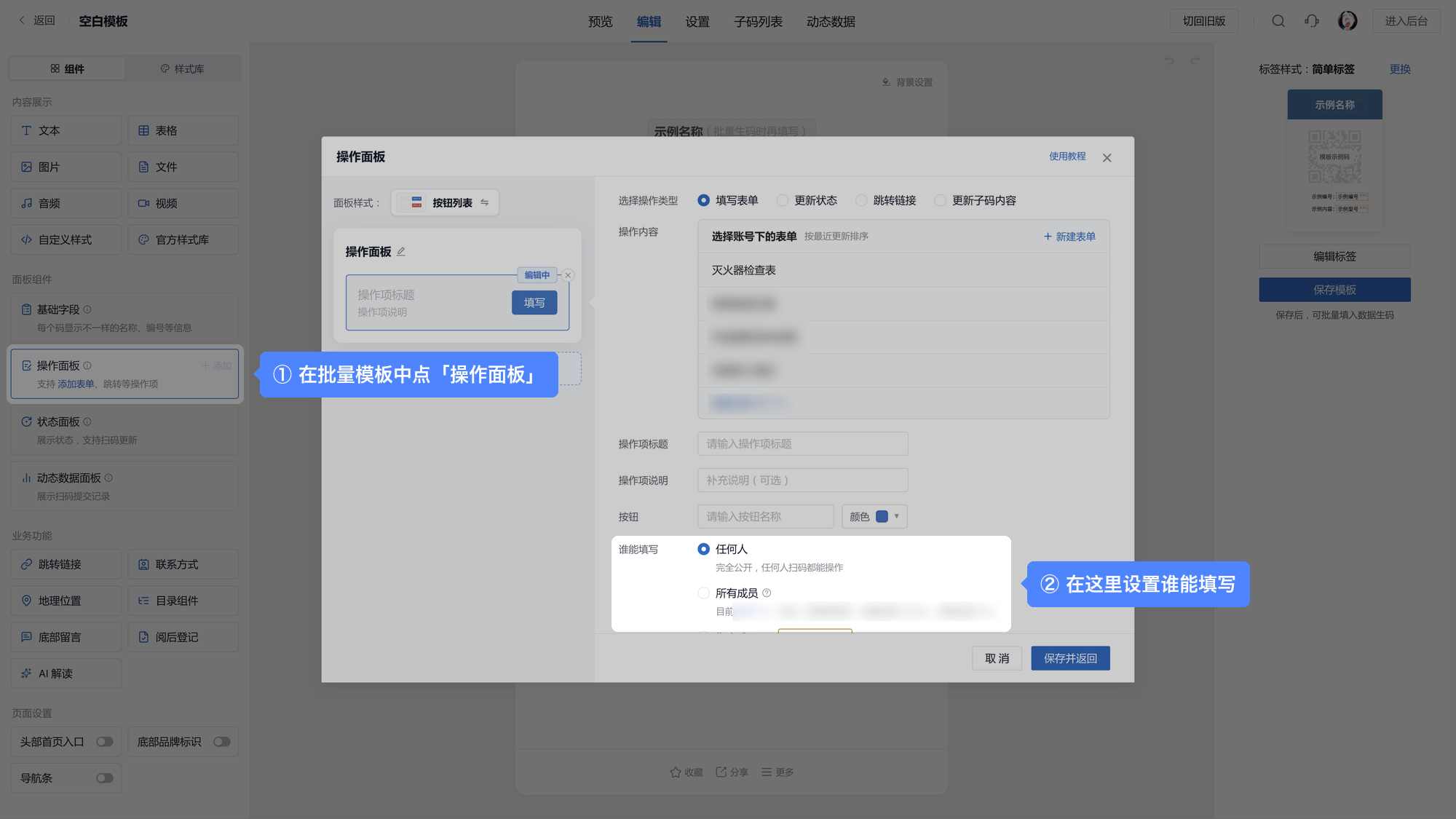
1.3 Each process step's form can be individually customized—configure every data field from your Excel file as a fill-in item.

1.4 For process steps requiring inspection, enable the follow-up actions feature.
Follow-up actions setup tutorial: /help/forms/form-design/follow-up-process/follow-up-actions


2. After the Template Is Configured, Enter New Work Order Information to Generate QR Codes
Select the template you want to use, enter the new work order information (order number, quantity, etc.), generate and download the QR code image, then send it to a WeChat group or print it out for use.


