Tutorial: Creating QR Codes for Actual Measurement Data
Generate QR codes for structural sub-items such as walls, columns, and slabs, and affix them on-site. Quality inspectors and construction workers can enter actual measurement data directly in the field, and all data can be exported in bulk from the desktop workbench. This approach enables efficient information display and makes it easy to scan and share.
View the Actual Measurement QR Code Solution
Part 1: Setup Tutorial
Method 1: Bulk QR Code Generation from Existing Measurement Data
1. Edit the Bulk Template Content
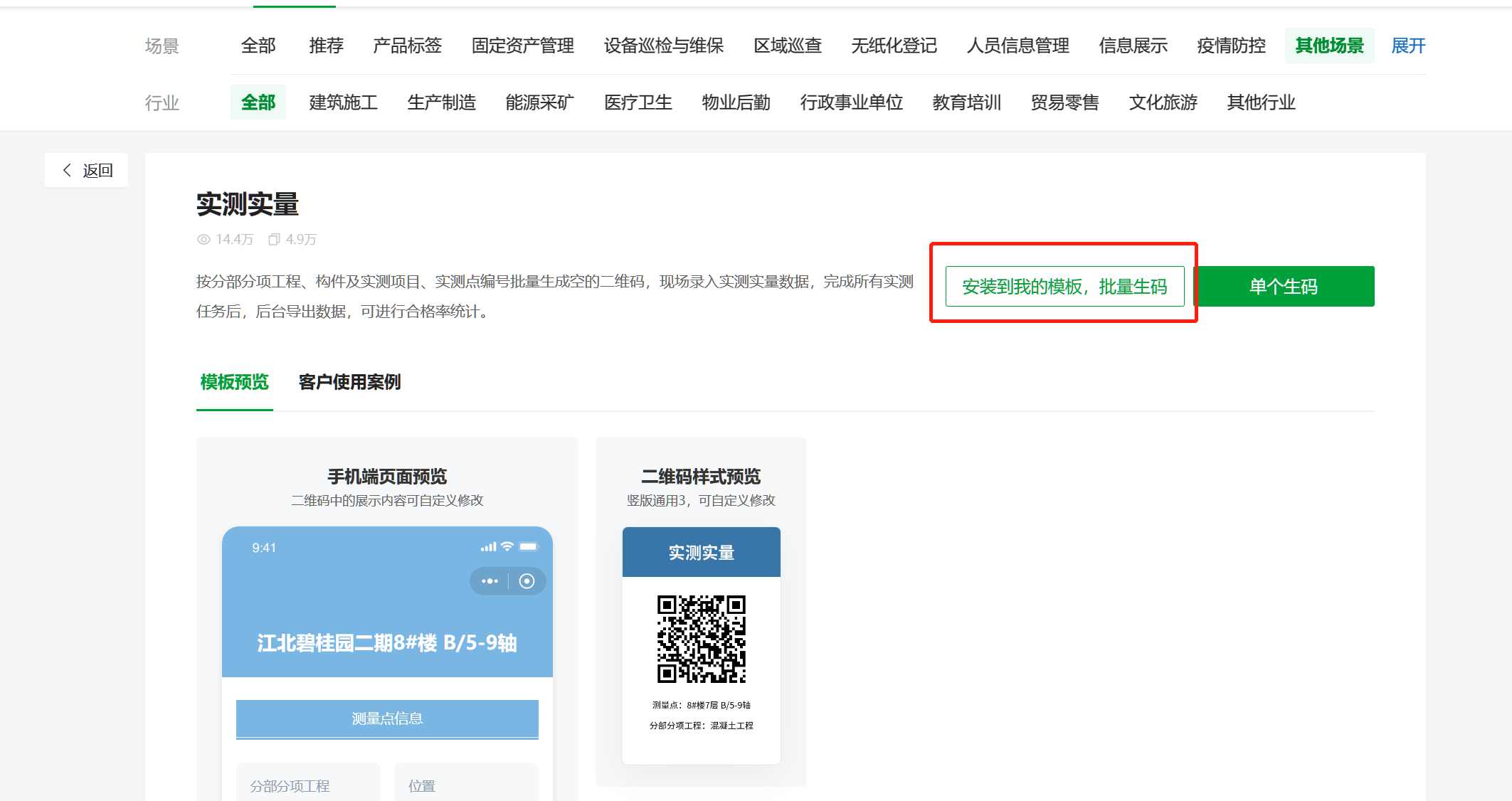
In the Template Library, find the "Actual Measurement" template and select Generate in Bulk.
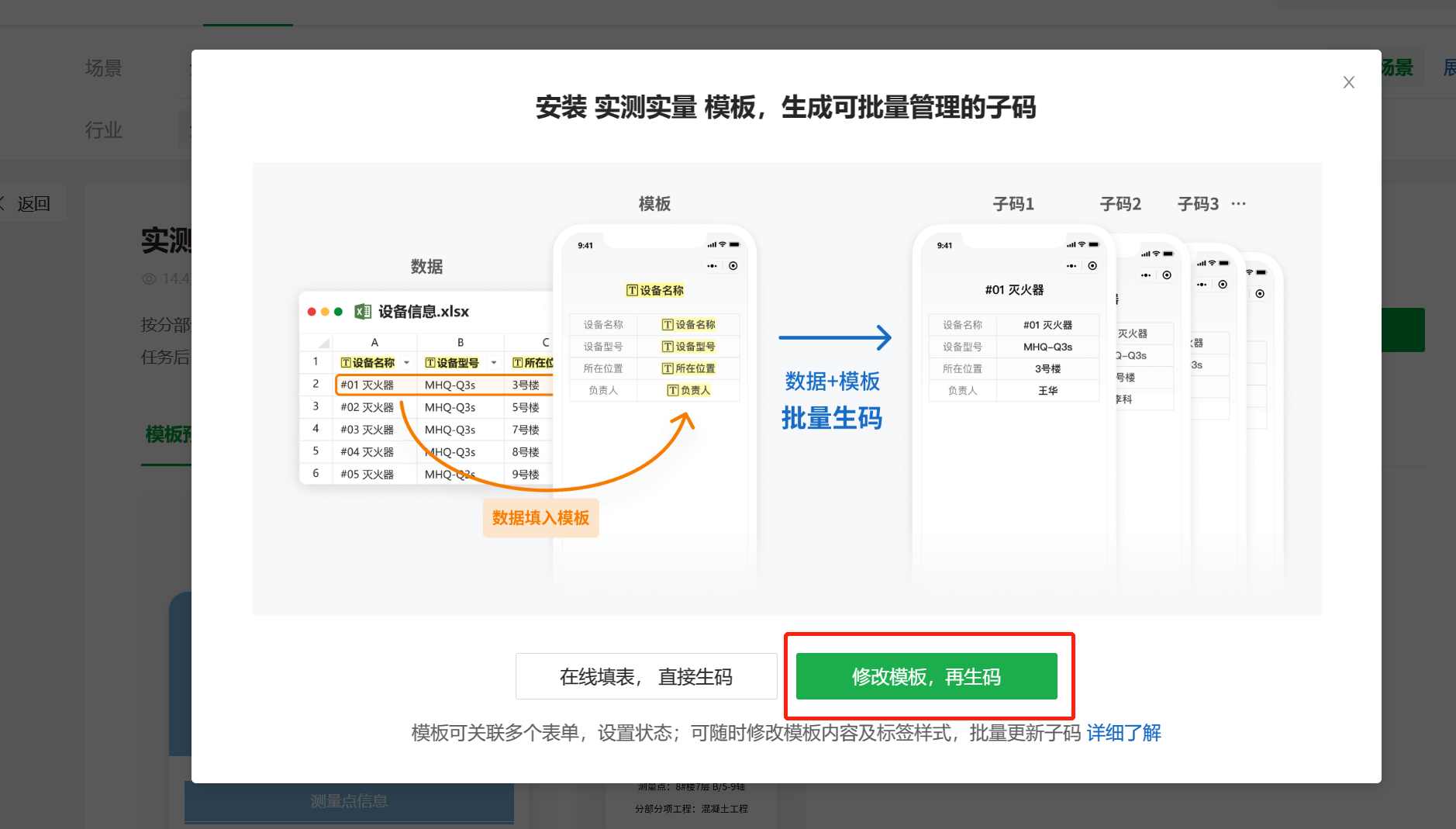
If the template content does not meet your requirements, click [Modify Template, Then Generate] to edit the template. View detailed tutorial
2. Import Data and Generate QR Codes in Bulk
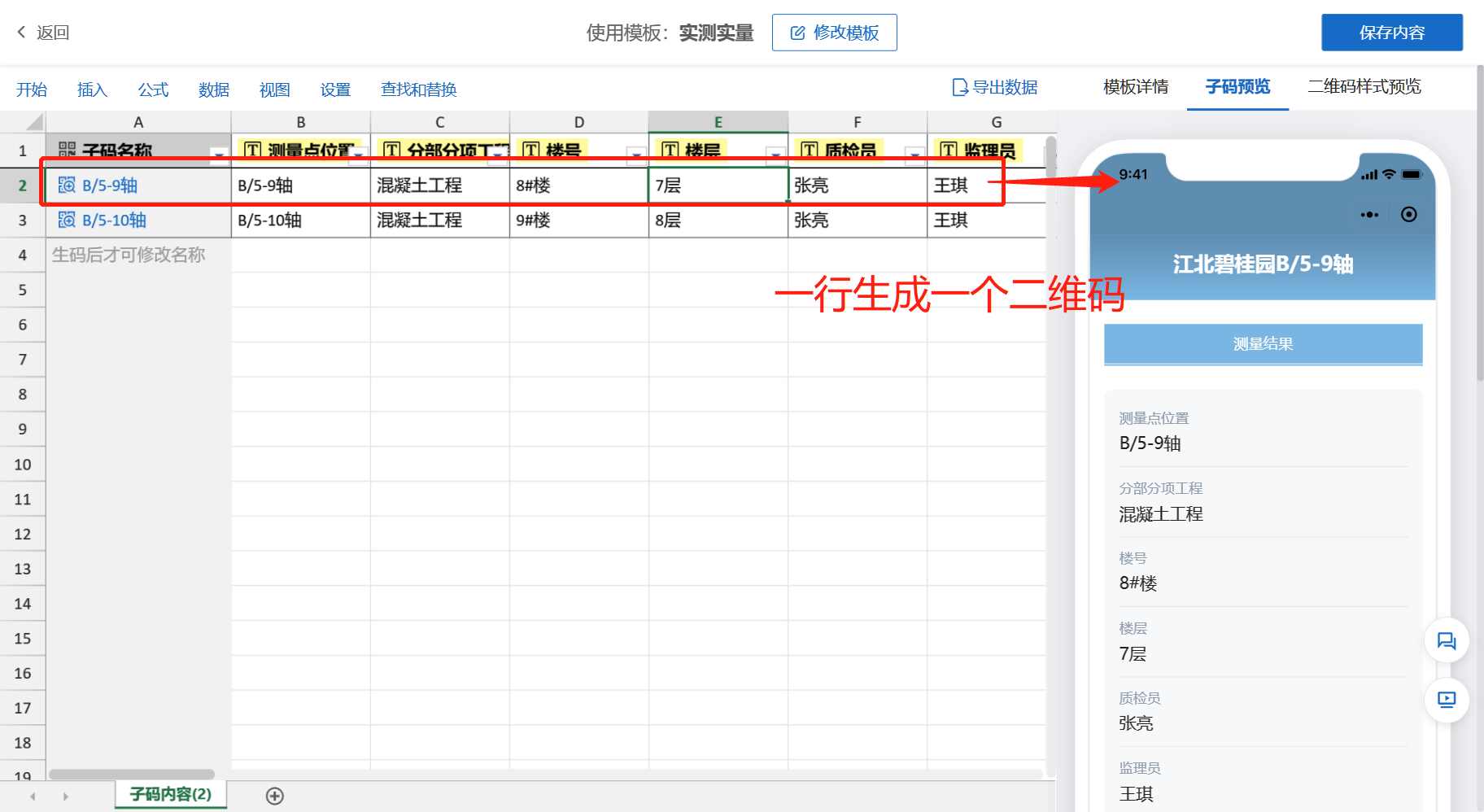
Organize your actual measurement data, then go to the template management page and import the data into the template using either "Upload Excel File" or "Online Spreadsheet (Recommended)" to generate sub-codes—your actual measurement QR codes. View the detailed generation tutorial
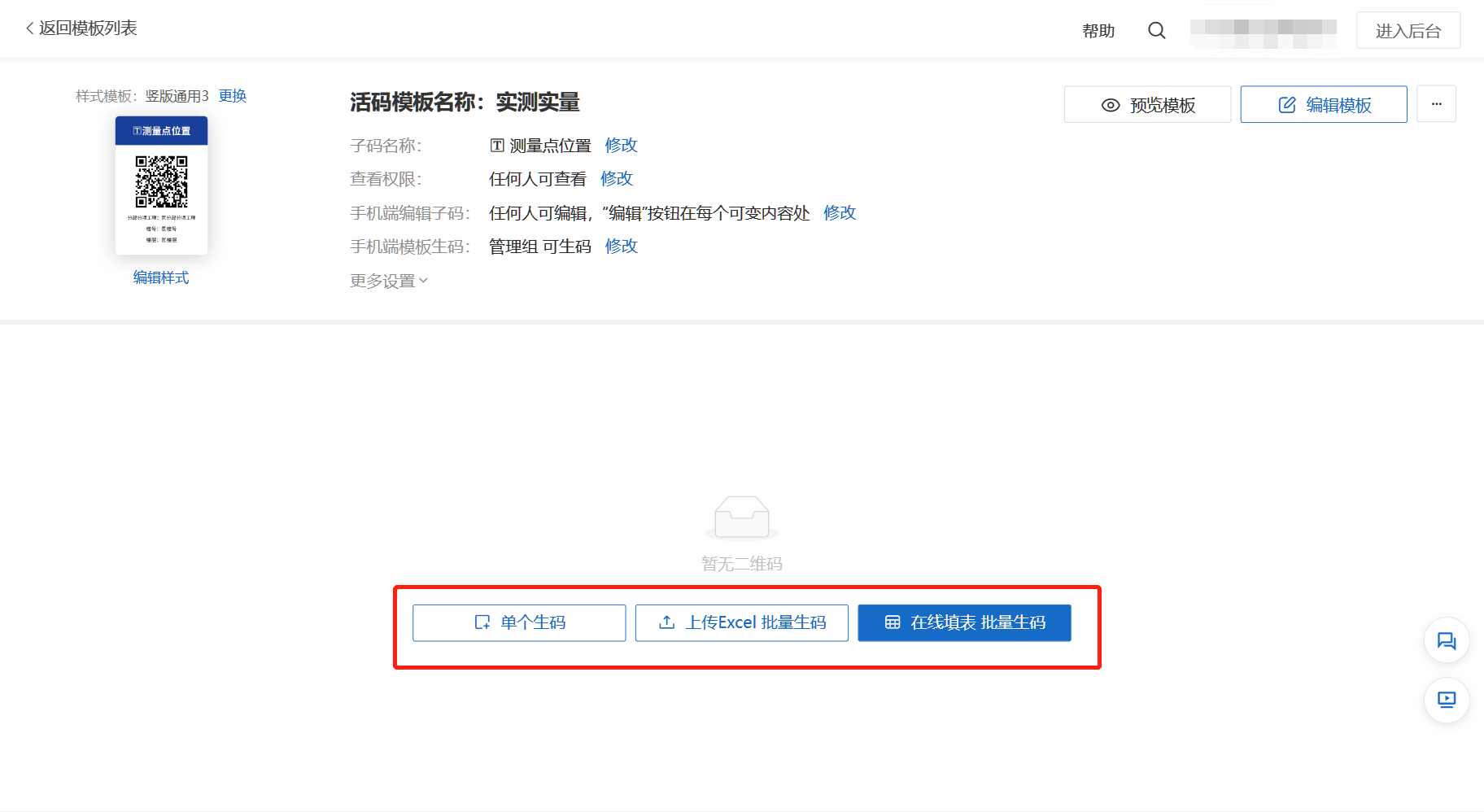
Each row of imported data generates one actual measurement QR code. Note that image or file content such as drawings cannot be uploaded in bulk at this time and must be uploaded individually to each sub-code.
3. Set a Naming Rule for the QR Codes
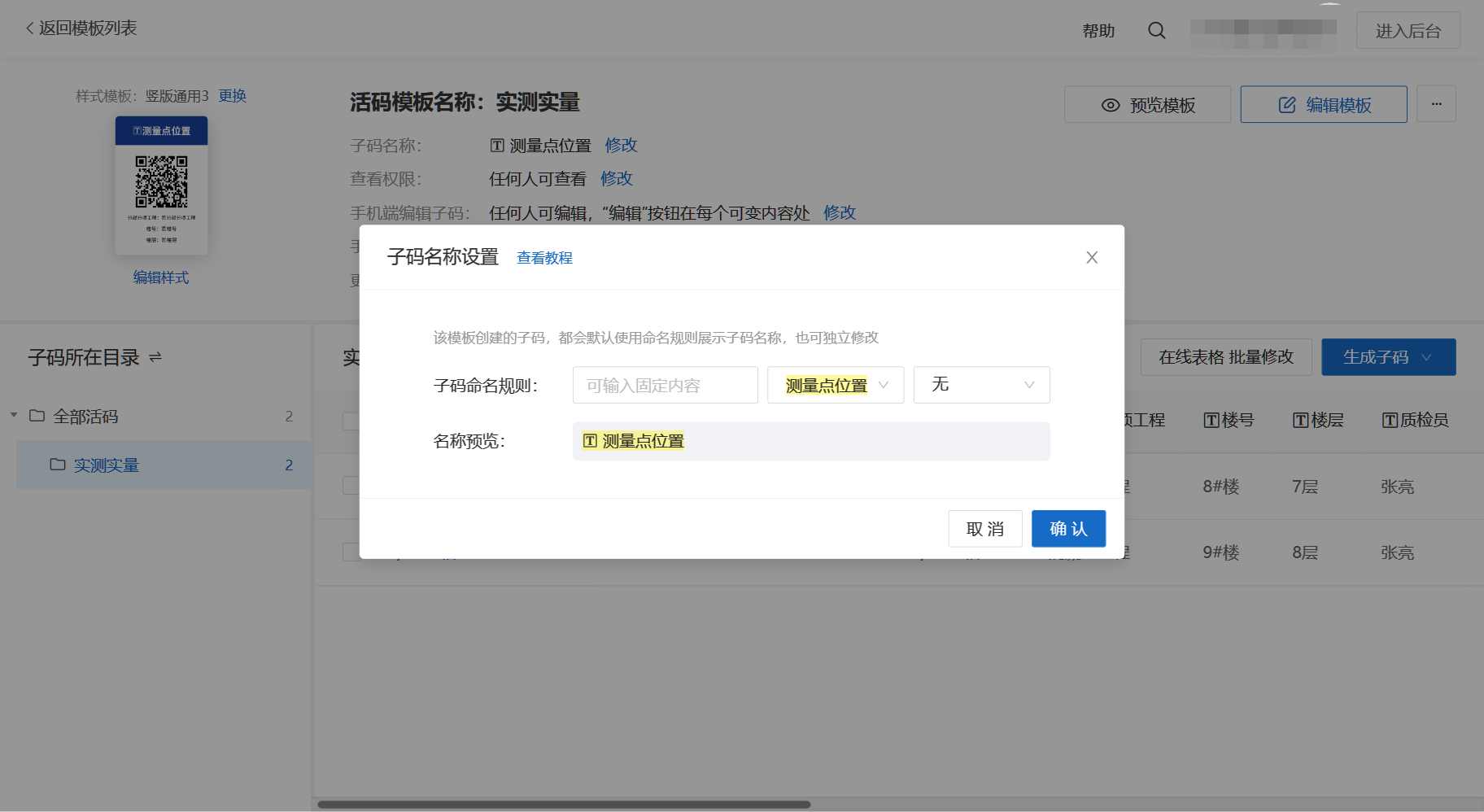
Actual measurement QR codes (sub-codes) can be named in bulk according to a consistent rule—for example, setting the QR code name to the measurement point location so you can quickly search by keyword in the workbench. For detailed instructions, see the bulk QR code naming tutorial.
4. Print the QR Codes
We provide multiple label styles for actual measurement QR codes. Simply select a style, configure the display fields, and CaoLiao will automatically generate an A4 layout file ready to print on a standard laser printer with adhesive label paper. Once printed, peel off the QR code labels and they are ready to use. View the detailed label layout tutorial
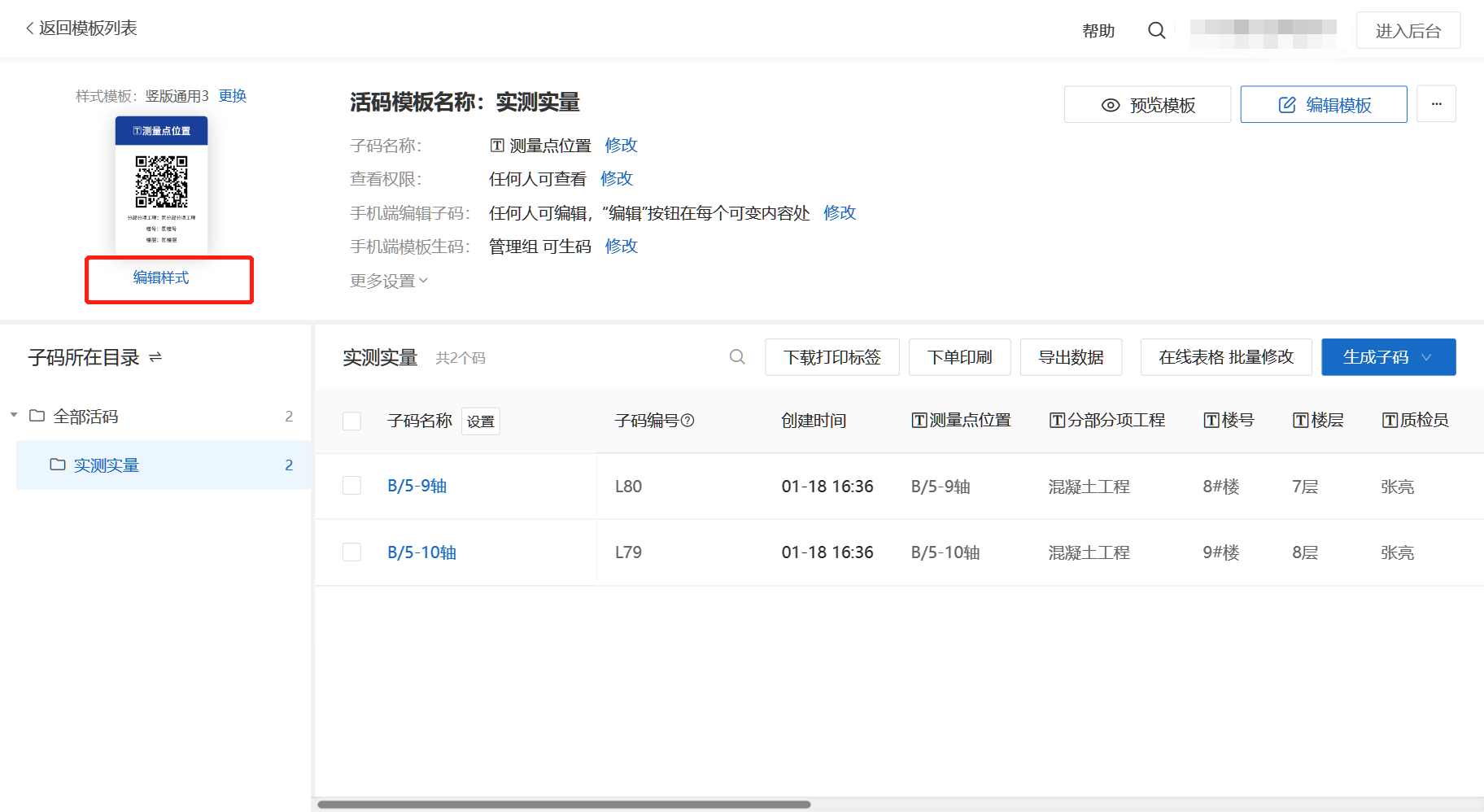
After setting up the label style, choose your print method—label printer or A4 printer—and download the corresponding file for direct printing. View detailed tutorial We also offer a printing service that delivers finished labels quickly. View QR code printing service
Method 2: Use Preprinted Dynamic QR Code Labels and Scan to Enter Data on Site
If there are many measurement points and the data is not yet complete, create a batch of preprinted dynamic QR code labels and attach them where needed. Workers can scan the labels on site to enter measurement data. This works when you need to deploy labels first and add content later.
Prepare Preprinted Dynamic QR Code Labels
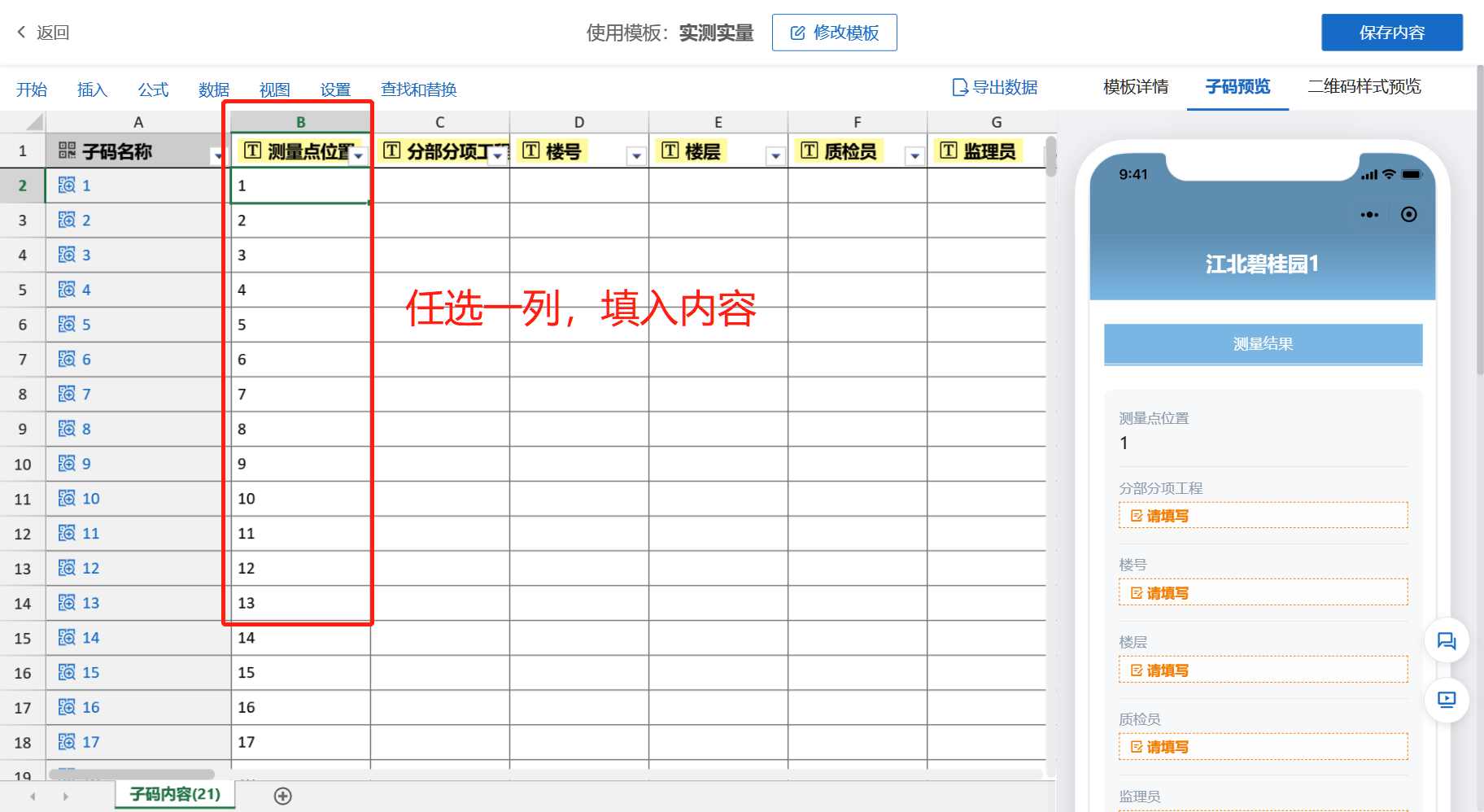
When creating labels with the preprinted dynamic QR code label feature, first set the quantity, numbering rules, and label style. Create as many preprinted labels as the QR codes you need. On-site staff can scan them to add measurement data later.
Set Mobile Editing Permissions
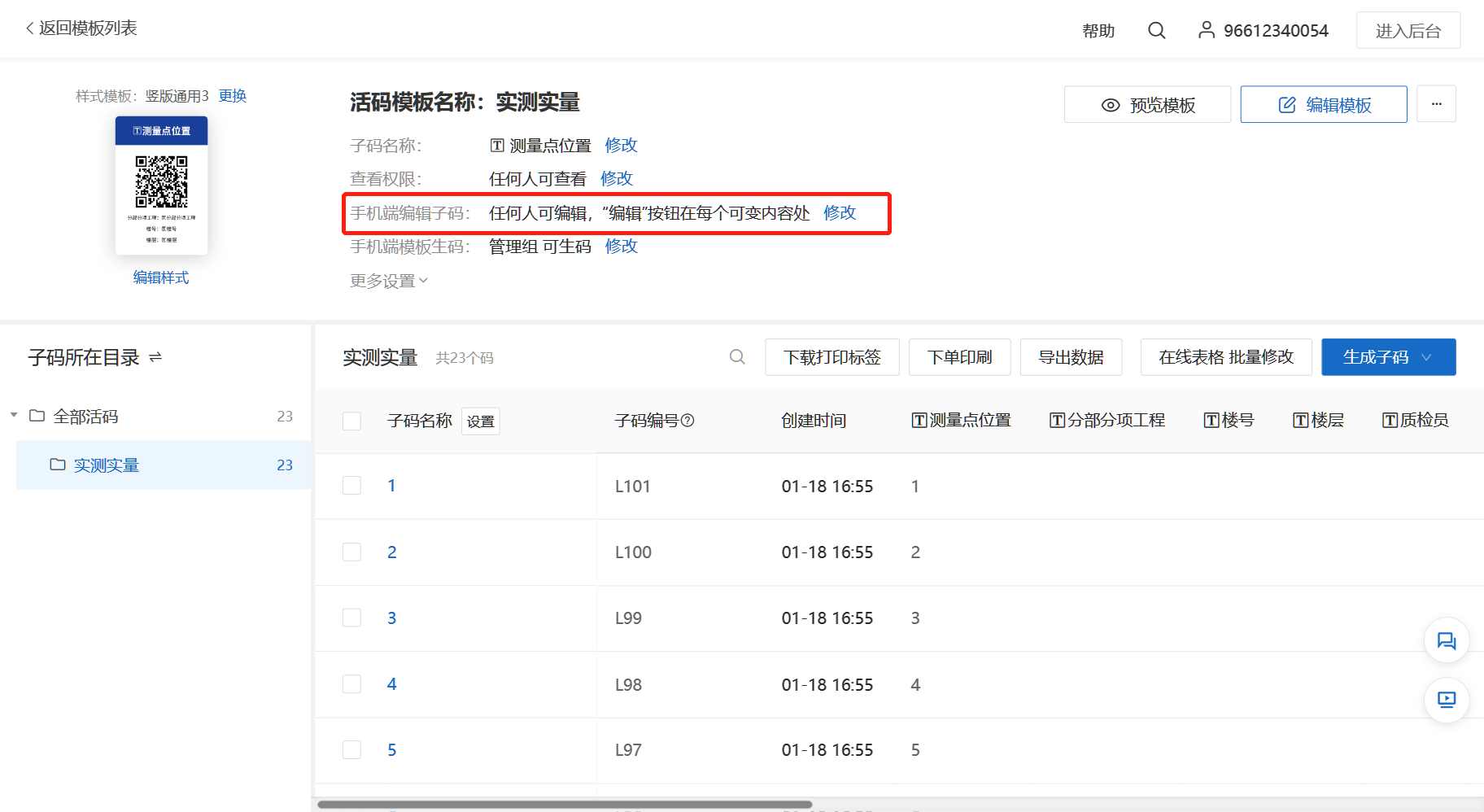
After the QR codes are generated, configure the mobile editing permissions in the QR code template. Authorized personnel can scan and edit the QR code content. View tutorial
Export Actual Measurement Data
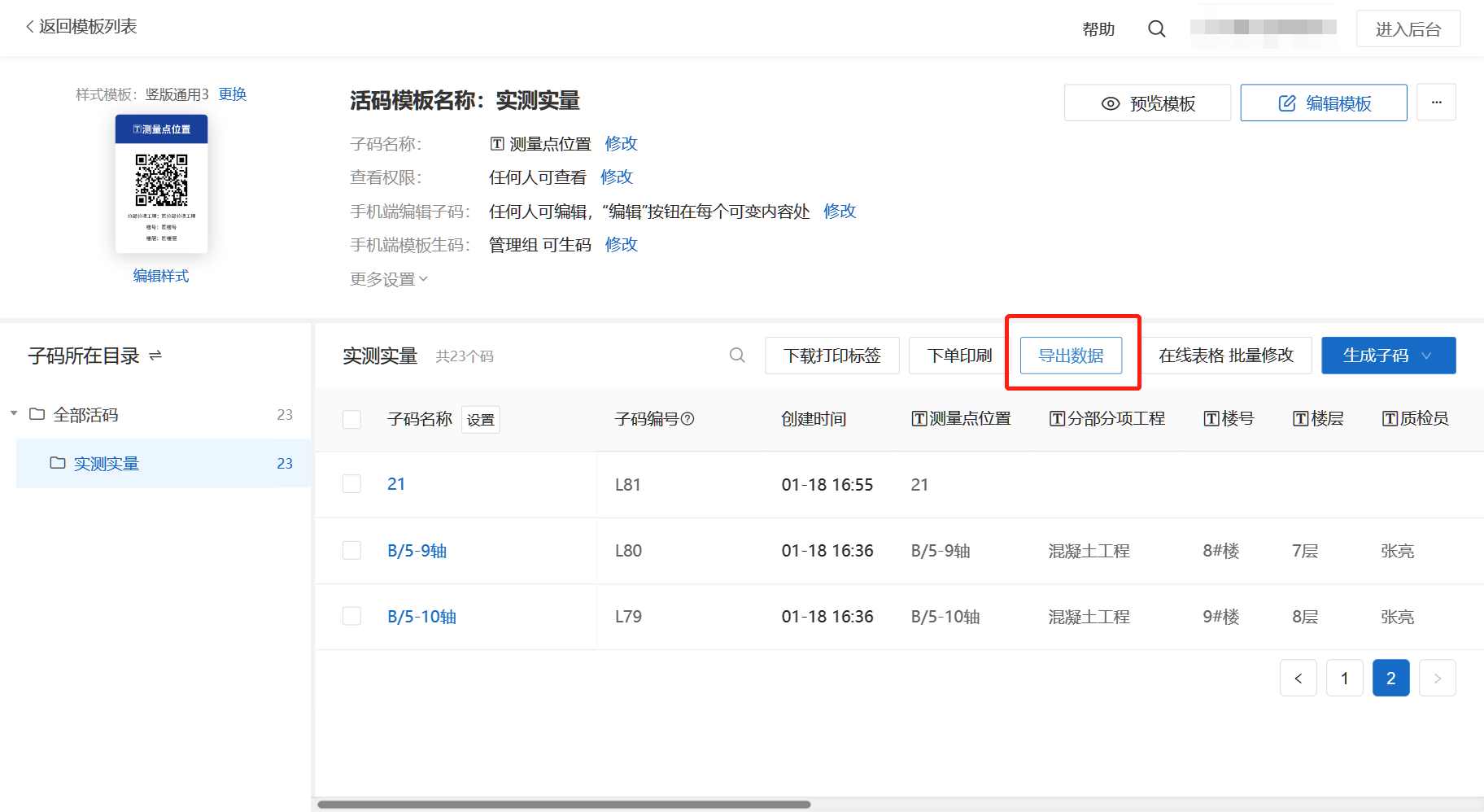
Once all measurement data has been entered, you can export it all at once from the workbench. On the template detail page, click [Export Data] to export the actual measurement data for analysis or archiving.