Mobile Sub-Code Editing
Feature Overview
After enabling the mobile sub-code editing feature on the bulk template details page, authorized users can scan the QR code to fill in or modify each [Basic Field] on the sub-code — no desktop login required.
Main use cases:
-
Sub-code content needs to be updated frequently or modified at any time — for example, real-time inventory counts, changes in the users of company fixed assets, etc.
-
After an admin creates a template on desktop, a batch of sub-codes can be generated in advance and completed on mobile later. For example, front-line personnel can scan to upload actual measurement data, new employees can fill in their real-name information and upload their ID photos, etc.
-
Combined with the dynamic data panel, modification history can be viewed more intuitively on mobile — every change made to a sub-code on mobile is recorded in the dynamic data, including the modification time, operator, and modified content.
Use Cases
1. Actual Measurement QR Codes
Generate a batch of QR codes in a standard format with empty content in advance. Quality inspectors apply the codes on-site and scan to enter data directly. All measurement data can be exported from the workbench for archiving. Learn more
2. Worker Real-Name Management
Personnel photos and ID documents can be photographed and completed on-site from a mobile device, which is more efficient than collecting them and uploading one by one in the workbench. Learn more
3. Fixed Asset Management
Equipment and asset documentation is often not readily available to the administrator. Collecting it before creating QR codes increases the administrator's workload. In this case, you can generate a batch of fixed asset QR codes and allow front-line personnel to fill in or modify certain fields — such as "Custodian", "Maintenance Date", or "Current Asset Photo". As soon as information changes, management can quickly track the detailed flow of assets. Learn more
4. Inventory In/Out Management
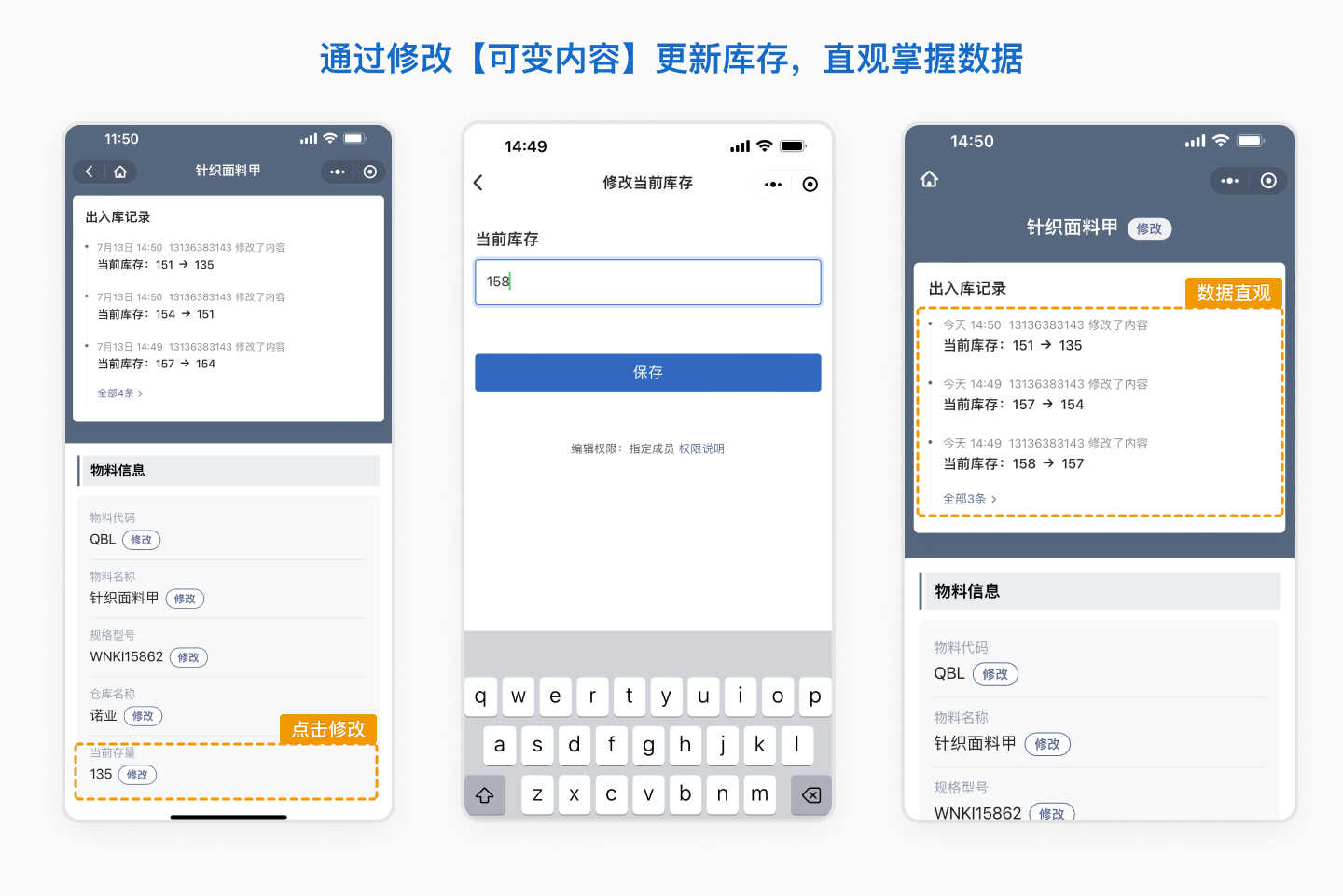
When front-line personnel conduct inventory checks on-site, they simply modify the "Current Stock" field on the code. Management can review the modification records in the dynamic archives to track all inventory changes and assess business conditions and restocking needs. While inventory changes can also be recorded by submitting a form, that approach makes it harder for managers to intuitively grasp data changes. Learn more
Setting Editing Permissions and Limits
Editing Permissions
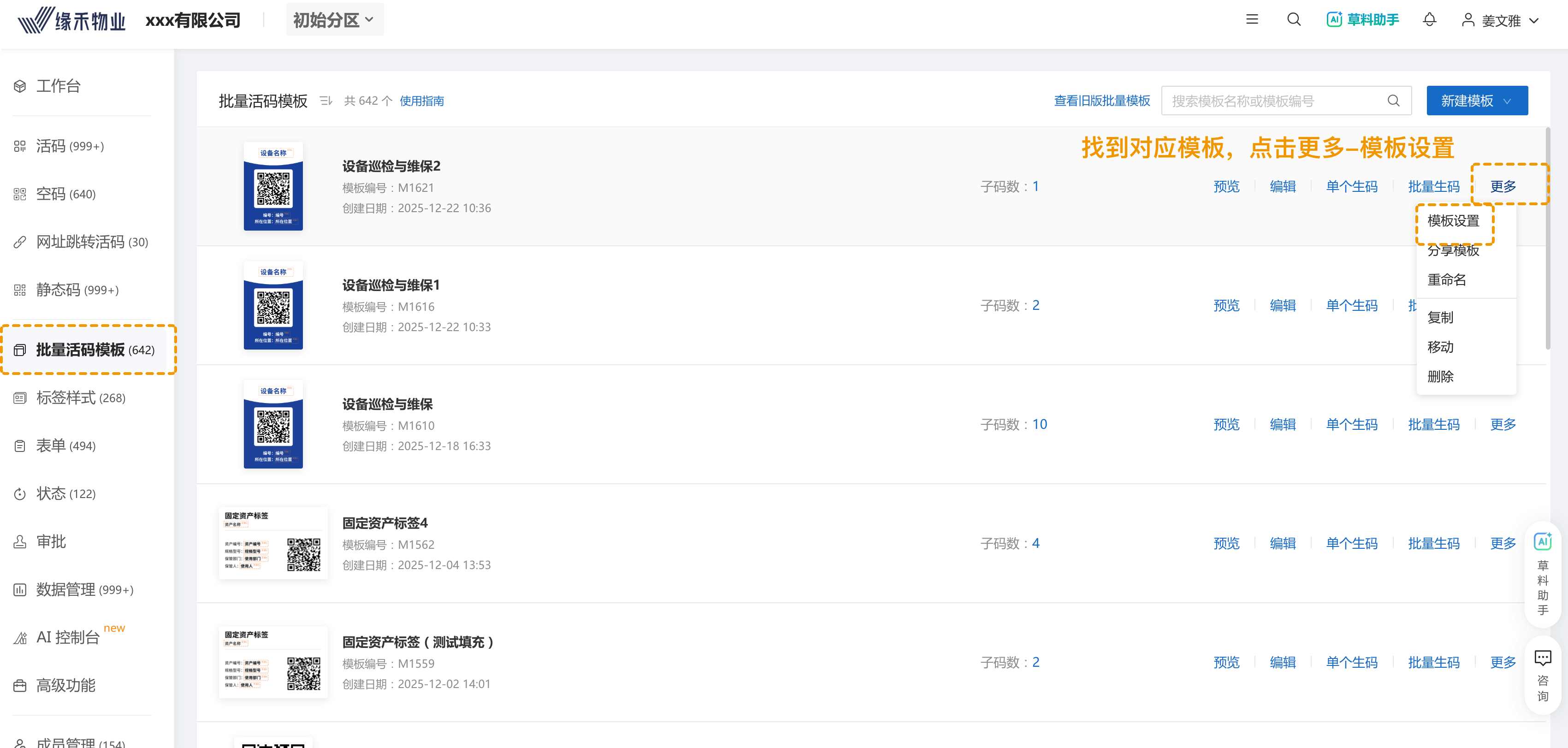
In the bulk dynamic QR code list, click [Details] to open the template details page. On the template details page, click [Template Settings] and find the mobile sub-code editing settings.

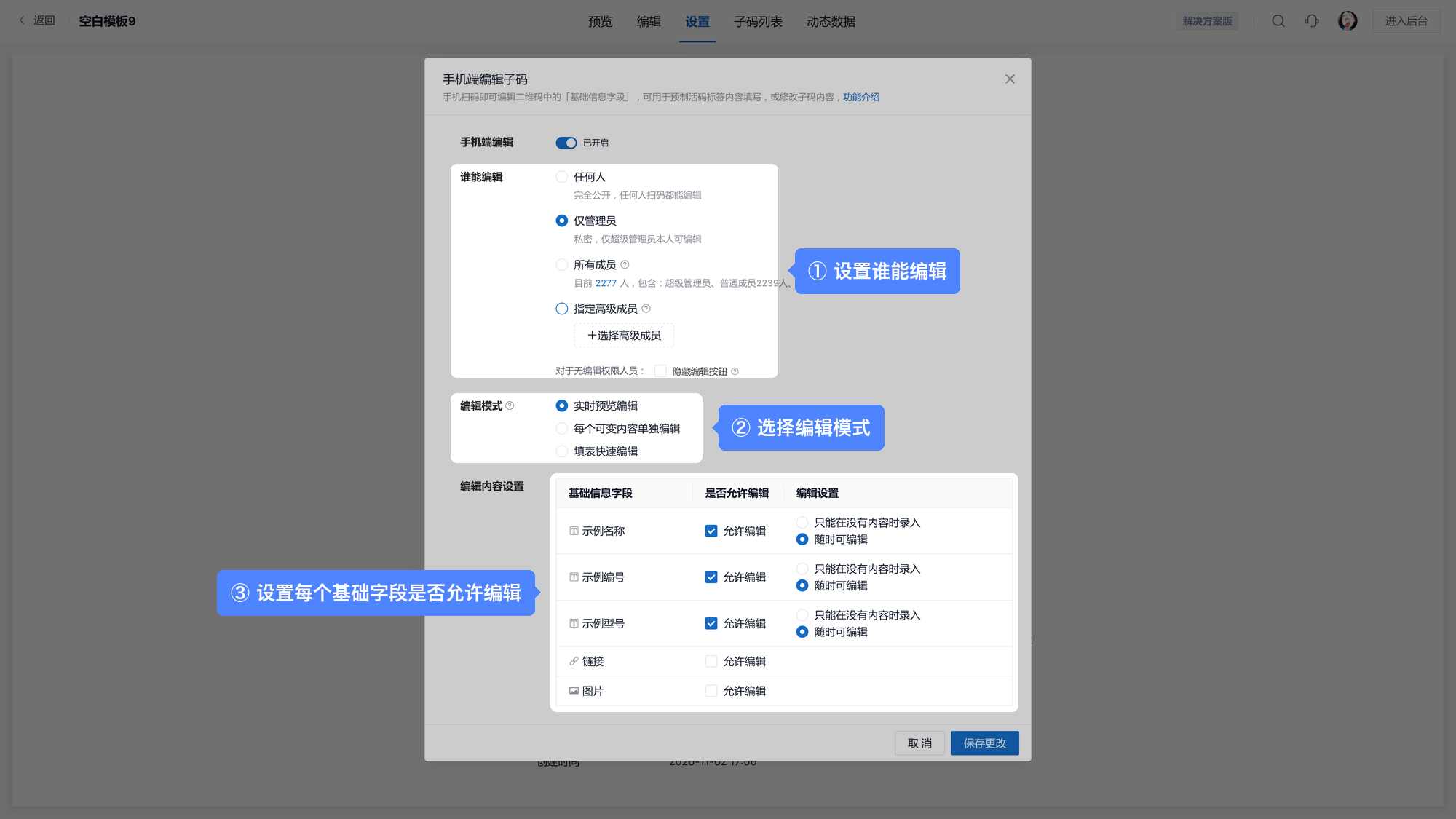
After enabling the mobile QR code editing feature, only the admin can scan to edit by default. The admin can also delegate editing to others to improve efficiency:
- Anyone
- Admin Only
- All Organization Members
- Designated Advanced Members
All Members
Your account is treated as an organization. Once editing permission is granted to all members, every member in the organization can assist the admin with editing.
You can add members in the workbench under [Settings] > [Member Management]. Once added, the corresponding member can scan the code and proceed.
You can also let the relevant personnel join the organization themselves when scanning and operating — more efficient than the admin adding them manually. View how to set this up
Designated Advanced Members
You can designate specific members who are allowed to edit sub-code content — for example, only members of the asset management team — so that specialized personnel handle specialized tasks.
Editing Mode
After enabling the mobile sub-code editing feature, sub-code content can be modified via the "Edit" button in the lower right corner of the scan page. Super admins can configure this as needed.
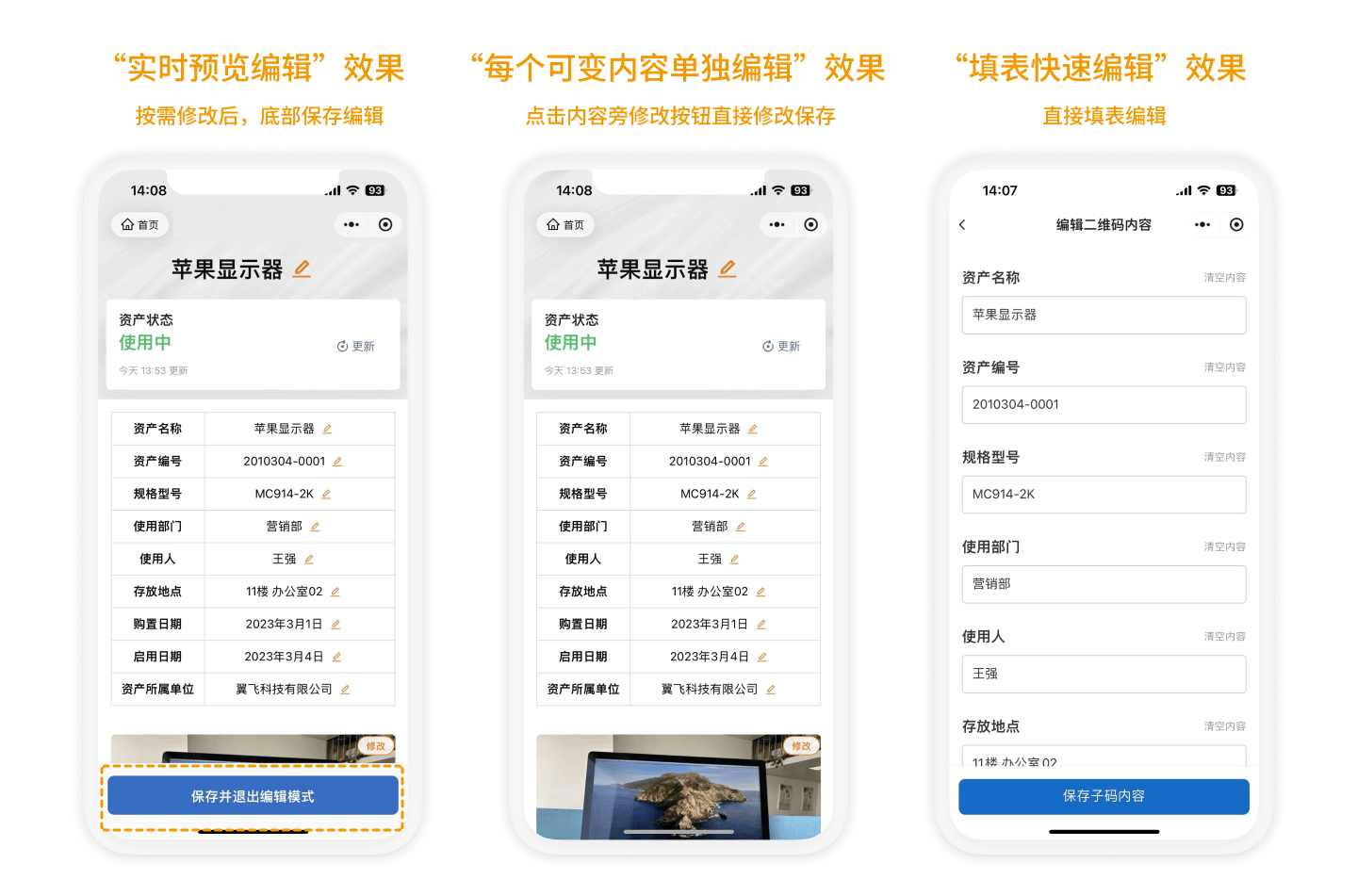
- Live Preview Editing: Edit directly on the as-scanned interface; save all changes at once using the button at the bottom of the page.
- Edit Each Basic Field Separately: Click the edit button next to each piece of content to edit and save it individually.
- Form Quick Edit: Click "Edit" to go directly to the form editing page for a more convenient editing experience.
Fill-in Hints
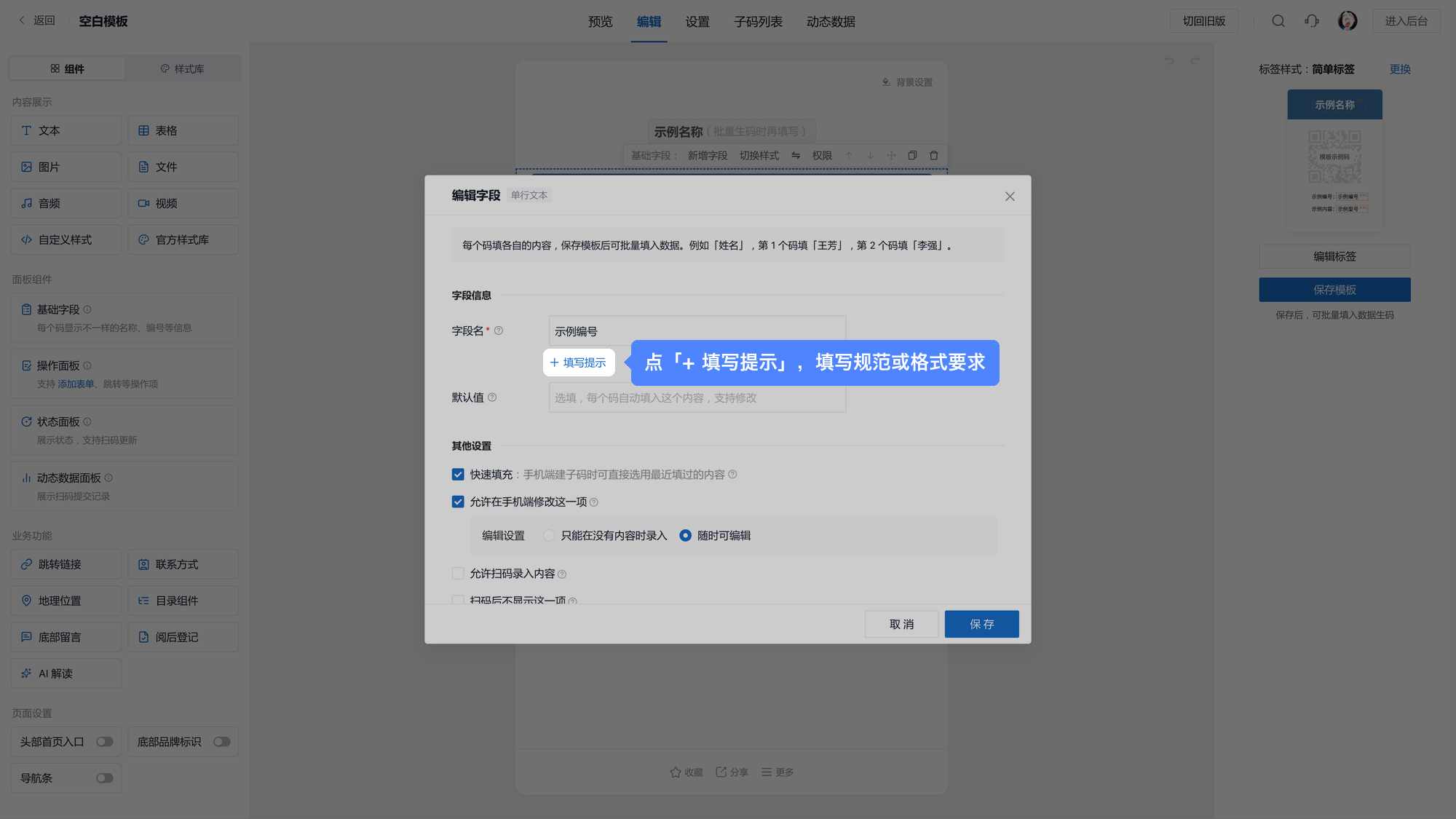
Admins can also set a fill-in hint for each [Basic Field] in the bulk templates editor, including fill-in guidelines, format requirements, etc., to guide submitters in providing content that meets requirements.
To set it, select the field, click "Settings", then click "+ Fill-in Hint".
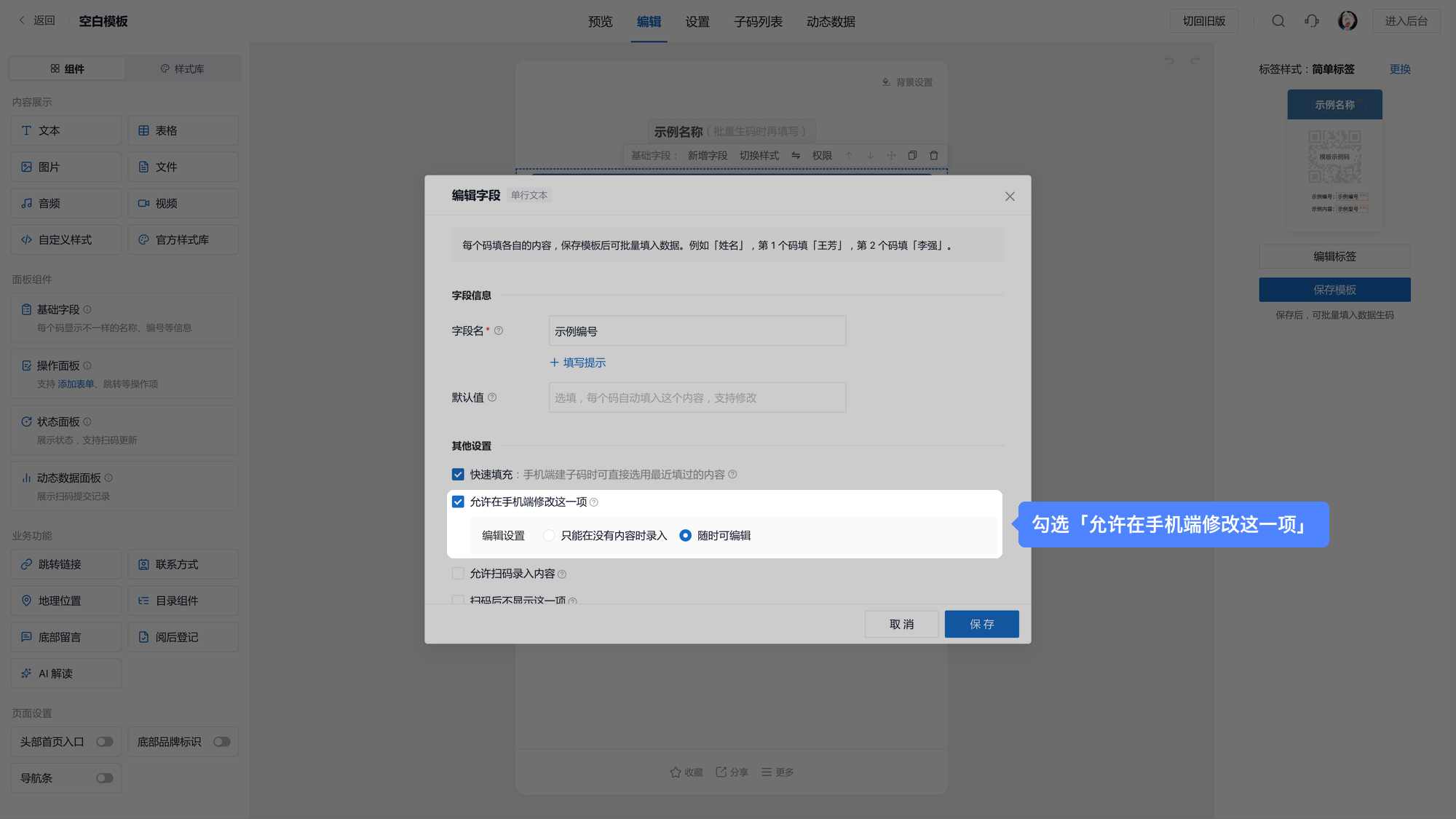
Whether a single field can be edited on mobile can also be set in the field's "Settings" by checking "Allow Editing This Item on Mobile".
For example, in the "Asset Number" field of a fixed asset, add a hint such as "Please enter the full asset number, e.g., NB-483989"; or in the "Flatness – First Measurement" field of an actual measurement, add "Please enter the first flatness measurement, unit: mm".

Edit Count Limits
Each [Basic Field] also supports controlling how many times it can be edited on mobile: either editable only once, or unlimited edits.
If "Editable Only Once" is selected, the field can only be filled in once on mobile when the sub-code content is empty. Once the field has content, editing is no longer allowed.
Frequently Asked Questions
1. Why Can't I Edit a Sub-Code After Scanning?
Please check whether any of the following situations apply:
- Situation 1: The admin has not enabled the mobile sub-code editing feature. View how to enable it
- Situation 2: The admin has set these fields to be editable only once, and the field you want to edit already has content. View edit count settings tutorial
- Situation 3: The QR code's opening method is set to "H5 web page". The mobile editing feature only works in the WeChat Mini Program. Please switch the QR code opening method to "CaoLiao Mini Program" or "Unbranded Mini Program". View switch tutorial
2. Why Does It Say I Don't Have Editing Permission After Scanning?
The admin has specified which members are allowed to edit, and you may not be among them. Please contact the admin to request permission. View settings tutorial