Basic Fields Tutorial
This article explains how to use the basic info component to manage "different content for each QR code". It is suitable for equipment profiles, asset ledgers, personnel records, ID information, and similar scenarios.
1. What Are Basic Fields?
Basic fields are used to display "different information for each QR code". Define the fields centrally first, then enter different data for each sub-code when generating codes. This keeps the field structure in one place, making configuration clearer and long-term maintenance easier.
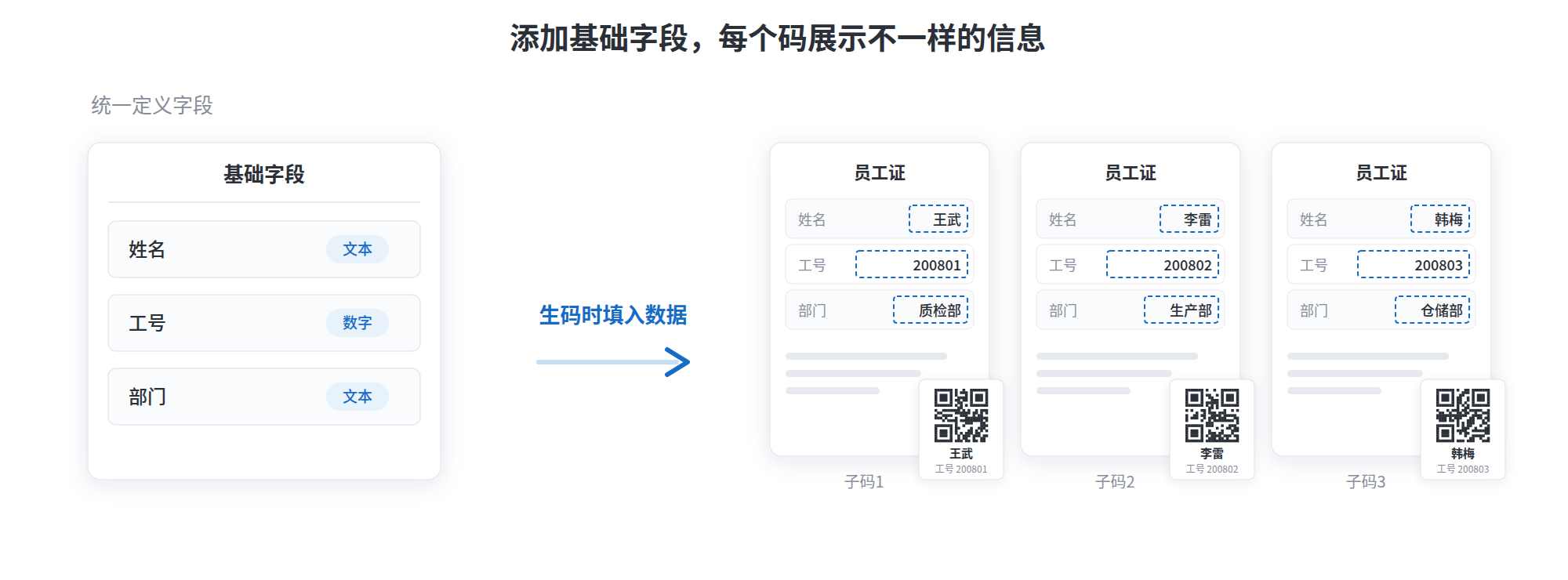
Basic fields support both generation from bulk templates and single dynamic QR codes.
1. When Should You Use Them?
We recommend using the basic info component when the information shown in your QR codes has these characteristics:
- Each QR code displays different content;
- There are many fields that need unified management;
- You will import Excel or spreadsheet data in bulk;
- You need to maintain the field structure over time;
- You may generate QR codes in bulk through an API later;
- You are starting with a single QR code now, but may expand to bulk QR codes later.
If you need more freedom in page layout, you can still choose another content display method based on your actual scenario.
2. Multiple Field Types
Basic fields support multiple types in both bulk templates and single QR codes. Choose the type based on the information:
| Field Type | Suitable Content |
|---|---|
| Text | Text information such as names, numbers, locations, and the person in charge |
| Number | Quantities, specifications, and other numeric information |
| Date | Production dates, periods of validity, verification dates, and more |
| Image | Equipment photos, ID photos, and other images that differ for each code |
| File | Manuals, inspection reports, and other documents viewed online after scanning |
| Location | Geographic locations of equipment or inspection points |
| Link | A different website or form for each code |
| Single Choice / Multiple Choice | Fixed options such as specifications or categories |
Drag fields to change their order; the scan page displays them in that order. If you have many fields, set up groups such as "Basic Information" and "Maintenance Information". The scan page displays each group as a separate section.
2. How to Use Basic Fields in a Bulk Template
A bulk template works like a "mold" for QR codes. After adding basic fields to the template, you only need to fill in or import different data to quickly generate a group of QR codes with different content.
1. Go to the Template Editing Page
In the workbench, find the dynamic QR code bulk template you want to edit. You can create a new bulk template, or open an existing template and click "Edit Bulk Template" on the template details page to enter the bulk templates editor.
2. Add Basic Fields to the Template
On the template editing page, add the "Basic Fields" component. Add fields as needed, such as "Name", "Number", and "Work Team". Field names become the column headers in the data table used for generation. Enter data under these fields in the online spreadsheet or Excel file.
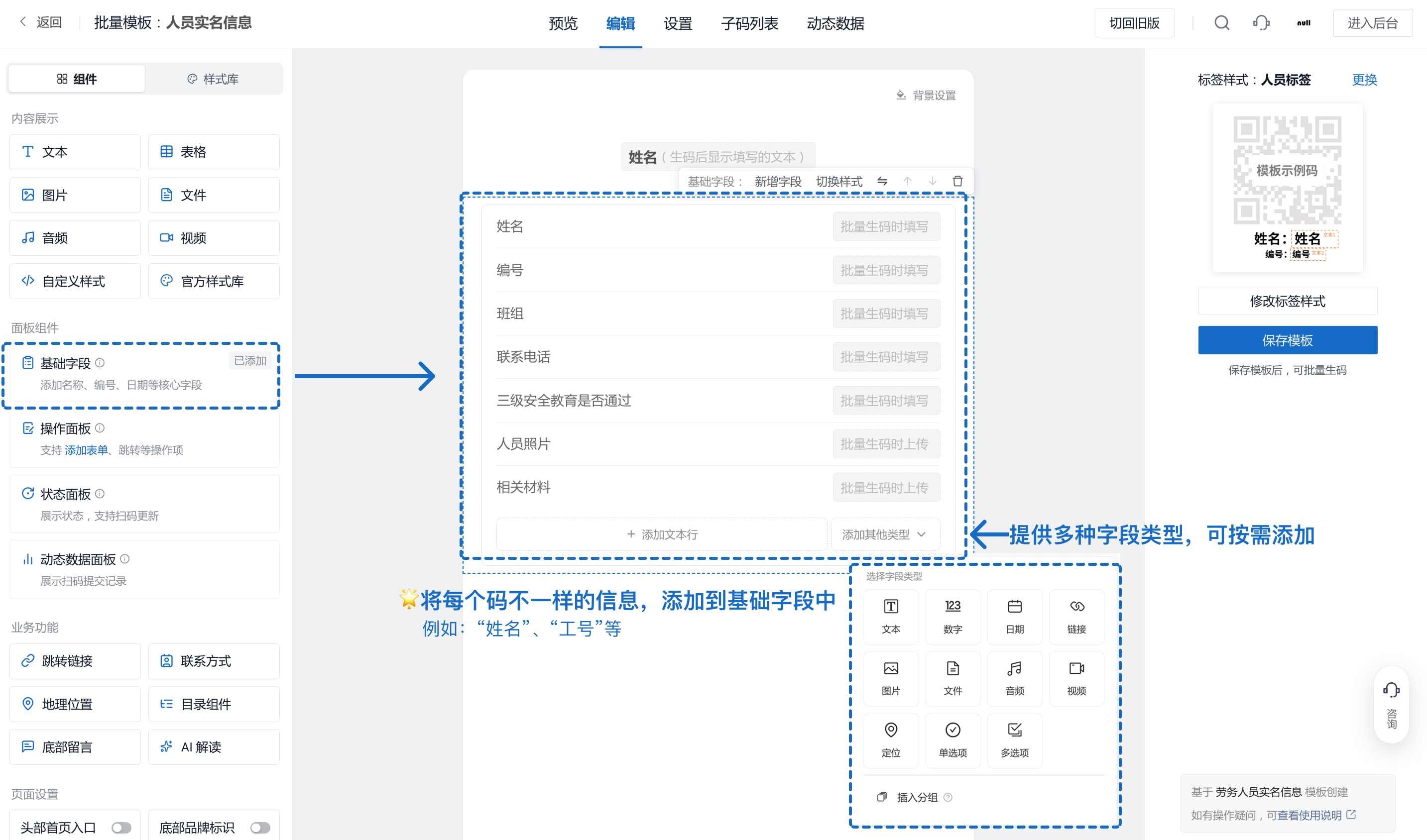
You can also configure fields as needed:
- Default values: Fields with the same content across sub-codes, such as the manufacturer, can be filled in automatically without repeating the value in every row. See Basic Field Default Value Settings;
- Hide from Scan Page: Fields used only for workbench management, such as purchase price or internal number, remain in the workbench but are hidden from people scanning the code;
- History autofill: When generating codes one at a time by filling in a form, quickly select previously entered content. See Basic Field History Autofill.
Not every field needs to be different for every QR code. Information that is the same for the whole batch, such as "brand" or "factory area", can be fixed directly in the template. Keep only the information that truly varies for data entry during generation.
3. Configure Other Page Content
Besides basic fields, you can add explanatory text, images, and feature modules such as forms and status to the template page. You can also change the label style as needed.
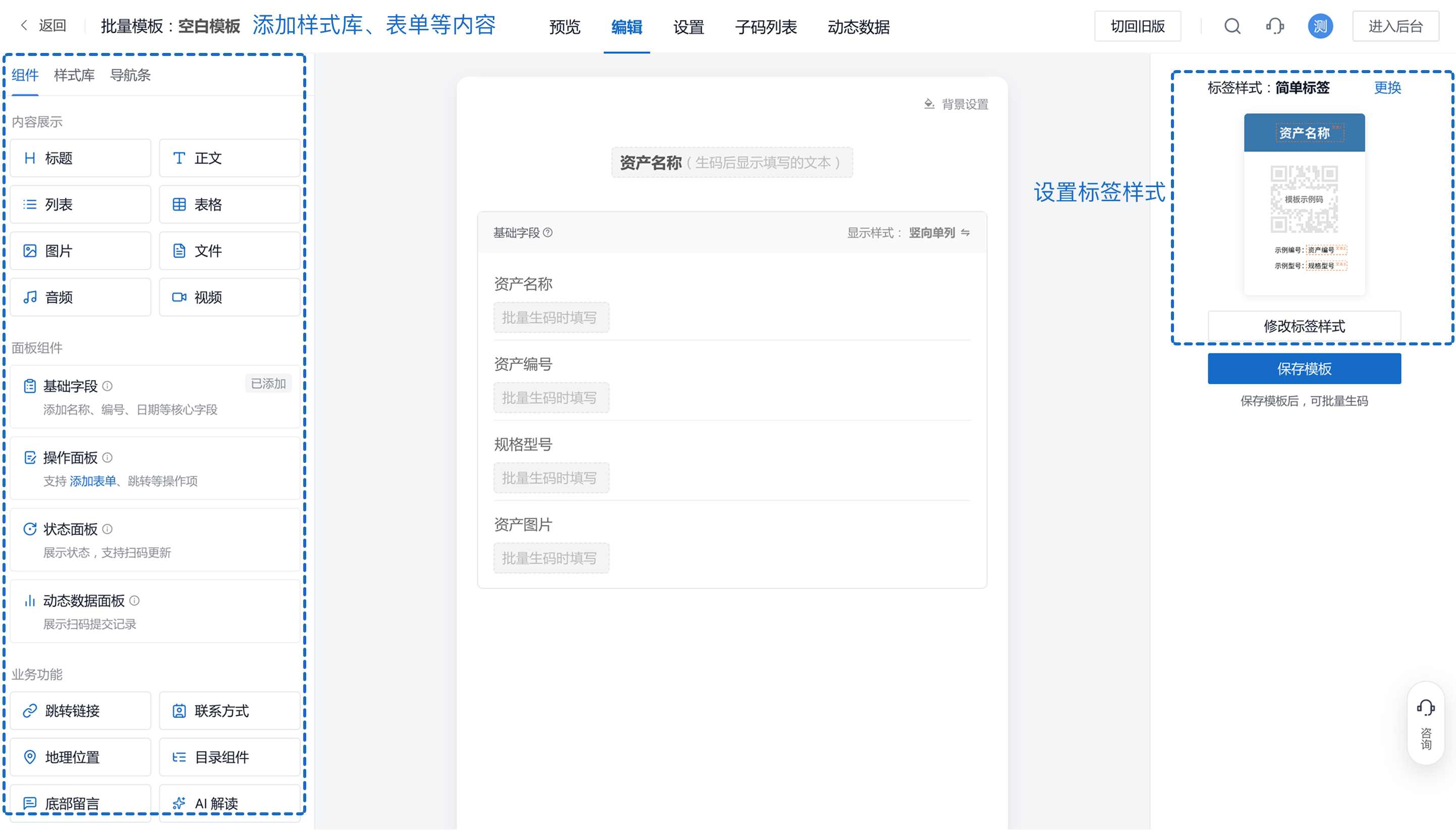
For the overall page setup, see Bulk Dynamic QR Code Generation.
4. Save the Template and Import Data to Generate Codes
After the template is configured, click Save Template. Then choose a generation method and fill in the data for the corresponding fields to generate QR codes with different content in bulk.
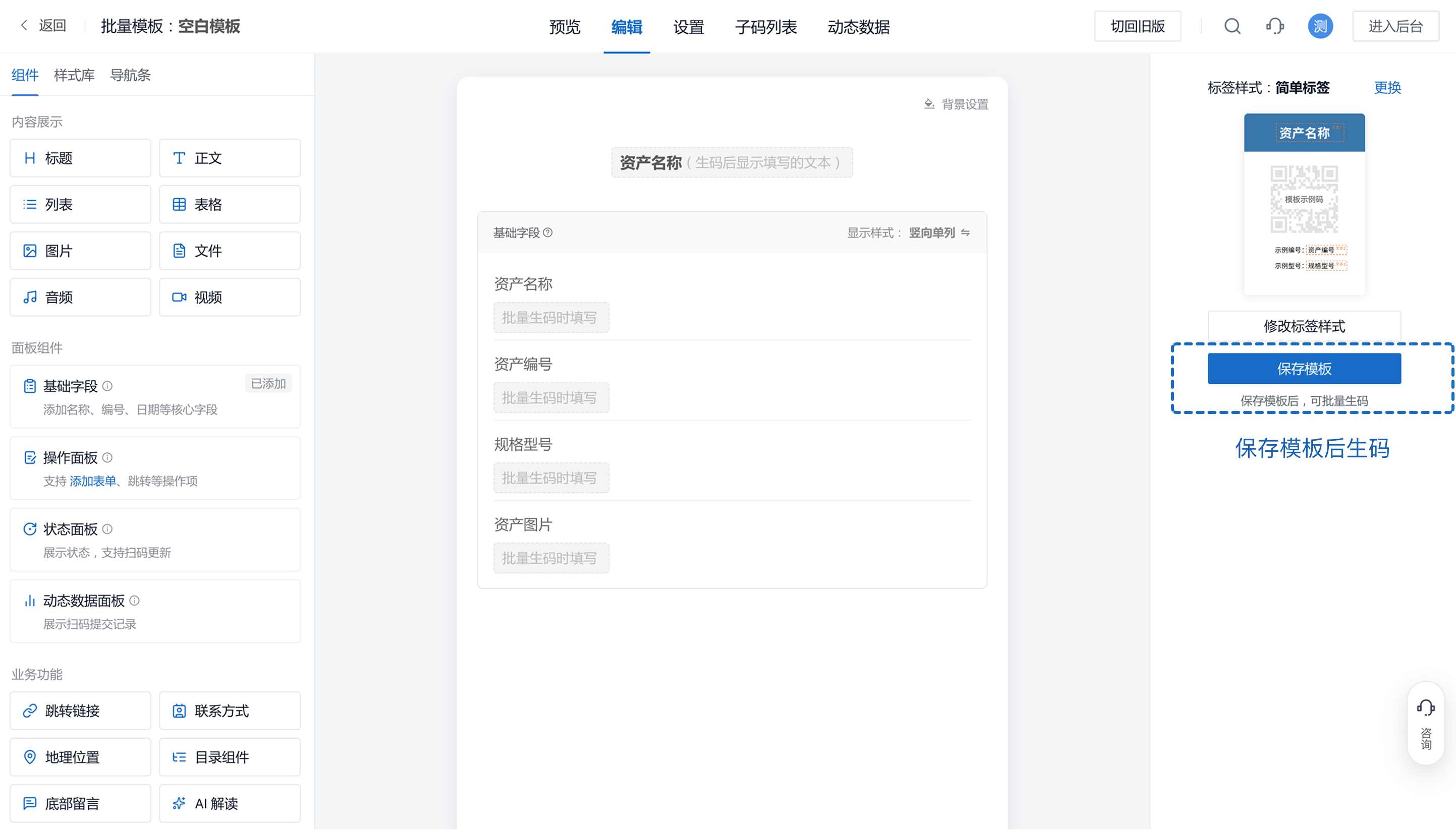
Use online spreadsheet entry, Excel upload, or fill in a form to generate a single code. Each spreadsheet column corresponds to a field, and each row generates one code. The data is automatically filled into the corresponding fields.
To change content after generation, edit individual sub-codes or use the online spreadsheet to edit them in bulk.
3. How Basic Fields Relate to Legacy Field Placeholders
Basic fields retain the core capability of legacy field placeholders: displaying different content in each code.
The main change is that fields move from individual placeholders scattered throughout the body to centralized management in a field table. This makes the structure clearer, supports more field types, and makes future maintenance and API integration easier.
- New templates: We recommend using basic fields directly;
- Existing templates: Templates using legacy field placeholders can still be used and edited normally, without immediate migration;
- Switching modes: In the basic field list in the upper-left corner of the templates editor, switch to basic fields mode.
Note: Basic fields support adding images and files, but they are currently displayed in the basic info table. They do not yet support freely inserting images or files anywhere on the page.
4. How to Use Basic Fields in a Single QR Code
Basic fields are not only available for bulk templates. They can also be used in a single QR code. If you are not familiar with where to edit a single dynamic QR code, start with the dynamic QR code editor.
If you are creating only one QR code now, but may expand to multiple QR codes later, you can first use basic fields in the single QR code to enter content.
This has several benefits:
- You can quickly verify the content display style;
- If you need to expand to multiple QR codes later, you can switch directly to bulk management, and the fields and content you have already entered can be carried over;
- It also supports future QR code generation through APIs.
If you are not sure how many QR codes you will eventually need, building the first one as a single QR code gives you more flexibility.
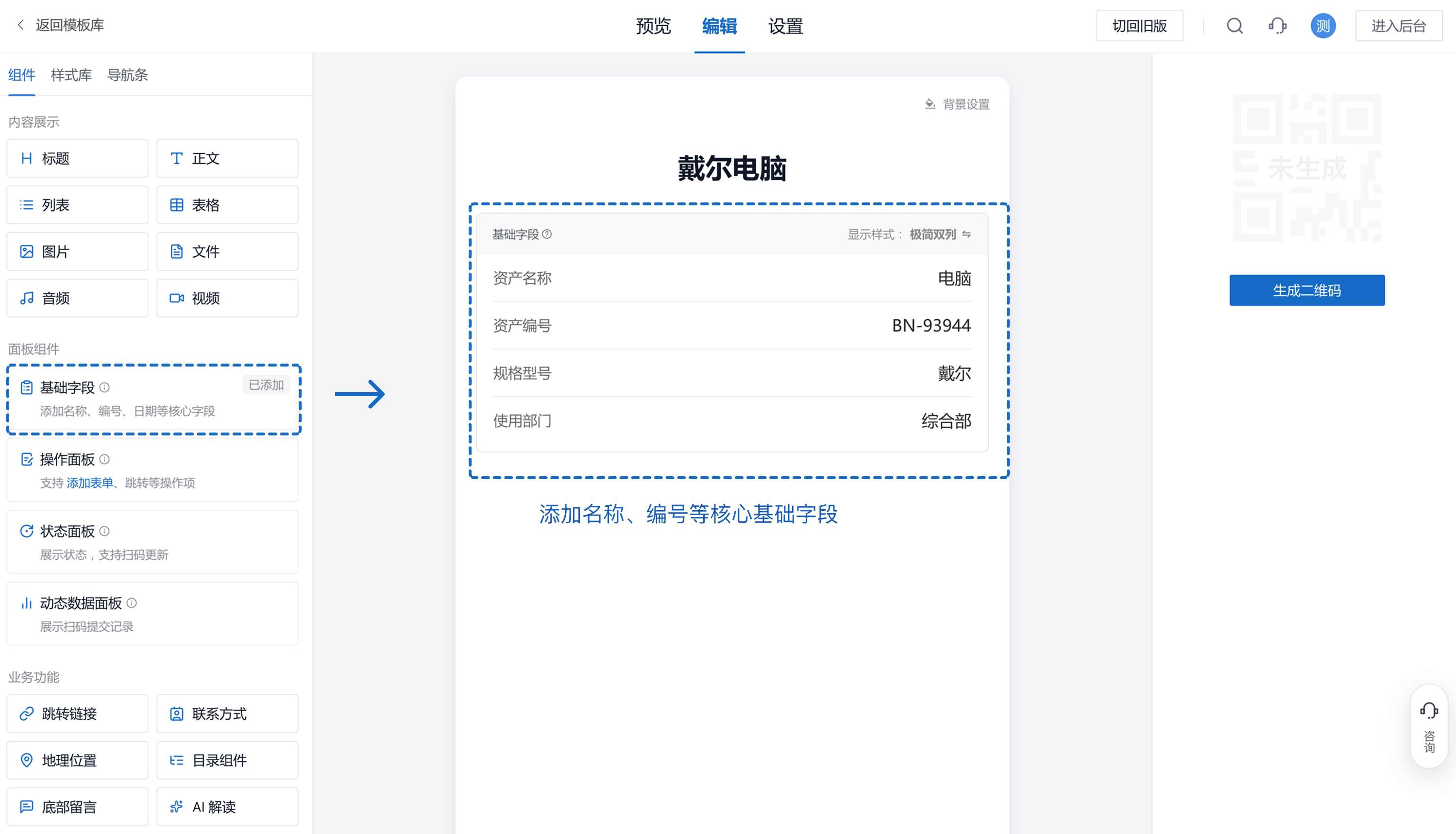
Tip: When creating a single QR code, put information that may differ for each future QR code, such as number, location, and disposal date, into basic fields instead of fixing it in the body content. This lets you reuse those fields if you expand to bulk management later.
5. FAQ
1. Can I Continue Editing the Template After Saving It?
Yes. A saved template can still be edited.
After you edit the template, new sub-codes under the same template will automatically use the latest template. If you edit the label style, the labels of all sub-codes under the template will also be updated.
2. Can Basic Fields Only Be Used for Bulk QR Code Generation?
No. They can also be used in a single QR code, and you can later switch to bulk management.
3. What Is the Relationship Between Basic Fields and Excel Import?
Basic fields define "which fields need to be displayed". Excel import provides "the specific data for each QR code".
For example, if basic fields include "name", "department", and "phone number", you can fill in different names, departments, and phone numbers for each QR code when importing Excel.
4. What Are Key Fields? Are They Available Now?
Key fields are fields marked as requiring extra attention, such as a fire extinguisher disposal date. Related capabilities are being released gradually. After they become available, they can be used for prominent display, near-expiration highlighting, remaining-time display, or reminder notifications. Refer to the actual product interface for availability.
5. Can I Use a Text Field for Dates Such as a Disposal Date?
We do not recommend it. If you use text, date formats can easily become inconsistent, such as "Mar 2025" or "2025.3". The system cannot recognize them reliably, so it cannot provide near-expiration highlighting or expiration reminders. Use the date type instead.
6. If I Plan to Use API-Based QR Code Generation Later, Should I Use Basic Fields Now?
Yes, we recommend using them directly. This makes the later switch from manual import to API-based QR code generation smoother.
7. Can I Continue Using Legacy Fields in Old Templates?
Yes. If the original template is already working normally, you do not need to migrate immediately.
For new templates, if you care more about unified field management, field types, future maintenance, and API-based QR code generation, we recommend using basic fields directly.