Basic Field History Autofill
1. Feature Overview
When creating sub-codes continuously, on-site personnel often need to repeatedly fill in the same fields — for example, product batch, employee ID, name, or equipment location. To reduce repetitive input and improve entry efficiency, we have launched the History Autofill feature.
Once enabled, the system automatically records the field content you fill in when creating sub-codes. The next time you fill in a field with the same name, your 3 most recent entries are shown — tap one to fill it in instantly, no need to type again.
This history data is bound to your personal account only and is visible only to you when filling in sub-codes. Other members (including admins) cannot view or access it, ensuring data security.
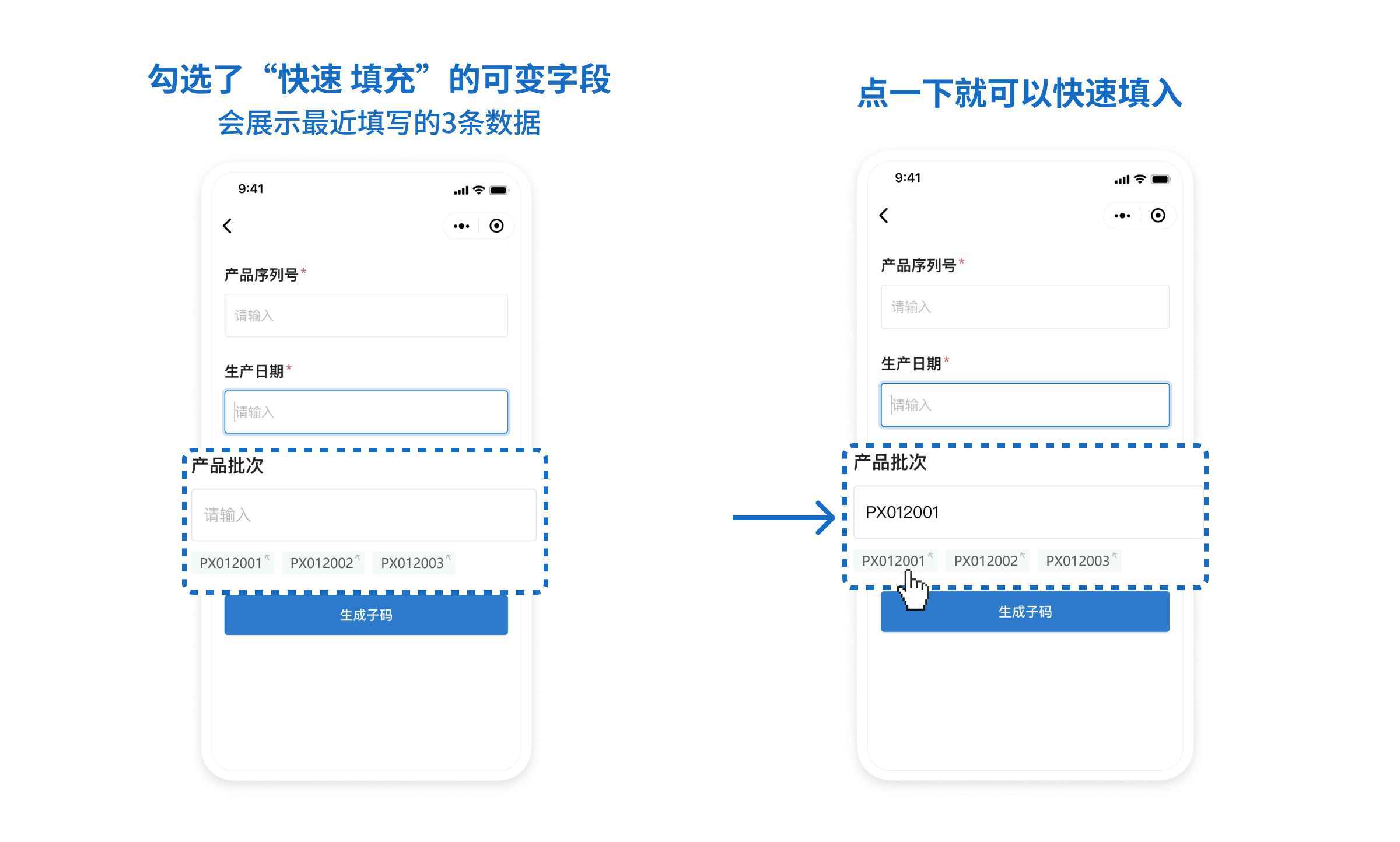
How it works in practice:
- While continuously creating sub-codes on mobile
- For a field that has [Quick Fill] enabled (e.g., "Product Batch")
- Your 3 most recently entered values for that field are shown below the input box
- Tap one to fill it in instantly
This greatly improves on-site entry efficiency, especially for continuous scenarios such as bulk scan-to-register, inspections, and material entry.
2. Feature Rules
1. Visible only to you — admins cannot see it either
- History data is displayed only on the device of the person who filled it in
- Other members and admins cannot view or access these records
2. Data works across templates
For example:
- You filled in "Name: Zhang San" when creating a sub-code in Template A
- Template B also has a "Name" field
- "Zhang San" will also appear as a recent entry in Template B
Fields are identified solely by field name, regardless of which template they belong to.
3. Up to 3 most recent entries are shown
- The system automatically replaces older entries with the 3 most recently filled-in values — no manual maintenance needed.
3. How To Enable/Disable
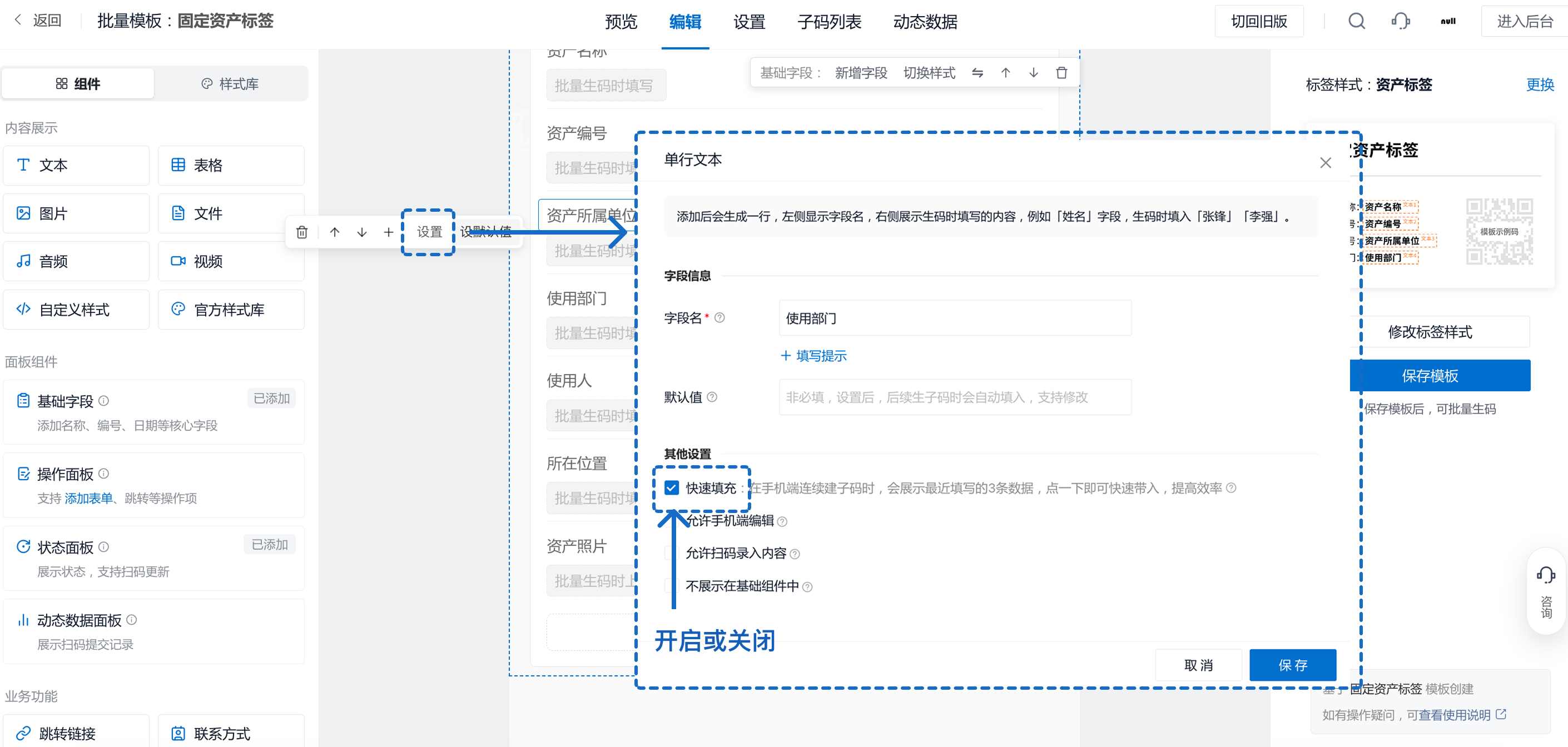
The admin opens the basic field settings dialog in the bulk templates editor and toggles Quick Fill on or off for the desired field.
4. Frequently Asked Questions
Q1: Is the history data shared across the organization?
No. Each person only sees the data they personally filled in — other members cannot view it.
Q2: Will this leak private or sensitive information?
No. History data is bound to your personal account only, and only you can see it when filling in sub-codes. Other members (including admins) cannot view or access your history autofill content.
Q3: Will I still see these records after switching phones?
Yes. History data is bound to the operator's own account and is not lost when switching devices. After changing phones, as long as you continue using the same account, your most recently filled-in field content will still be shown.