Variable Link
Feature Overview
When creating sub-codes with a bulk template, you can add a link-type basic field. Sub-codes can then redirect to different forms, external links, sub-codes, dynamic QR codes, or directory summary QR codes. During sub-code generation, simply enter content according to the specified rules to redirect to the corresponding address.
Applicable to scenarios such as product promotion, equipment inspection, and tree/plant identification labels. For example, in an equipment inspection scenario, different equipment sub-codes can redirect to different inspection forms; in a product introduction scenario, different product sub-codes can redirect to their respective product detail pages. View application scenarios

How to Add a Link-Type Basic Field
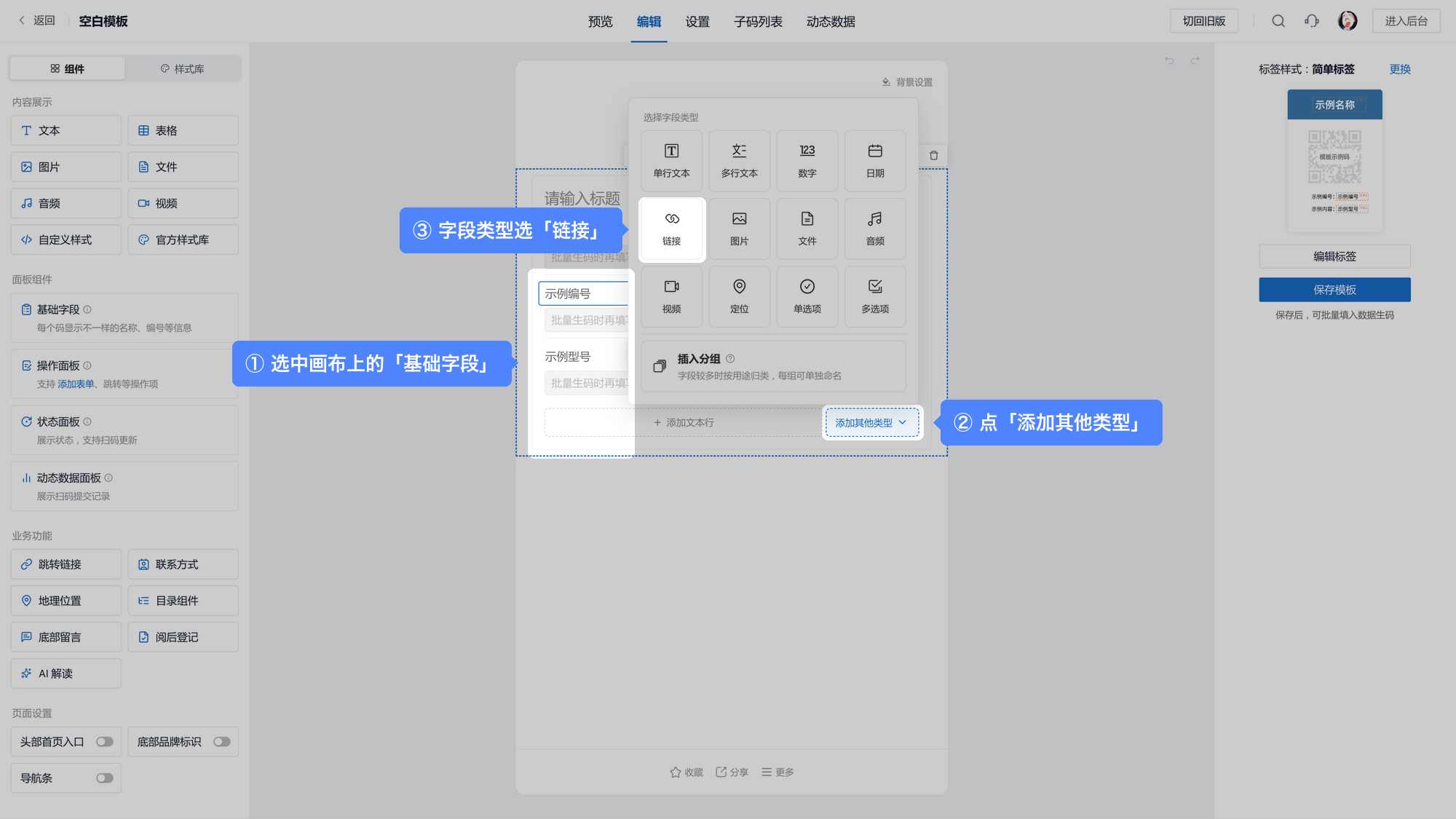
- In the bulk templates editor, select the basic fields on the canvas (the group of fields showing "Fill In When Generating in Bulk"), click "Add Other Type", and choose "Link" to add a link-type basic field.
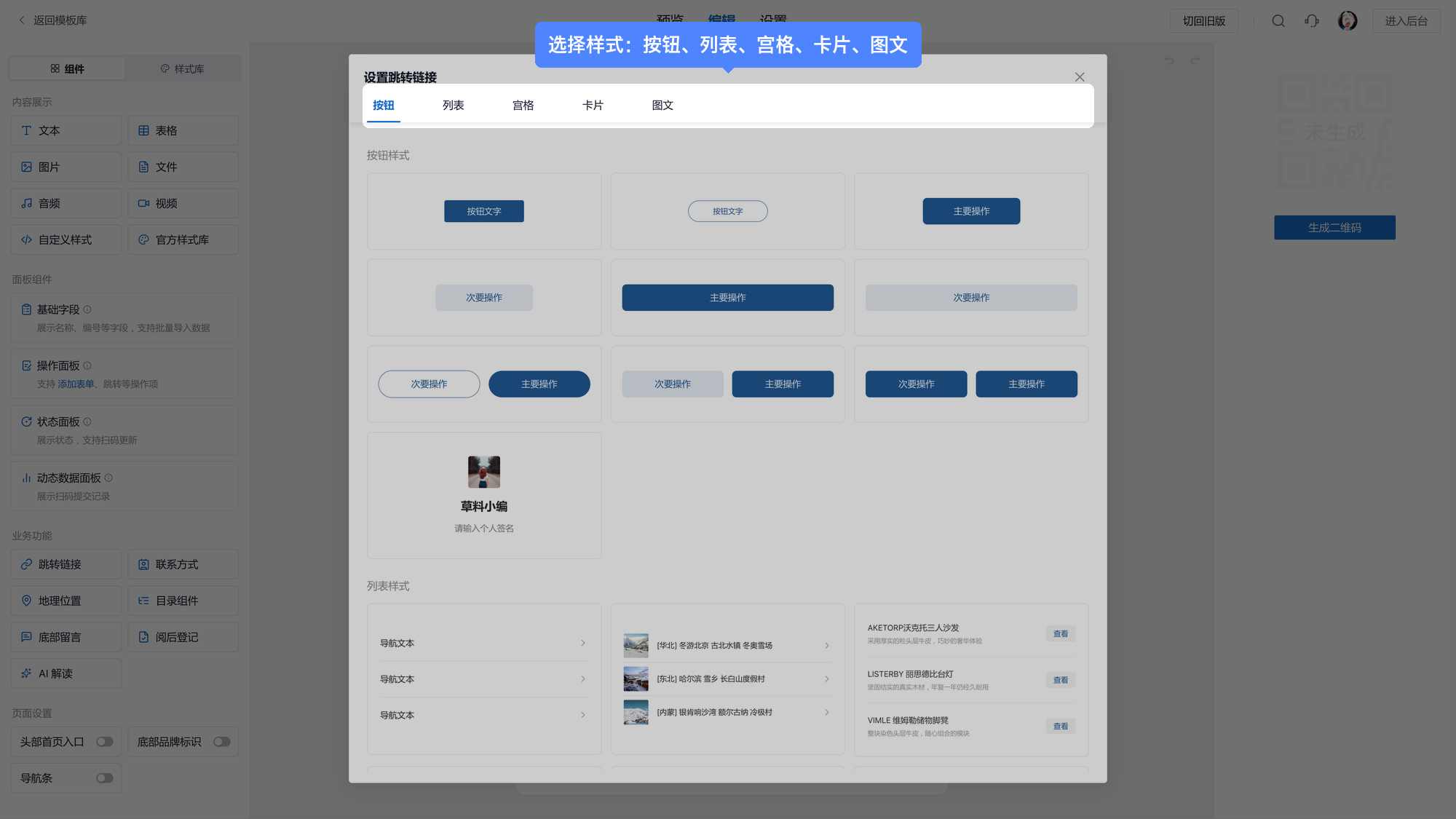
- In the editor's left panel, under "Business Features", click "Redirect Link" and add a redirect link style.
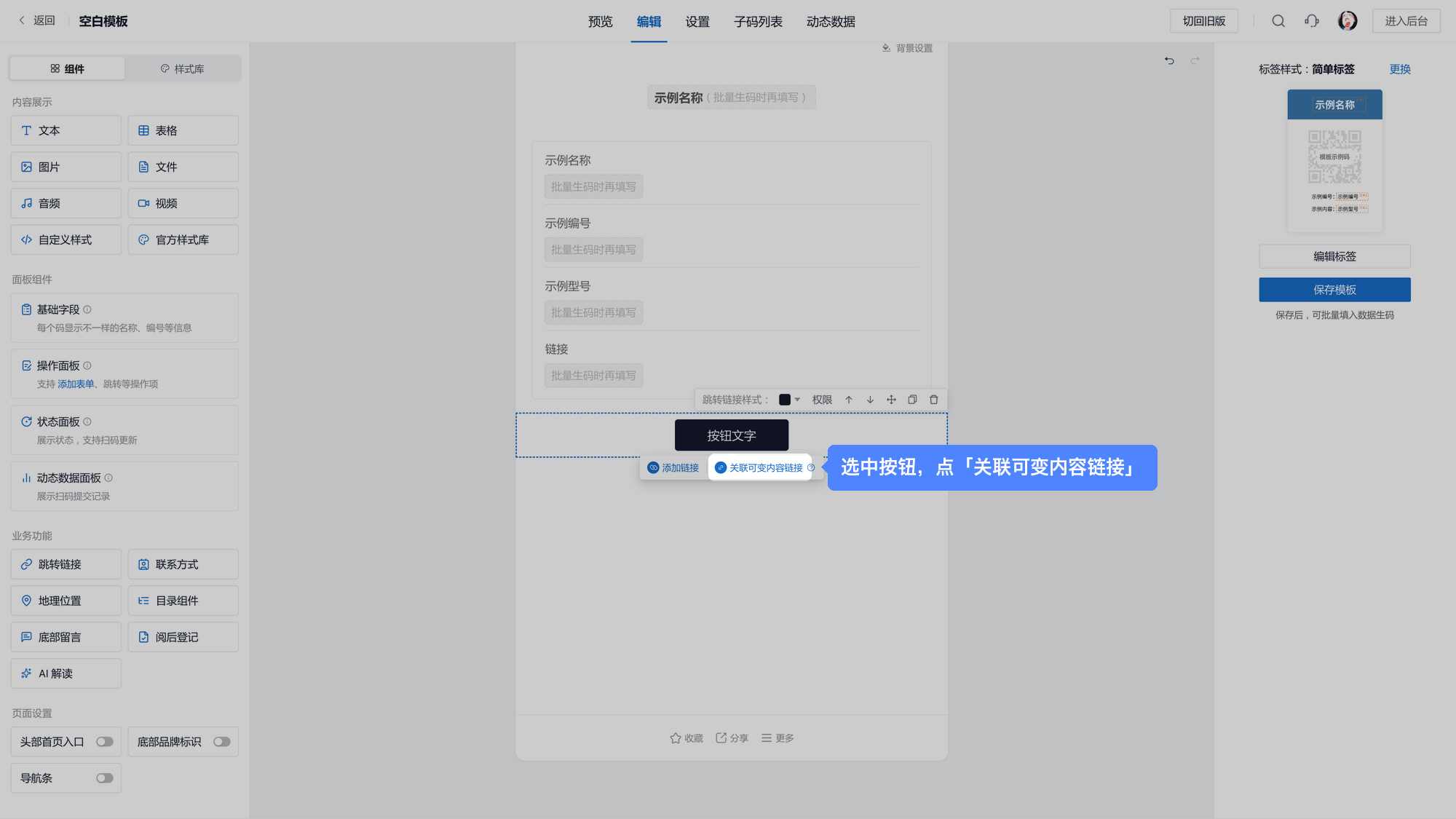
- Select the redirect link you added and click "Link to Variable Content".
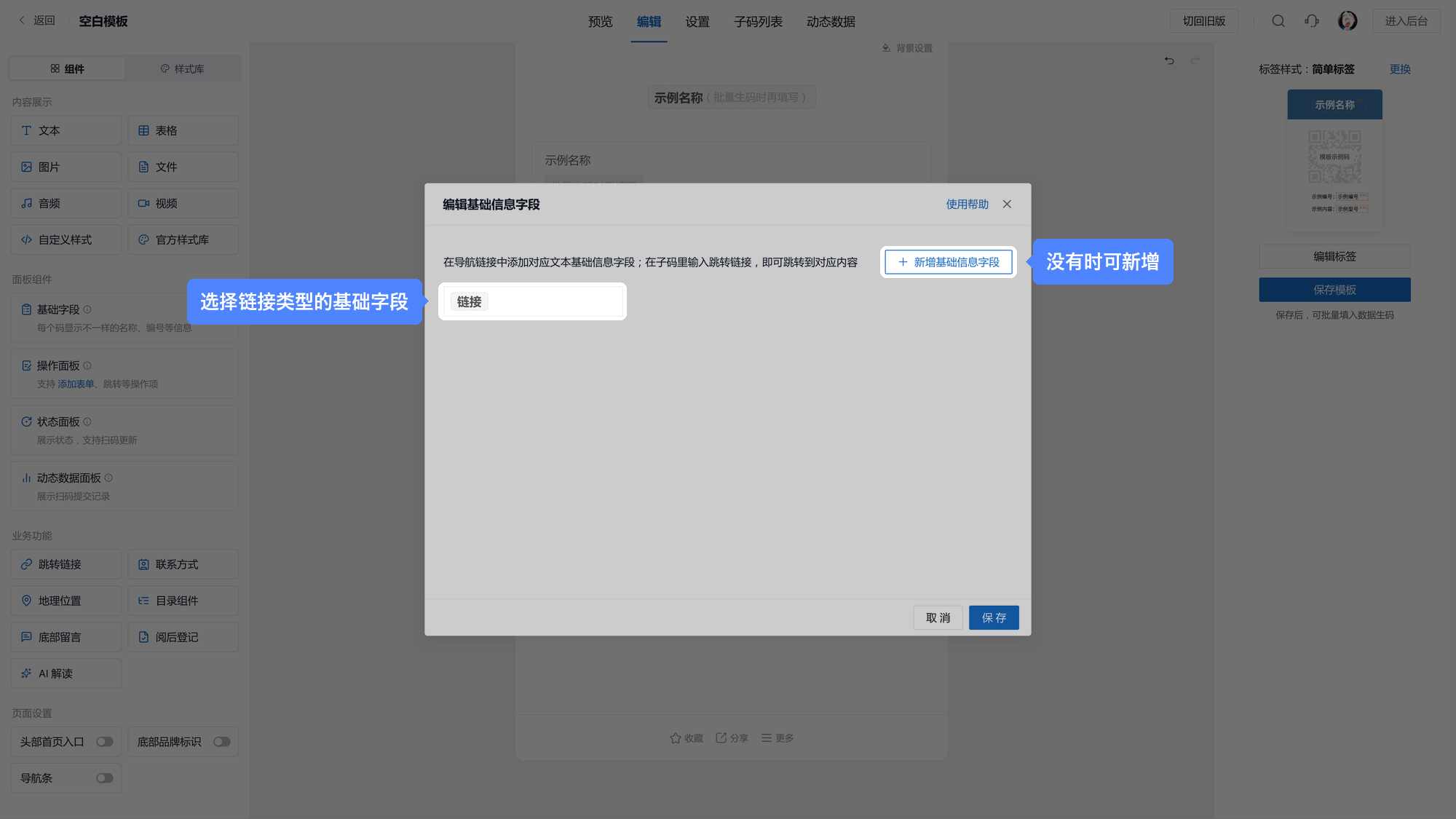
- In the dialog, choose the link-type basic field and save. If there is none yet, click "Add Basic Info Field" to add one directly.
- After adding, save the bulk template. When creating sub-codes later, enter the corresponding URL in the spreadsheet according to the rules below to redirect to different forms, dynamic QR codes, or external links.
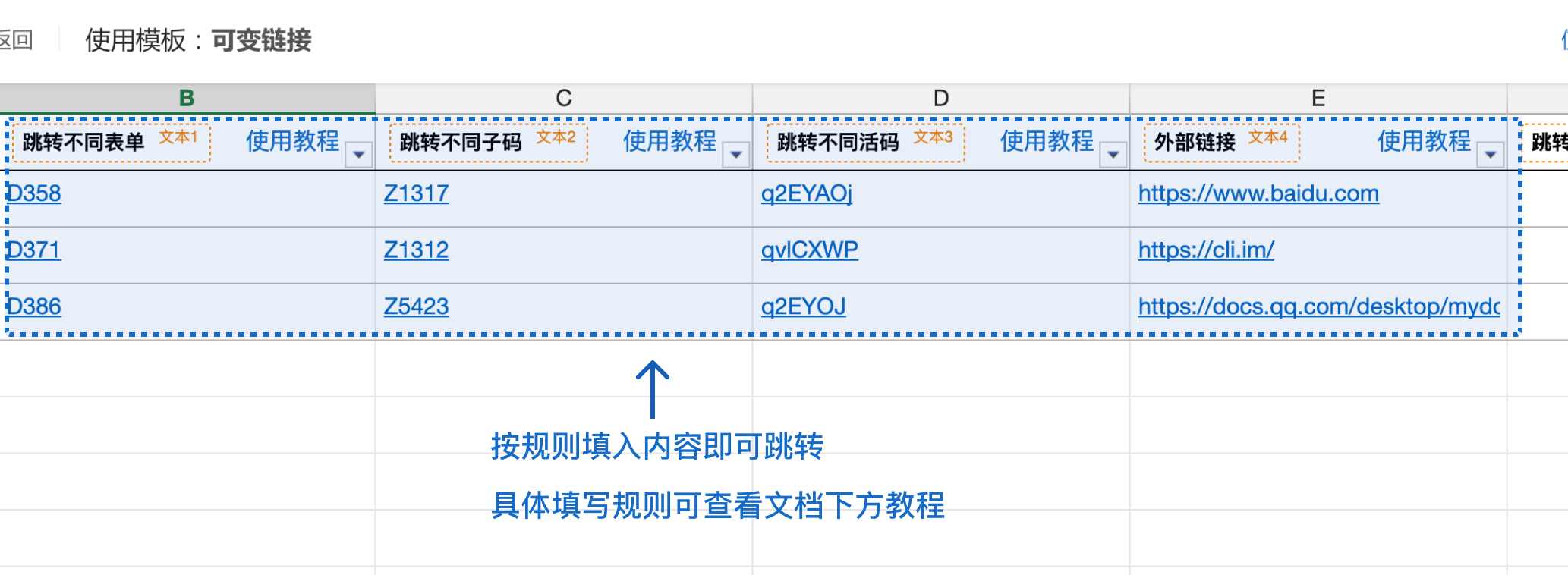
Redirect Link Types
Redirect to External Link
Enter content starting with https:// or similar in the cell. QR codes use the Mini Program opening method by default, and most URLs do not support direct redirection this way. You can switch to the H5 web page opening method to enable direct URL opening. View switch tutorial
Applicable scenarios: product QR codes redirecting to different purchase pages; building material sample QR codes redirecting to different 3D preview pages; etc.

Redirect to a Form
- Enables: Different sub-codes under the same bulk template redirect to different forms.
- Applicable scenarios: Equipment inspection — each sub-code redirects to its own inspection form; product process routing — different products redirect to different process forms; etc.
- When generating sub-codes, simply enter the "form ID" of the form to redirect to, e.g., D818.
How to Get a Form ID
In the workbench, go to the Forms list. Find the form you want to redirect to and copy the form ID. Currently only forms under the same account are supported.

Sub-code entry example:

Redirect to a Sub-Code
- Enables: Sub-codes under a template redirect to different sub-code content when scanned on mobile and the navigation link is tapped.
- Applicable scenarios: Product after-sales QR codes where different products redirect to their respective product manual file codes; etc.
- When generating sub-codes, simply enter the "sub-code ID" of the sub-code to redirect to, e.g., L12477.
How to Get a Sub-Code ID
- In the workbench, go to the Bulk Template list. Find the corresponding bulk template and open the template details page.
- Locate the sub-code you want to redirect to and copy its sub-code ID.

Redirect to a Single Dynamic QR Code
- Enables: Sub-codes under a template redirect to different single dynamic QR codes when scanned on mobile and the navigation link is tapped.
Enter the dynamic QR code ID directly. To get the ID: go to the dynamic QR code directory – open the code preview dialog – click the Settings tab and copy the ID.

Redirect to a Directory Summary QR Code
- Enables: Sub-codes under a template redirect to different directory summary QR codes when scanned on mobile and the navigation link is tapped.
Enter the code ID directly. To get the ID: go to the dynamic QR code directory – open the summary code preview dialog and copy the ID.

Frequently Asked Questions
1. Can the Variable Link Redirect to Forms or Sub-Codes Under Another Account?
Currently, only sub-codes and forms under the same account are supported.
2. I Entered an External URL, but Tapping It Does Not Open It Directly. Why?
QR codes use the Mini Program opening method by default, and most URLs do not support direct redirection this way. You can switch to the H5 web page opening method to enable direct URL opening. View switch tutorial