Online Spreadsheet Bulk Generation
To further improve efficiency, we have embedded the online spreadsheet into the bulk template feature, enabling bulk generation, bulk modification, and more.
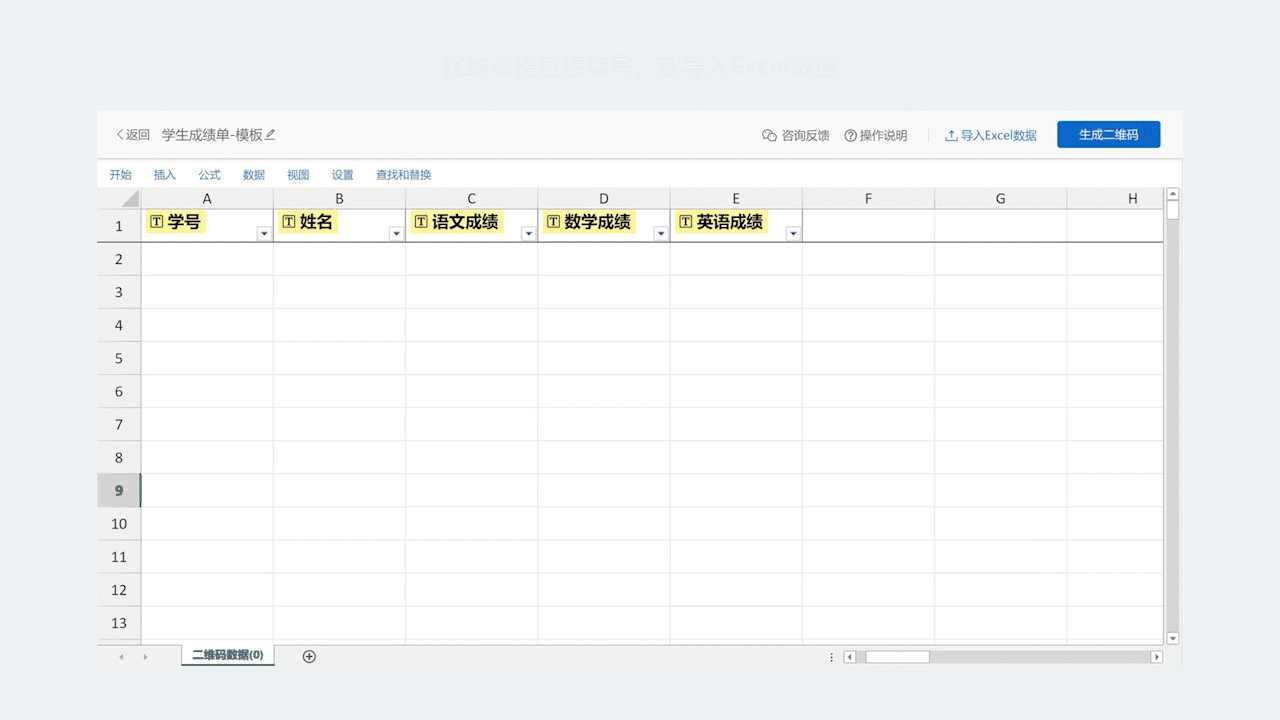
You can use the online spreadsheet to enter data and generate a batch of sub-codes with a consistent structure but different content. The first row of the [Online Spreadsheet] maps to the template's basic fields. Starting from row 2, each row of data is automatically inserted into the template's basic field positions to generate a sub-code.
Entry Point
Step 1: On the desktop, go to the workbench and open [Bulk Dynamic QR Code Templates]. Click on the template you want to use for generation. Step 2: Go to the sub-code list, click [Generate Sub-Codes], and select [Online Spreadsheet Input] for bulk generation.

Online Spreadsheet Operations
The First Row Represents the Basic Fields of the Bulk Template
① Editing a cell in the first row: renames the basic field. For example, changing "Asset Name" to "Asset Number";
② Adding or deleting a column: adds or removes a field. For example, deleting the "Asset Number" column means all sub-codes will no longer have asset number information.

Fill in Rows Directly — Each Row Generates One Sub-Code
Enter sub-code information starting from row 2. You can also import from an existing Excel file or paste data.
Modify Cell Content to Bulk-Update QR Codes
Starting from row 2, each row represents one sub-code. After modifying a cell and saving, the sub-code content updates automatically — the QR code pattern remains unchanged. You can also click a sub-code name to preview the code content.
Additional shortcut operations are supported, such as filtering, finding, and replacing. You can also add colors and comments for highlighting and annotation, managing everything directly in the online spreadsheet without repeating work in a local Excel file.

Bulk Upload Images and Files
If the bulk template contains image or file basic fields, you can bulk-import images and files via the online spreadsheet when creating new sub-codes or adding sub-codes by reusing the template. The system will automatically match images and files to the corresponding sub-codes by filename.
Steps overview:
Step 1: Organize the images and files you need to upload into separate local folders;
Step 2: In the [Online Spreadsheet], fill in the image/file names in the corresponding image or file column;
Step 3: Click [Bulk Upload] to upload the folder;
Step 4: Click [Generate QR Code] to generate a set of sub-codes containing images and files in bulk;
Edit the Template to Adjust Image and Other Basic Field Types
The template content — including label styles — can all be modified. In the templates editor, you can modify display styles, add more basic fields of types such as image, audio, and video, and associate forms so each code can collect dynamic information when scanned. View tutorial
Template Settings and Management
You can set sub-code naming rules, mobile editing and generation permissions, and sub-code content notarization.
You can also set sub-code view permissions, WeChat opening method, scan method, period of validity, and sharing/favorites settings at the bottom of the code. View tutorial