One QR Code per Asset
Information and Usage Records Available by Scanning
Give each asset a code to show who manages it, where it is and its current status. Add a form to manage loans, returns, vehicle use or supplies, without replacing existing codes.
Which Assets Benefit from QR Labels?
QR labels suit large, distributed asset collections where you need to know who manages or holds each item.
Office and IT Equipment
Scan computers, printers, projectors, desks and chairs to see their department, user and location.
Production Equipment
Scan machine tools, air compressors, pumps and distribution cabinets to see their model, workshop, responsible person and current status.
Special Equipment
Scan forklifts, gas cylinders, pressure vessels and cranes to see registration certificates, inspection dates and responsible persons.
Instruments and Meters
Give each detector, multimeter and laboratory instrument its own code to log borrowing and returns.
Vehicles
Give each company car, engineering vehicle and truck a code to log use, returns and refueling.
Tools and Consumables
Put one code at the storeroom to log supplies issued and tools, protective equipment and stationery borrowed or returned.
How QR Codes Manage Different Assets
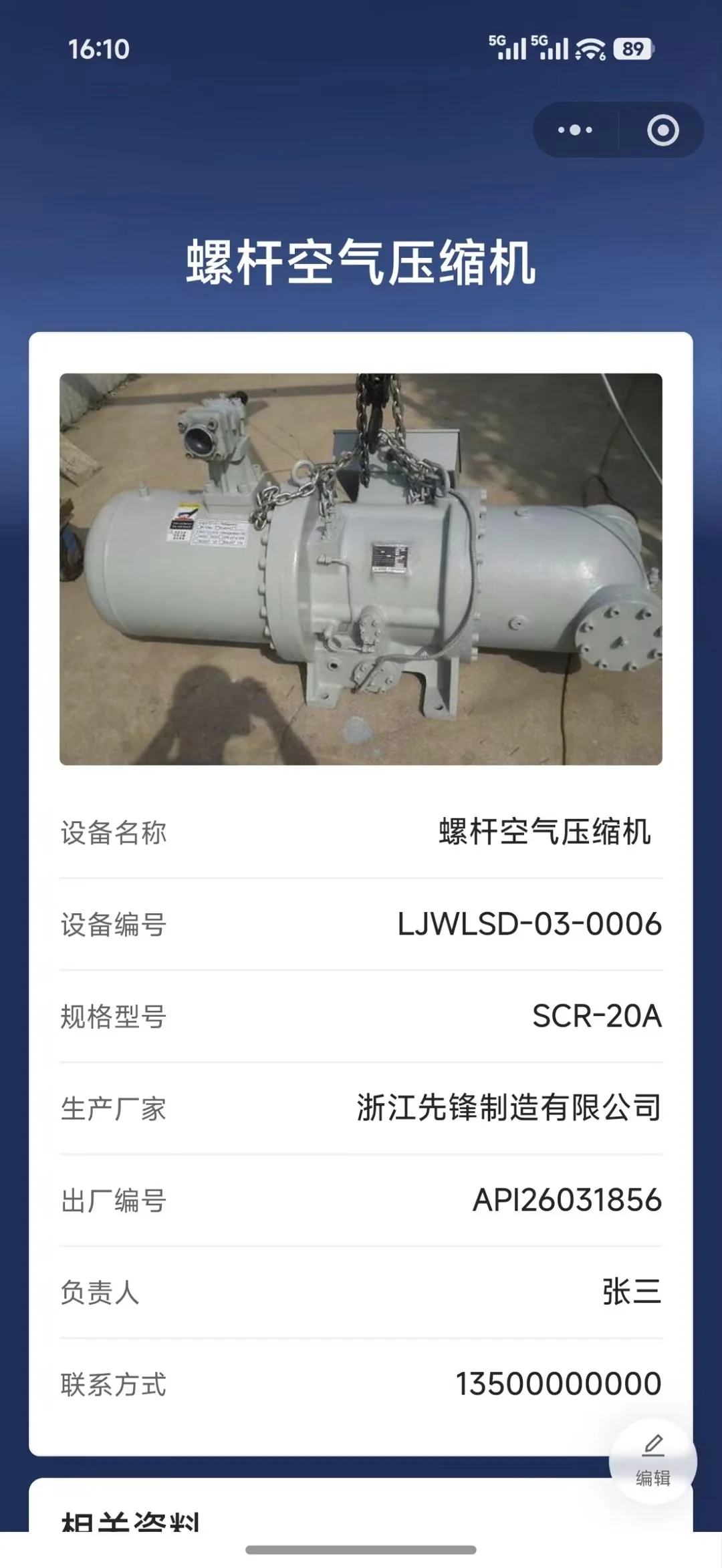
Scan to See the Model and Who Manages It
See the equipment name, ID, model, manufacturer and serial number on one screen, along with the responsible person and phone number. Scroll down for manuals and other documents.
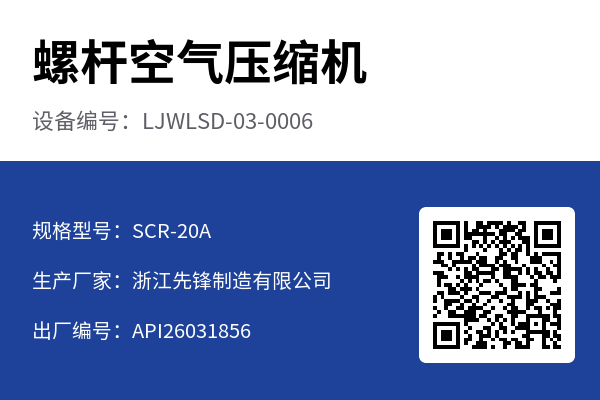 Scan with WeChat to try it; click the label to enlarge
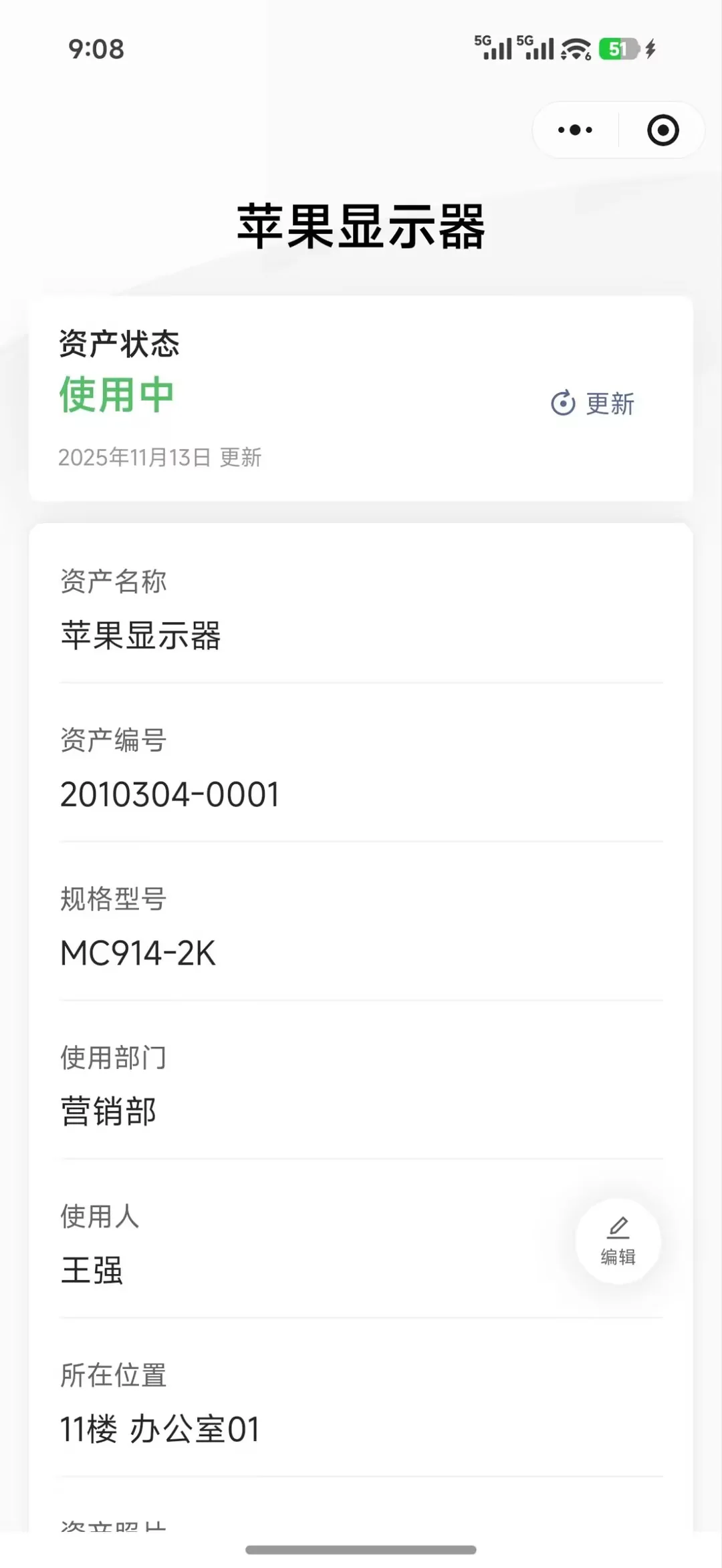
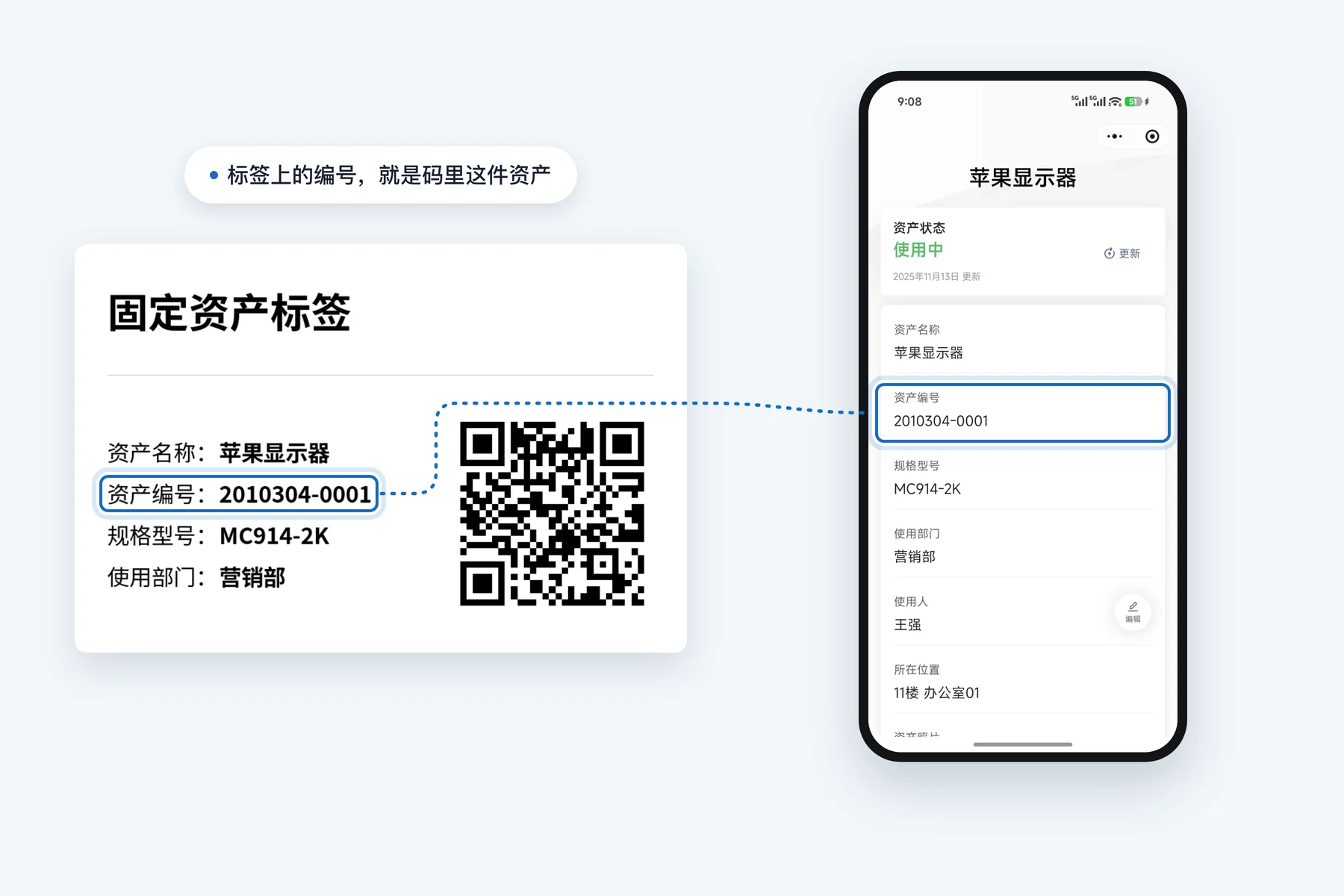
Scan to See the User, Location and Status
The code shows the asset ID, model, department, user and location, with asset status at the top. If an asset becomes idle or goes for repair, scan and tap Update to change its status.
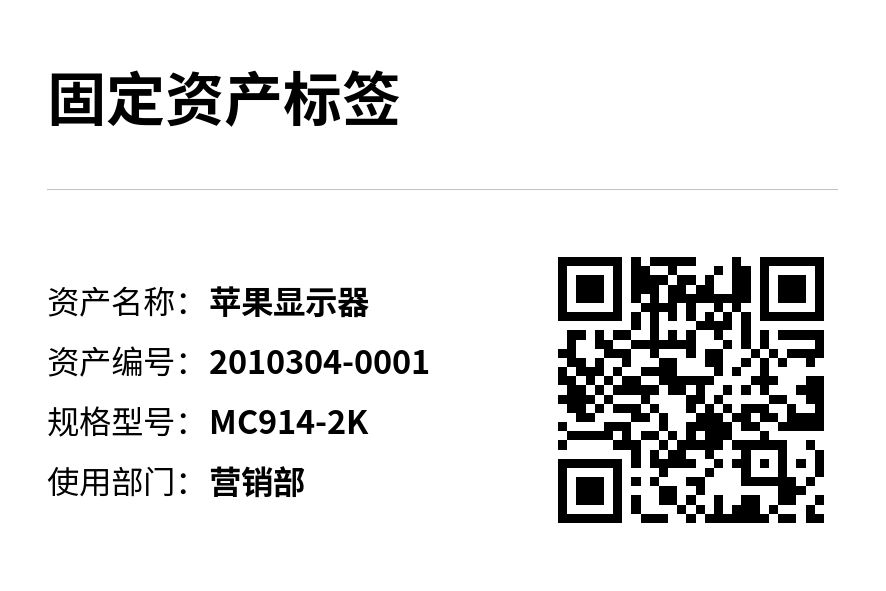 Scan with WeChat to try it; click the label to enlarge
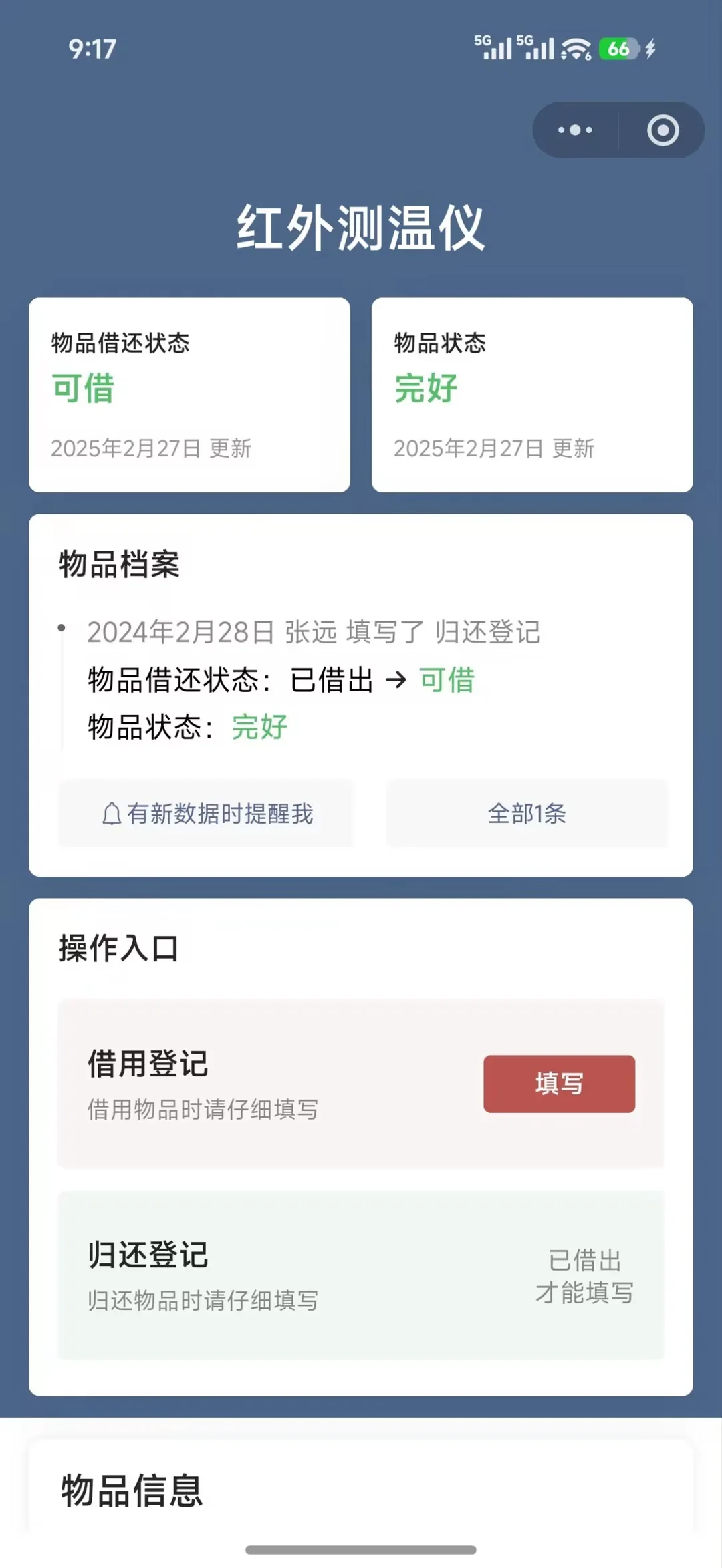
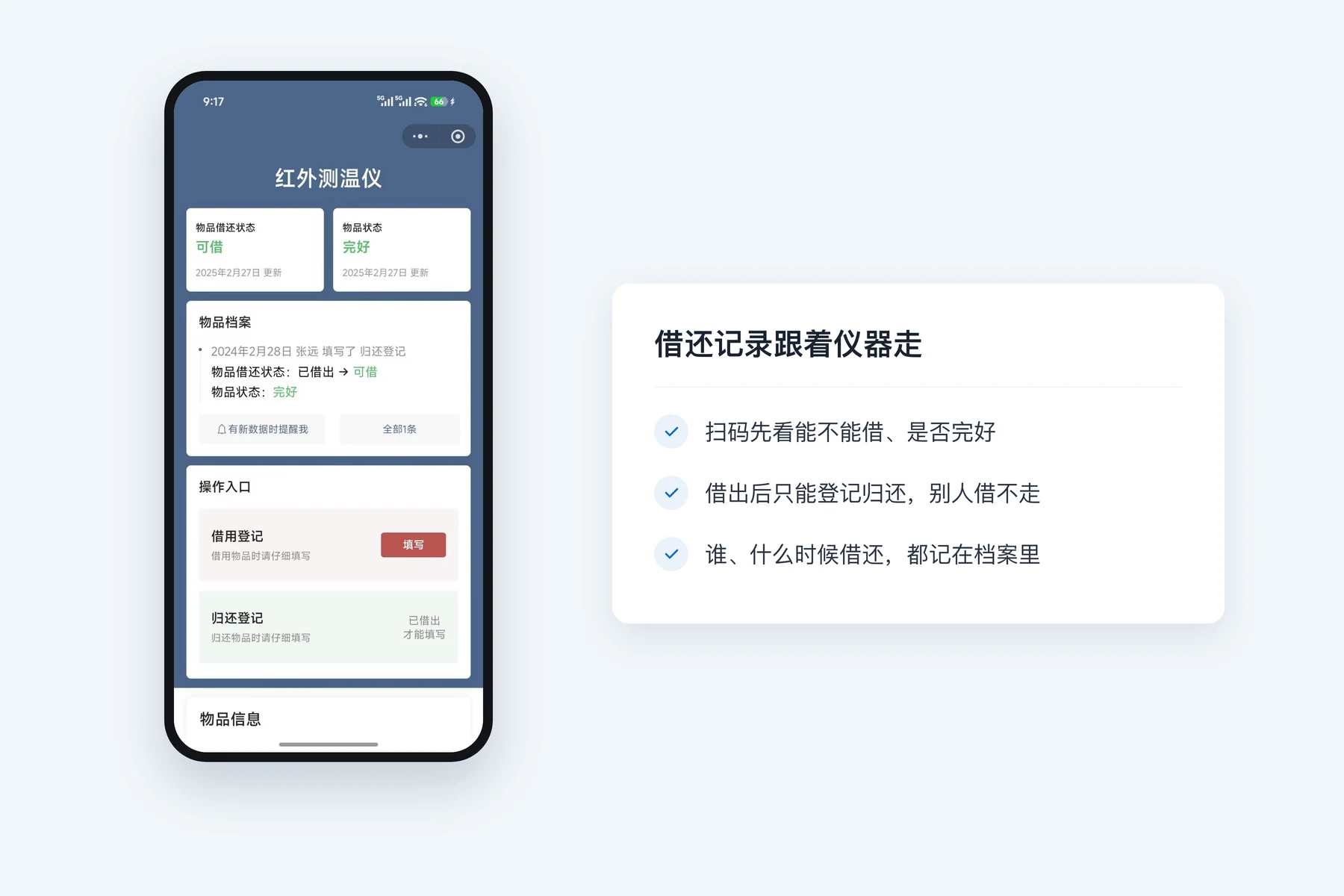
Scan to Check Availability and Borrowing History
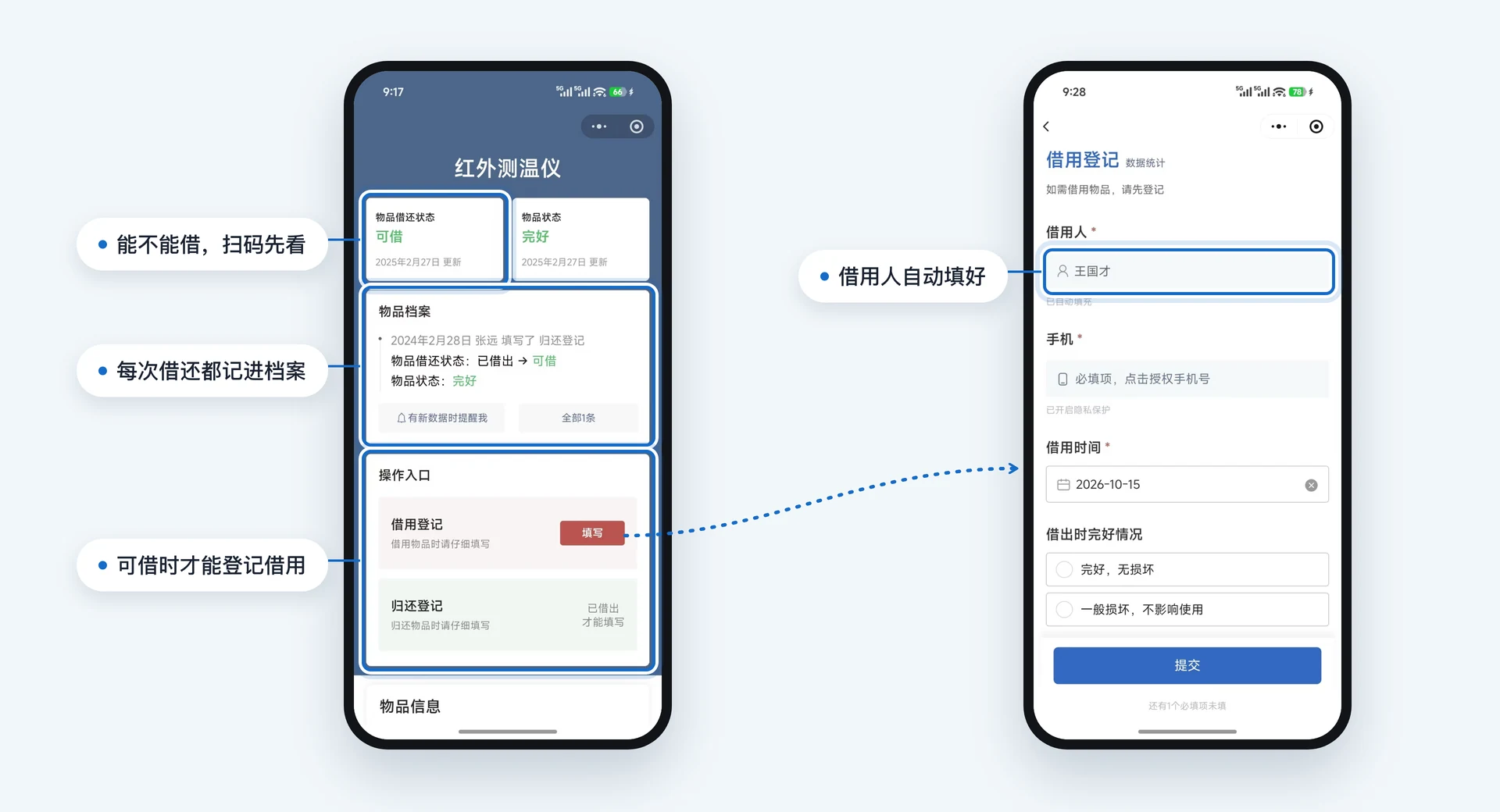
Scan to check whether the instrument is available and in good condition. Borrowing can only be logged when Available. Once borrowed, only returns can be logged, preventing another loan. Every loan and return stays in the item profile.
 Scan with WeChat to try it; click the label to enlarge
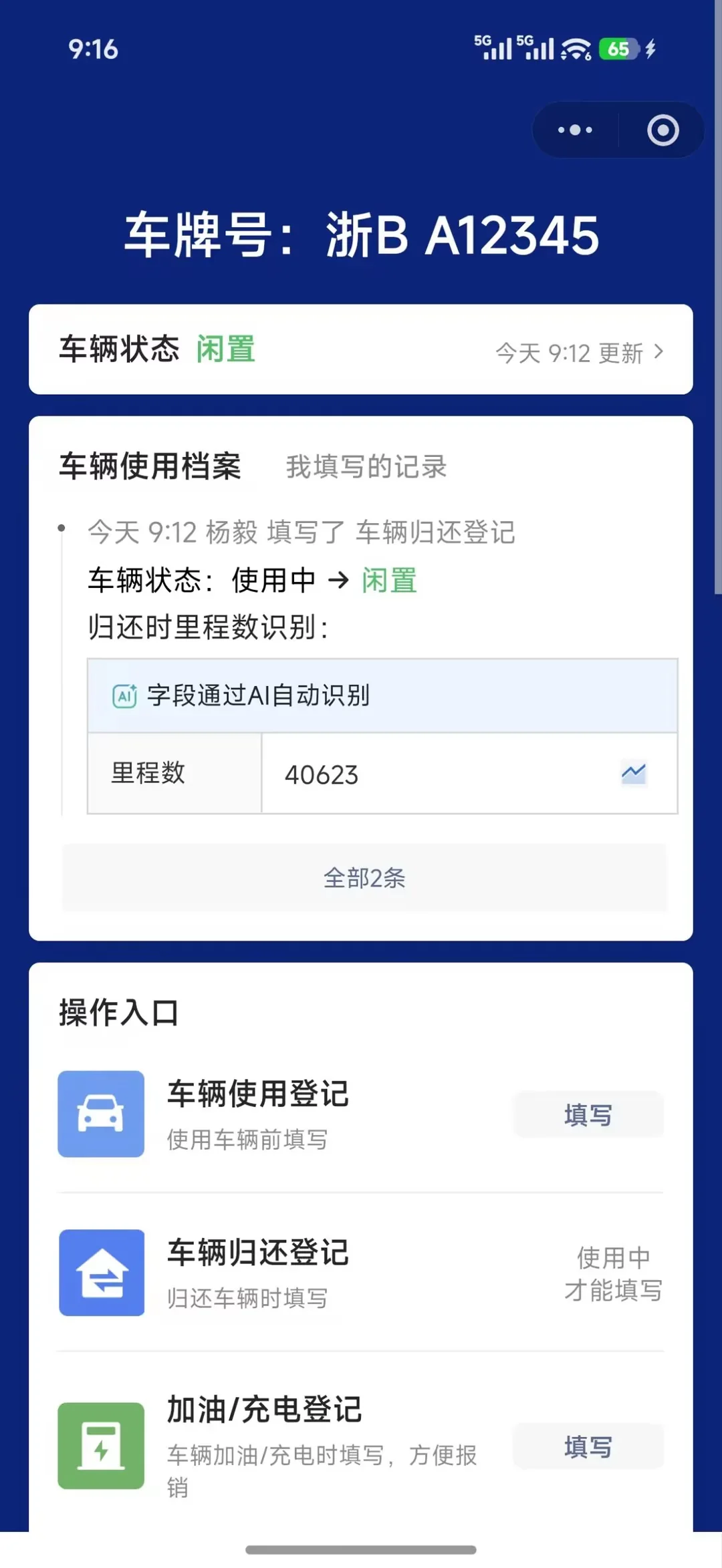
Keep Use, Return and Refueling Records with Each Vehicle
Scan to see whether the vehicle is Idle or In Use. Log use before driving and returns afterward, as well as refueling or charging. AI reads the mileage automatically from a photo.
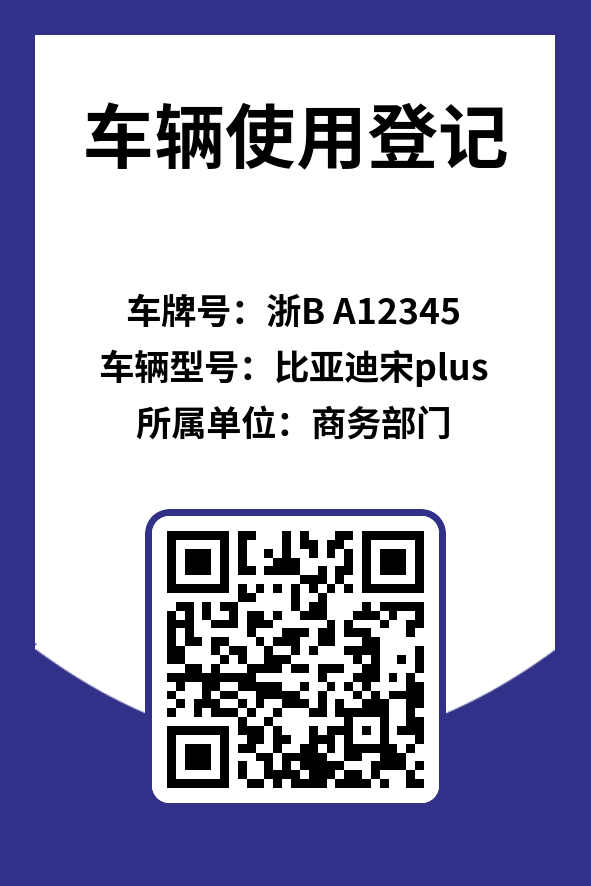 Scan with WeChat to try it; click the label to enlarge
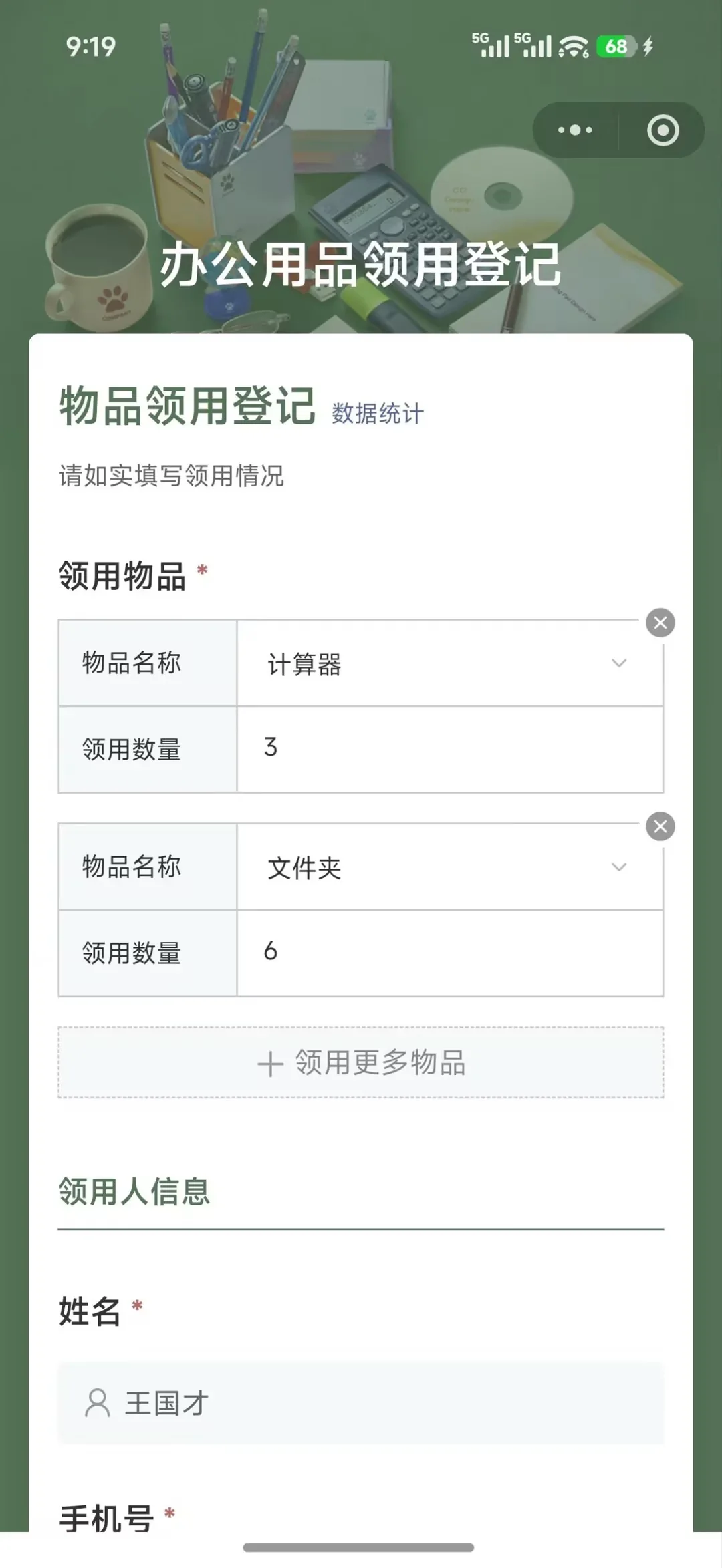
One Storeroom Code Records Who Took What
Stationery and protective supplies do not need individual codes. One code at the storeroom entrance is enough. Scan to select items and quantities, then tap Collect More Items to log several at once. Collection records are gathered automatically in the workbench.
 Scan with WeChat to try it; click the label to enlarge
How It Works
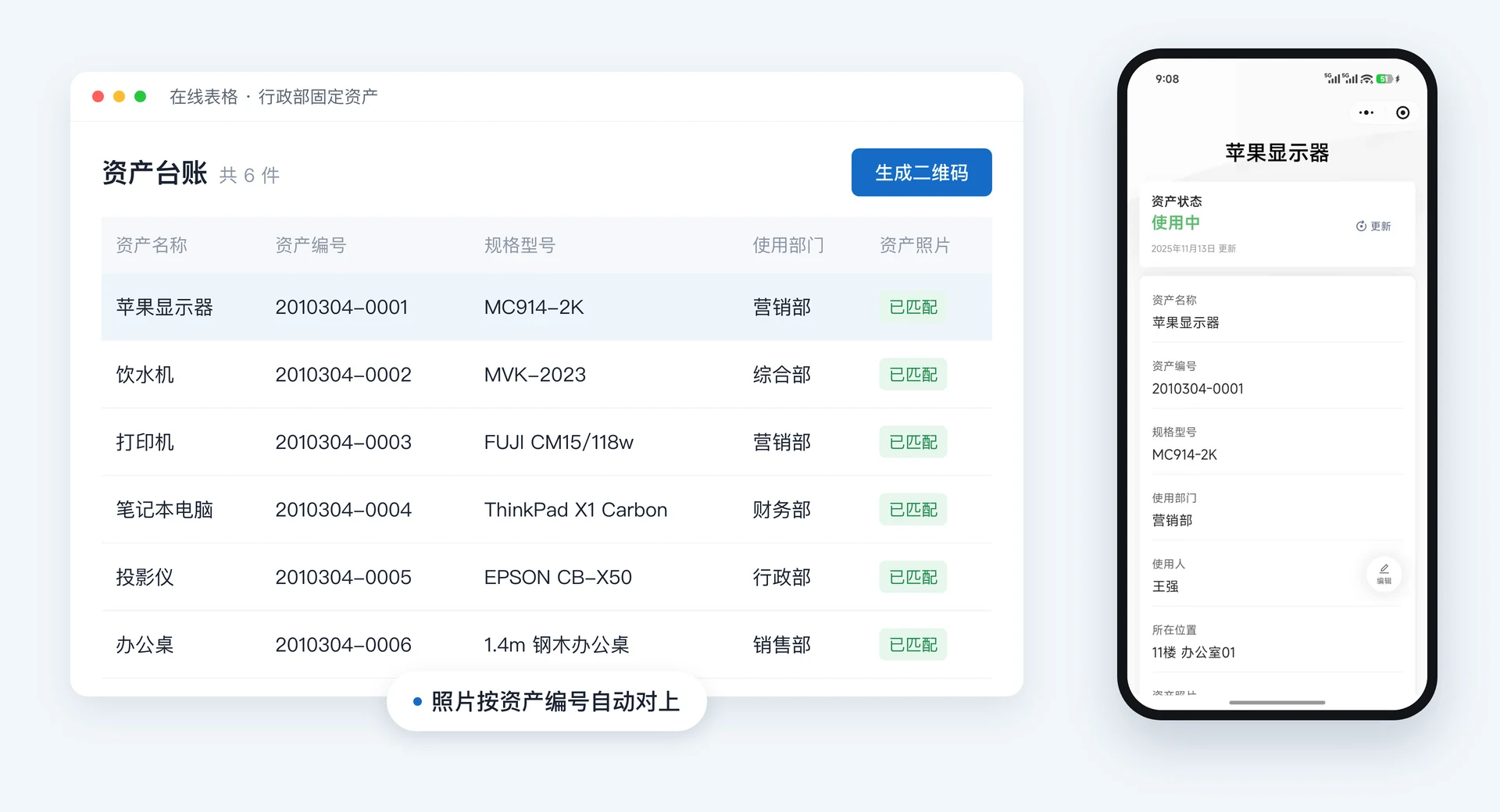
1Import Your Asset Register to Generate QR Codes in Bulk
- Bulk generation: use one Excel row per asset and generate all codes on import
- Photo matching: name photos by asset ID to match each asset automatically on upload
- Register not ready: attach blank codes first, then scan on site to add information
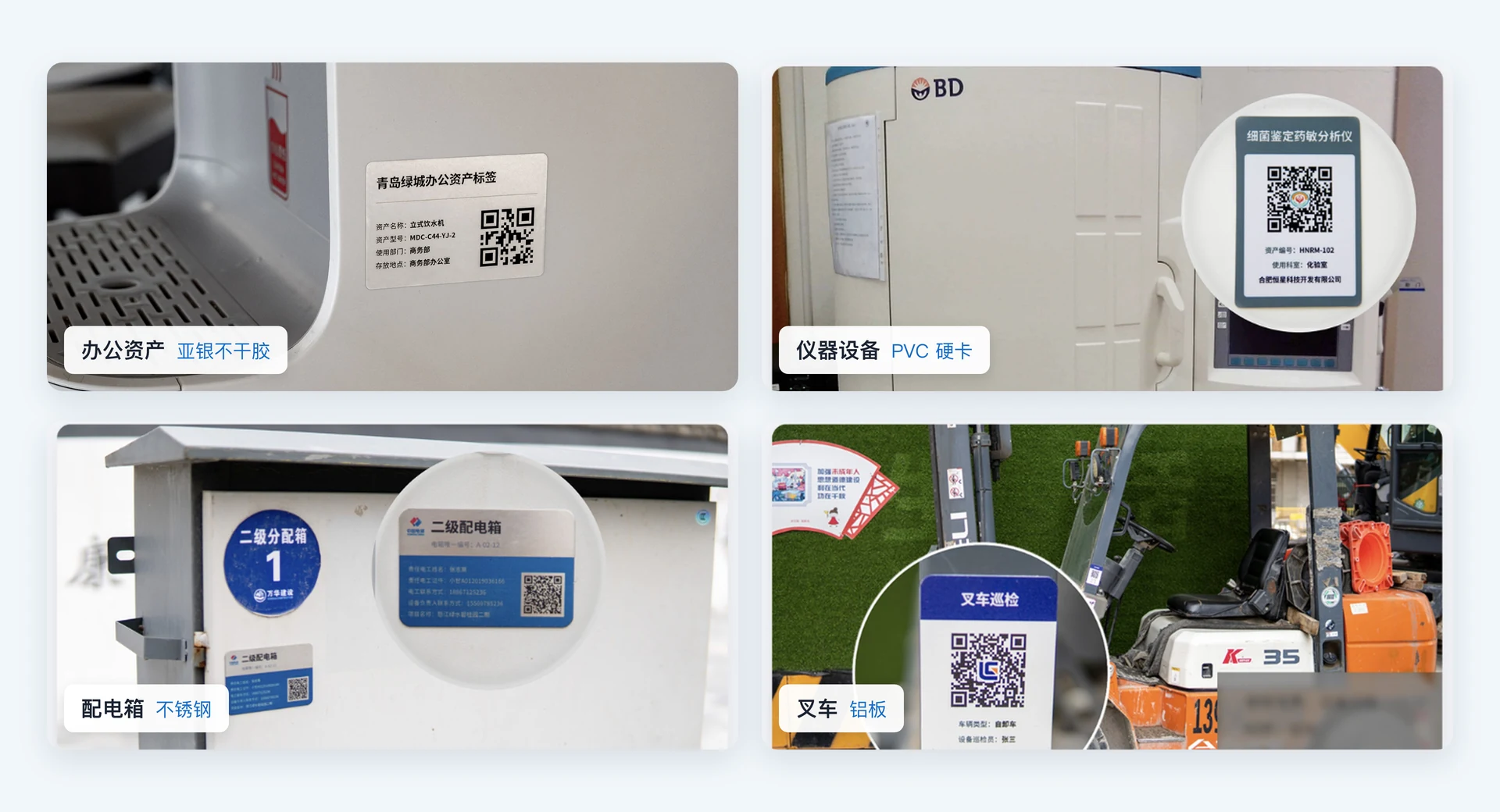
2Choose a Label Style, Print and Attach It to Assets
- What to print: print stable information such as names and IDs, and keep users inside the code
- How to print: try A4 adhesive paper, use PVC or silver PET adhesive for long-term use, or order printing
3Scan to View and Log Loans, Returns and Supplies
- Update status: scan to mark equipment as under repair or idle
- Keep records: loan, return and vehicle use records stay with the asset
- Loan lock: borrowed instruments only allow returns, preventing another loan
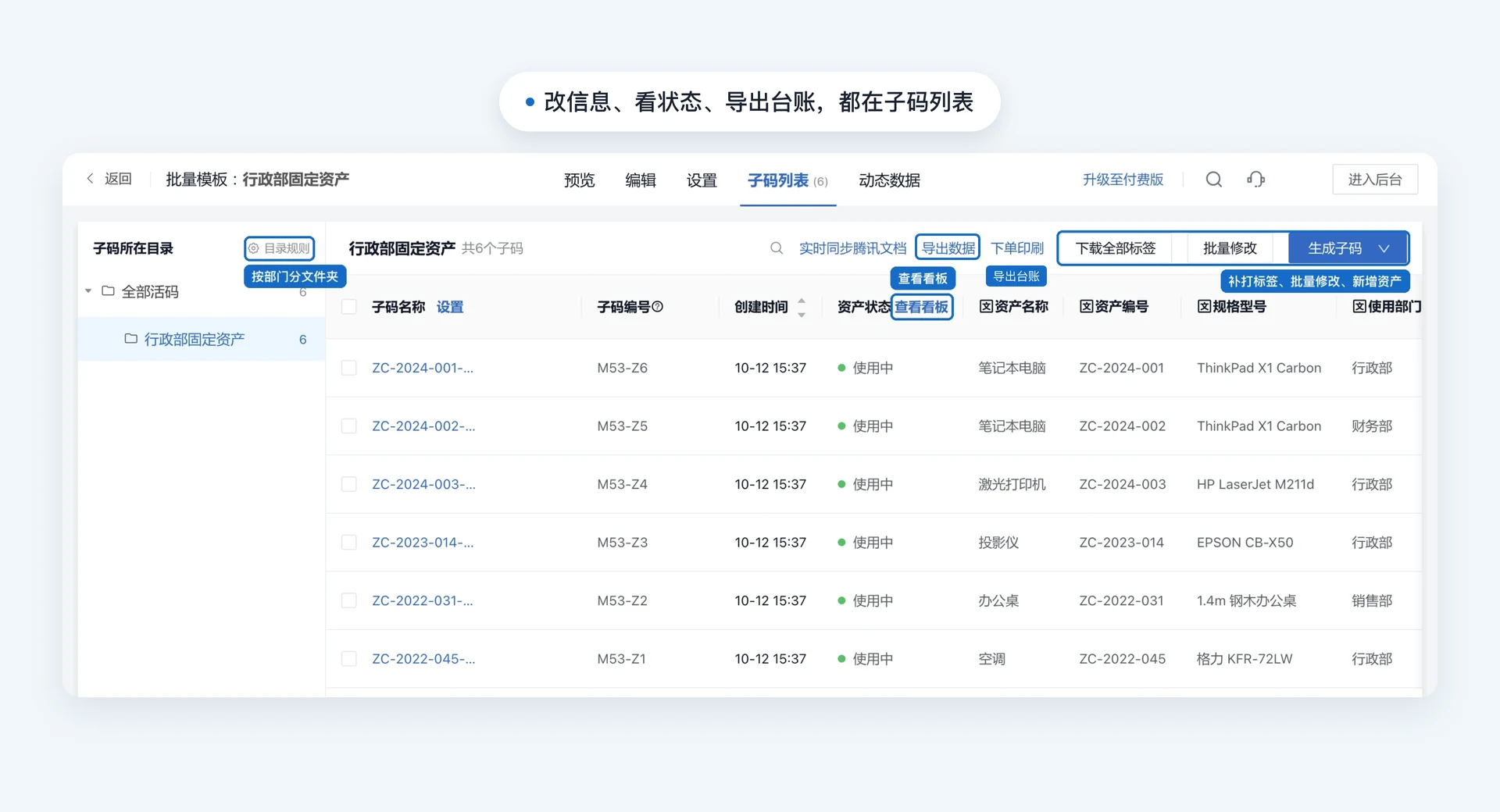
4Manage Centrally in the Workbench and View Information Anytime
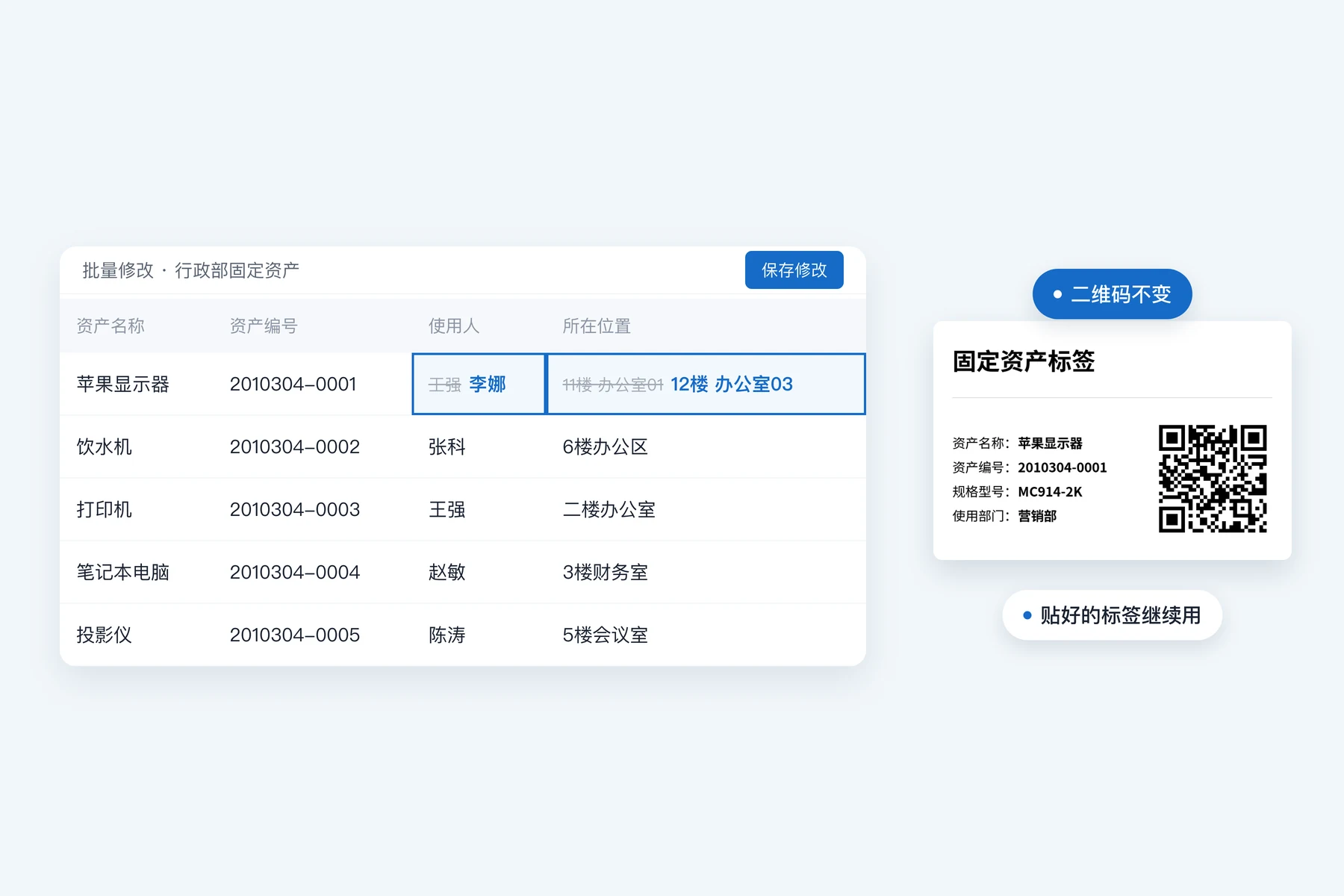
- Transfers and users: edit individually or in bulk in the workbench without changing labels
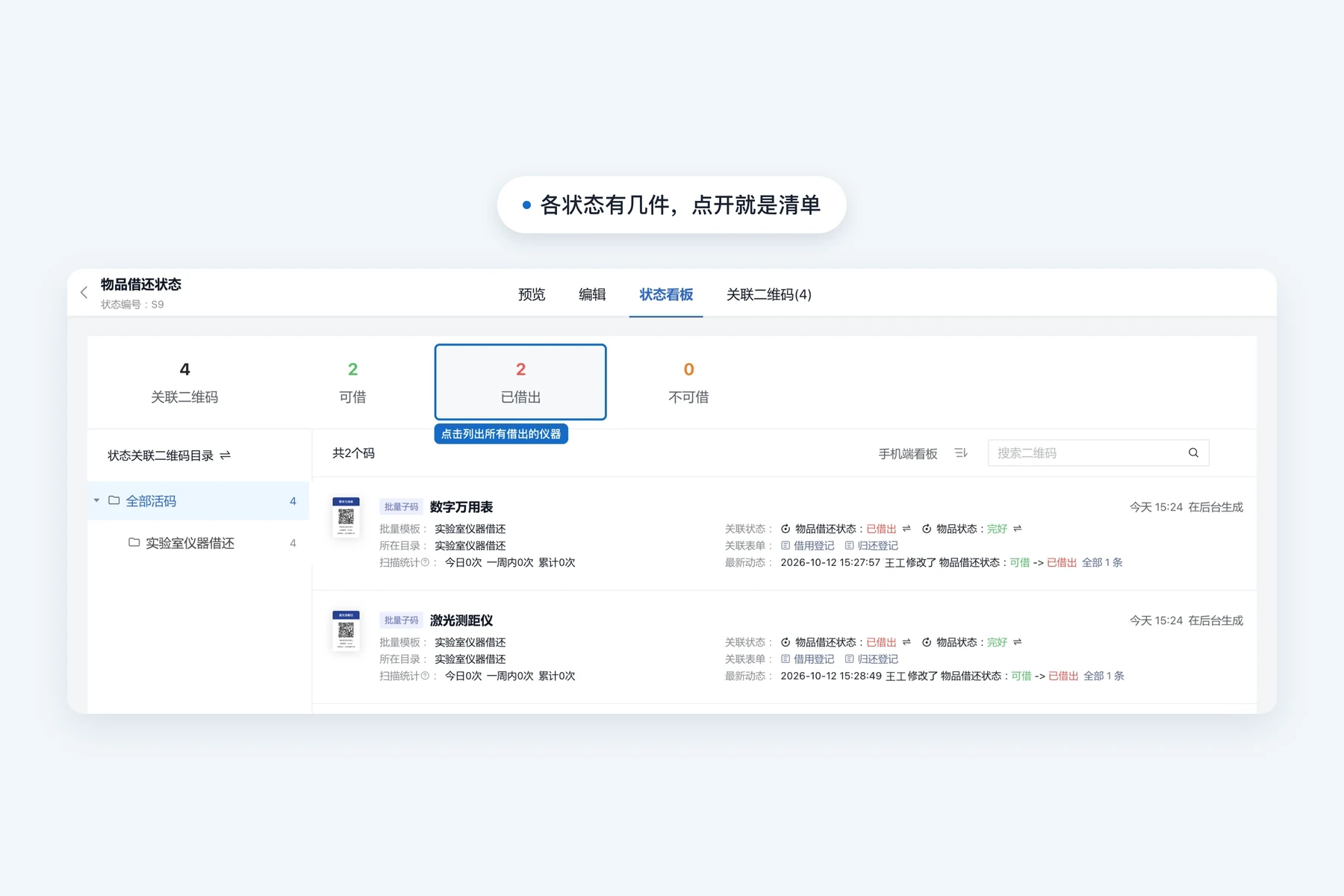
- Status dashboard: see counts for In Use, Under Repair and Borrowed, then click for a list
- Export the register: export to Excel in one click and disable scrapped assets
Match Records to Assets and Simplify Management
Ready-Made Solutions for Assets That Need Regular Inspections
Production equipment, special equipment and vehicles often need regular inspections as well as asset labels. Inspectors scan to check items and record photos, notify maintenance staff of exceptions, and keep all records under that device.
Equipment Inspection and Maintenance
Record routine inspections and scheduled maintenance with one code. Scan to upload on-site photos and analyze or export the records.
View Template ›Equipment Checks
Check each item and record photos. Notify maintenance staff automatically about exceptions and receive overdue check reminders.
View Template ›Equipment Repair Requests and Repairs
Scan to report faulty equipment, notify maintenance staff automatically, and keep records throughout correction and acceptance.
View Template ›Customer Stories
QR signs on company cars, engineering vehicles and construction equipment let people scan to add maintenance plans, routine checks, driving logs and refueling records. Administrators export summary tables from the workbench in one click.
QR codes generated in bulk for every instrument show specifications, floor, room and responsible person. Technicians scan to add repair records when equipment breaks. The entire process took two weeks.
Each vehicle has a code. Drivers scan before each job to complete checks and photograph the front and rear. Vehicle status updates automatically with check results. The system went live in just over a week.
For more examples, visit the Customer Stories Library.
Implementation Costs
Start with a normal printer and A4 adhesive paper, without buying specialized equipment. Pilot one department or asset category before expanding.
Core Features, Free to Use
- QR codes remain valid long term
- Unlimited assets
- Bulk generation and editing
- Loan, return, vehicle use and supplies logs
- Scanned pages display CaoLiao branding
- Images and files use free version specifications and carry a CaoLiao watermark
Pay as Needed for More Advanced Use
Includes free version features. Available enhancements vary by edition and commonly include:
- Show your own brandRemove CaoLiao branding and show your company name and logo
- High-resolution images and files without watermarksView asset photos and manuals clearly
- Collaborative managementEach department manages its own assets
- Designated borrowers and status editorsLend high-value instruments only to designated people
Frequently Asked Questions
Do people need to install an app to scan?
No. Scan with common apps such as WeChat and Alipay to view information or log loans and supplies without registering. Only administrators maintaining asset information need to sign in to the workbench.
Do I need to create codes individually for hundreds or thousands of assets?
No. Import an Excel asset register with one asset per row to generate all codes at once. Photos match automatically by asset ID. If the register is not ready, attach blank codes first, then scan on site to add information. See Can I Attach QR Labels Before the Register Is Ready?
Do labels need replacing after transfers or user changes?
No. Update the asset in the workbench and keep the same QR code; scans show the new information. For batch transfers, use Bulk Edit in the table. Print only stable information such as names and IDs on labels, and keep users and locations inside the code. When an asset is scrapped, mark it Scrapped or disable its code.
How can I hide original value and purchase prices from people scanning?
Set the item to Hide This Item After Scanning so it remains viewable and exportable in the workbench. To restrict the whole code to internal staff, select All Members for viewing permissions. Only people in your organization can then scan to view it. See QR Code Viewing Permissions.
How can I restrict borrowing and status changes to internal staff?
By default, anyone can scan the fixed asset label template to update status or fill in loan and return logs. Before use, set asset status Update Permissions and the log's Who Can Fill In to All Members so only organization members can change status and borrow. Select Designated Members to restrict access to specific people; this requires Advanced Edition or above. Find the settings in the Asset Management QR Code Setup Tutorial.
Can this calculate the remaining storeroom stock?
No. Loan and supplies logs record who borrowed or collected items and how many. CaoLiao QR Code does not automatically calculate real-time stock. For goods movements and inventory, see QR Codes for Warehouse Management.
Is this useful if we already have a financial asset system?
They handle different tasks. Financial asset systems handle accounting, depreciation and reports, which CaoLiao QR Code does not provide. This handles on-site asset ownership, location, status, loans and usage. Both can run alongside each other; export asset data to Excel or use the API to send it to an existing system.
Can I use the free version, and what should I check before paying?
Yes. The free version supports asset labels, loans, returns, vehicle use and supplies logs, with unlimited assets and scans. It displays CaoLiao branding and watermarks on photos and files. If you plan to pay, do so before printing labels: removing the CaoLiao loading branding from codes generated before payment requires changing the opening method. This changes the QR pattern, so attached labels need reprinting. See Edition Selection Guide.
Start Building Asset Management QR Codes
Start with the closest asset template and import your register to generate codes in bulk. Loan, return and supplies logs are already configured.