Share Templates with Others
This article explains how to share templates and codes with others: create a share link, and the recipient opens it and saves a copy to their own organization. You can check who saved it, change the validity period, or stop sharing at any time.
1. Overview
You can share four kinds of content: bulk templates, single-code templates, dynamic QR codes, and label styles. Recipients can preview the content without signing in. When saving, they choose which organization and partition to save to, and can generate codes right after saving.
What the recipient saves is an independent copy:
| Included | Not included |
|---|---|
| Page content, forms, statuses | Generated codes |
| Template and code settings | Scan records, form records, and other data |
| Label style | Responsible persons |
Note: URL redirect dynamic QR codes cannot be shared. Saving one would only give the recipient a code that redirects to the same URL, which is faster to create from scratch.
2. Step 1: Create a Share Link
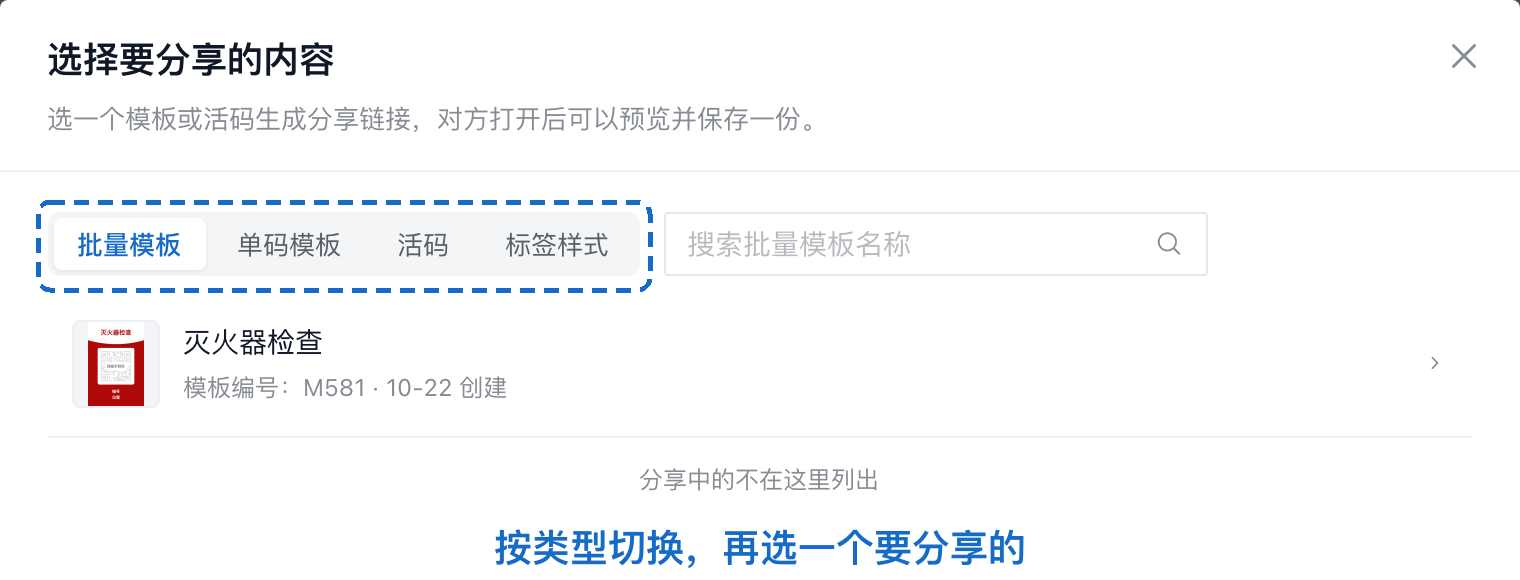
1. Choose What to Share
| What to share | Where |
|---|---|
| Bulk template | "Templates → Bulk Templates", "More → Share" on the row |
| Single-code template | "Templates → Single-Code Templates", "More → Share" on the row |
| Dynamic QR code | In the dynamic QR code list, the code's "More → Share" |
| Label style | In the label style list, "More → Share" |
You can also click "New Share" at the top right of "Templates → External Sharing" and pick one of the four kinds.
2. Fill in the Share Settings
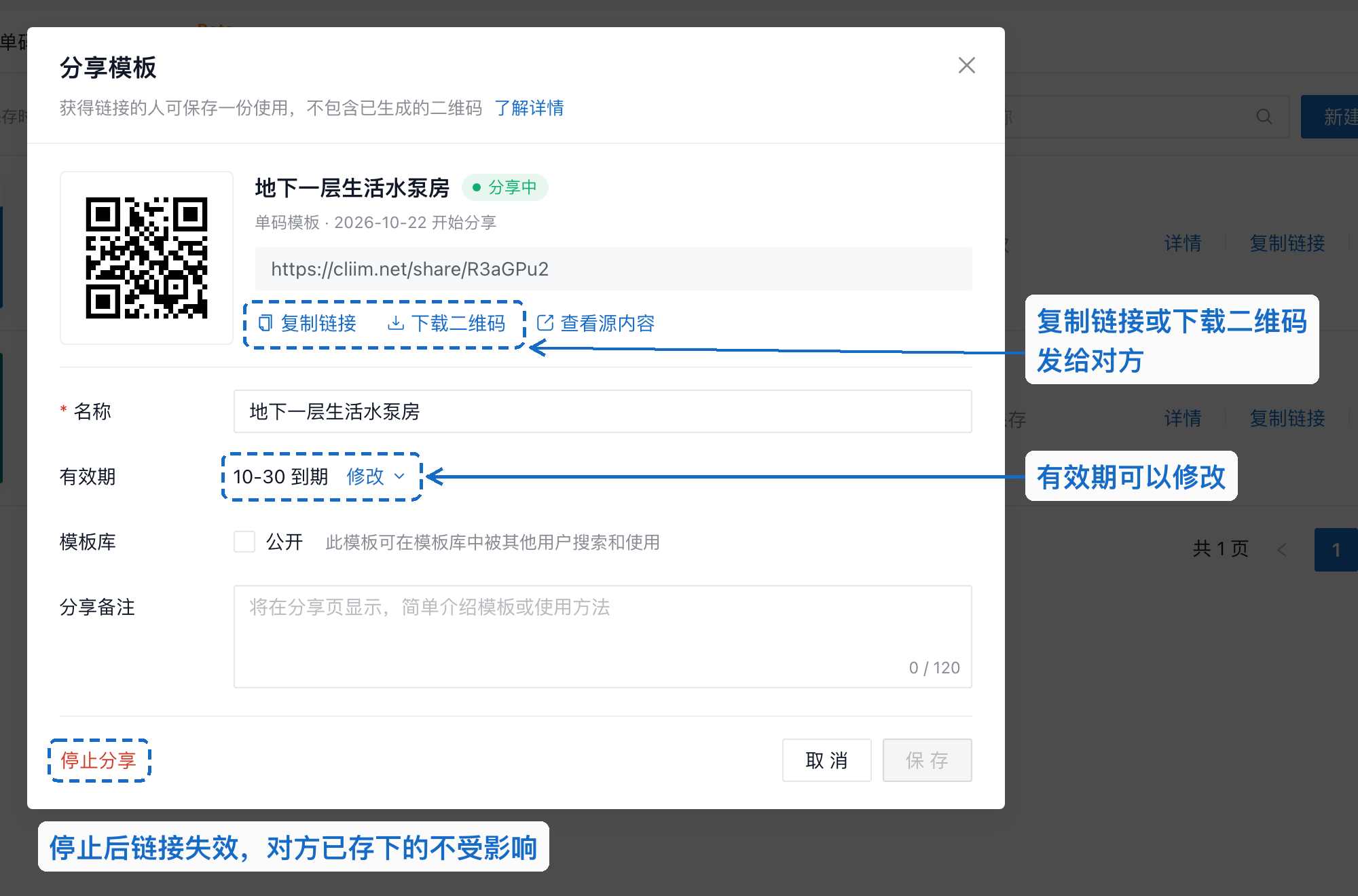
- Name: the name the recipient sees. Defaults to the current name.
- Validity period: 3 days, 7 days, 30 days, or permanent.
- Template Library: if you check "Public", other users can search for and use this template in the Template Library, and the validity period is fixed to permanent.
- Share note: up to 120 characters, shown on the share page the recipient opens. You can describe how to use the template.
3. Send It to the Recipient
After clicking "Generate Share Link", you can "Copy Link" or "Download QR Code". The copied text is a sentence like "X shared “Name” with you, open it to save: link", which you can paste straight into WeChat.
3. Step 2: The Recipient Opens the Link and Saves
1. Save on Desktop
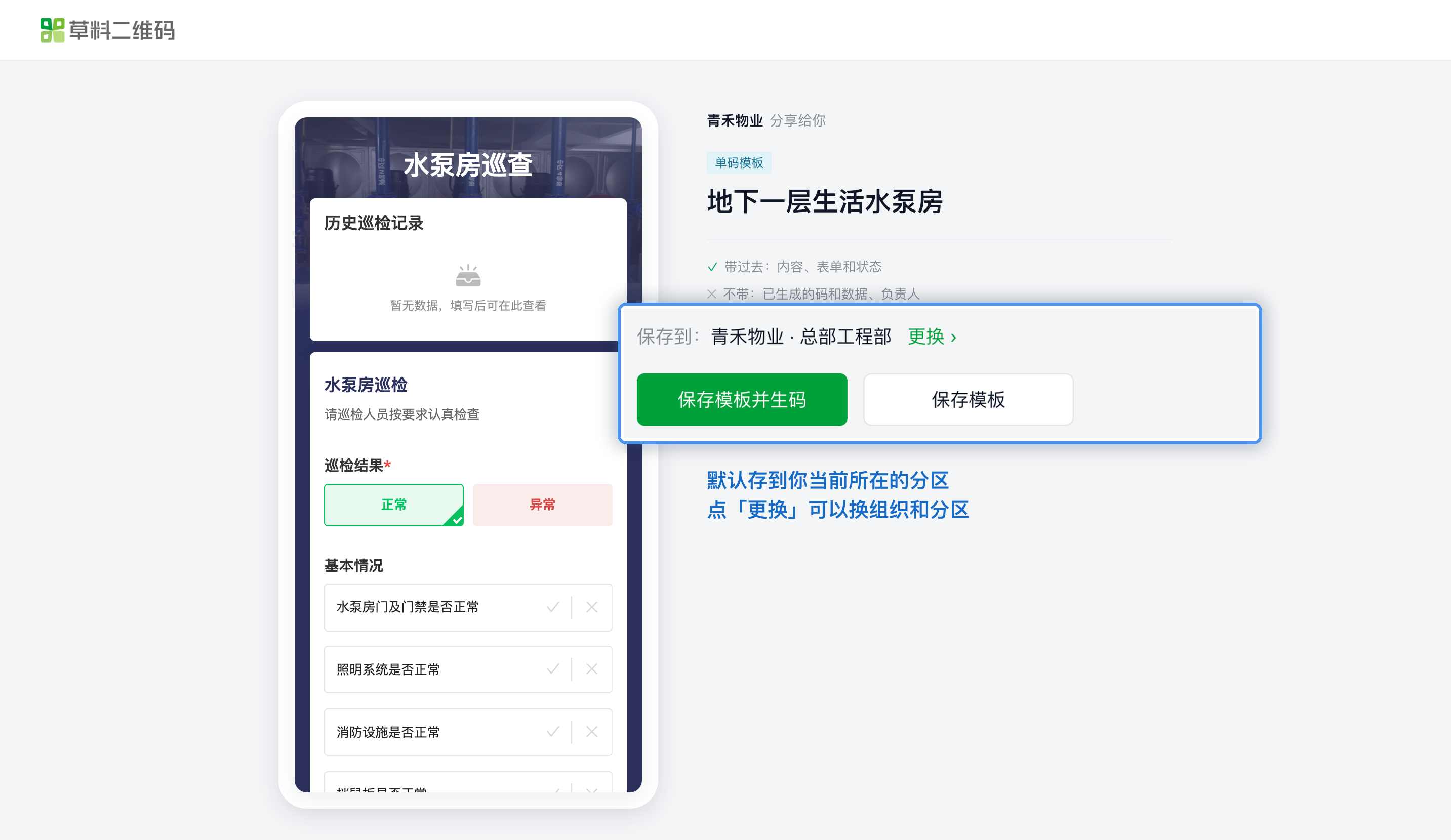
When the recipient opens the link, they first see who shared it, what it is, the share note, and what will and won't be included.
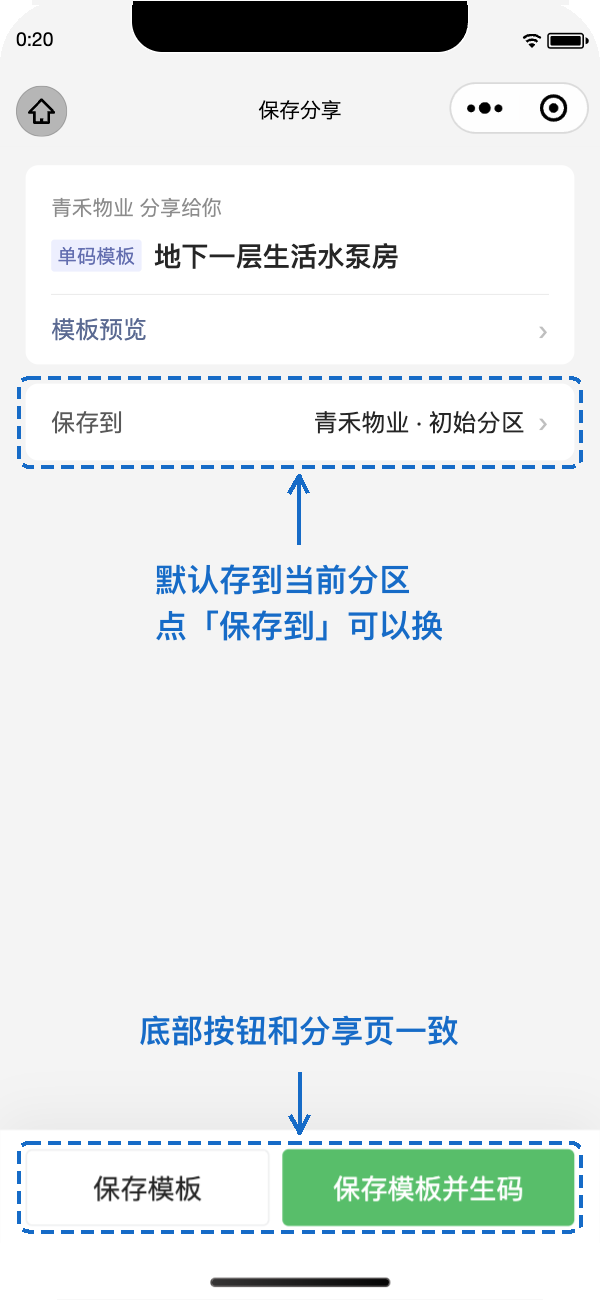
Above the buttons, "Save To: …" defaults to the recipient's current partition. Click "Change" to pick another organization and partition. If not signed in, the recipient signs in first and then continues saving.
The buttons depend on what was shared:
| Shared content | Secondary button | Primary button |
|---|---|---|
| Bulk template, single-code template | Save Template | Save Template and Generate |
| Dynamic QR code | Generate Code Directly | Save as Template and Generate |
| Label style | Save a Copy | — |
After saving, the page shows where it was saved and under what name. When sharing to another organization, settings such as approvers and notification recipients can't be carried over. The success page lists them, and the recipient clicks "To Be Assigned" next to the name in the list to reassign each one.
2. Save on Mobile
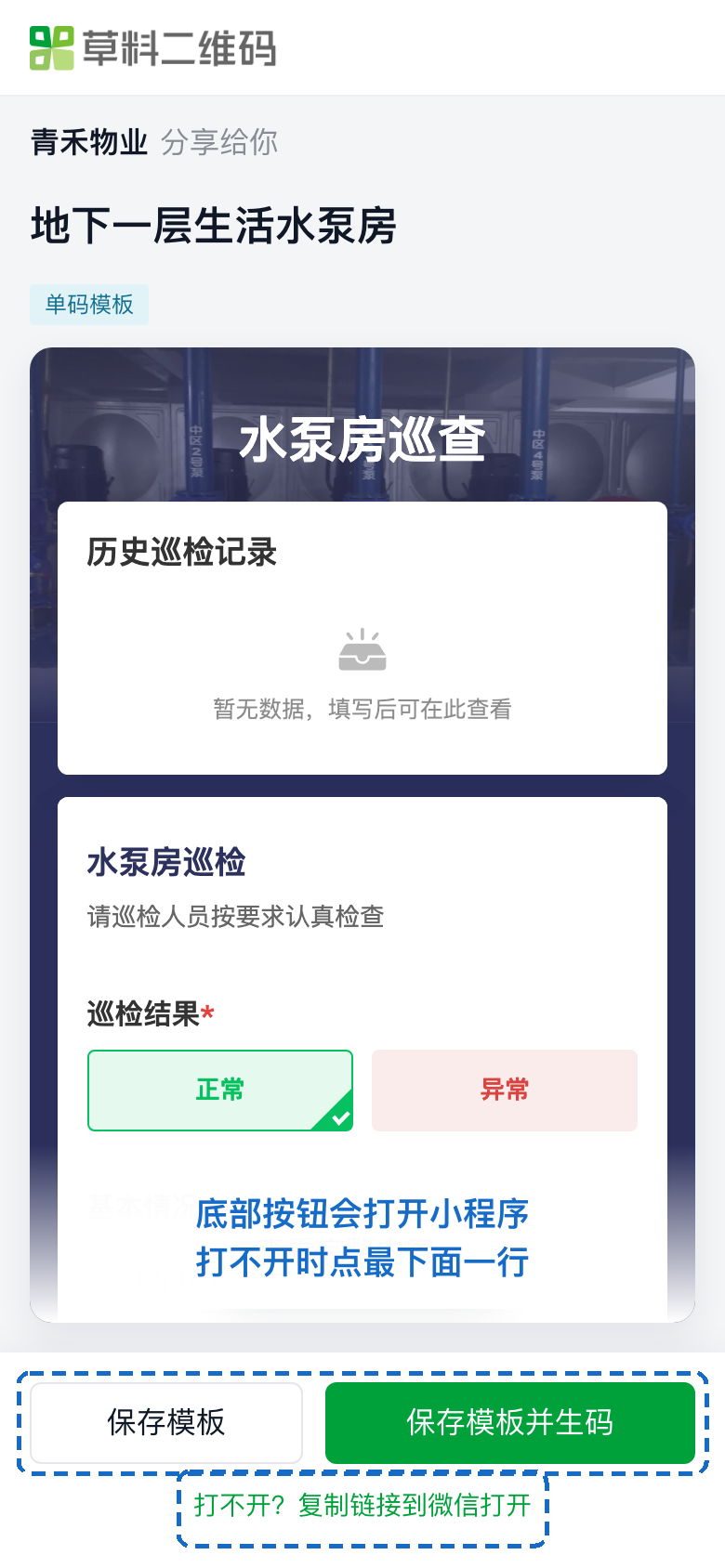
Open the share link in WeChat to preview the content first. Tapping a save or generate button opens the CaoLiao QR Code Mini Program, where you choose where to save. After saving, you can go on to generate codes.
If the Mini Program doesn't open, follow the prompt on the page to copy the link and open it in WeChat, or long-press to recognize the Mini Program code.
4. Step 3: See Who Saved It, Edit, or Stop Sharing
1. View the Share List
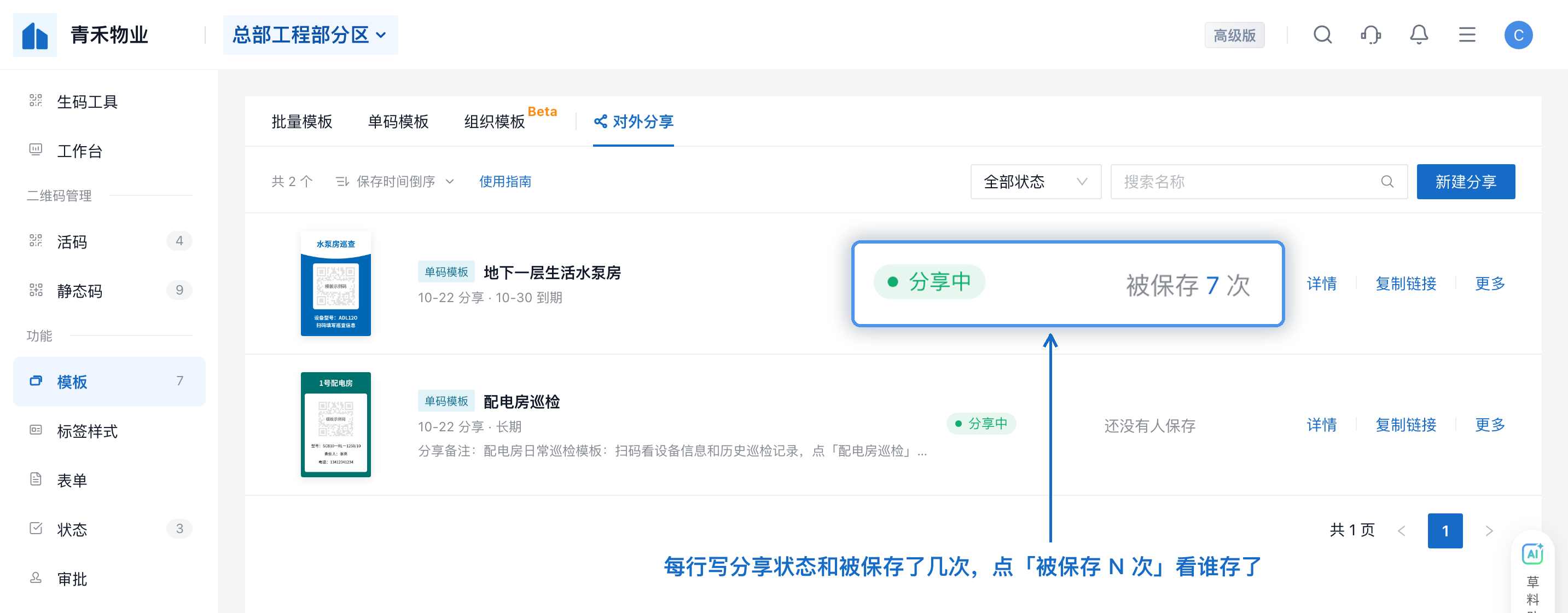
Go to "Templates → External Sharing" to see the templates and codes shared from the current partition, including shares by colleagues in the same partition. Each row shows the share date, the expiry date or "Permanent", and the sharing status (Sharing, Expired, Stopped). You can filter by type and status, or search by name.
2. See Who Saved It
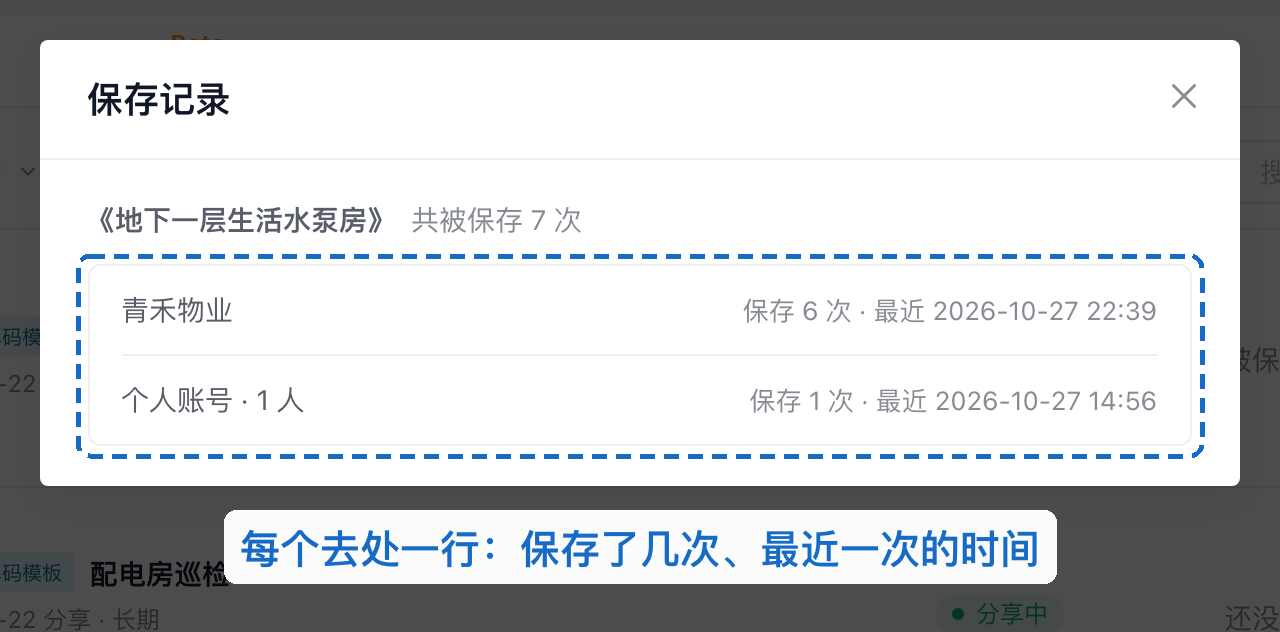
Click "Saved N Times" on a row to open the save records: one row per destination, showing how many times it was saved and when it was last saved.
3. Change the Validity Period
Click "Details" on a row to open the share dialog, click "Edit" in the validity period row, choose a new option, and click "Save". The new expiry date counts from today. It can be earlier than before, and a permanent share can be changed back to a limited period.
4. Stop Sharing
Click "Stop Sharing" at the bottom left of the share dialog, or "More → Stop Sharing" on the row. After that, opening the link shows "This share has stopped". Copies the recipient already saved are not affected.
For a stopped share, click "Share Again" to create a new link. For an expired share, click "Re-enable" to keep the original link. Records you no longer need can be removed with "Delete Record".
5. FAQ
1. If I Change the Original Template After the Recipient Saves It, Will Their Copy Change?
No. What they saved is their own copy; each side uses its own.
2. Why Are Colleagues' Shares in "External Sharing"?
The list is organized by partition. Anyone in the same partition who can edit the shared content can view and stop its sharing. To see only your own shares, check "Only Show My Shares".
3. Can't Find a Share?
"External Sharing" only lists shares from the current partition. If the shared item is in another partition, switch to it at the top left and look again.
6. Get Started
Go to "Templates → External Sharing", click "New Share", choose the template or code to share, and send the generated link to the recipient.