Single-Code Templates
This article explains how to use single-code templates: save a finished dynamic QR code as a template, then use it to create independent codes without building each one from scratch.
1. Overview
A single-code template saves how a code is set up: its page content, forms, statuses, and code settings. When you need another code just like it, enter a name and generate one from the template.
Every code generated from a single-code template is an independent, regular dynamic QR code that can be edited on its own without affecting the others. If you change the template later, only codes generated afterward are affected; codes already generated stay the same.
| Item | Single-code template | Bulk template |
|---|---|---|
| Codes generated | One independent dynamic QR code each time | A batch of sub-codes at once |
| After the template changes | Existing codes stay the same; only new codes are affected | Changes apply to all sub-codes under the template |
| Content of each code | Each code is edited separately after generation | Codes share the template structure and differ by basic fields |
| Best for | Creating the same kind of code repeatedly, each maintained separately afterward, e.g. one repair code per store | Making codes for a batch of devices, people, or products at once and managing them together |
2. Step 1: Get a Single-Code Template
There are three ways:
| Method | Where | Best for |
|---|---|---|
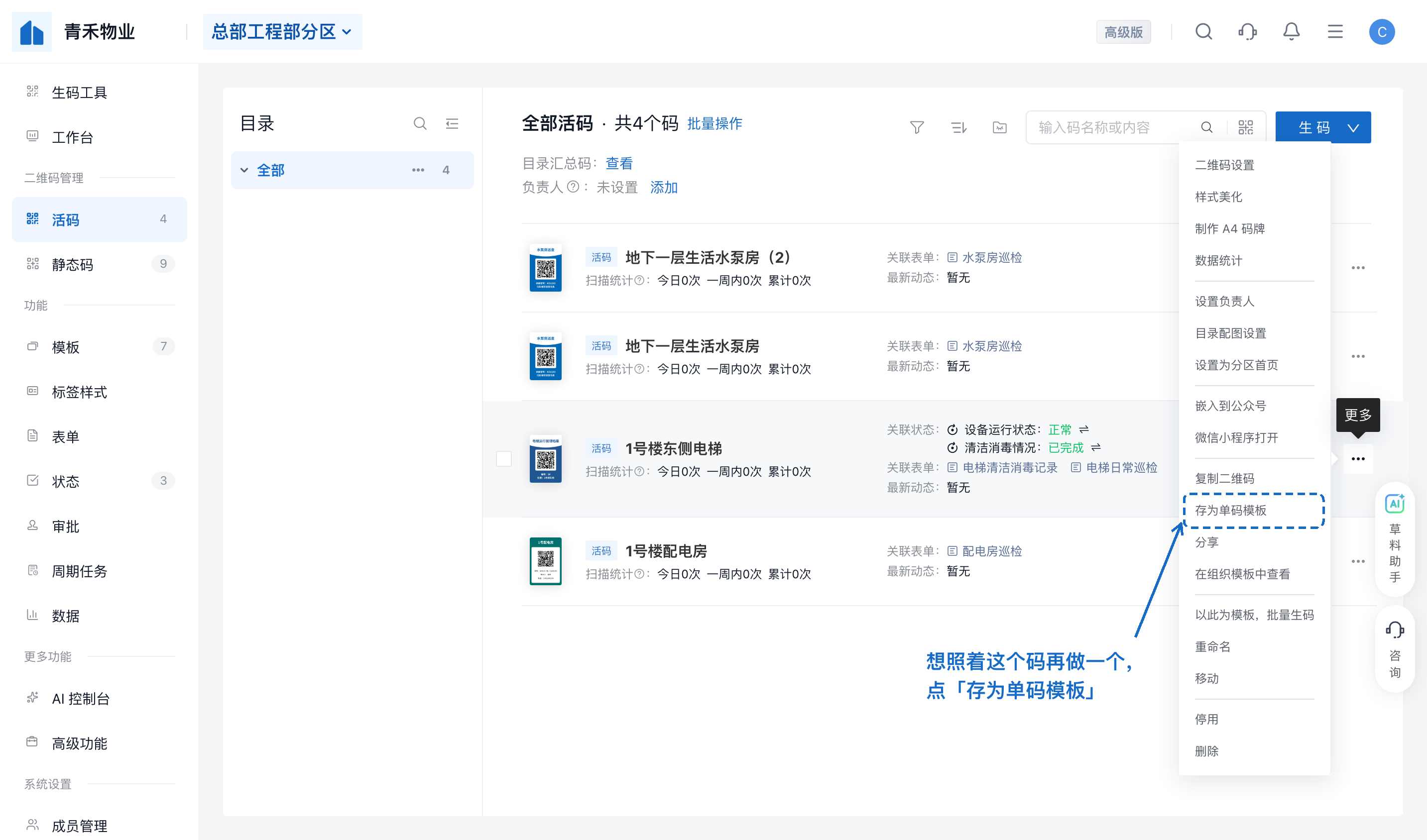
| Save from a dynamic QR code | In the dynamic QR code list, the code's "More → Save as single-code template" | You already have a finished code and want more like it |
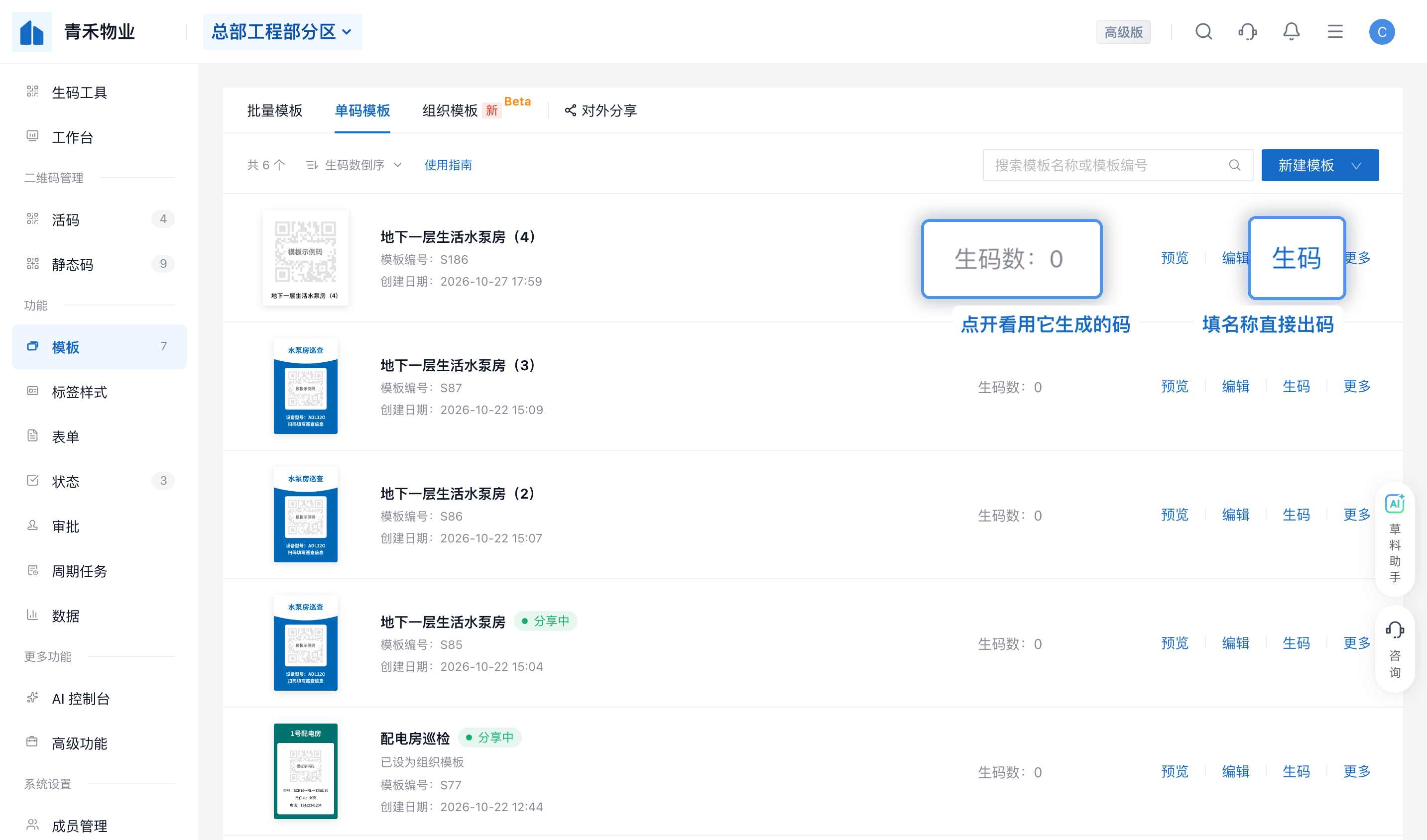
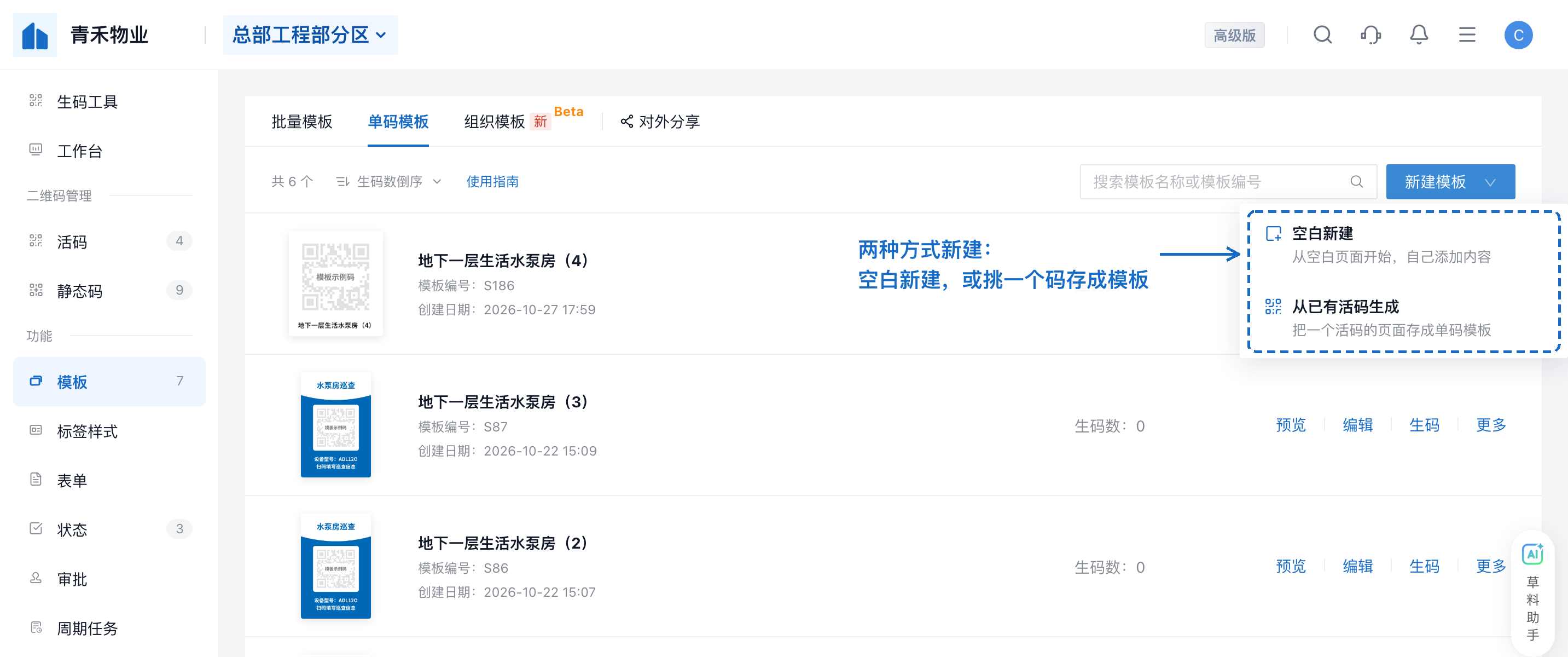
| Generate from an existing code | "Templates → Single-Code Templates" tab, top right "New template ▾ → From an existing dynamic QR code"; pick a code, then enter a name | Picking a code directly from the templates page |
| Create from blank | "New template ▾ → Blank", build the page from scratch in the editor, then click "Save template" in the right panel | You don't have a suitable code yet |
The name defaults to the original code's name and can be changed. Once saved, the template appears under "Templates → Single-Code Templates" in the current partition.
A single-code template saved from a dynamic QR code includes:
| Included | Not included |
|---|---|
| Page content, forms, statuses | Generated codes, scan records, form records |
| Label style and beautification, audio and video | Usage statistics |
| Viewing, filling, display, and other settings | |
| People settings such as approvers, notification recipients, and code managers |
3. Step 2: Edit Content and Settings as Needed
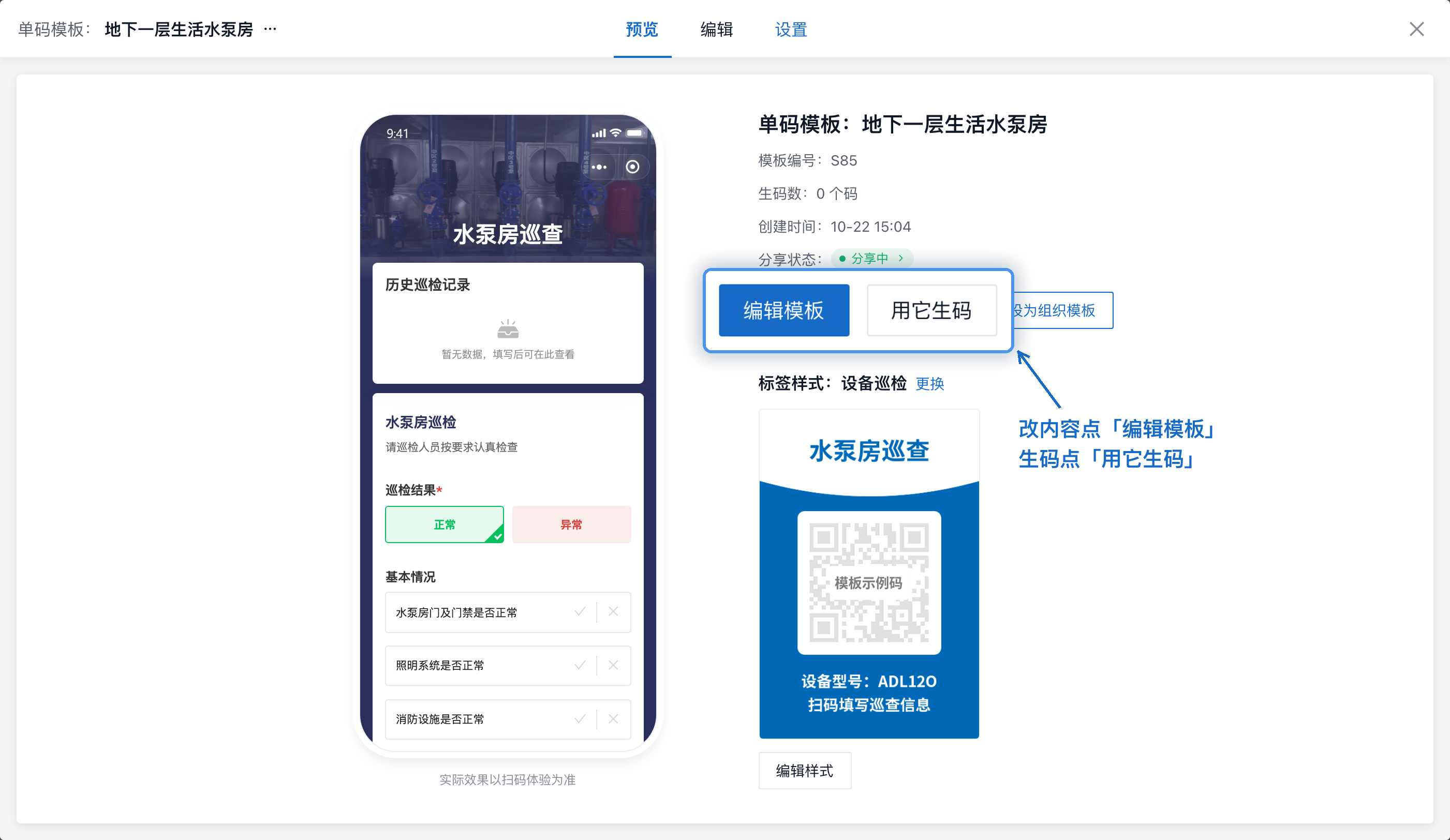
On the "Single-Code Templates" tab, click a row or "Preview" to open the preview dialog. It has three tabs at the top: "Preview", "Edit", and "Settings".
1. Edit Content
Click "Edit template" to open the editor and change the page content, forms, and statuses. Changes take effect after you save.
2. Edit Settings
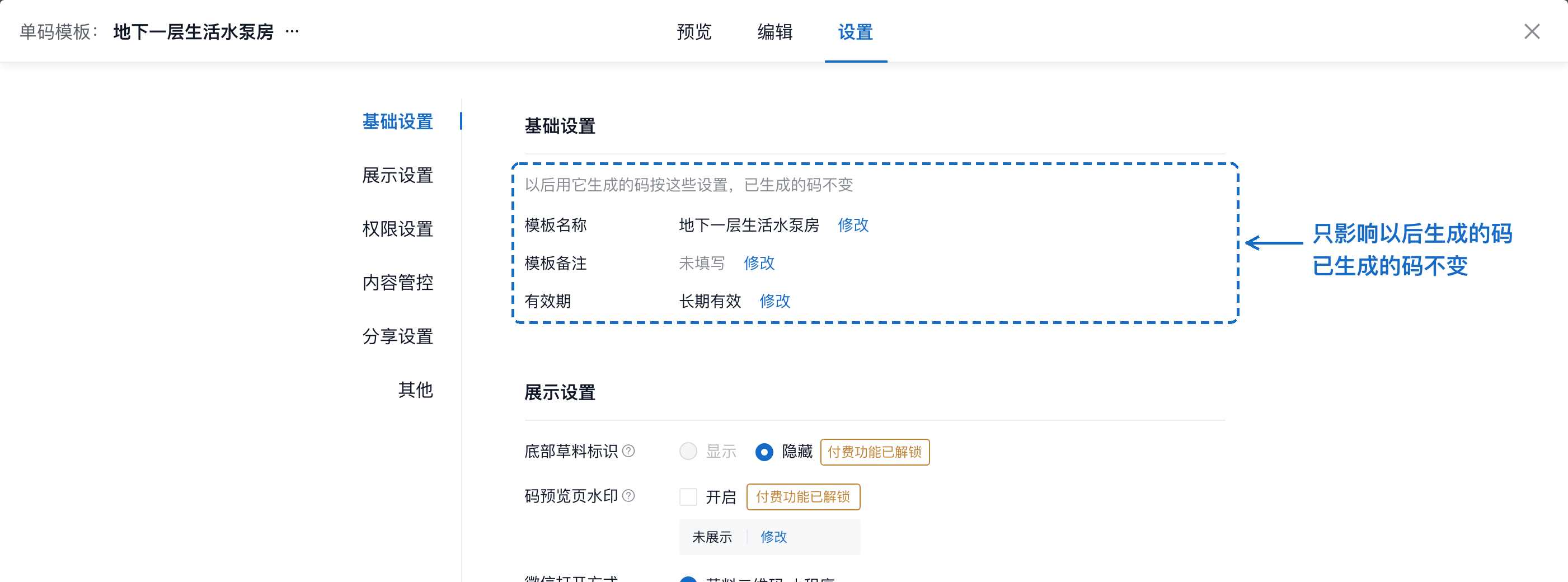
The "Settings" tab is organized the same way as a dynamic QR code's settings: Basic settings, Display, Permissions, Content control, Sharing, and Other. These settings decide how codes generated from the template are set up; codes already generated stay the same. For the permissions section, see QR code permissions.
- The note in Basic settings appears in the list row and the preview, so colleagues know when to use this template. You can also click the note in the preview to edit it directly.
- If the validity period is set to a duration such as one day or six months, codes generated from the template count from the day they are generated. If it is set to custom start and end dates, generated codes use those dates.
4. Step 3: Generate Codes
1. Generate Codes on Desktop
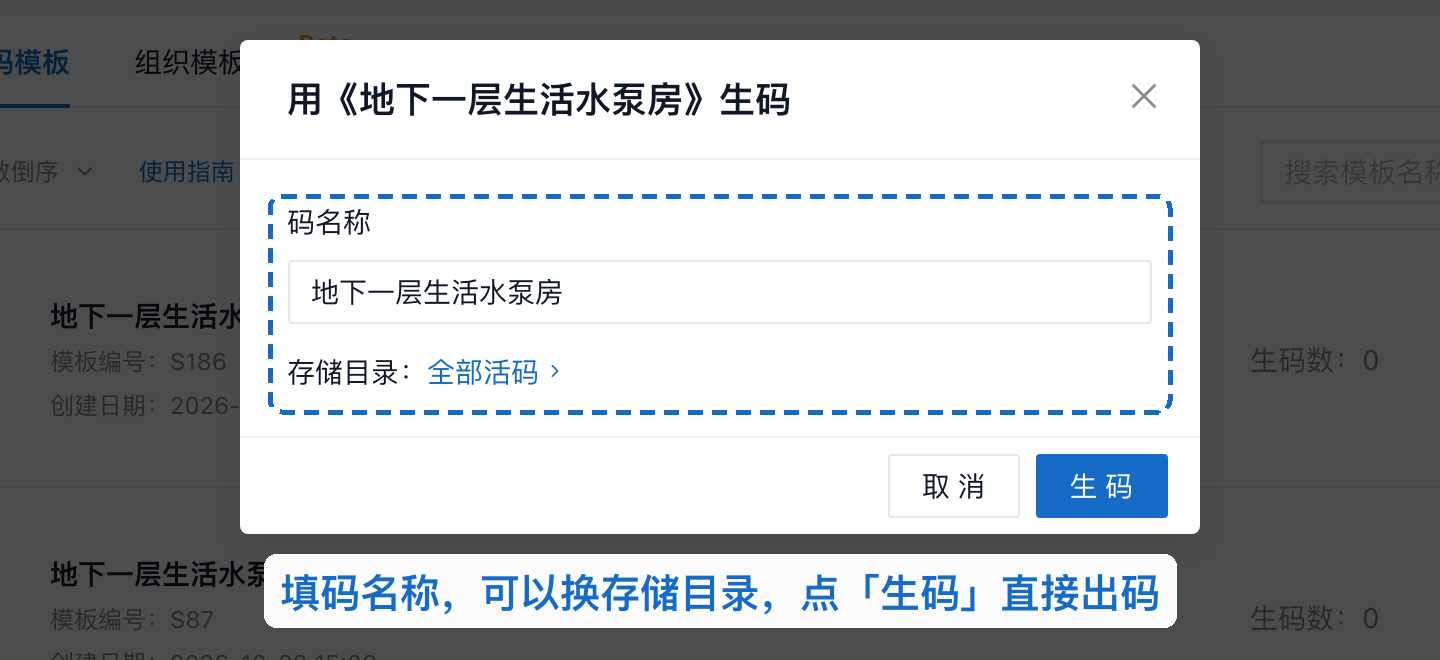
Three entry points open the same name dialog:
- "Generate code" on a row of the "Single-Code Templates" tab
- "Generate code" in the single-code template preview
- "Generate → Generate from single-code template" in the dynamic QR code list
Enter the code name, optionally choose a directory (Directory management), and click OK. The code is created directly without opening the editor.
After the code is generated, click "View this code" to open its directory with the new code highlighted.
2. Generate Codes on Mobile
- Open the CaoLiao QR Code Mini Program. On the code creation page, tap "All" in the "My templates" section.
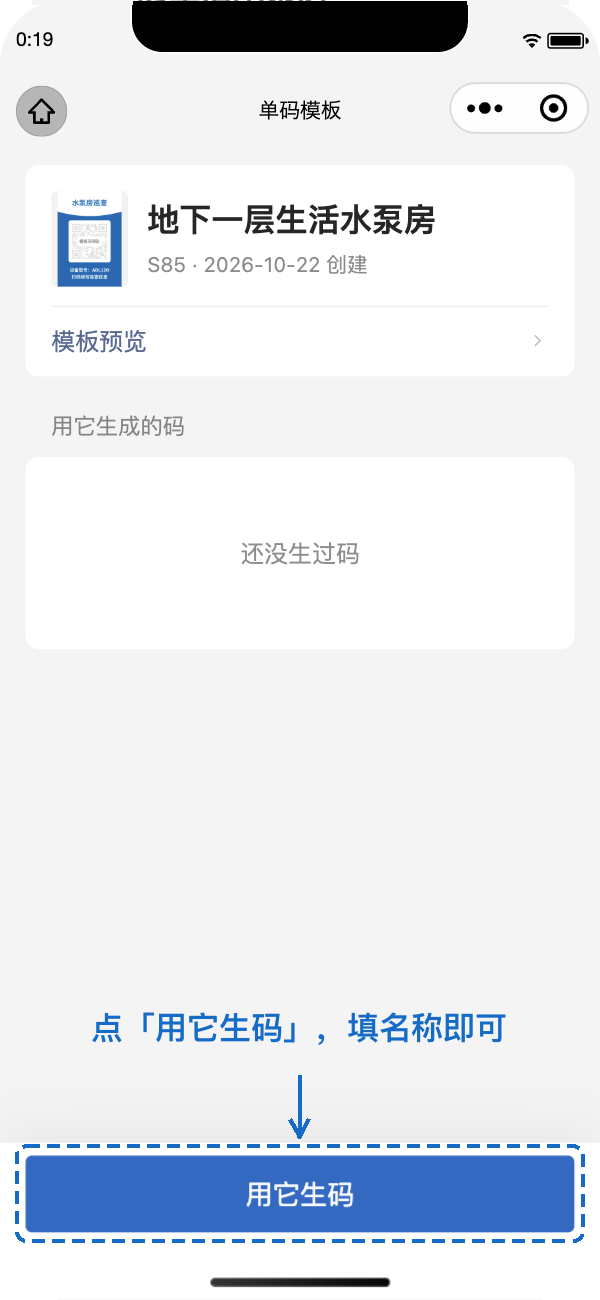
- Switch to "Single-Code Templates" and tap a template to open its details.
- Tap "Generate code" at the bottom and enter a name.
Note: Anyone who can create codes in this partition can generate codes from single-code templates. No extra permission is needed.
5. Managing After Generation
| Action | How | Tutorial |
|---|---|---|
| View codes generated from it | Click "Codes generated: N" on the list row to list active codes generated from this template | — |
| Copy | "More → Copy" saves another copy in the current partition | — |
| Share with others | "More → Share" creates a link; the recipient can save it to their own organization | View tutorial |
| Set as organization template | "More → Set as organization template" applies it to partitions across the organization for unified updates | View tutorial |
6. FAQ
1. Can a Single-Code Template Be Scanned or Downloaded as a Code Image?
No. A single-code template is only a template; a scan page and code image exist only after you generate a code from it. The cover in the list is a sample image drawn from the label style and marked "Template sample code". It is not a real code.
2. Can a Single-Code Template Be Moved to Another Partition?
Moving is not supported yet. To use it in another partition, save it there through a share link. If several partitions in your organization need it, set it as an organization template and apply it to those partitions.
7. Get Started
Go to "Templates → Single-Code Templates", generate a single-code template from an existing dynamic QR code or create one from blank, then use it to generate codes.