Organization Templates
Organization templates let you send one standard template to every partition in your organization. When the template changes later, an admin updates it once and every partition receives the new version.
It is available on all editions, and "Content Sync" is currently a free trial. Even if your organization has not created any partitions yet, or has only one, you can set a template as an organization template first and apply it once other partitions are created.
After reading the overview, go to the chapter for your role:
- Super administrators and sub-administrators: For admins: set up and update organization templates
- Members who can create codes in a partition: For partition members: add templates and receive new versions
1. Overview
Headquarters defines a standard template, such as an inspection form or a repair code, and every partition needs it:
- Before: you copied it across partitions one by one; when the template changed, you had to change it again in every partition.
- With organization templates: apply it to many partitions at once; when the template changes, an admin updates it once and every partition receives the new version. No more changing each one.
An organization template can be a bulk template or a single-code template.
1. Source Template vs. Organization Template
The template you choose when setting up an organization template is called the "source template". Think of the source template as a draft and the organization template as the published version: editing the source template doesn't change anything in partitions right away. Only after you click "Update version" does the published version change and go out to the partition copies.
| Name | Where | Purpose |
|---|---|---|
| Source template | The template chosen when setting it up; it stays in its original partition | The draft. To change the organization template, edit this one |
| Organization template | The "Templates → Organization Templates" tab | The published version; partitions get their content from it |
| Partition copy | Each partition's template list, marked "From organization template “X”" under the name | Each partition gets one when the template is applied, and generates codes from it |
2. Two Sync Modes
| Sync mode | Partition copy | After an admin updates the version |
|---|---|---|
| Partition-editable | The partition can edit it | The partition sees "New version available" and decides whether to update |
| Content Sync | Can be used but not edited | Updated to the new version automatically |
How to choose: if partitions should follow the standard without changes, choose "Content Sync". If partitions may adjust it to their own needs, choose "Partition-editable".
Note: After a partition copy is updated, codes generated from a bulk template change to the new look; codes generated from a single-code template are independent and do not change.
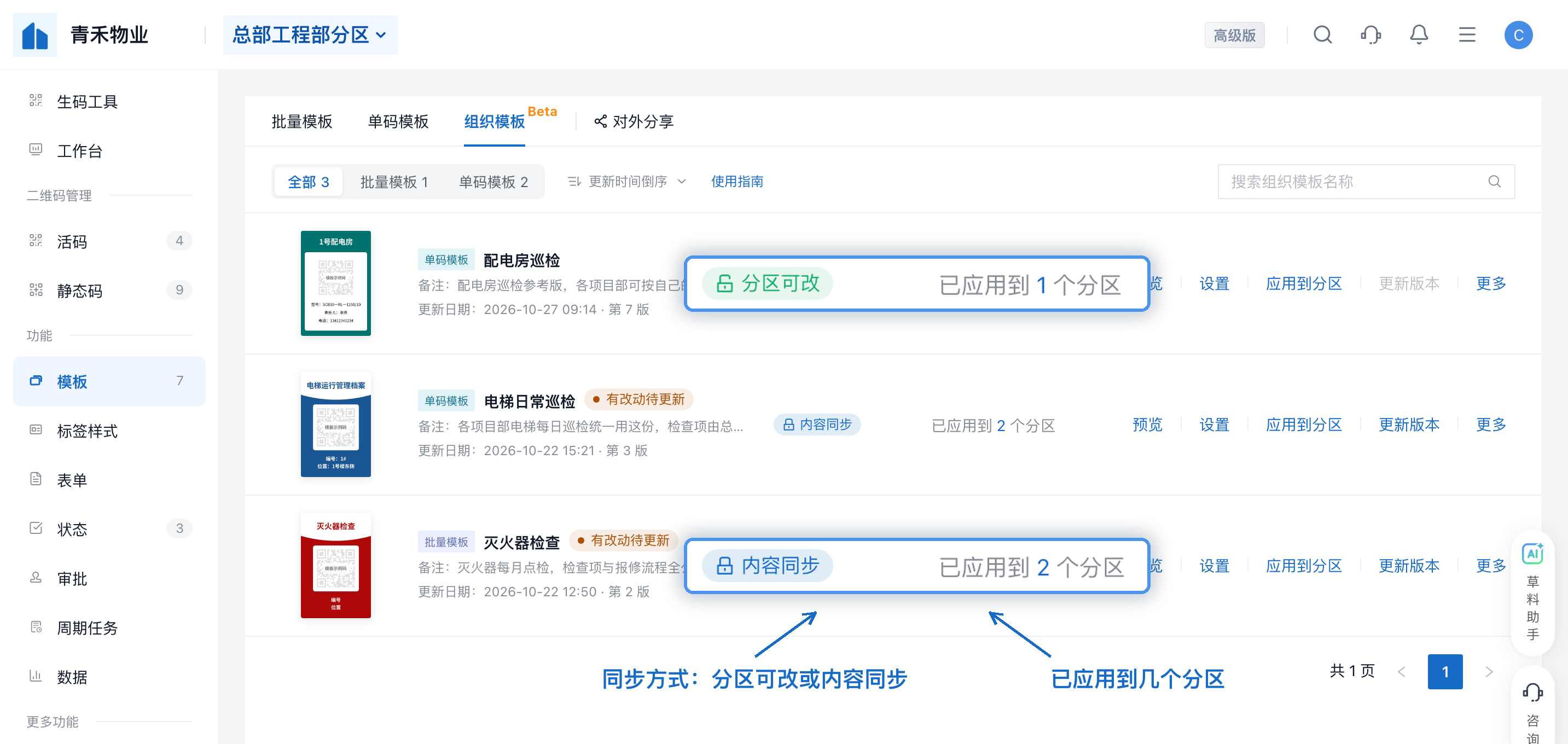
2. For Admins: Set Up and Update Organization Templates
Only super administrators and sub-administrators can do the operations in this chapter.
1. Set as Organization Template
| Set from | Where |
|---|---|
| Bulk template, single-code template | "Templates → Bulk Templates" or "Single-Code Templates" tab, "More → Set as organization template" on the row |
| Dynamic QR code | In the dynamic QR code list, the code's "More → Set as organization template" |
| The Organization Templates tab is still empty | Click "Add organization template ▾", choose bulk template or single-code template, then pick one from the current partition |
The name and note in the dialog are visible to every partition. Checking "Content Sync" sets the Content Sync mode; leaving it unchecked sets Partition-editable. It is checked by default. You can choose partitions to apply to now or later. If a partition already has a copy of this template, see Convert Existing Copies in Partitions to the Organization Template.
Important: When you set a dynamic QR code as an organization template, the system first saves a single-code template in the current partition and uses it as the source template. To change the organization template later, edit that single-code template; editing the original dynamic QR code does not affect the organization template.
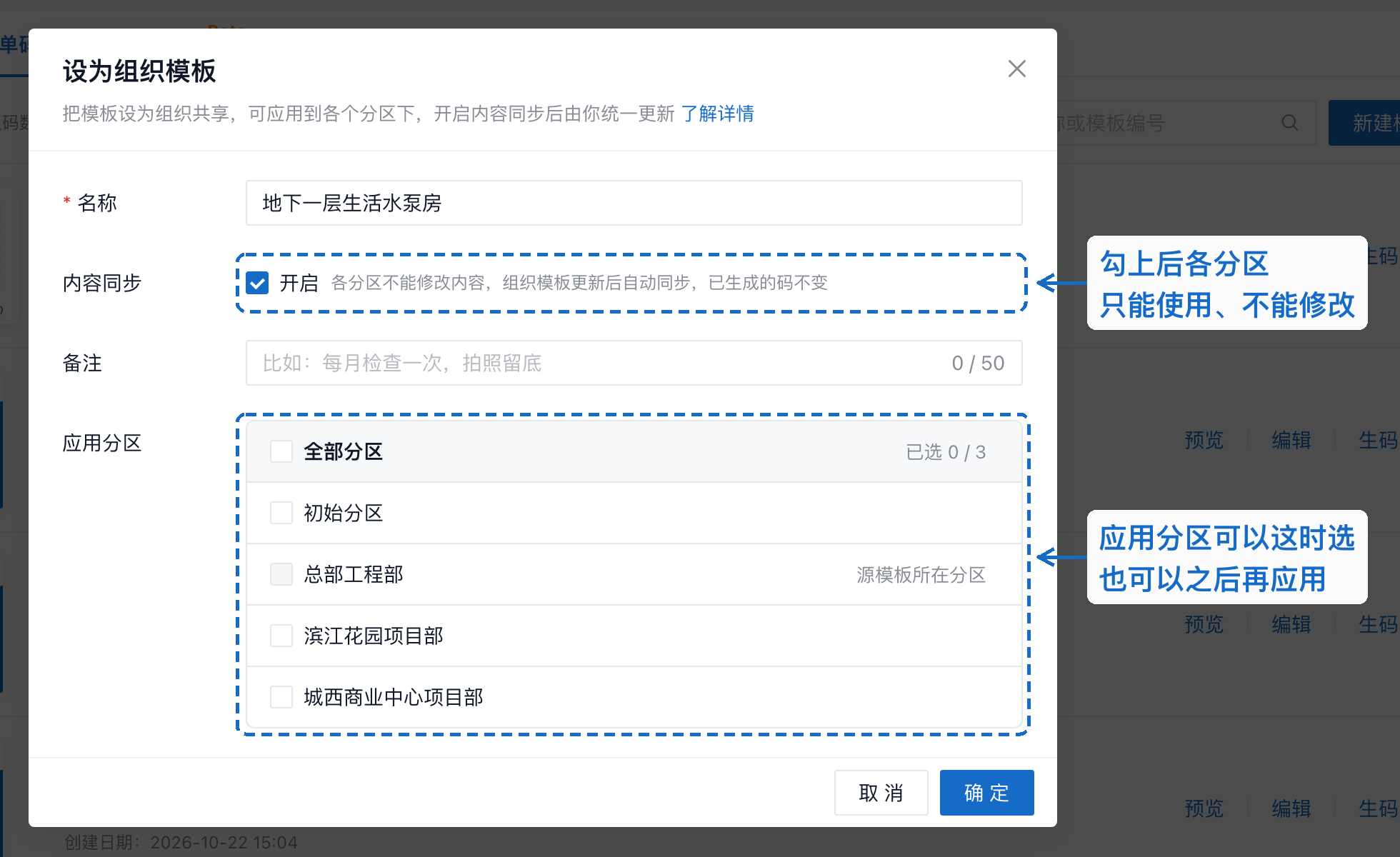
2. Apply to Partitions
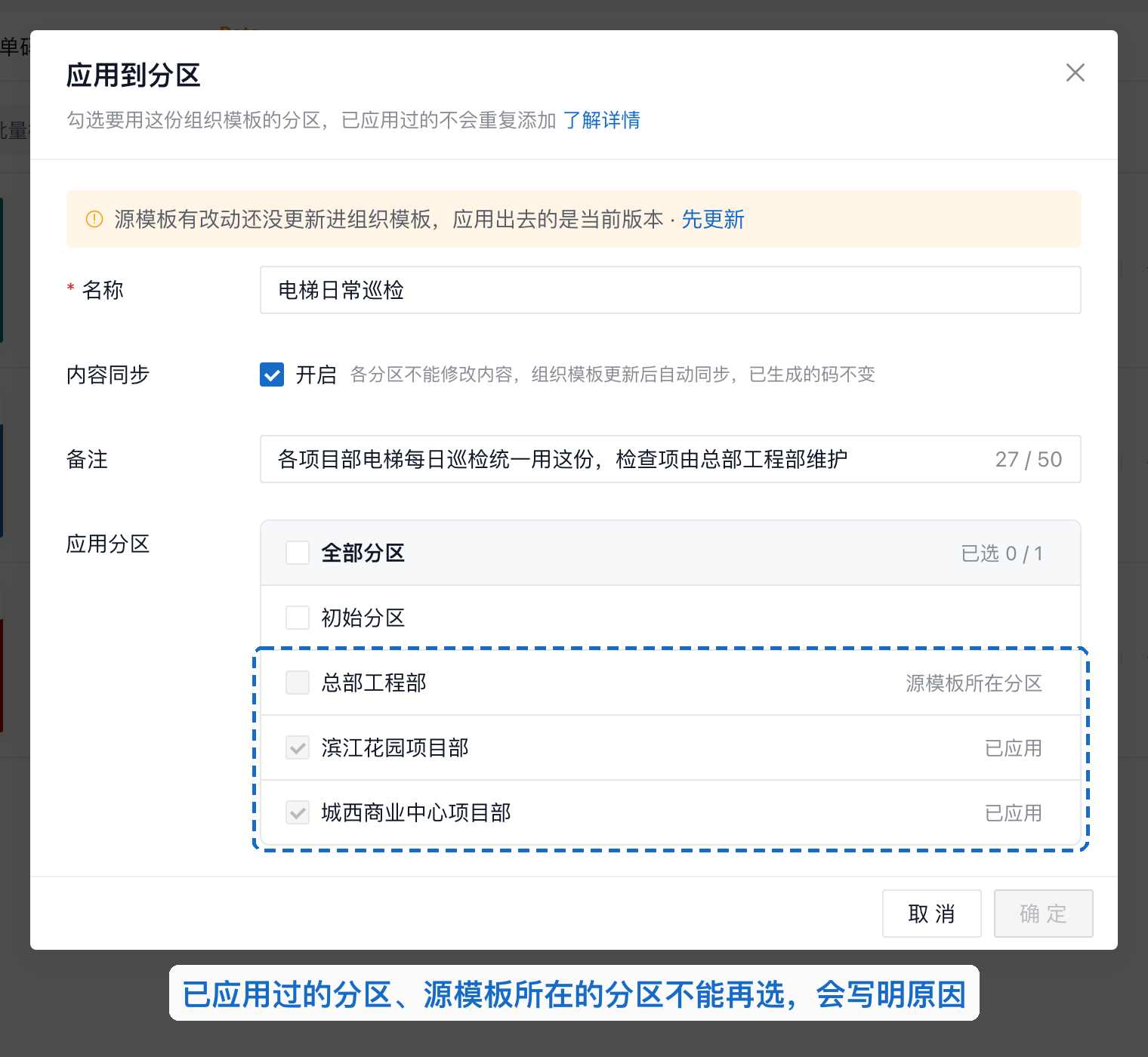
On the "Organization Templates" tab, click "Apply to partitions" on the row, select the partitions, and click "OK". Each partition's template list gets a partition copy marked "From organization template “X”" under the name.
Page content, forms, statuses, and template settings are carried over. Recurring tasks are not; to use them, turn them on again in the form of the partition copy.
Note: If the organization has no partition other than the one holding the source template (including when no partitions have been created yet), clicking "Apply to partitions" asks you to create a partition first. When an organization without partitions creates its first one, the system also creates the initial partition and moves the source template into it; the organization template keeps working as before.
Convert Existing Copies in Partitions to the Organization Template
If a bulk template was previously copied across partitions, setting it as an organization template or applying it to partitions recognizes the copies in each partition. You can convert those copies directly into the organization template, keeping codes and records, instead of creating another one.
- Only copies made by copying are recognized. A template rebuilt from scratch isn't recognized, even with the same name.
- Single-code templates aren't supported.
Warning: A partition that has a copy is set to "Convert to organization template" by default, and converting can't be undone. For any partition you're unsure about, choose "Create a new copy" first.
-
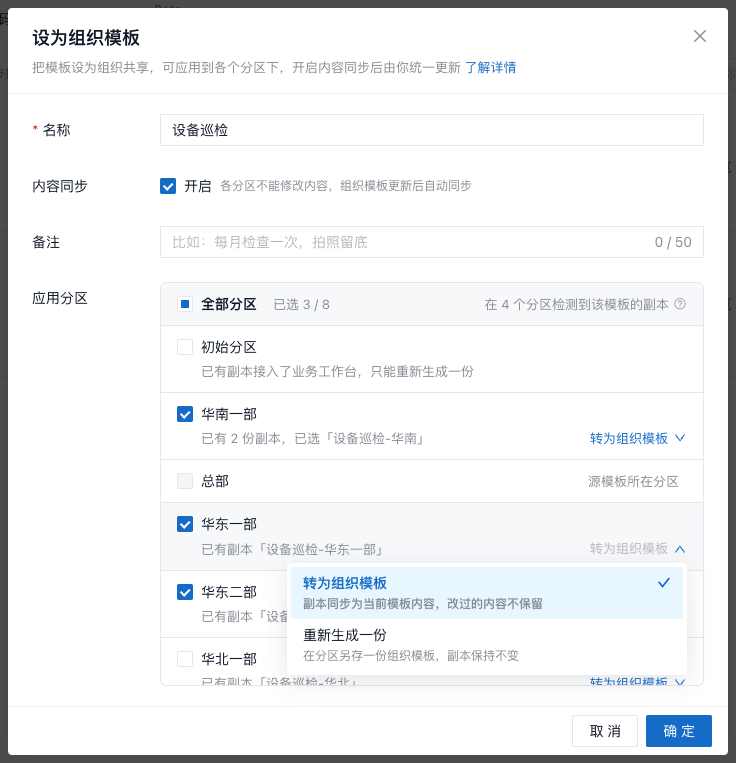
Choose what to do with each partition in the dialog. A partition that has a copy can be set to "Convert to organization template" or "Create a new copy": an extra line under its name shows "Existing copy “name”" on the left and the dropdown on the right.
Option Result Convert to organization template The copy stays in the partition, and its codes, code data, and records don't change. Its content is replaced with the organization template (edits in the copy aren't kept) and follows future updates Create a new copy The copy stays as it is, and the partition gets another organization template copy At the top right of the list, "Copies of this template found in N partitions" appears; hover over the question mark after it to see what the two options do. Click a copy's name to preview it. A partition marked "A copy is connected to a business workspace; can only create a new copy" can't be converted.
-
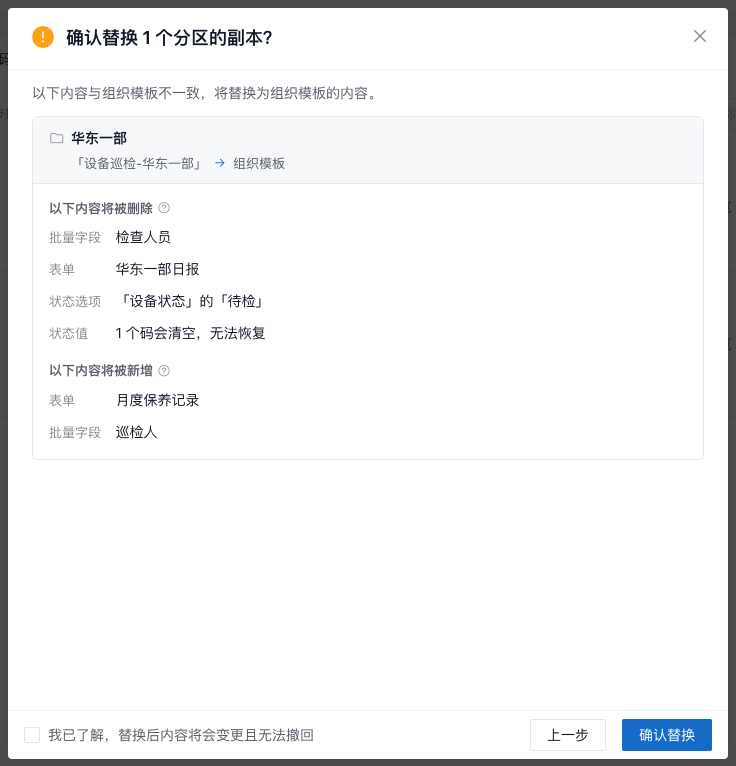
Click "OK" and check the "Confirm replacement" dialog. The system first checks, partition by partition, what will change after converting. If nothing will be deleted or added in any partition, it starts right away; otherwise "Confirm replacement" opens and lists, per partition:
- The following will be deleted: what the copy has and the organization template doesn't, removed from the copy and its codes after converting. For example, basic fields the partition added (labeled "Bulk field" in the interface) are hidden and their filled-in content is no longer visible; forms the partition created are detached and their records are no longer visible; for status options the copy has and the organization template doesn't, codes that selected them have their status value cleared.
- The following will be added: what the organization template has and the copy doesn't, such as extra basic fields and forms, added to the copy and its codes after converting.
Basic fields and forms with the same name and type are matched automatically and aren't listed. If you want to keep one whose name differs, rename it in the copy to match the organization template before converting. If you no longer want to convert a partition, click "Back" to return to the dialog and switch it to "Create a new copy" or uncheck it. A partition marked "Different source, can't be converted" can only be changed this way.
-
Check "I understand the content will change after replacement and this can't be undone", then click "Confirm replacement".
-
Check the result in the progress window. Partitions converted successfully show "Converted to organization template", and the copy in that partition shows "From organization template “X”" under its name, with its codes and records intact; with Content Sync on, the template can then be used but not edited. A partition that fails shows "Conversion failed: reason, template restored"; the copy goes back to how it was before, and you can retry from "Apply to partitions".
3. Update the Version After Editing the Source Template
- Click "More → Edit source template" on the organization template row, or "Edit source template" in the preview, and edit the source template. If the source template is in another partition, you'll be asked to switch to that partition first. If the option is grayed out, you don't have edit permission in the source template's partition. Afterward, both the source template row and the organization template row show "● Changes pending update".
- Click "Update version" on the organization template row, or click "Update organization template" in the source template's editor.
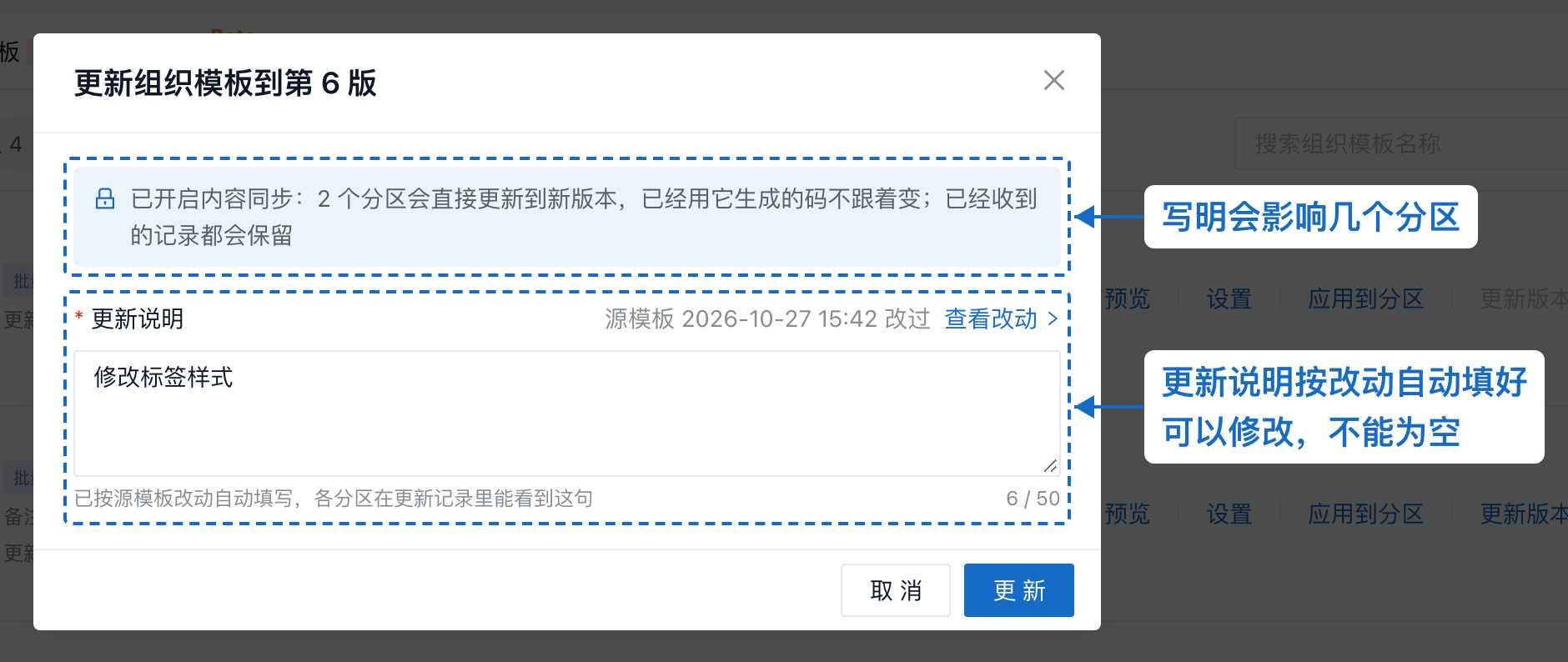
- Confirm the "Update notes" in the update dialog and click "Update".
The "Update notes" are filled in automatically from the changes and can be edited. Partitions can see them in the update history. After the update, each partition receives the new version according to its sync mode:
- Replaced with the new version: page content, form questions, statuses, template settings.
- Unchanged: ID, name, directory, generated codes, and submitted records, as well as people settings (such as approvers) and usage settings the partition has adjusted (such as the validity period).
Note: Questions deleted in the new version are only hidden in the partition copy; their records remain. If the new version deletes a status option, the status value is cleared on codes that had that option selected.
4. If an Update Goes Wrong
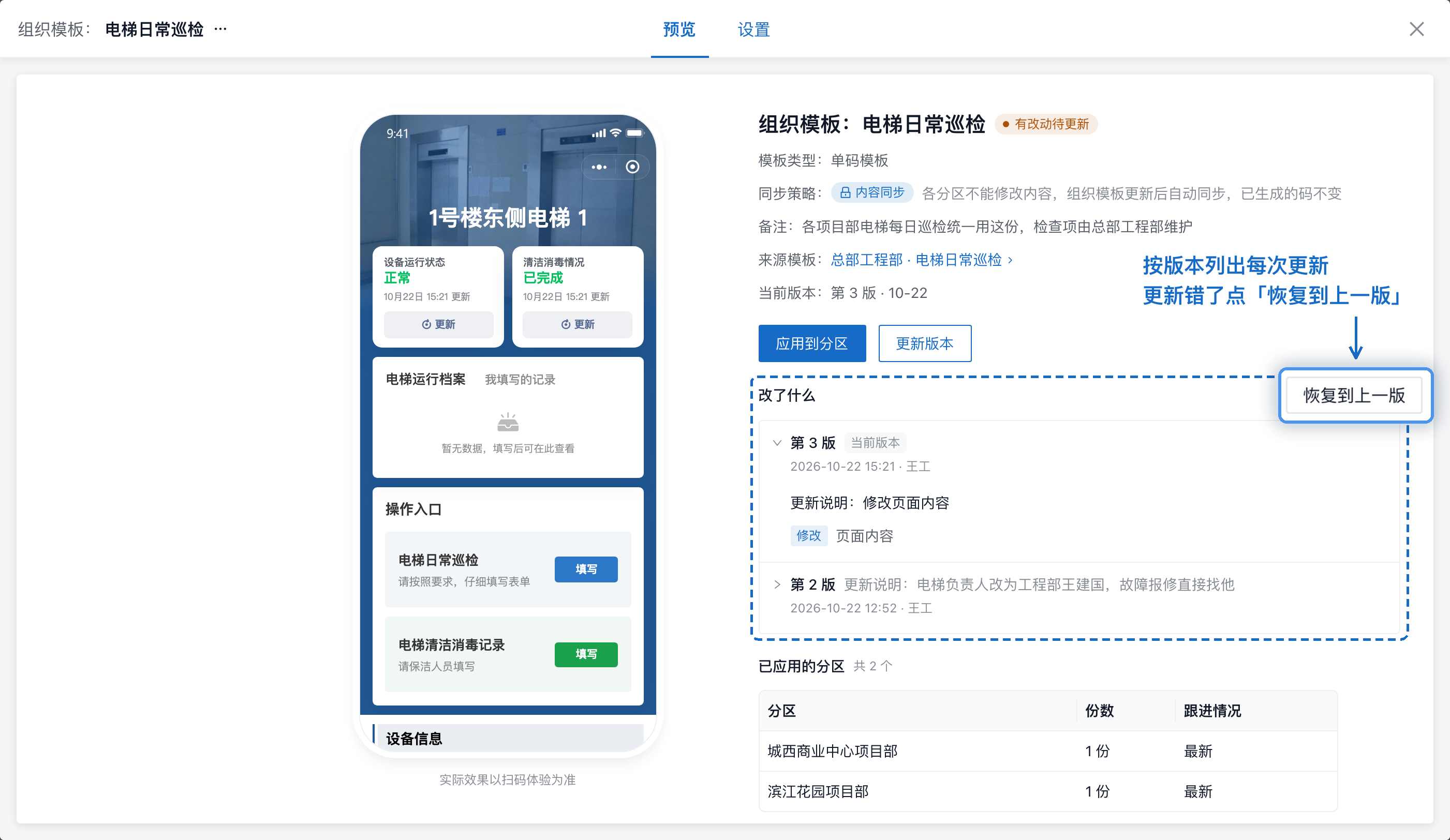
In the organization template preview, click "Restore previous version" in "What changed". You can only go back one version.
Important: The source template is not restored. Change the source template back before the next "Update version", or the undone changes will be synced out again.
5. Routine Management
| Action | How |
|---|---|
| Turn Content Sync on or off | Click the sync mode tag ("Content Sync" or "Partition-editable") on the row or in the preview, then click "Turn on Content Sync" or "Turn off Content Sync" in the pop-up; you can also change it in "Settings". For what happens if you turn it on after applying to partitions, see question 2 in the FAQ |
| View applied partitions | "Applied partitions" at the bottom of the organization template preview shows which partitions haven't caught up with the new version |
| Remove from organization templates | "···" after the preview title or "More" on the row. Each partition copy stays and becomes a regular template |
3. For Partition Members: Add Templates and Receive New Versions
1. Add to Current Partition
Members who can create codes in the current partition (such as partition admins) can add an organization template to this partition.
- Open the "Templates → Organization Templates" tab and click "Add to current partition" on the template's row.
- Confirm the partition in the dialog. If the template uses Content Sync, check "I understand" first.
- Click "Add". The button then changes to "View added template".
Recurring tasks are not carried over; to use them, turn them on again in the form. To add to another partition, switch to it at the top left first. If the button is grayed out, you can't create codes in the current partition.
2. When a New Version Is Available
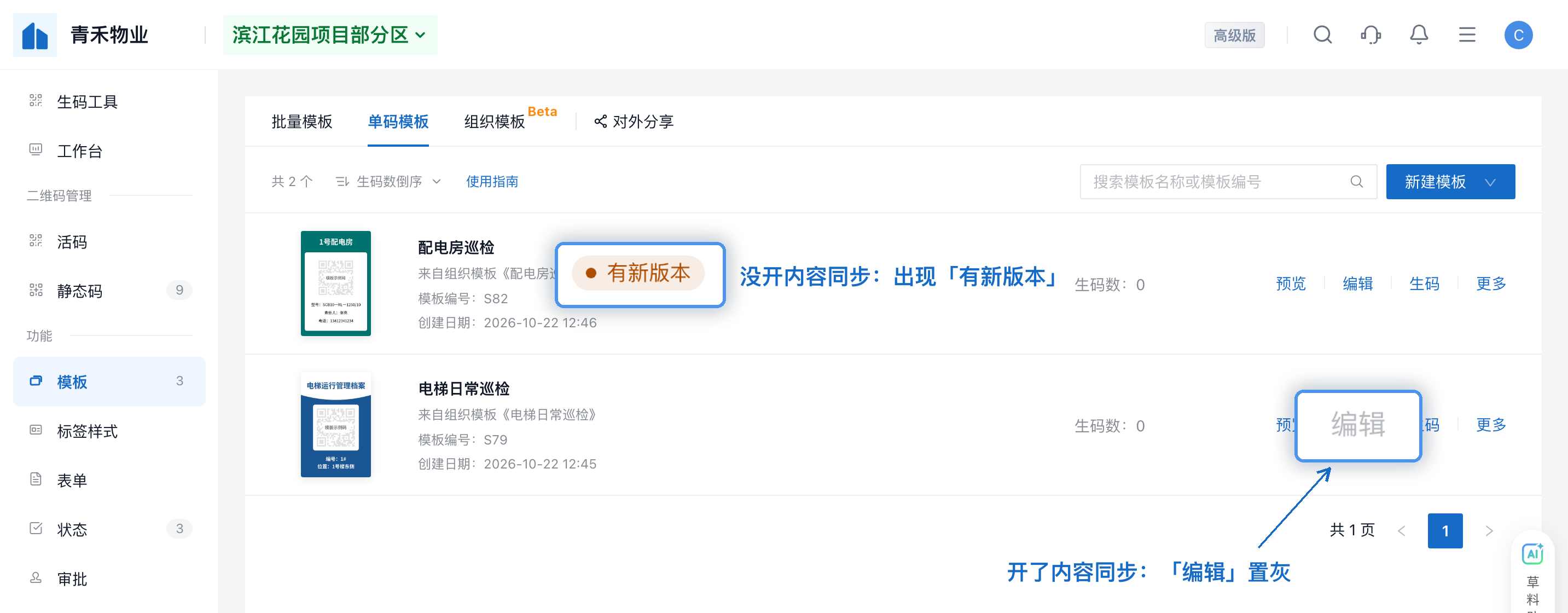
Templates using Content Sync update automatically. You don't need to do anything, and they can't be edited in the partition.
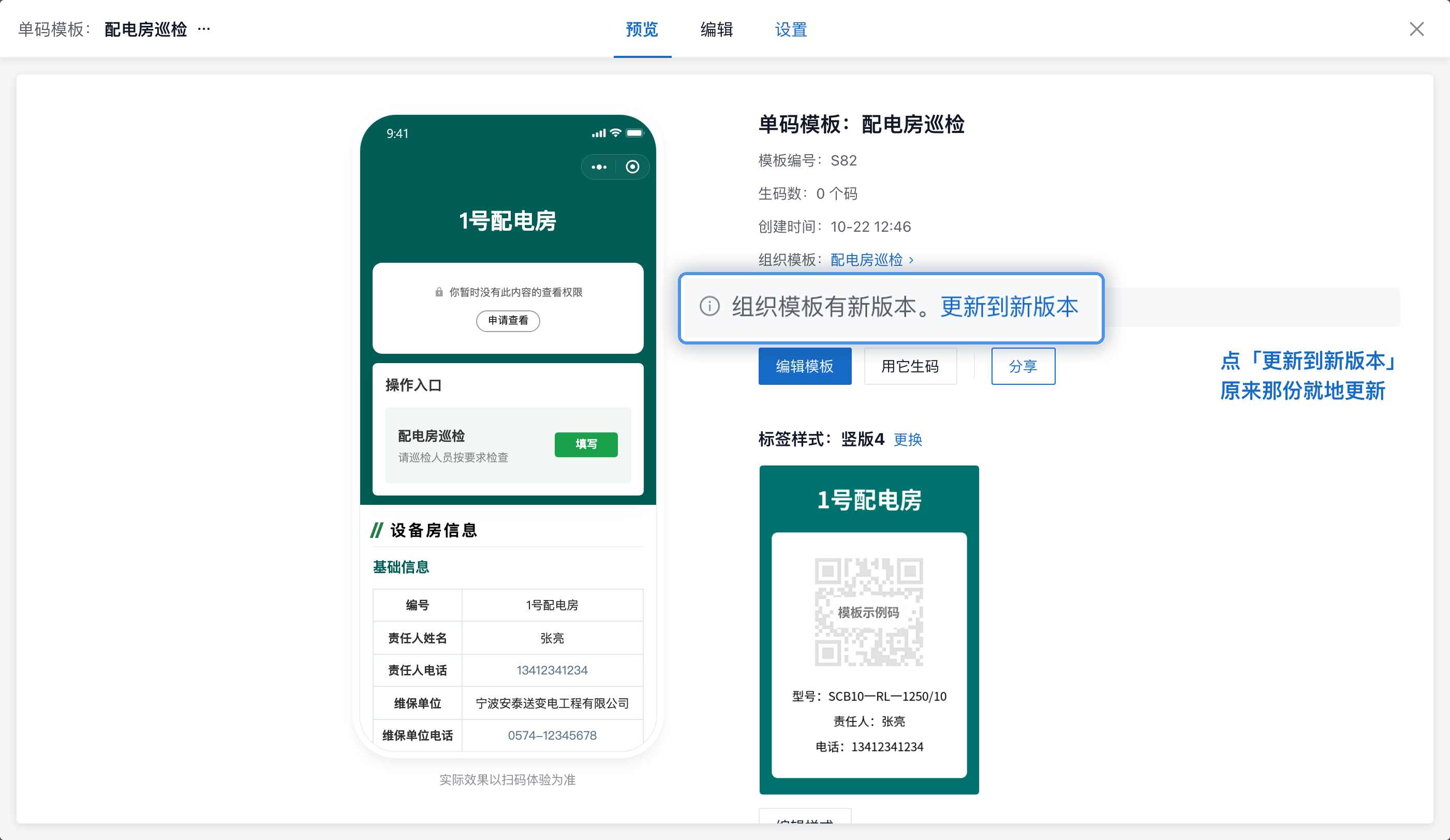
For templates without Content Sync, "New version available" appears under the name:
- Open the template's preview and click "Update to new version" in the notice bar.
- In the dialog, review what changed and which of your partition's edits will be replaced.
- Click "Update to new version", or "Not now" if you don't want to update yet.
The update is applied to the existing partition copy; codes and records are kept. Edits your partition made will be replaced, and the update can't be undone.
3. Find the Organization Template from a Partition
Click "From organization template “X”" under the template name, or "More → View organization template".
4. FAQ
1. Why Can't I See the "Organization Templates" Tab?
The tab is hidden when you can only view in every partition. Ask an admin to let you create codes in at least one partition.
2. What Happens If I Turn on Content Sync After Applying to Partitions?
A confirmation appears first. After you confirm, each partition copy is updated to the current version and locked. Edits made by partitions are replaced and can't be undone.
3. Can I Use Organization Templates in the Mini Program?
Yes. Organization templates added to a partition can be used to generate codes under "My templates" in the Mini Program as usual. Adding and updating must be done in the desktop console.
4. Can Bulk Templates I Copied to Partitions Earlier Be Converted into an Organization Template?
Yes. Select those partitions when you set the original as an organization template; if it's already an organization template, select them in "Apply to partitions". The dialog recognizes the copies in each partition. Choose "Convert to organization template" and the codes and records are kept; basic fields and forms the copies added whose names don't match the organization template are deleted, and "Confirm replacement" lists them before you confirm. See Convert Existing Copies in Partitions to the Organization Template for the steps.
5. Get Started
Go to "Templates → Organization Templates", set a commonly used bulk template or single-code template as an organization template, then apply it to the partitions that need it.