Tracking Attendance and Absences Against an Existing List
Scenario
In meeting check-ins, supply distribution, and notification confirmations, the most common challenge for administrators is: "100 people were expected, 95 showed up — who are the 5 missing?"
CaoLiao offers two approaches for this.
Method 1: Pre-Import a List + Auto-Matching (Recommended)
Use case: You already have a complete roster with phone numbers (e.g., an employee list, registration list, or student roster) and want to see in real time who hasn't arrived during the event.
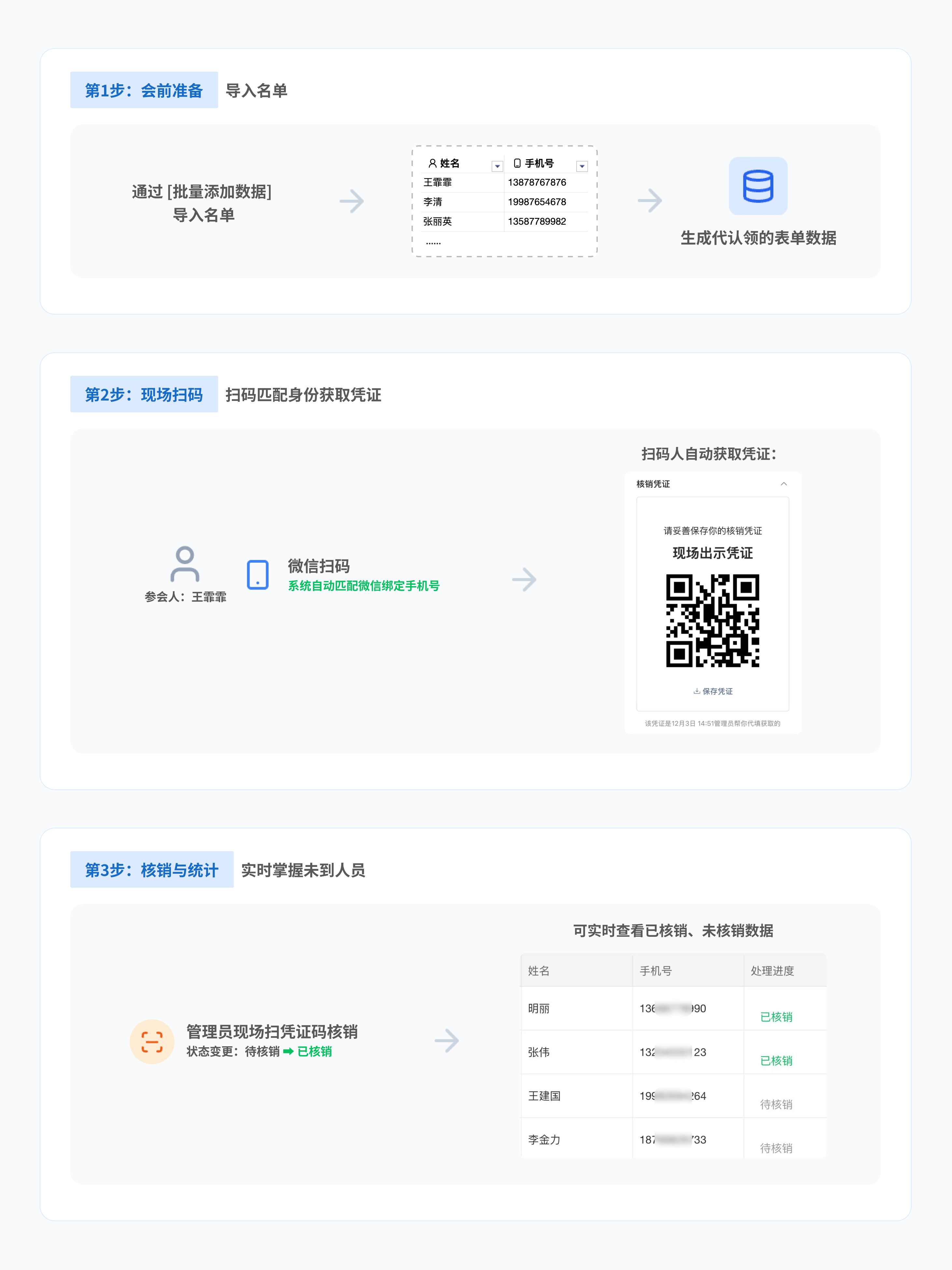
How it works: The administrator pre-imports the roster into the system. When a user scans the QR code, the system automatically retrieves their WeChat phone number and matches it against the pre-loaded data to "identify" them, then provides them with a unique check-in voucher QR code. On site, staff can scan the voucher to mark attendance, and the system updates that person's check-in status in real time.
Steps
Step 1: Set Up the Form (Key Configuration)
When editing the form, complete the following three configurations — these are the foundation for auto-matching:
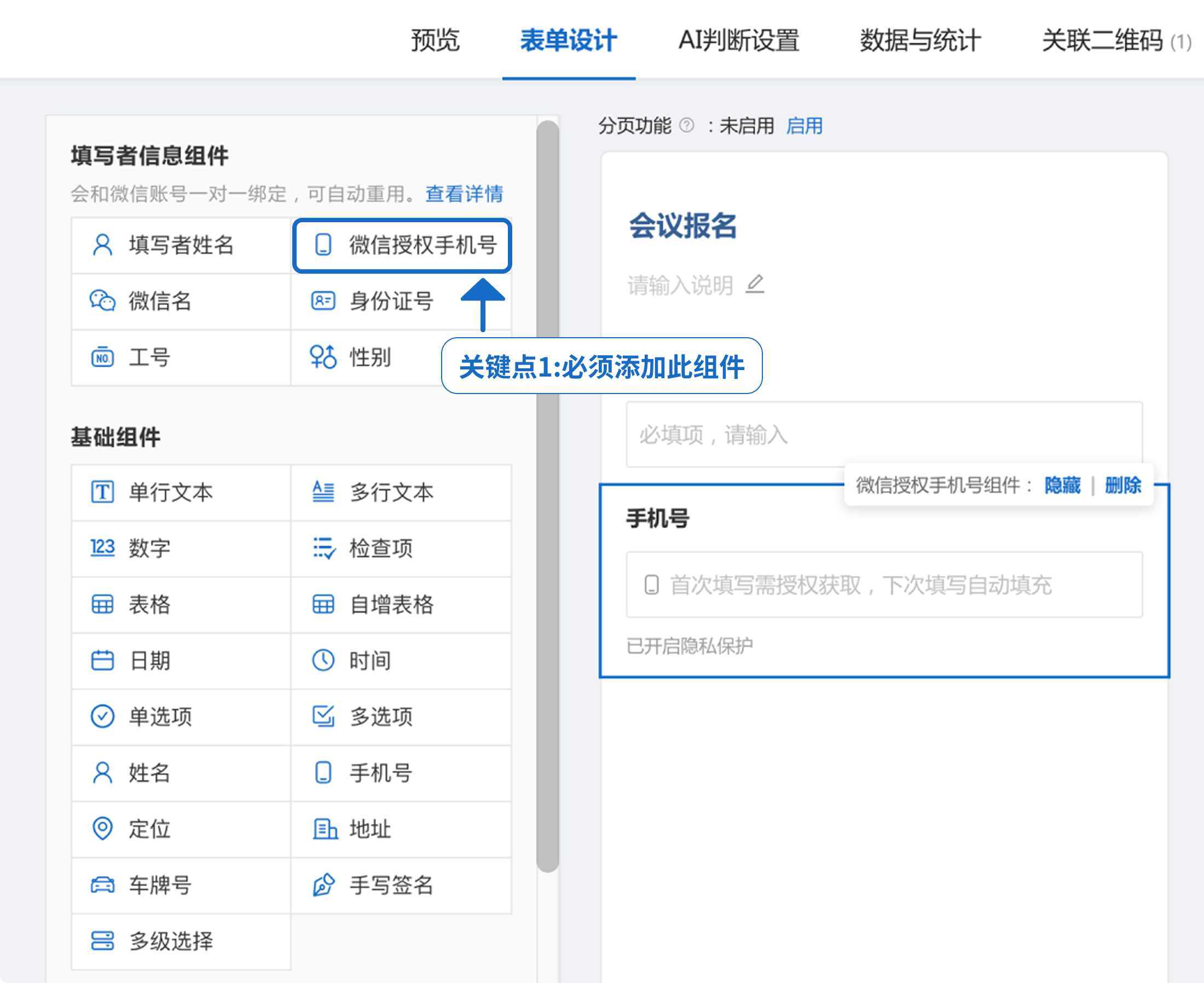
- Add the [WeChat Authorized Phone Number] component: This is the only key the system uses to identify "who this person is," and it ensures the phone number is genuine.
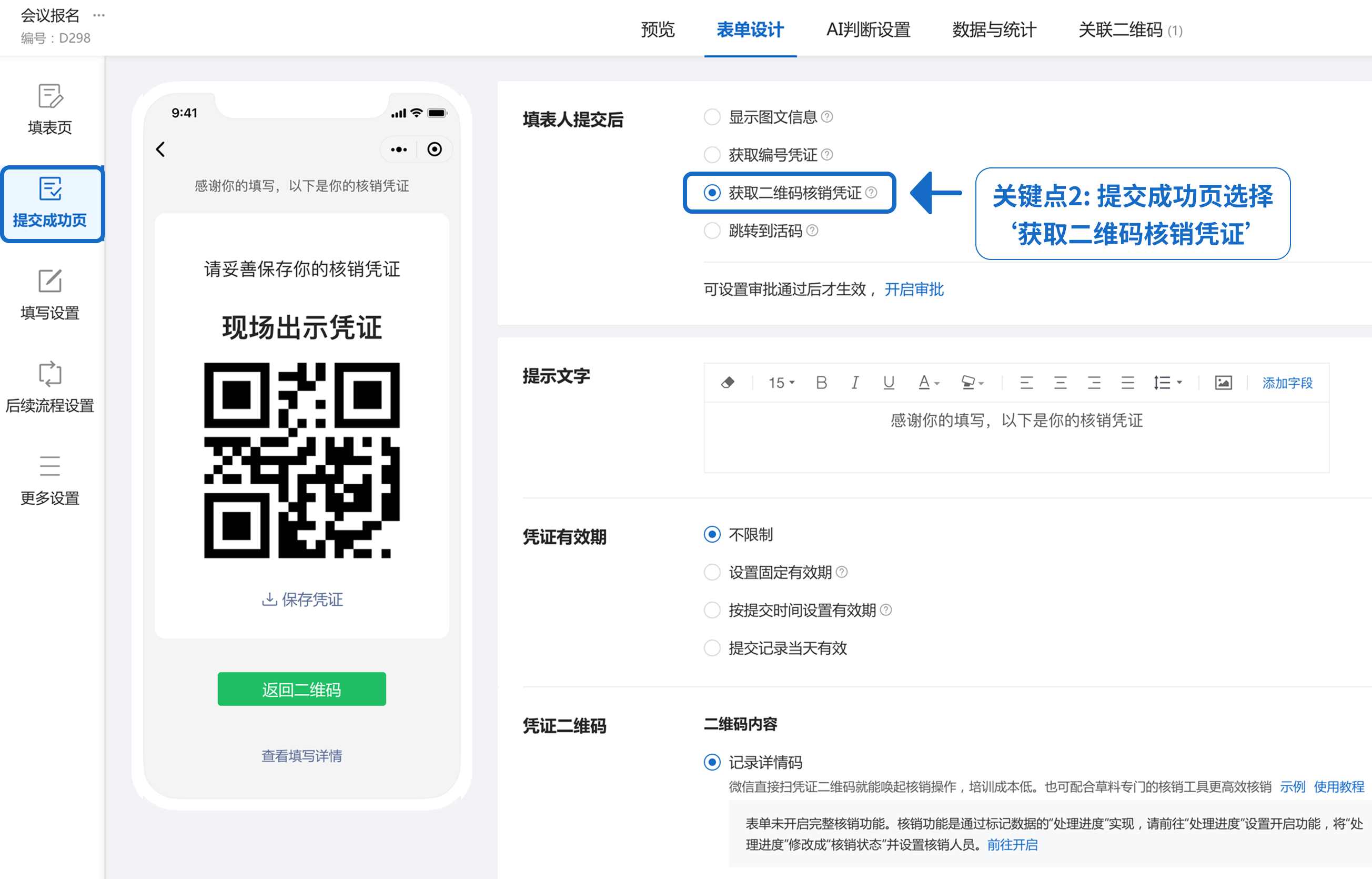
- Enable Voucher: Go to the Submission Success Page Settings and enable "Get QR Code Check-in Voucher."
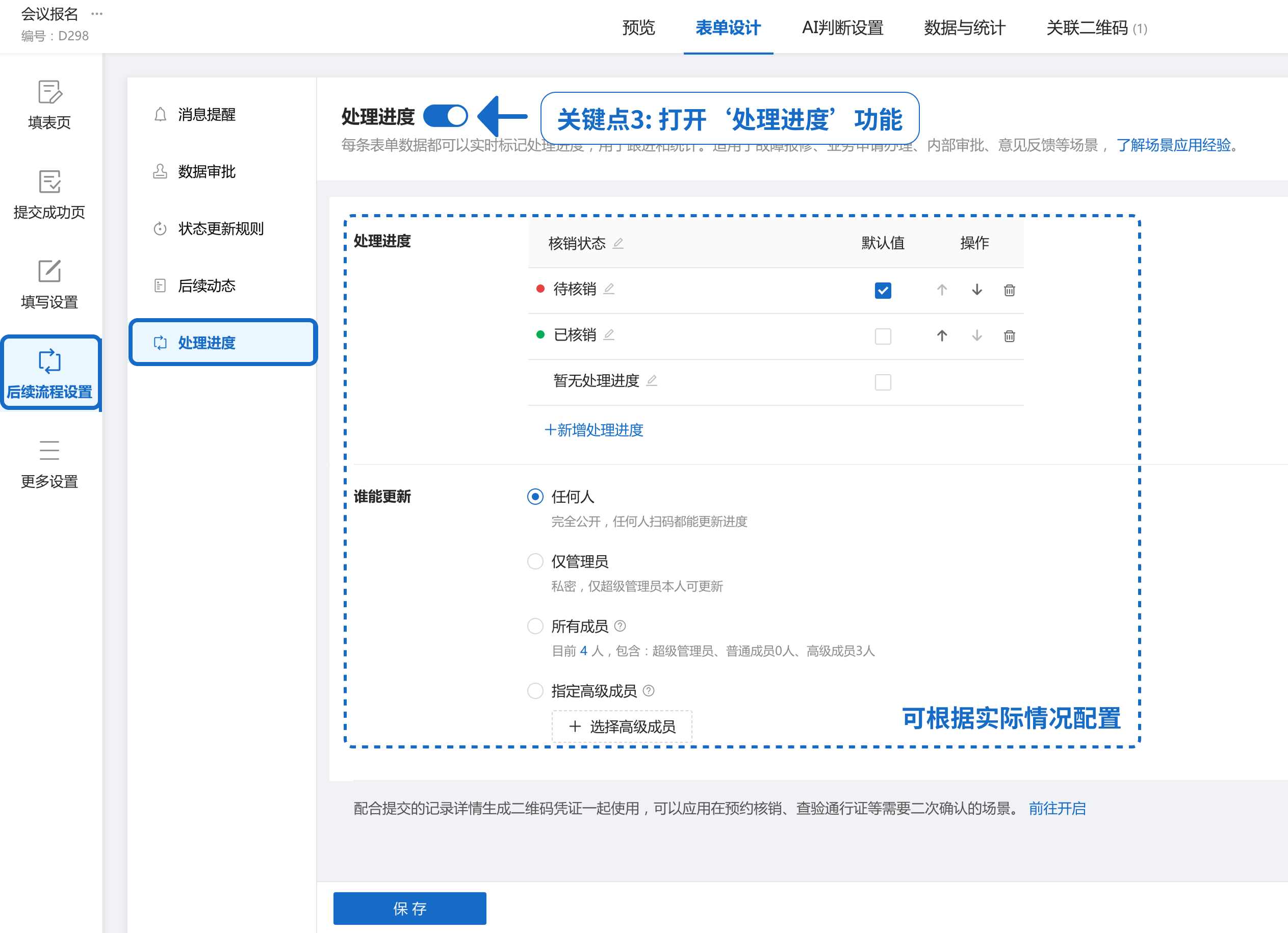
- Enable the "Follow-up Progress" feature: You can customize status names, for example: Not Arrived, Arrived. You can also set who is allowed to mark attendance (to prevent submitters from modifying it themselves).
Step 2: Bulk Import the Roster
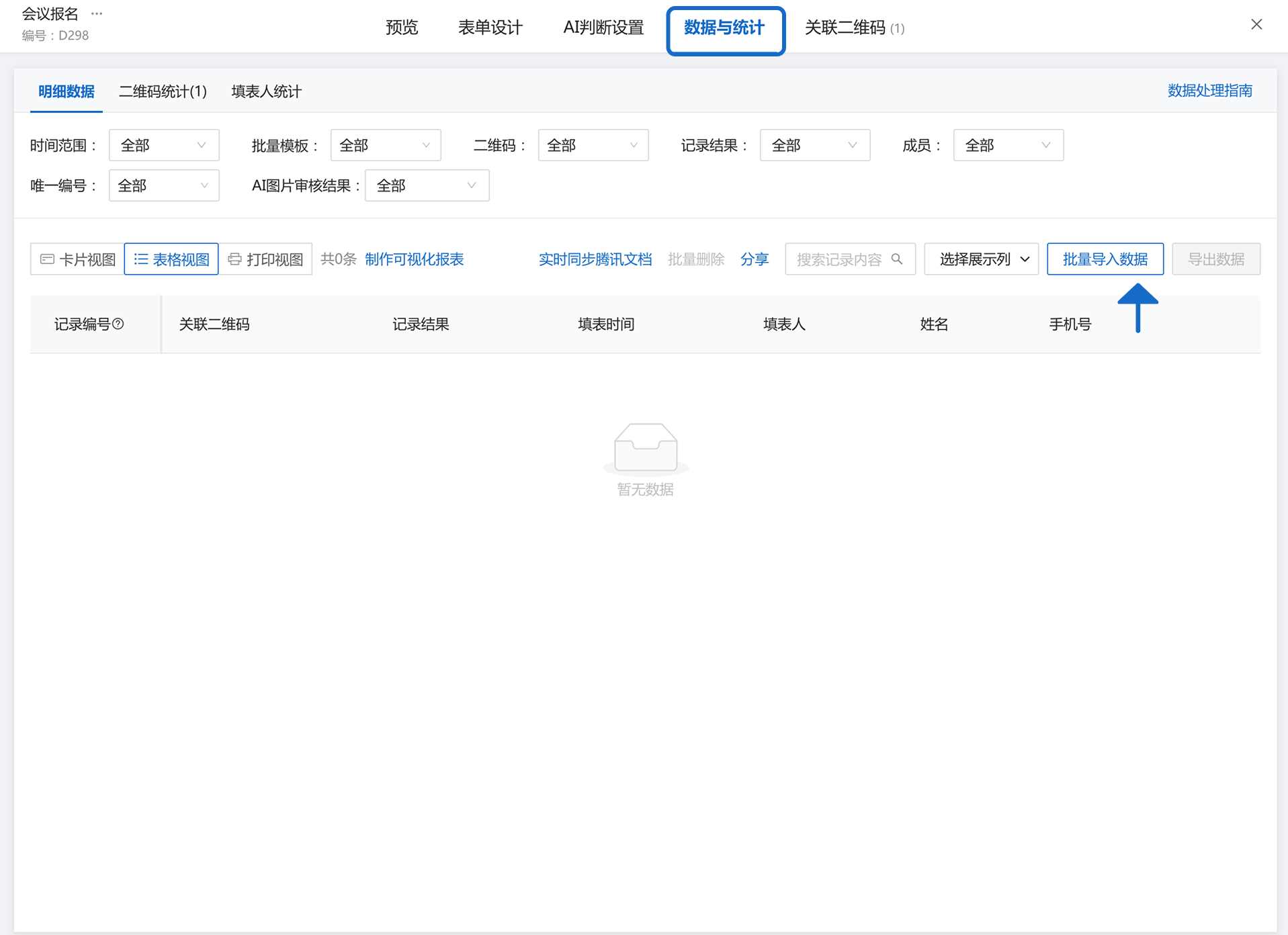
Go to the form's Data & Statistics page and click "Bulk Add Data." Enter the names and phone numbers of all expected attendees. (Note: phone numbers must be accurate, as they are the matching key.)
Step 3: On-Site Scan — Auto-Matching
When an attendee arrives and scans the QR code with WeChat, the system automatically retrieves their WeChat phone number and matches it against the pre-loaded data.
- Match found: The system directly pulls up their voucher QR code — no manual input required.
- No match: The phone number is not on the roster. In this case, the user can fill in the form manually to get a voucher. If you don't want users to obtain vouchers on their own, you can restrict form submissions.
Step 4: View Who Has and Hasn't Arrived
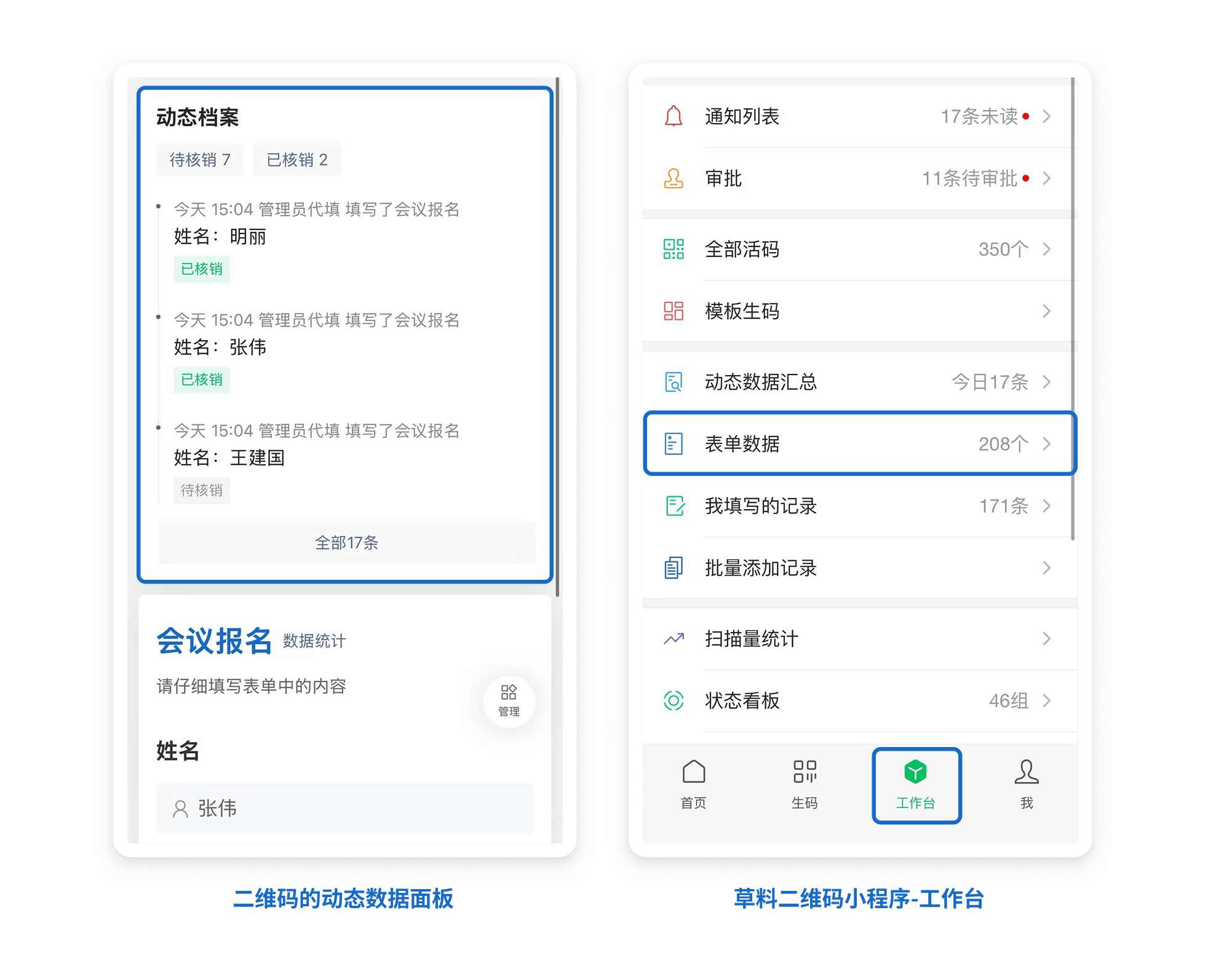
The Data & Statistics page on desktop clearly shows checked-in and unchecked records. For real-time mobile viewing, go to the QR code's [dynamic data panel] or [Forms Data] in the [workbench] and filter by follow-up progress "Unchecked" or "Checked." Learn about the dynamic data panel
Method 2: Excel VLOOKUP Comparison
Use case: A fully open event (anyone can join on the spot). After the event, export the data to Excel and compare it against an existing roster to determine who on the list attended and who didn't.
For example:
- Use CaoLiao bulk templates to generate training check-in QR codes and print labels.
- Attendees scan the QR code and fill in the form to confirm their presence.
- After the event, export the detailed attendance Excel data from the PC workbench under Forms Data.
- Use Excel's VLOOKUP function to match attended participants against the full training roster.
- Identify who did not attend, and include them in the next training session's roster.
Tutorial
1. Export the Attendance List
Log in to the desktop workbench as a super admin. In the left navigation, go to Forms and find the check-in form for this event. Open the form data detail page. Under Data & Statistics, filter by the time range to export the attendance Excel data for this session.

2. Identify Absent Participants
To identify who was absent, use Excel's VLOOKUP function to match the expected roster against the actual attendance list. Anyone not matched is considered absent.
VLOOKUP is a vertical lookup function widely used in Excel for cross-referencing data and importing data between sheets. It searches by column and returns the value from a specified column that matches the lookup value.
2.1. Open Both Lists at the Same Time
The actual attendance list was exported from the CaoLiao desktop workbench. The expected roster is the list of people who were expected to attend, which you already have.

2.2. Use VLOOKUP in the Expected Roster
The idea is to search for each person's name in the expected roster against the actual attendance list.
Select the VLOOKUP Function in the Formula
In the expected roster, since we are matching names, click cell B2, then click Formulas in the top bar and choose Insert Function. Search for "vlookup" in the function search box and confirm.

Enter the Function Parameters
VLOOKUP has four main parameters:
-
Lookup value: The value to search for in the dataset. For example, we are checking whether "Zhang Yi" from the expected roster appears in the actual attendance list. Select the cell corresponding to "Zhang Yi."
-
Table array: The range to search in. Since we are searching the actual attendance list, switch to the exported attendance sheet. The range must start from the lookup value column and end at the target match column. In this special case, the name column serves as both the lookup and match column, so only select that single column.
-
Column index number: The number of columns from the lookup column to the match column. If the name column is used for both, the index is 1. If the target column is 5 columns away, the index is 5.
-
Match type: 0 (false) for exact match, 1 (true) for approximate match.


Apply the Formula to All Rows
Hover over the bottom-right corner of the first result cell until a "+" cursor appears, then drag down. The formula will be applied to all lookup values.
- When a match is found, the person's name appears — they attended the training.
- When #N/A appears, that person on the expected roster did not attend and should be included in the next training session.

Filter Out Absent Participants
Select the entire data column. In the Home tab, click Filter. Click the dropdown on the attendance match column and select only #N/A. After confirming, the remaining entries are the people who did not attend.


