Dynamic Data Panel
1. Feature Overview
Form submissions, status updates, sub-code content updates, and other action records form dynamic data displayed on the QR code. Tap the dynamic data panel to view record information.
- Supports timeline and list display styles, showing all records on the QR code; can also use form submission counts and follow-up progress tracking as metrics to form a statistics dashboard.
- Viewing permissions can be set, supporting display of all data or only the submitter's own data based on permissions.
- View dynamic data on the mobile scan page with support for multiple views, filtering, and exporting.

2. How to Add
1. Adding Entry Point
In Panel Components on the left side of the QR code editor, click Dynamic Data Panel to add one.
Note: Only one dynamic data panel can be added per QR code.
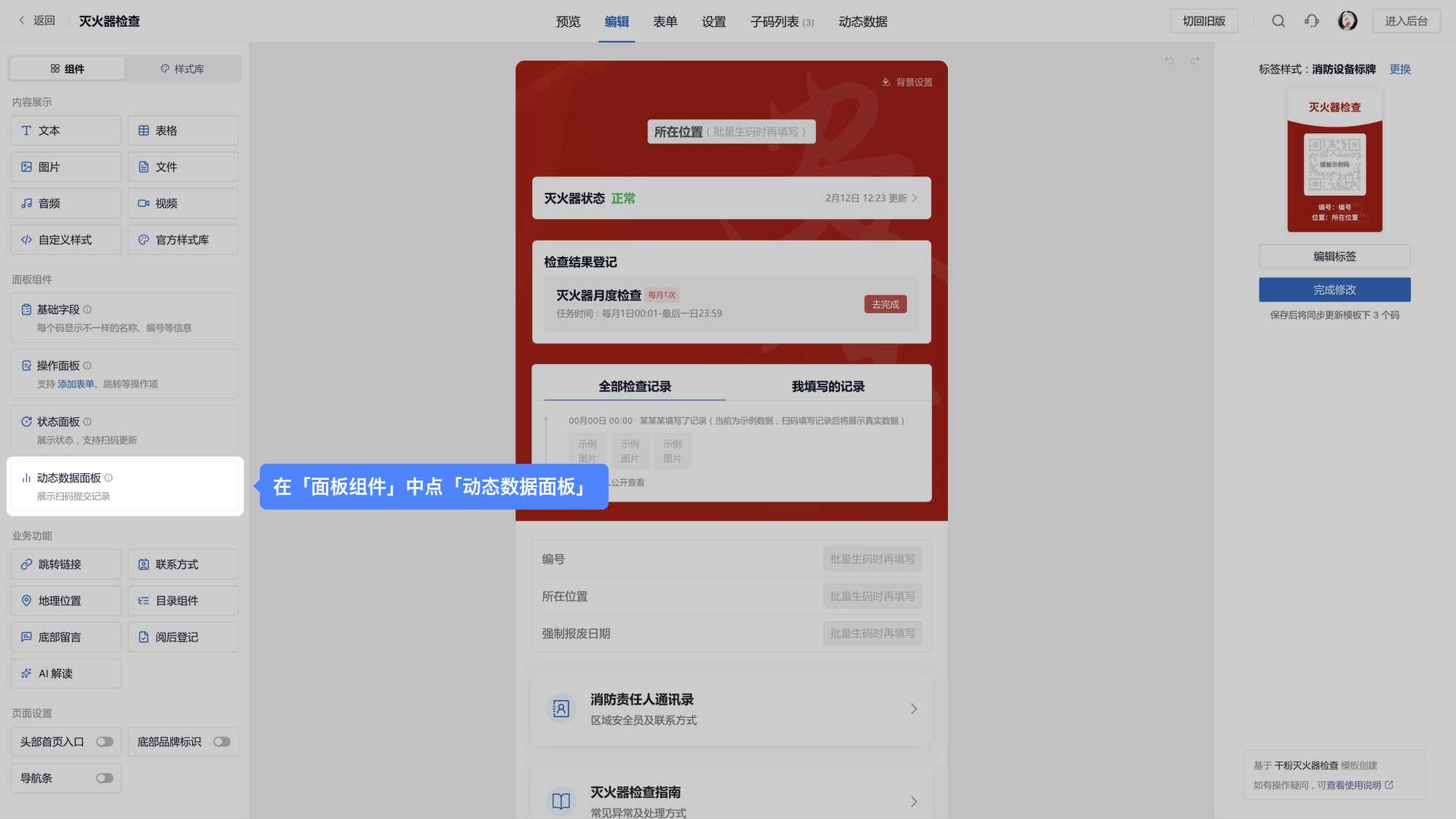
A style picker opens when you add it. Choose a style and click Confirm Style.
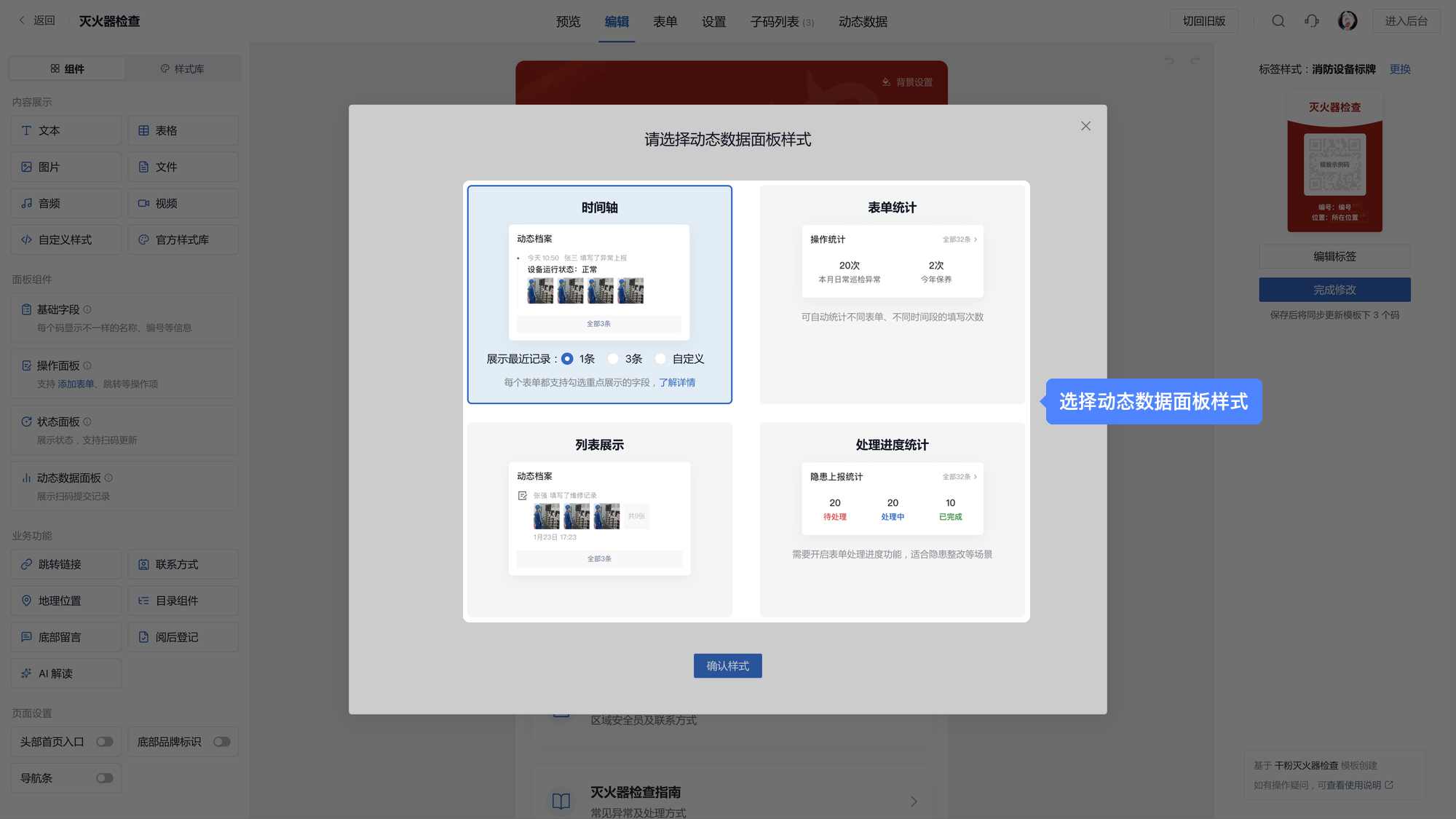
2. Selecting a Panel Style
Four panel styles are available for viewing dynamic data. They can be divided into display styles and statistics styles based on the use case. The two categories are display styles and statistics styles.
1. Display Styles
Display styles show all generated records on the QR code, presenting submission times, record results, images, and other information at a glance. You can customize the number of records displayed and what content is shown. Suitable for inspection and information collection scenarios.
Display styles come in two variants:
- Timeline style: Shows the submission time of records on the page.
- List display style: Presents submitted records in a flat list.
Please note: In the form design page, if you check "Record Result" or "Highlight Display" for the fields you want to show, the submitter's entries will be displayed directly on the dynamic data panel. Learn about the highlight display feature

2. Statistics Styles
Statistics styles treat all generated form records as metrics, aggregate them, and display a statistics dashboard that can be customized to match actual requirements. Viewable by scanning. Suitable for inspections, maintenance reporting, and similar scenarios.
Statistics styles also come in two variants:
- Form statistics: Form submission counts and the quantity of each recorded result can be used as metrics, which you can customize for display. Supports time-based aggregation for more intuitive results — ideal for inspection scenarios.
- Processing progress statistics: Treats the processing progress of all forms on the QR code as metrics. Customizable. Provides a clearer picture of handling status. Suitable for hazard reporting and similar scenarios.

3. Feature Settings
1. Viewing Permission Settings
Permissions for viewing all dynamic data on the code are categorized as follows. Configure as needed. Regardless of whether permissions are set, submitters can always view their own submitted data.
- Anyone (password protection available)
- Admin Only
- All Members
- Designated Advanced Members
You need to complete your organization profile and enable the member feature before you can set [All Members] or [Designated Advanced Members] as having permission.
For submitters without permission, you can opt to hide the dynamic data panel to avoid distracting them during scan-based operations.
It is recommended to check "Show Scanners Their Own Submitted Data". When checked, the data panel will include an additional toggle view, making it easier for submitters to quickly locate the content they have submitted.
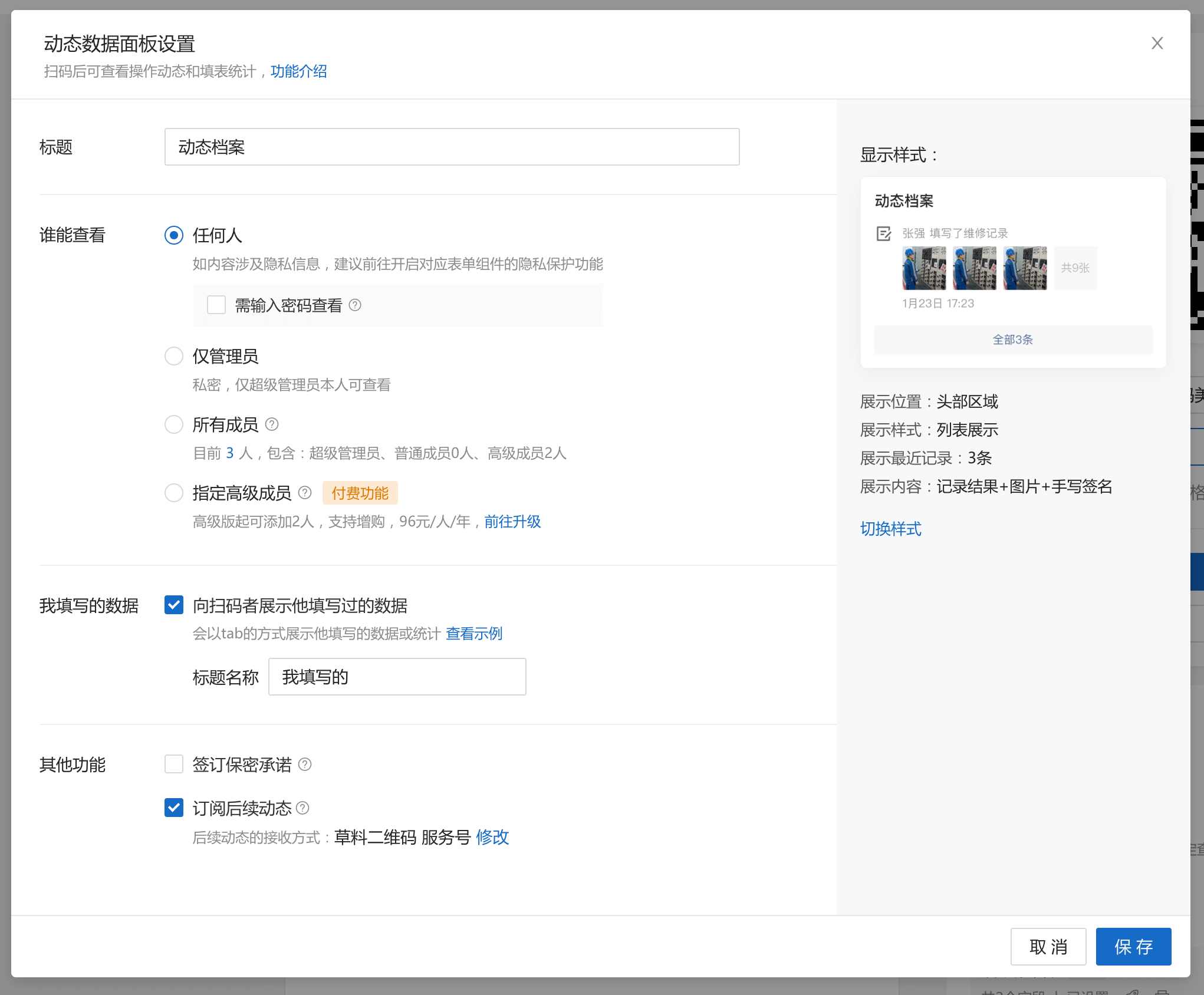
2. Confidentiality Agreement and Subscription Features
Confidentiality Agreement
If the information you collect contains sensitive content, you can enable the confidentiality agreement feature. Once enabled, users who have been assigned viewing permissions must sign a confidentiality agreement the first time they scan to view the data summary; otherwise, they will not be able to proceed.
Learn about form data confidentiality agreements
Subscription Feature
Anyone can subscribe to all dynamic data for a QR code on their mobile device. When new dynamic data is generated for that code, a message notification is sent via the CaoLiao QR Code WeChat Official Account, enabling collaboration within the organization.
Supported subscription data types: dynamic data, follow-up actions data for form data.