QR Code Settings
Configure settings for dynamic QR codes — such as restricting viewing to internal members only, enabling password access, limiting the geographic region and time window for viewing, setting the period of validity, configuring the access method, and more — to meet the needs of your specific business scenarios.
Setup Tutorial
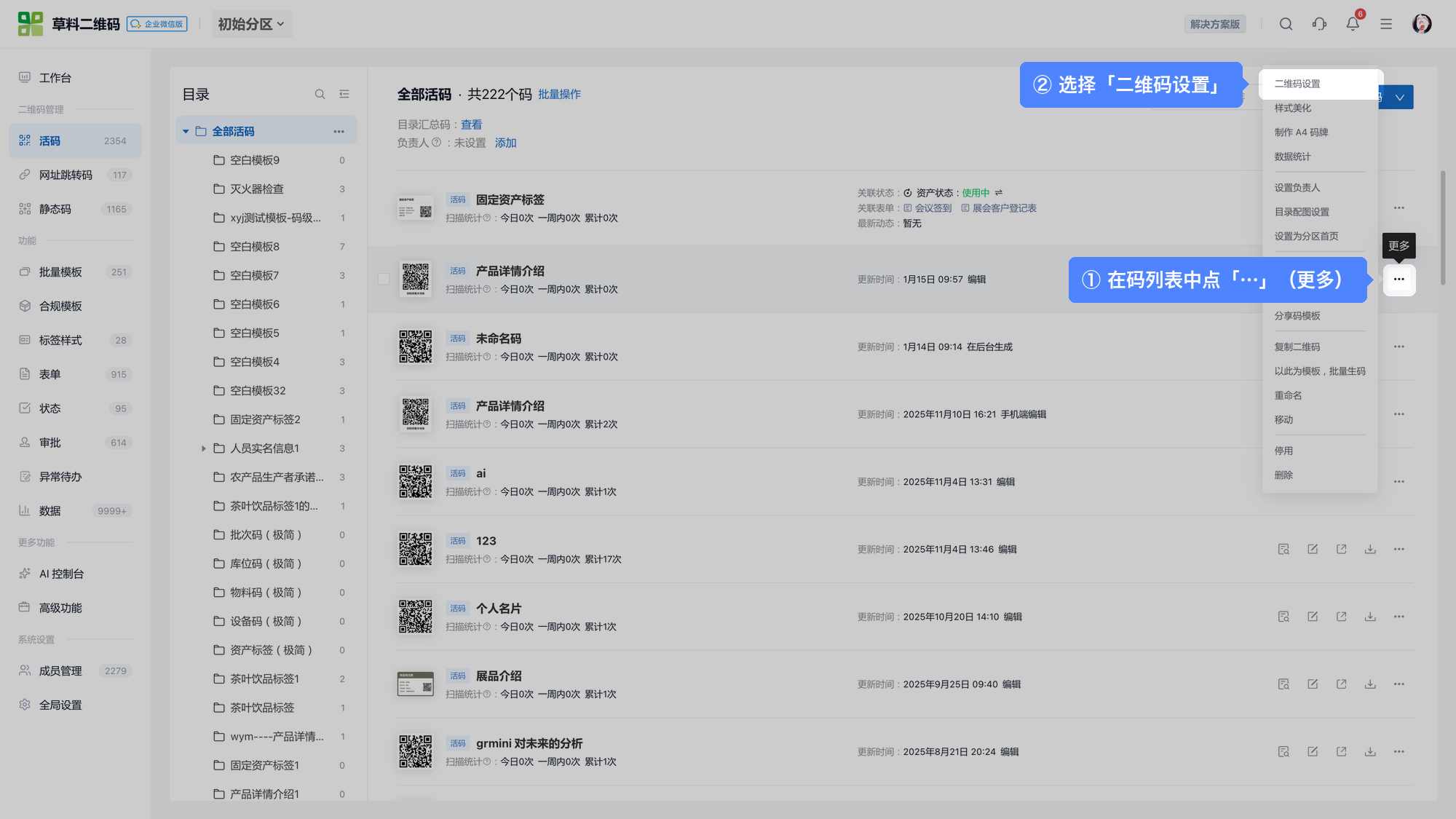
Desktop entry:
Open the Dynamic QR Codes list in the backend, click … (More) next to the relevant QR code, then select QR Code Settings.
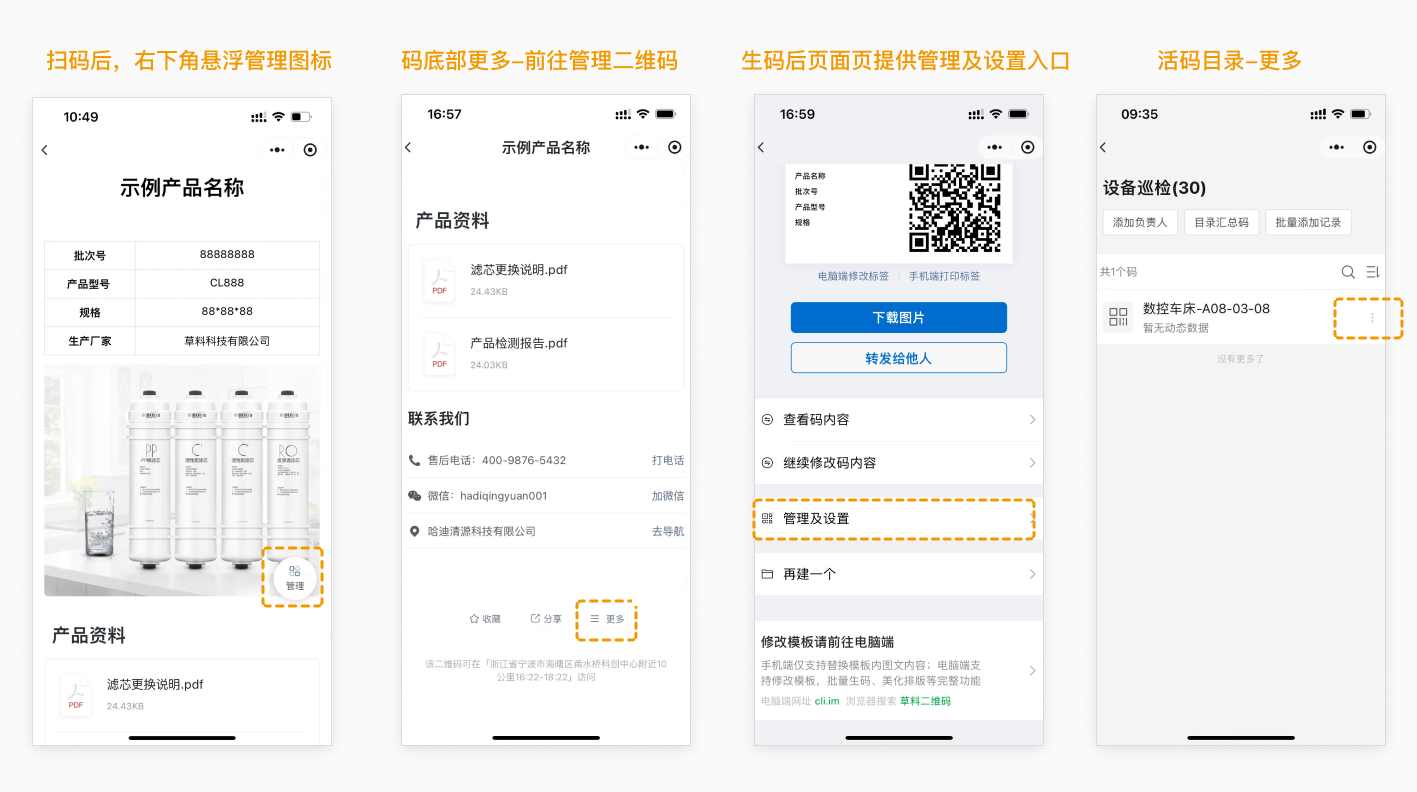
Mobile entry:
Authorized admins can access the QR code Management and Settings page on mobile (only super admins, admin group members, QR code responsible persons, and the responsible person for the QR code's partition can enter).
On mobile, you can enter the settings page by tapping the floating icon in the bottom-right corner after scanning, or via the creation completion page > Manage and Settings, and other entry points. Learn more
Feature Details
1. Responsible Person
Dynamic QR codes can each have a separately assigned responsible person, allowing different QR code managers to independently oversee their own codes. This covers notifications, form review, data export and analysis, and more. View responsible person feature details
Suitable for: multi-person collaboration within an enterprise, independent data management, and inspection scenarios.

2. QR Code Viewing Permission Settings
Dynamic QR codes support viewing permission settings to restrict who can scan, within which geographic region, and during which time window, to view the QR code content. QR code viewing permission settings
Suitable for: inspection walkthroughs, check-ins, document sharing, and similar scenarios.

3. Period of Validity Settings
Dynamic QR codes support period of validity settings: you can set a valid viewing period. After expiration, the QR code will not be deleted, but scanning it will show a message that it has expired and cannot be viewed. You can reset the period of validity at any time. View period of validity settings
Static QR codes and URL redirect dynamic QR codes do not support period of validity settings.
Suitable for: time-limited promotions, event registrations, and similar scenarios.

4. WeChat Access Method Settings
Dynamic QR codes can be set to open via: CaoLiao Mini Program, H5 web page, unbranded Mini Program, or enterprise exclusive Mini Program. By default, CaoLiao Mini Program is used in WeChat and Alipay — it loads content faster and provides a smoother scanning experience compared to H5.
After changing the access method, a new QR code pattern will be generated — you will need to re-download and print the new QR code (the previously downloaded QR code will still open with the original method). View QR code access method settings

5. Scan Restrictions
Dynamic QR codes can be set to restrict which apps other than WeChat and WeCom (such as Alipay, QQ, or browsers) can scan and open them.
For WeChat access, you can further set whether the QR code can be opened via "Scan QR Code," "Long Press to Identify," or "Share/Forward." View scan restrictions
Suitable for scenarios where the QR code content is sensitive and should not be freely shared.

6. QR Code Bottom Bar Settings
Enable or disable the Bookmark, Share, and More (Manage) functions for dynamic QR codes. View QR code bottom bar settings
Suitable for scenarios where the QR code content is sensitive and should not be freely shared.
7. Font Size Settings
Set the default text size for the dynamic QR code content page to make it easier to read after scanning. View font size settings