Bottom Brand Mark
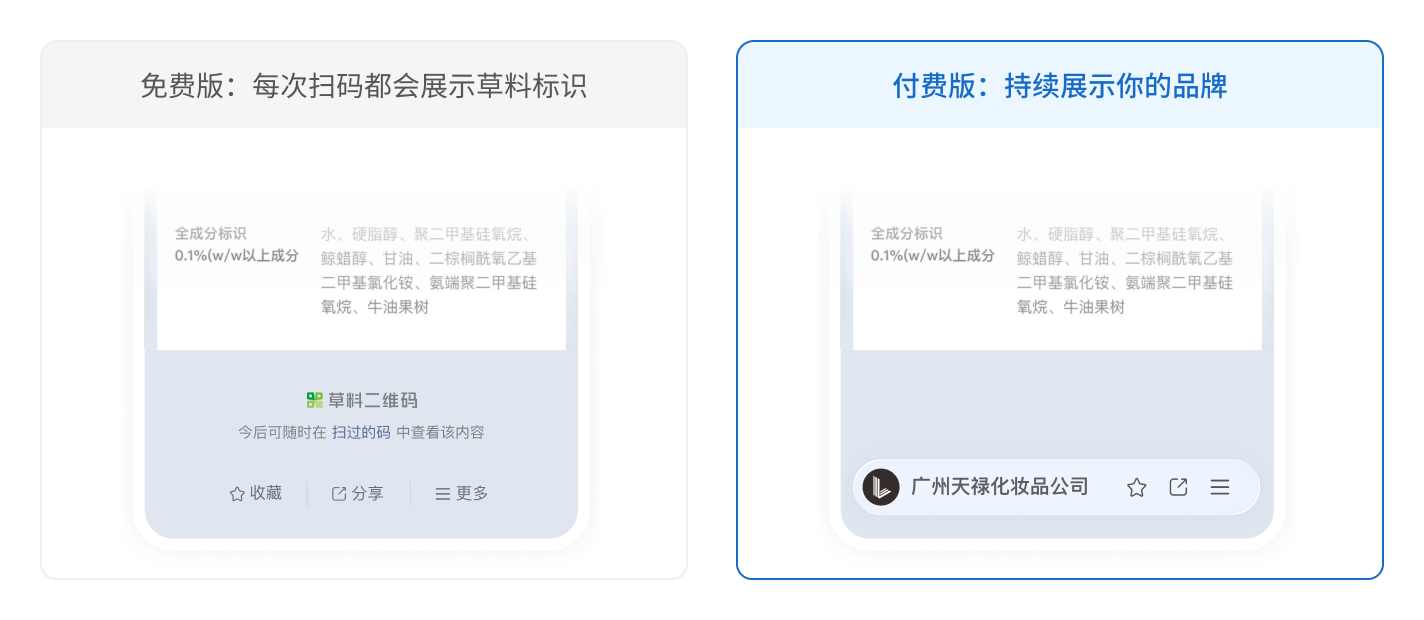
The "Bottom brand mark" shows your company logo and name at the bottom of a QR code page, so scanners can see at a glance who the content comes from. This article explains how to turn on the bottom brand mark for a single QR code in the editor.
Note: The free version can turn on the brand mark for 3 QR codes; paid versions have no limit. For an overview of brand display features, see Remove CaoLiao Branding and Show Your Company Brand.
Before You Start
The brand mark uses the company logo and name set in your account. If you have not set them yet, or need to change them, complete Brand Settings first.
Steps
Step 1: Turn on the Bottom Brand Mark
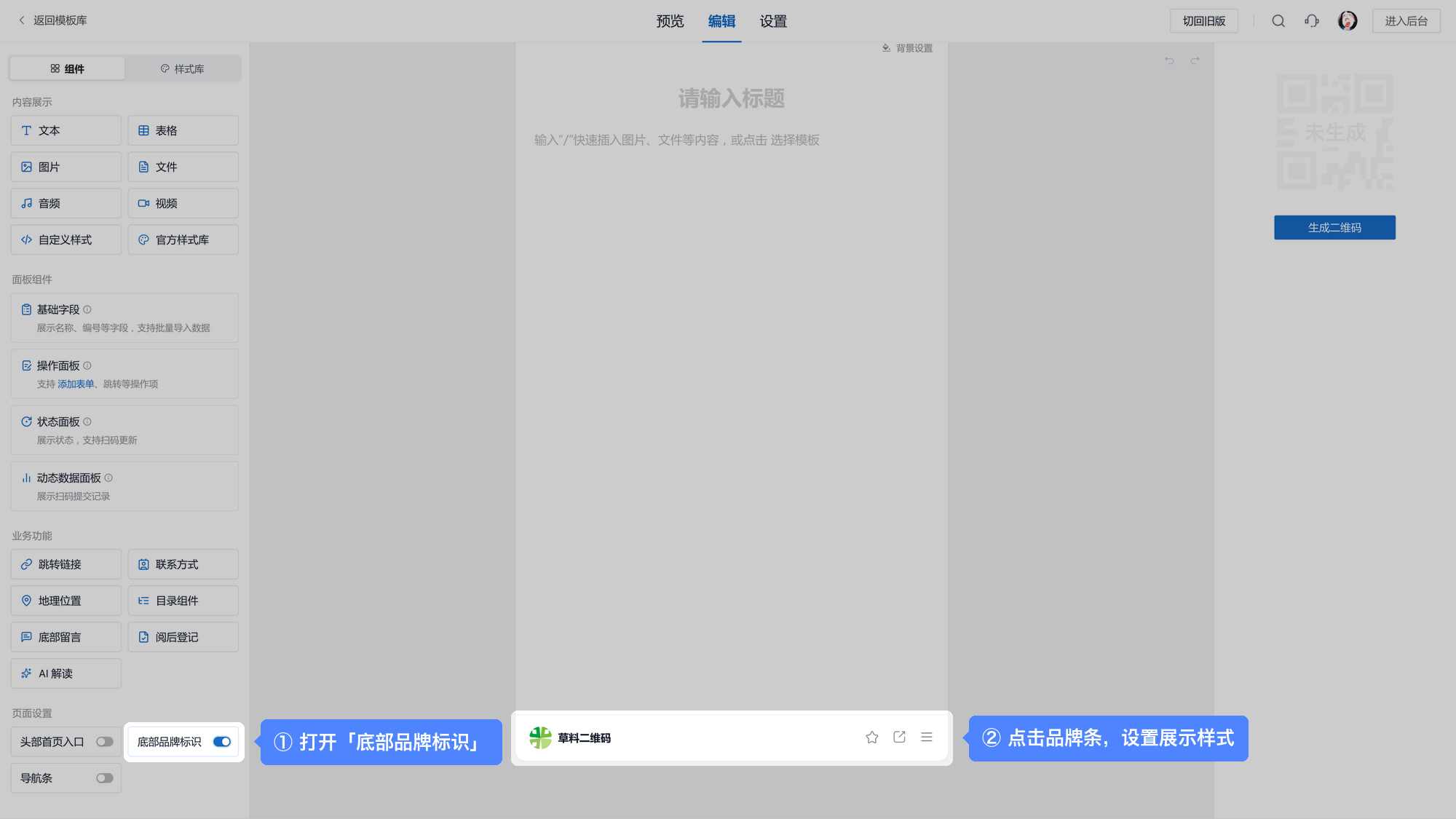
Open the QR code's edit page. In the left panel, under "Page Settings", turn on "Bottom brand mark". Your company logo and name then appear at the bottom of the editor canvas.
Step 2: Choose the Display Position
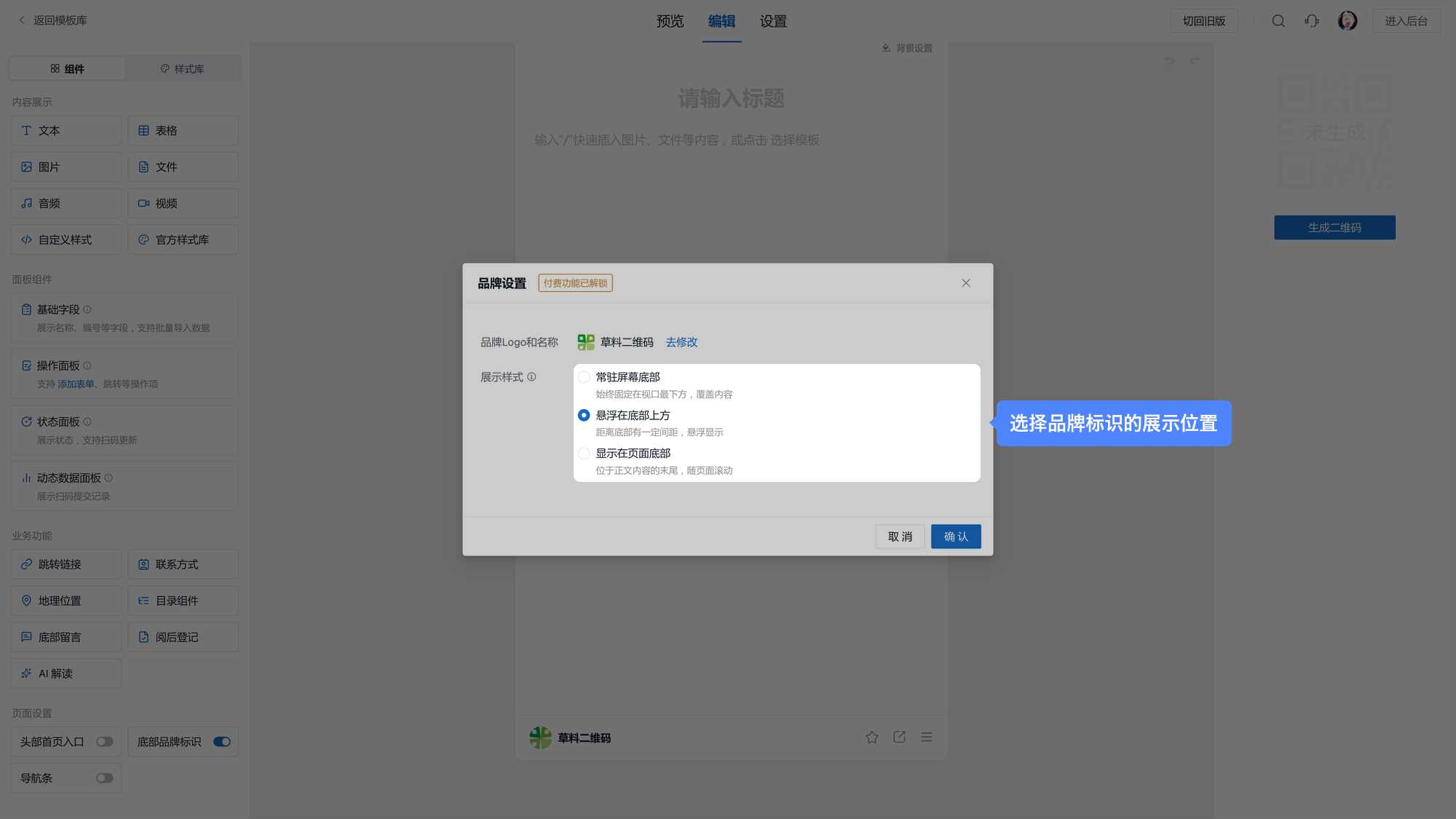
Click the brand bar at the bottom of the canvas to open "Brand settings". Under "Display style", choose where the brand mark appears:
| Display style | Effect |
|---|---|
| Fixed to screen bottom | Always fixed at the very bottom of the page, over the content |
| Floating above bottom | Floats with some space above the bottom edge |
| At end of page | Placed after the page content and scrolls with the page |
To change the logo or name, click "Edit" next to "Brand logo and name". Click "Confirm" when done.
Step 3: Save and Check the Result
Click "Save Content" on the right side of the editor (click "Generate QR Code" for a new code). Then scan the code with your phone and confirm that the company logo and name appear at the bottom of the page.
Related Articles
- Brand Settings: set your company logo, name, and company profile
- Remove CaoLiao Branding and Show Your Company Brand: overview of brand display features
- Bottom Bar Settings: share, favorite, more, and other bottom buttons