QR Code Bottom Bar
Overview
The dynamic QR code bottom bar supports setting Bookmark, Share, and More action buttons as well as a brand logo, helping reinforce brand identity and making it easy for scanners to quickly bookmark content, share it, and manage data.
The bottom bar supports multiple styles and can be configured separately for each partition to suit different use cases:
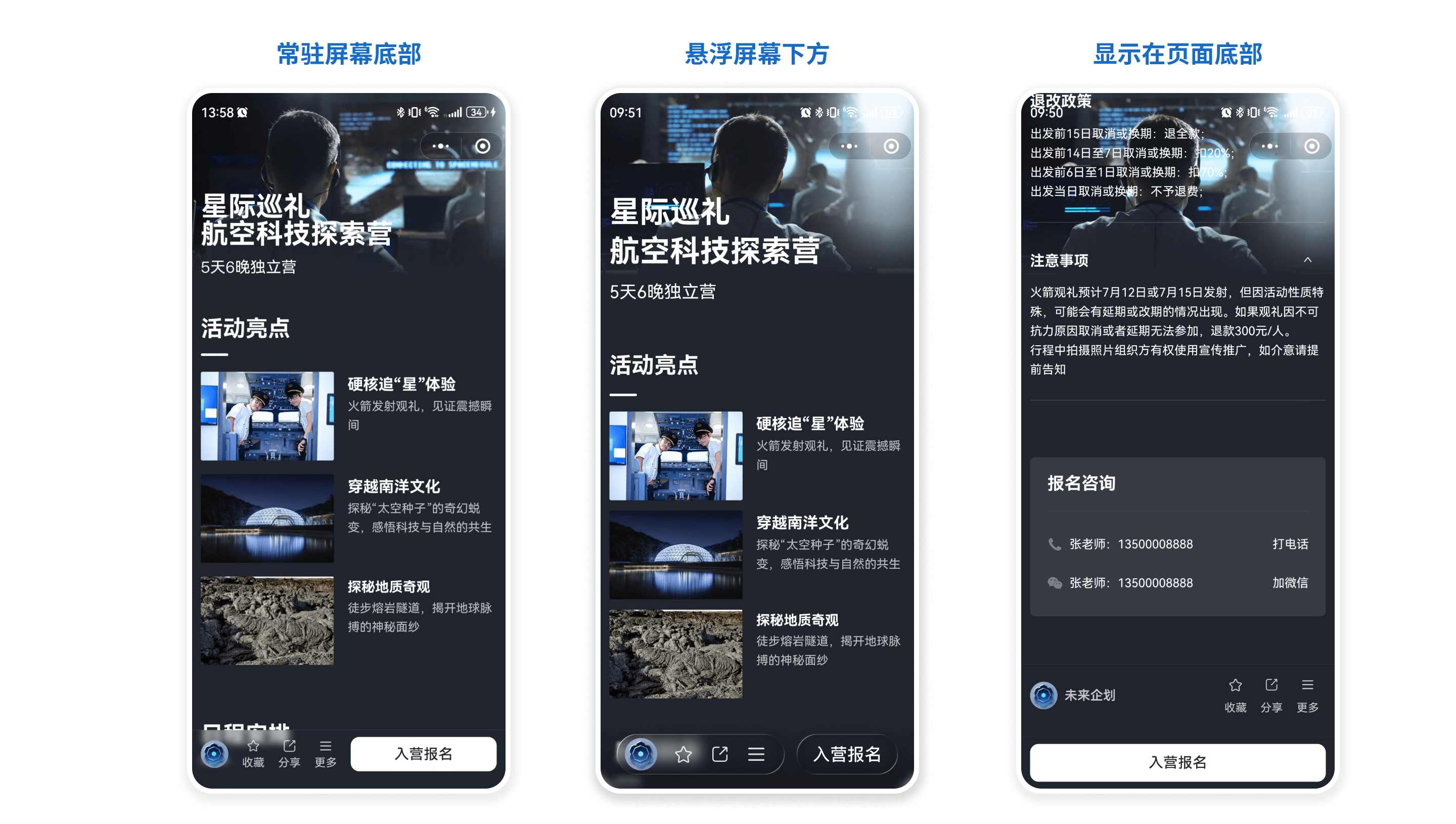
Feature Details
1. Bookmark
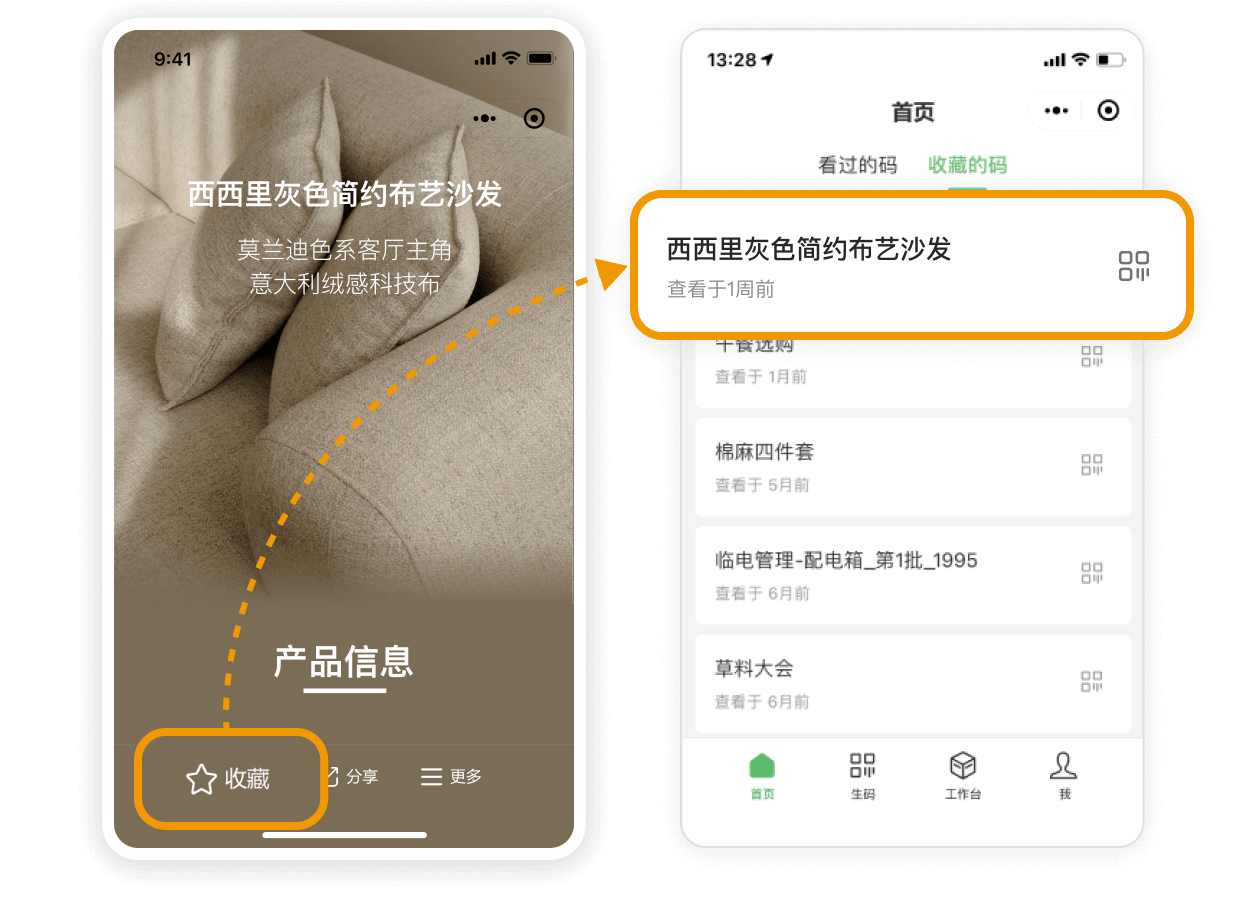
For dynamic QR codes opened via the CaoLiao Mini Program in WeChat, bookmarked codes can be found in the CaoLiao QR Code Mini Program under Me > Bookmarked Codes (users don't need to be logged in to bookmark). Codes can also be bookmarked directly to WeChat Favorites.
Dynamic QR codes opened in H5 web page mode only support bookmarking to WeChat Favorites.
2. Share
-
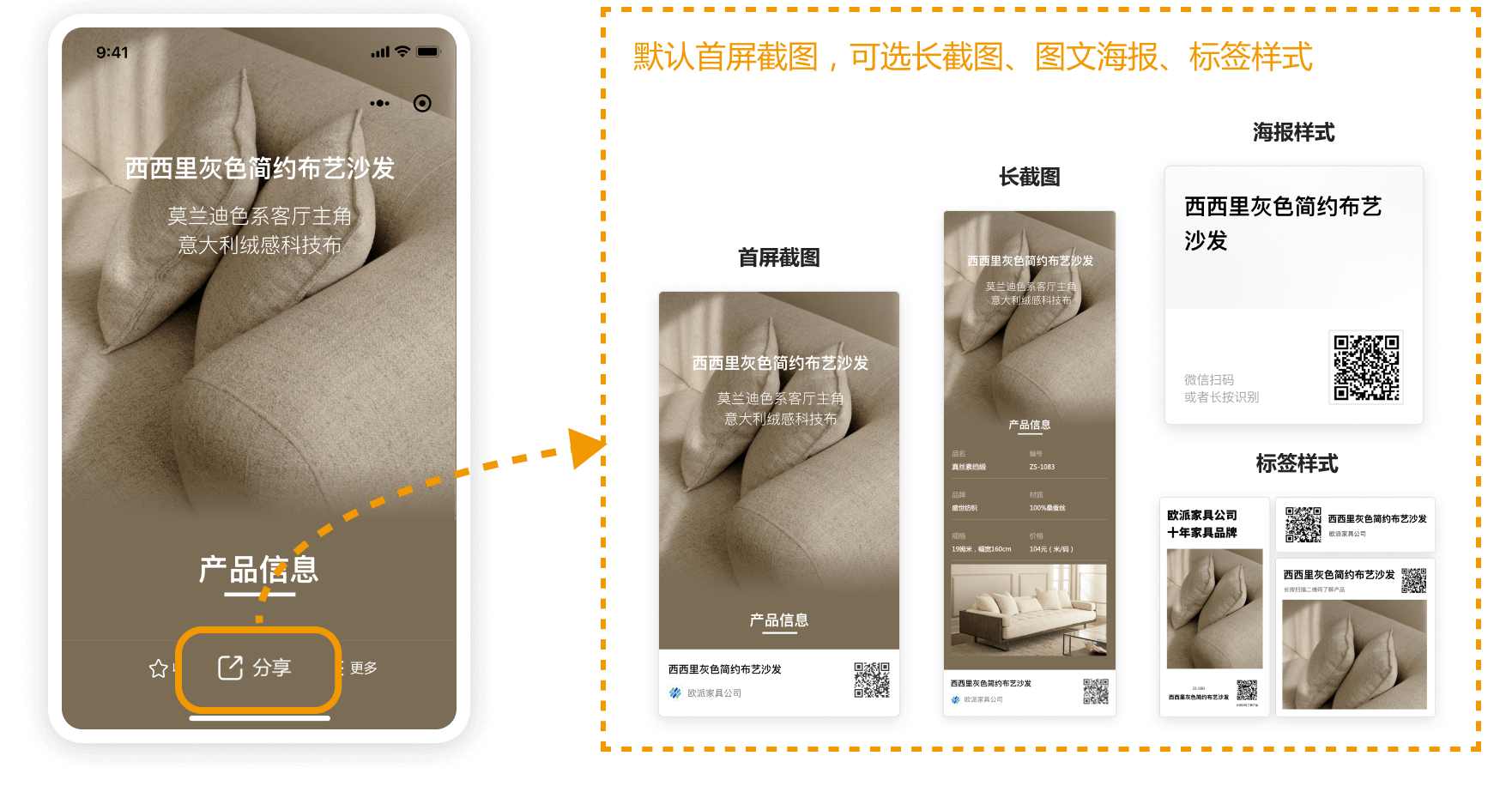
Supports 4 share styles: first-screen screenshot, long screenshot, poster style, and label style.
-
Suitable for different content sharing scenarios — quickly share with friends, post to Moments, or save to your photo album.
-
For dynamic QR codes opened in H5 mode, the share style cannot be customized. The system will automatically pull the leading image and text from the QR code content as the share link preview.
-
Turning off sharing in the bottom bar also disables sharing from WeChat's top-right More menu when someone opens a dynamic QR code. If a scanner cannot forward a code, check the bottom-bar sharing setting for the partition the code belongs to.
3. More
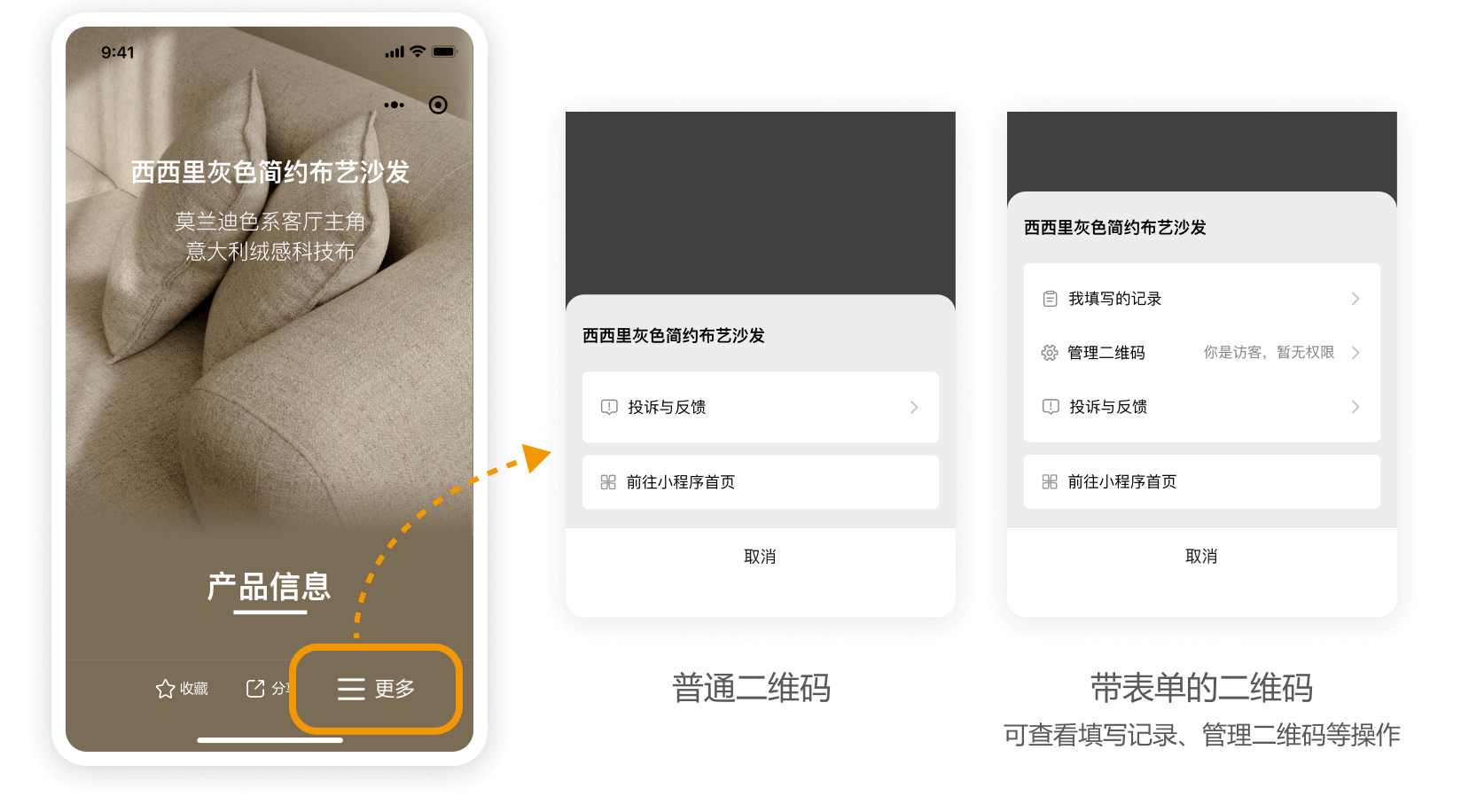
The content shown when tapping More differs by user role:
- QR code creator and QR code admin: After entering, tap Manage QR Code to view data collected by the QR code and export it, download the QR code label, view scan statistics, and more.
- Regular scanners: After entering, they see options for submitting complaints, viewing their scanned codes, and viewing their own submitted records.
4. Brand Logo
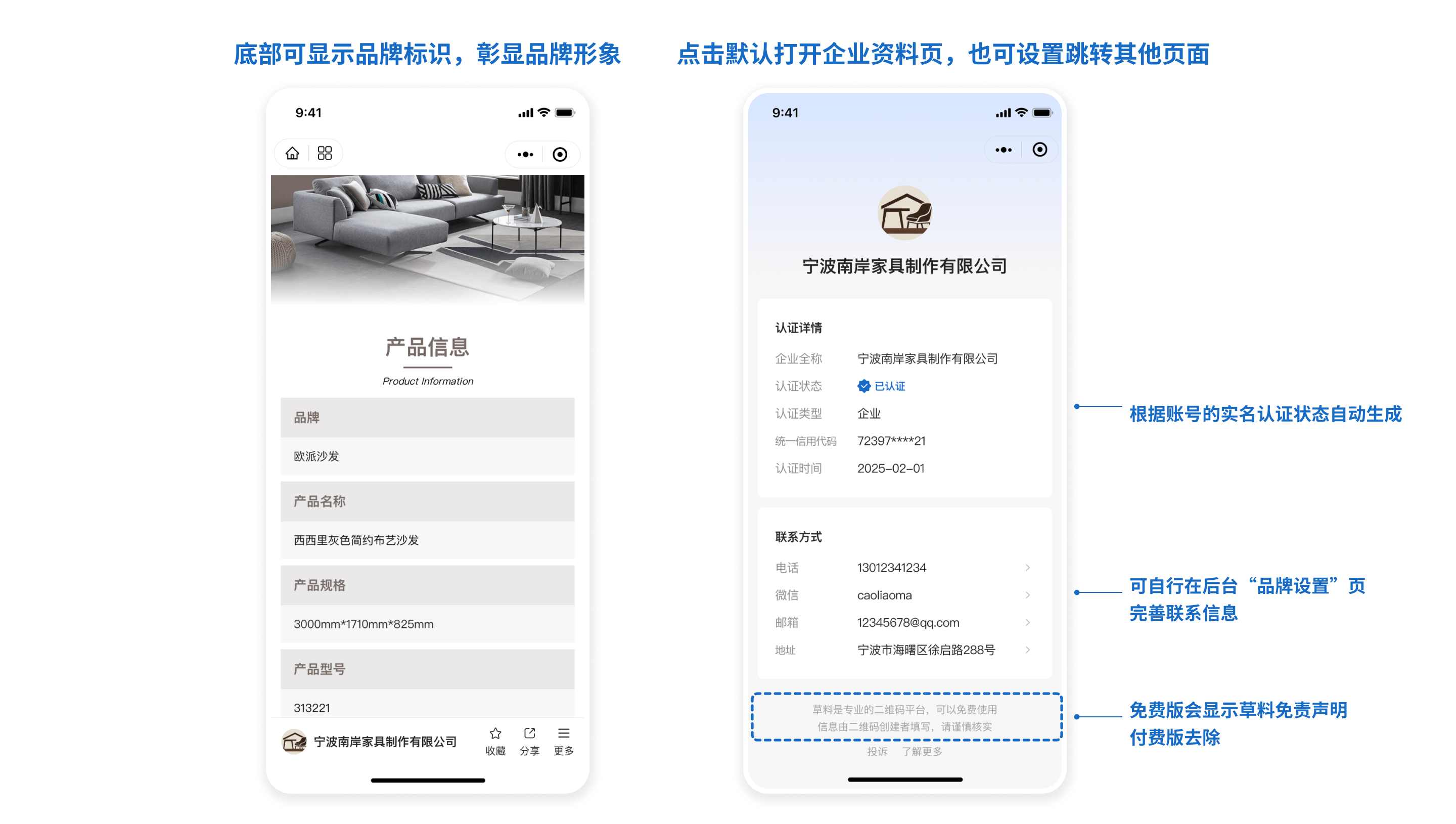
You can display your brand logo and name at the bottom of the QR code to build scanner trust and increase brand exposure.
- By default, tapping the logo leads to your "Company Profile Page." You can complete the contact information in the backend Brand Settings page.
- Supports configuring a custom destination, such as a partition homepage, another dynamic QR code, a URL, another Mini Program, or a WeChat Official Account article.
Bottom Bar Settings Tutorial
Go to Settings > QR Code Bottom Bar to adjust your settings.
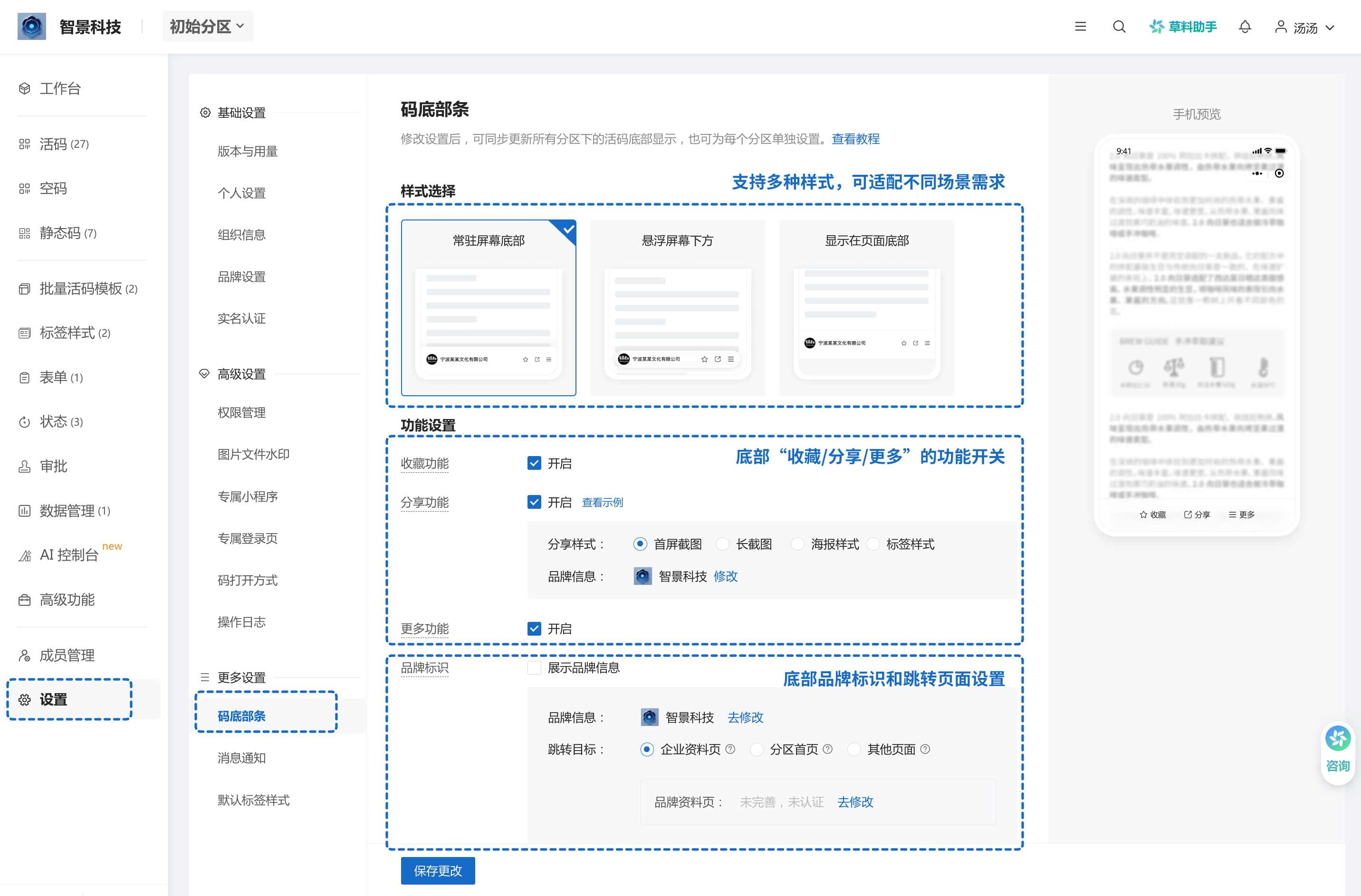
After making changes, the settings apply to the current partition by default. You can also check "Apply to all partitions" to update the bottom bar for all QR codes across all partitions at once.
