QR Code Viewing Permission Settings
Feature Overview
Supported QR code types
| QR code type | Restrict viewers | Restrict scan region | Restrict access time |
|---|---|---|---|
| Dynamic QR code other than a website redirect | Yes | Yes | Yes |
| Website redirect QR code | No | Yes | Yes |
| Static QR code, such as a URL or text code | No | No | No |
Website redirect QR codes support scan region and access time restrictions. You cannot restrict them to specific viewers. Static codes embed their content directly in the QR code image, so viewing restrictions are unavailable.
Dynamic QR codes support viewing permission settings to restrict who can scan, within which geographic region, and during which time window, to view the QR code content. Suitable for inspection walkthroughs, check-ins, document access, and similar scenarios.
Restrict Viewers
You can restrict who can view the code to distinguish internal from external users and specify individual members. Password-protected access is also supported:
- Anyone: All users can view the code content (password protection can be enabled).
- All members: Only members under your account can view the code. External users who scan it will have no access.
- Specified members: Only specific members can view the code, protecting internal private information.

Restrict Scan Region
You can set a specific region so that only users within that region can scan and view the QR code content. Users outside the region cannot view it. Suitable for check-ins, on-site registrations, and patrol inspections.
Restrict Access Time
You can set specific daily time windows during which the QR code content is accessible. Outside the set window, the content cannot be viewed. Suitable for inspections, event promotions, and similar scenarios.

Setup Tutorial
1. Entry Point
Log in to your account. In the QR code editor, go to Settings > Viewing Permissions.
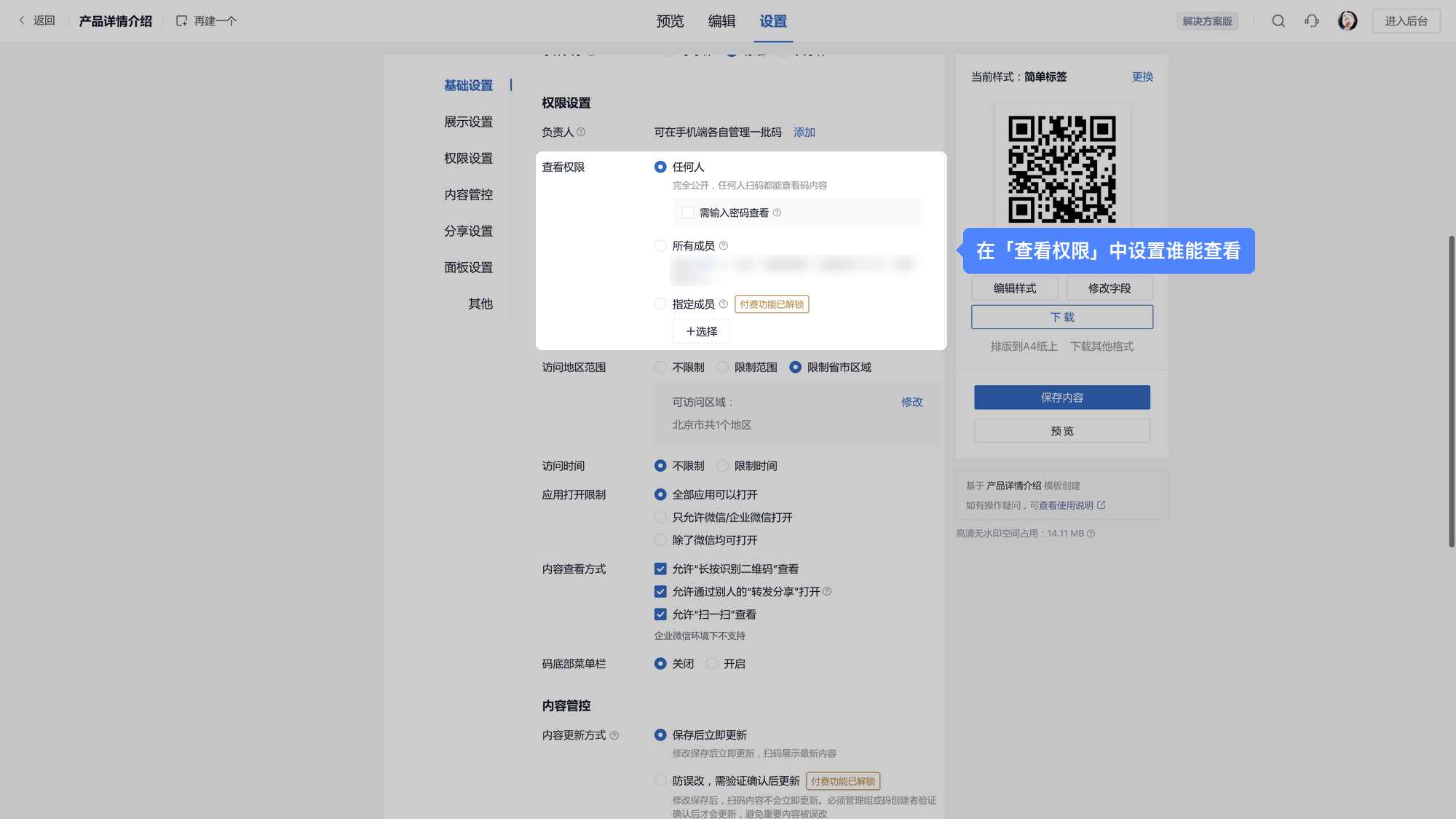
Or find the target QR code in the Dynamic QR Codes list on the left and click … (More) > QR Code Settings > Viewing Permission.
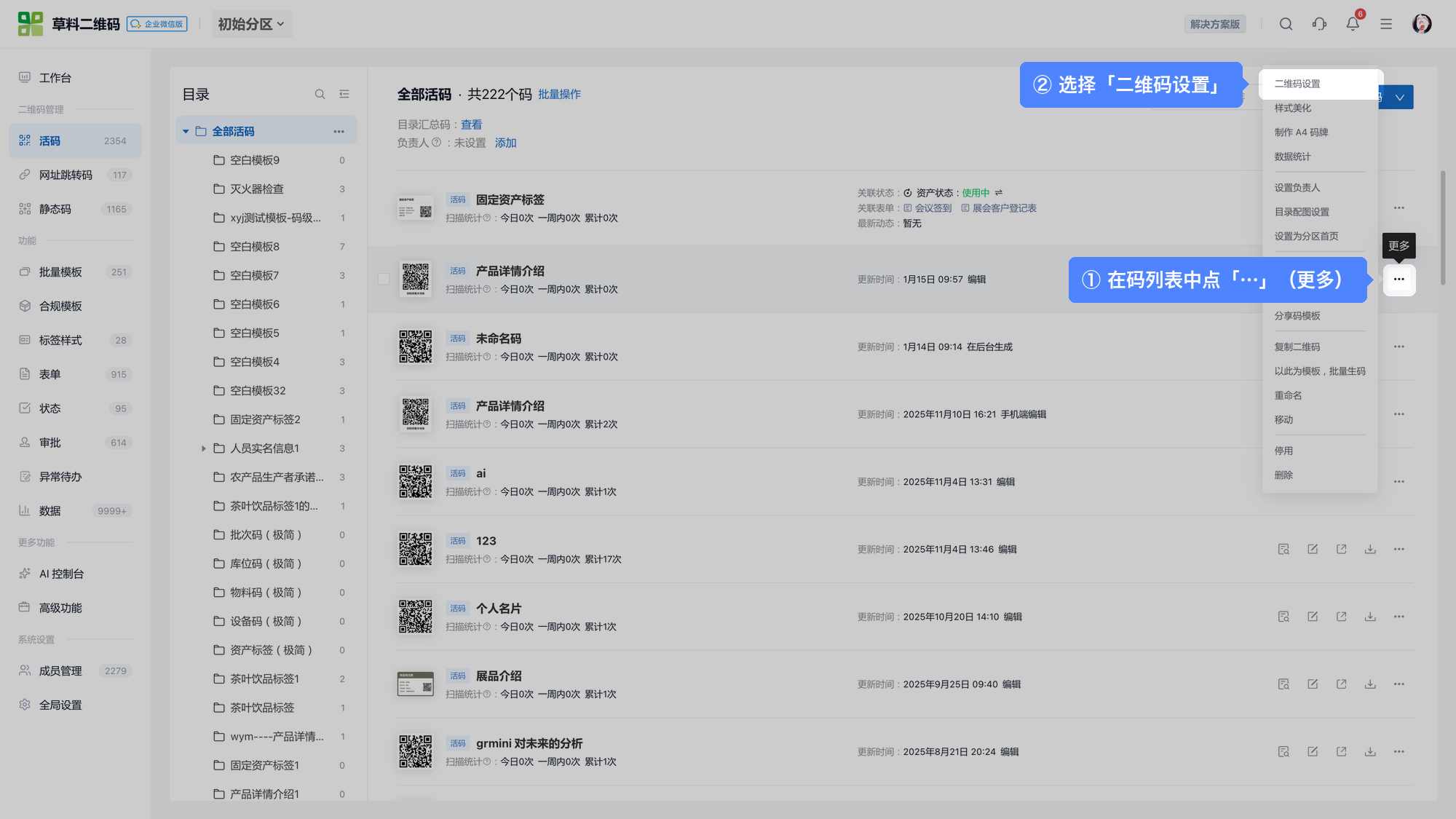
2. Configure Permissions
Based on your needs, configure the viewer restrictions, access region, and access time window.
Your account represents an organization. All organization members and specified member groups belong to your organization. You can add members in the backend under Settings > Member Management. Once added, those members can scan and proceed.
You can also let the relevant people actively join your organization or a specified identity group when they scan the code, which is more efficient than having the admin add them manually. Learn how to set this up