Embed in WeChat Official Account
In addition to scanning, QR codes can be embedded in a WeChat Official Account article or menu, allowing customers to access your QR code content directly from your Official Account, better serving your business needs.
Note: The tutorials below show how to embed via Mini Program. If you need to open via H5, choose the web page option when embedding.
Embed in an Article

- Log in to the WeChat Official Account Platform
Log in to the WeChat Official Account Platform and open the rich-text message editor.

- Click [Mini Program]
Free users: in the popup window, search for CaoLiao QR Code. Paid users: search for View QR Code.

- Get the Mini Program Path
Log in to CaoLiao QR Code, find the target QR code, and click More > [Embed in Official Account] > [Copy Path] to copy the QR code link.
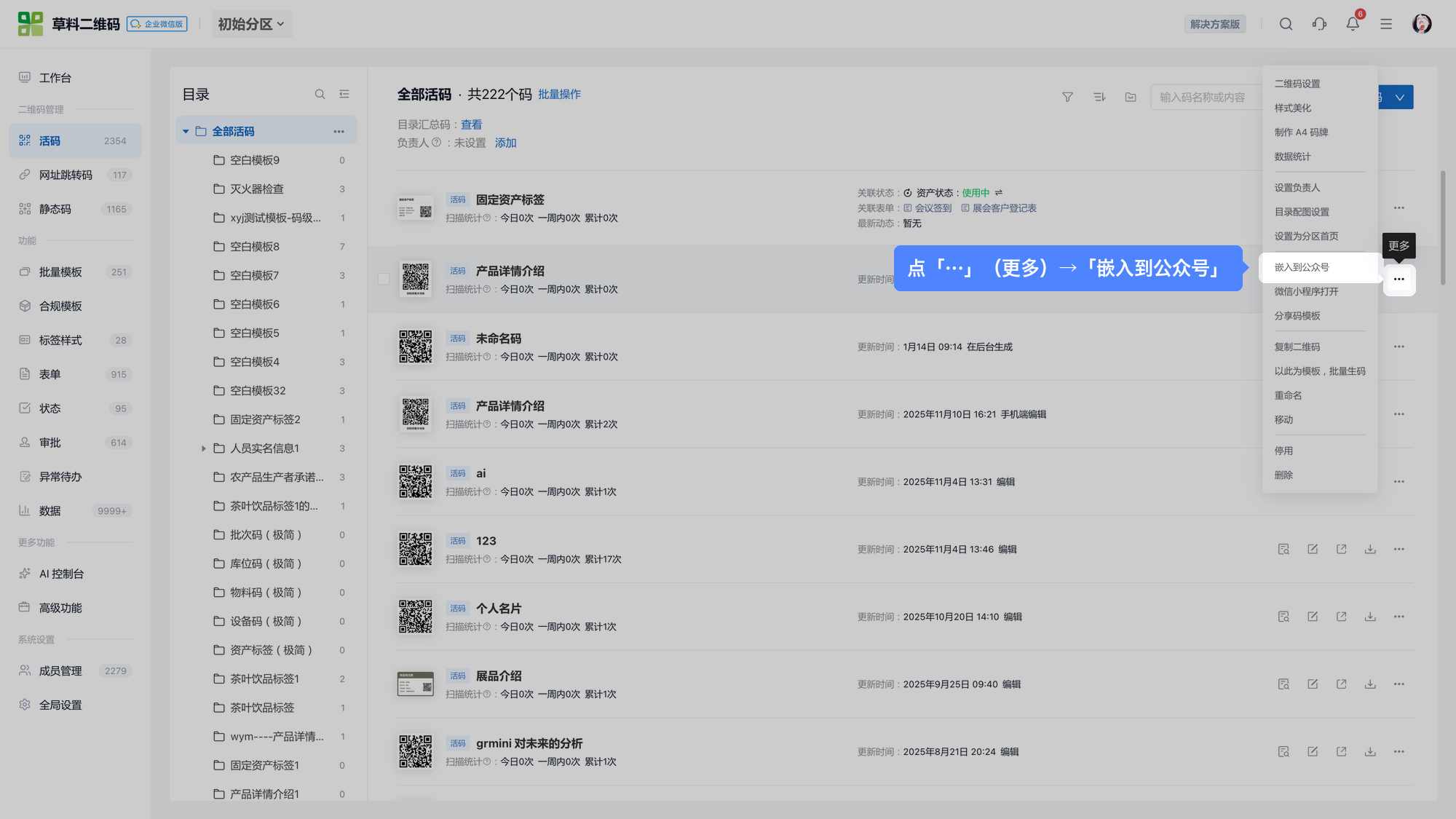
For the directory list QR code, select the target directory in the Dynamic QR Codes section, click Directory List QR Code to generate or view the corresponding QR code, then click Embed in Official Account > [View Link] > [Copy Link] to copy the page path.


- Paste the QR Code Link into the [Mini Program Path] Field
Select the desired Mini Program display style, then paste the QR code link into the [Mini Program Path] field.

Embed in the Menu Bar

- Go to Official Account Backend > Mini Program Management
In the WeChat Official Account Platform, associate CaoLiao QR Code under Mini Programs. In the left sidebar, click Mini Program Management > Add.

- Select [Associate Mini Program]

- Scan to Verify and Complete Association
The Official Account admin scans the QR code to verify. In the popup, search for CaoLiao QR Code to associate the Mini Program.
(Note: Paid users using the unbranded Mini Program should search for View QR Code.)
Note:
CaoLiao QR Code Mini Program AppID: wx5db79bd23a923e8e
View QR Code Mini Program AppID: wx9ed353c2ad8fda21

- Return to [Mini Program Management]
A status of [Associated] confirms the association was successful.

- Set Up a Custom Menu
Next, add the CaoLiao Mini Program to the custom menu. Click Custom Menu in the page sidebar.

- Select Jump to Mini Program
Set the menu content to [Jump to Mini Program] and select [CaoLiao QR Code].
(Note: Paid users using the unbranded Mini Program should select [View QR Code].)

Note: The fallback URL shown below is required. You can enter any URL — it will rarely be accessed.

- Get the Mini Program Path from CaoLiao
Log in to CaoLiao QR Code. For the desired QR code in the list, click More > [Embed in Official Account] > [Copy Path] to copy the QR code page path.
For the directory list QR code, select the target directory in the Dynamic QR Codes section, click Directory List QR Code to generate or view the corresponding QR code, then click Embed in Official Account > [View Link] > [Copy Link] to copy the page path.


- Fill in the Fallback URL
Paste the QR code page path into the [Mini Program Path] field, add a fallback URL (cannot be empty! any URL will do), then click Save and Publish.

Embed in a Third-Party Platform
Most third-party platforms follow the same process as embedding in an Official Account menu. Some may require entering the AppID to associate the Mini Program.
CaoLiao QR Code Mini Program AppID: wx5db79bd23a923e8e
View QR Code Mini Program AppID: wx9ed353c2ad8fda21
- Enter the corresponding AppID and paste the copied QR code page path to complete the setup.