Directory List QR Code
Overview
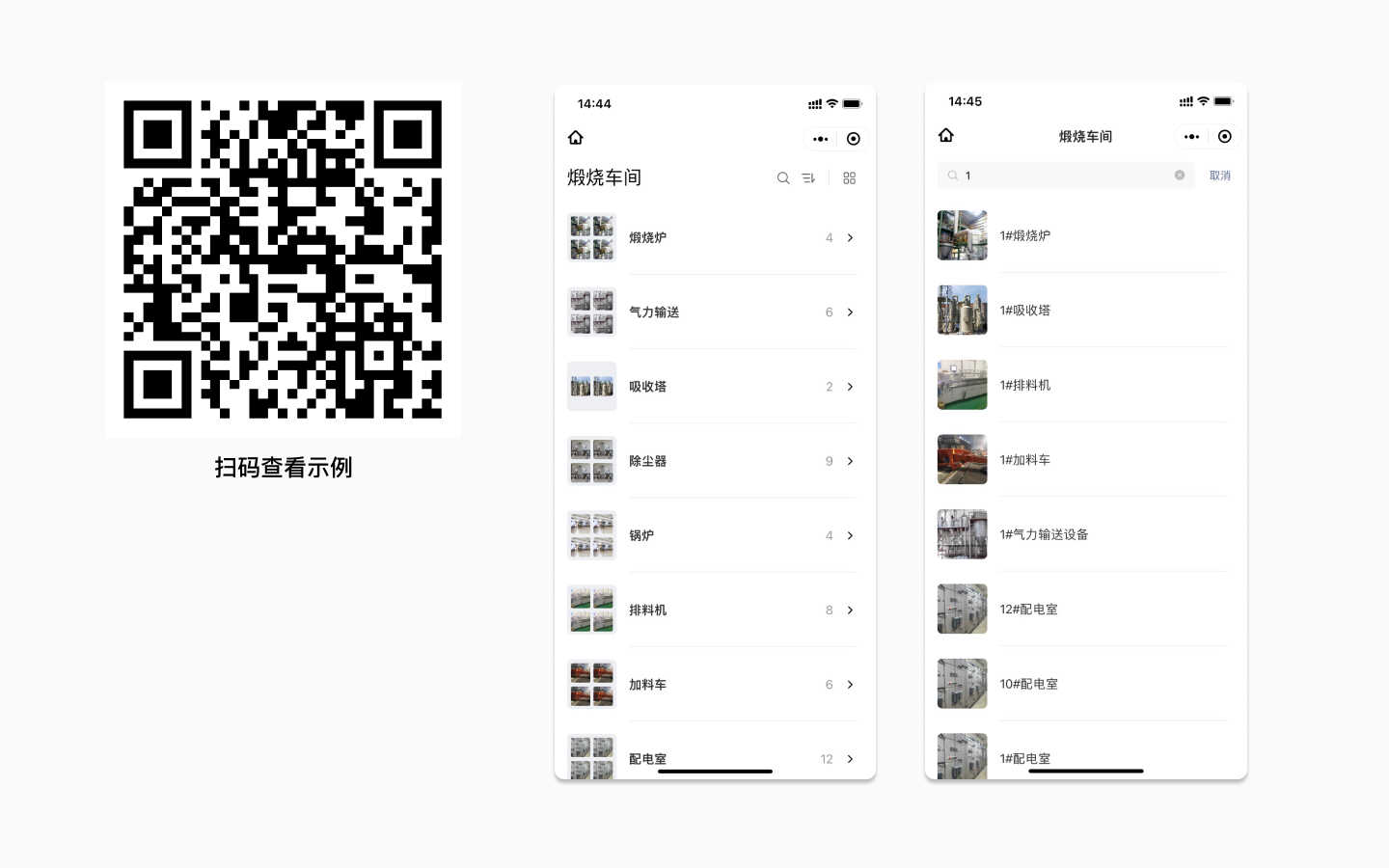
The directory list QR code lets you quickly consolidate multiple QR codes into one for easy browsing. It supports searching by code name and automatically syncs when QR codes or sub-directories are added or deleted in the workbench.
Use cases: product catalog display, educational courseware collections, project file archives, and more
How to Use
Generate a Directory List QR Code Directly
In the workbench, select the target directory under Dynamic QR Codes in the left panel, then click Directory List QR Code in the top-right area to generate it. Supports downloading and designing a label for the QR code.

Use in a Redirect Link
Redirect links support selecting a directory — once selected, the link will automatically point to that directory's list QR code. Click to view feature details
Related Settings
The location where the directory list QR code is generated is also where you preview and configure it.

Display Style After Scanning
Click to change and preview the display style. Five styles are available: List View, Large Image List, Grid View, Menu View, and Card View.
The List View and Large Image styles support showing status, allowing mobile viewers to clearly see the status of each sub-code. Up to 2 statuses per code are shown by default. Changes to a QR code's status will automatically update in the directory list as well.
Use cases: item lending status management, product or device status overview, and more.
The thumbnail in the directory list QR code is automatically retrieved from the QR code's content — by default, the first image in the content is used. If there is no image in the code content, a default placeholder pattern will be shown.
Viewing Permissions
You can set viewing permissions to restrict who can scan and view the QR code content — by location, time, or both.

Access Method
WeChat QR Code Access Method
Options include: CaoLiao Mini Program, H5 web page, or unbranded Mini Program. In WeChat and Alipay, CaoLiao Mini Program is used by default — it loads content faster and provides a smoother scanning experience compared to H5.
Enterprise exclusive edition users can set it to open via their exclusive Mini Program. Click to view
Each of the 3 access methods corresponds to a fixed QR code pattern.
After changing the access method, a new QR code pattern will be generated — you will need to re-download and use the new QR code (the original QR code will still work with its original access method).

Scan Restrictions
You can control whether apps other than WeChat and WeCom (such as Alipay, QQ, or browsers) can scan and open the QR code.
For WeChat access specifically, you can set whether to allow opening via "Scan QR Code," "Long Press to Identify," or "Share/Forward."

Default Sort Order
Four sort options are available. After saving, the sort order updates when the QR code is scanned.
Options: by creation time, by update time, by code name A–Z, by code name Z–A.
Embed in WeChat Official Account
The directory list QR code can also be embedded in a WeChat Official Account article or menu. Customers can access the QR code content directly from your Official Account, helping you better meet your business needs. Click to view
Advanced Use Cases
Display all your company's products in categorized directories for easy browsing. View template
Use QR codes as a folder to organize and present files. View template
Aggregate all itinerary introductions for customers to browse and choose from. View template