Mobile QR Code Management and Settings
I. Feature Overview
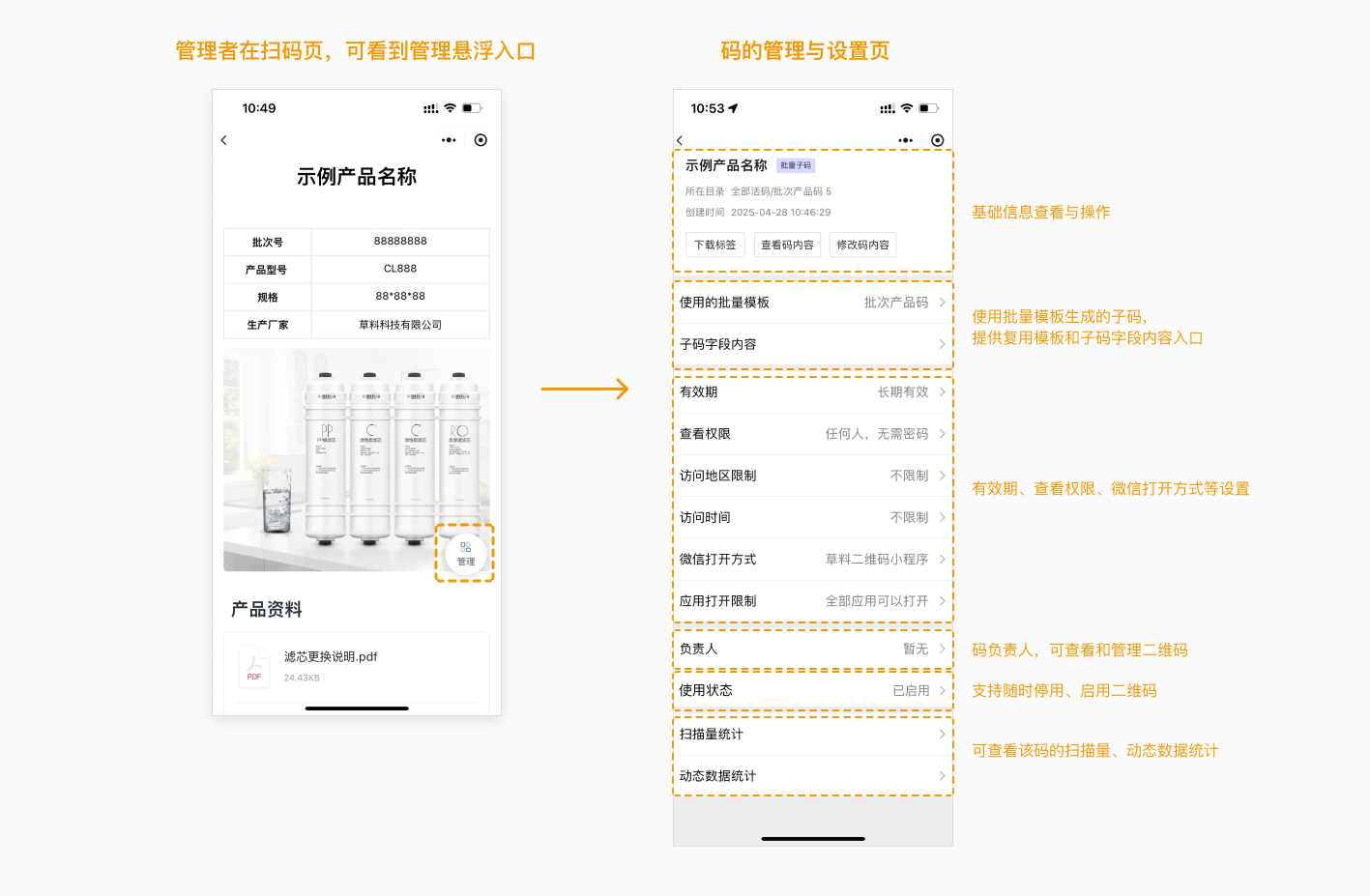
To help users manage QR codes efficiently on mobile, we provide a QR code Management and Settings page on mobile, with a management button entry point on the scan page.
- Free version and Basic Edition: Only the super admin can see the management button. Other users will not see it.
- Advanced Edition and above: Only the super admin, admin group members, QR code responsible persons, and the responsible person for the QR code's partition can see it.
This page supports configuring the period of validity, viewing permissions, access region, WeChat access method, and other settings, as well as viewing scan statistics and dynamic data statistics. It helps managers quickly complete daily maintenance and basic configuration on mobile, improving efficiency.
II. Permissions
Only super admins, admin group members, QR code responsible persons, and the responsible person for the QR code's partition can access the QR code Management and Settings page.

III. How to Access the Settings Page
Users with the appropriate permissions can access the QR code Management and Settings page through the following entry points:
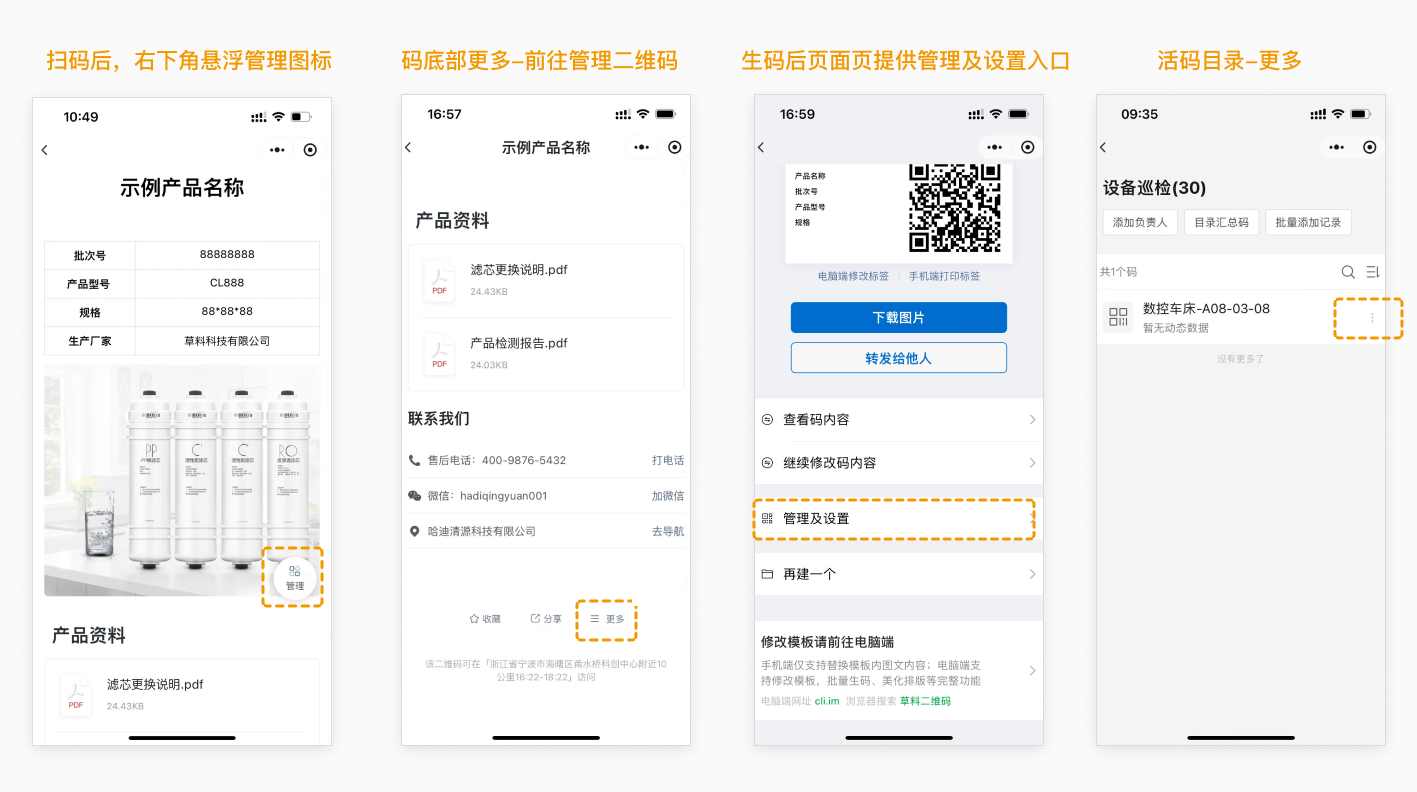
- Tap the floating management icon in the bottom-right corner after scanning the QR code on mobile (can be disabled in the mobile settings page).
- Tap More > Manage QR Code at the bottom of the code page.
- On the QR code creation completion page, tap Manage and Settings.
- In the dynamic QR code directory, tap More.
All of these entry points lead to the QR code's Management and Settings page, allowing managers to quickly complete daily maintenance and basic configuration on mobile.
IV. Feature Details
1. Basic Information and Quick Actions
At the top of the page, you can quickly view basic information about the QR code and perform common actions, including:
- QR code name: e.g., "Wheel Assembly Line Device #4."
- Directory: Shows the QR code's category location.
- Creation time: Useful for understanding when the QR code was generated.
- Download label: Download the QR code label with one tap for printing.
- View content: Directly view the current QR code's displayed page content.
- Sub-codes also provide a Edit Content option: navigate to the content editor to modify the information linked to the QR code in real time.
2. Bulk Template and Sub-Code Field Management
For sub-codes generated from a bulk template, the Management and Settings page also provides entries for the template and sub-code fields, making it easy to reuse the template or edit the current sub-code content.
- Bulk template used: View or navigate to manage the bulk template linked to this QR code.
- Sub-code field content: View or edit the field data associated with the current sub-code.
Suitable for scenarios that require bulk QR code generation, such as bulk inspections and asset management.
3. Period of Validity and Access Permission Settings
To support flexible access control in various scenarios, the following settings are provided:
Period of Validity
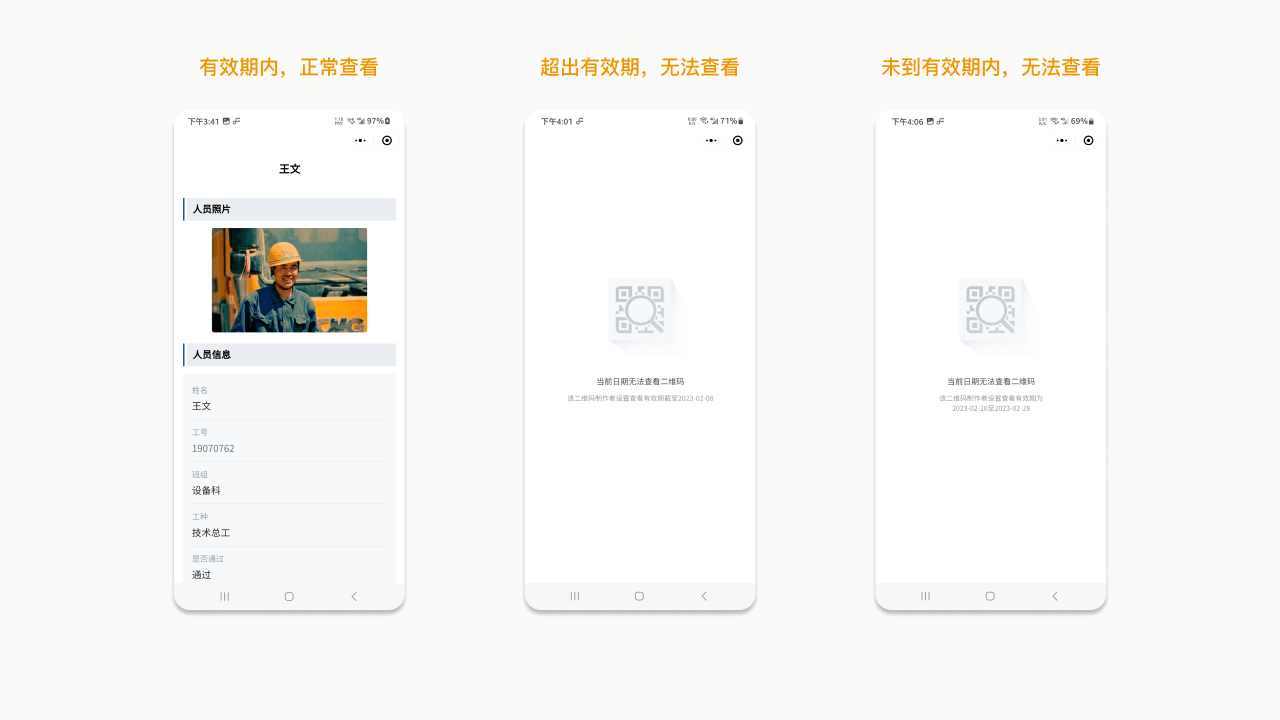
You can set the valid viewing period — for example, "Permanently valid" or a custom date range. After expiration, the QR code will not be deleted, but scanning it will show a message saying it has expired and cannot be viewed. You can reset the period of validity at any time.
Viewing Permissions
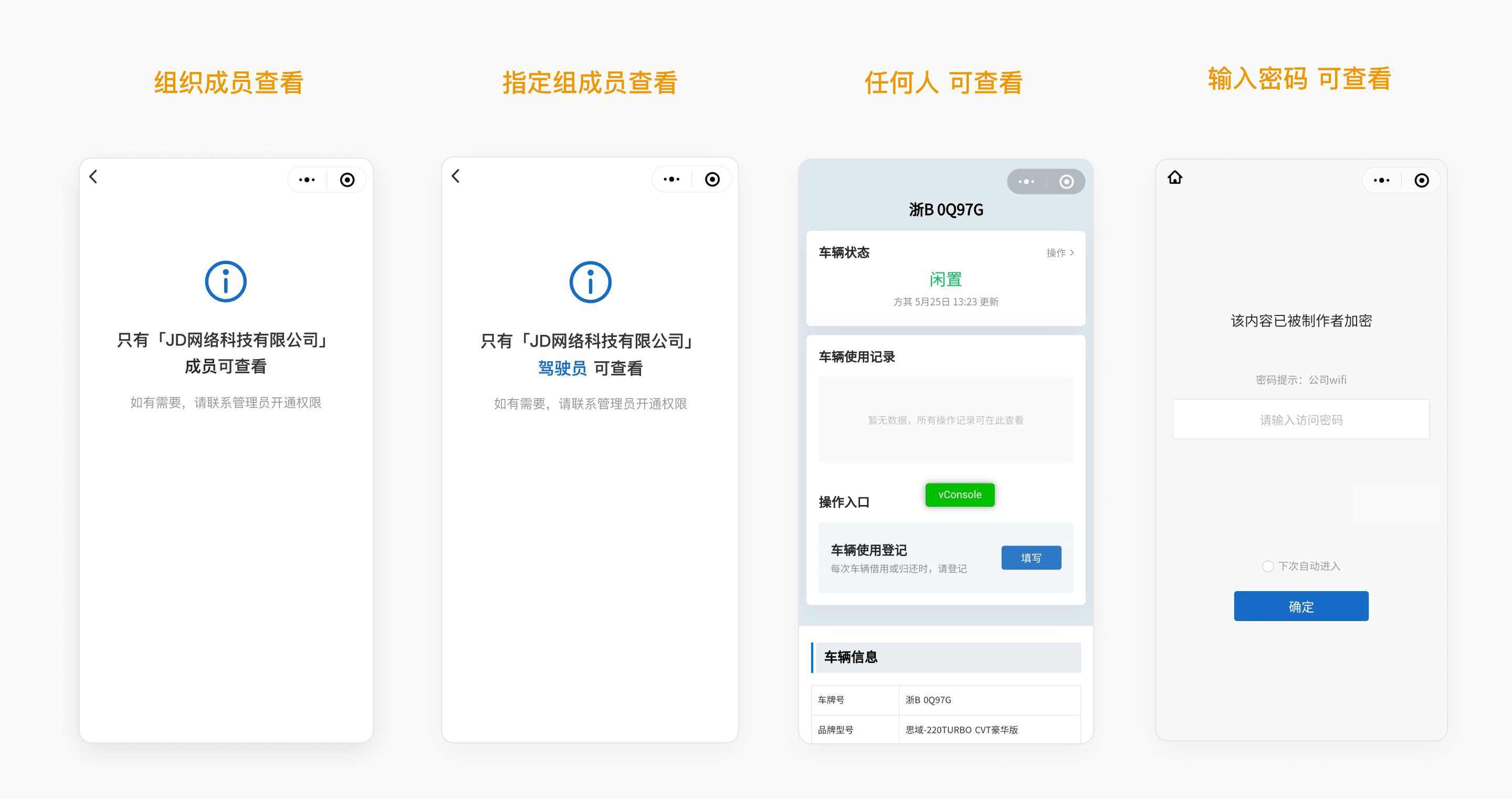
Supports setting viewing permissions to restrict who can scan and view the QR code content — by specified region, time, or both.
Access Region and Time Restrictions
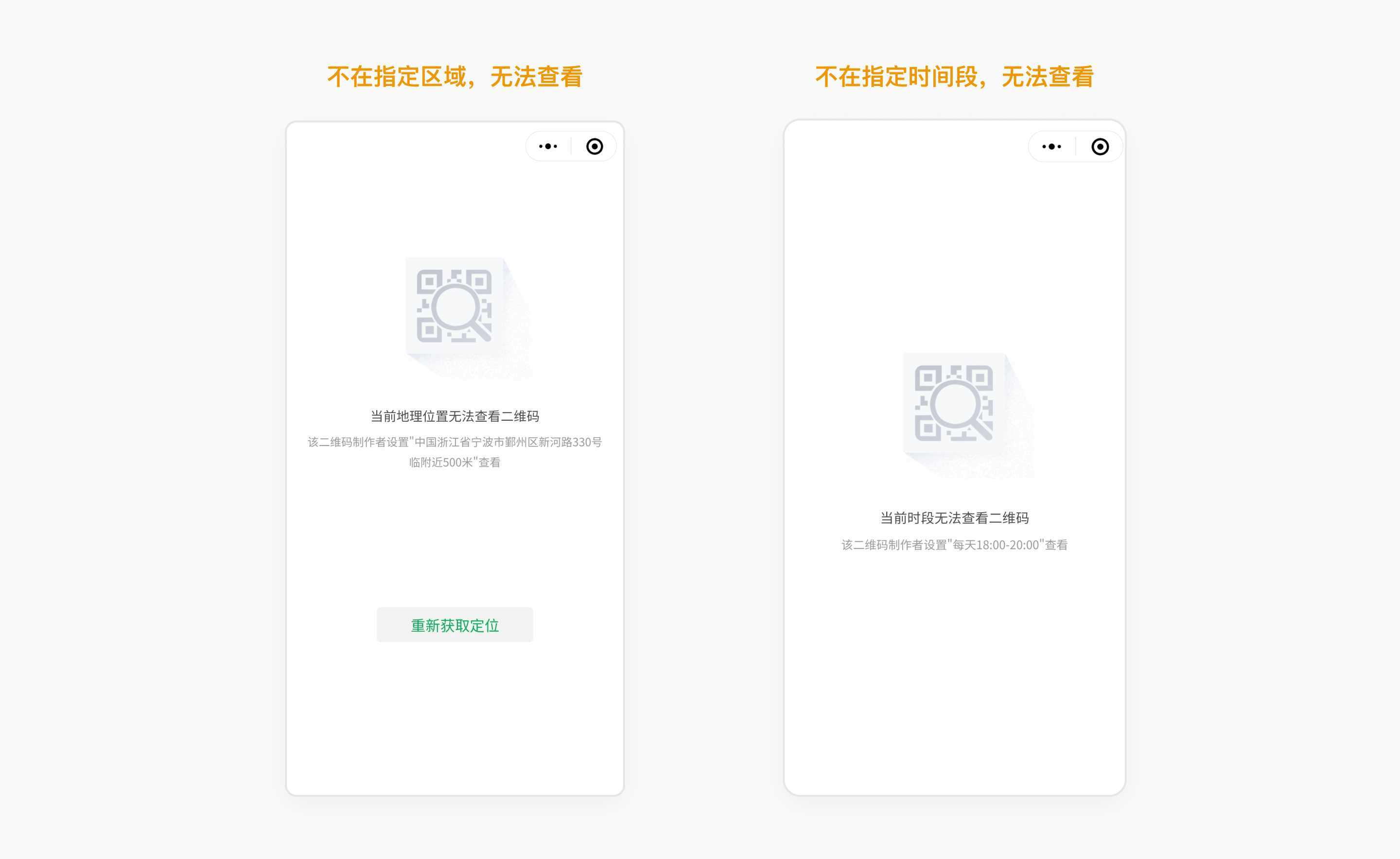
You can set a specific region so that only users within that region can scan and view the QR code content. Users outside the region cannot view it. Suitable for check-ins, on-site registrations, and patrol inspections.
You can also set specific daily time windows during which the QR code content is accessible. Outside the set window, the content cannot be viewed. Suitable for inspections, event promotions, and similar scenarios.
4. Scan Access Method and Application Permissions
WeChat Access Method
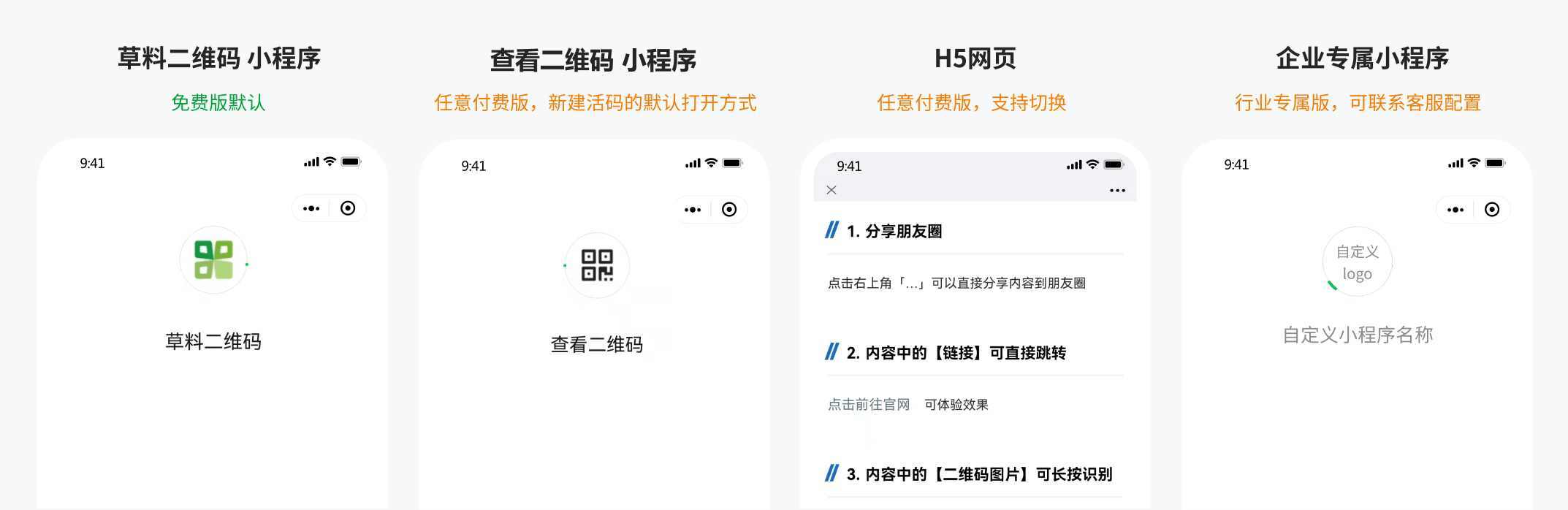
Dynamic QR codes can be set to open via: CaoLiao Mini Program, H5 web page, unbranded Mini Program, or enterprise exclusive Mini Program. By default, CaoLiao Mini Program is used in WeChat and Alipay — it loads content faster and provides a smoother scanning experience compared to H5.
After changing the access method, a new QR code pattern will be generated — you will need to re-download and print the new QR code (the previously downloaded QR code will still open with the original method). Learn more
Application Open Restrictions
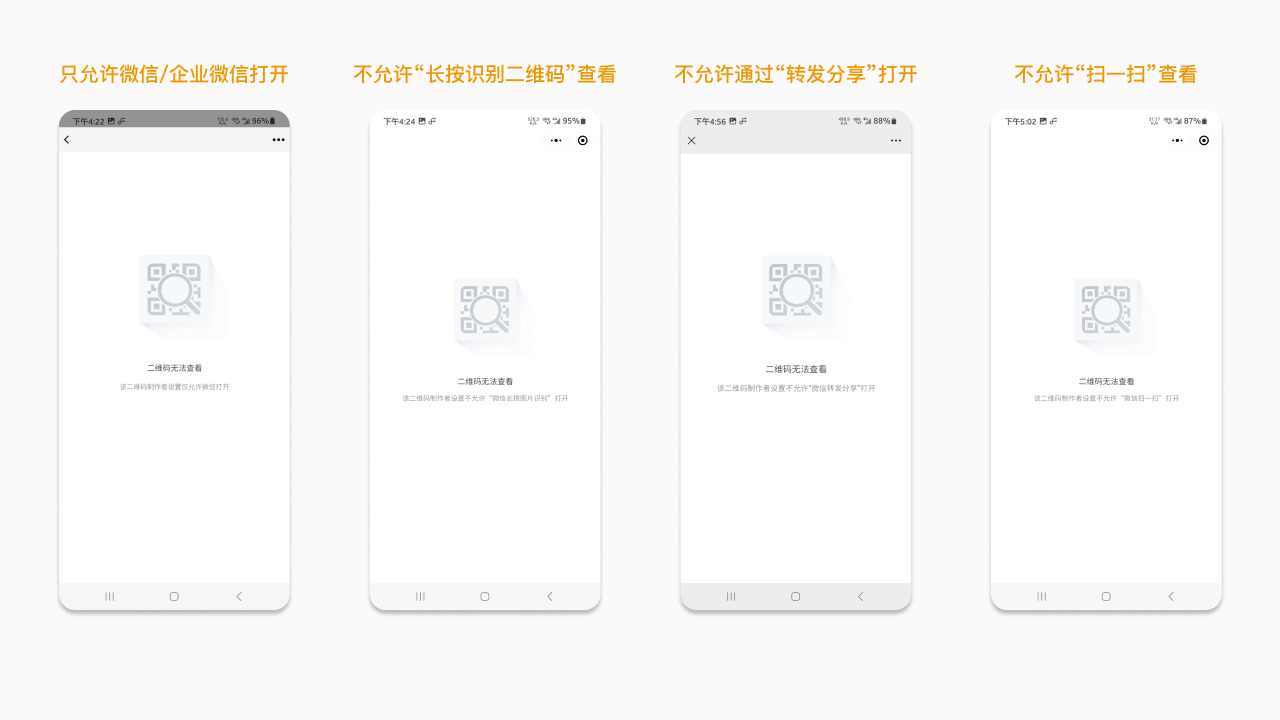
Dynamic QR codes can be set to restrict which apps other than WeChat and WeCom can scan and open them — for example, Alipay, QQ, or browsers. This enhances security and professionalism.
For WeChat access, you can further restrict whether the QR code can be opened via "Scan QR Code," "Long Press to Identify," or "Share/Forward."
5. Responsible Person
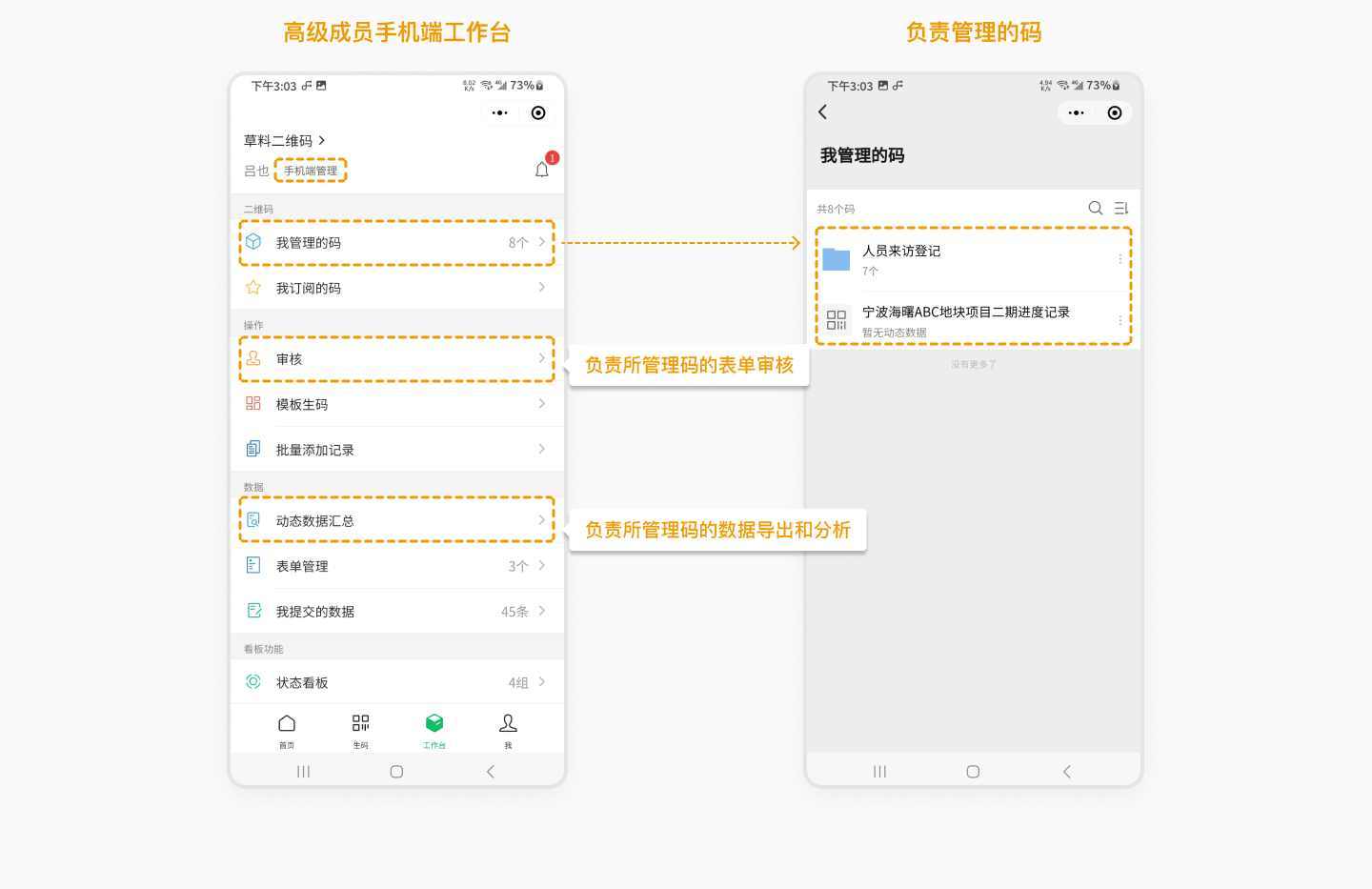
Dynamic QR codes can each have a separately assigned responsible person, allowing different QR code managers to independently oversee their own codes. This covers notifications, form review, data export and analysis, and more. View responsible person feature details
Suitable for: scenarios requiring multi-person collaboration, independent data management, and inspections.
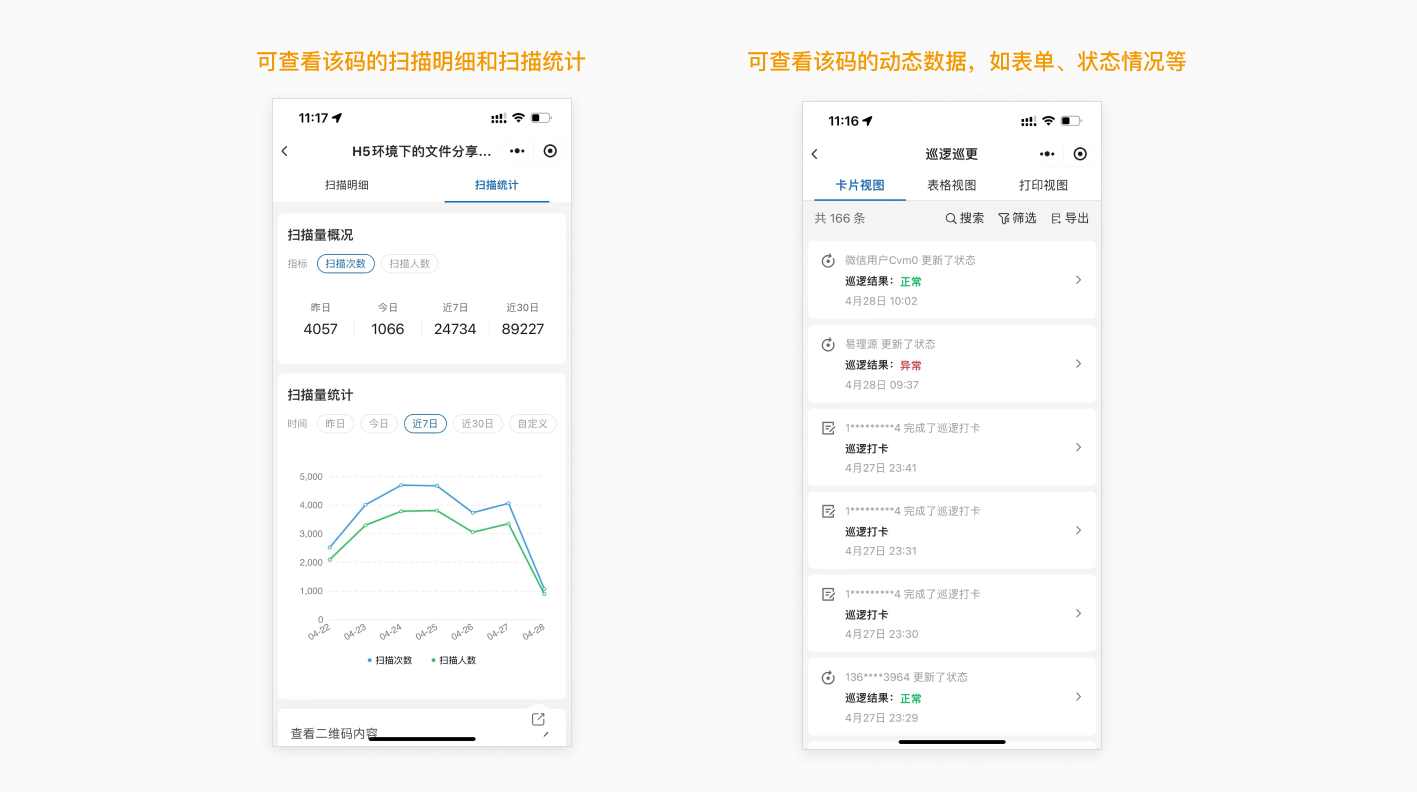
6. Scan Count and Dynamic Data Statistics
Supports viewing directly on mobile:
- Scan count statistics: View the access count for a QR code to understand its usage.
- Dynamic data statistics: Track various dynamic data generated during QR code use (such as form submission activity, etc.).
7. QR Code Usage Status
Supports disabling or enabling a QR code at any time. While disabled, scanning it will show that the content cannot be viewed. Admins who scan it will see an access entry at the bottom to bypass this restriction. Disabled QR codes remain in the workbench and can be re-enabled by admins at any time.

V. FAQ
1. How Do I Hide the [Manage] Icon on the Scan Page?
Scan any QR code under your account, tap the [Manage] icon, scroll to the bottom of the page, and find [Floating button on scan page] — toggle it off.
Once disabled, the [Manage] icon will be hidden for all dynamic QR codes under the account. If you need to manage a dynamic QR code on mobile in the future, you can still do so via More > Manage QR Code at the bottom of the code page.