Mobile Share Poster
I. Feature Overview
For dynamic QR codes opened via the CaoLiao Mini Program or the unbranded Mini Program, you can use the Share function at the bottom of the code page after scanning to share a QR code poster with others.
For dynamic QR codes opened in H5 web page mode, the share style cannot be customized — the system automatically uses the leading image and text from the QR code content as the share link preview.
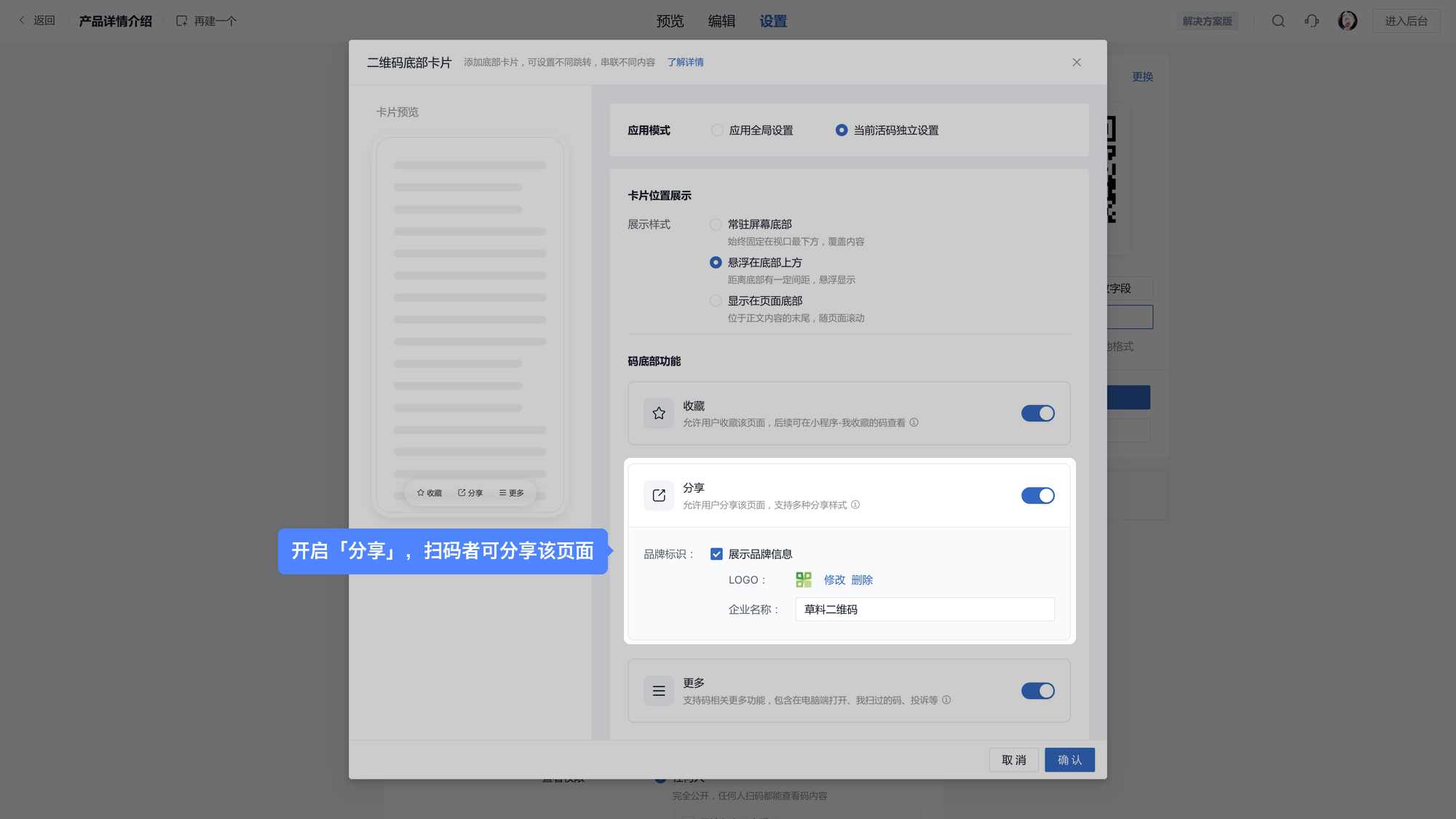
If the default poster style does not meet your needs, you can set a label style on desktop, then choose to share using either the QR code label or the poster style via the bottom bar settings entry.
The Share function can be configured to default to enabled or disabled for all newly created dynamic QR codes.

II. How to Configure
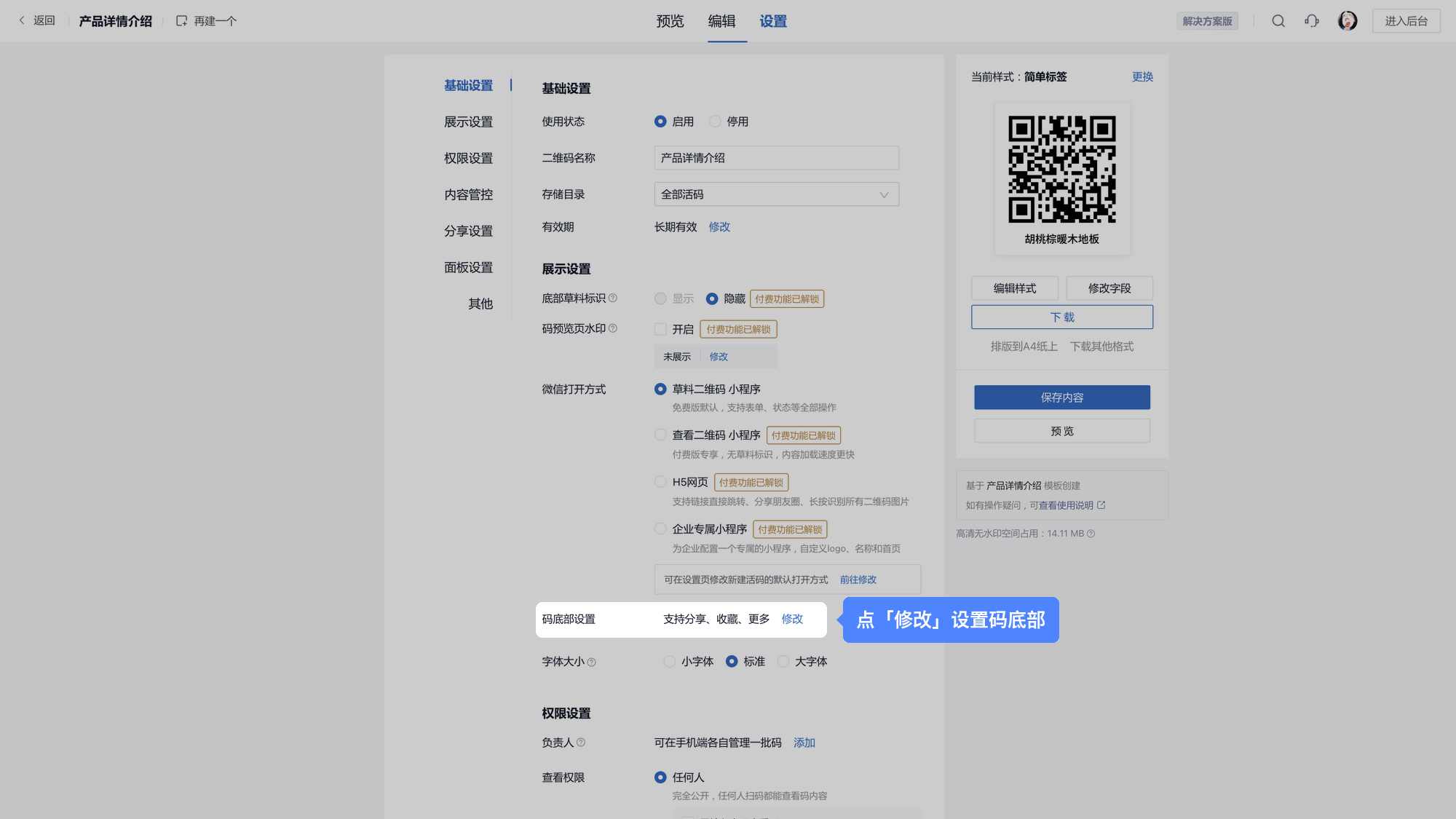
In the QR code editor, click [Settings] at the top, find [QR Code Bottom Bar Settings], click Edit, and turn on Share in the dialog. You can choose whether to share using a poster or a QR code label style.